

Before you start
- You need the Admin or Member role on the project.
- You can deactivate links created in Linkrunner. Ad network campaigns (such as Meta or Google Ads) and the system links (your root domain link and Referrals) cannot be deactivated.
- Your base link is your domain’s root link, such as
https://get.example.com. In the campaigns table, it is the row named after your domain. Stop redirecting sends taps to this link.
Choose how to deactivate
Both options stop crediting the link for new installs. They differ in where users go when they tap it.
Choose Stop attributing traffic for links that are already printed, posted or shared. Users who tap them still reach your app or store with the right deep link. Choose Stop redirecting only when the link’s own destination should no longer be used.
With Stop redirecting, an install is never credited to the deactivated link, but it is not always credited to your base link:
- Web-to-app taps keep the web-to-app campaign they came through.
- If your base link cannot be loaded at that moment, the tap opens the link’s own destination instead of an error page. The install goes to the user’s next eligible click, otherwise organic.
- If your base link is turned off, the tap goes to your app’s store listing and the install counts as organic.
The rule applies when the install happens, not when the click happens. A user who tapped the link before you deactivated it and installs afterwards is not credited to this link.
Deactivate a link
1
Open the campaign's edit form
On the Campaigns page, click the campaign to open its details, then click Edit.
2
Click Deactivate link
The Link status row is at the bottom of the Edit campaign form. It is separate from the form fields, so you do not need to click Update for a status change.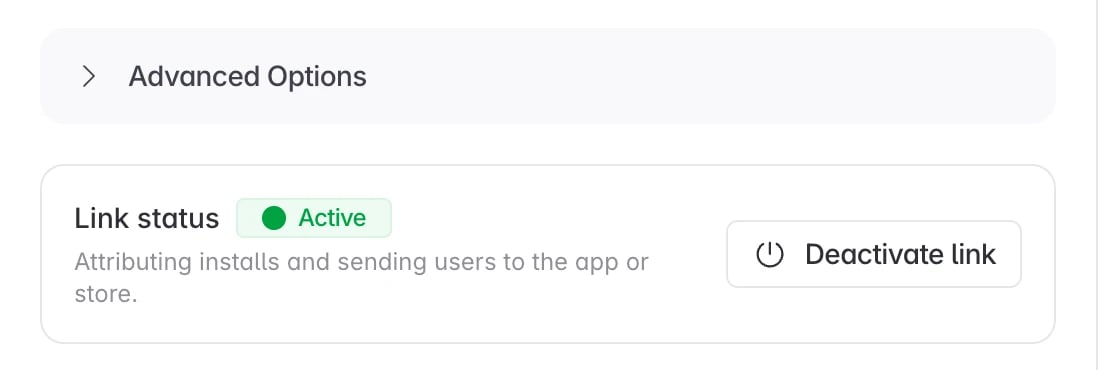
3
Choose an option
Stop attributing traffic is selected by default. Click Stop attributing to confirm it.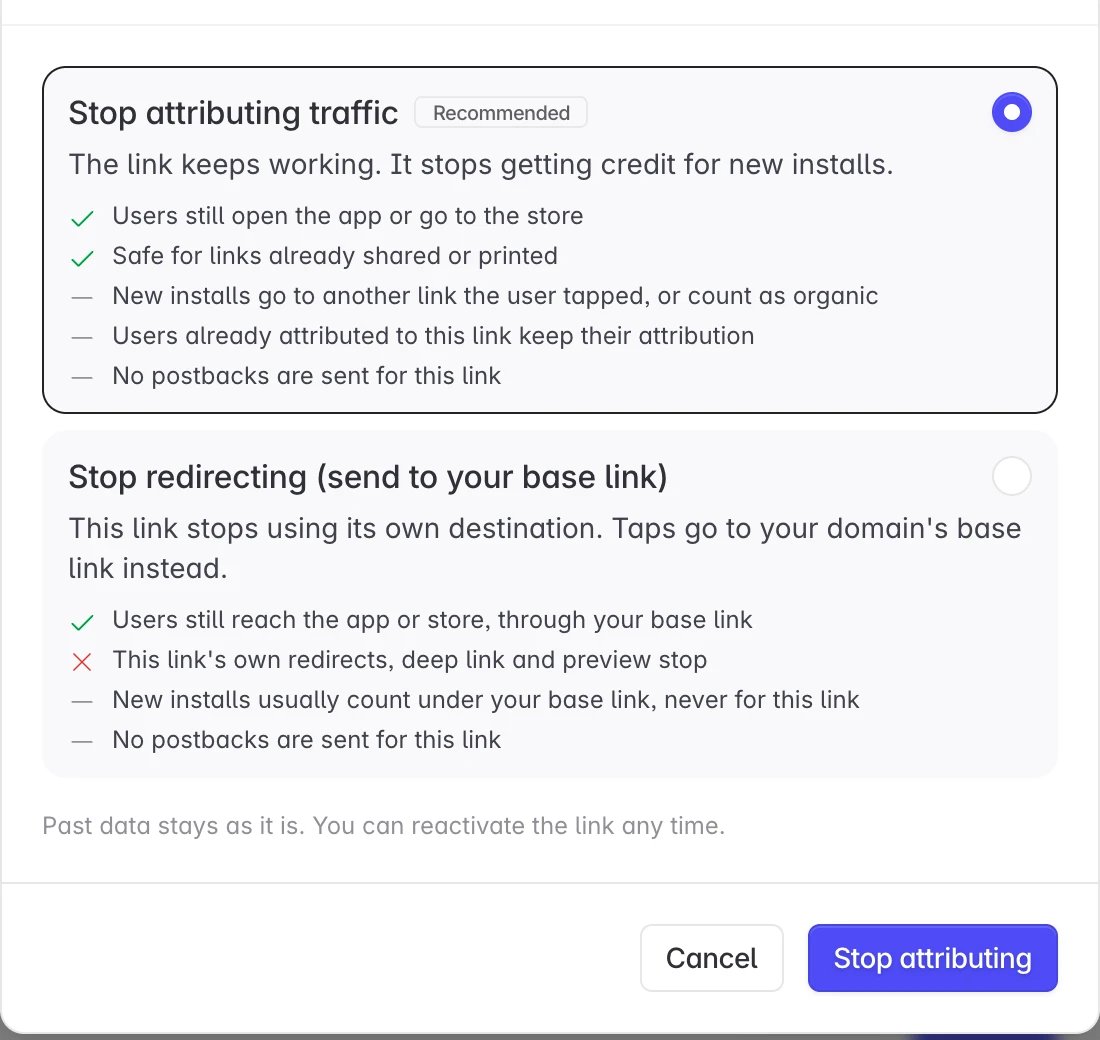
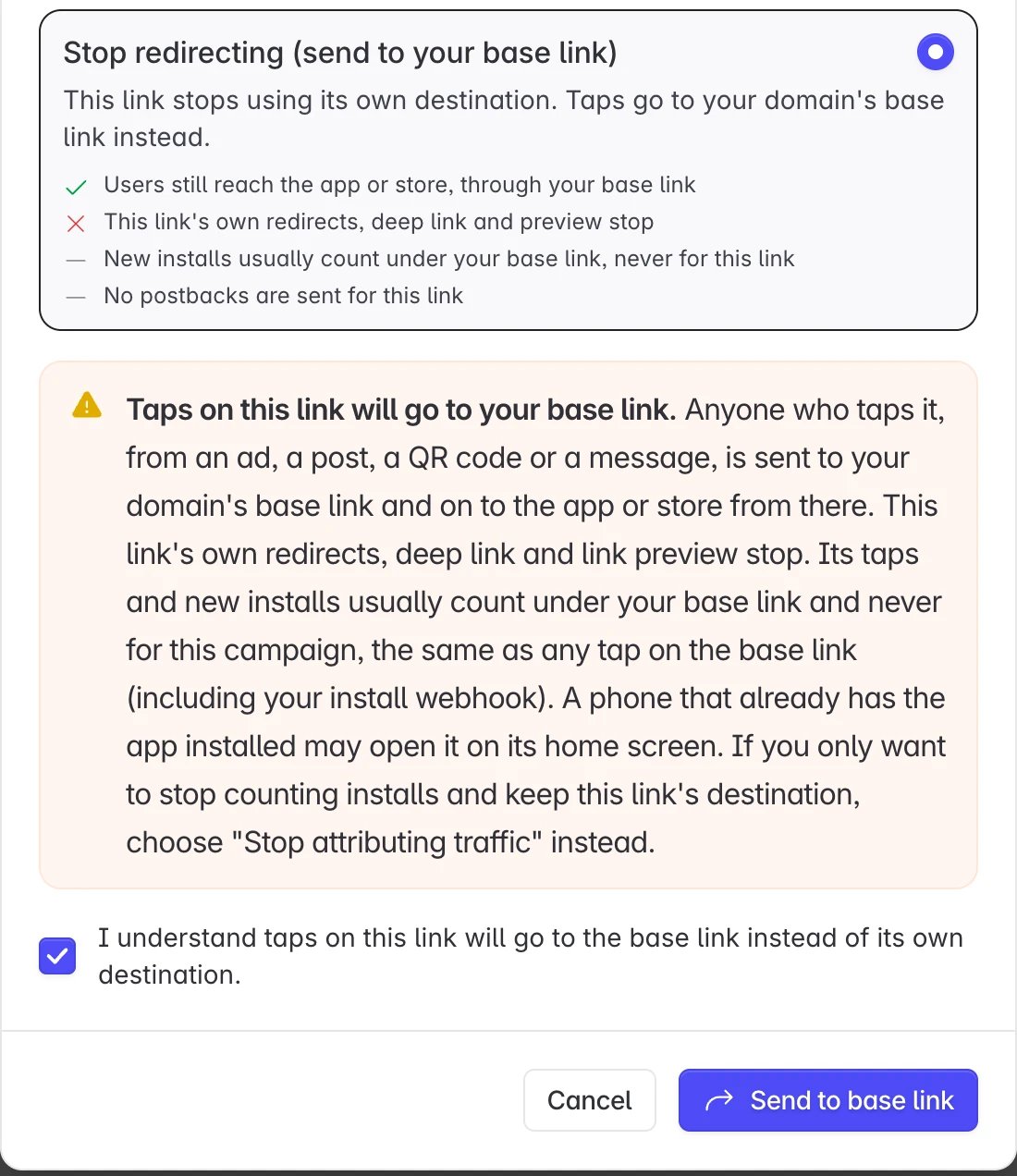
Check the result
The Link status row shows the new status:- Not attributing for Stop attributing traffic.
- Goes to base link for Stop redirecting.
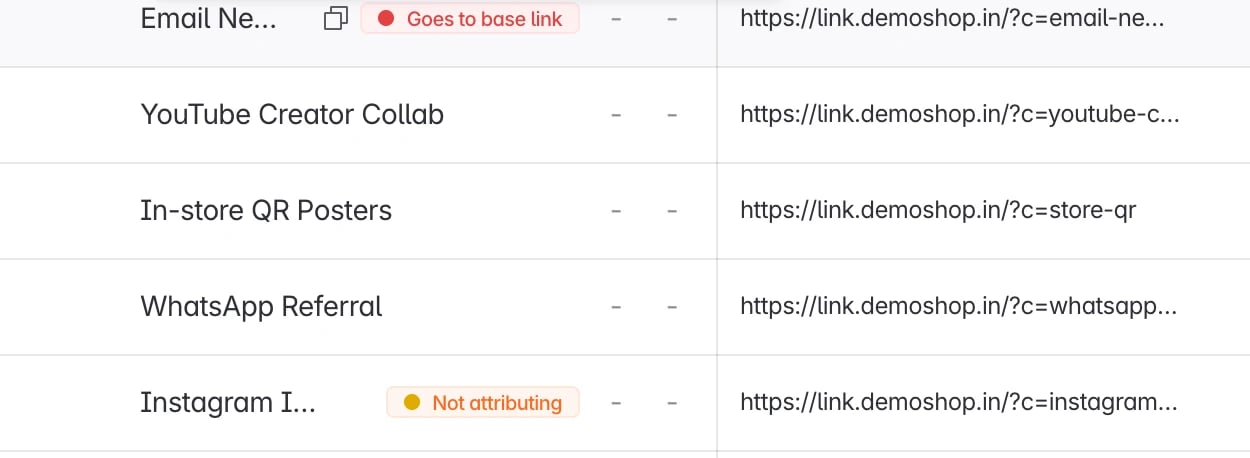
Reactivate a link
Open the campaign’s edit form and click Reactivate in the Link status row. The link starts redirecting and getting credit again, usually within 30 seconds. A deactivated link does not count toward your plan’s campaign limit, and a reactivated one does. If the project is at its limit, reactivation is refused. Contact support@linkrunner.io to raise the limit. To switch a deactivated link to the other option, reactivate it first, then deactivate it again with the other option.Webhooks and the Data API
- Webhooks. Events from users attributed to a deactivated link are not sent to your webhook, except sign-ups, which still reach your sign-up webhook. With Stop redirecting, an install through your base link triggers your install webhook like any other base link install.
- Data API. A link deactivated from the dashboard cannot be turned back on by setting
activewith Edit Campaign. The request returns409. Reactivate the link from the dashboard instead.