Documentation Index

Fetch the complete documentation index at: https://docs.linkrunner.io/llms.txt

Use this file to discover all available pages before exploring further.

A web to app journey is any path that starts on your website and continues inside your app. The simplest way to reason about these journeys is to split them by install state:
  • App already installed: the link should open the app directly (deep linking).
  • App not installed: context has to survive the install (deferred deep linking).
This guide maps the common journeys in each bucket to how Linkrunner tracks them, where the data appears in the dashboard, and what you need to set up.

How Linkrunner bridges web and app

One thing does the bridging: a Linkrunner link on your custom subdomain, placed wherever the journey starts (a website button, a CRM message, an ad destination URL).
  • If the app is installed, the link opens the app directly. Your app reports the open with handleDeeplink, which records a re-engagement against the campaign.
  • If the app is not installed, the link routes the user to the store. After they install and open the app, getAttributionData returns the attributed campaign and the deferred deep link so you can drop them into the right screen.
Everything after the open is the mobile SDK’s job: init records the app open, signup registers the user, trackEvent captures actions, and capturePayment captures revenue.
For paid channels, use the dedicated handoffs instead of building the link yourself. Linkrunner auto-creates and attributes the campaign for you. See Meta Web to App and Google Web to App.

Prerequisites

Set these up once and every journey below works:
  1. Custom subdomain for your Linkrunner links. See Subdomain Setup.
  2. Deep linking so installed apps open directly. See Deep Linking Setup.
  3. Deferred deep linking on campaigns so context survives the install. See Deferred Deep Linking.
  4. Mobile SDK installed with init, handleDeeplink, and getAttributionData wired up, and signup called once you know who the user is. Events and revenue are only stored for users registered through signup.

App already installed

These journeys open the app directly through the Linkrunner link. You track the re-engagement plus whatever the user does once inside.
JourneyWhat Linkrunner tracksWhere in the dashboardWhat to set up
Website → App OpenLink click + app re-engagement via handleDeeplinkCampaigns → Clicks; switch Install Attribution to Re-engagementDeep linking configured; handleDeeplink called on every launch; “Open App” button uses a Linkrunner link
Web content → specific screenSame, with a deep link path that routes in-app (e.g. /product/123)Same as above; in-screen actions show in event columnsApp routes match the link’s paths; encode the path in the link
Web CTA → in-app conversionRe-engagement + in-app trackEvent or capturePaymentCustom event columns; Revenue, ROAS, Paying UsersCall signup first; instrument the conversion event or payment
CRM → app (email, SMS, WhatsApp, push)One tagged link per channel + downstream eventsOne campaign per channel: Clicks, Reengagements, and event columnsA Linkrunner link per channel; for push, carry the link in the notification payload
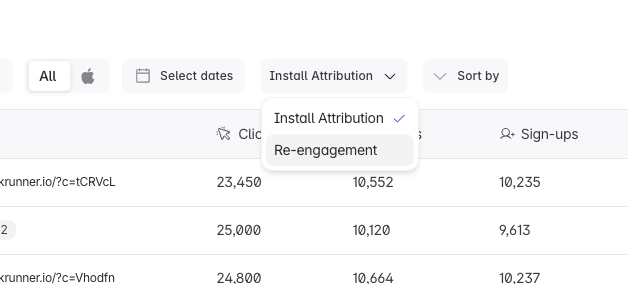
At the top of the Campaigns page, switch the Install Attribution dropdown to Re-engagement to see already-installed opens instead of new installs.
Install Attribution dropdown on the Campaigns page switched to Re-engagement

App not installed

These journeys go through the store. Deferred deep linking carries the original context across the install so the user resumes where they intended.
JourneyWhat Linkrunner tracksWhere in the dashboardWhat to set up
Website → InstallClick → install, with the attributed campaign from getAttributionDataOverview stat cards (All / Attributed / Organic Installs); Campaigns → InstallsLinkrunner link as the store target; init + getAttributionData after first open
Website → Install → SignupInstall + user registrationSign-ups and Conversion (sign-ups / installs) columns; user list in the campaign drawerCall signup with user_data.id
Website → Install → PurchaseInstall + revenueRevenue, ROAS, Paying Users, Daywise Revenue columnscapturePayment; convert to one currency; map the event for Meta/Google ROAS
Website → Install → OnboardingInstall + activation eventCustom event column; Events settingsDefine the activation event and fire it with trackEvent
Specific page → Install → Same contextDeferred deep link carrying the page context through the installCampaign Installs; the link resolves via getAttributionData().deeplinkEnable deferred deep linking on the campaign; pass the path into the link; parse deeplink in-app
Referral link → InstallInstall + referral conversionCampaign per referral; event columnReferral codes; add ?referrer= to the link; handle it in-app
The deferred deep link is read once, after the first open, from getAttributionData. Check the deeplink field, parse the URL, and navigate. The SDK does not navigate for you.

Reading the full journey

The end-to-end question (which campaign drove this user, and what did they eventually do in the app) is answered at the campaign level:
  • Open a campaign’s detail drawer (dashboard/campaigns?d=campaign-details&campaign={display_id}) to see the Clicks → Installs → Sign-ups funnel as a flow diagram, plus revenue and paying users.
  • Use the per-campaign user list in that drawer to see who signed up.
  • Use the Retention columns to see whether those users stuck around.
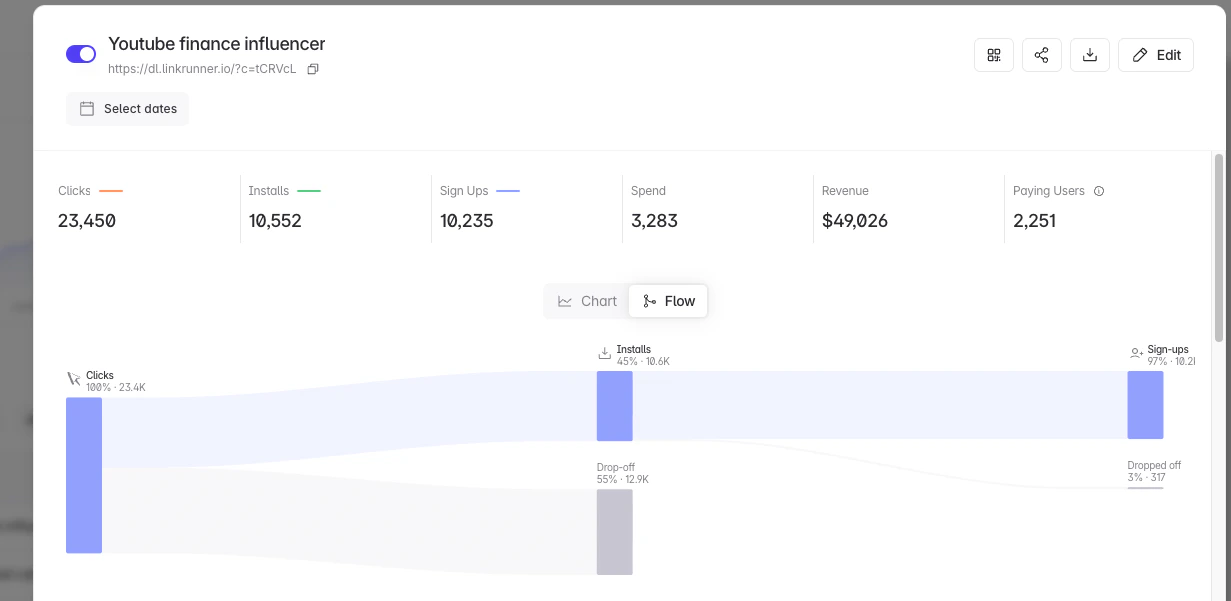
Campaign details drawer showing the Clicks to Installs to Sign-ups flow diagram

Metrics and where they live

MetricWhere to find it
Source / Channel / Campaign / Ad Set / Ad / CreativeCampaigns table (expand ad set and creative rows)
ClicksCampaigns table + Overview
Installs (All / Attributed / Organic / iOS / Android)Overview stat cards + Installs column
App re-engagementCampaigns → Re-engagement view
Sign-ups / ConversionSign-ups and Conversion columns; user list in the campaign drawer
Activation / custom eventsCustom event columns; Events settings
Purchase / Revenue / ROASRevenue, ROAS, Paying Users, Daywise Revenue columns
Retention (D1, D7, …)Rolling and Classic Retention columns
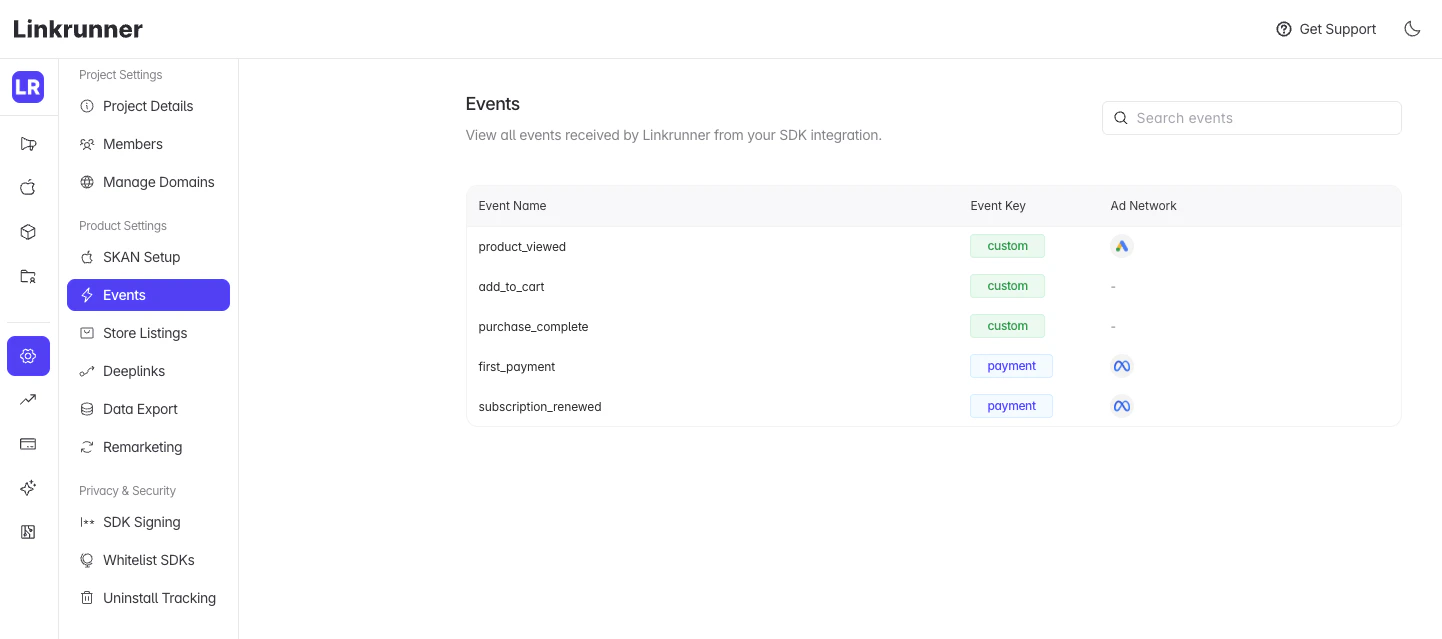
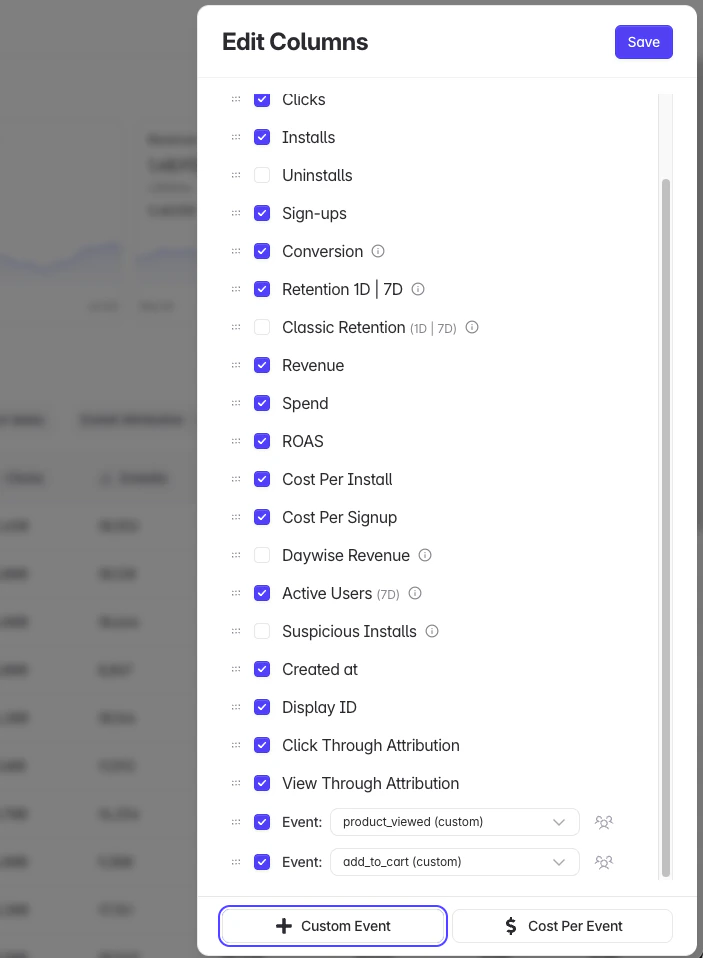
Most of these are columns on the Campaigns table. Use Edit Columns to choose which ones show, including per-event and cost-per-event columns: Edit Columns panel on the Campaigns table with metric and per-event columns Custom and payment events received from the SDK are listed under Events settings, along with the ad networks each is mapped to: Events settings page listing received events and their ad network mappings
Website page views and channel breakdowns are attribution inputs that feed the campaign numbers above; they are not a standalone report in the dashboard today. If you want to also collect on-site page views and traffic sources, the optional Web SDK can enrich the journey.

Troubleshooting

App opens the store even though it is installed? Deep linking is not verified. Check Deep Linking Setup and confirm your domain’s assetlinks.json and apple-app-site-association are saved in Linkrunner. Deep link is null after install? Confirm deferred deep linking is enabled on the campaign, and that you read deeplink from getAttributionData after init completes. See Deferred Deep Linking. Events or revenue not showing for a user? They are only stored for users registered through signup. Register the user, then re-send the event. Re-engagement not recorded for an installed app? Make sure handleDeeplink runs on both cold start and warm start with the opened URL.

Deep Linking Setup

Open installed apps directly from web links

Deferred Deep Linking

Carry context across the install

Meta Web to App

Run Meta web-to-app ads with CAPI

Google Web to App

Attribute Google web-to-app campaigns

Event Capture

Track conversions and activation events

Revenue Tracking

Capture payments and measure ROAS
Need help? Contact support@linkrunner.io