

How it works
1
URL parsing
Linkrunner extracts the campaign identifier from the link. This can be a
?c= query parameter or a single path segment (e.g., get.yourapp.com/AbCdEf).2
Device detection
The system reads the user agent to determine the device type (mobile, tablet, or desktop), the operating system (iOS or Android), and whether the click came from an in-app browser like Instagram, Facebook, TikTok, Snapchat, LinkedIn, or Twitter.
3
Click recording
Linkrunner records the click with device info, operating system, browser details, referrer URL, advertising IDs (
gaid / idfa), ad network click IDs, and a unique attribution identifier (lr_ia_id) used to match the click to a future install.4
Platform-specific routing
Based on the device type and browser context, Linkrunner routes the user to the appropriate destination using the fallback chains described below.
Routing by platform
- In-app browser
- iOS / Android
- Desktop
Social media apps like Instagram and TikTok open links in their own built-in browser, which blocks normal redirects to the app store or your installed app. Linkrunner handles this by rendering an intermediary page.This flow also applies when the “Open in app” option is enabled on a campaign, regardless of which browser the user is in.
What happens
- The intermediary page loads and immediately attempts to open your app via a deep link (custom URI scheme).
- If the app is installed and opens, the page detects this and stops.
- If the app does not open within the timeout, the page redirects to the App Store (iOS) or Play Store (Android).
- The user can also tap the “Get the App” button to go to the store immediately.
Timeout behavior
- iOS: 300ms timeout before falling back to the App Store.
- Android: 2-second timeout with a visible countdown before falling back to the Play Store.
The intermediary page can be customized to match your brand. See Social media intermediary page for details.
Open in app popup
When Open in app is enabled on a campaign and Linkrunner detects that your app is already installed, the redirect page shows a Continue to your app prompt that opens the app directly, instead of auto-redirecting to the store.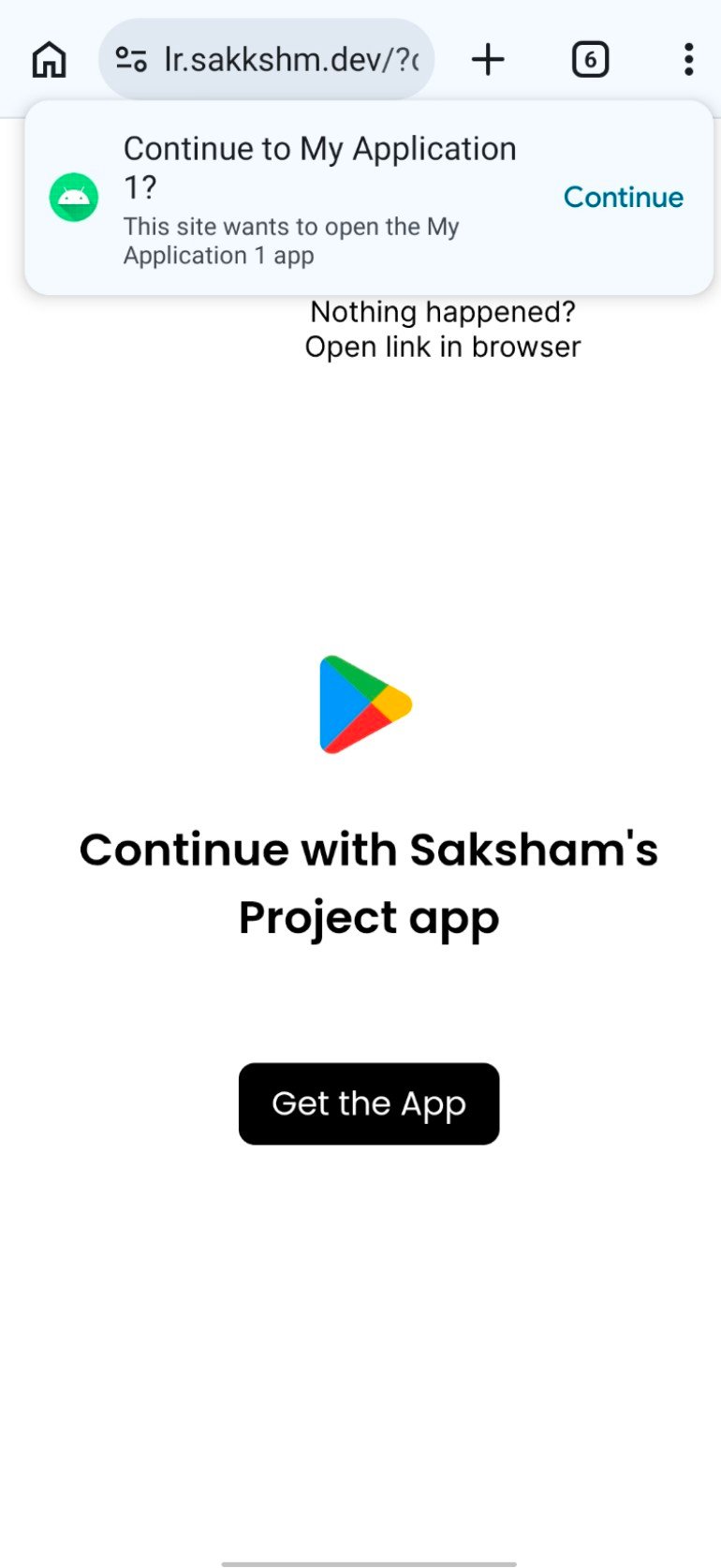
navigator.getInstalledRelatedApps(). This only works when your app declares an asset_statements link back to your Linkrunner subdomain. Linkrunner already hosts the matching /.well-known/assetlinks.json on your subdomain; you add the app→site half in your app. See Enable install detection in Deep linking setup for the asset_statements snippet.
If the app is not installed, or detection is unavailable, the page falls back to the normal store redirect chain.
Redirect priority
Troubleshooting
Store redirect not working? Verify that your App Store and Play Store links are configured correctly in project settings. The Play Store link must includegoogle.com in the URL.
Deep link not opening the app? Ensure your app has a custom URI scheme configured and that the Linkrunner SDK is initialized. See Deep linking setup for configuration steps.
Blank intermediary page? This usually means the app link or store link failed to load. Check that your custom URI scheme and store links are set correctly in project settings.
Attribution not matching? Make sure the Linkrunner SDK is initialized before calling getAttributionData(). The app must be installed through the campaign link — direct store installs cannot be attributed.
Desktop users seeing the store instead of your website? Add a website URL to your campaign or project settings. Without a website configured, Linkrunner falls back to the store link on all platforms.
Social media intermediary page
Customize the intermediary page for in-app browsers
Deep linking setup
Configure deep links to open specific screens in your app
Deferred deep linking
Route users to content after they install your app
Custom store listings
Show tailored store pages for different campaigns