

access@linkrunner.io with Read only access. This lets the support team inspect your campaigns and reports without editing campaigns. Google also includes visibility into billing information in this role.
You need Admin access to invite someone. If you use a manager account, select the customer account that needs debugging before you start.
1. Open access settings
Open Google Ads, then go to Admin → Access and security → Users. Click the blue + button to add a user.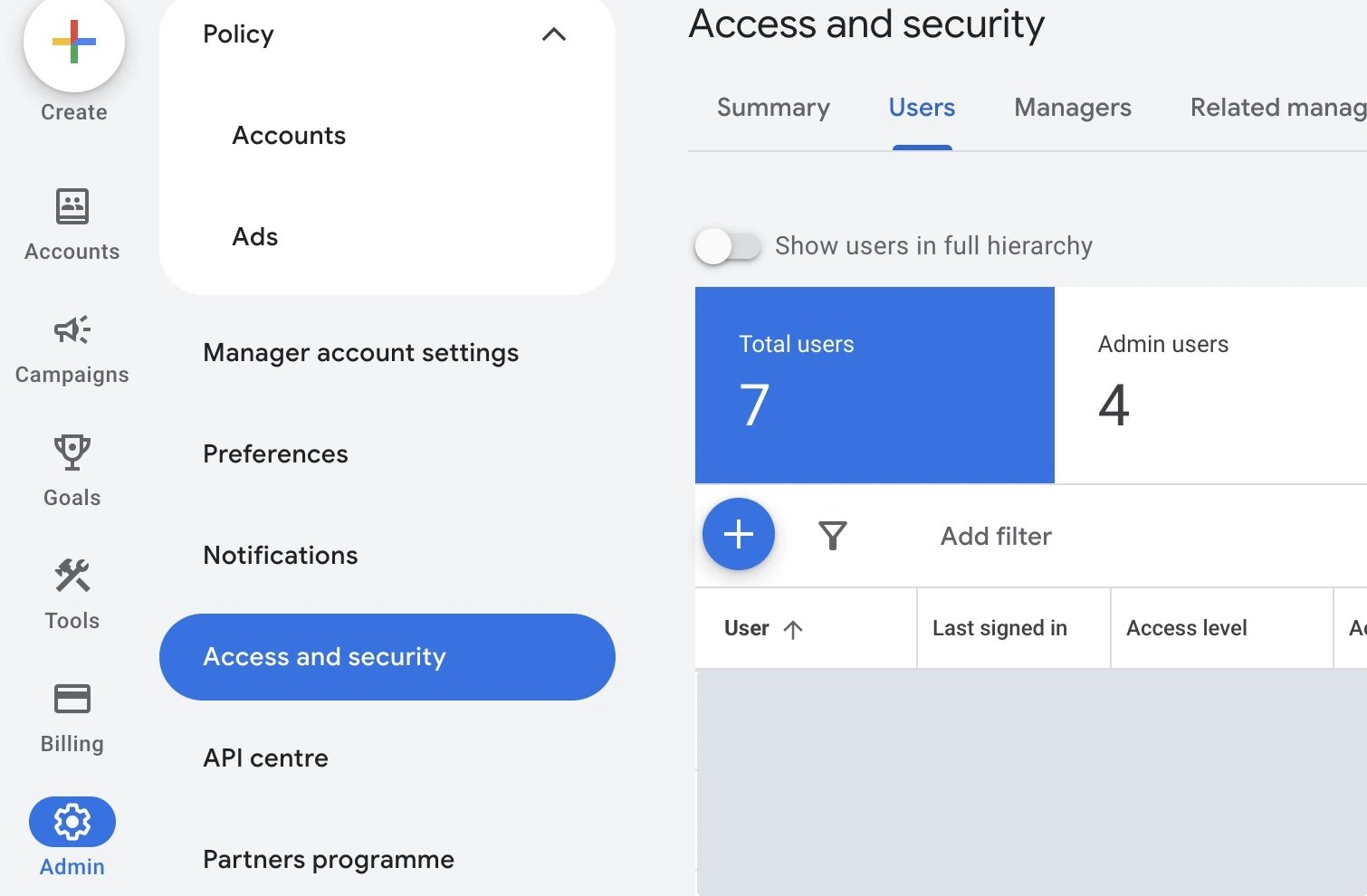
2. Invite Linkrunner
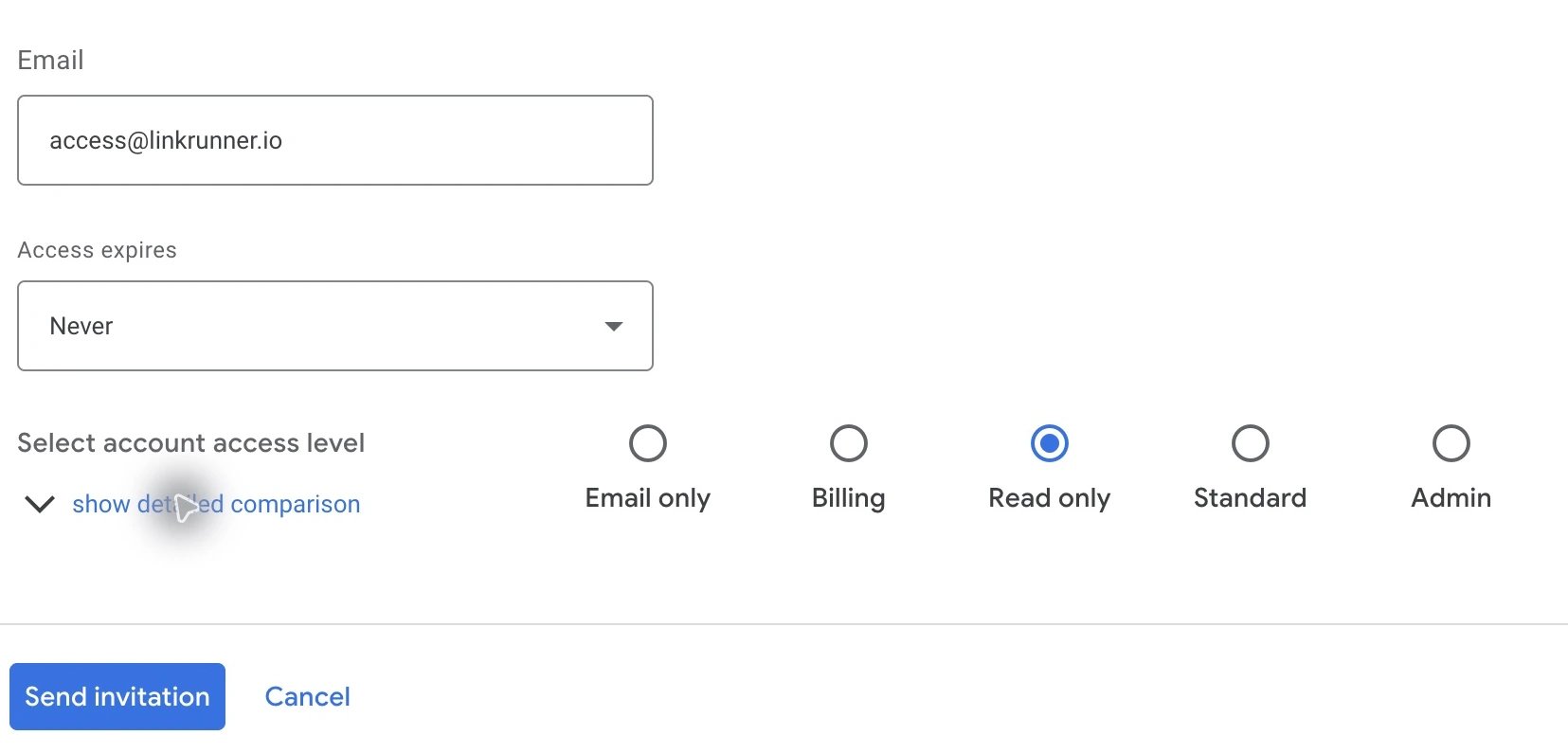
- Enter
access@linkrunner.ioin Email. - Select Read only under Select account access level.
- Set an Access expires date if you want access to end automatically.
- Click Send invitation.
3. Confirm access
Tell the Linkrunner support team which Google Ads account you shared, including its customer ID. Linkrunner needs to accept the email invitation before access becomes active. Check Admin → Access and security → Users after acceptance. You should seeaccess@linkrunner.io with Read only access.
Remove access after support
Return to Admin → Access and security → Users, findaccess@linkrunner.io, and select Remove access. For an invitation that has not been accepted, use Revoke instead.
Troubleshooting
- You cannot add a user: Ask an account administrator to send the invitation.
- Linkrunner cannot see the affected campaigns: Check that you shared the correct customer account, especially if you manage multiple accounts.
- The invitation is still pending: Confirm the address is
access@linkrunner.ioand notify the support team so they can accept it.