

1. Register your test browser
1
Install the Web SDK
Choose how your website loads the SDK, copy the snippet, and deploy it to your website. Your token is already filled in.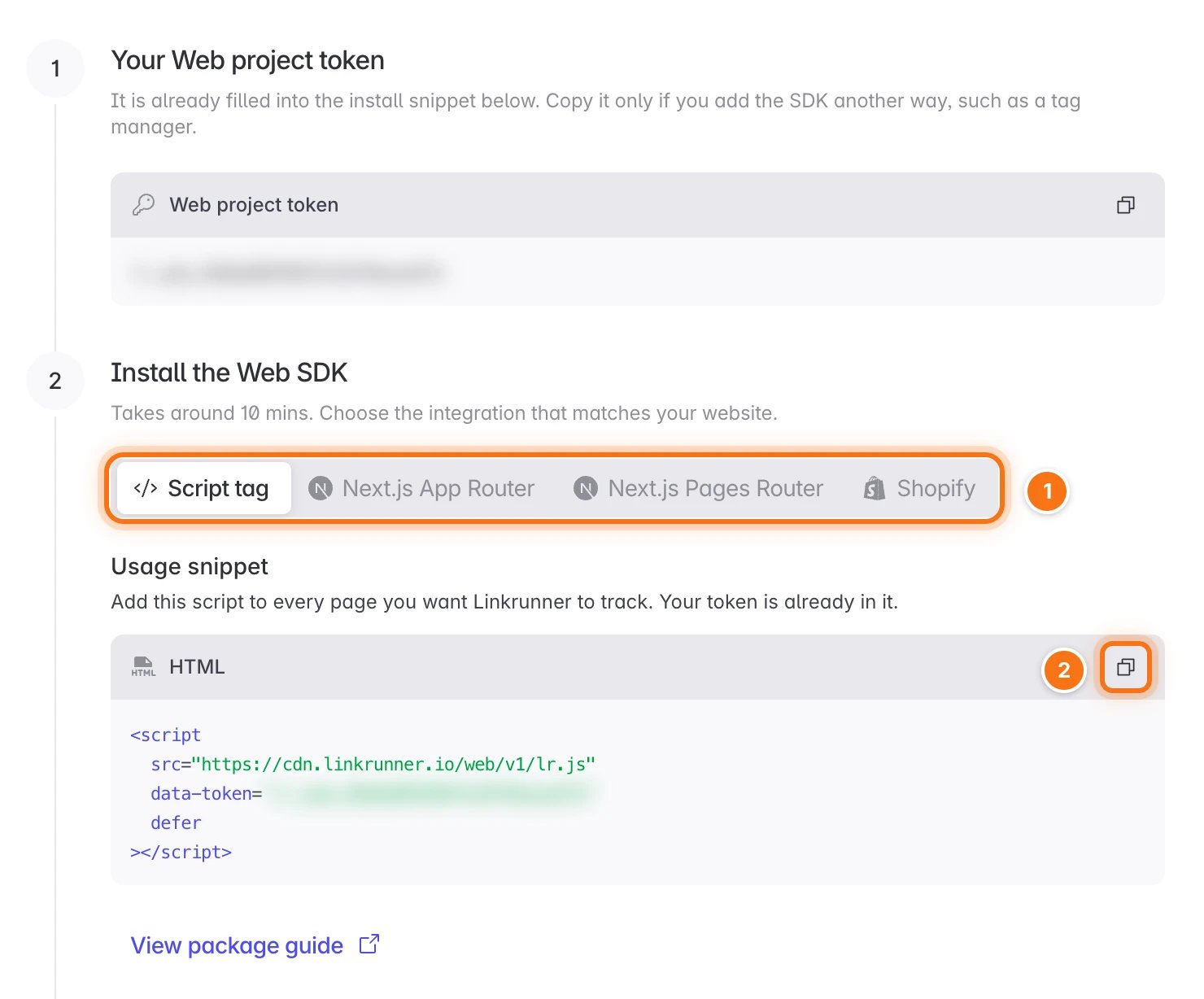
2
Open the registration link
Choose Production, or Other URL to test on a staging or local site. Then click Open to open the registration link in the browser you want to test with.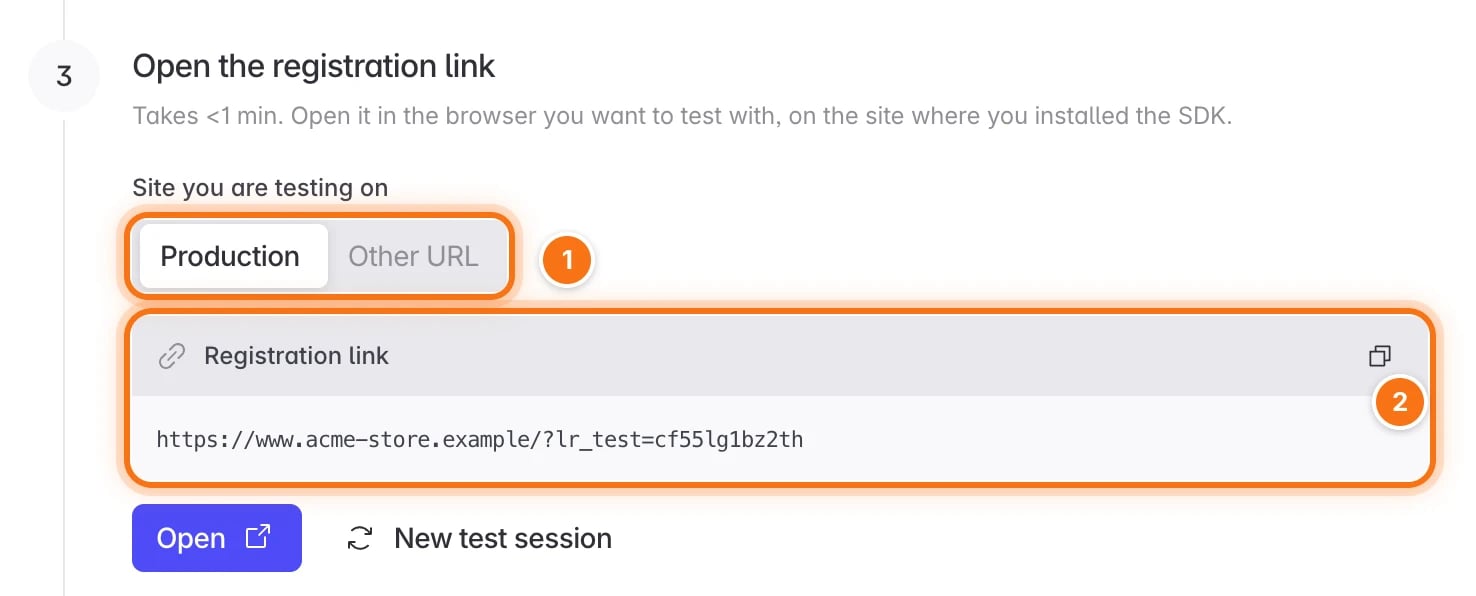
3
Confirm your browser
Linkrunner registers your browser and moves to the next step. If more than one browser opened the link, click Register next to the one you are testing with.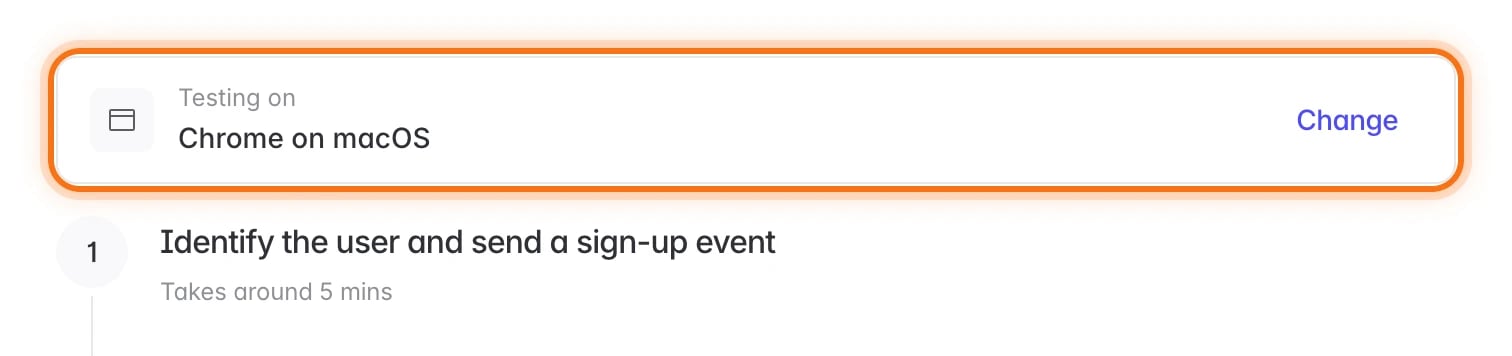
2. Test a sign-up
Sign up on your website in your test browser. When the step shows Sign-up received, click Next.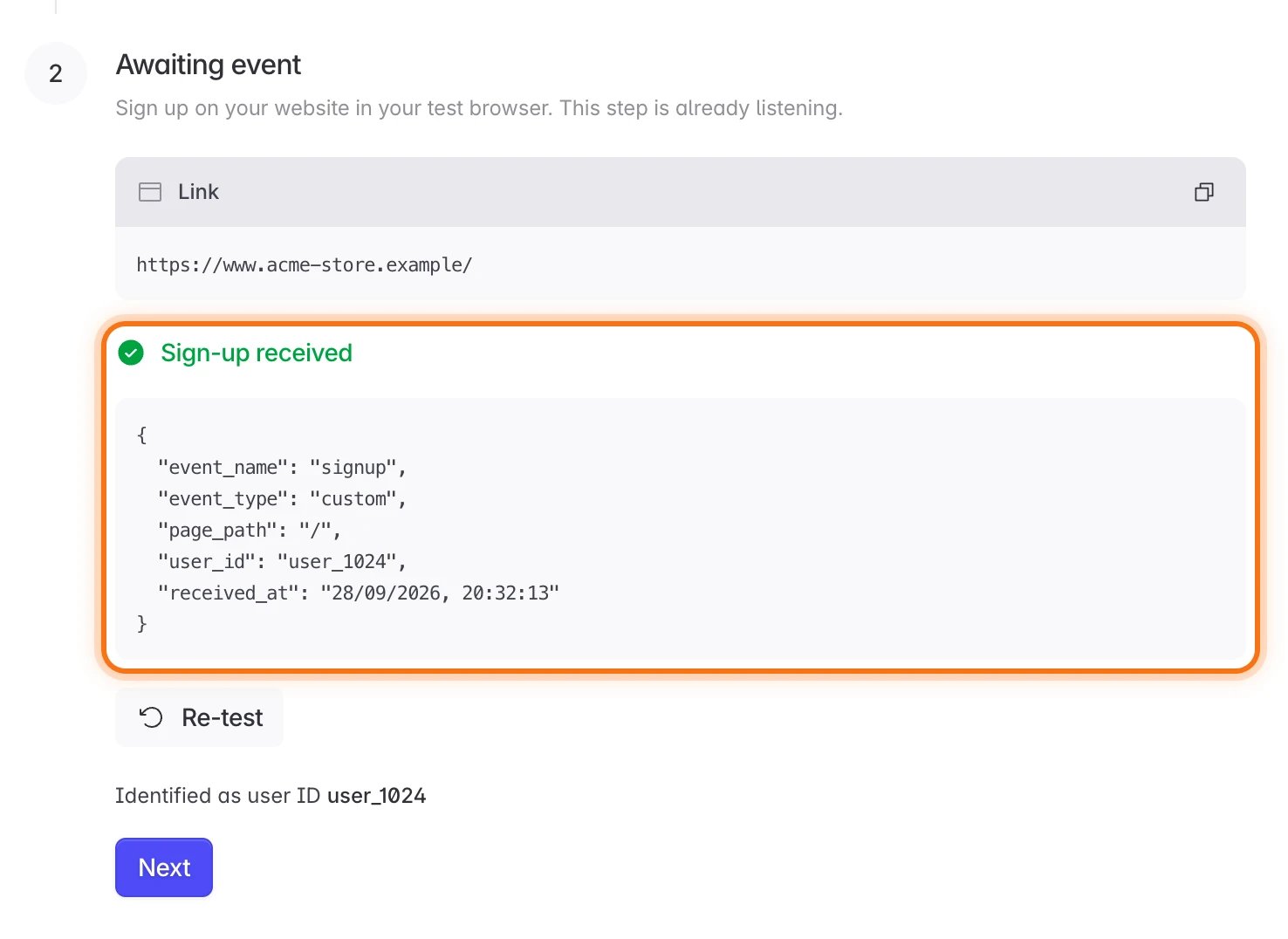
identify and send a signup event. The step shows the code for your setup, and Identify users and track events explains it.
3. Test campaign attribution
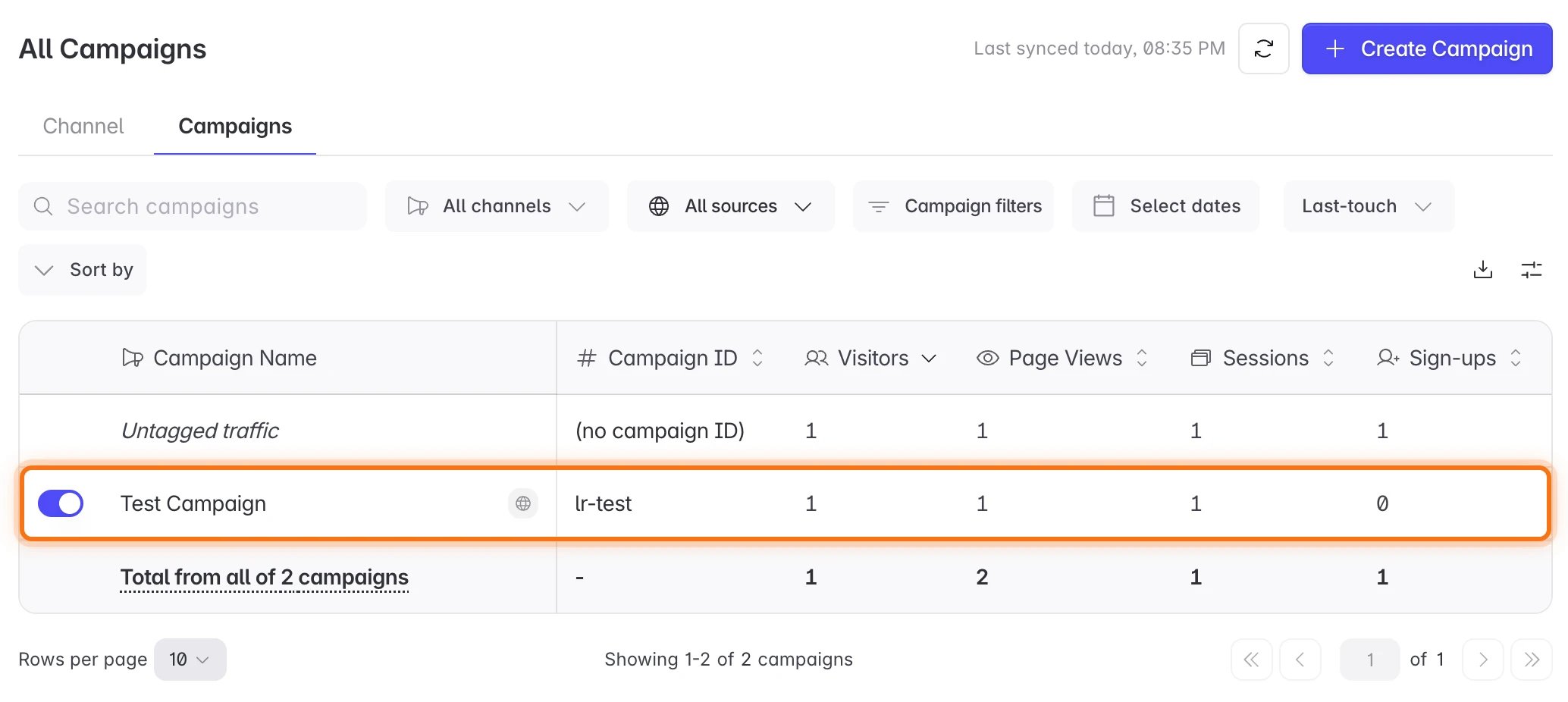
Copy the link under Copy your test link and open it in your test browser. The step shows Visit attributed to Test Campaign.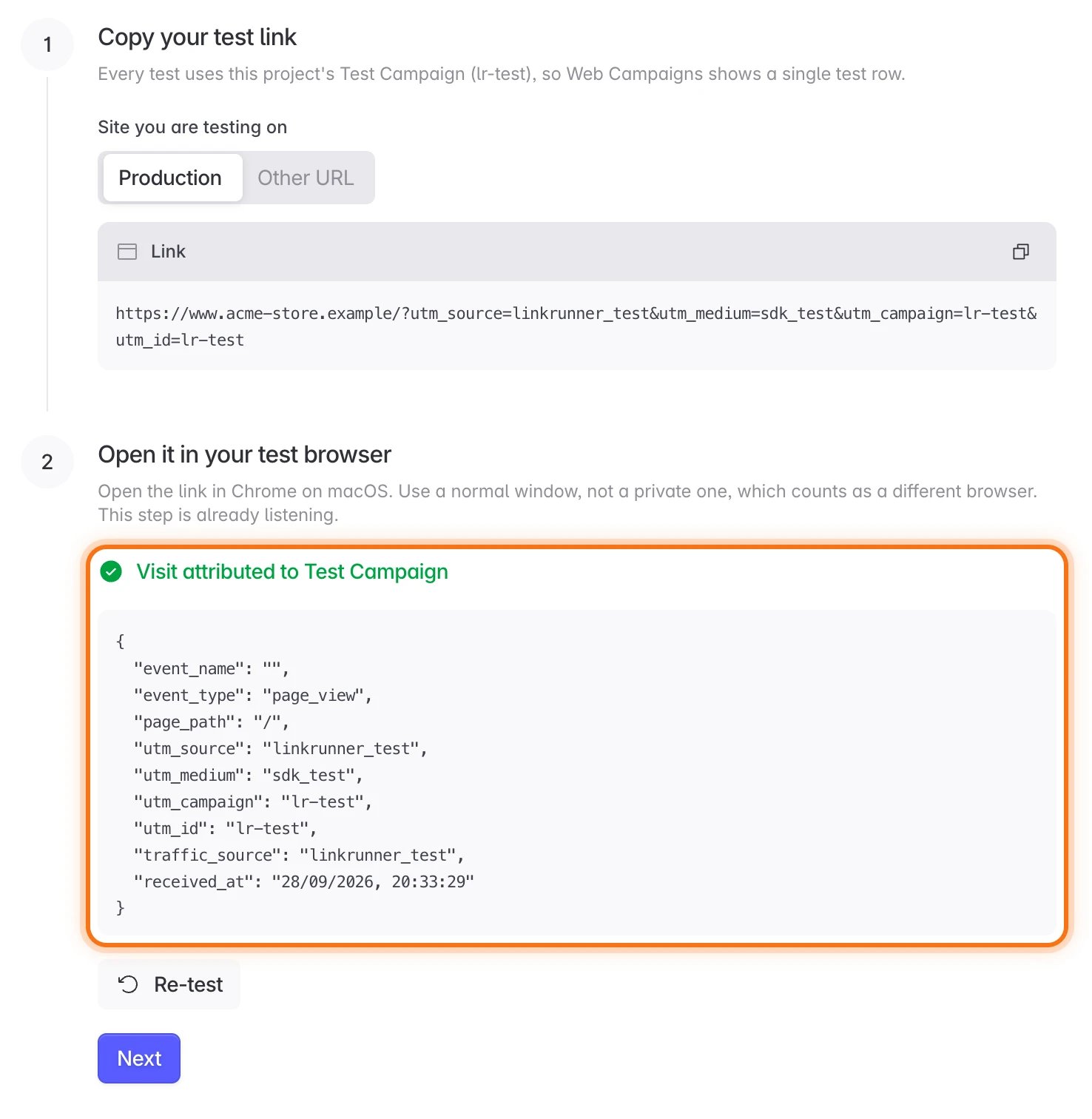
4. Test a custom event
Do something on your website that sends an event, such as adding an item to the cart. The step shows Custom event received.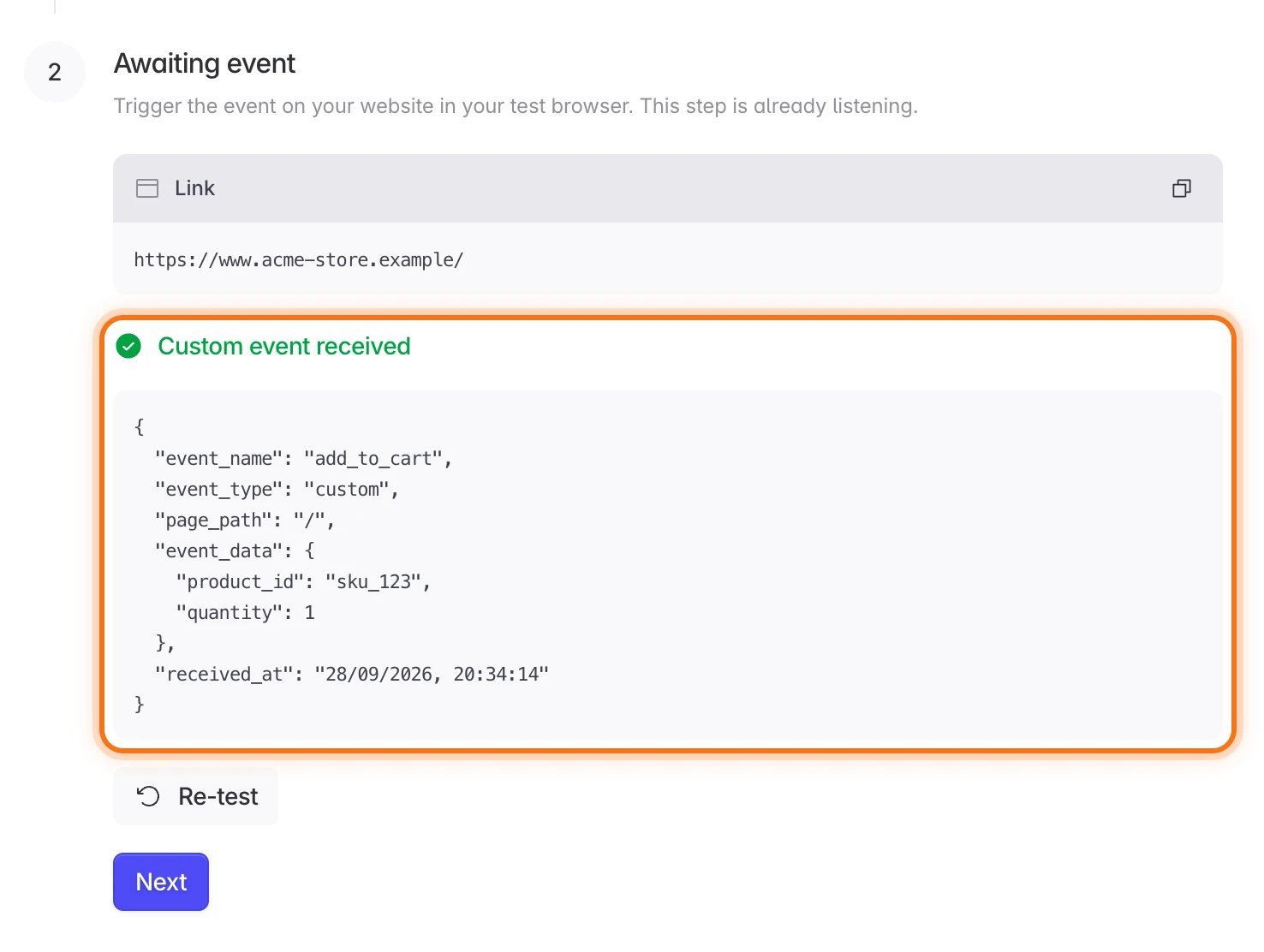
5. Test a purchase
Make a test purchase on your website. The step shows Purchase received with the amount.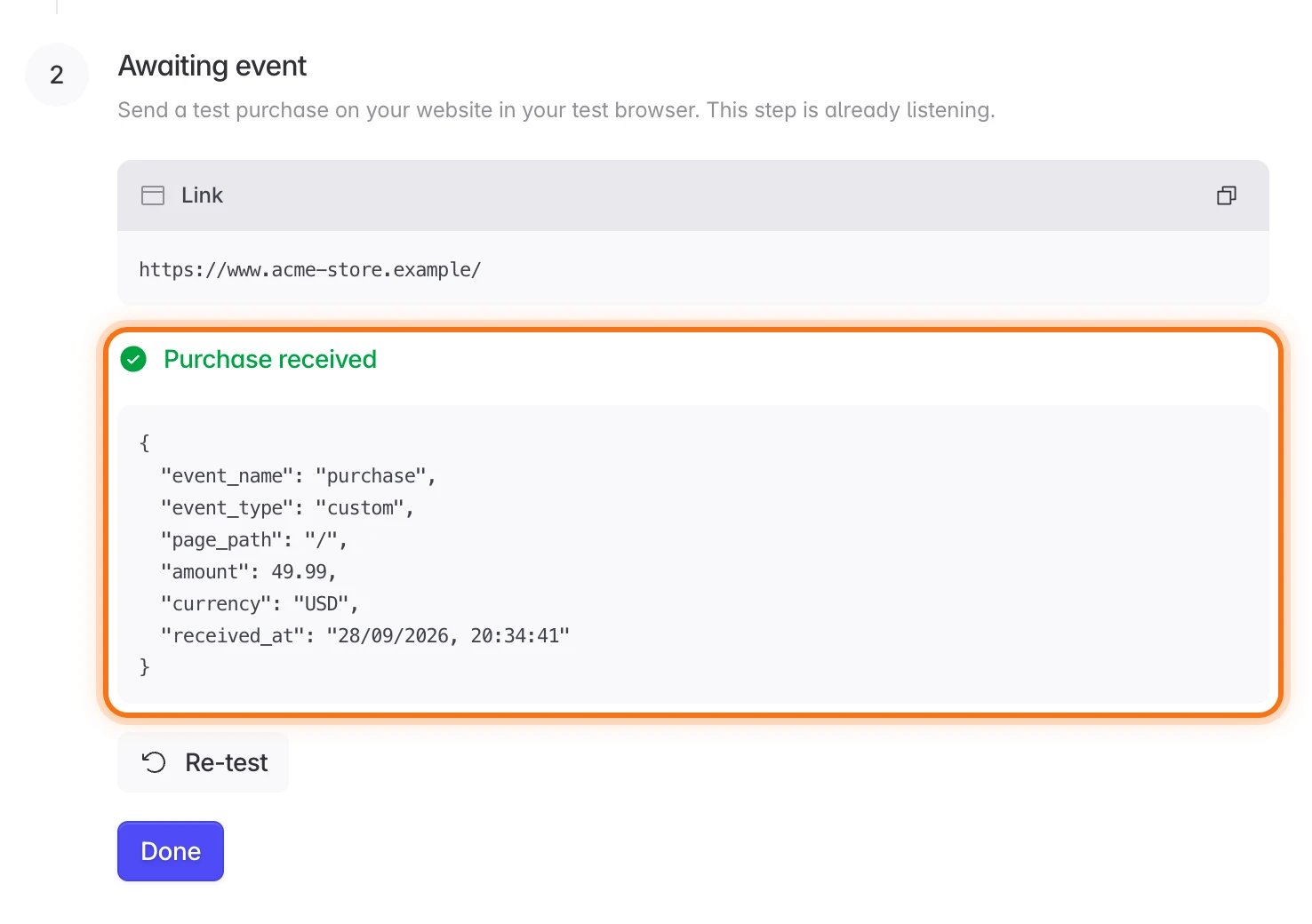
If something does not show up
- Your browser does not appear after you open the registration link: check that the snippet is live on the site you opened, and turn off ad blockers in your test browser.
- A step keeps waiting: send the event from the browser you registered, after the step has opened.