

Prefer to let your AI coding agent do this? Install the Linkrunner skill and Claude Code, Cursor, GitHub Copilot, or Windsurf will wire up the SDK and deep links for you:Then ask your agent to “integrate Linkrunner”. See Linkrunner Agent Skills.
Installation
Requirements
- Flutter 3.19.0 or higher
- Dart 3.3.0 or higher
- iOS 15.0+ / Android 5.0 (API level 21) and above
Step 1: Add the Package
Run the following command to add the latest version of the Linkrunner package to your project:- Add the latest version of
linkrunnerto yourpubspec.yaml - Download and install the package and its dependencies
Step 2: Platform Specific Setup
Android Configuration
- Ensure your project’s
minSdkVersionis at least 21 in yourandroid/app/build.gradlefile:
- Add the following permissions to your
AndroidManifest.xmlfile:
Note: TheAD_IDpermission (<uses-permission android:name="com.google.android.gms.permission.AD_ID" />) is already included in the SDK and is required for collecting device identifiers (GAID). If your app participates in Designed for Families, you should revoke AAID and disable AAID collection. See the Disabling AAID Collection section for more details.
Revoking the AD_ID Permission
According to Google’s Policy, apps that target children must not transmit the Advertising ID. To revoke the AD_ID permission, use Flutter SDK version 3.5.0 and above. Children apps targeting Android 13 (API 33) and above must prevent the permission from getting merged into their app by adding a revoke declaration to their Manifest. Use thesetDisableAaidCollection() and isAaidCollectionDisabled() functions to disable AAID collection programmatically:
android/app/src/main/AndroidManifest.xml
Make sure to add
xmlns:tools="http://schemas.android.com/tools" to your manifest tag to use the tools:node="remove" attribute. If you disable AAID collection, you should also remove the AD_ID permission from your manifest to fully comply with Google Play’s Family Policy requirements.Backup Configuration
For Android apps, the SDK provides backup rules to exclude Shared Preferences data from backup. This prevents the retention of the Linkrunner install ID during reinstallation, ensuring accurate detection of new installs and re-installs. For detailed backup configuration instructions, please refer to the Android SDK Backup Configuration.Encrypted SharedPreferences
SDK Version Requirement: Starting from
linkrunner v3.9.1, the SDK automatically encrypts the credentials it stores in Android SharedPreferences (such as the install ID and other persisted SDK state). No additional configuration is required — upgrade to v3.9.1 or above to get this behavior by default.iOS Configuration
- Update your iOS deployment target to iOS 15.0 or higher in your
ios/Podfile:
- Add the following to your
Info.plistfile for App Tracking Transparency:
- To enable SKAdNetwork postback copies to be sent to Linkrunner, add the following keys to your
Info.plistfile:
Google Integrated Conversion Measurement (Optional)
Prefer to let your AI coding agent do this? The Flutter skill already covers ICM — adding the pod and wiring See Linkrunner Agent Skills.
setConsent:linkrunner 4.1.1 or later.
Google keeps ODM inactive for users in the European Economic Area, the United Kingdom, and Switzerland, so ICM recovers nothing for that traffic. Elsewhere, Google reports improved coverage for iOS 14+ users.
ICM also needs an iOS link ID configured in your Google Ads integration. Google has nowhere to send the conversion without one. See Prerequisites.
1
Add Google's On-Device Measurement SDK (iOS)
Already using the Firebase iOS SDK 11.14.0 or later? The
FirebaseAnalytics pod brings this SDK in for you. Skip this step.Runner target in ios/Podfile:-ObjC and -lc++ linker flags for you, so there are no Xcode Build Settings to change.2
Report consent
Set the values with Each signal takes
setConsent before you call init, and again whenever the user changes their choice:ConsentStatus.GRANTED, ConsentStatus.DENIED, or ConsentStatus.UNKNOWN. Anything omitted or left UNKNOWN is dropped from the payload rather than reported as a denial, so Linkrunner never reports a choice your user did not make.Google treats these as required whenever their value is known.
hasConsentForDataUsage decides whether Google may use the conversion at all, hasConsentForAdsPersonalization decides whether it may feed audiences and remarketing, and isEEA tells Google which rules apply. Set them from your app’s real consent state rather than hardcoding them. For users outside the EEA, the UK, and Switzerland, report isEEA as denied and leave the other two unset. See Send Consent.setConsent works on both iOS and Android. Android has no ODM SDK to add, but its installs reach Google through the App Conversion API, which reads the same signals.getAttributionData as usual.
Verifying your setup
Initialize withdebug set to true and look for this line in the Xcode console:
odm_available=false with odm_fetch_result=unavailable means Google’s SDK is not linked. Check that pod install picked up GoogleAdsOnDeviceConversion.
Initialization (Required)
You’ll need your project token to get started! Note: The initialization method doesn’t return any value. To get attribution data and deeplink information, use thegetAttributionData method.
SDK Signing Parameters (Optional)
For enhanced security, the LinkRunner SDK requires the following signing parameters during initialization:secretKey: A unique secret key used for request signing and authenticationkeyId: A unique identifier for the key pair used in the signing process
Platform-Specific SDK Signing
For applications requiring different signing keys per platform:Setting the Customer User ID
UsesetCustomerUserId to attach your own user identifier to the device right after init. Once set, the identifier is stored securely on-device and automatically included in every event you track, so you never have to pass it on each trackEvent call.
Call it as early as the user’s ID is available. This guarantees every event carries a user_id from the very first event, and is especially useful for existing users who were already onboarded before this feature shipped.
Available from Flutter SDK v3.10.0.
Best practice: set the Customer User ID as early as possible. The
user_id is only attached to events tracked after it’s set, and is not applied retroactively. Use a stable, unique identifier from your own system (for example your internal user ID or a UUID) rather than an email address or other PII.The identifier is stored securely on-device and persists across app restarts. Calling
setCustomerUserId again with a different identifier updates the stored value; passing the same identifier is a no-op. signup() / setUserData() also update it.User Identification (Required)
Call thesignup method as soon as the user is identified — whether through signup or login. This is the moment Linkrunner ties the install (and any future events) to a user identifier.
It is strongly recommended to use the integrated platform’s identify function to set a persistent user_id once it becomes available (typically after signup or login).
- Mixpanel - ID Management & User Identification
- PostHog - How User Identification Works
- Amplitude - Identify Users Documentation
- mixpanelDistinctId for Mixpanel
- amplitudeDeviceId for Amplitude
- posthogDistinctId for PostHog
The model classes (
LRUserData, LRCapturePayment, LRRemovePayment, LRConsent) are not re-exported by linkrunner.dart. Import each one directly, for example import 'package:linkrunner/models/lr_user_data.dart';.Handle Deeplink
To enable remarketing and reattribution, you need to capture deep links and pass them to the Linkrunner SDK. This allows Linkrunner to detect returning users who open the app via a deep link.deeplink as the resolved destination instead of the original tracking URL.
Getting Attribution Data
To get attribution data and deeplink information for the current installation, use thegetAttributionData function:
getAttributionData function returns an AttributionData object with the following structure:
Setting User Data
CallsetUserData each time the app opens and the user is logged in:
setUserData is optional and is not a replacement for signup. Always call signup first as soon as the user is identified (signup or login). Use setUserData afterwards only when additional user details become available later — for example, when the user adds a phone number, email, or completes their profile after identification.Setting CleverTap ID
Use thesetAdditionalData method to set CleverTap ID:
Parameters for LinkRunner.setAdditionalData
clevertap_id: String (optional) - CleverTap user identifier
Revenue Tracking
Capturing Payments
Track payment information:Parameters for LRCapturePayment
amount: double (required) - The payment amountuserId: String (required) - Identifier for the user making the paymentpaymentId: String (required) - Unique identifier for the payment, used to deduplicate transactionstype: PaymentType (optional) - Type of payment. Available options:PaymentType.FIRST_PAYMENT- First payment made by the userPaymentType.WALLET_TOPUP- Adding funds to a walletPaymentType.FUNDS_WITHDRAWAL- Withdrawing fundsPaymentType.SUBSCRIPTION_CREATED- New subscription createdPaymentType.SUBSCRIPTION_RENEWED- Subscription renewalPaymentType.ONE_TIME- One-time paymentPaymentType.RECURRING- Recurring paymentPaymentType.DEFAULT_PAYMENT- Default type (used if not specified)
status: PaymentStatus (optional) - Status of the payment. Available options:PaymentStatus.PAYMENT_INITIATED- Payment has been initiatedPaymentStatus.PAYMENT_COMPLETED- Payment completed successfully (default if not specified)PaymentStatus.PAYMENT_FAILED- Payment attempt failedPaymentStatus.PAYMENT_CANCELLED- Payment was cancelled
eventData:Map<String, dynamic>(optional) - Key-value pairs for additional event data, including ecommerce properties for Meta and Google.
Removing Payments
Remove payment records (for refunds or cancellations):Parameters for LRRemovePayment
userId: String (required) - Identifier for the user whose payment is being removedpaymentId: String (optional) - Unique identifier for the payment to be removed
paymentId or userId must be provided when calling removePayment. If only userId is provided, all payments for that user will be removed.
Ecommerce Events
Minimum SDK Version: Ecommerce Event Manager requires linkrunner v3.7.0 or above. Please ensure your SDK is updated before using this feature.
If you are tracking Ecommerce events to sync with Meta or Google, you must format your eventData to include the required fields. You also need to map your custom event to the standard commerce event in the Linkrunner Dashboard.
For detailed explanations of the required fields like content_ids, contents, and value, refer to our Meta Commerce Manager documentation or Google Commerce Manager documentation.
Add To Cart Example
Use thetrackEvent method to send an AddToCart event:
View Content Example
Use thetrackEvent method to send a ViewContent event:
Payment / Purchase Example
Use thecapturePayment method to send a Purchase event containing the ecommerce payload:
Note: For more information on testing and verifying your ecommerce events, please see our Meta Commerce Manager or Google Commerce Manager guide.
Tracking Custom Events
From Flutter SDK v3.10.0, custom events automatically include the
user_id you set during signup() / setUserData(). The SDK stores this identifier securely on-device and attaches it to every trackEvent call, so you no longer need to pass it manually. Events tracked before signup are sent without a user_id.Events are stored for all users, including organic ones. Events from users with no matching click are stored without campaign attribution. Call
.signup so events are linked to a user. You can verify your events are being captured on the Events page. For capturing revenue, it is recommended to use the .capturePayment method instead of .trackEvent.Parameters for LinkRunner().trackEvent
eventName:String(required) - Name of the event to trackeventData:Map<String, dynamic>(optional) - Key-value pairs for additional event data, including Meta ecommerce propertieseventId:Object(optional) - Your own unique identifier for the event (Stringornum), useful for deduplication and correlating with your backend
Revenue Sharing with Ad Networks
To enable revenue sharing with ad networks like Google Ads and Meta, include anamount parameter as a number in your custom event data. This allows the ad networks to optimize campaigns based on the revenue value of conversions:
For revenue sharing with ad networks to work properly, ensure the
amount parameter is passed as a number (double
or int), not as a string.Enhanced Privacy Controls
The SDK offers options to enhance user privacy:Disabling AAID Collection
SDK Version Requirement: The AAID collection disable functionality requires Flutter SDK version 3.5.0 or higher.
Disable AAID Collection
To disable AAID collection, callsetDisableAaidCollection before SDK initialization:
Removing AD_ID Permission
If you want to completely remove theAD_ID permission from your app’s manifest (for example, for apps targeting children), you can override the SDK’s permission declaration in your android/app/src/main/AndroidManifest.xml. For detailed instructions on revoking the AD_ID permission, including Google’s policy requirements for apps targeting children and Android 13+ (API 33+), see the Revoking the AD_ID Permission section above.
Uninstall Tracking
Before you begin
Here’s what you need to know before getting started: Requirements:- Flutter SDK 3.2.2 and later
- Firebase in your Flutter project (Android)
- Registering your app with APNs (iOS)
Android
Connect Firebase Cloud Messaging (FCM) with LinkrunnerFCM HTTP v1 API
FCM HTTP v1 API
To configure FCM HTTP V1 for uninstalls:Enable the FCM API:
- Go to the FCM console.
- Select a project.
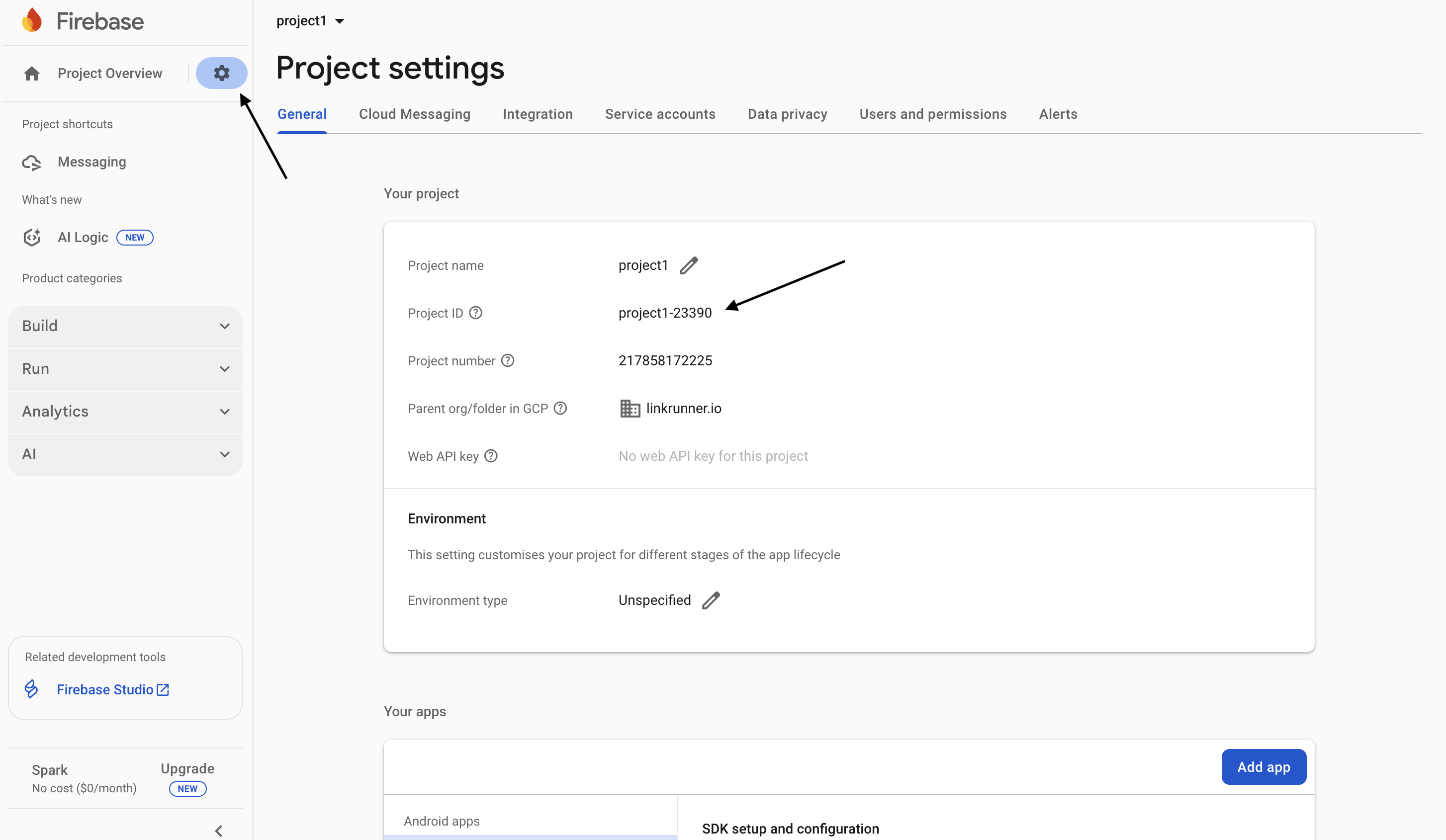
- Go to Project Overview > Project settings.
- Copy the Project ID. This will be required in a later step.
- Go to the Cloud Messaging tab.
- Make sure that Firebase Cloud Messaging API (V1) is set to Enabled.
- Go to the Service accounts tab.
- Click Manage service account permissions.
- A new browser tab opens in Google Cloud Platform.
- In the side menu, select Roles.
- Click + Create role.
- Enter the following details:
- Title: Linkrunner Uninstalls
- ID: lr_uninstalls
- Role launch stage: General availability
- Click + Add permissions.
- In Enter property name or value field, enter
cloudmessaging.messages.createand select it from the search results.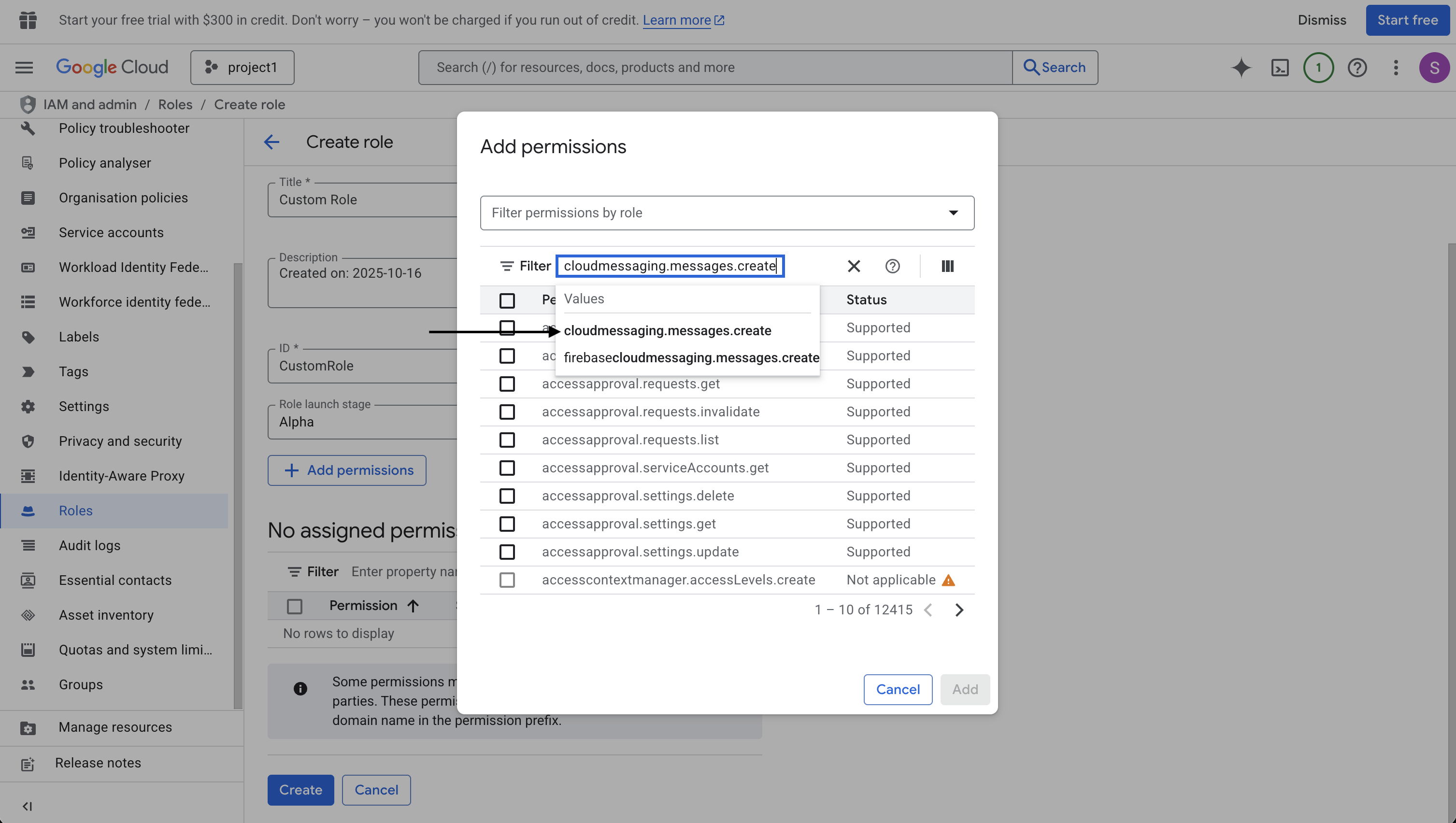
- Check the cloudmessaging.messages.create option and click Add.
- Click Create.
- In the side menu, select IAM.
- Open the View by Principals tab.
- Click Grant Access.
- In Add Principals -> New principals field, enter
lr-uninstalls-tracking@lr-uninstalls-tracking.iam.gserviceaccount.com - In Assign Roles -> Select a role field, enter
Linkrunner Uninstallsand select it from the search results. - Click Save.
Linkrunner Dashboard
Linkrunner Dashboard
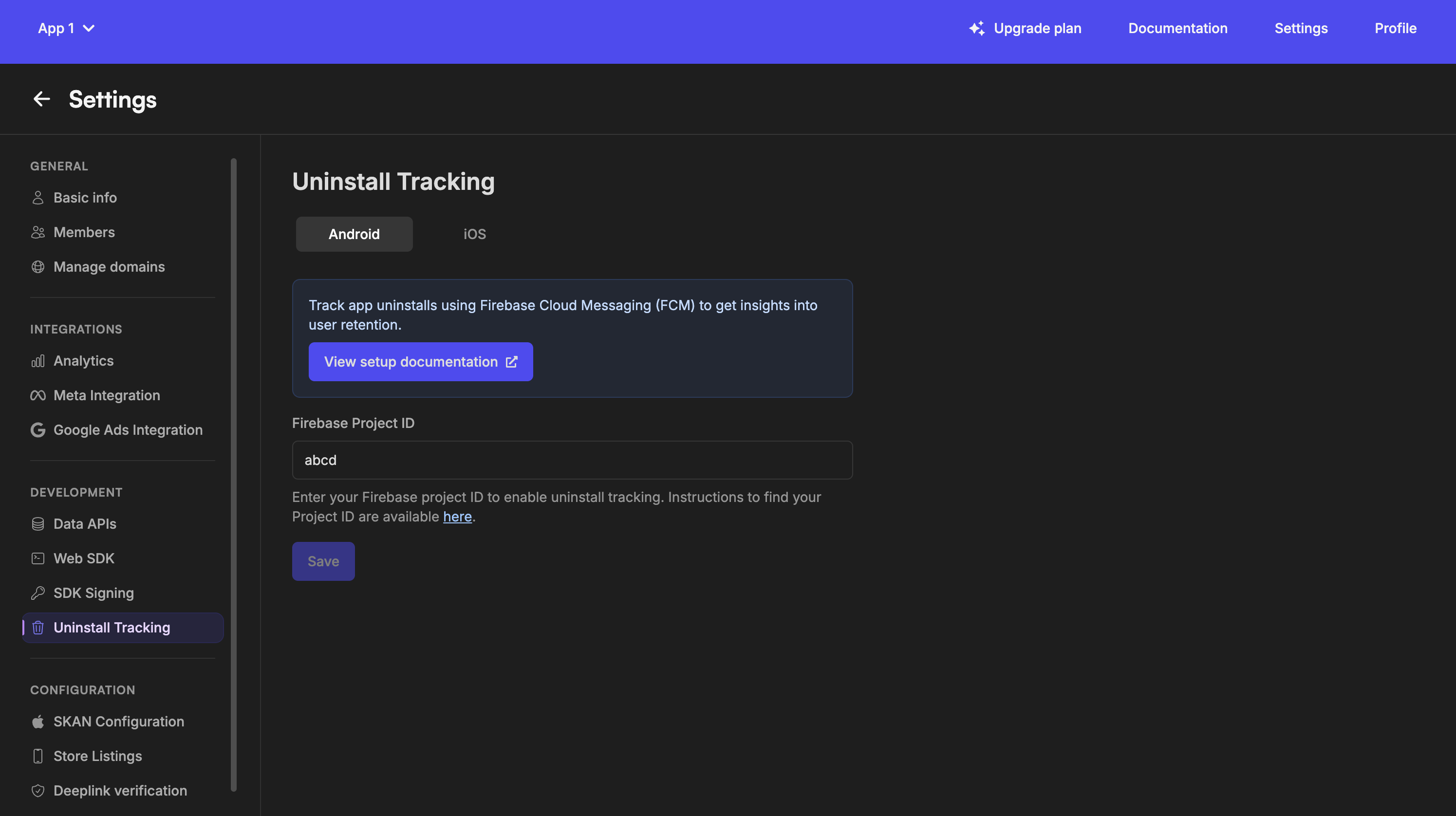
- In Linkrunner, go to Settings > Uninstall Tracking.
-
Under the Android tab, enter the Firebase Project ID that you copied initially and click Save.
Integrate with Linkrunner SDK
Integrate with Linkrunner SDK
Follow these instructions to integrate FCM with the Linkrunner SDK:Custom implementations of FCM’s
- Set up Firebase Cloud Messaging:
- Configure your app to provide the device’s push token to the Linkrunner SDK.
onMessageReceived method can unintentionally make uninstall push notifications visible to users, disrupting the intended silent experience. To avoid this, ensure your logic checks if the message contains lr-uninstall-tracking and handles it accordingly, as shown in the code example above.iOS
Connect APNs with LinkrunnerApple Developer Portal
Apple Developer Portal
Get the required credentials from the Apple Developer Portal:APNs Authentication Key (p8) and Key ID:
- Go to the Apple Developer Portal.
- Select Identifiers under Certificates, IDs & Profiles.
- Click on the app you want to track uninstalls for. Then, under Capabilities, search for Push Notifications and enable it.
- Under Certificates, IDs & Profiles, select Keys and click on plus (+) icon to create a key. Enable APNs when creating the key and download the key file (p8).
- The Key ID can be found in the Keys tab.
- Under Identifiers, click on your app and you will see the Bundle ID and Team ID (App ID Prefix).
Linkrunner Dashboard
Linkrunner Dashboard
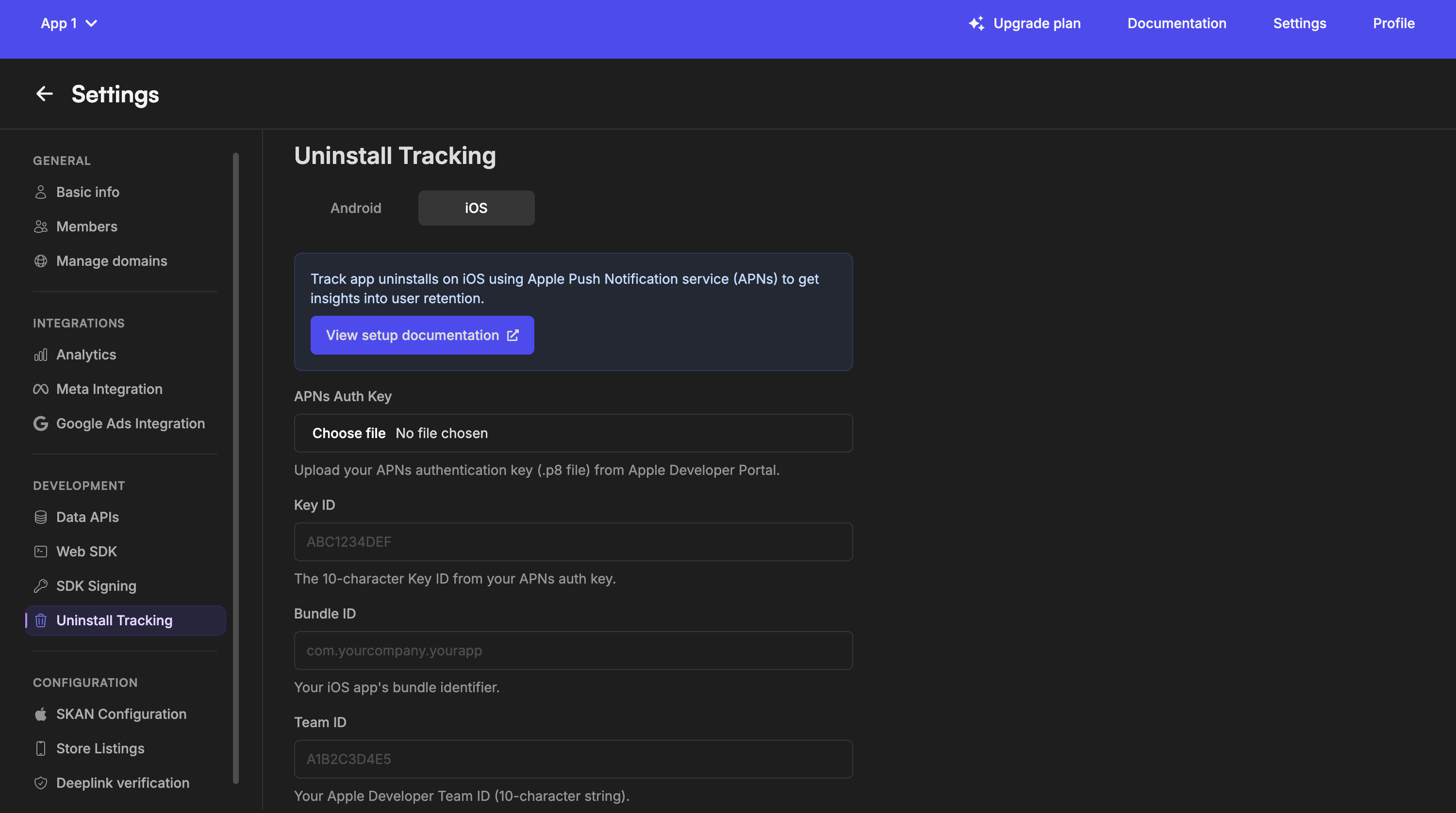
- In Linkrunner, go to Settings > Uninstall Tracking.
-
Under the iOS tab, upload the APNs Authentication Key (p8) file and enter the Key ID, Bundle ID and Team ID (App ID Prefix) that you copied from the Apple Developer Portal.
Integrate with Linkrunner SDK
Integrate with Linkrunner SDK
Follow these instructions to integrate FCM with the Linkrunner SDK:
- Set up Firebase Cloud Messaging:
- Configure your app to provide the device’s APNs token to the Linkrunner SDK.
Function Placement Guide
Complete Example
Here’s a simplified example showing how to integrate Linkrunner in a Flutter app: You can find your project token here.Next Steps
Test Your Integration
Validate your setup end-to-end
Set Up Deep Linking
Configure deep links for your app