

For Meta App Promotion campaigns, you can add the app link in Meta Ads Manager. Linkrunner syncs the Meta ad creative app link and returns it from
getAttributionData(). Manual ad set and ad creative deep links saved in Linkrunner override synced Meta links.Quick Example
Campaign Setup: Enable deferred deep linking, set URL toget.yourdomain.com/product/123
What Happens:
- User clicks campaign link (no app installed)
- Redirects to App Store/Google Play
- User installs and opens app
- App calls
getAttributionData(), receives deep link - Navigate user to product page
Setup
1. Create Campaign with Deep Link
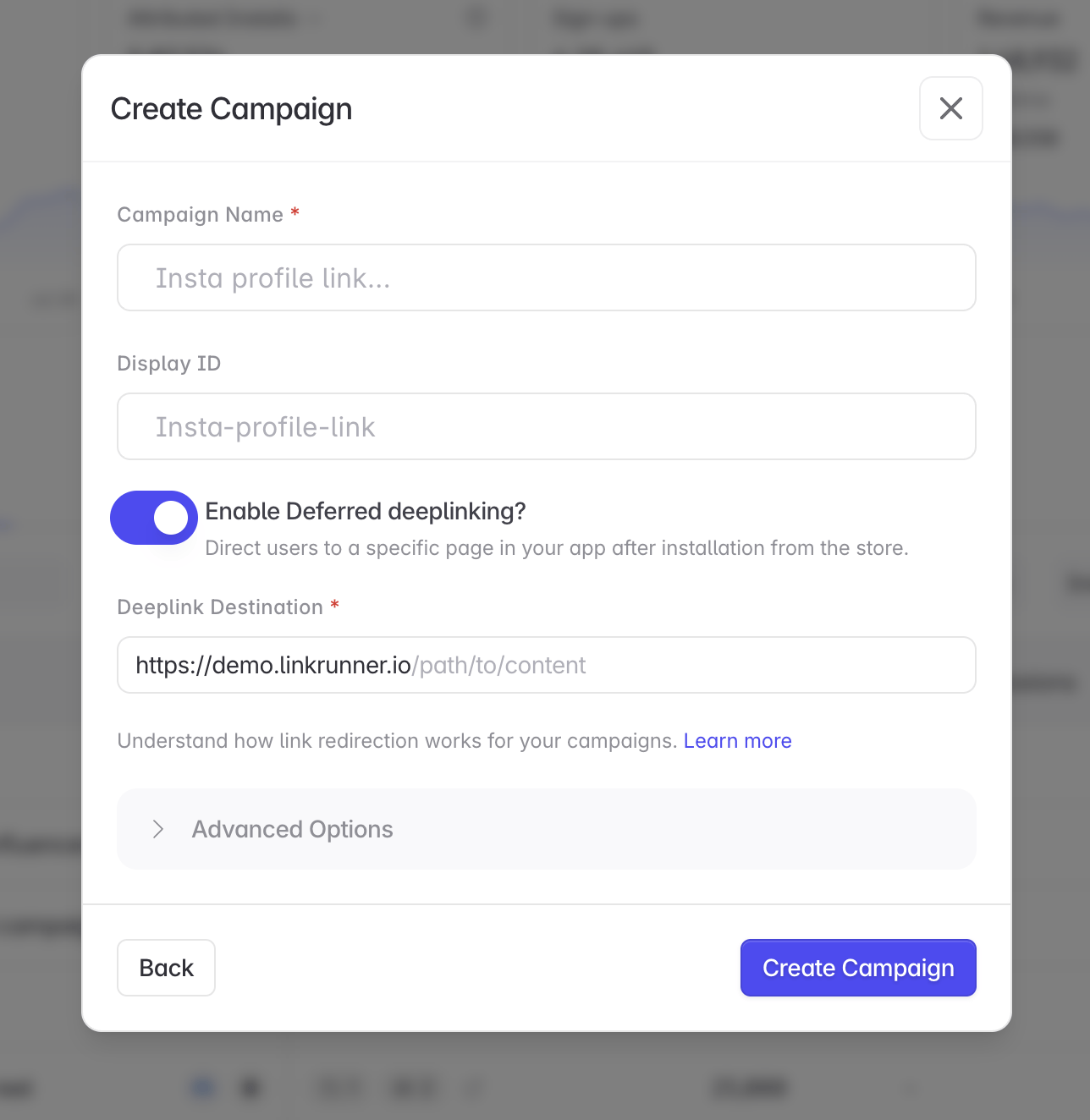
- Click “Create Campaign”
- Enable “Deferred Deep Linking” toggle
- Enter deep link URL:
get.yourdomain.com/product/123
2. Handle in Your App
CallgetAttributionData() when you need attribution data, check for the deeplink field, parse the URL, and navigate:
- Android
- iOS
- React Native
- Flutter
- Expo
Common Use Cases
Product Links:get.yourdomain.com/product/sneakers-123 → Opens product page
Promo Codes: get.yourdomain.com/promo/SAVE20 → Opens promo with code applied
Onboarding: get.yourdomain.com/onboarding?trial=30days → Custom onboarding flow
Referral tracking: get.yourdomain.com/product/123?referrer=jane → Deep link + attribution (learn more)
Testing
- Create test campaign with deferred deep linking enabled
- Uninstall app completely
- Click campaign link on mobile device
- Install and verify you land on the correct screen
Troubleshooting
No deep link returned? Check that deferred deep linking is enabled in campaign settings and URL is formatted correctly. Navigation fails? Add logging to your URL parsing logic, verify route names match your app’s navigation structure, and test with simple paths first. Attribution data is null? Ensure the app was installed via the campaign link (not directly from store) andgetAttributionData() is called after SDK initialization.
Questions? Contact support@linkrunner.io