

How much to trust it
A TV and a phone share one thing: the home’s public IP address. Linkrunner matches on that, so the match is probabilistic. The same IP address suggests the same household. It does not prove the same person saw the ad. Linkrunner limits the risk in three ways:- Clicks and device IDs come first. A CTV impression is credited only when no click, from any source, and no device-ID impression can be credited.
- Same home Wi-Fi only. The phone must install from the same public IP address as the TV. Installs over mobile data don’t match.
- Shared networks are skipped. If more than 4 such installs of your app come from one IP address in about a day, Linkrunner treats it as a shared network, such as an office or a hotspot, and gives no CTV credit.
Turn it on for a partner
You need three switches on, per partner and per app. Only admins and managers can change them. Changes take up to 5 minutes to apply.1
Turn on S2S clicks and impressions
Go to Integrations → Affiliate Partners, click Configure on the partner’s card, and turn on S2S clicks and impressions. See Turn on S2S clicks for a partner for the steps.
2
Turn on Connected TV (CTV) impressions
On the same page, turn on Connected TV (CTV) impressions under the S2S switch. It stays disabled until S2S is on. Turning S2S off also turns CTV off.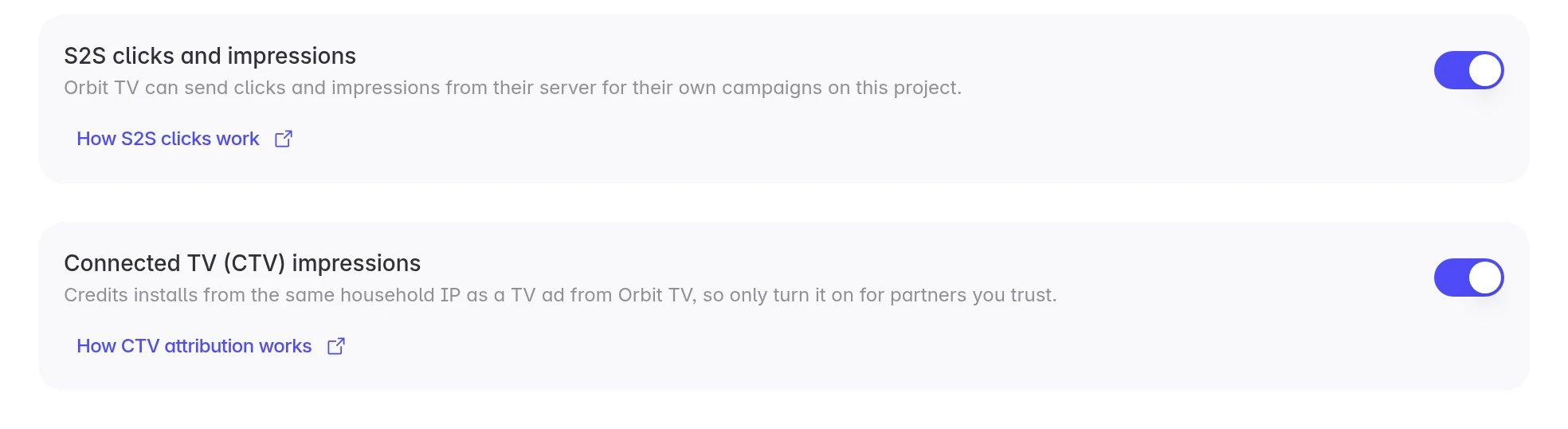
3
Turn on view-through for the partner
Go to Settings → Attribution Windows, find the partner, turn on View-through attribution, and choose a window from 1 to 24 hours. The default is 24 hours. See View-through attribution.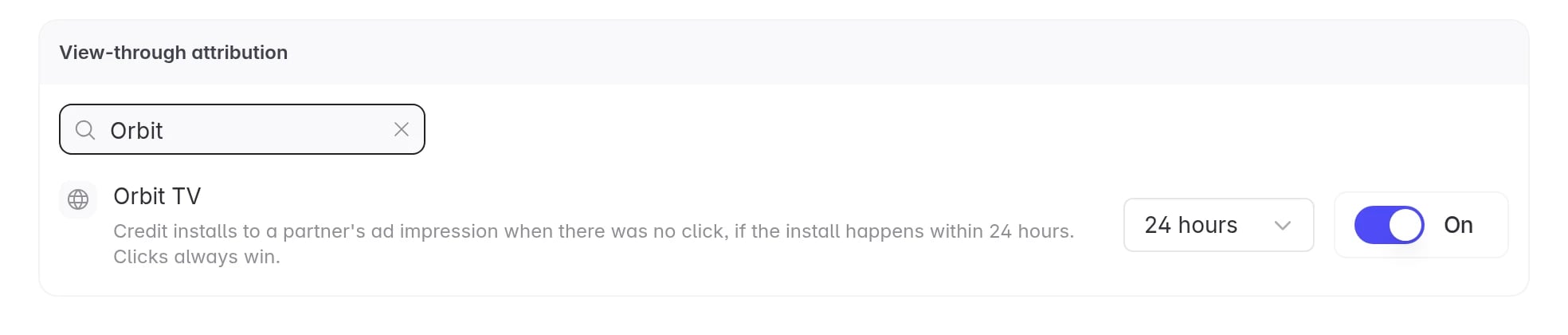
Send the partner their CTV impression URL
Once CTV is on for a partner, Linkrunner shows a CTV impression URL with a copy button on that partner’s campaigns. You can find it in three places: Campaigns table. Hover over the campaign’s row and click the TV icon next to the template URL copy button.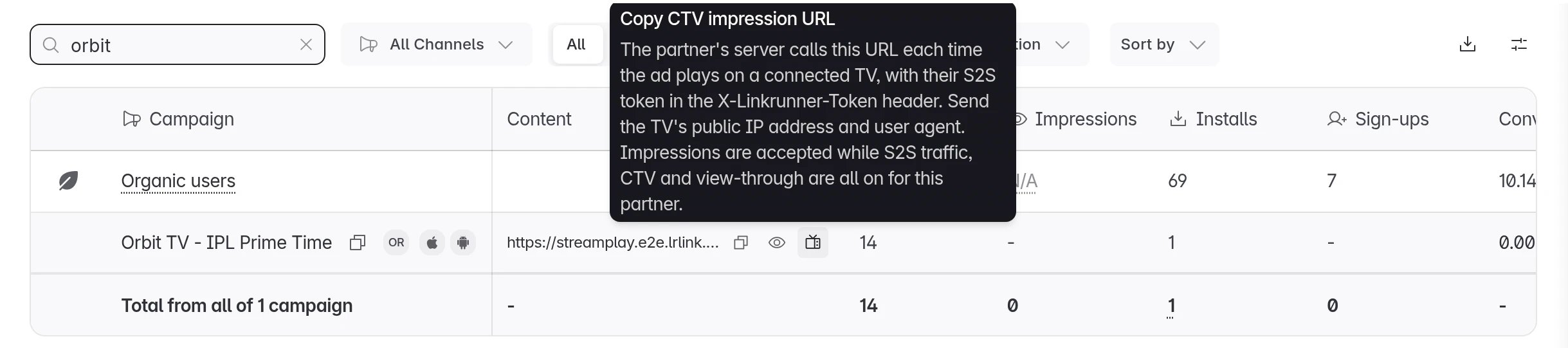

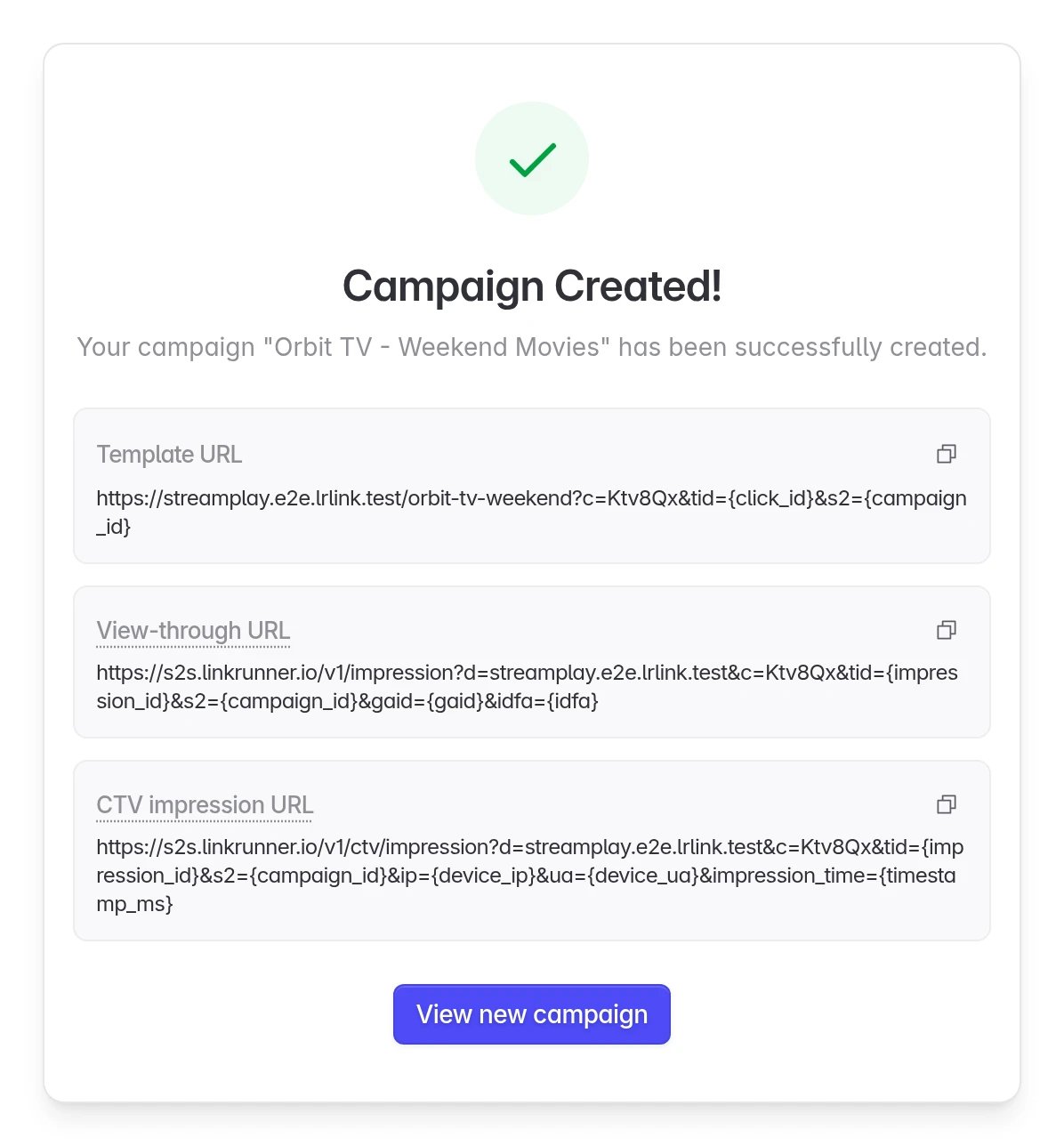
X-Linkrunner-Token header. The CTV impressions guide for partners has the full specification.
See your results
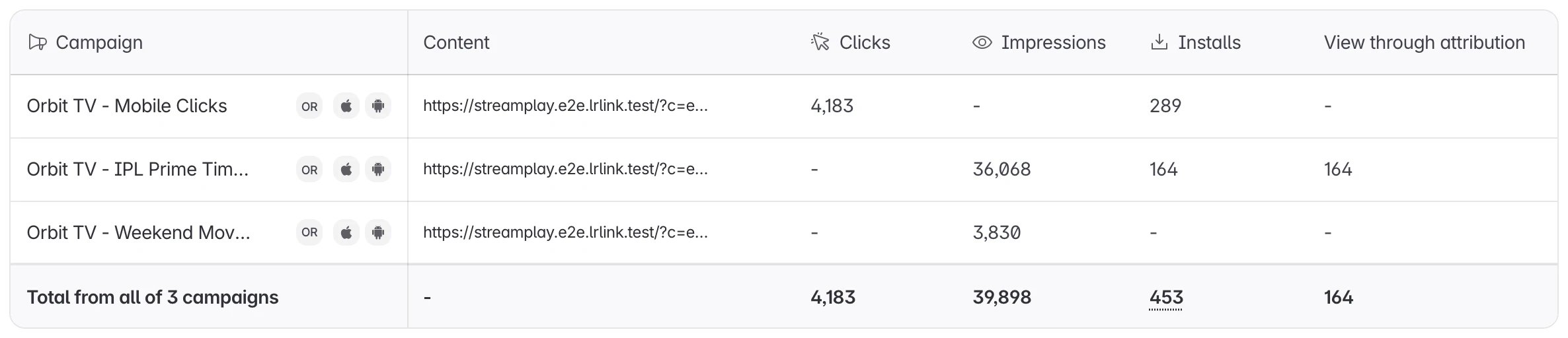
CTV installs appear in your campaign table as installs and as View Through Attribution installs. Accepted impressions appear in the Impressions column.-
The Impressions column is off by default. Click the Edit Columns icon in the table toolbar, tick Impressions, and click Save.

- A TV impression belongs to neither Android nor iOS. A view filtered to one platform leaves CTV impressions out. Clear the platform filter to see them.
-
Postbacks to the partner carry
{touch_type}=impressionfor CTV installs.
Turn it off
To stop CTV credit for a partner, turn off Connected TV (CTV) impressions on the partner’s Configure page. Within 5 minutes Linkrunner rejects the partner’s new CTV impressions. Installs already credited keep their attribution. You can also turn off view-through for the partner in Settings → Attribution Windows, which stops all impression credit for that partner. Turning off S2S clicks and impressions turns CTV off too.Troubleshooting
The partner's requests are rejected
The partner's requests are rejected
The partner sees one of these reasons in the response:
partner_not_enabled: S2S clicks and impressions is off for this partner.ctv_not_enabled: the CTV switch is off for this partner.view_through_disabled: view-through is off for this partner in Settings → Attribution Windows.
Impressions are accepted but no installs are credited
Impressions are accepted but no installs are credited
Check these in order:
- The phone installed on the same home Wi-Fi as the TV. Installs over mobile data don’t match.
- The impression arrived before the install, and the install is inside the view-through window.
- The impression carries the TV’s real public IP address, not the partner’s ad server address.
- No click or device-ID impression was available to credit instead. Those always win.
- The home IP address did not trigger the shared-network limit of more than 4 installs in about a day.
I don't see a CTV impression URL
I don't see a CTV impression URL
The URL shows only for a partner’s campaigns once CTV is on. Check that S2S clicks and impressions and Connected TV (CTV) impressions are both on for that partner, and that the partner is connected in Integrations → Affiliate Partners.