

Appearance
Shopify sync
Write the campaign that won each order into your Shopify orders, customers and marketing reports
Linkrunner already reads your store: the Shopify guide sends page views, sign-ups and purchases into your Linkrunner dashboard. This page is the other direction. Connect your store once, then choose which of three things Linkrunner writes back into Shopify, so you can answer "which campaign produced this order" without leaving your Shopify admin.
Each of the three is a separate switch and all three start off.
Two of the three are not available yet. Campaign on every order and Tag customers with the campaign that won them both read the campaign off the order, and it only gets there from the cart, which needs a Linkrunner SDK release that is not out. Those two switches are disabled in your dashboard for now, so Ad spend in your Shopify marketing reports is the one you can turn on today.
What Linkrunner writes to your store
The campaign on every order
Linkrunner stores the campaign on the order as the custom.linkrunner_campaign metafield. It shows on the order's detail page, and you can filter and export your order list by it.
Linkrunner creates the definition for you when you connect, with Copy values from matching cart metafields on. That setting is what moves the campaign from the shopper's cart onto the order Shopify creates from it.
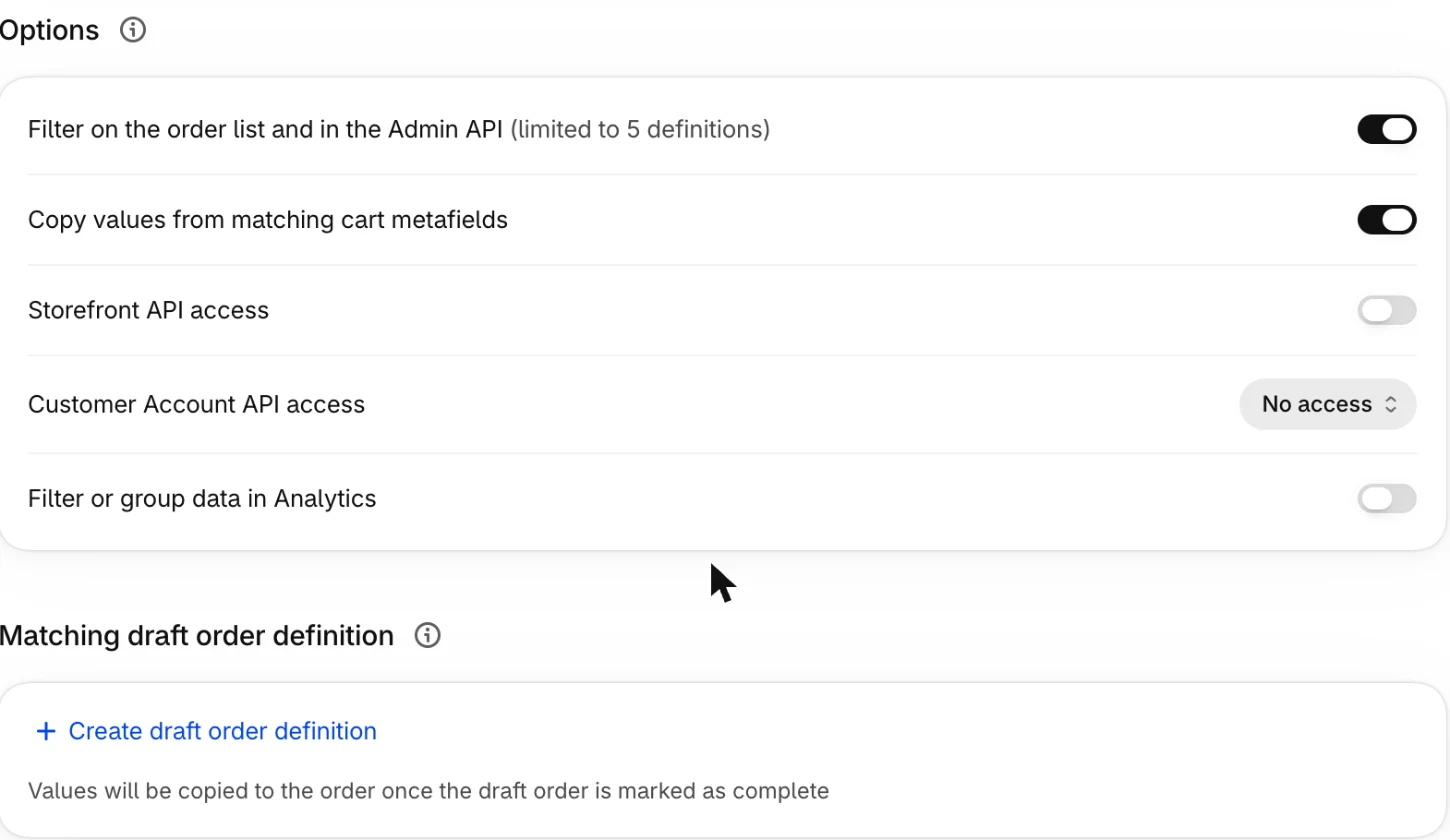
Your storefront has to put the campaign on the cart for Shopify to copy it to the order. Shopify only copies a cart metafield it already has, so a storefront that never sets one produces orders with an empty campaign.
Carts created through the Storefront API can set it with Shopify's cartMetafieldsSet mutation. The key is the composite custom.linkrunner_campaign: CartMetafieldsSetInput has no separate namespace field.
A Liquid theme has no supported way to write a cart metafield today. Ask support@linkrunner.io about the storefront helper.
The campaign on the customer
When an order comes in, Linkrunner writes the campaign to the customer in two forms: as the custom.linkrunner_acquisition_campaign metafield, which keeps the campaign name as you wrote it, and as a tag of the form lr-<campaign>.

The tag is there because Shopify segments can filter on customer_tags with contains, while a text metafield can only be matched exactly. So the tag is what lets you build a segment of everyone a campaign brought in:
text
customer_tags CONTAINS 'lr-diwali-prospecting'
A customer is tagged once, on the first order that carries a campaign. A repeat buyer keeps the campaign that first brought them in, and their tag list does not grow with every order.
This switch needs the order metafield above, because the campaign is read off the order. Linkrunner will not let you turn it on without it.
Ad spend in your Shopify marketing reports
Linkrunner sends each campaign to Shopify once a day as a marketing activity, with that day's ad spend, impressions and clicks. Your Linkrunner campaigns then sit beside your other marketing channels in Shopify's own reports.

Which metrics are synced
Linkrunner sends three numbers per campaign per day, and nothing else. Shopify keeps counting its own sales, sessions and orders, and works out the ratios across the two.
| Metric | Sent by Linkrunner | Where it comes from |
|---|---|---|
| Ad spend | Yes | The campaign's spend, the same figure as your Linkrunner Campaigns page |
| Impressions | Yes | The campaign's impressions |
| Clicks | Yes | The campaign's clicks |
| Total sales | No | Shopify's own order data |
| Sessions | No | Shopify's own storefront sessions |
| Orders | No | Shopify's own order data |
| ROAS, CPA, CAC, CTR | No | Derived by Shopify from the spend above and its own sales and sessions |
Linkrunner never writes to your revenue. Each day is sent as a total and re-sending a day replaces it rather than adding to it, so a retry cannot double your reported spend.
Three things decide what you see:
- The day boundary is your store's timezone, not your Linkrunner project's, so the rows line up with the rest of your Shopify reporting.
- Spend is only sent when the ad account's currency matches your store's. Each ad account bills in its own currency, so this is decided per campaign, not once for the project. A campaign whose ad account bills in a different currency still sends its impressions and clicks, and leaves its spend out, because relabelling one currency as another would put a wrong ROAS in front of you.
- Today is never sent. A day is sent once it has finished.
Set it up
Create a Shopify app for your store
Shopify installs a custom app on a single store, so your store uses its own app rather than a shared Linkrunner one.
In the Shopify Dev Dashboard, create an app, choose custom distribution and pick your store. Open the app's API credentials and keep the Client ID and Client secret in front of you.
Distribution cannot be changed after you choose it. Pick custom distribution, not public.
Add the app to Linkrunner
Open Integrations in your Linkrunner dashboard, go to the Ecommerce tab and click Configure on Shopify.
Enter your store's myshopify.com domain, for example acme.myshopify.com, then the Client ID and Client secret from the previous step, and click Save app details.
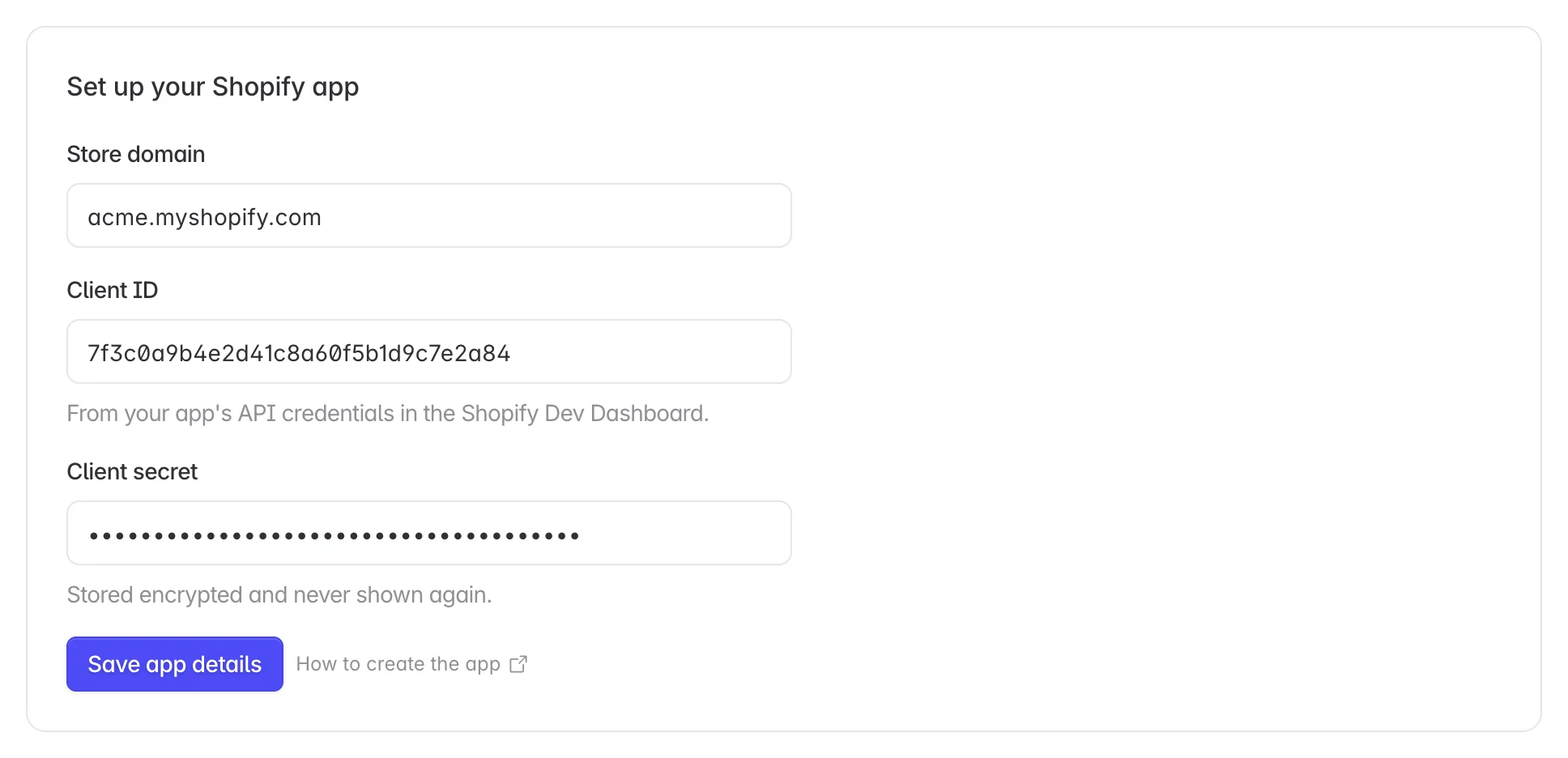
The secret is stored encrypted and is never shown again. To replace it later, open App details and paste a new one.
You need to be an admin on the Linkrunner project and have permission to install apps on the Shopify store.
Connect your store
Click Connect. Shopify asks you to approve the app, then sends you back.
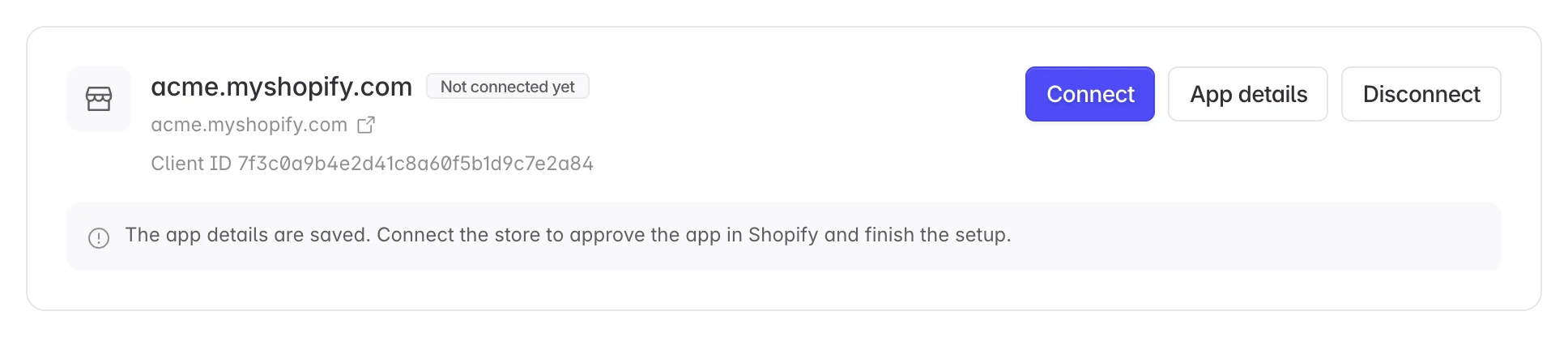
Once it is approved the store shows as connected, with the client ID of the app it is using.

Choose what Linkrunner writes
Back on the Shopify settings page, turn on Ad spend in Shopify's Growth reports.
Campaign on every order and Tag customers with the campaign that won them are not available yet and stay off. It starts off, and you can turn it off again later.
Check it in Shopify
Give it a day, then look in your Shopify admin under Analytics → Reports → Marketing, or Growth → Attribution, for the campaign rows.
Marketing reports can take up to 24 hours to show a new day.
What Linkrunner can read about your shoppers
Nothing personal. Linkrunner asks Shopify only for the order id, its own campaign metafield, and the customer's id and tags. It never requests a shopper's name, email, phone number or address, and it stores no order or customer records of its own.
Things to know
My campaigns show spend but zero sales and zero ROAS
Shopify matches marketing to its own storefront sessions, using utm_campaign on store URLs. If your Linkrunner spend drives app installs rather than visits to your store, Shopify has no sessions to match it to, so the row shows your spend next to zero sales.
That is Shopify's attribution, not a missing sync. If most of your spend goes to app campaigns, leave the marketing reports switch off and use the order and customer switches, which do not depend on Shopify sessions.
Orders have no campaign on them
Shopify copies the campaign from the cart to the order, so the cart has to carry it first. See the warning under the campaign on every order. If your storefront does set the cart metafield and orders are still empty, check that the order metafield definition still exists in Settings → Custom data → Orders.
Shopify says I have used all five filterable definitions
Shopify allows five metafield definitions per resource that can be filtered on. If your store has already used all five for orders, Linkrunner still creates its definition, just without filtering. The campaign still appears on each order, you just cannot filter your order list by it.
The connection says it needs reconnecting
Shopify stopped accepting our access, usually because the app was uninstalled or its permissions changed. Nothing is being written while it says this. Click Reconnect on the Shopify settings page and approve the app again.
Disconnecting
Disconnect on the Shopify settings page stops Linkrunner writing to your store. Campaigns already on past orders and customers stay where they are, and the metafield definitions are left in place so your order history keeps reading correctly.
Disconnecting does not uninstall the app from Shopify. To end its access on Shopify's side as well, uninstall Linkrunner from Settings → Apps and sales channels in your Shopify admin.
Need help? Contact support@linkrunner.io.