

Appearance
Send website conversions to Google Ads
Upload sign-ups and purchases from your website to Google Ads conversion actions, so Google can bid for the visitors who convert.
When someone who clicked your Google ad signs up or buys on your website, Linkrunner uploads that conversion to a conversion action in your Google Ads account. Google then counts it for the ad and can use it to optimize your bidding.
Connected Google Ads a while ago? Reconnect it on the Account Integration tab and approve every permission Google asks for. Uploading website conversions needs Google's Data Manager permission, which older connections don't have.
1. Open the web event mapping
- Go to Integrations and open Google Ads.
- Switch to Web at the top.
- Open the Web Event Mapping tab. If you have connected more than one Google Ads account, pick the account first.
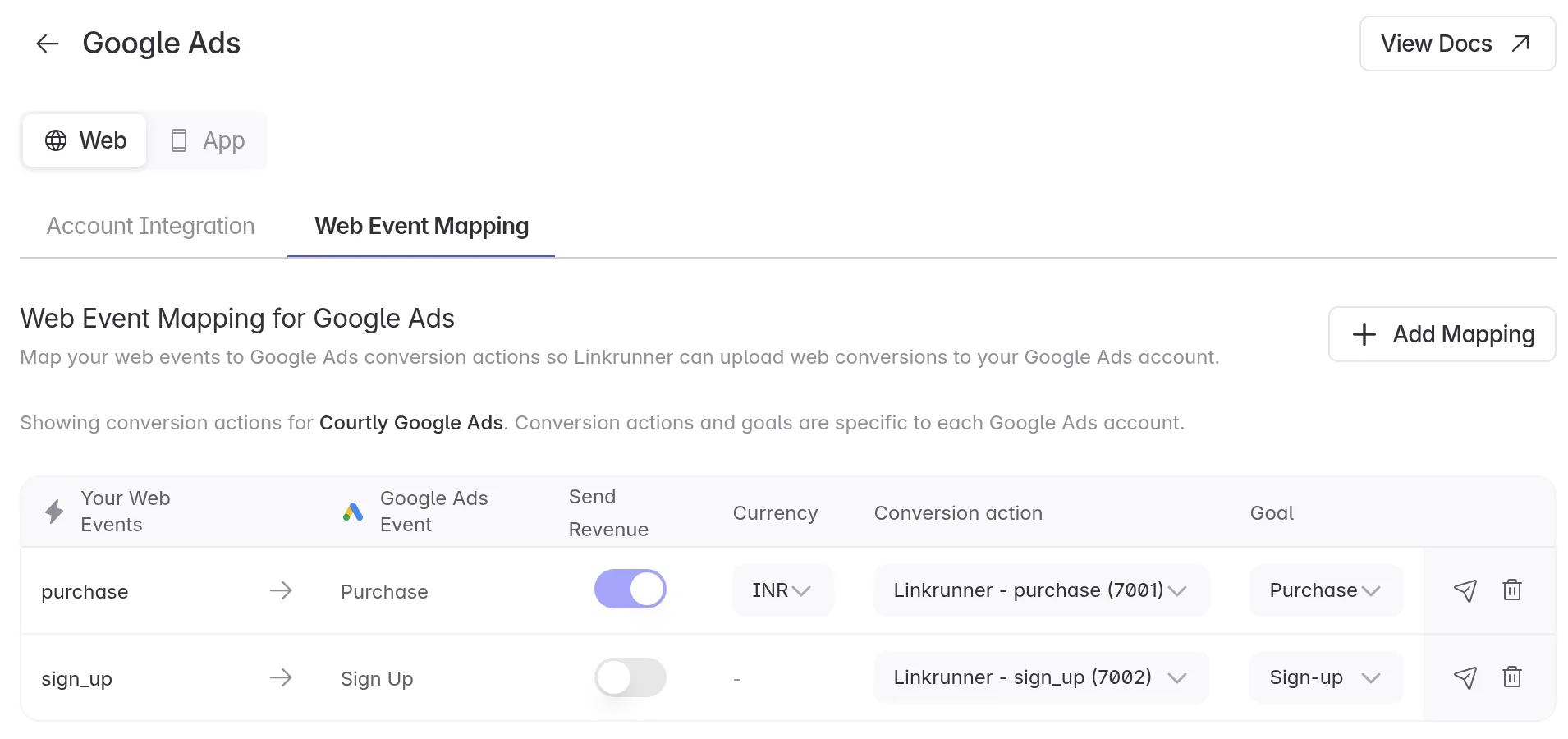
2. Add a mapping for each event
Click Add Mapping.
Under Your Web Events, pick your website event, such as
lead_form_submitted. The list shows the events Linkrunner has received from your website.Under Google Ads Event, pick the closest match: Purchase, Sign Up, Generate Lead, Add To Cart, Begin Checkout or Custom Web Event. To type your own name, pick Custom Event. Each Google Ads event can be used in one mapping only.
Under Conversion action, pick the Google Ads conversion action that should receive it.
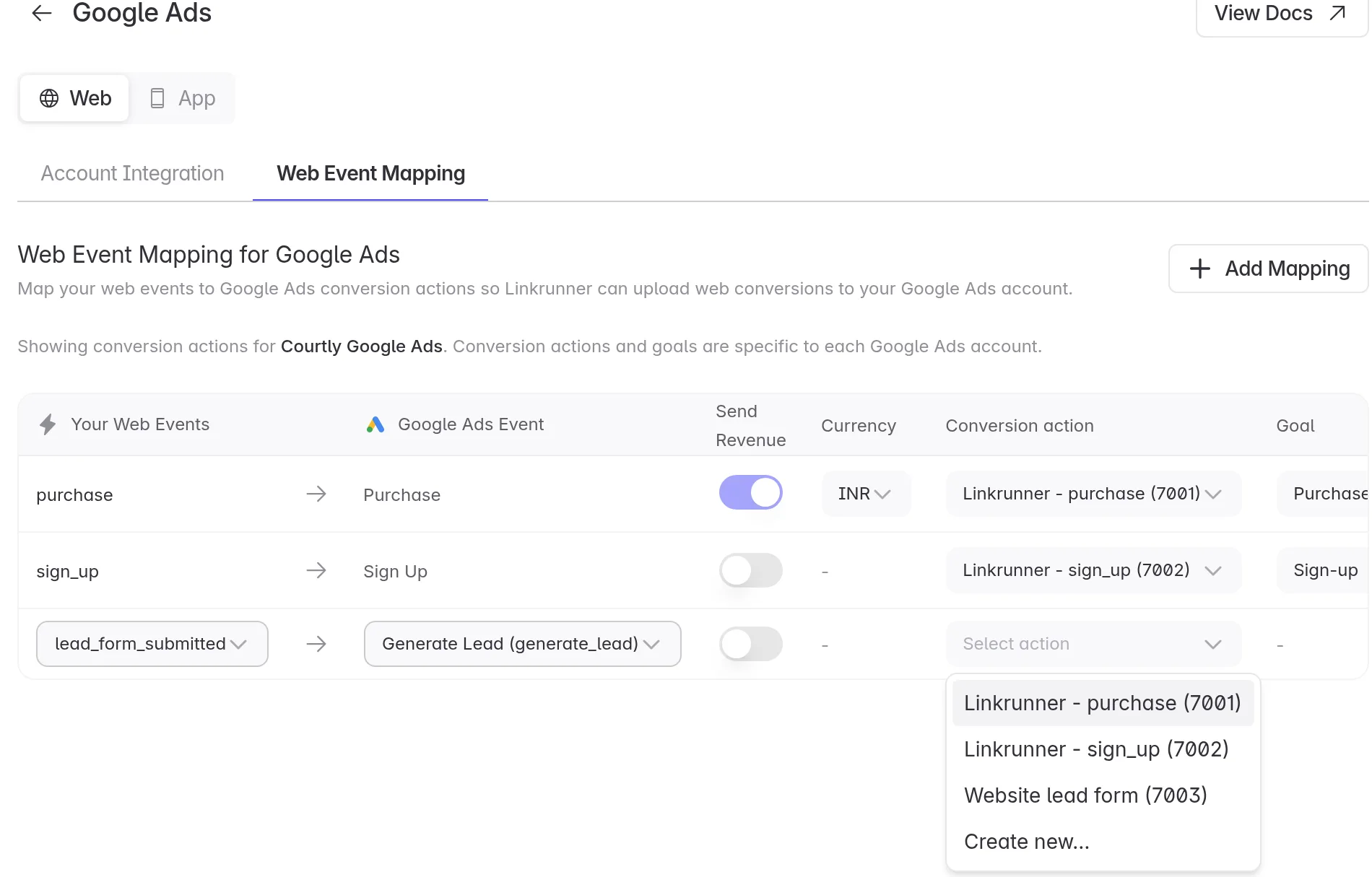
For purchases, turn on Send Revenue and pick the Currency your website sends.
Save the row.
Each mapping needs a conversion action. Without one, nothing is sent to Google.
Create a conversion action from Linkrunner
If you don't have a suitable conversion action, pick Create new… in the Conversion action list. Give it a Name, pick a Goal such as Purchase, Sign-up or Submit lead form, and click Create. Linkrunner creates it in your Google Ads account and selects it.
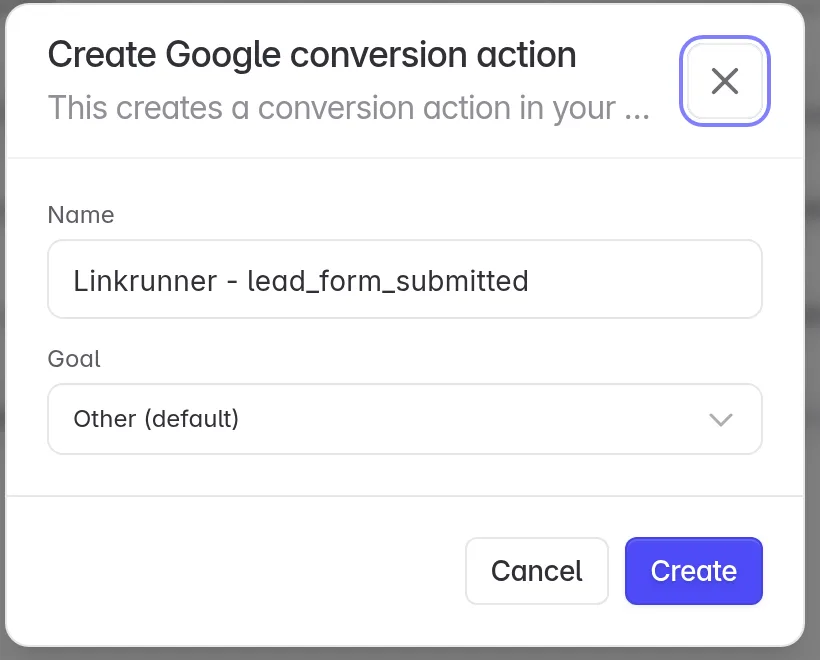
The list only shows conversion actions that can receive uploaded website conversions. Actions of other types, such as app installs, are hidden.
3. Send a test event
Click the paper plane icon on a row. Linkrunner asks Google to check the upload without counting it, and shows whether Google accepted it.
What Google receives
For each mapped event, Linkrunner uploads:
- The Google click ID:
gclid, orgbraidorwbraidfor some iOS traffic. - The time of the conversion.
- An order ID, so Google doesn't count the same conversion twice.
- The value and currency, when Send Revenue is on.
Only visits from a Google ad click carry a click ID, so only those conversions are uploaded. Linkrunner doesn't send email addresses or phone numbers.
Troubleshooting
"<account name> cannot receive web conversions yet". The Google Ads account is missing the Data Manager permission. Reconnect it on the Account Integration tab and approve every permission. Mappings you made before still work once you reconnect.
"Conversion actions could not be loaded". Check that the account still has Google Ads API access and the connection is authorized, then reload the page.
"No conversion action selected". The row has no conversion action, so nothing is sent. Pick one, or create one.
"This conversion action cannot receive uploaded web conversions". Google rejects uploads to this type of action. Pick another action, or create a new one from Linkrunner.
Conversions don't show in Google Ads. Check that the visitors came from a Google ad with auto-tagging on, so their visits had a gclid. Google can take a few hours to show uploaded conversions.
Need help? Contact support@linkrunner.io