

Appearance
Create a web link for a partner
Give an affiliate partner one link to your website, and see visits, sign-ups and revenue for each of their publishers.
Your partner fills in their own values on every click, such as a publisher ID. Linkrunner then splits that partner's visitors, sign-ups and revenue by each value, so you don't need a separate link for every publisher.
1. Open Create Campaign
In the dashboard, go to Web Campaigns and click Create Campaign.

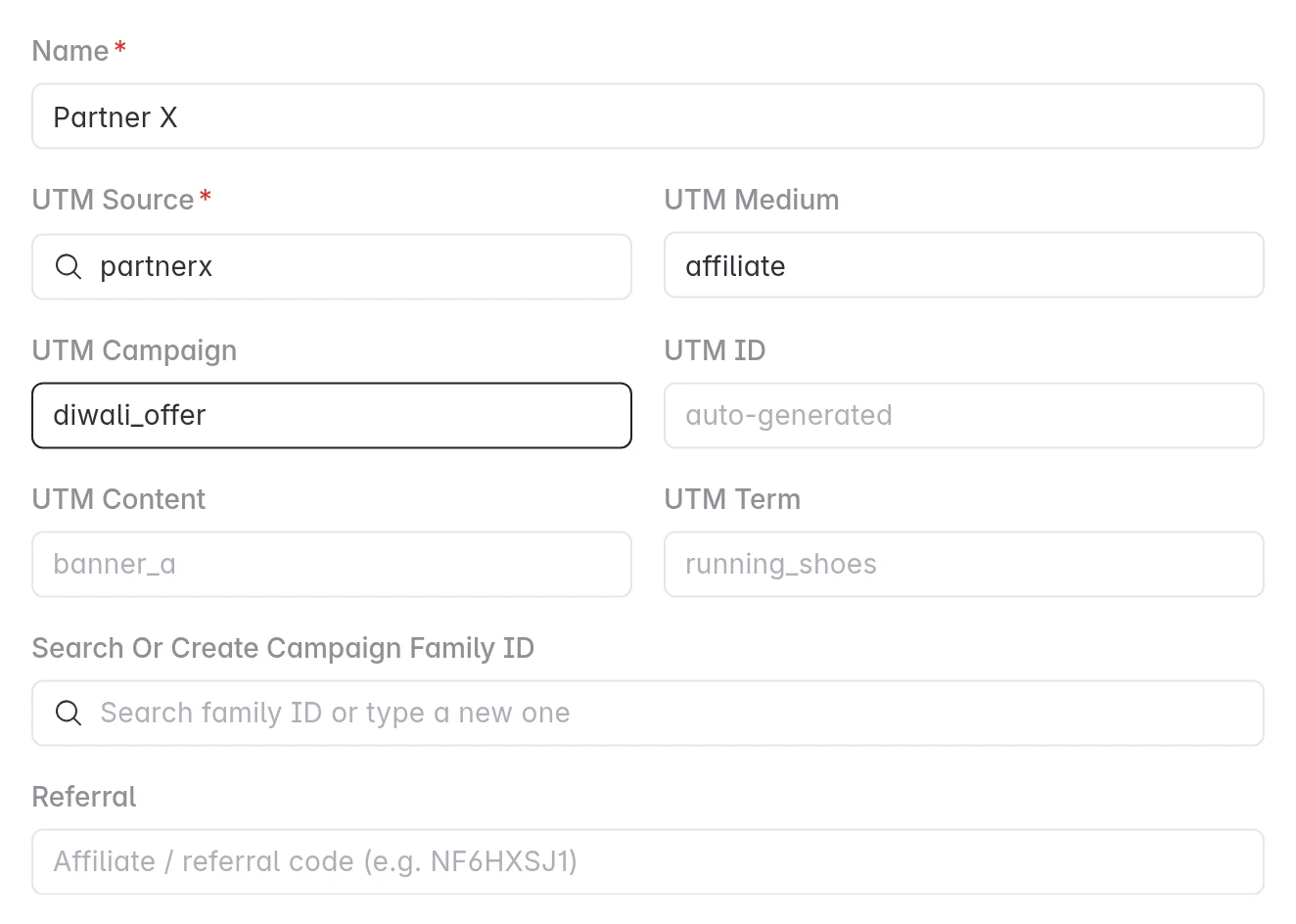
2. Name the link and tag the partner
| Field | What to enter | Example |
|---|---|---|
| Name | A name your team will recognize. Required. | Partner X |
| UTM Source | The partner's name. Required. Pick it from the list or type it. | partnerx |
| UTM Medium | The type of traffic. | affiliate |
| UTM Campaign | The offer or campaign the partner is running. | diwali_offer |
Leave UTM ID empty. Linkrunner creates a unique ID for the link. You can leave the other fields empty too.
Use the same UTM Source on every link you give this partner, so their links group together.
3. Add the values your partner fills in
Turn on Let partners fill values in the link. Linkrunner adds Publisher ID as the first value. Click Add value for each extra value, up to 5. The second one starts as Source.
For each value:
- Label is the name you see in reports, such as
Publisher ID. - Placeholder is the name that goes in the link, such as
publisher_id. Start with a letter, then use lowercase letters, numbers and_, up to 32 characters.
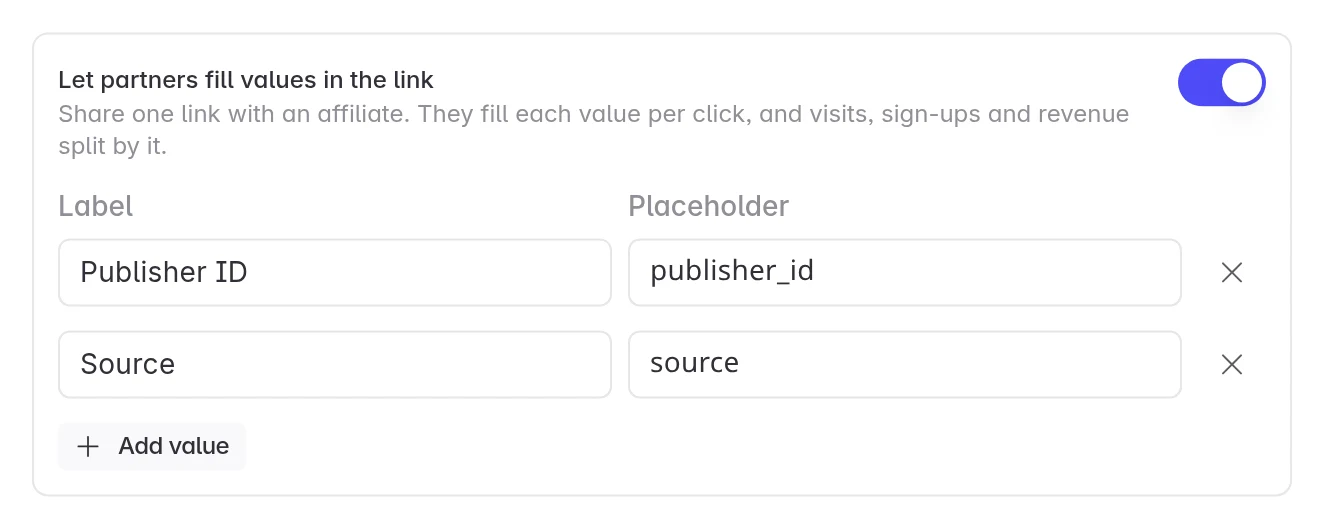
Agree on the values with your partner before you click Create. You can rename a label later, but you can't change or add placeholders once the link exists.
4. Check the link and create it
Domain is the website the link opens. It starts on your project's website. To send people to another domain, first add it in Settings → Whitelist SDKs.
Check URL Preview. Each partner value shows as lr_sub1={publisher_id}, lr_sub2={source} and so on. Then click Create.
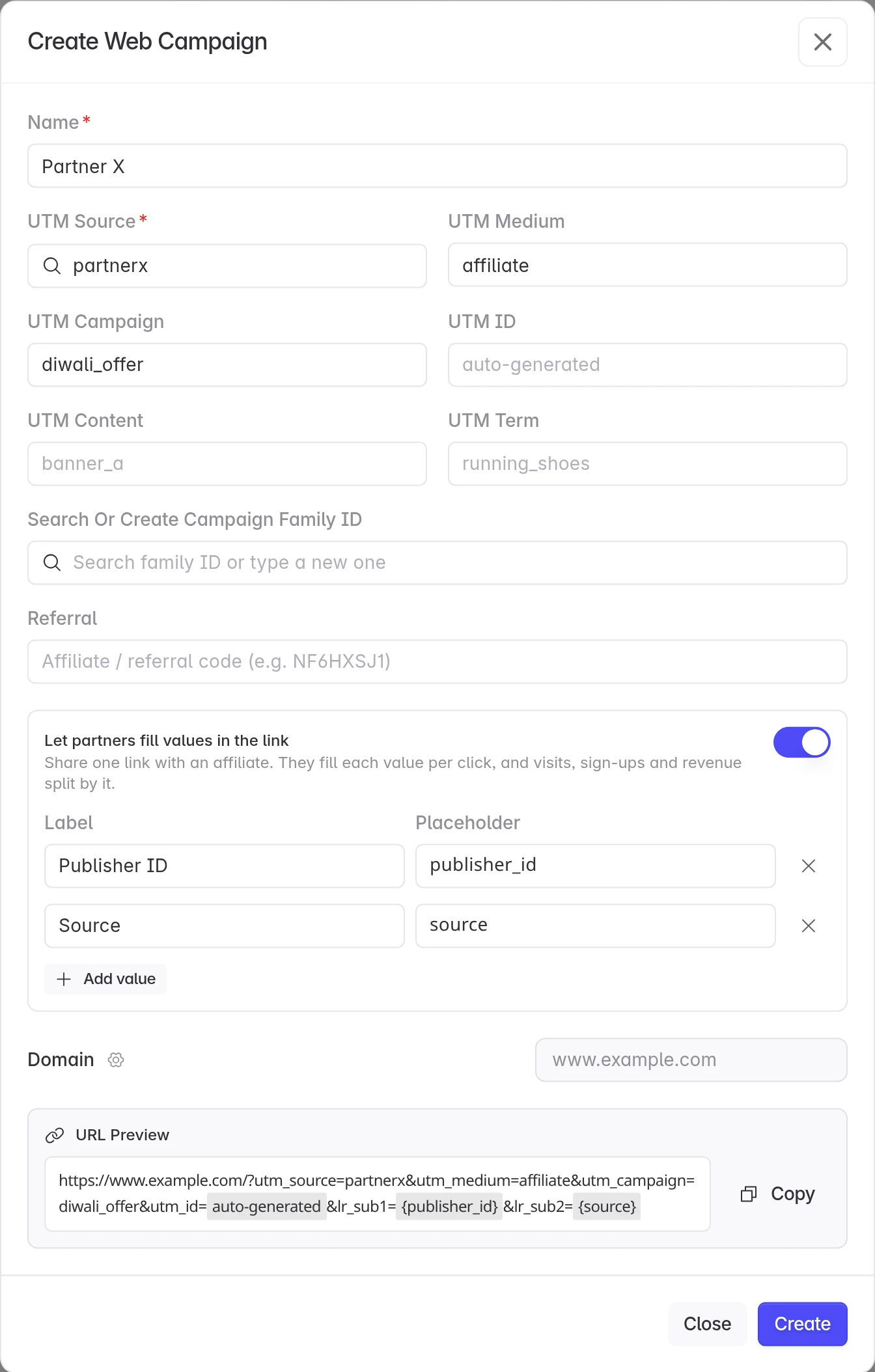
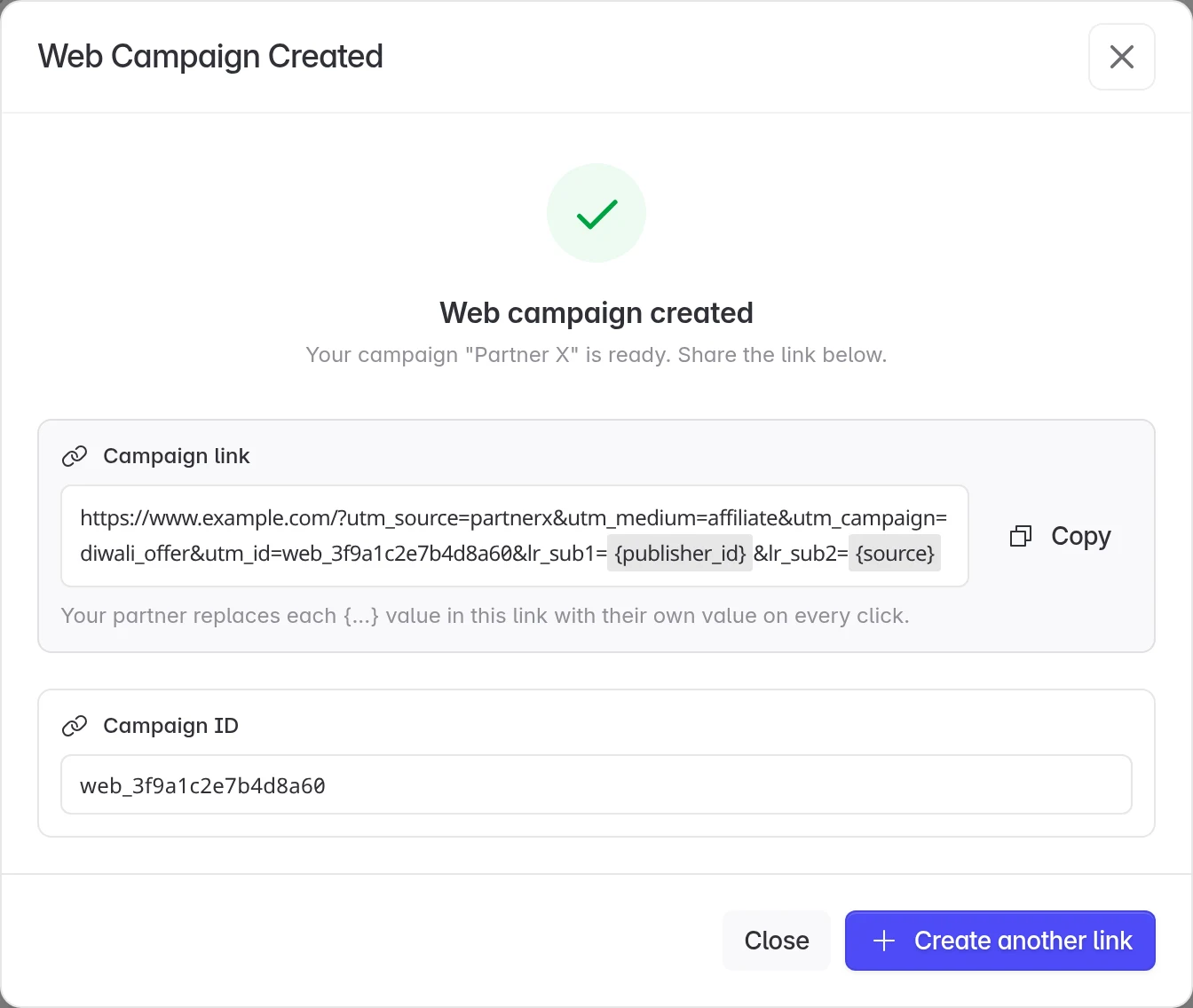
Click Copy to copy the Campaign link. The Campaign ID below it is the link's utm_id. You use it to find the link later.
5. Send the link to your partner
Send the link to your partner and ask them to:
- Replace each
{...}placeholder with their own platform's macro, so a real value goes in on every click. For example,lr_sub1={publisher_id}becomeslr_sub1={their_publisher_macro}. - Keep everything else exactly as it is, especially
utm_idand thelr_subnames.
This is what you send:
text
https://www.example.com/?utm_source=partnerx&utm_medium=affiliate&utm_campaign=diwali_offer&utm_id=web_3f9a1c2e7b4d8a60&lr_sub1={publisher_id}&lr_sub2={source}This is what a click should look like when it reaches your website, with real values and no braces:
text
https://www.example.com/?utm_source=partnerx&utm_medium=affiliate&utm_campaign=diwali_offer&utm_id=web_3f9a1c2e7b4d8a60&lr_sub1=PUB_1042&lr_sub2=instagramDoes your partner's platform already send AppsFlyer-style values? The Web SDK also reads af_siteid or af_sub1 as the first value, af_sub_siteid as the second, and af_sub2, af_sub3 and af_sub4 as the third to fifth. It reads them only when the link has no lr_sub parameter with that number. So ask your partner to swap lr_sub1={publisher_id} for their af_siteid parameter, not to add it next to it.
A source parameter is also read as the second value when the link has a utm_id and no lr_sub2 or af_sub_siteid.
6. Test the link
- Copy the link and replace the placeholders with test values, such as
lr_sub1=test_pub. - Open it in a private browser window and sign up on your website.
- On Web Campaigns, open the Campaigns tab and search for the link's Campaign ID.
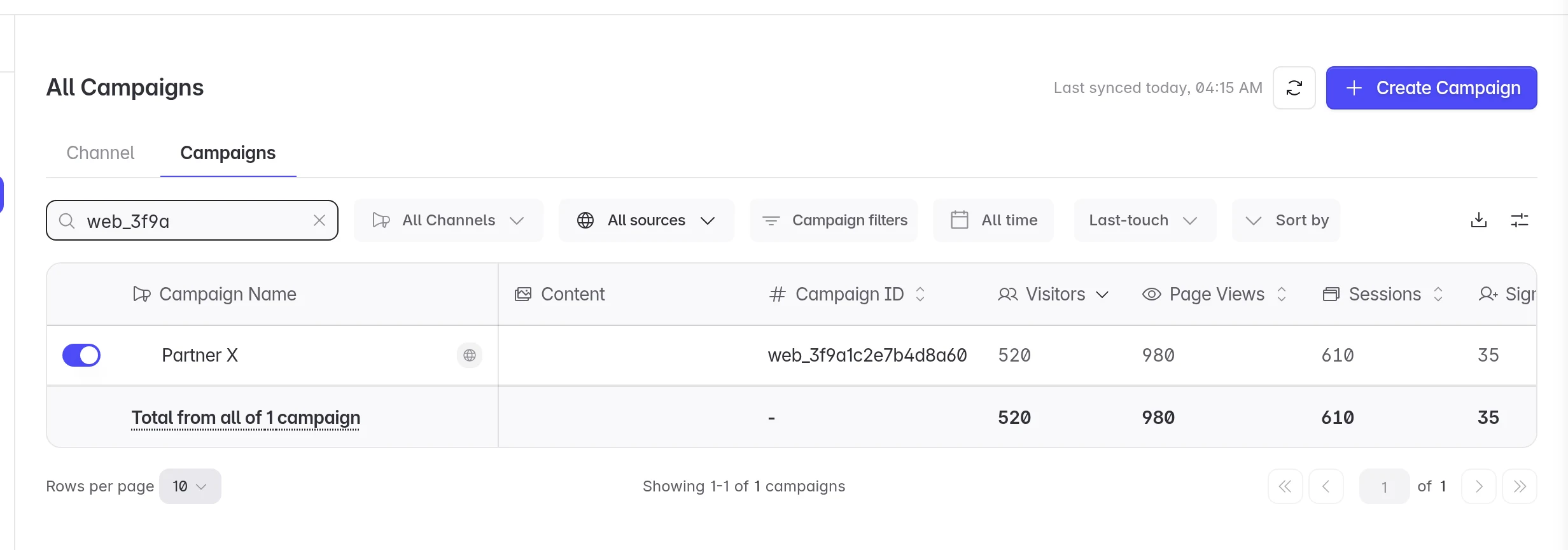
- Click the row. Under Partner breakdown,
test_pubshows your visit and sign-up.
See results by publisher
Click the link's row on the Campaigns tab. Partner breakdown shows Visitors, Sign-ups and Conversion for each value your partner sent, and Revenue if your role can see revenue.
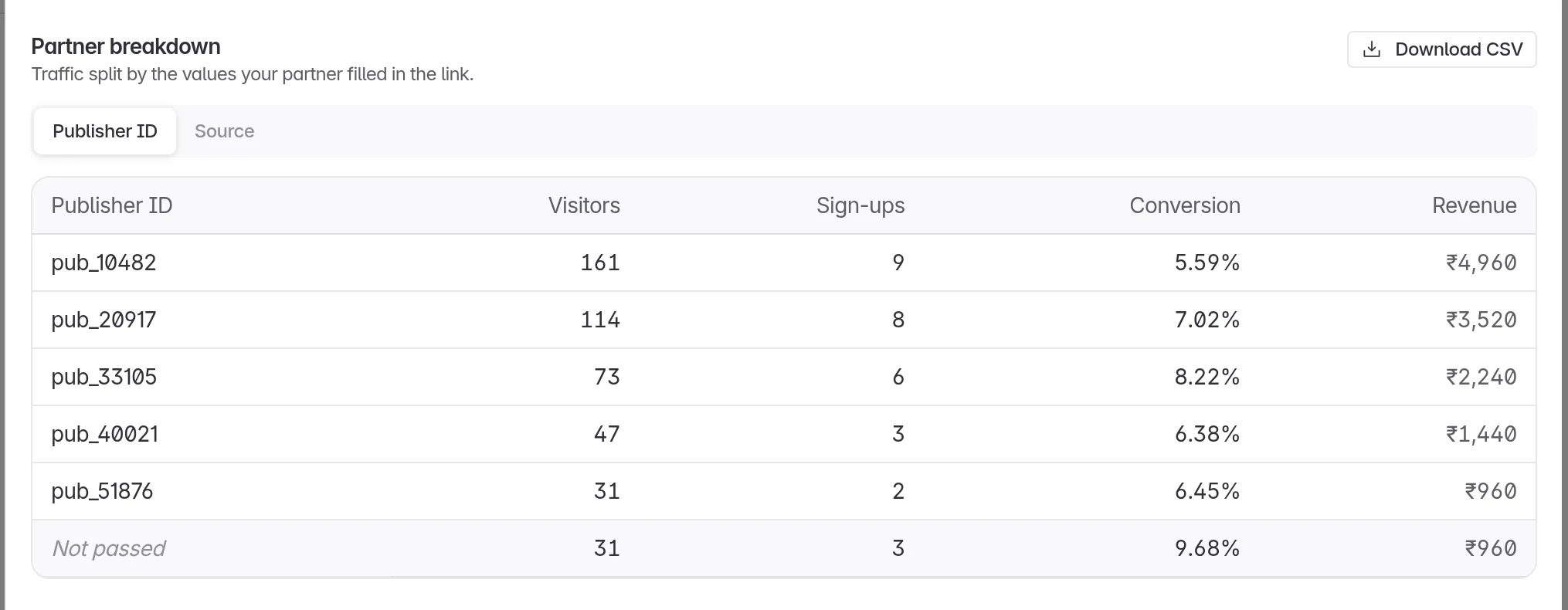
- Not passed counts visits where the partner sent no value, or left the placeholder unfilled.
- Other groups the values outside the top 50. It only shows when your partner sends more than 50 different values.
Switch tabs to split by another value, such as Source.
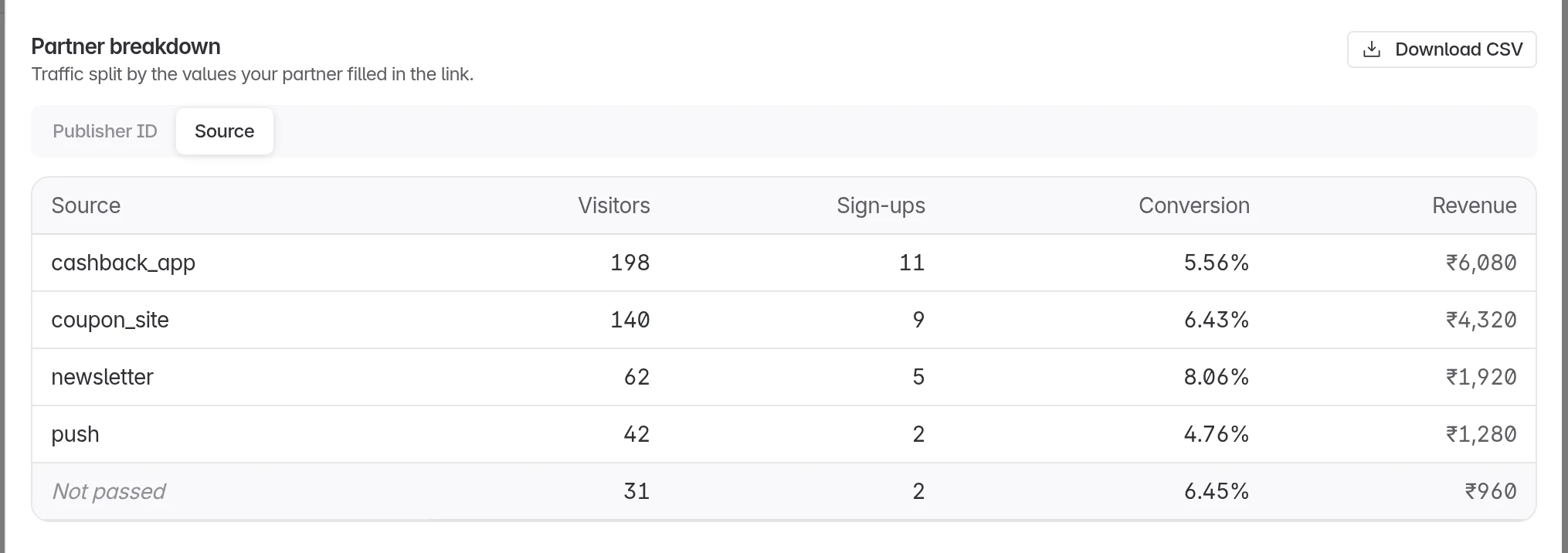
Click Download CSV to share the numbers with your partner. The numbers follow the attribution you pick on the page, last touch or first touch.
Partners don't get automatic postbacks for website sign-ups or purchases yet. Share results with the CSV. To pass sign-ups on yourself, turn on Send web events for your webhook. Each website sign-up includes the partner's values in attribution.sub (sub1 to sub5).
Rename a label
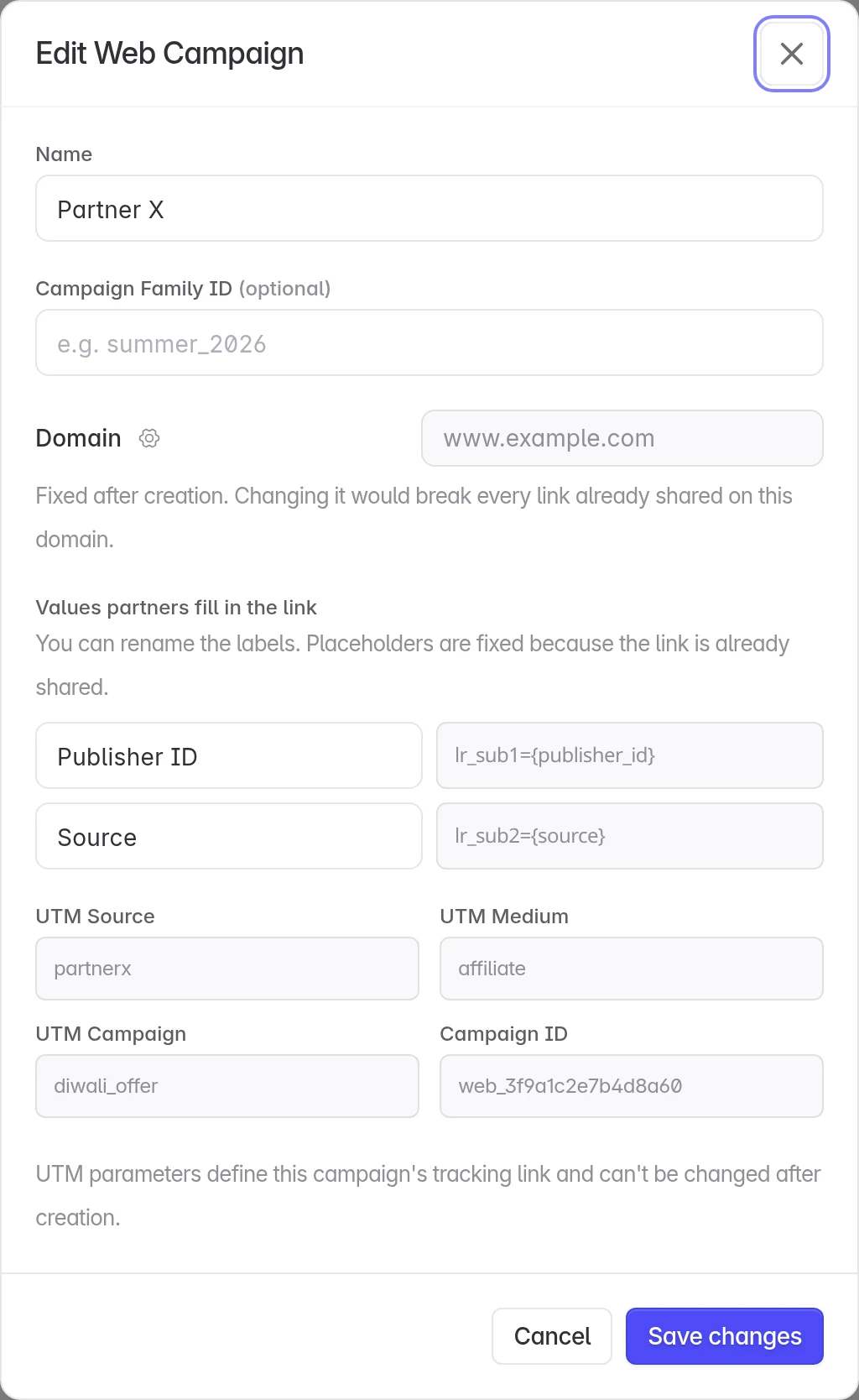
Open the link's row and click the pencil icon at the top of the panel. Under Values partners fill in the link, change a label and click Save changes. The placeholders and the rest of the link stay the same, so the partner doesn't need a new link.
Troubleshooting
The partner's value shows as Not passed. The click reached your website with the placeholder still in it, such as lr_sub1={publisher_id}. Ask your partner to check that their platform replaces the macro before it sends the click.
Visits don't show up on the link. The utm_id in the link was changed or removed, so the visits count somewhere else. Ask your partner to use the link exactly as you sent it.
Your domain is missing under Domain. Add it in Settings → Whitelist SDKs, then open Create Campaign again.
Web Campaigns is not in the sidebar. Turn on Web Campaigns for your project. See Track your website in an app project.
Need help? Contact support@linkrunner.io