

Appearance
Track sign-ups and purchases on your website
Decide which website events to send, so Web Campaigns shows sign-ups and revenue for every channel and campaign.
The Web SDK counts visits and page views on its own. Sign-ups, purchases and other actions only show up once your website sends them as events. This page tells you which events to ask your developer for, and where each one shows up. The code is in the Web SDK guide.
The events to send
| What happens on your website | Event to send | What it unlocks |
|---|---|---|
| Someone signs up or logs in | identify, then signup | Sign-ups, Conversion, Unique Users and the Users list |
| Someone pays | purchase, with the amount | Purchases, Revenue and ROAS |
| Any other step you care about | A custom event, such as add_to_cart | A column of its own, and a conversion you can send to ad networks |
identify passes your own user ID for the person, so Linkrunner can join their visits to their account. Call it before the signup event. Use a stable ID from your system, not an email address.
Get the names exactly right
Linkrunner recognizes sign-ups and purchases by the event name alone. Upper or lower case matters, so Signup counts as a custom event, not a sign-up.
| Counts as | Event names |
|---|---|
| Sign-up | signup, sign_up, register, login, sign in |
| Purchase | purchase, payment_completed, order_completed |
For revenue, put the amount in the purchase event's value or amount field, and add currency. Linkrunner doesn't convert currencies, so send every purchase in the same currency as your project.
js
lr.identify(String(user.id))
lr.track('signup')

lr.track('purchase', { amount: 1499, currency: 'INR' })

lr.track('add_to_cart')
Give custom events short, lowercase names with _, such as add_to_cart or trial_started, and keep each name the same everywhere on your website.
Check that events arrive
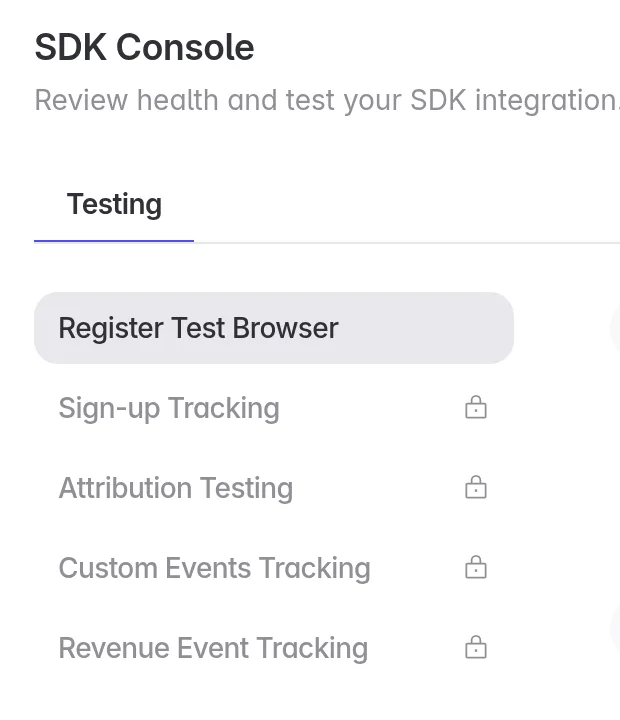
Open SDK Console → Testing. Register your browser, then work through Sign-up Tracking, Custom Events Tracking and Revenue Event Tracking. Each step shows the event as soon as your website sends it.
Step-by-step instructions are in Test the Web SDK.
Where your events show up
- Web Campaigns. Sign-ups, Purchases and Revenue fill in for every channel and campaign. See Read your Web Campaigns report.
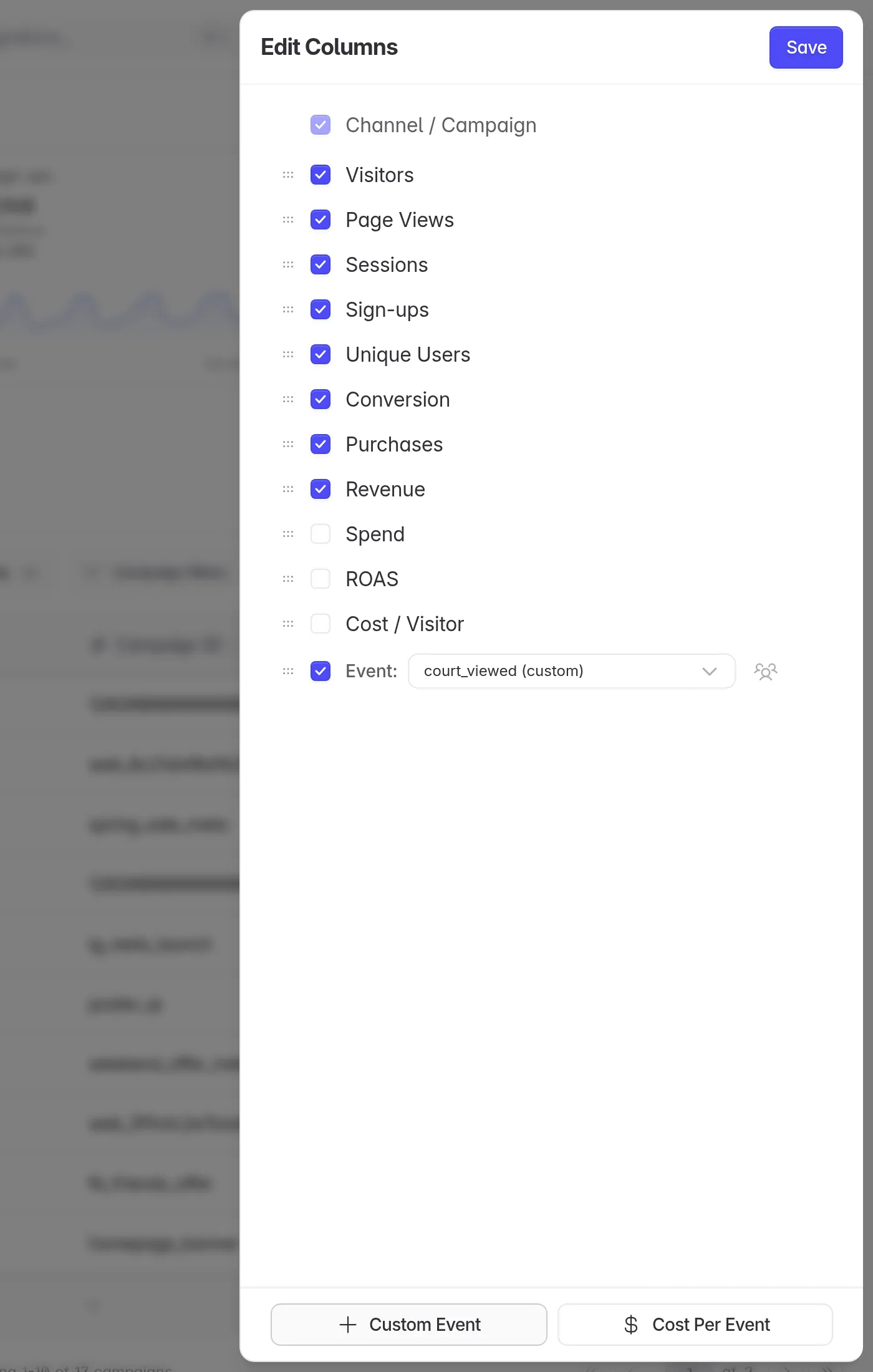
- Custom event columns. On Web Campaigns, click the sliders icon to open Edit Columns, then click Custom Event and pick the event. Cost Per Event adds what each one cost.
- Campaign details. Click a row to see every event its visitors sent under Post-click events.
Send events to your ad networks
Send website sign-ups and purchases to Meta and Google Ads, so they can find more people like your customers:
Shopify stores
On Shopify, you add four short snippets in the Shopify admin, with no server work. They send sign-ups, and purchases from the checkout with the order value. See Shopify.
Send events from your server
If a purchase is confirmed on your server, such as after a payment webhook, send it with the Event Capture API or the Revenue Tracking API, with source set to web.
- Pass the same user ID you passed to
identify. Linkrunner credits the event to the campaign of that user's last website visit in the past 90 days. If the Web SDK never saw the user, the event shows under Direct. - Server events are not sent to Meta, because Meta needs the page the event happened on. Send purchases you want Meta to see from the website.
- Send each purchase from either the website or the server, not both. Linkrunner doesn't remove duplicates, so sending both counts it twice.
Troubleshooting
Sign-ups show 0. Your website doesn't send the event yet, or its name doesn't match the table above. Check what arrives in SDK Console → Testing.
Revenue shows 0 but Purchases don't. The purchase event has no value or amount field. Add the amount as a number.
A custom event is missing from the Custom Event list. Linkrunner lists events it has received. Send the event once, then reopen Edit Columns.
Need help? Contact support@linkrunner.io