

Appearance
Sign In and Add Teammates
Give every teammate their own Linkrunner login, so each person signs in with their own email
Linkrunner has no passwords and no shared logins. Each person signs in with their own work email. A teammate gets access when someone on your team invites them, or through auto-join for your company's email domain.
How sign-in works
Go to dashboard.linkrunner.io and choose one:
- Continue with Google, with your work Google account
- Send sign-in link, which emails a one-time link to the address you enter
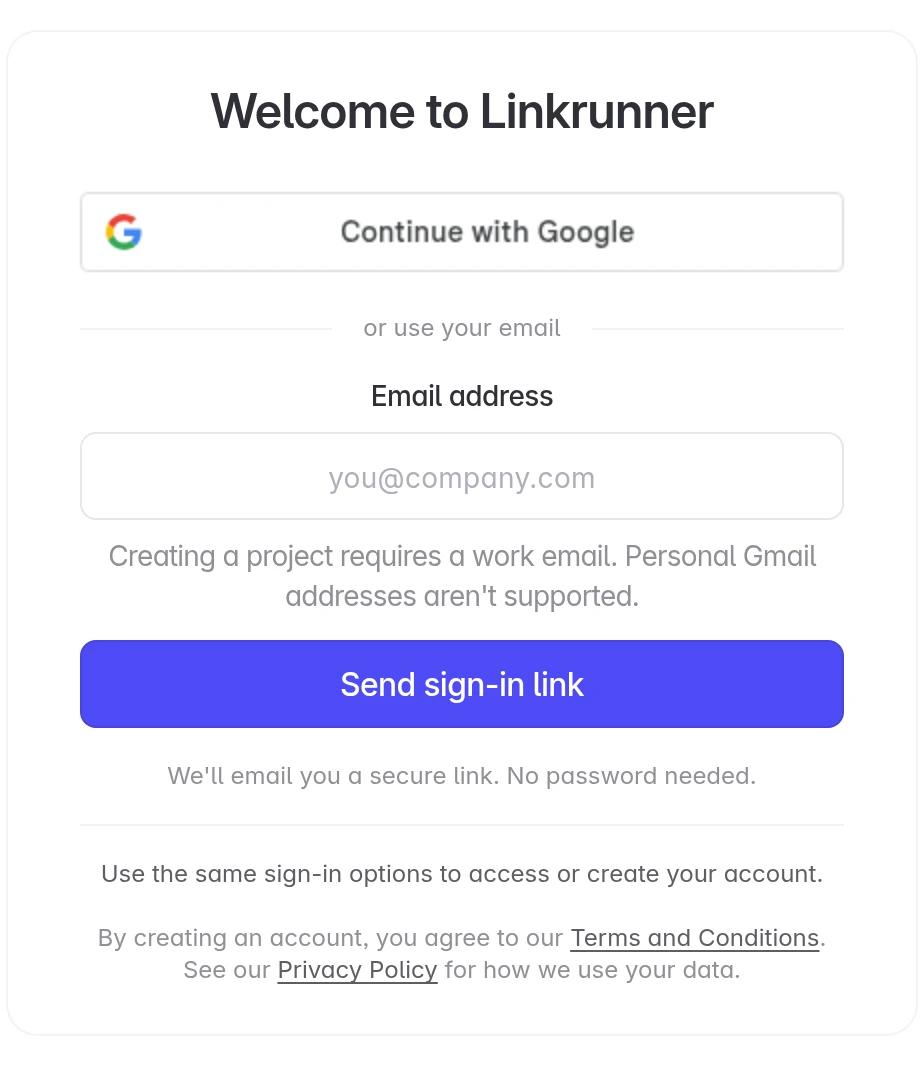
The sign-in link goes only to the address you typed. If a colleague enters your email, the link lands in your inbox, not theirs. Invite them instead, so they sign in with their own address.
Add a teammate to your project
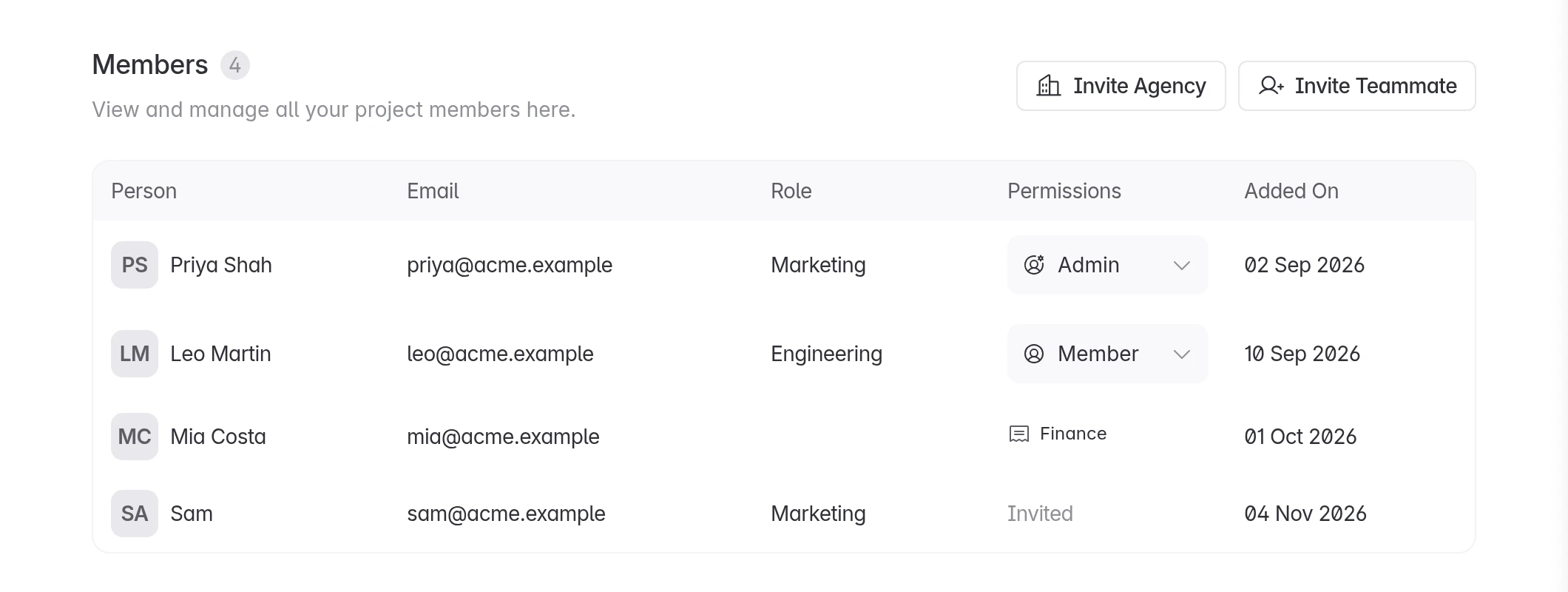
Enter their email and permission
Enter their work email. To invite several people, separate the emails with commas. Pick a Permission, then click Invite Member.
| Permission | What they can do |
|---|---|
| Admin | Full access, including billing |
| Member | Full access, except billing |
| Finance | Only usage, invoices and payments. See Add your finance team |
| Influencer | Only the campaigns shared with them |
Role (Marketing, Engineering, Finance, Other) only labels what the person does. Access comes from Permission.
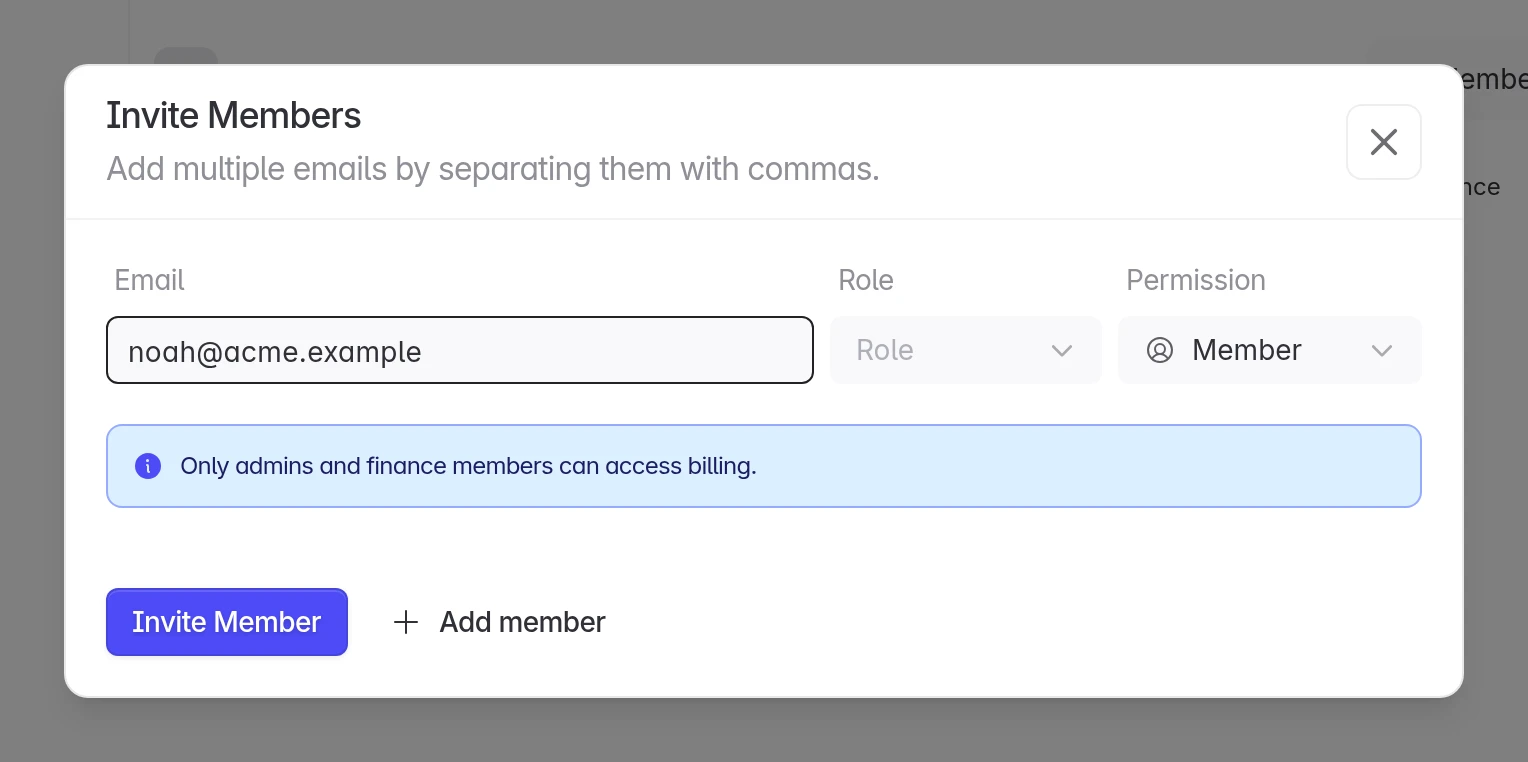
They sign in with that email
If they already have a Linkrunner account, they are added right away. Otherwise they get an email invitation, and their row shows Invited until they sign in with the invited address, using Google or a sign-in link. They then see your project.
Admins can invite any permission. Members can invite Members and Influencers.
Let your whole team join
Admins can turn on auto-join on the same Members page. Anyone who then signs up with your company's email domain can find and join the project as a Member, without an invite. Auto-join only offers domains that a current admin or member already uses.
Add a teammate to your agency or affiliate workspace
Partners invite their own team from their workspace settings.
- Agency: go to Agency Settings → Members, click Invite, enter their Work Email, then click Send Invite. Everyone in your agency sees every customer project you are engaged on. See Agency settings and team.
- Affiliate: go to Affiliate Settings → Members and follow the same steps. The Members tab appears once Linkrunner approves your affiliate account.
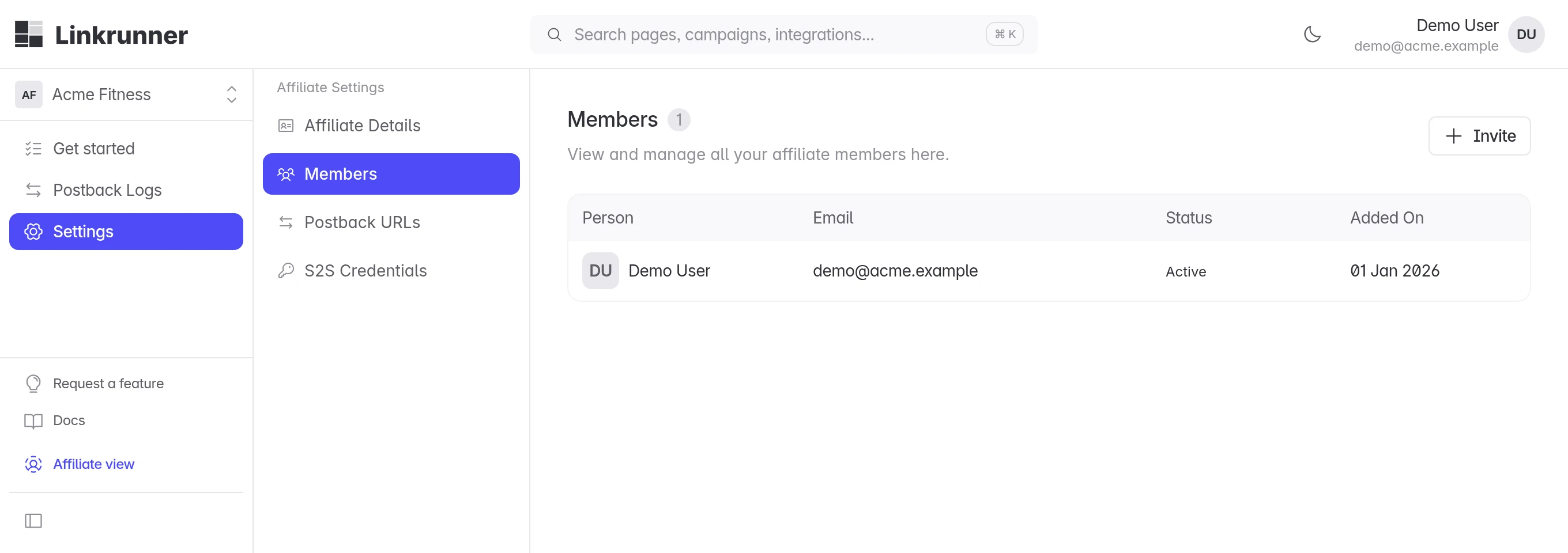
Your teammate must accept the invitation while signed in with the invited email. A pending invitation has a Resend action if the email went missing.
Troubleshooting
The sign-in link goes to someone else's inbox. The colleague typed another person's email. Invite them with their own address using the steps above, then they sign in with that address.
A colleague signed in and was asked to create a new project. They signed in before being invited, or with a different address than the invited one, and auto-join is off for their domain. Invite the exact address they sign in with, then ask them to sign in again.
Accepting the invitation fails. The teammate is signed in with a different address than the one invited, or the invitation expired. Sign in with the invited address, or click Resend to send a fresh invitation.
Can we use a password instead? No. Linkrunner uses Google sign-in or a one-time email link, so there is no password to share or reset.
Need help? Contact support@linkrunner.io