

Appearance
Create a web link for your own channels
Make a tracked link to your website for an email, a newsletter, a creator, a social post or a QR code, and see what it brings in.
Use one link per place you share it, such as one for this week's newsletter and one for a creator's bio. Each link gets its own row on Web Campaigns, with its visitors, sign-ups and revenue.
Running an affiliate whose publishers fill in values on every click? Use Create a web link for a partner instead.
1. Open Create Campaign
Go to Web Campaigns and click Create Campaign above the table.
2. Name the link and describe the traffic
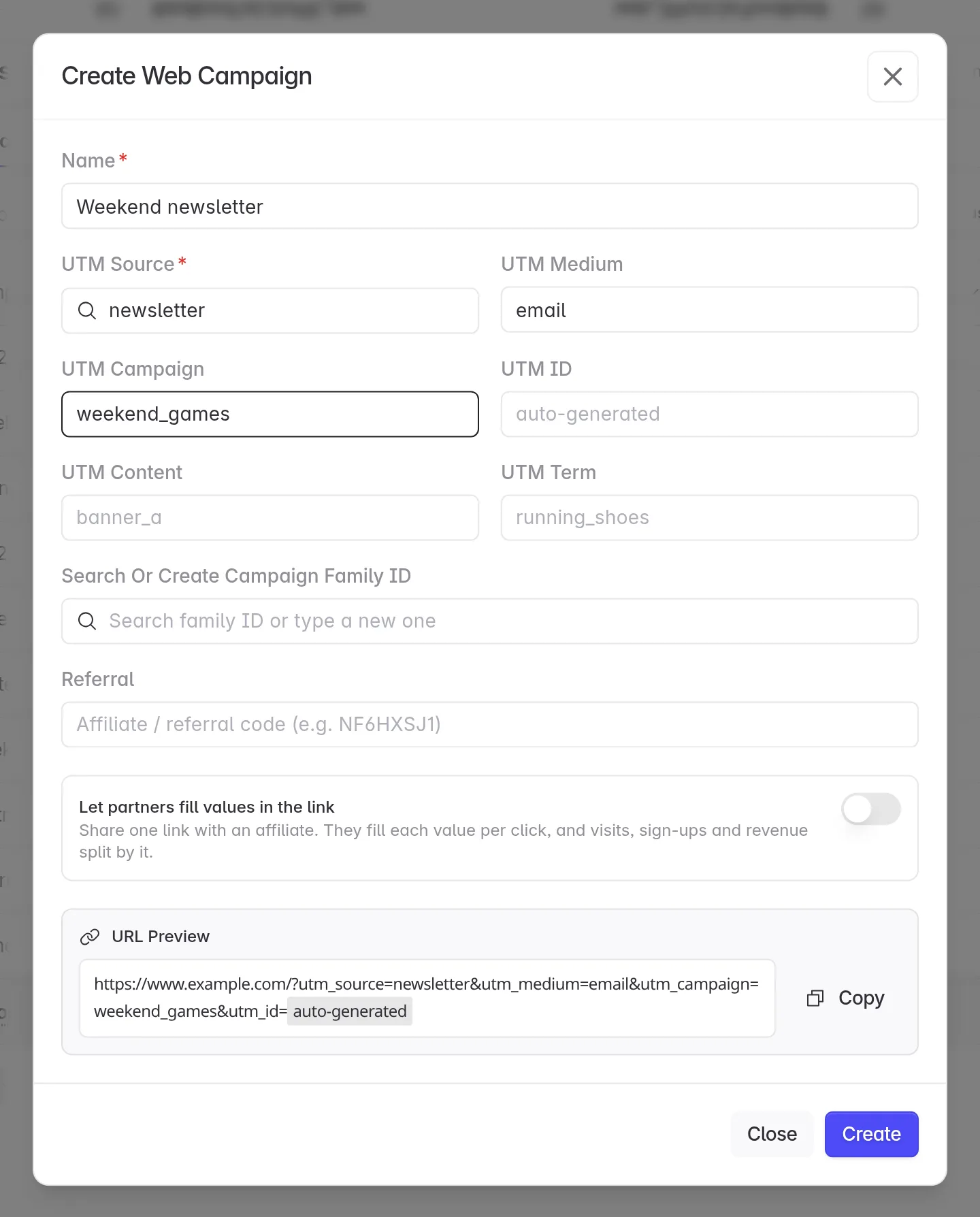
| Field | What to enter | Example |
|---|---|---|
| Name | A name your team will recognize. Required. You see it in reports. | Weekend newsletter |
| UTM Source | Where the link is shared. Required. Pick from the list, or type your own and click Create. | newsletter |
| UTM Medium | The type of traffic. It decides the channel, see the table below. | email |
| UTM Campaign | The offer or campaign. | weekend_games |
Leave UTM ID empty. Linkrunner creates a unique ID for the link.
The other fields are optional:
- UTM Content tells versions apart, such as two buttons in the same email.
- UTM Term records a keyword.
- Search Or Create Campaign Family ID groups related links, such as every link in one launch.
- Referral adds a referral code, such as a creator's code. Visits then also show under Referrals on the Channel tab.
Pick the medium that matches the channel
On the Channel tab, Linkrunner places each visit by its UTM Medium:
| UTM Medium | Shows under | Use it for |
|---|---|---|
email or e-mail | Emails and newsletters | |
social | Social | Organic posts, bios and stories |
affiliate | Paid Affiliate | Affiliates and paid creators |
cpc, ppc or sem | Paid Search | Search ads you tag by hand |
display, cpm or banner | Paid Display | Banner and display ads |
| Any other value | Campaign | QR codes, print, events and the rest |
Two combinations go to an ad network instead: utm_medium=paid_social with utm_source set to meta, facebook or instagram shows under Meta, and cpc or display with utm_source=google shows under Google.
3. Check the link and create it
Domain is the website the link opens. It starts on your project's website. To use another domain, first add it in Settings → Whitelist SDKs.
Check URL Preview, then click Create.
Click Copy to copy the Campaign link. The Campaign ID below it is the link's utm_id. Use it to find the link on the Campaigns tab.
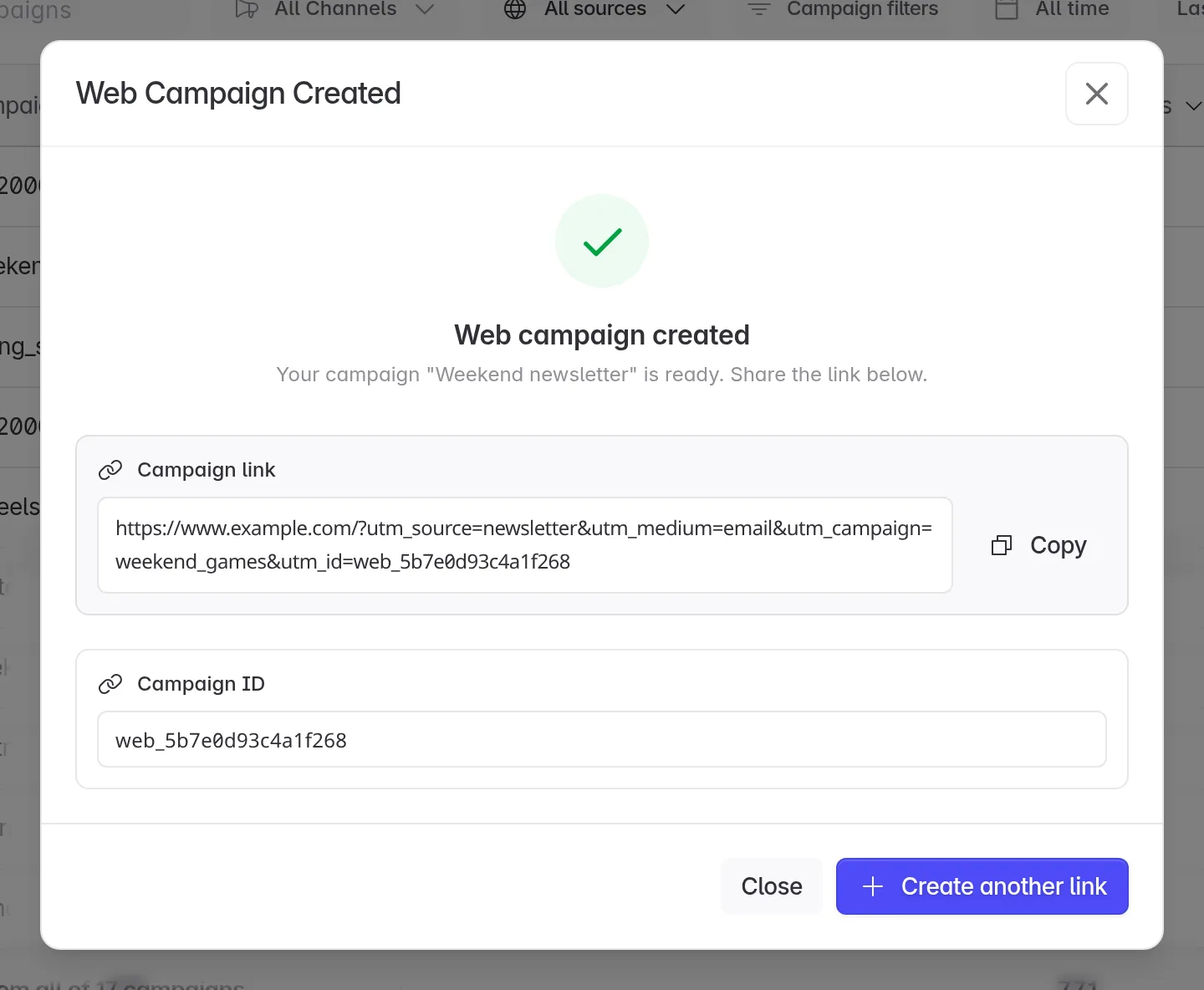
The link opens your home page. To send people to another page, add the page path before the ?, for example https://www.example.com/offers?utm_source=newsletter&.... Keep everything after the ? as it is, and make sure that page has the Web SDK.
4. Get a QR code
For posters, packaging, menus or event stands:
- On the Campaigns tab, click the link's row.
- Click the QR code button at the top of the panel.
- Choose whether to show your app logo and how sturdy the code should be, then click Download.
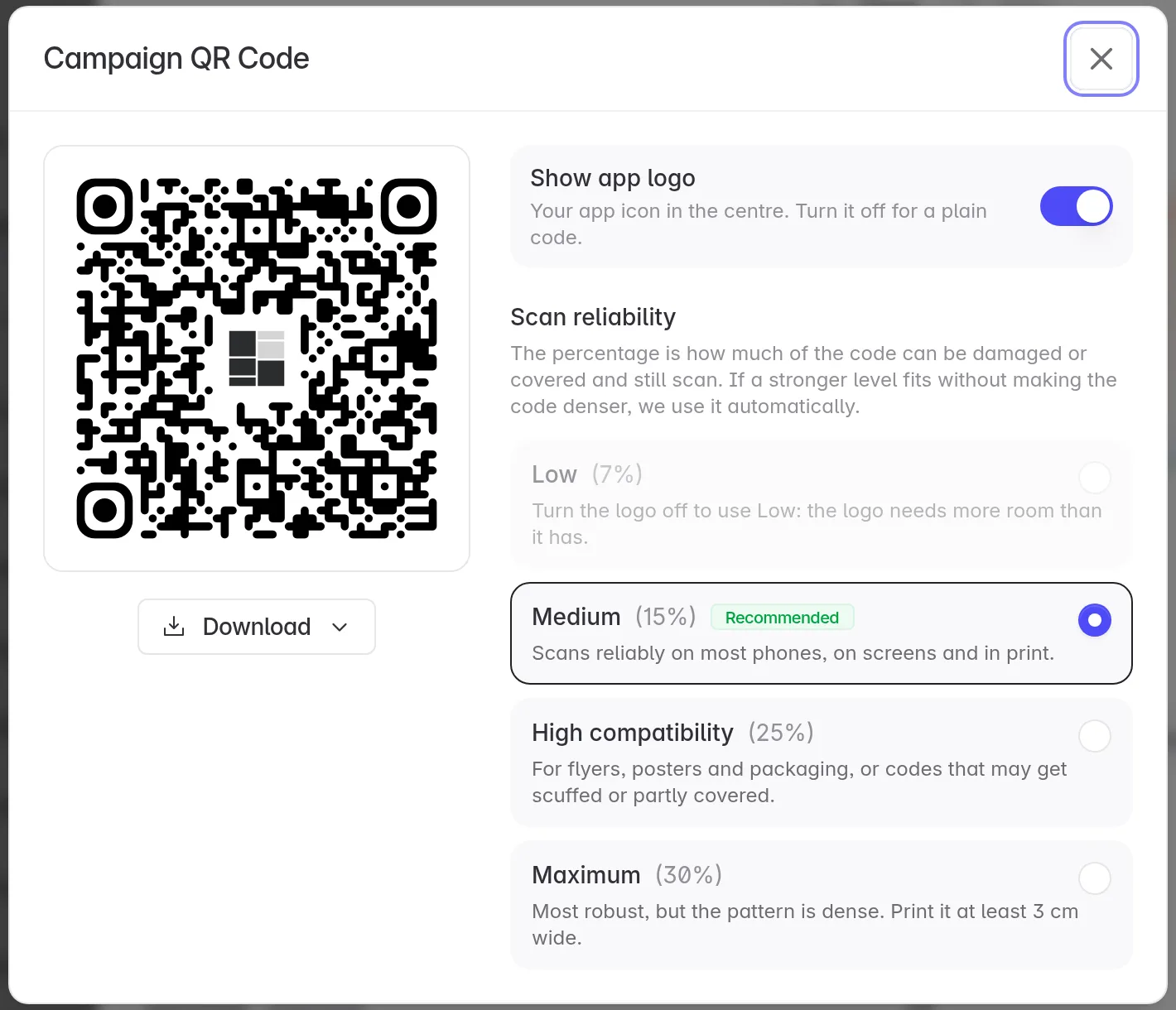
Pick High compatibility or Maximum for print that may get scuffed or partly covered. Visits from the QR code count toward the same link.
5. Test the link
- Open the link in a private browser window.
- Sign up on your website.
- On the Campaigns tab, search for the link's Campaign ID. Its row shows one visitor and one sign-up.
Change, pause or delete the link
Click the link's row, then use the buttons at the top of the panel:
- Edit changes the Name and the Campaign Family ID. The domain and UTM values are fixed, because the link is already shared.
- The switch pauses tracking for the link. Turn it back on to resume.
- Delete removes the link from your list. Visits and sign-ups already credited to it are kept, and anyone who still has the link keeps counting under its Campaign ID. To stop counting new visits, pause the link first.
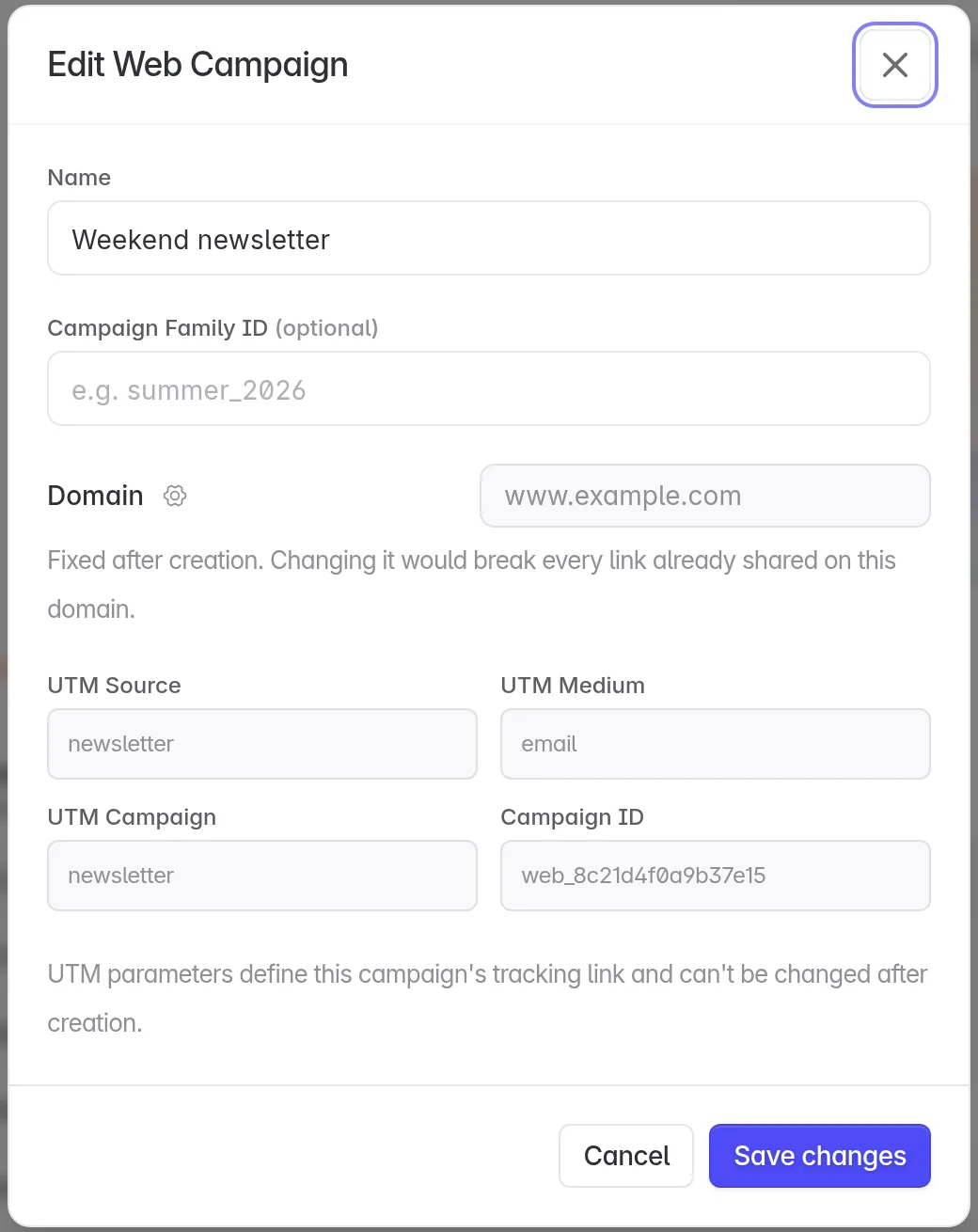
To see what the link brought in, see Read your Web Campaigns report.
Can I build UTM links by hand?
Yes. The Web SDK reads UTM values from any link to your website. A hand-built link shows on the Campaigns tab under its utm_campaign, and its visits count on the Channel tab.
Create the link in Linkrunner when you want a friendly name in reports, a QR code, the edit, pause and delete buttons, or partner values.
Troubleshooting
Visits don't show up on the link. Someone changed or removed utm_id when they shared it. Share the link exactly as you copied it.
The link shows under the wrong channel. Check its UTM Medium against the table above. An ad click ID such as fbclid or gclid in the link takes priority and puts the visit under that ad network.
Your domain is missing under Domain. Add it in Settings → Whitelist SDKs, then open Create Campaign again.
Need help? Contact support@linkrunner.io