

Appearance
Read your Web Campaigns report
See which channels and campaigns bring visitors, sign-ups and revenue to your website, and dig into any campaign.
Open Web Campaigns in the dashboard sidebar. The page has three parts: the Overview cards at the top, the Channel and Campaigns tabs, and a details panel that opens when you click a row.
The Overview cards
The five cards show this month so far, with your all-time total under Lifetime. The small chart shows the last 30 days.
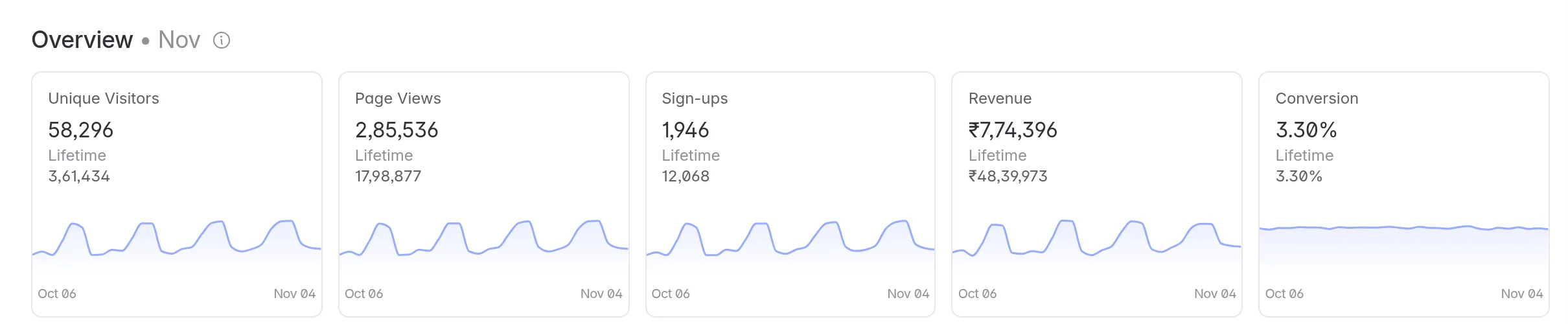
| Card | What it counts |
|---|---|
| Unique Visitors | Browsers that visited your website. The same person on a phone and a laptop counts twice. |
| Page Views | Pages viewed. |
| Sign-ups | Sign-up events your website sent. See which event names count. |
| Revenue | The total value of purchase events, in your project's currency. |
| Conversion | Visitors who signed up, as a share of all visitors. |
The cards don't change with the date range you pick below them, so use the table for a custom date range. They do follow the Last-touch or First-touch choice.
The Channel tab
Channel groups every visit by where it came from, so you can compare paid, organic and direct traffic in one table.
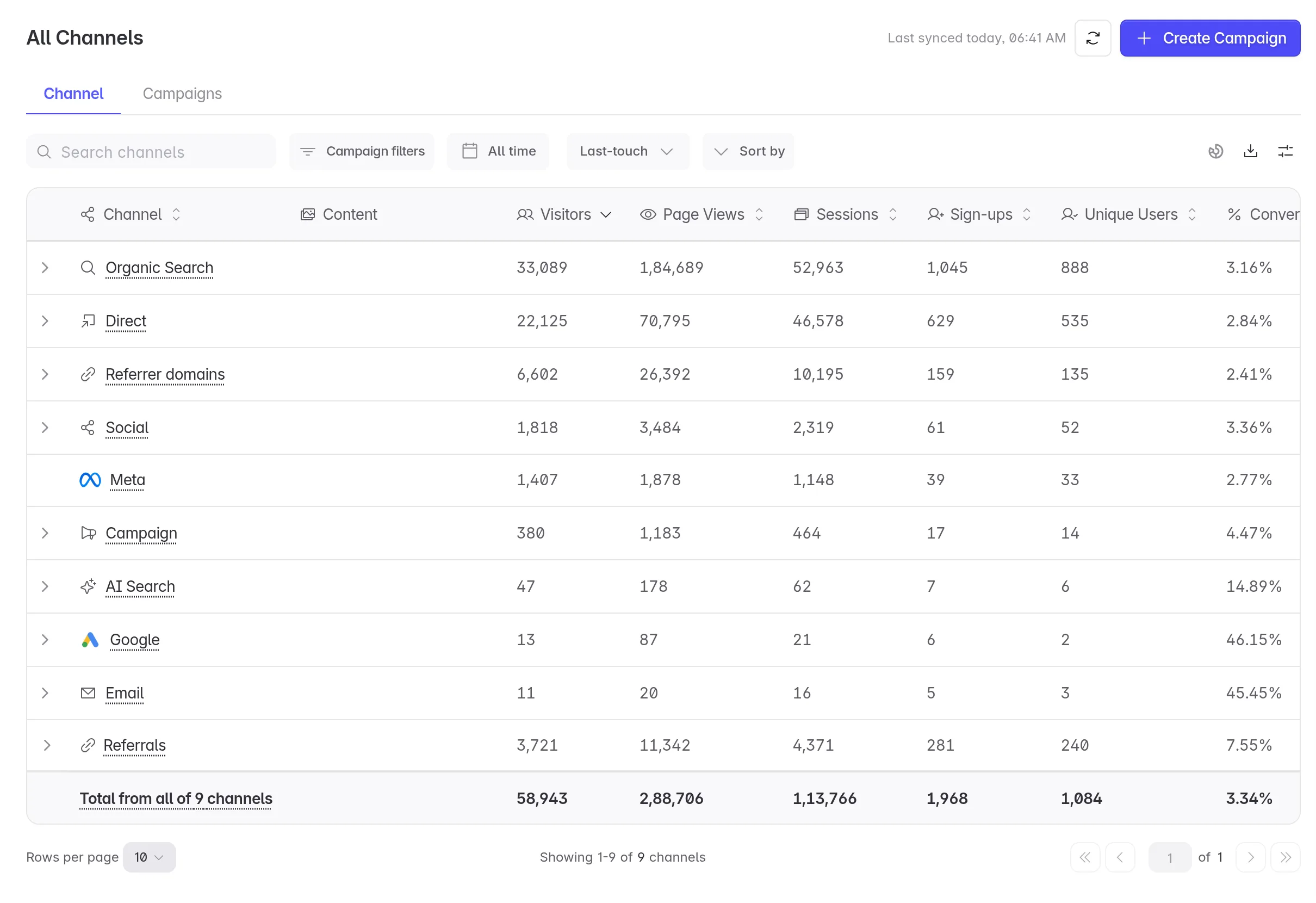
Linkrunner picks the channel for each visit in this order:
- An ad click ID in the link. For example,
fbclidputs the visit under Meta, andgclidputs it under Google. - The link's
utm_medium. For example,emailputs the visit under Email,socialunder Social,cpcunder Paid Search andaffiliateunder Paid Affiliate. Any other medium, with autm_source, goes under Campaign. - The website the visitor came from. For example, a search engine puts the visit under Organic Search, ChatGPT or Perplexity under AI Search, and a social network under Social. Any other website shows under Referrer domains.
- Nothing at all. The visit goes under Direct.
Referrals groups visits by the referral code in the link (the referrer= value), such as an affiliate or creator code.
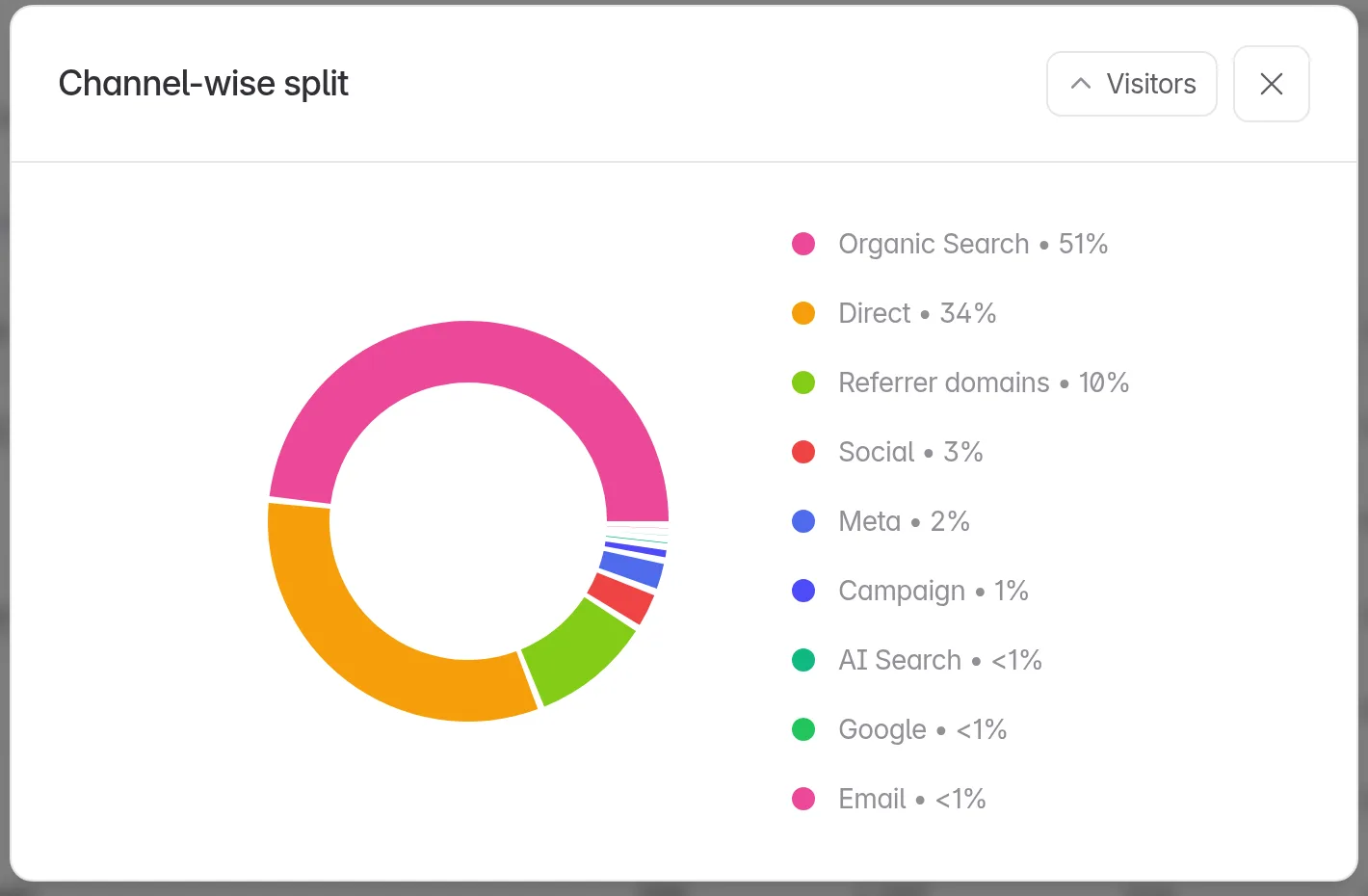
Click the arrow next to a channel to see its sources. To compare channels in a chart, click the donut icon on the right of the toolbar to open Channel-wise split, then pick a metric.
The Campaigns tab
Campaigns has one row for each campaign link. This is the tab that opens first.
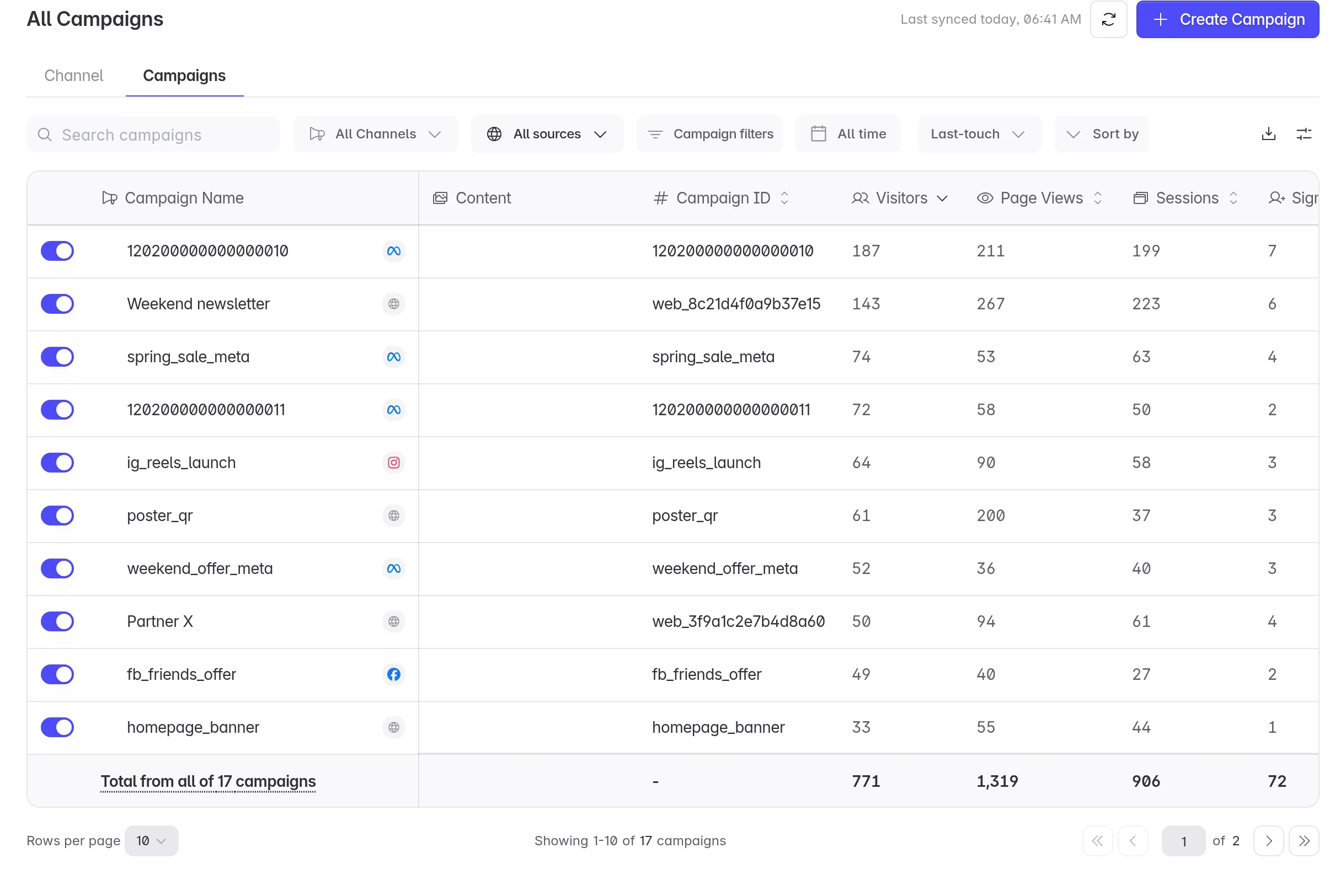
- Campaign Name shows the name you gave a link you created in Linkrunner, such as
Weekend newsletter. Meta and Google campaigns show their name from the ad network. Other rows show theirutm_campaign, or the campaign ID if there is none. - Campaign ID is the link's
utm_id, or the Meta or Google campaign ID for ad traffic. A link with noutm_idis listed by itsutm_campaign. - The switch at the start of each row pauses tracking for that campaign.
- The icon next to the name shows the source, such as Meta or Google.
To create a link for this tab, see Create a web link for your own channels or Create a web link for a partner.
Narrow down the table
Use the toolbar above the table:
| Control | What it does |
|---|---|
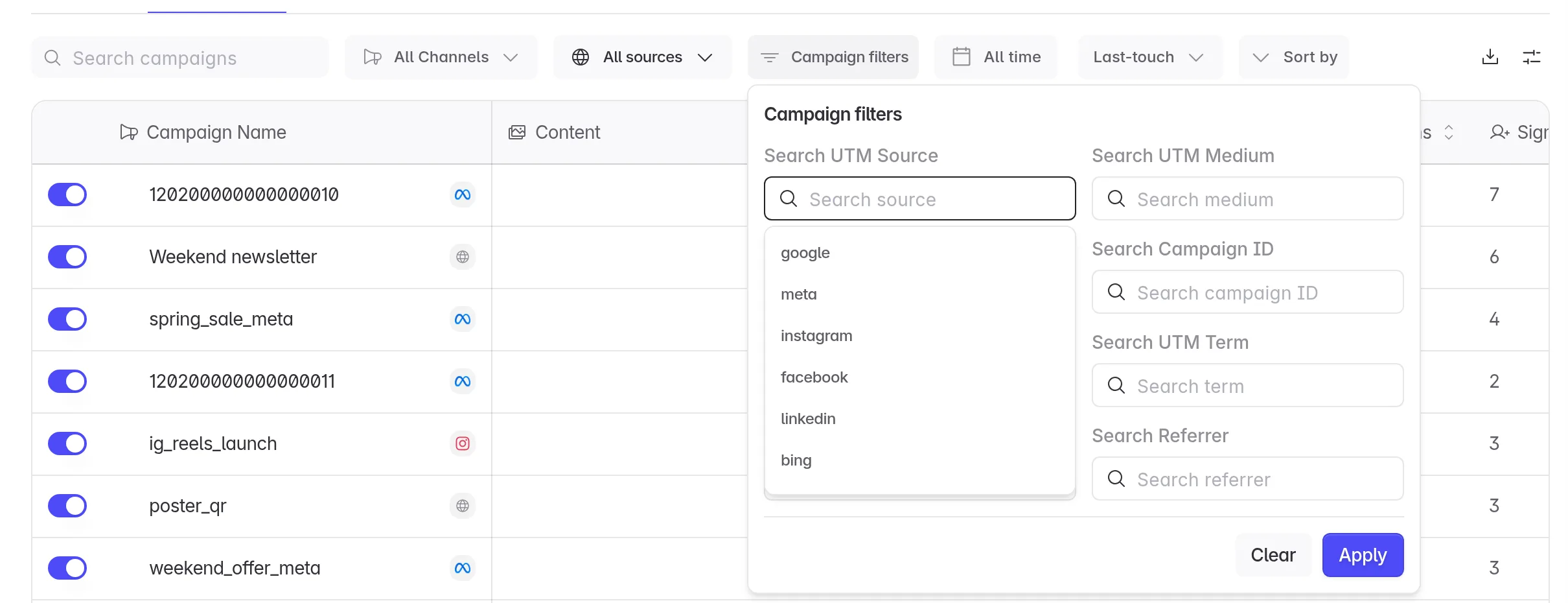
| Search campaigns | Finds a campaign by its Campaign ID, or part of it. |
| All Channels | Shows one channel's campaigns. |
| All sources | Shows one source, such as google or newsletter. |
| Campaign filters | Filters by UTM values, Campaign ID or referral code. Click Apply. |
| Date range (All time) | Picks the dates. It covers all time until you pick a range. |
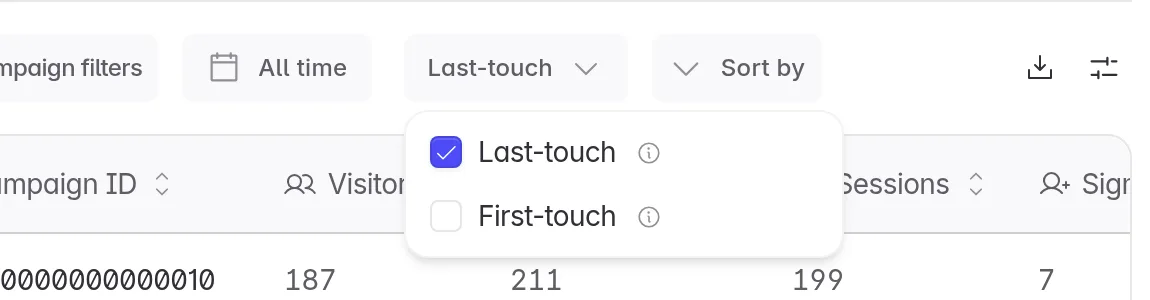
| Last-touch | Switches between last-touch and first-touch credit. See below. |
| Sort by | Sorts by visitors, page views, sessions, sign-ups, conversion, purchases or revenue. |
Last-touch or first-touch
- Last-touch (default) gives credit to the most recent campaign or channel before the sign-up or purchase.
- First-touch gives credit to the first campaign or channel that ever brought this visitor to your website.
Use first-touch to see which campaigns find new visitors, and last-touch to see which ones close the sale.
Choose your columns
Click the sliders icon on the right of the toolbar to open Edit Columns. Tick the columns you want, drag them into order, and click Save.
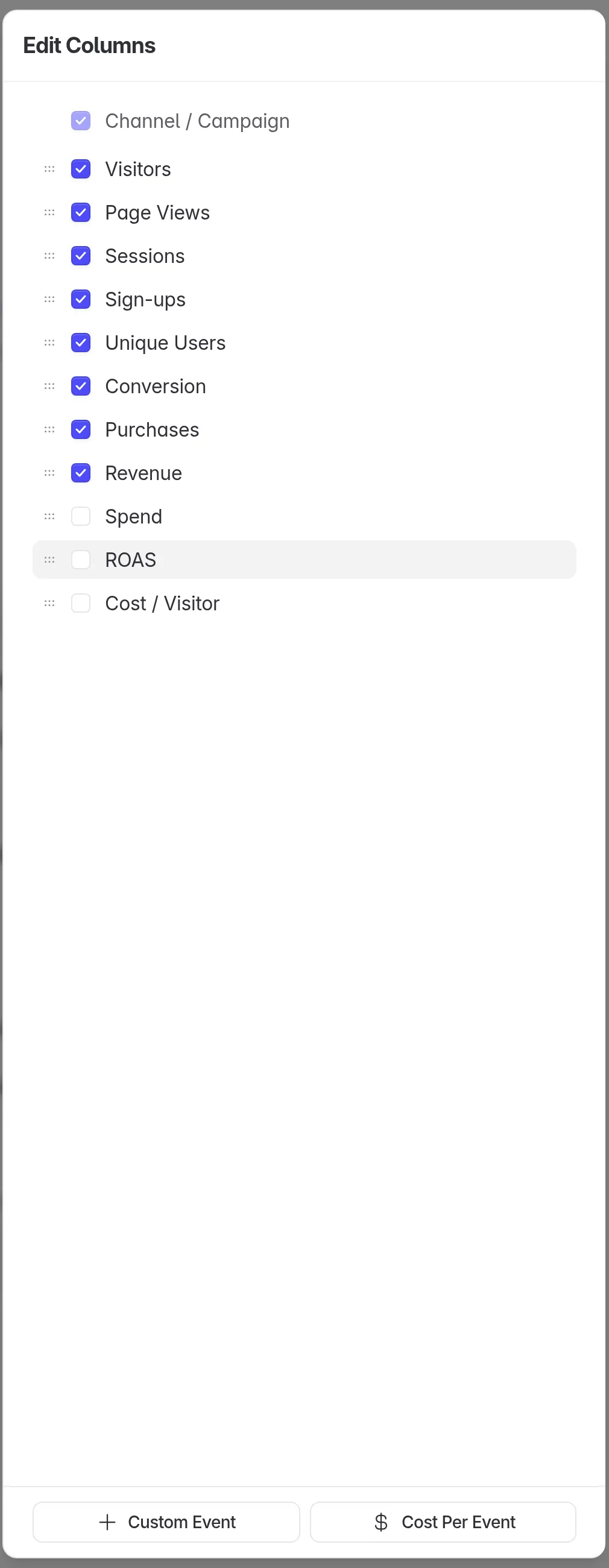
- Unique Users counts the users who sent at least one sign-up event, by the user ID your website passes to Linkrunner.
- Spend and ROAS fill in when Linkrunner can match the campaign to spend from your connected Meta or Google Ads account.
- Custom Event adds a column for any other event your website sends, such as
add_to_cart. Cost Per Event adds its cost. See Track sign-ups and purchases on your website.
Open a campaign
Click any row to open its details.
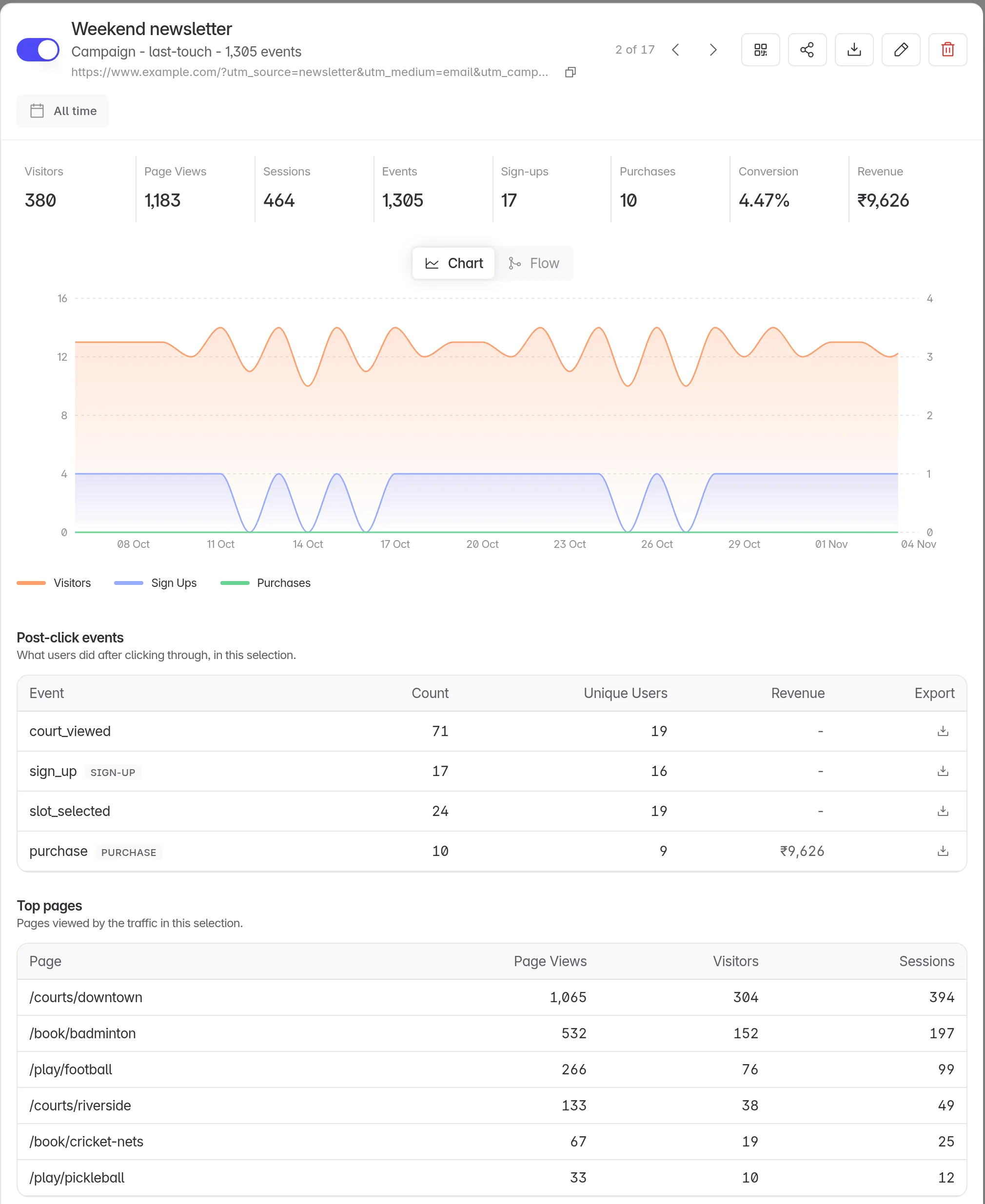
- The tiles show visitors, page views, sessions, events, sign-ups, purchases, conversion and revenue for the selected dates.
- Chart plots visitors, sign-ups and purchases by day. Flow shows how visitors move from visit to sign-up to purchase.
- Post-click events lists every event visitors from this campaign sent, with a download button for each.
- Top pages shows the pages these visitors viewed most.
- Users lists the signed-up users from this campaign. Click Export to download them.
- Partner breakdown appears for a partner link and splits results by each value the partner passed.
The buttons at the top let you pause the campaign, copy its link, download a QR code, share its stats with someone by email, edit it or delete it. Use the arrows, or J and K, to move to the next or previous campaign.
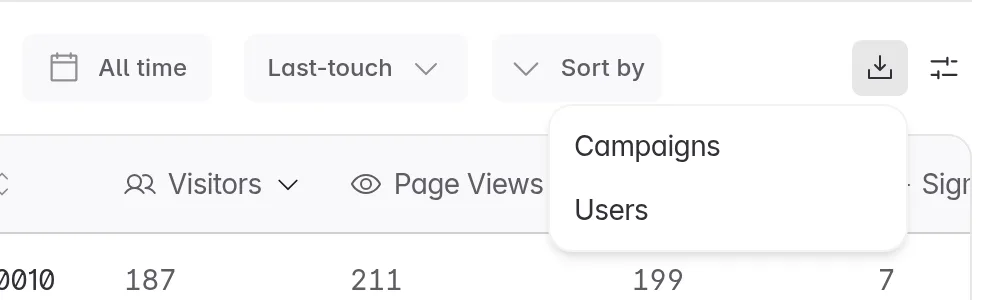
Export the report
Click the download icon on the right of the toolbar:
- Campaigns emails you a CSV of the rows that match your current filters and dates.
- Users emails you a file of the signed-up users that match your current filters and dates.
To pull the same numbers into your own tools, use the Web Campaigns Reporting API.
What counts as a sign-up or a purchase
Linkrunner counts an event by its exact name. Upper or lower case matters.
| Counts as | Event names |
|---|---|
| Sign-up | signup, sign_up, register, login, sign in |
| Purchase | purchase, payment_completed, order_completed |
Revenue comes from the purchase event's value, amount_paid or amount field. Linkrunner doesn't convert currencies, so send every purchase in the same currency.
Troubleshooting
Web Campaigns is not in the sidebar. Turn on Web Campaigns for your project. See Track your website in an app project.
The page asks you to set up the Web SDK. Linkrunner has not received a visit yet. Install the Web SDK and test it.
Sign-ups or Revenue show 0. Your website is not sending the events yet, or their names don't match the table above. See Track sign-ups and purchases on your website.
A Meta campaign shows "Meta campaign not identified". Connect the Meta ad account that runs it in Integrations, or wait for Meta to share the campaign's data.
Revenue, Spend or ROAS is hidden. Your role doesn't include financial data. Ask a project admin.
Need help? Contact support@linkrunner.io