

Overview
Snapchat Ads integration with Linkrunner enables you to run powerful app growth campaigns while optimizing on real in-app events and providing seamless deferred deep linking. This integration allows you to track installs, sign-ups, purchases, and custom events across both Android and iOS platforms. 📱 Works for both Android & iOS AppsWhat You’ll Get
- Optimization on real in-app events — Track and optimize on Install, Sign Up, Purchase, and custom events
- Deferred deep linking — Drop users into the right screen after first open, even if they need to install the app first
- Consistent tracking — Unified tracking across Android & iOS via the Linkrunner SDK
- Cross-platform consistency — Track installs across iOS and Android with one unified flow
Setup Process
Setting up Snapchat Ads integration involves configuring a pixel in Snapchat Ads Manager and connecting it to Linkrunner.1. Configuring Pixel in Snapchat Ads Manager
This process takes approximately 5 minutes and connects your app tracking with Snapchat’s advertising platform.Step 1: Connect Snapchat Account on Linkrunner
Step 2: Add Snapchat Account
- Click Add Snapchat Account to add your Snapchat Ad accounts
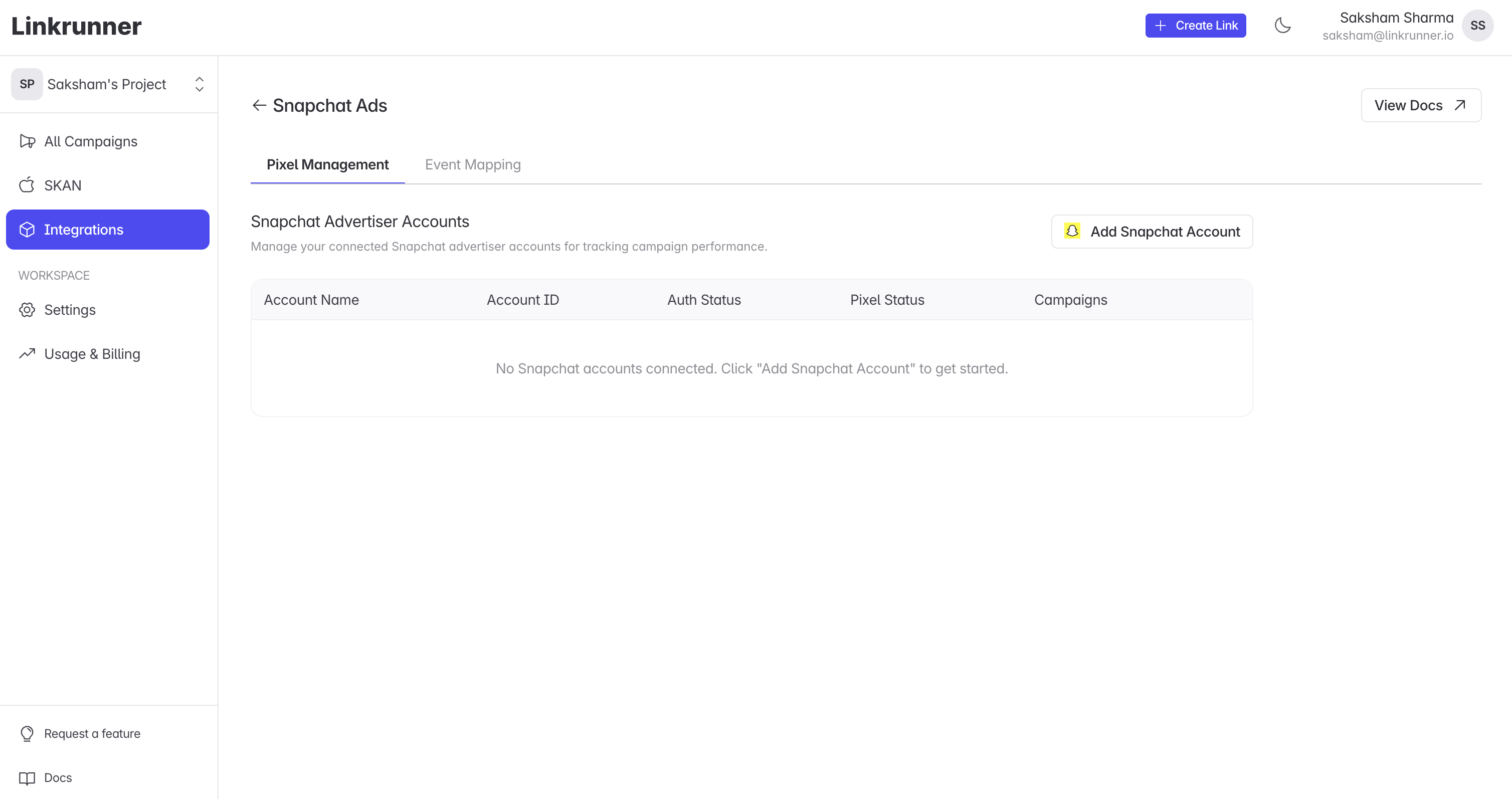
Step 3: Navigate to Snapchat Ads Manager
- Go to Snapchat Ads Manager
- Click the menu from the top left corner and select Pixels
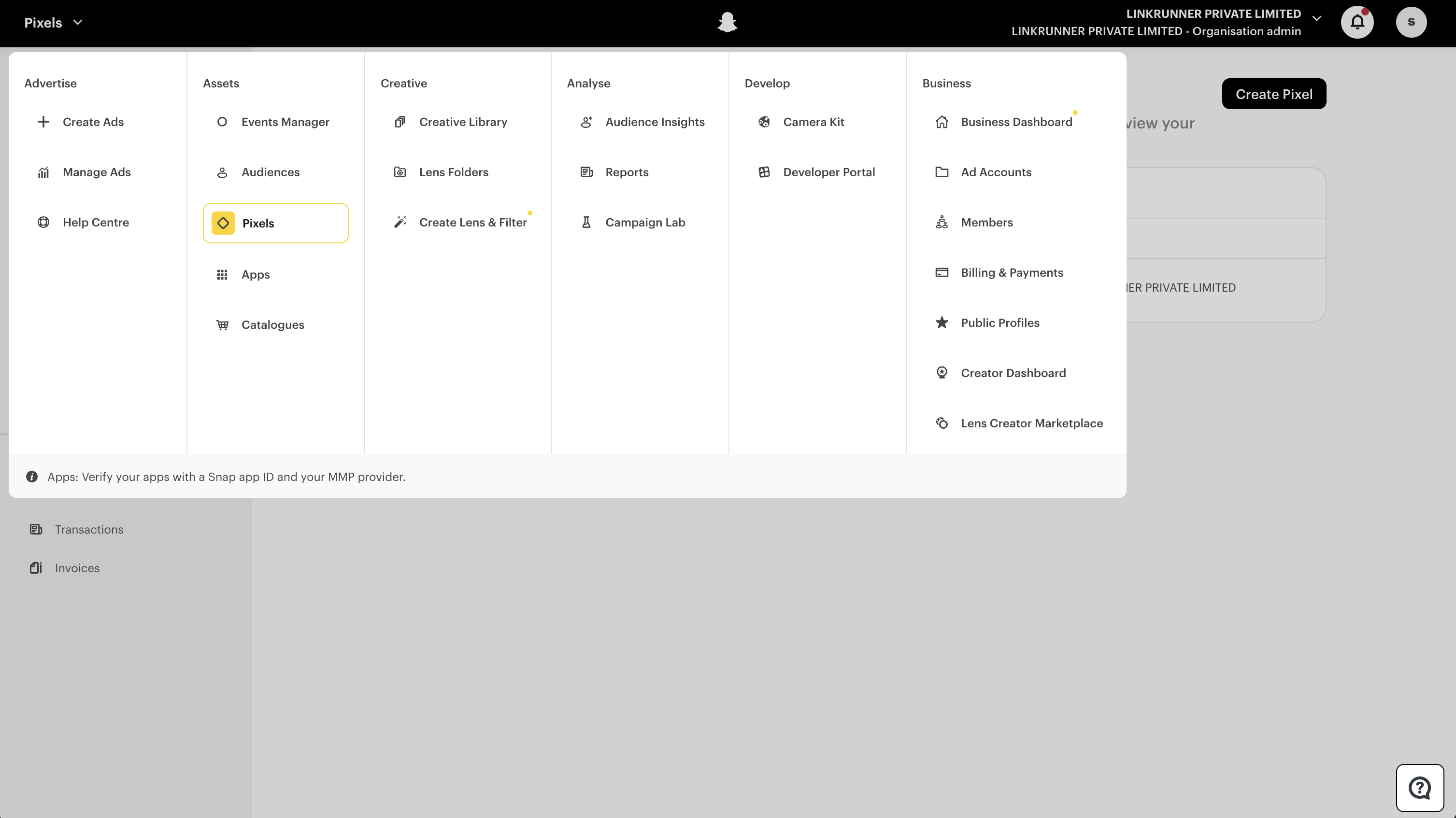
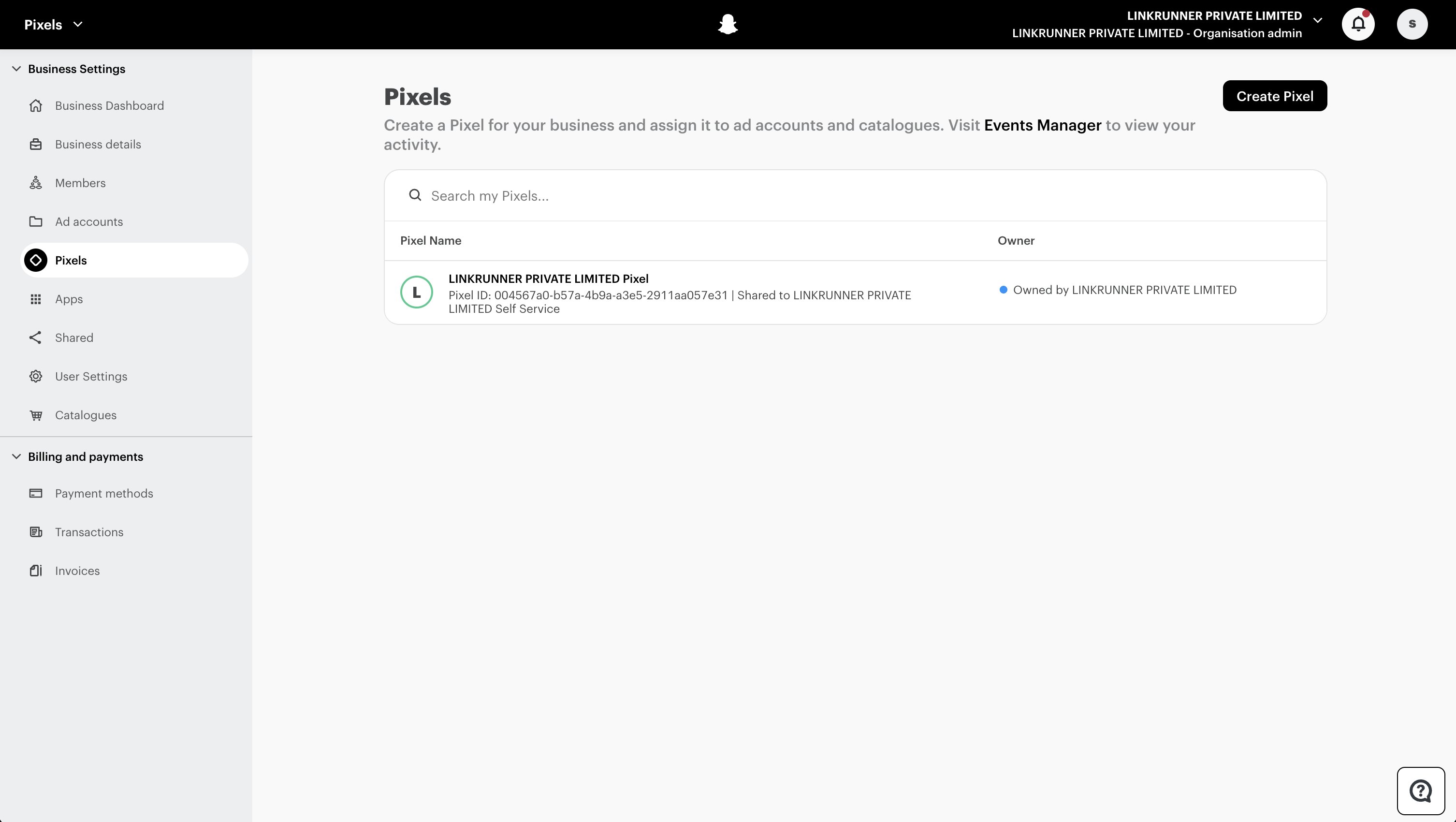
Step 4: Create Pixel
- Click Create Pixel
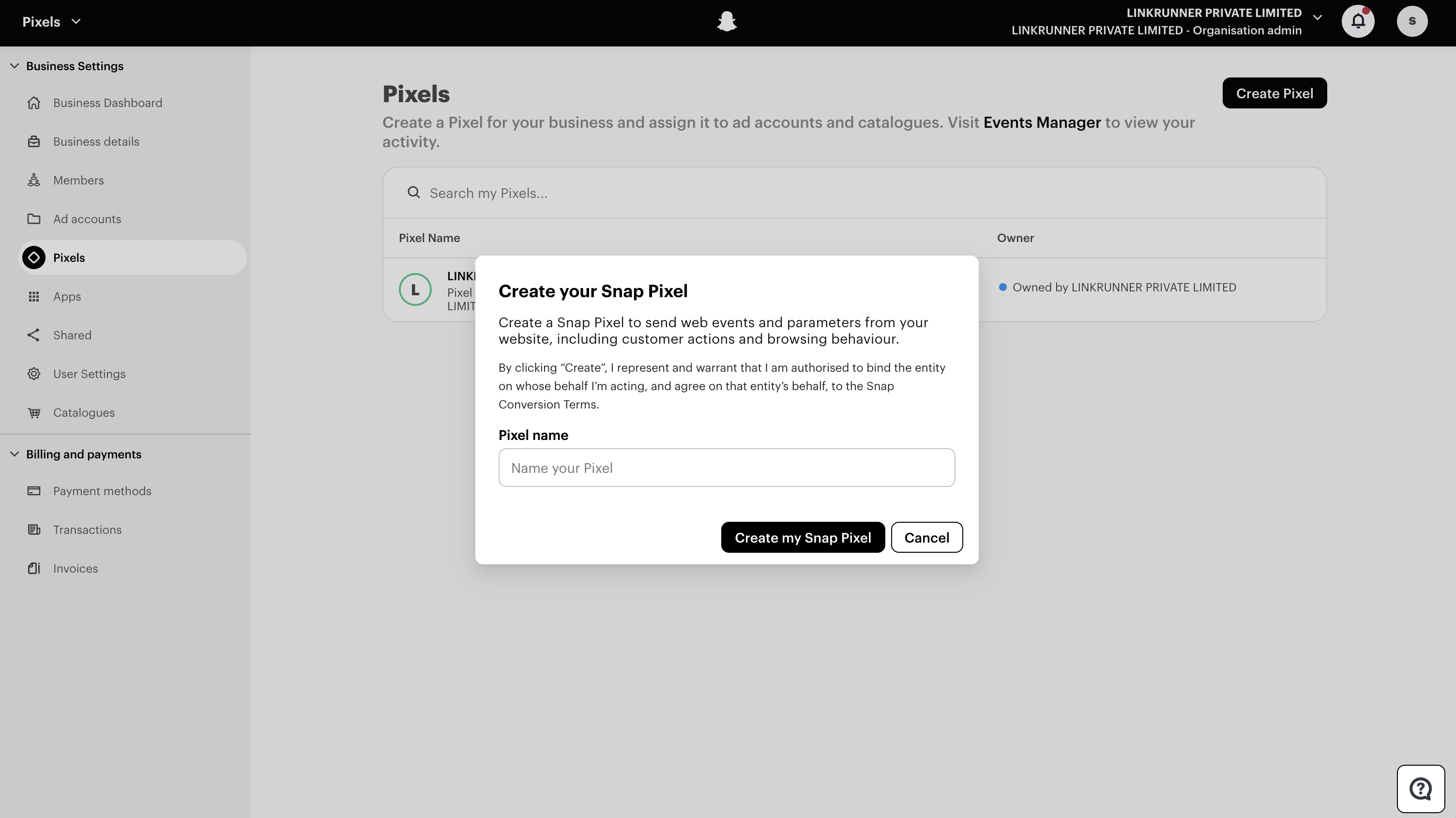
Step 5: Name Your Pixel
- Add a name for your Pixel
- Click Create my Snap Pixel
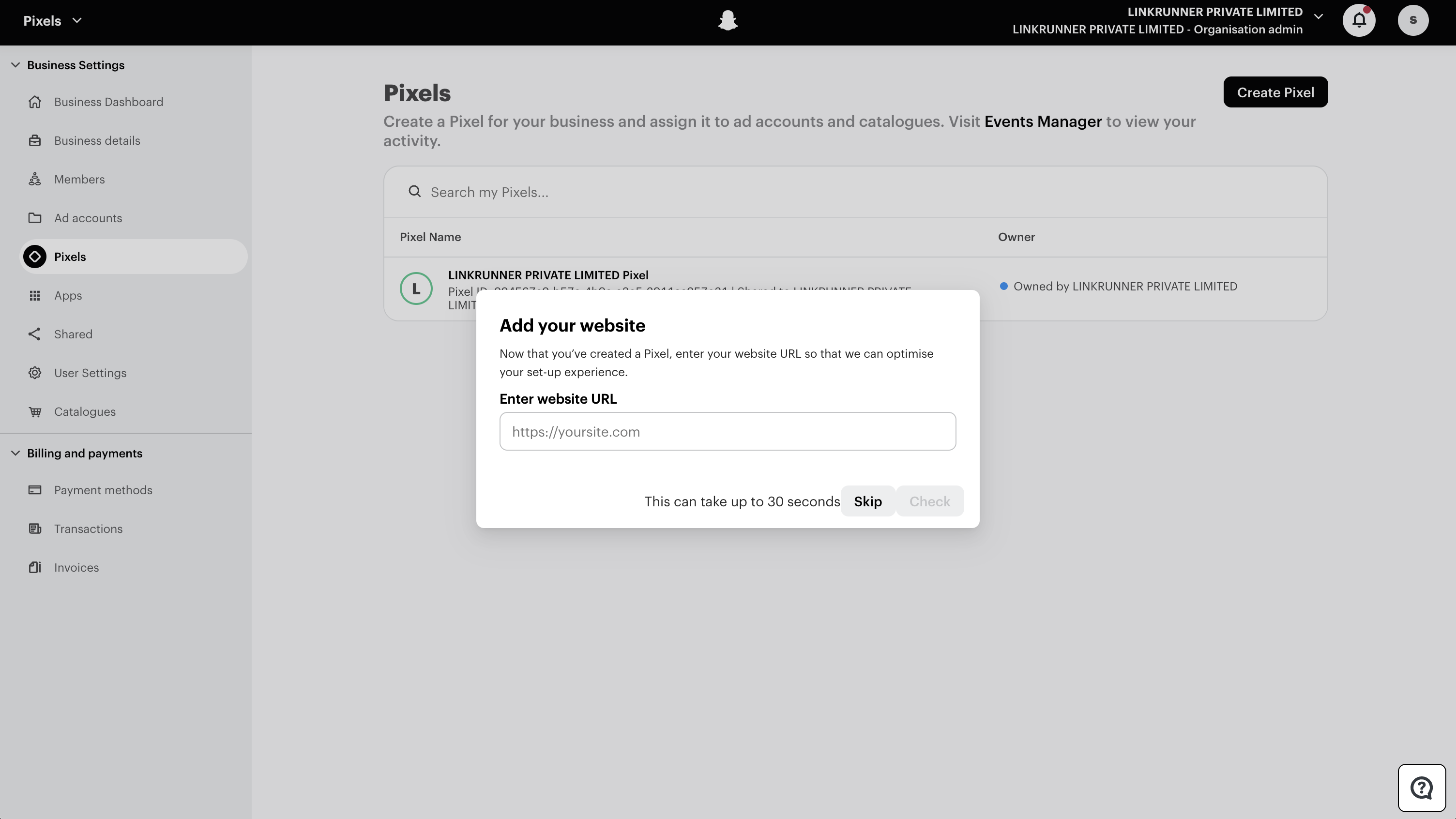
Step 6: Skip Website URL
- Skip the website URL dialog
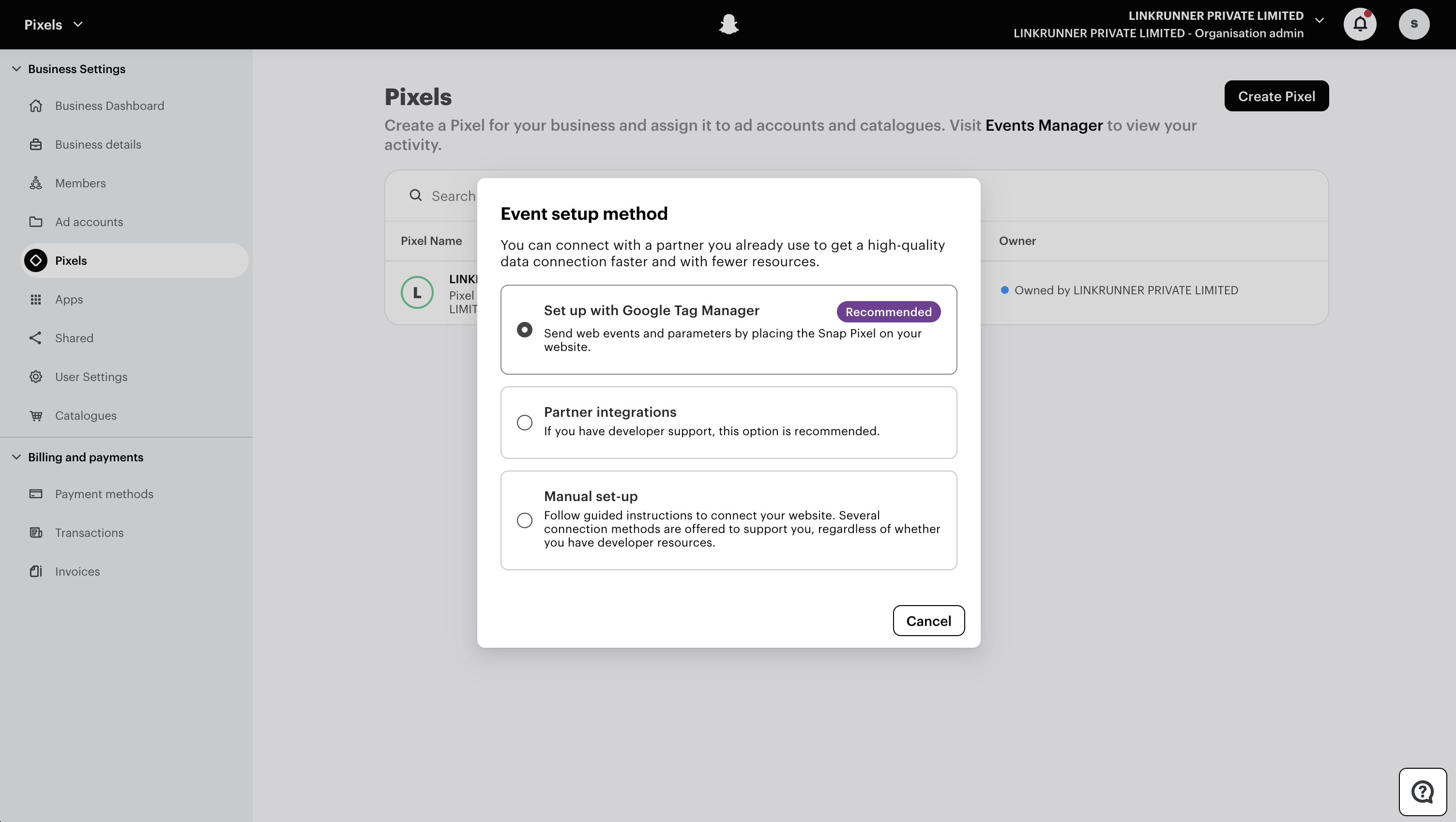
Step 7: Select Manual Setup
- In Event setup method, select Manual set-up
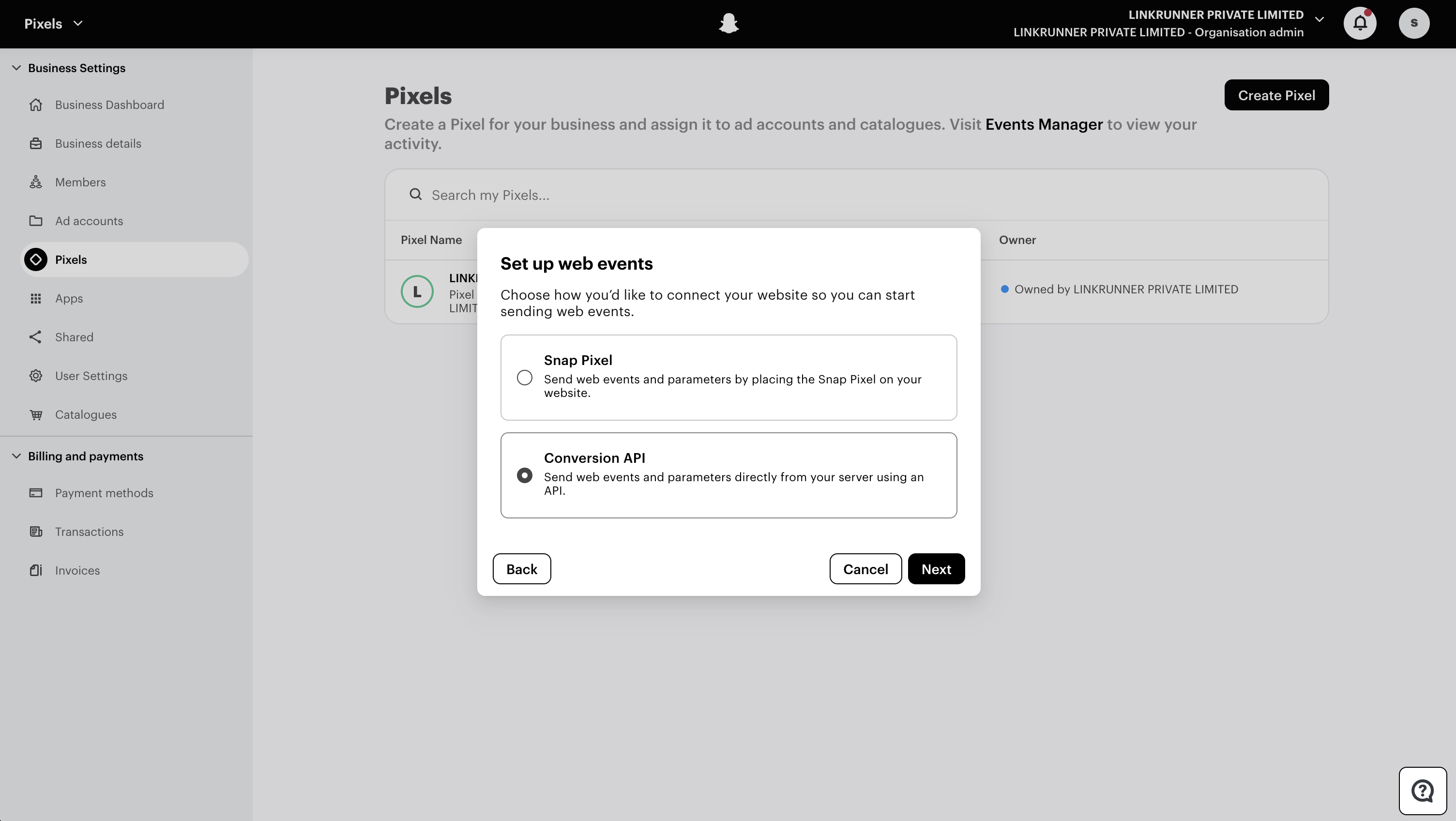
Step 8: Select Conversion API
- For Set up web events, select Conversion API
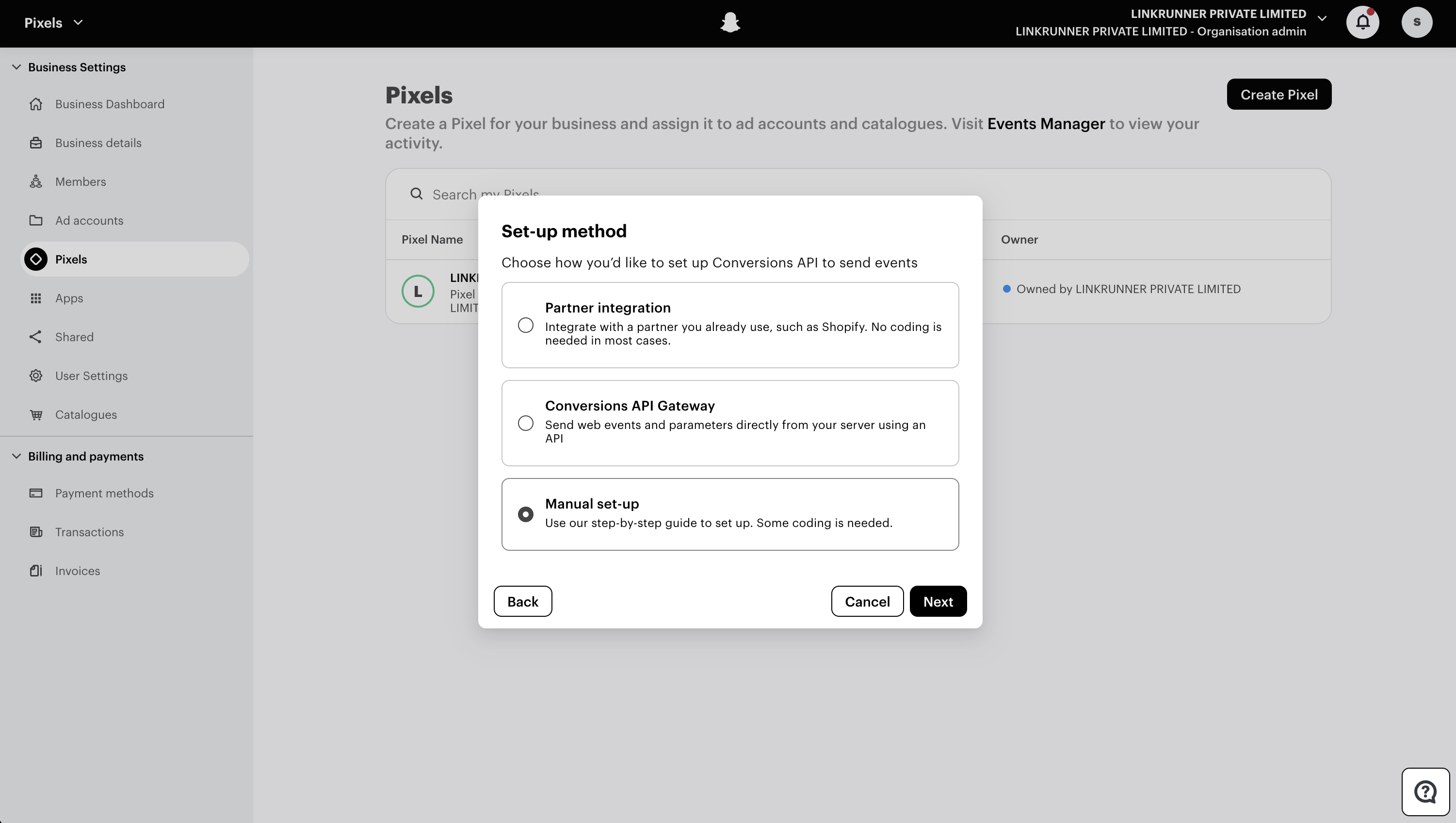
Step 9: Choose Manual Set-up Method
- For Set-up method, select Manual set-up
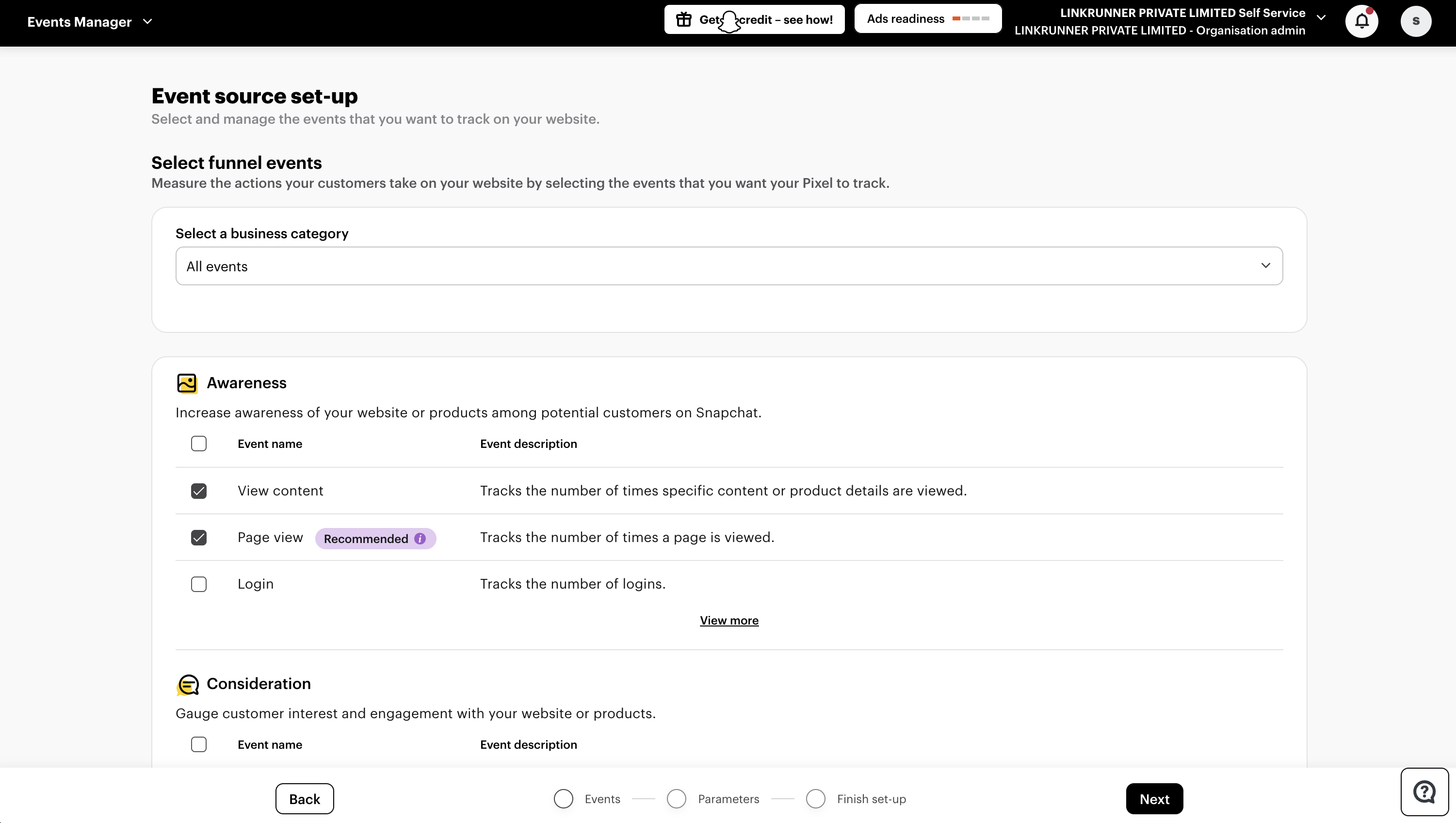
Step 10: Select Events to Track
- In Event source set-up, select all the events you want to track
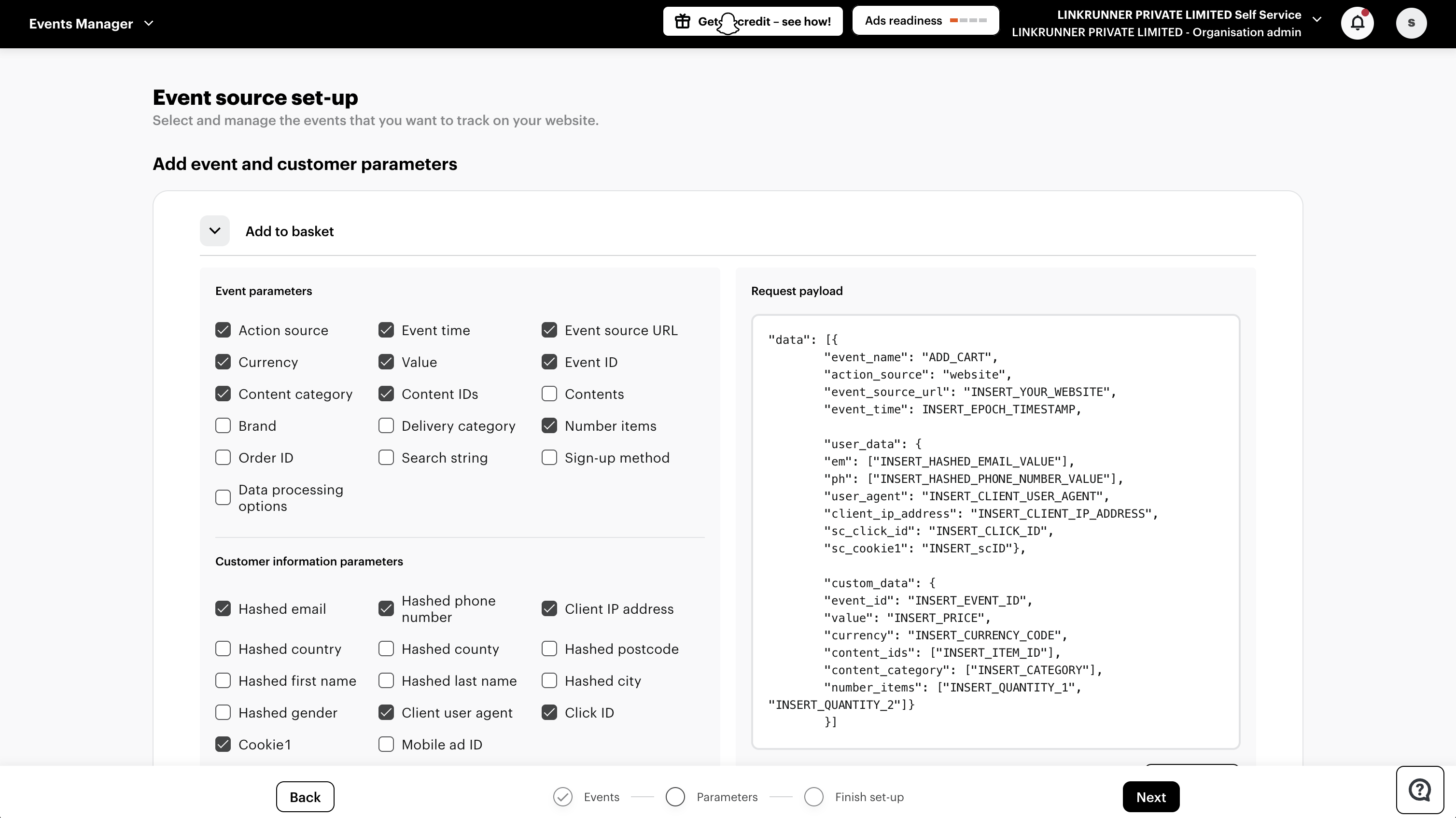
Step 11: Select Event Parameters
- Select the parameters for your events
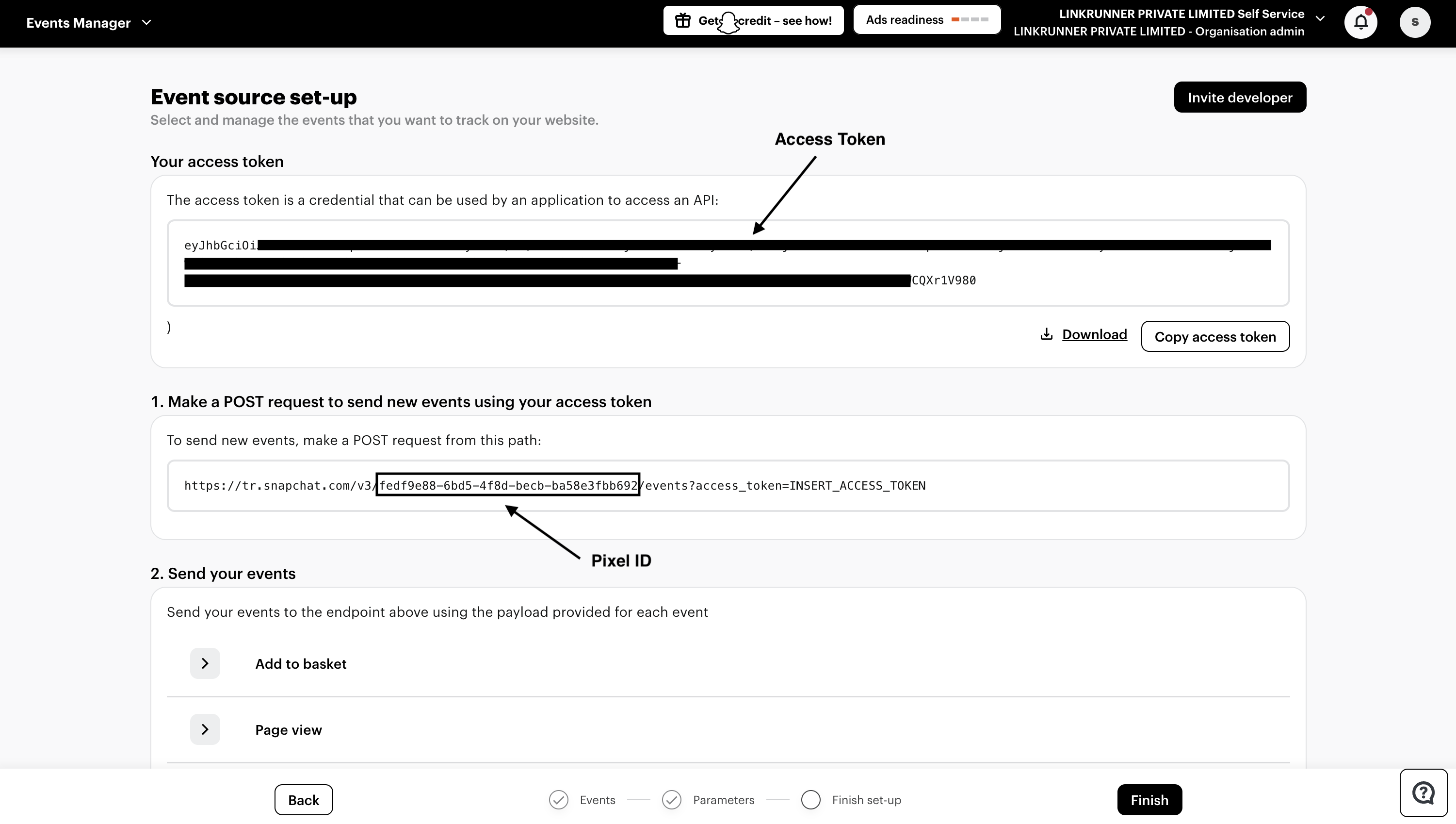
Step 12: Copy Credentials
- Copy the Access Token and Pixel ID
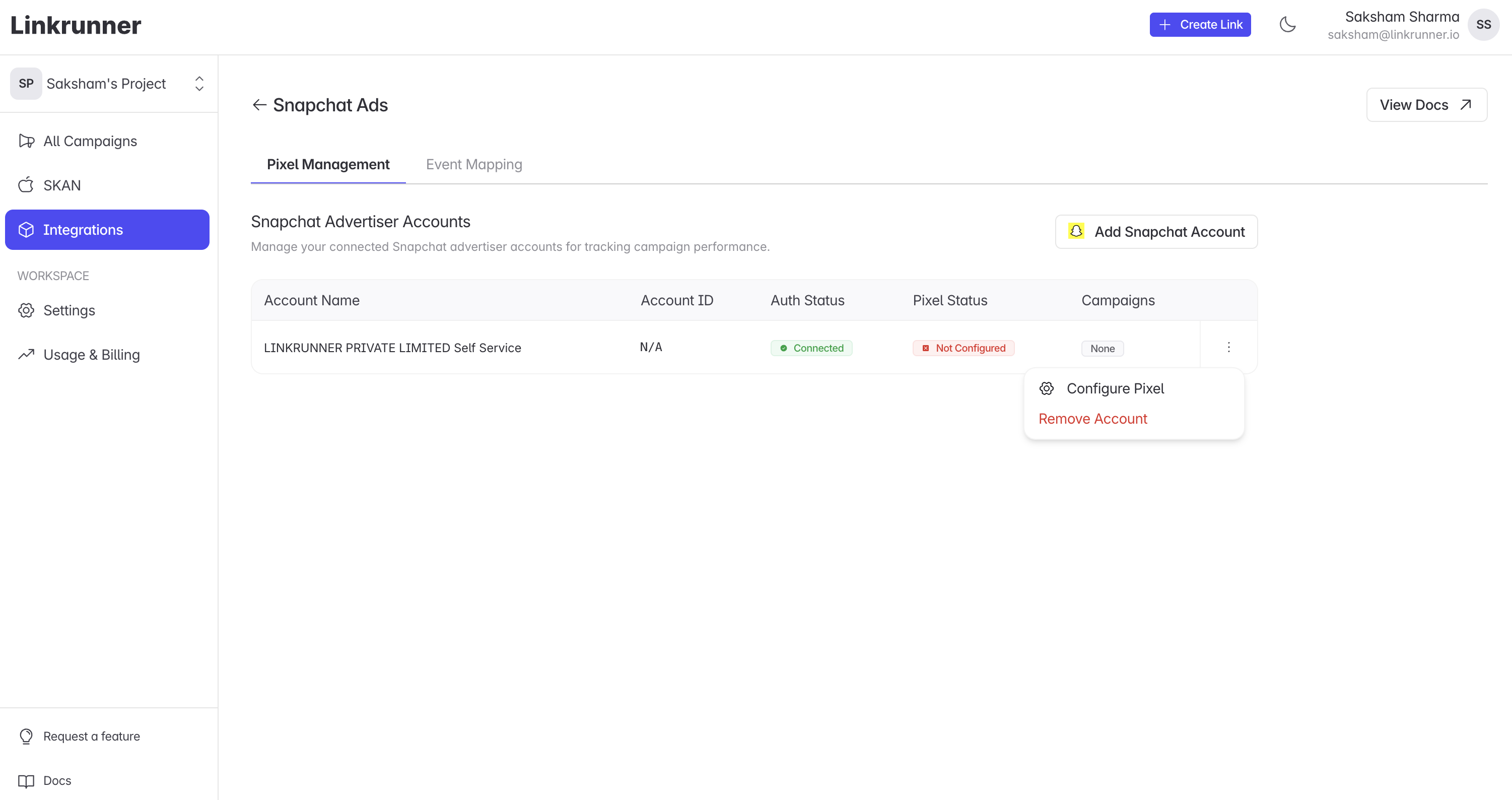
Step 13: Configure Pixel on Linkrunner
- Go back to Linkrunner and click on the three dots of the Snapchat account you added
- Click on Configure Pixel
Step 14: Paste Credentials
- Paste the Pixel ID and Access Token
- Click Save Configuration
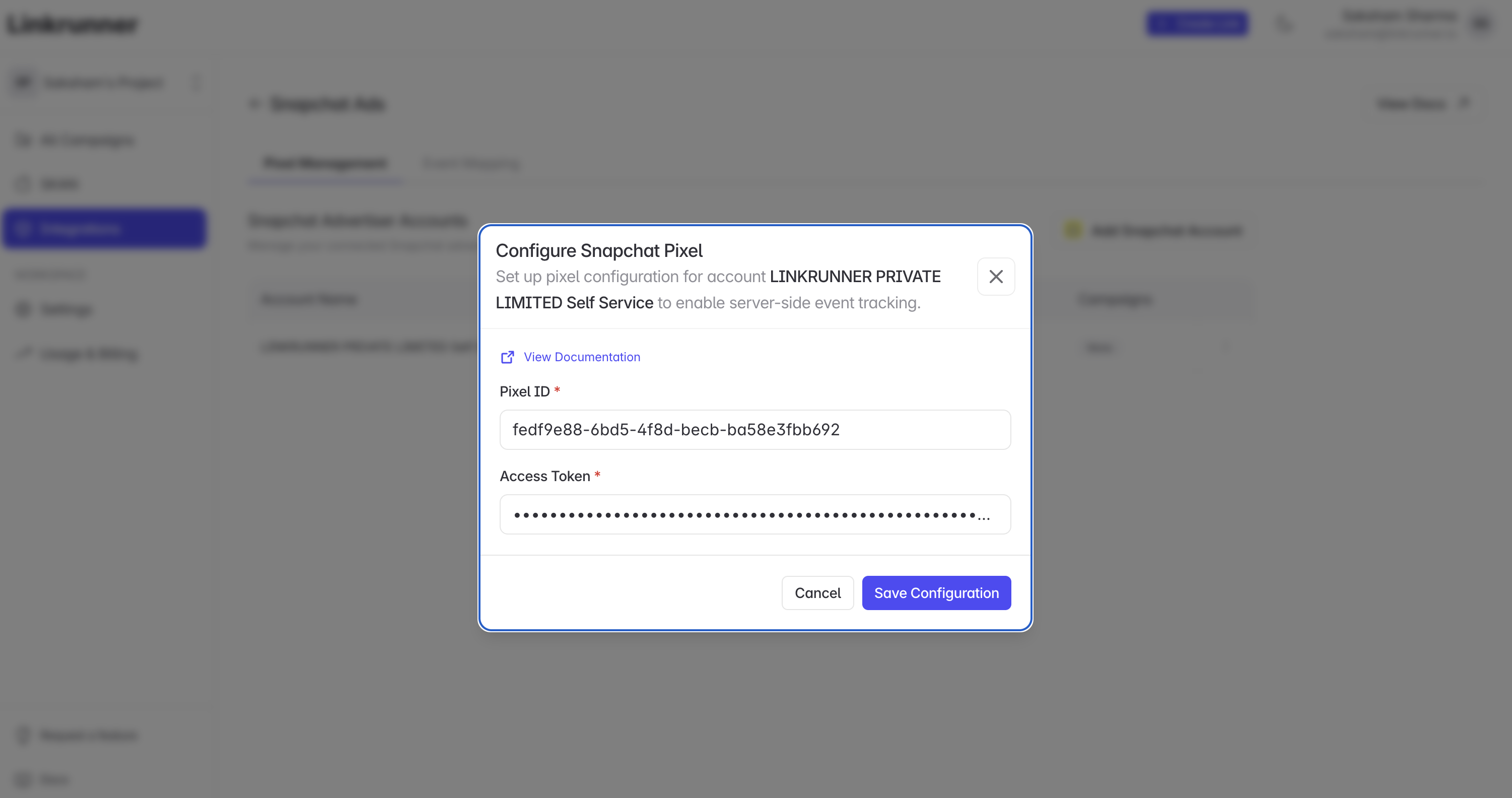
At this point your Snapchat Pixel setup is completed! Your Snapchat Ads account is now connected to Linkrunner and ready to track conversions.
2. Setting up your first Snapchat campaign
After your pixel is configured, you can create your first Snapchat ad campaign optimized for app conversions.Step 1: Navigate to Manage Ads
- Go to Snapchat Ads Manager
- Click the menu from the top left corner and select Manage Ads
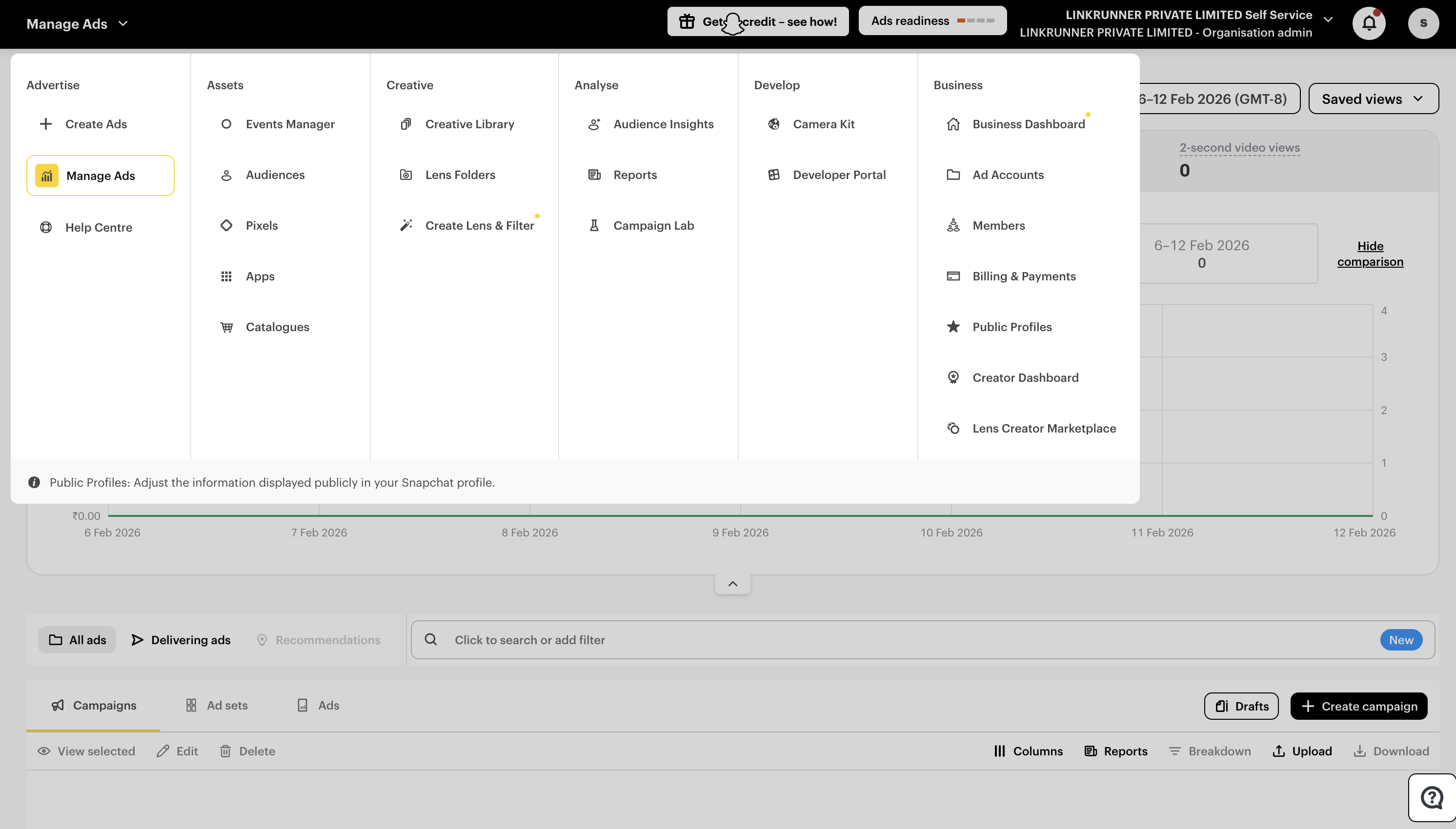
Step 2: Choose Campaign Objective
- Choose the objective for your campaign
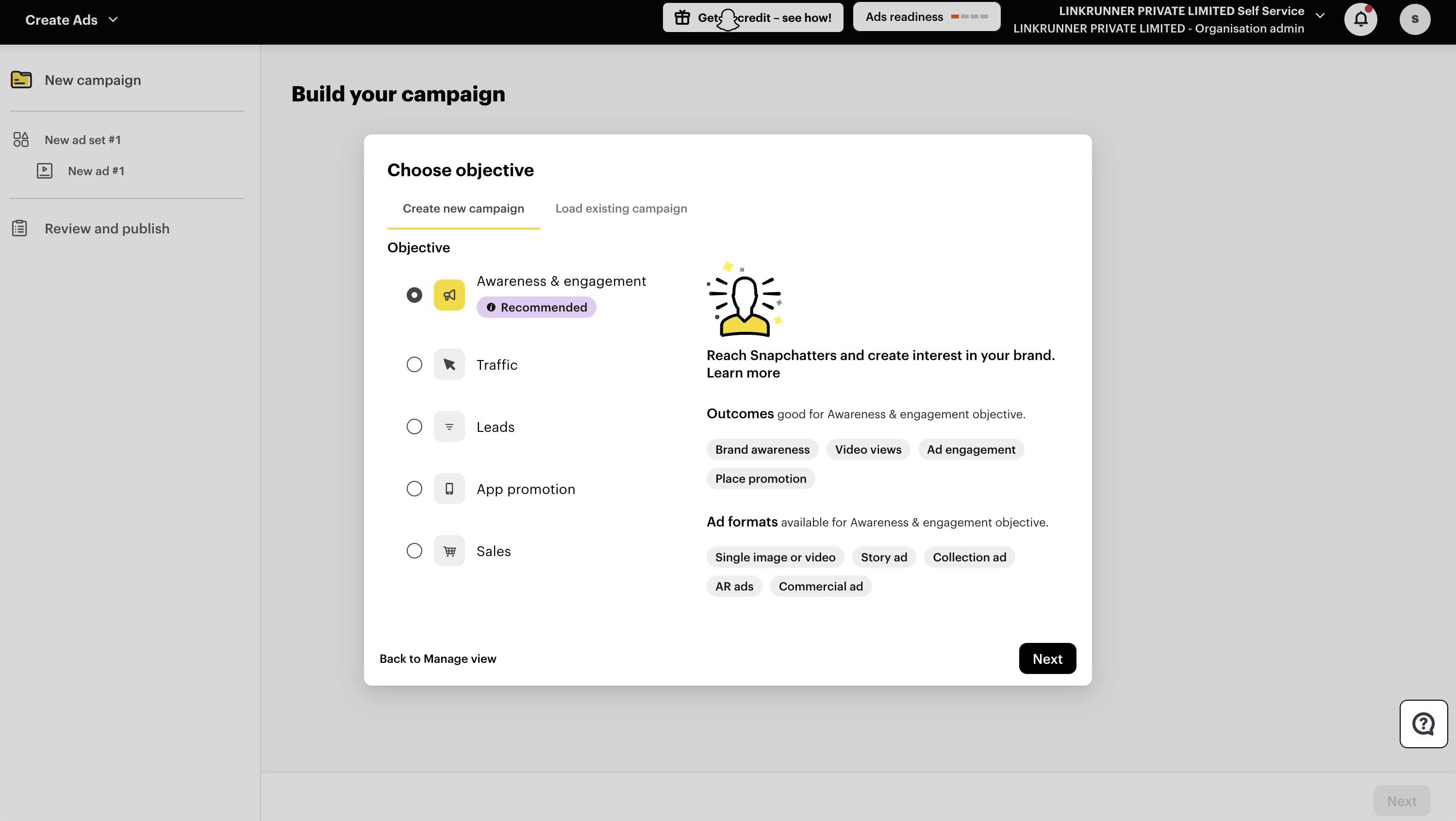
Step 3: Select Manual Build
- Choose Manual Build
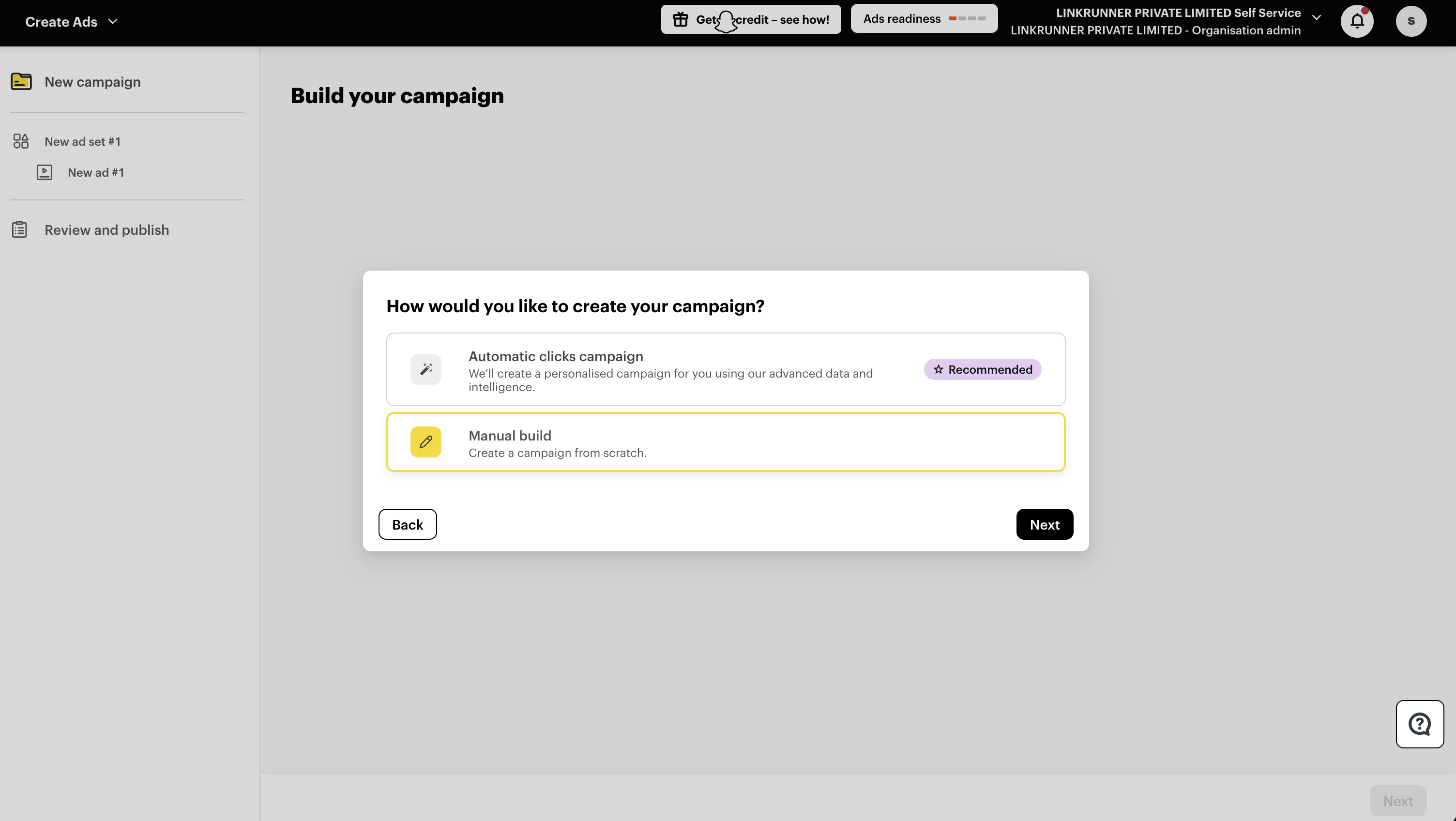
Step 4: Add Campaign Info
- Add info for your Campaign
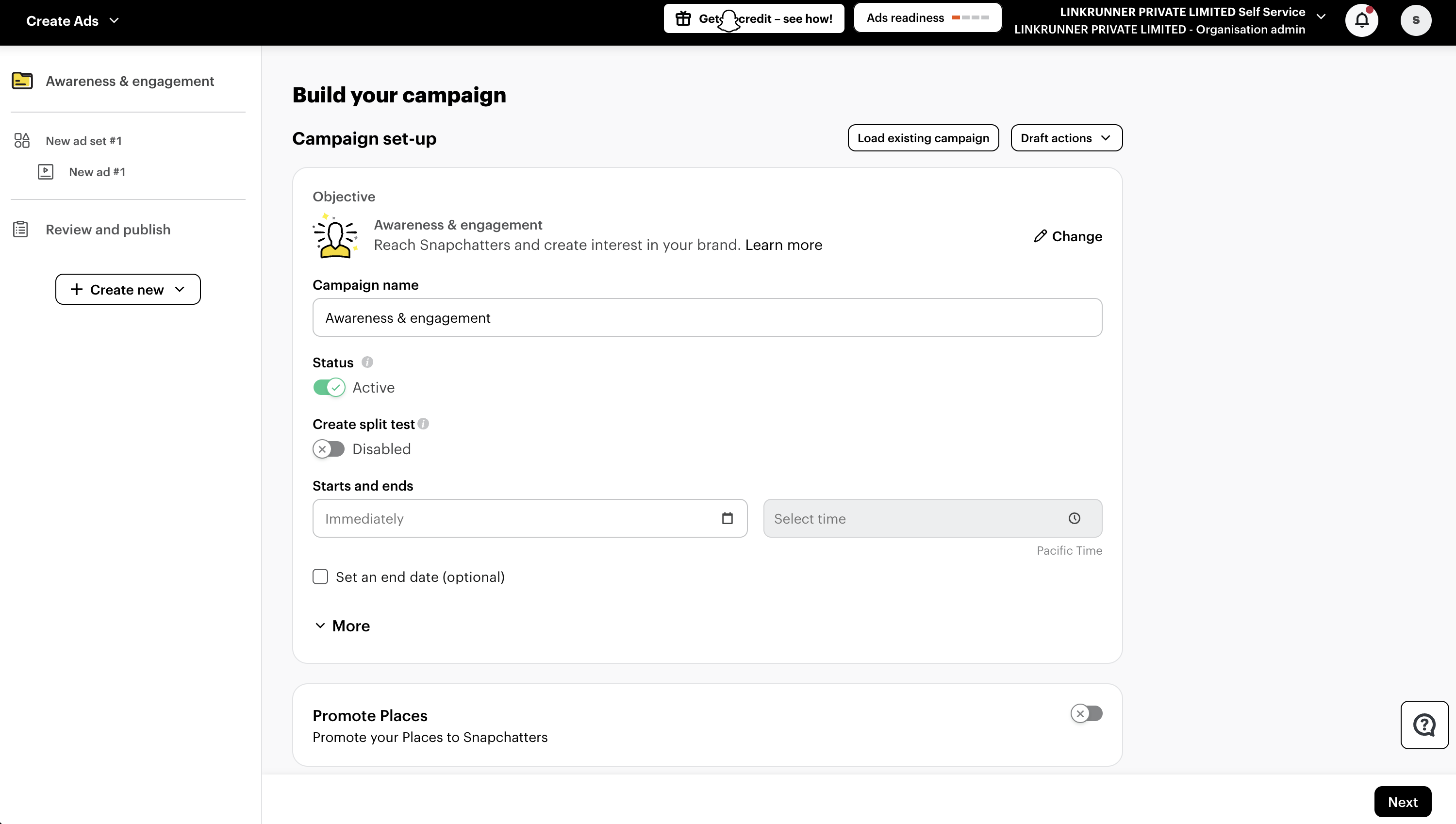
Step 5: Add Ad Set Details
- Add ad set details
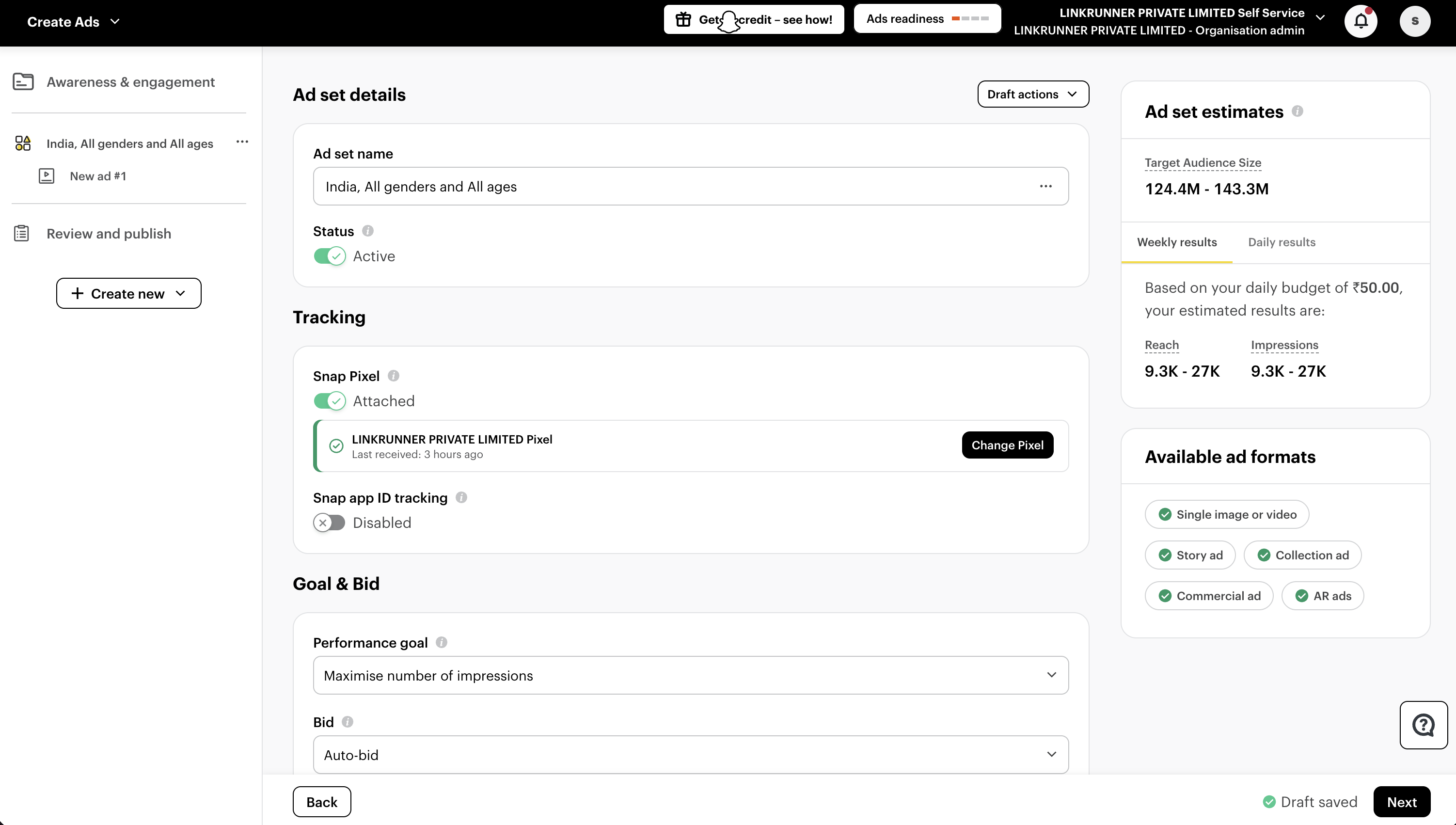
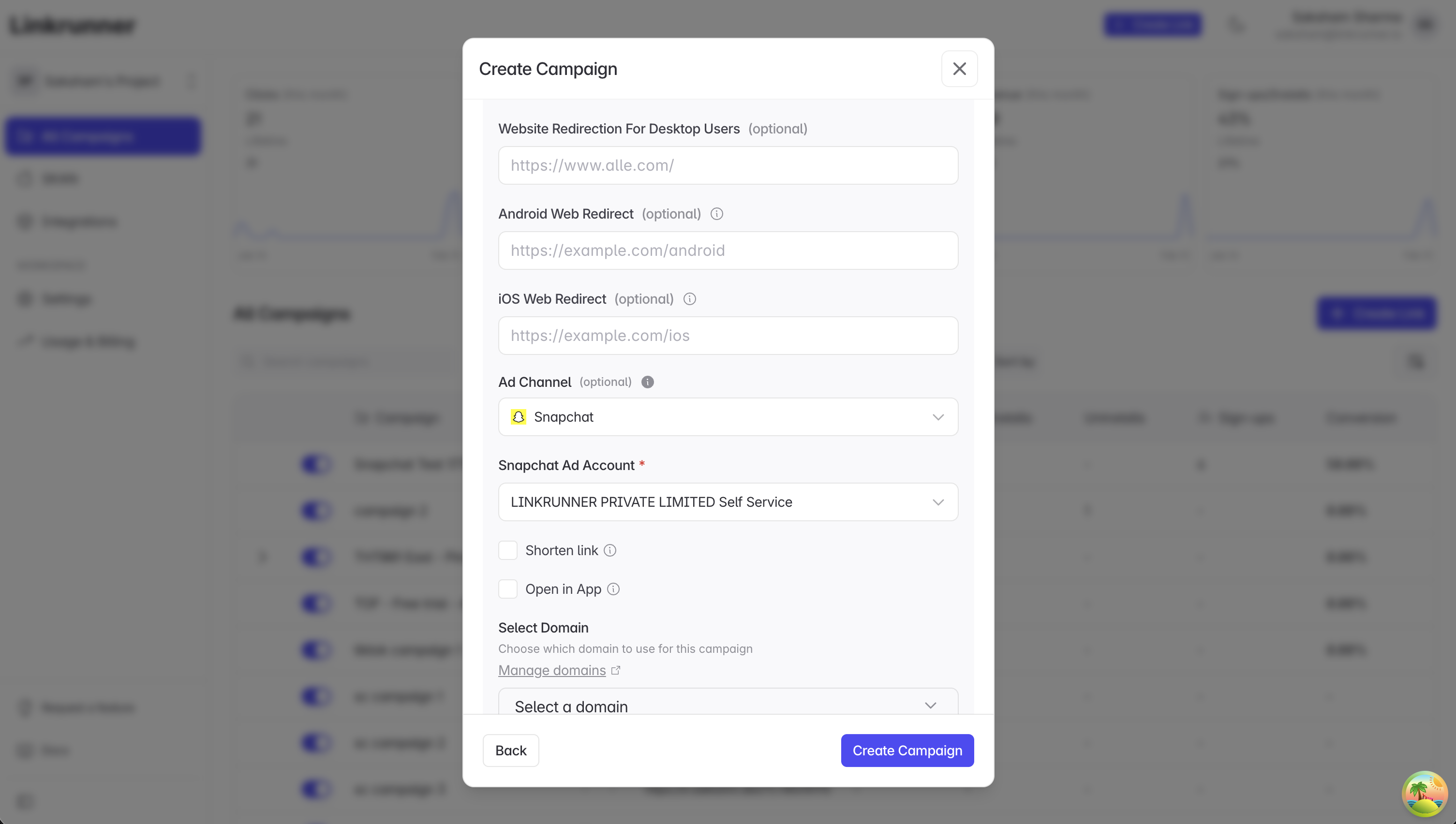
Step 6: Create Linkrunner Campaign Links
- Go to Linkrunner Dashboard
- Create a new campaign for each ad creative you plan to run
- Select Snapchat as the ad channel and select an Ad account
- Copy the Shareable campaign link for each campaign
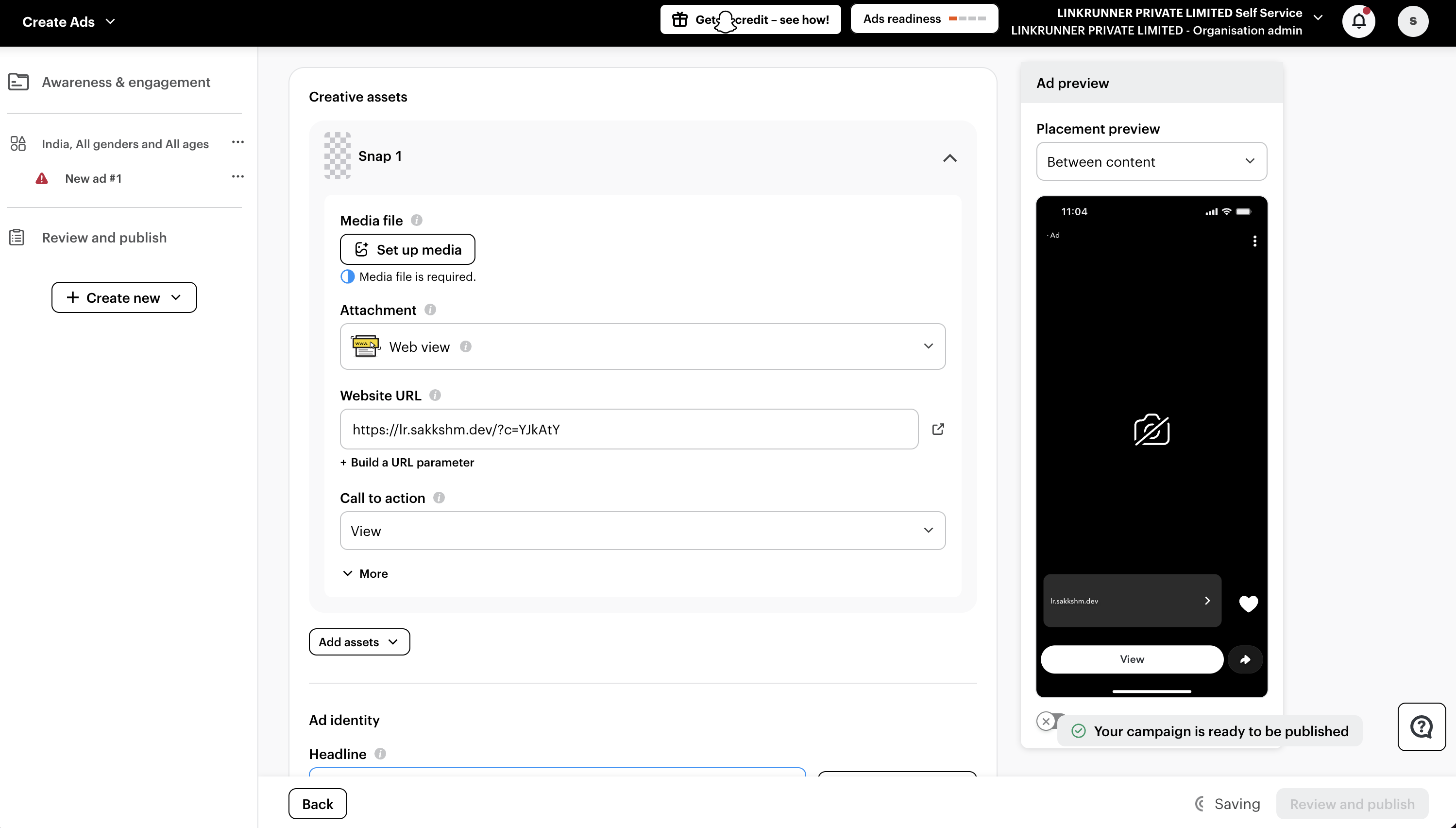
Step 7: Add Website URL for the Creative
- For every ad you create, add a different Linkrunner Campaign Link in the Website URL field
- This allows you to track performance for each ad creative separately
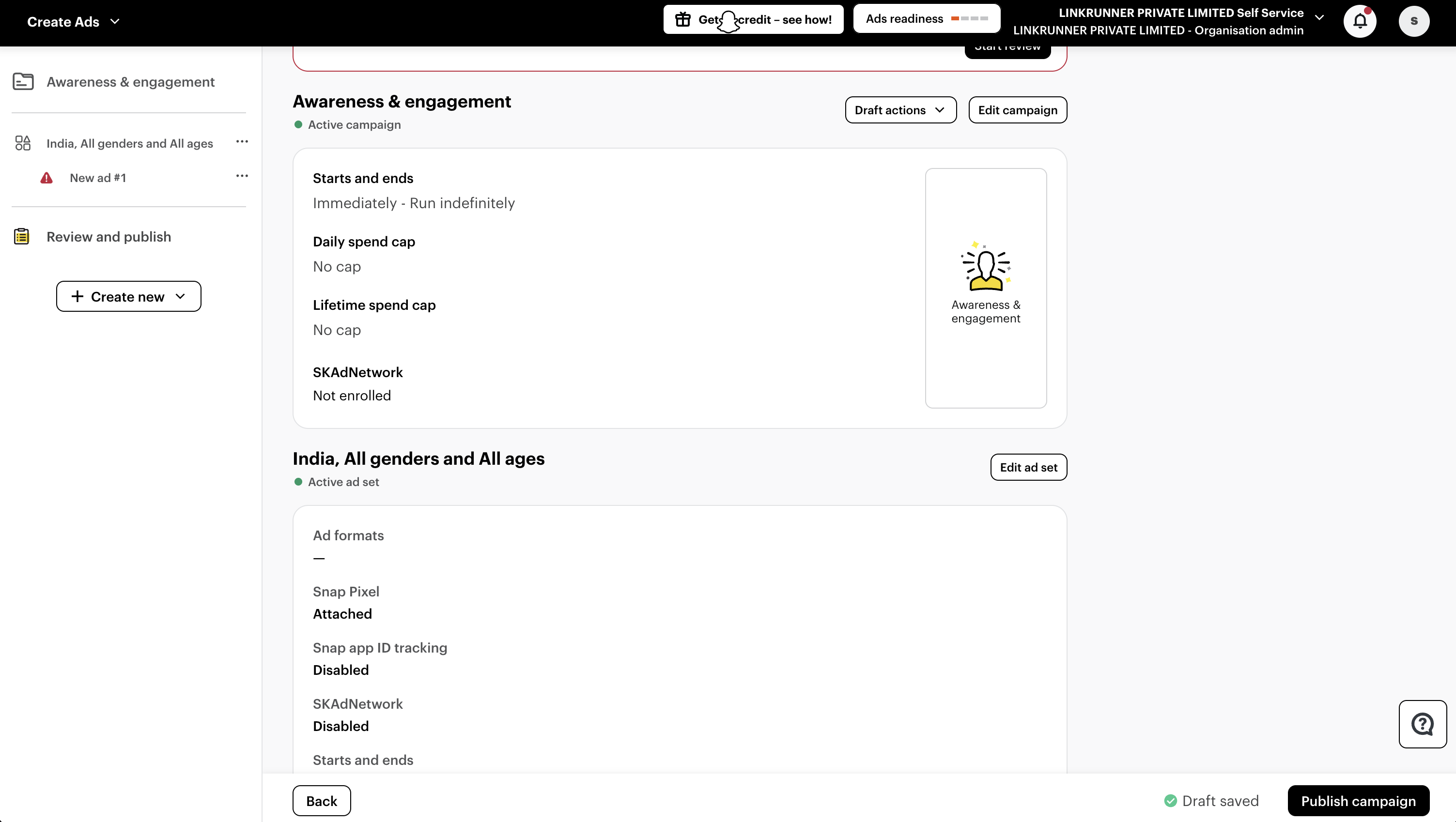
Step 8: Publish the Campaign
- Review your campaign settings and publish
Deferred Deep Linking
One of the powerful features of running Snapchat ads with Linkrunner is deferred deep linking support:- If your campaign includes deep link parameters, Linkrunner ensures that after the install and first open, users land on the correct in-app content
- This means a user who clicked an ad for a specific product but hadn’t installed your app yet will still be taken directly to that product screen inside the app after installation
- Works seamlessly across both iOS and Android platforms
Why Run Web-to-App Ads?
Running web-to-app ads with Snapchat gives you more flexibility and control over your campaigns, while still unlocking:- In-app event optimization — Snapchat can optimize on installs or post-install events like purchases
- Deferred deep linking — Users land on the right content inside your app after they install from the ad
- Cross-platform consistency — Track installs across iOS and Android with one unified flow
- Better attribution — More accurate tracking of user acquisition and in-app behavior