

Using an AI coding agent? Have it write your webhook receiver for you:The skill generates a handler for your backend that verifies the
linkrunner-key header and processes install/signup payloads. See Linkrunner Agent Skills.Overview
Webhooks allow you to receive real-time HTTP notifications when attribution events occur in your app. When a user installs your app or signs up, Linkrunner sends a POST request to your configured endpoint with detailed attribution data. Common use cases:- Server-side analytics and reporting
- CRM integration for user onboarding
- Real-time Slack notifications
- Custom attribution pipelines
Configuration
1
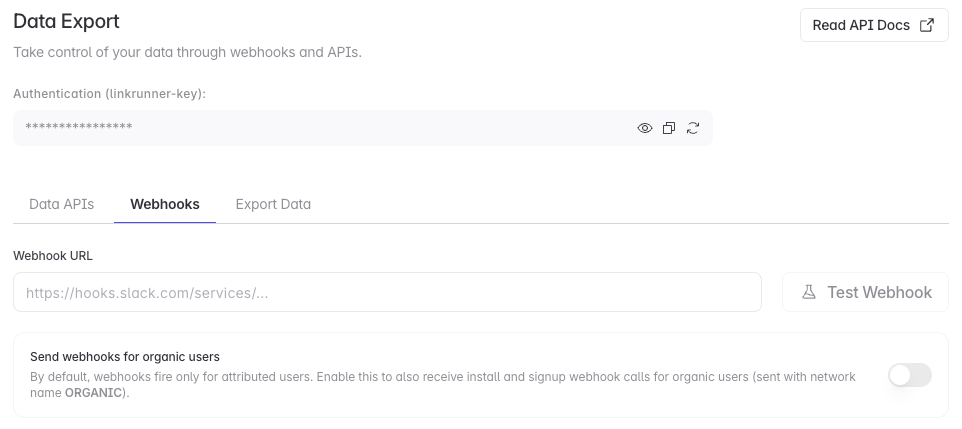
Open webhook settings
In the dashboard, go to Settings → Data Export, then select the Webhooks tab. You can also open Webhook settings directly.
2
Add your endpoint
Enter your public webhook URL, then click Update Webhook.
3
Test the endpoint
Click Test Webhook. Your endpoint must accept JSON POST requests and return a direct 2xx response.
4
Include organic users
Turn on Send webhooks for organic users to receive install and signup webhooks for organic users. These payloads use
network_name: "ORGANIC".Your endpoint must be publicly accessible. Linkrunner retries failed requests up to three times, but does not follow redirects.
Webhook Events
Linkrunner sends webhooks for the following events:Install Webhook
Theinstall webhook is triggered immediately when Linkrunner attributes an app installation. At this point, your app has just been opened for the first time and the user hasn’t had a chance to sign up or log in yet. Because of this, user identity fields such as user_id, name, phone, email, and additional_data are only included in signup webhooks.
By default, install webhooks fire only for attributed (paid) installs. To also receive webhooks for organic users, enable Send webhooks for organic users in Settings → Webhooks. This covers both install and signup webhooks. Organic webhooks are sent with network_name set to ORGANIC, ad_channel set to null, and no campaign details.
However, the install webhook does include lr_install_id (Linkrunner’s ID for the install) and device identifiers (gaid for Android, idfa for iOS) when available. You can use these to match the install with the user later when they sign up.
Use the install webhook for:
- Tracking install counts by campaign
- Analyzing attribution data (network, ad creative, etc.)
- Monitoring app store conversion rates
- Storing device IDs to link with user accounts later
Signup Webhook
Thesignup webhook is triggered when you call the .signup() method in your app via the Linkrunner SDK. This happens after the user has signed up or logged in, so the user_id field will contain the ID you passed to the SDK.
The signup webhook includes lr_install_id and device identifiers (gaid/idfa) along with the user_id, giving you a complete picture of both the device and the user. Because the install webhook carries the same lr_install_id, you can join the two payloads without relying on device identifiers. It also includes user identity fields (name, phone, email) and any custom parameters you passed via additional_data, such as referral codes or other custom key-value pairs.
Like install webhooks, signup webhooks fire only for attributed users by default. Enabling Send webhooks for organic users also delivers signup webhooks for organic users, with network_name set to ORGANIC and no campaign details.
Use the signup webhook for:
- Linking attribution data to your user records
- CRM integration and user onboarding flows
- Calculating signup conversion rates from installs
- Forwarding custom parameters (e.g., referral codes) to your backend
To receive signup webhooks, you must call
.signup() in your app after the user signs up or logs in. See your SDK’s usage guide for implementation details.Payload Structure
All webhooks are sent as POST requests with a JSON body.Headers
Body Parameters
The
The
Fields that are not available can be
name, phone, and email fields are populated from user_data passed to the SDK’s .signup() or .trigger() methods.The
additional_data field is populated from the SDK data object.Fields that are not available can be
null or omitted from the payload.Install ID
lr_install_id identifies a single install of your app. Both webhooks for that install carry the same value, so it is the join key between them: store it from the install webhook, then look it up when the signup webhook for the same install arrives.
It is also the install_instance_id used by the SDK-less API, so a webhook payload can be matched to the attribution-data response for the same install.
A user who reinstalls or reuses your app on another device produces a new install, and therefore a new
lr_install_id. Use user_id to group installs by user.Meta Campaign Details
When the attribution is from Meta Ads,meta_campaign_details contains:
Google Campaign Details
When the attribution is from Google Ads,google_campaign_details contains:
Apple Search Ads Details
When the attribution is from Apple Search Ads,apple_search_ads_details contains:
Campaign Details
For supported non-Meta and non-Google ad networks,campaign_details contains:
Device Data
device_data describes the device at the time of install. It is present on every install and signup webhook. The signup webhook reports the device of the install it belongs to, so both webhooks for the same lr_install_id carry the same values.
Location Data
location_data is resolved from device_data.ip_address, so it shows where the device connected from, not its GPS position. Like device_data, it is present on every webhook and describes the install.
Both objects always contain every key. A key is
null when Linkrunner did not receive that value or could not resolve the IP address. The values match the device and location columns in the user files from Data Export.Additional Data
Theadditional_data object contains custom parameters and device data passed through the SDK. This is useful for forwarding arbitrary key-value pairs like referral codes or custom identifiers through the attribution flow.
Example:
additional_data.device_data is whatever your app passes in the SDK data object. It is separate from the top-level device_data object, which Linkrunner fills in.
Example Payloads
Install Event
Install Event (Organic)
Sent only when Send webhooks for organic users is enabled:Signup Event
Authentication
Every webhook request includes alinkrunner-key header containing your project’s private key. Use this to verify that requests are genuinely from Linkrunner.
Slack Integration
Linkrunner automatically formats webhook payloads for Slack when your URL containshooks.slack.com. Instead of raw JSON, Slack receives a rich Block Kit formatted message displaying:
- Event type and user ID
- App version and network
- Campaign name
- Attribution timestamps
- Device identifiers (GAID/IDFA)
- User identity (name, phone, email)
- Meta, Google, Apple Search Ads, or generic campaign details, when available
- Create an Incoming Webhook in your Slack workspace
- Copy the webhook URL (format:
https://hooks.slack.com/services/...) - Paste it as your webhook URL in Linkrunner settings
Retry Behavior
If your endpoint fails to respond with a 2xx status code, Linkrunner makes up to 3 attempts total with exponential backoff:
After 3 failed attempts, the webhook is marked as failed. Ensure your endpoint is reliable to avoid missing events.
Best Practices
1
Respond quickly
Return a 2xx status code as fast as possible. Process the webhook data asynchronously to avoid timeouts.
2
Implement idempotency
Store processed webhook events using
event_type and lr_install_id, plus user_id when present.3
Validate authentication
Always verify the
linkrunner-key header matches your private key before processing.4
Handle failures gracefully
Log failed webhook processing for debugging and implement alerting for critical failures.
Troubleshooting
Webhooks not being received?- Verify your endpoint URL is correct and publicly accessible
- Check that your server accepts POST requests with JSON body
- Ensure your firewall allows incoming requests from Linkrunner
- Verify the
linkrunner-keyheader validation in your code - Check your private key matches the one in your dashboard settings
name,phone, andemailrequire you to passuser_datato the SDK’s.signup()or.trigger()methodsuser_idrequires SDK configuration to be passed- Device identifiers (
gaid/idfa) depend on user consent and SDK implementation additional_datarequires passing adataobject to the SDK and contains those custom parameters- Network-specific detail objects are only populated when that network provided attribution data