

Overview
Use this guide for native Android and iOS App campaigns. Receiving an event, importing a conversion action, and using it for campaign bidding are separate steps.Setup Process
Setting up Google Ads integration involves four main steps: connecting your Google Ads account, creating a link ID for your mobile app, mapping events in Linkrunner, and importing events for conversion tracking.Running iOS App Campaigns? Google measures iOS installs via SKAdNetwork. After completing this guide, follow the
Google Ads SKAN Setup guide.
1. Connect Your Google Ads Account
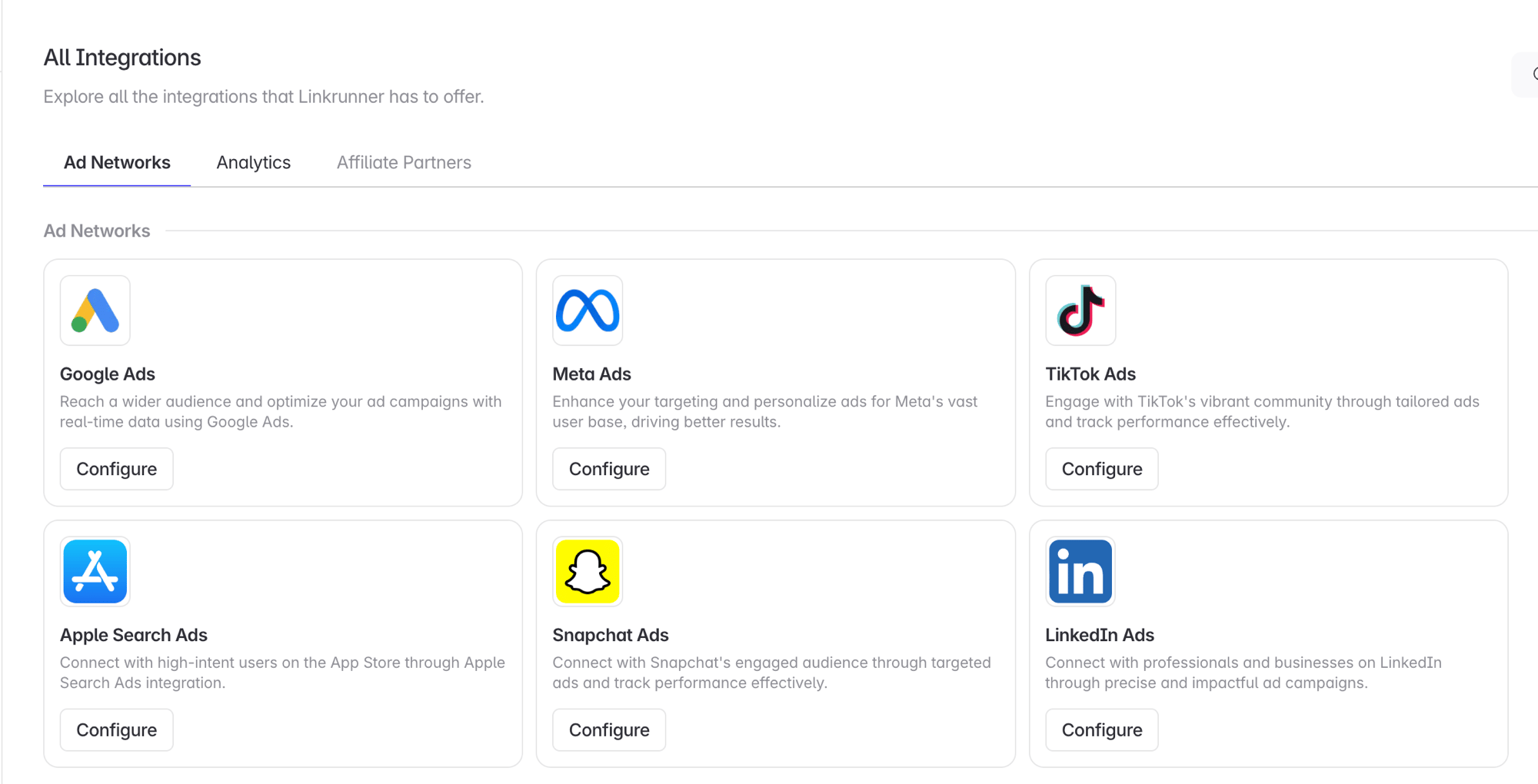
Start in the Linkrunner dashboard.- Go to Integrations and click Configure on the Google Ads card
- On the Account Integration tab, click Add Google Account
- Sign in with a Google account that has access to your Google Ads account and approve the requested permissions
2. Create Link ID for Android/iOS App
To connect your mobile app with Google Ads, you’ll need to create a link ID that enables data sharing between Linkrunner and Google Ads.Step 1: Access Third-party App Analytics
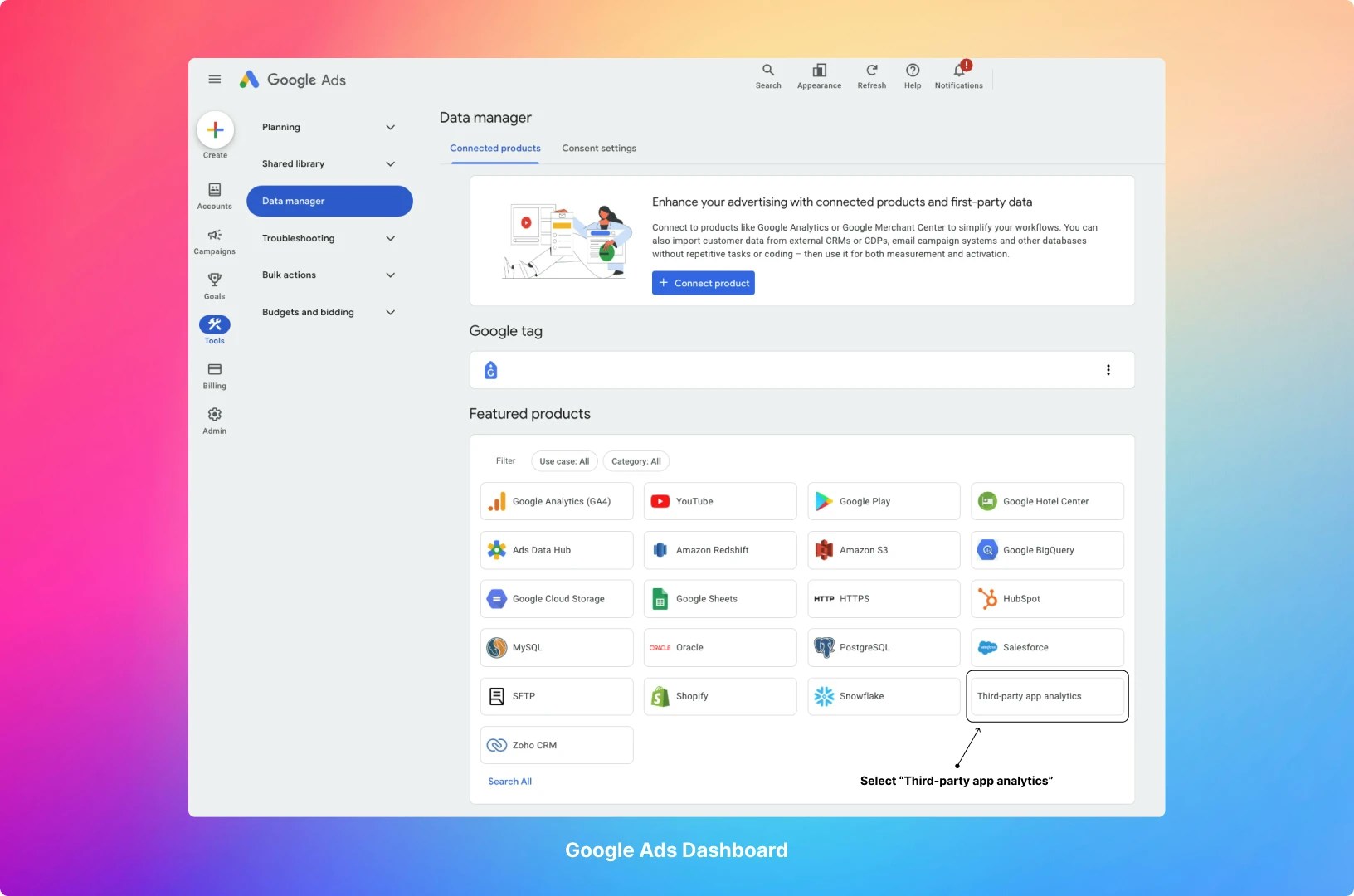
- Go to your Google Ads dashboard
- Navigate to Tools (side panel) → Data Manager → Third-party app Analytics
- Or visit directly: https://ads.google.com/aw/productlinks/thirdpartyappanalytics and click on Create Link ID
Step 2: Add App Analytics Provider
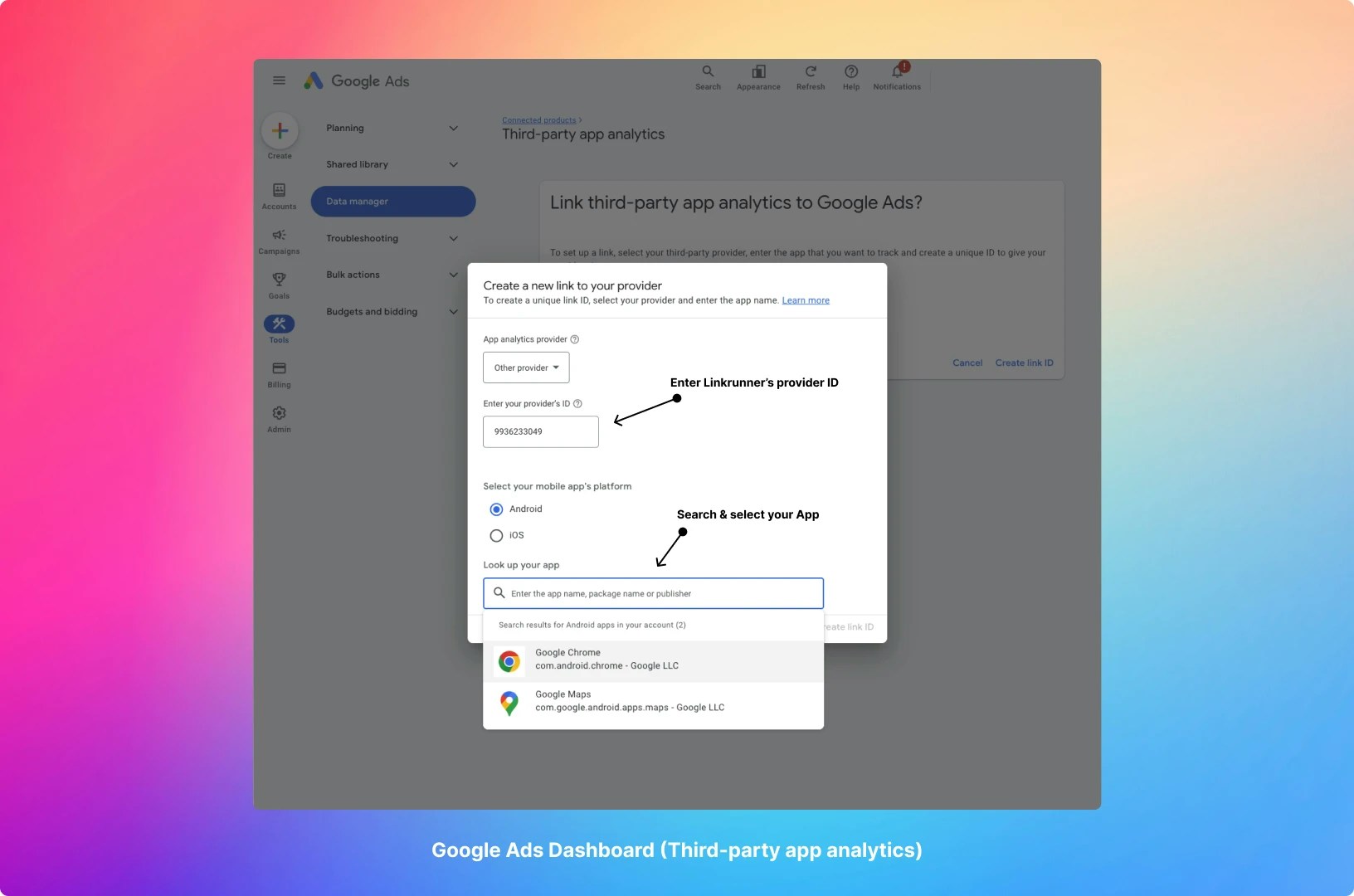
- In the Third-party app analytics section, click on the ”+ Create link ID”
- Select “Other provider” from the App analytics provider dropdown menu
- Enter the following provider ID:
9936233049 - Select the platform (iOS or Android) and search for your app
- Click on “Create link ID”
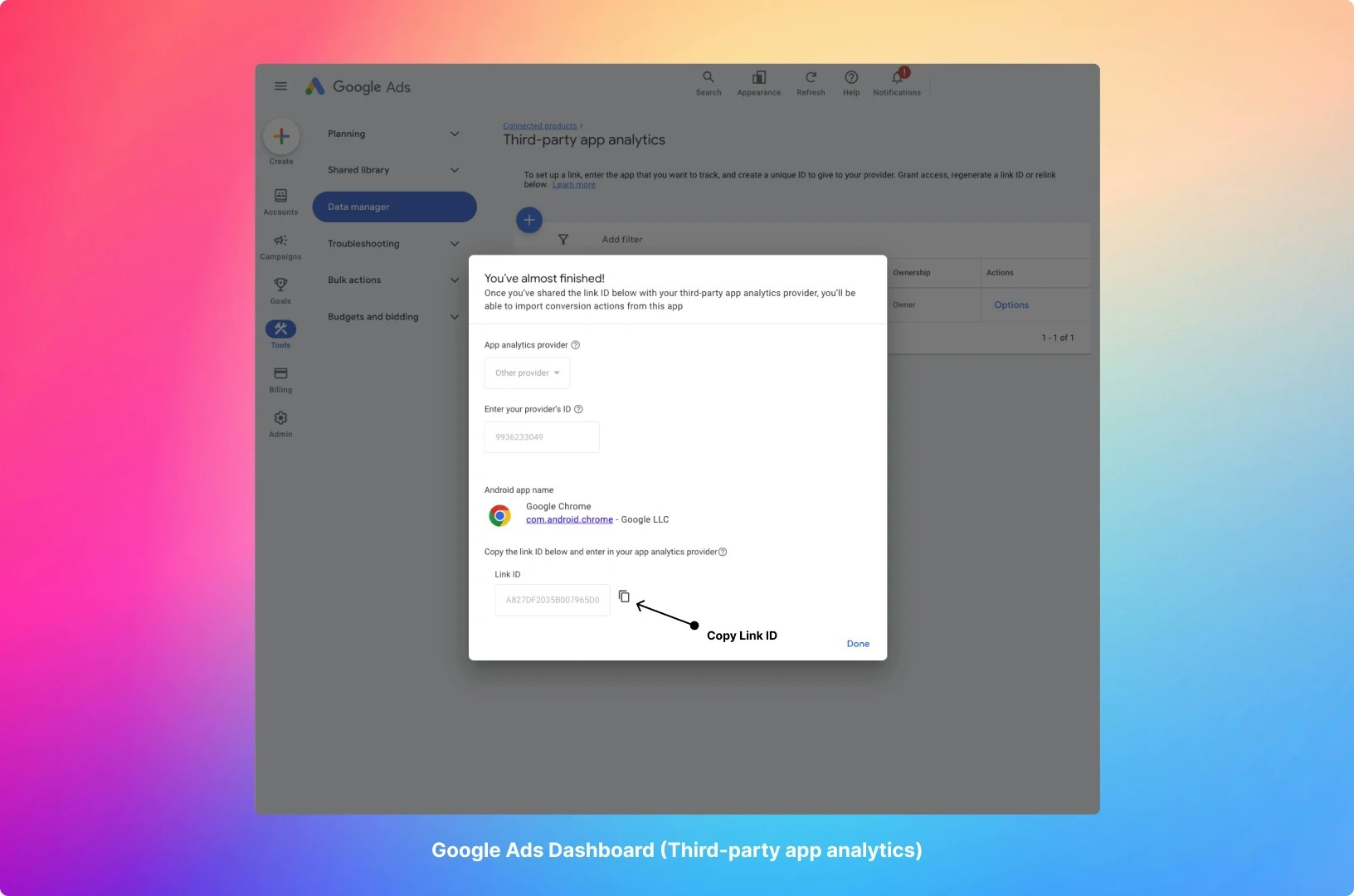
Link IDs are per platform. Repeat Step 2 for your other platform if you ship both Android and iOS.
Step 3: Configure in Linkrunner Dashboard
Now paste that link ID into Linkrunner.- Go to Integrations → Google Ads in your Linkrunner dashboard
- On the Account Integration tab, open the three-dot menu on your Google Ads account row
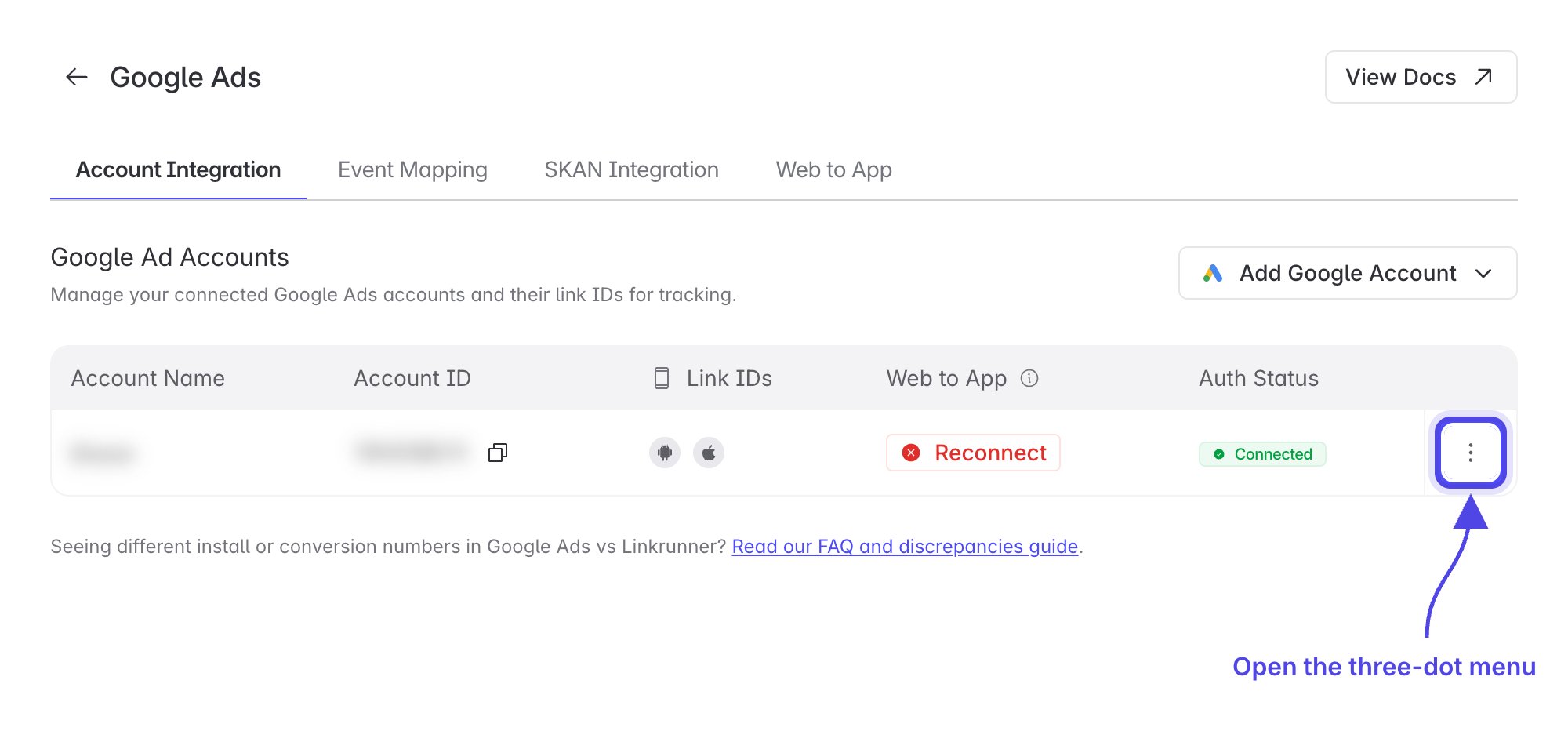
- Choose Setup Link IDs
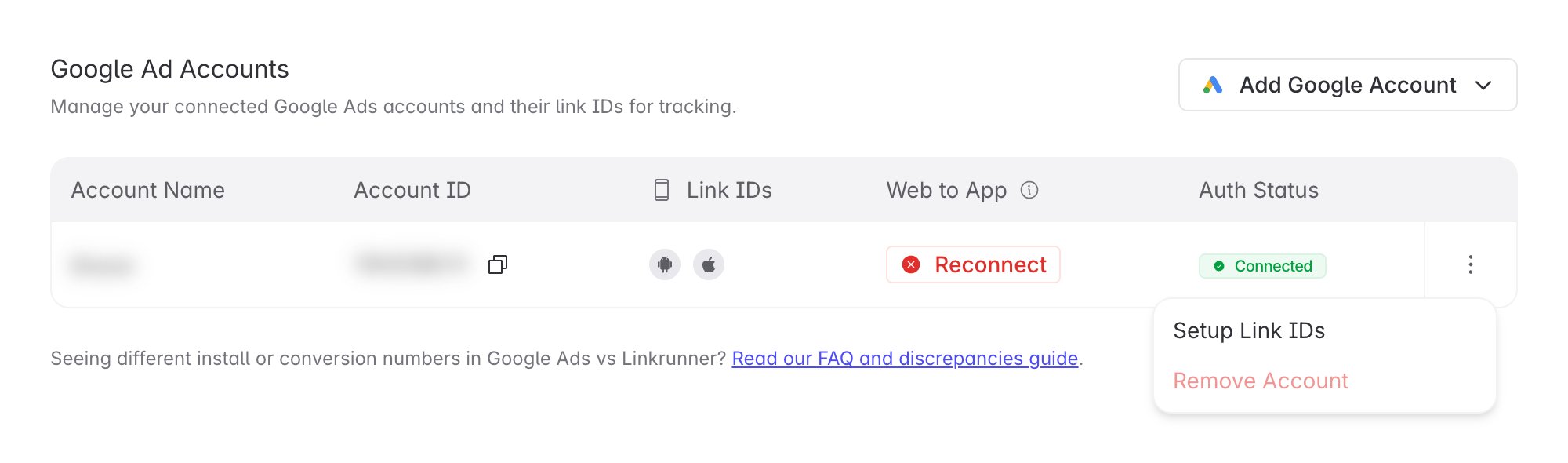
- Paste the link ID into Android Link ID or iOS Link ID, matching the platform you selected in Google Ads
- Click Save Link IDs
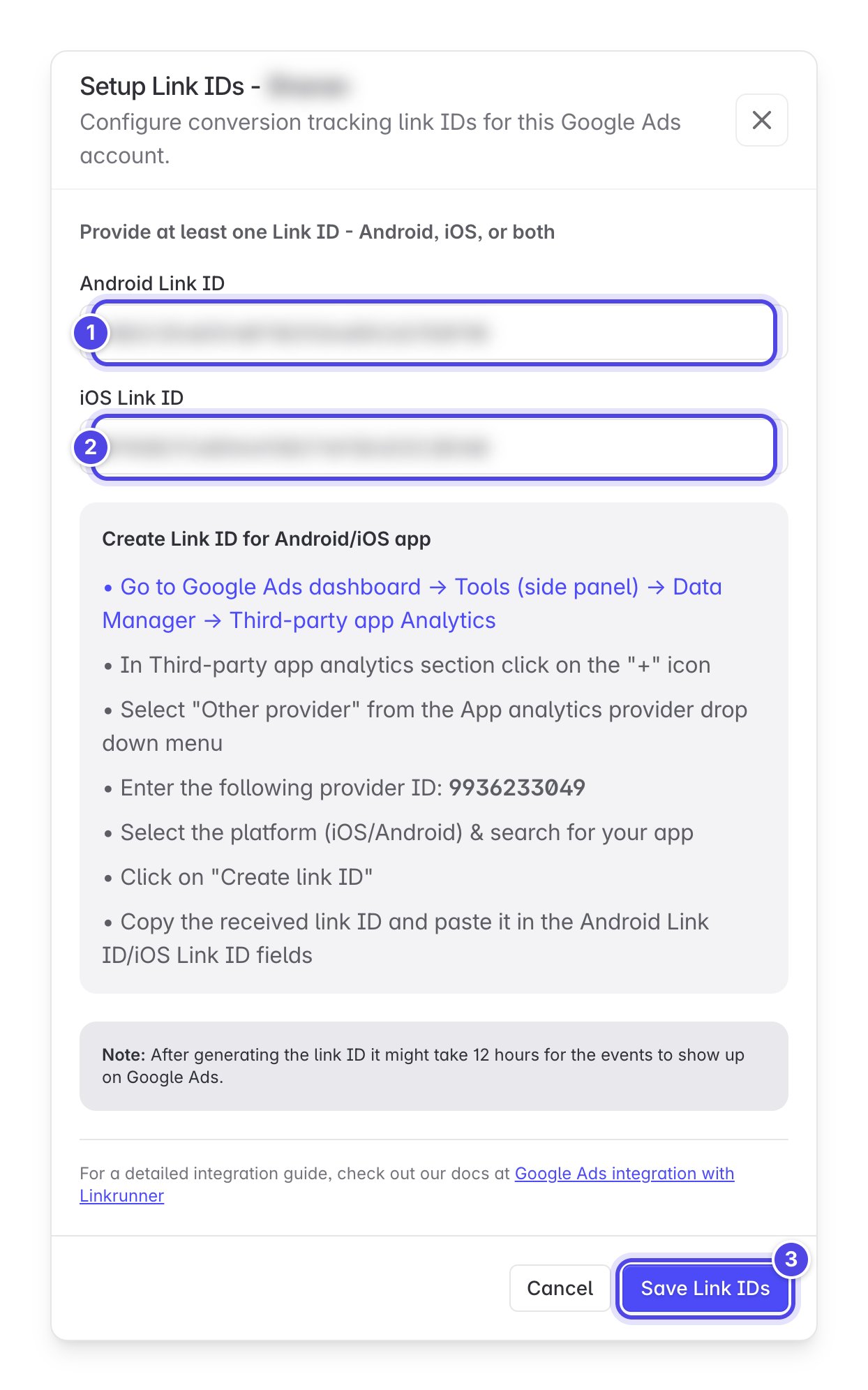
You only need one link ID to save, but add both if you ship on Android and iOS.
3. Set Up Event Mapping
Map your app events to Google Ads events so Linkrunner can send postback conversions.Install and Sign up are included by default as
first_open and sign_up. You do not need to add mappings
for these events.1
Open app event mapping
Go to Integrations → Google Ads → Event Mapping and open App Event Mapping.
2
Map your event
Click Add Mapping, select Your Events, and choose the matching Google Ads Event. Turn on Send Revenue only for revenue events, choose the Currency, then click Save.Match the Google event name exactly.
Signup and sign_up are different events. A custom mapping to Signup does not use the default sign_up action.3
Check event delivery
Saving a new or updated mapping automatically attempts to send a test event. You do not need to click the paper plane Send event to ad network action after every save. Use it for a manual retry if needed, or trigger the event in your app.A success message does not prove that Google received the event, discovered a conversion action, or imported it. Google processing time varies. Refresh the conversion actions after processing rather than adding duplicate mappings.
4. Manage Google conversion actions
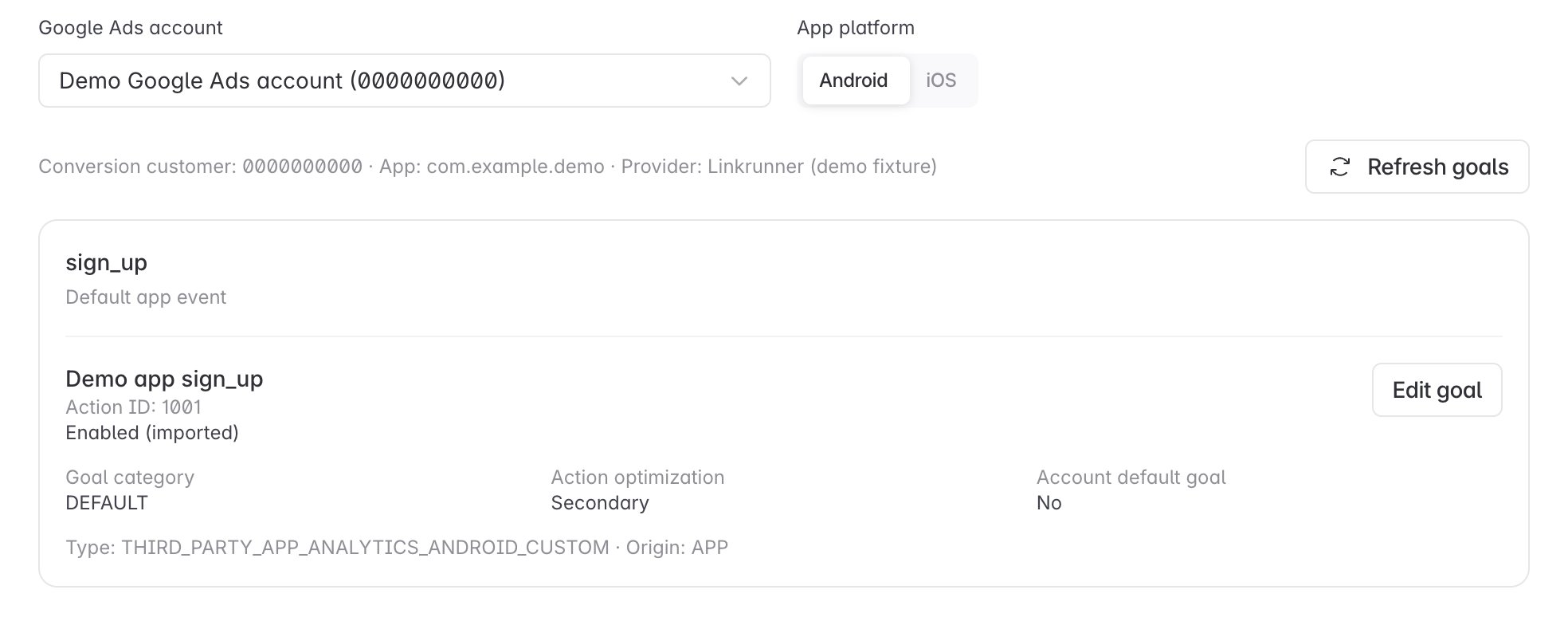
Stay in App Event Mapping on Google Ads → Event Mapping and find Google app conversion goals. Linkrunner matches mapped events to native app conversion actions discovered by Google. Discovery identifies an action, not receipt of an individual event. You cannot create an arbitrary new native action here.1
Select the account and platform
Choose your Google Ads account, then Android or iOS. Confirm that the account has a link ID for that platform.
2
Check the discovered action
3
Open the goal editor
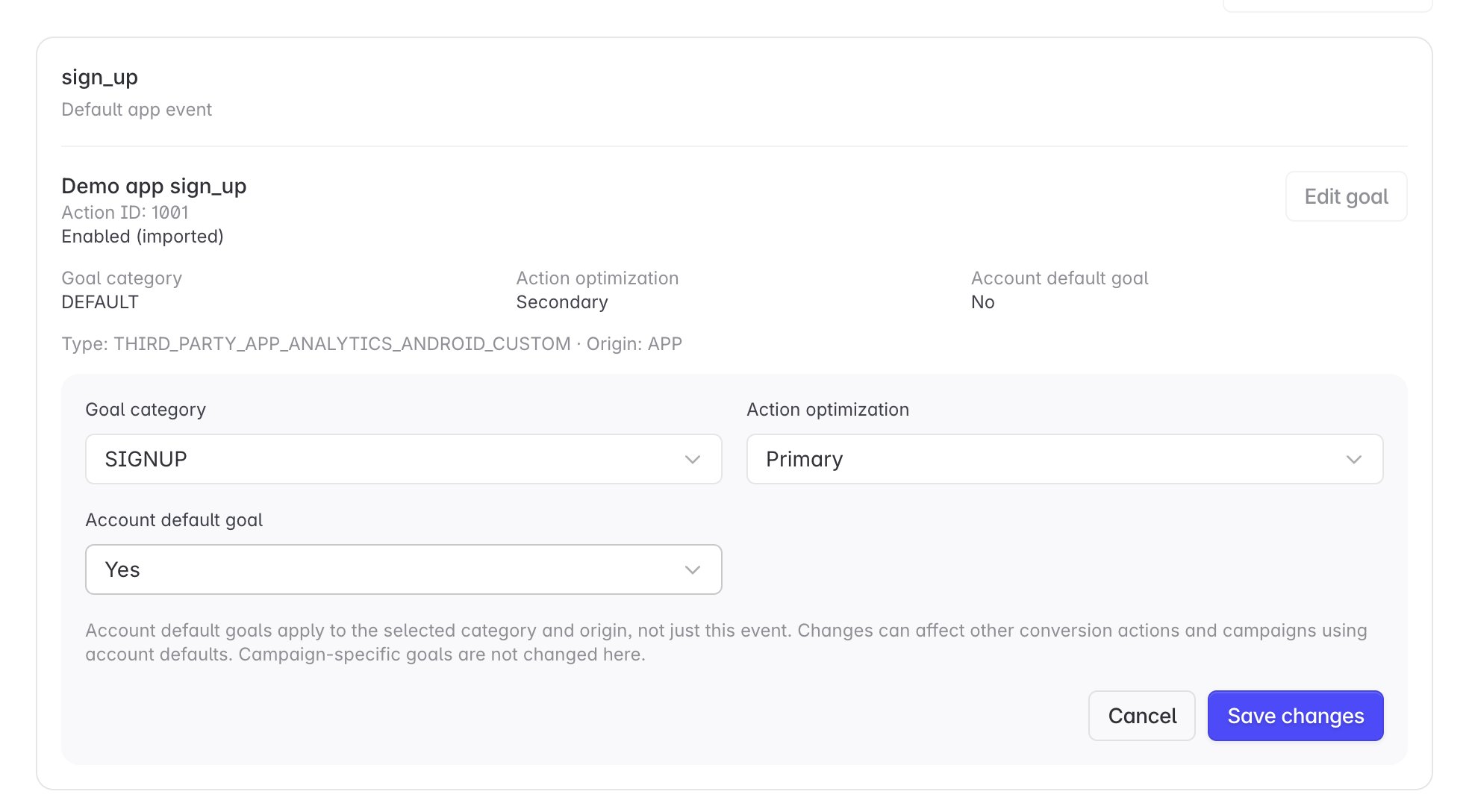
For a discovered action with status HIDDEN, click Import to open the editor. This does not save or enable the action yet. For an enabled action, click Edit goal.
4
Review the action and goal settings
5
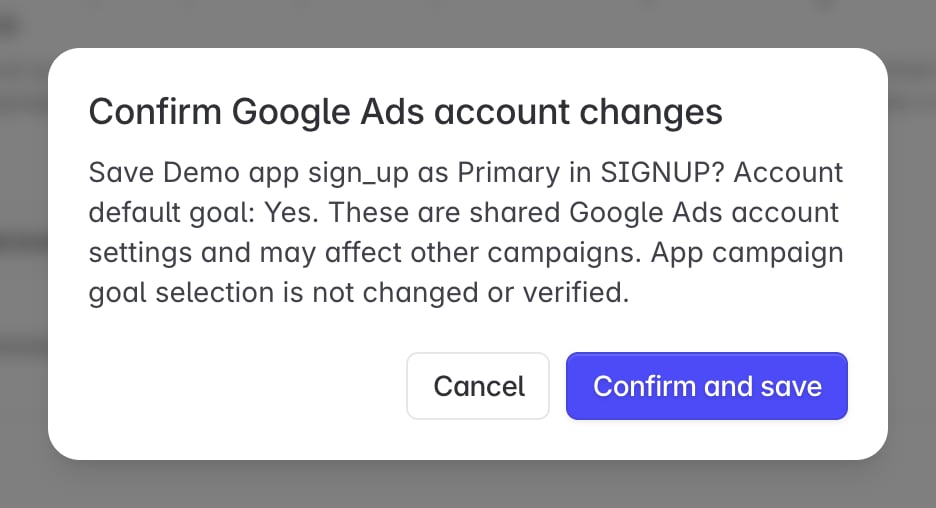
Confirm and save
Google can automatically enable app conversion actions as Secondary. These are for observation, not ordinary bidding optimization. If Google creates a new goal for an automatically enabled action, it does not make that goal an account default. See Google’s automatically enabled app conversion actions.
5. Create Your First Campaign
With steps 1 to 4 complete, launch an App campaign in Google Ads. App campaigns need no tracking links. Attribution flows through the link ID, and campaigns appear in Linkrunner automatically as installs come in.Step 1: Start a New Campaign
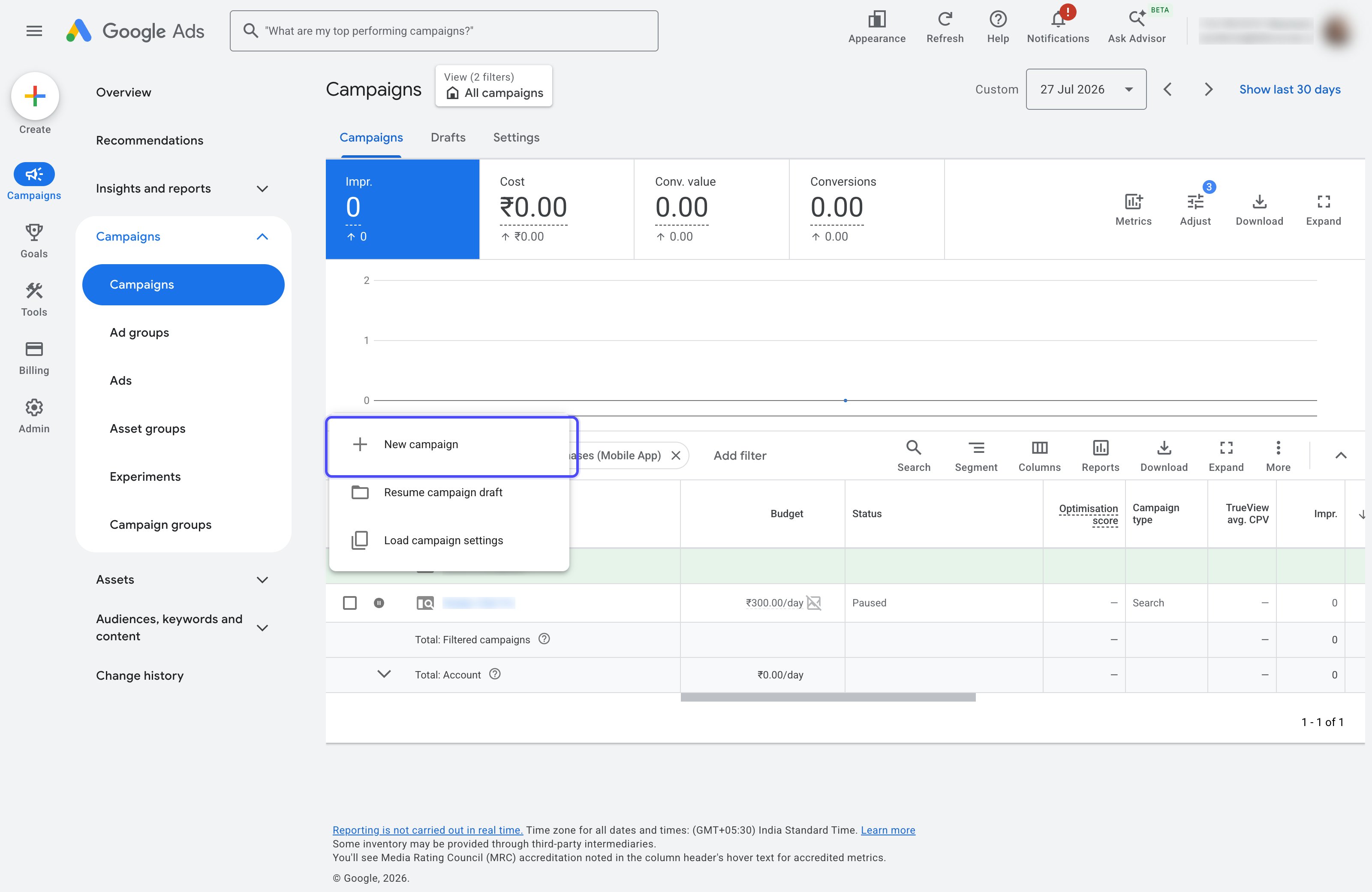
- Open Google Ads and go to Campaigns
- Click the + button and choose New campaign
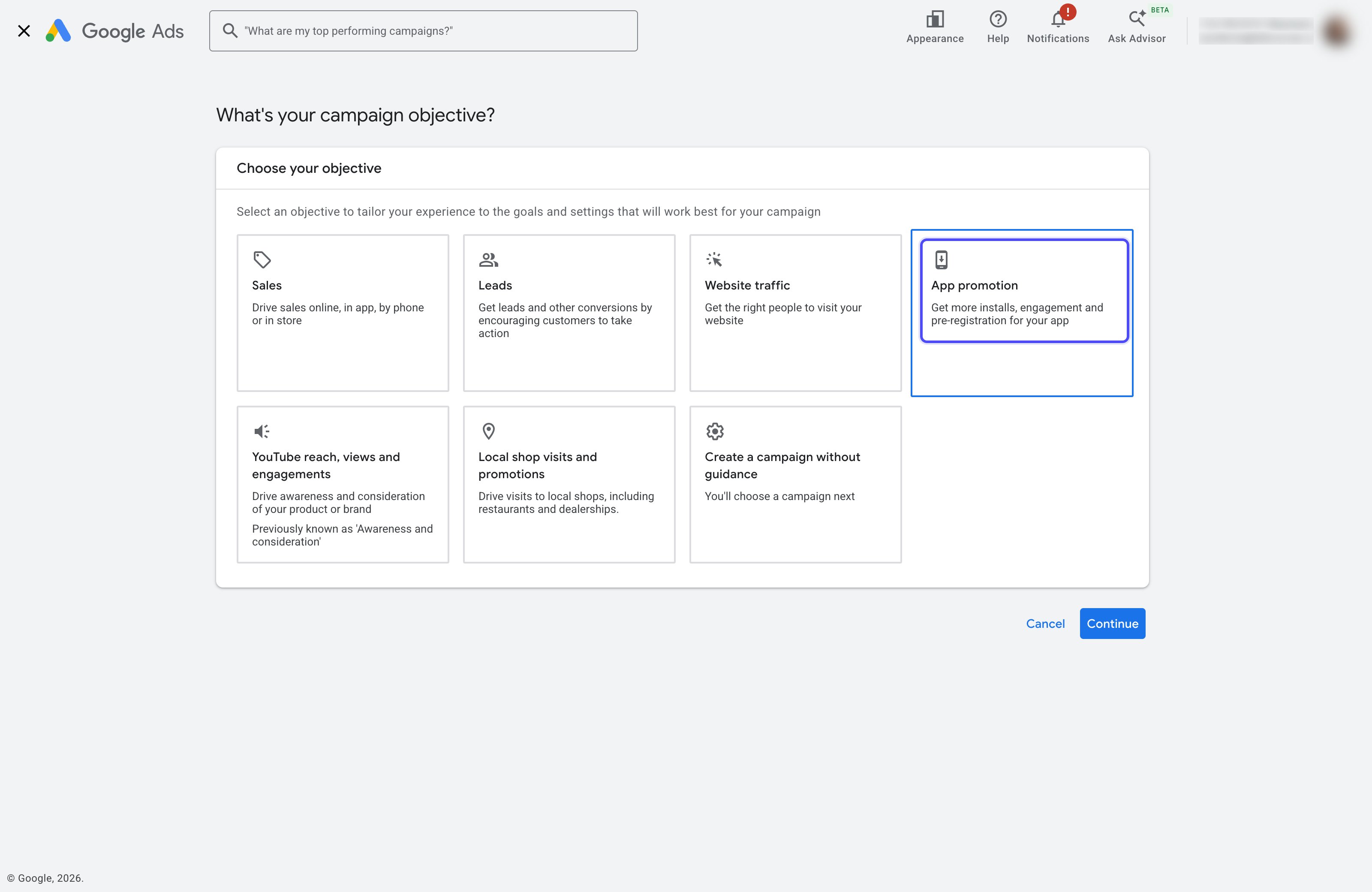
- Under What’s your campaign objective?, select App promotion and click Continue
Step 2: Choose Subtype and Select Your App
- Under Select a campaign subtype, choose the subtype that matches your goal. App installs is the right choice for most first campaigns.
- Select your app’s platform (Android or iOS)
- Under Look up your app, search by app name, package name, or store URL and select your app
- Enter a campaign name and click Continue
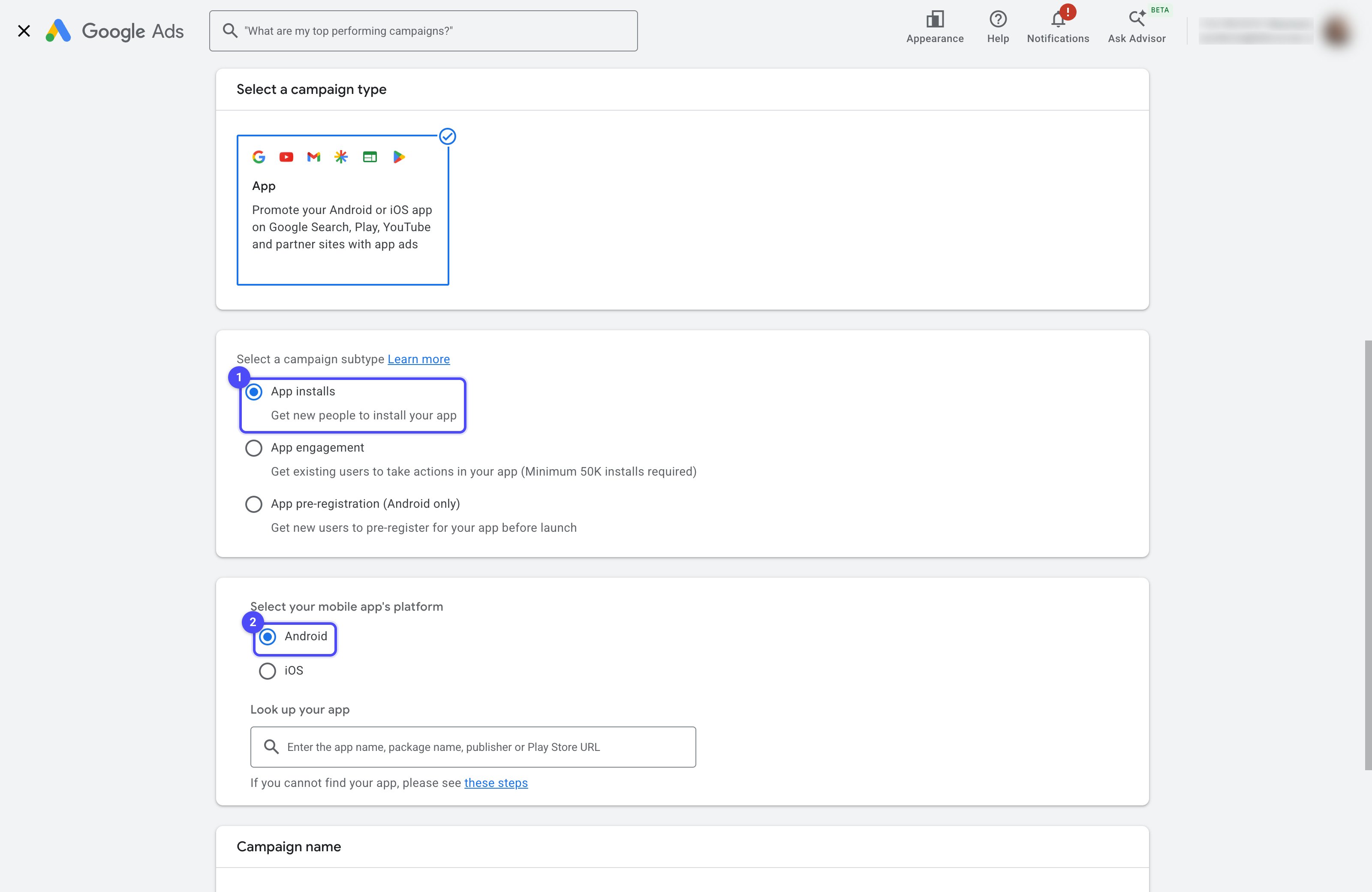
Pick a different subtype when your goal is not new installs:
- App engagement: re-engage users who already have your app with in-app actions. Google requires a minimum of 50K installs.
- App pre-registration (Android only): drive Play Store pre-registrations before your app launches.
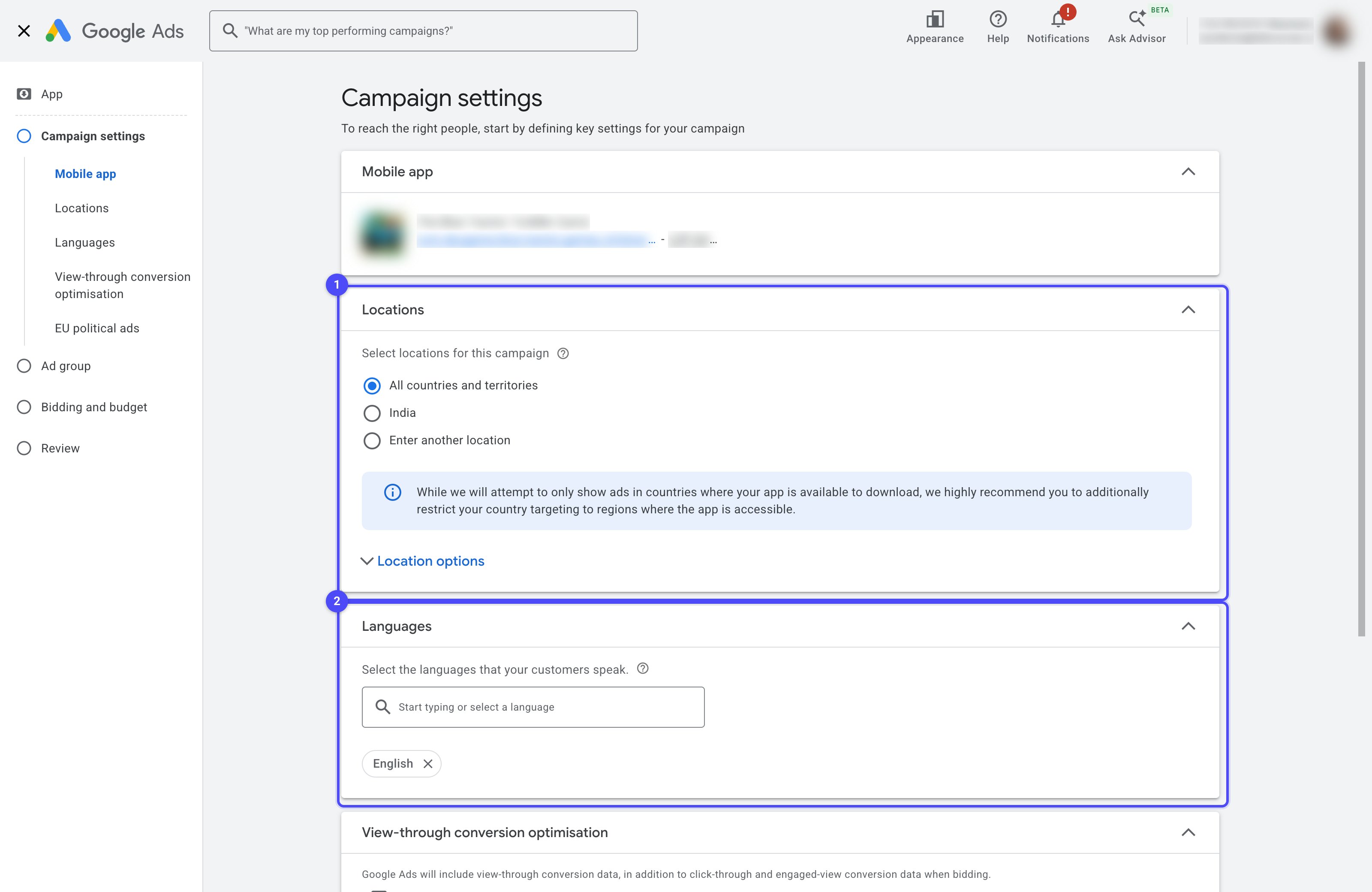
Step 3: Set Locations and Languages
- Under Locations, select the countries to run in
- Under Languages, select the languages your customers speak
- Click Next
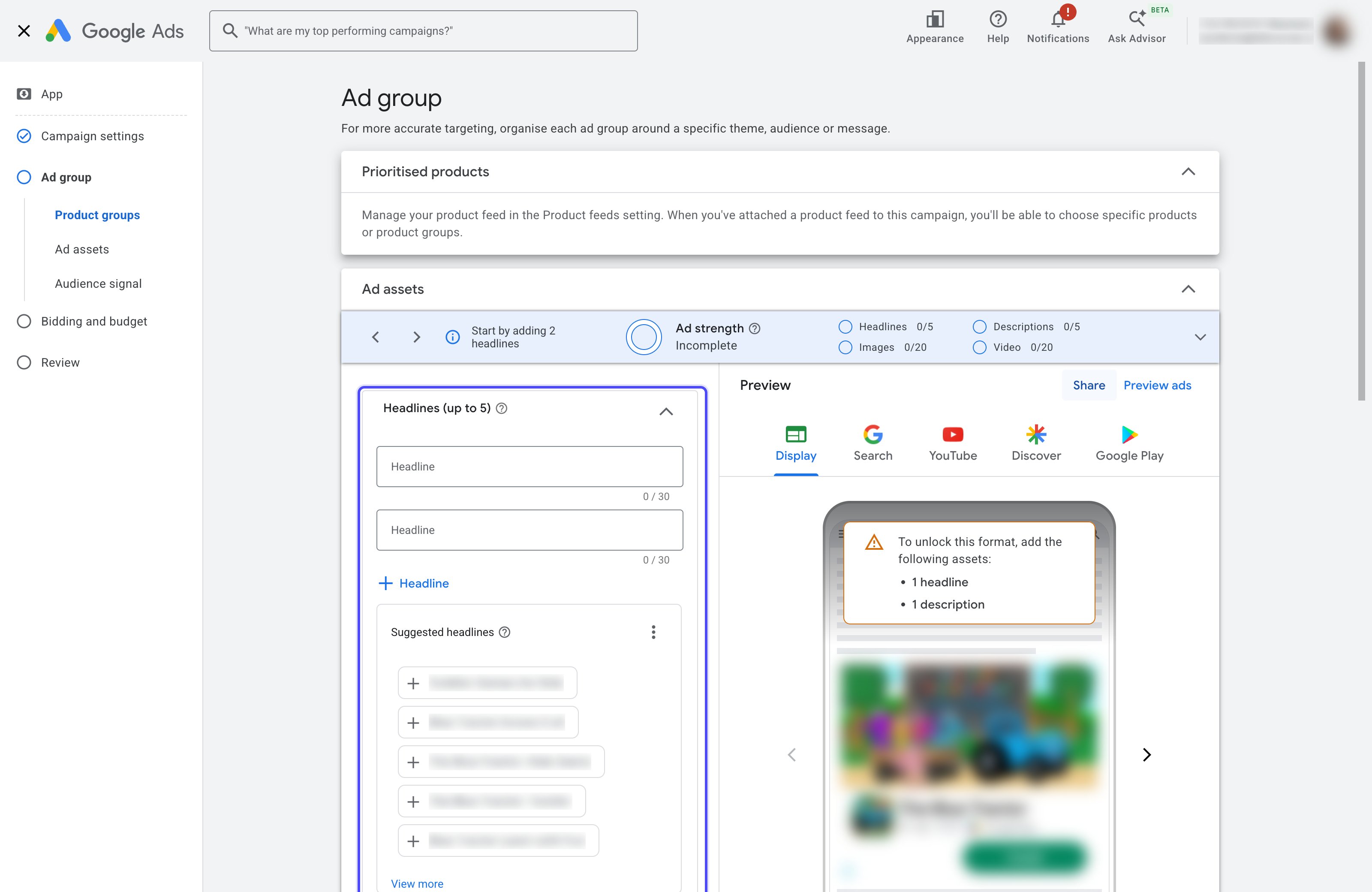
Step 4: Add Ad Assets
App campaigns generate ads automatically from the assets you provide. Google mixes and matches them across Search, Play, YouTube, Display, and Discover.- Add up to 5 Headlines and 5 Descriptions
- Upload images and videos if you have them
- Click Next
Step 5: Set Bidding and Budget
- Under What do you want to focus on?, pick what Google should optimize for. You can choose either option; for your first campaign, choose Install volume.
- Under What kind of users do you want to target?, pick either option. For this guide, we select All users.
- Set your average daily Budget
- Click Next, review the campaign, and click Publish campaign
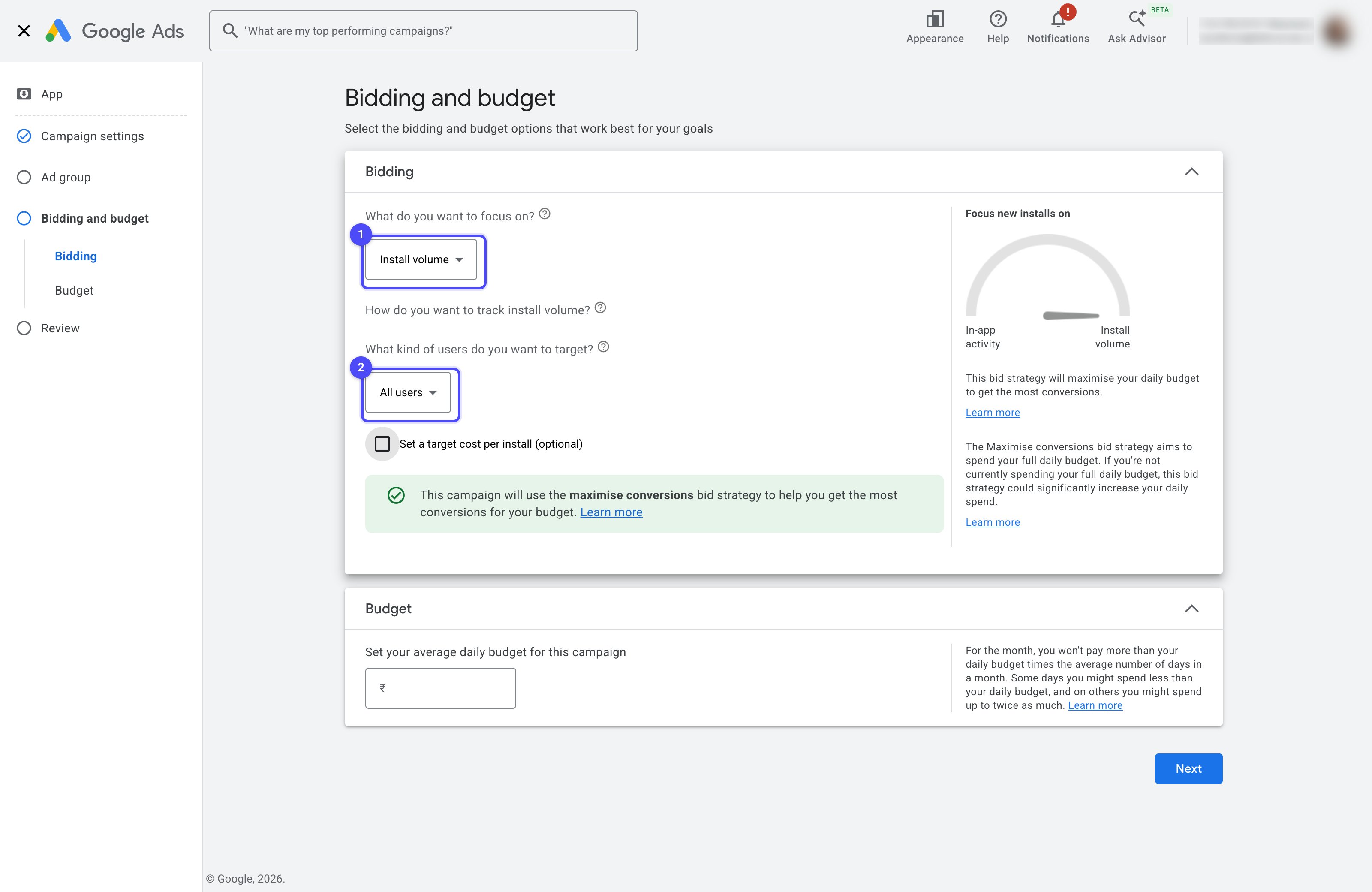
Bid on In-app actions only after your imported conversion actions have enough volume. Under How do you want to
track install volume?, Google lists the download conversion actions imported from Linkrunner.
Step 6: Verify the Campaign in Linkrunner
Campaigns and spend sync automatically from your connected Google Ads account. Attribution rows appear after the campaign receives its first install.- Open the Campaigns section in your Linkrunner dashboard
- Click All Channels and select Google to filter your campaigns
- Open the campaign to view installs, events, and revenue attributed to it
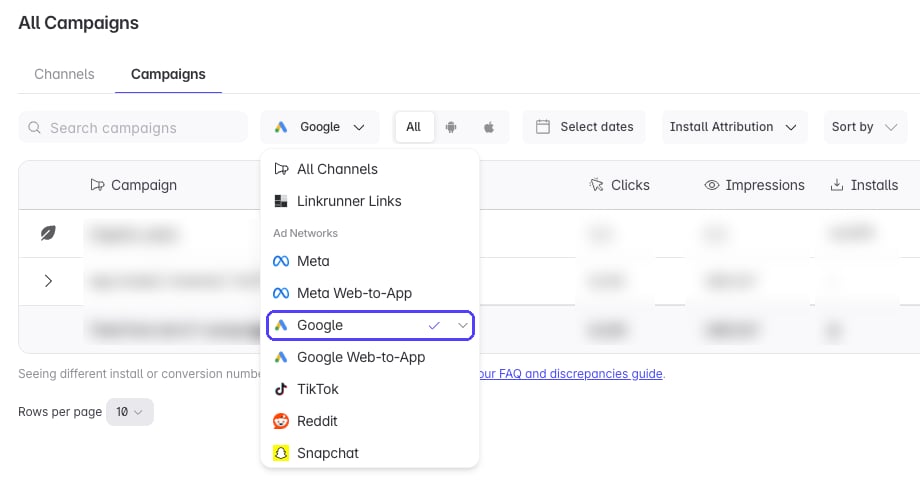
Campaigns appear after the first attributed install, not immediately at launch. New campaigns can also take a few
hours to exit Google’s review and start serving.
getAttributionData(), including for iOS installs credited through ICM. See Deferred Deep Linking.
Important Notes
Google processes event receipt and conversion-action discovery separately. There is no fixed processing-time guarantee. Refresh the action list after processing and check the selected account, platform, and mapped event name if it remains pending.
Running App Campaigns for an iOS app? Set up Google Integrated Conversion
Measurement so Google can attribute installs from users who declined App Tracking
Transparency.
FAQ and Discrepancies
For answers to common questions and an explanation of why numbers in Google Ads may not exactly match Linkrunner, see Google Ads FAQ and Discrepancies.Troubleshooting
Campaign Not Showing in Linkrunner
Check attribution, the platform link ID, and your released SDK.
Campaign Not Showing in Linkrunner
Check attribution, the platform link ID, and your released SDK.
- Wait for the first attributed install before expecting attribution rows.
- Confirm the platform link ID under Integrations → Google Ads.
- Check that the campaign is active and serving impressions in Google Ads.
- Confirm your released app includes the Linkrunner SDK at 100% rollout.
Events Not Showing Up
Check the exact mapped name and refresh after Google processes the event.
Events Not Showing Up
Check the exact mapped name and refresh after Google processes the event.
Confirm your app sends the event to Linkrunner and the correct platform link ID is saved. In App Event Mapping, check the selected account, platform, and Google event name.
Signup does not match sign_up.Use the existing test-event action if you have not sent the mapped event. A successful send is not proof of discovery or import. Allow Google to process it, then click Refresh goals. Do not create a duplicate action to bypass pending discovery. Contact support if it remains pending after these checks.Action is enabled but not used for bidding
Review Primary or Secondary, the account-default goal, and campaign settings.
Action is enabled but not used for bidding
Review Primary or Secondary, the account-default goal, and campaign settings.
Google may have automatically enabled the action as Secondary, with a new goal that is not an account default. Click Edit goal in Linkrunner and review Action optimization and Account default goal. Click Save changes, review the Confirm Google Ads account changes dialog, then click Confirm and save. Check campaign-specific goal selection in Google Ads. Importing an action does not select it for bidding.
Re-enabling Previously Deleted Events
Find the removed action in Google Ads instead of creating a duplicate.
Re-enabling Previously Deleted Events
Find the removed action in Google Ads instead of creating a duplicate.
A removed action is different from a discovered HIDDEN action awaiting import. In Google Ads conversions, open View all conversion actions, set the Status filter to All, find the removed action, and change its status to Enabled.Refresh App Event Mapping afterward. Re-enabling the action does not establish campaign bidding eligibility.
Link ID Creation Issues
Check your app's platform, store listing, and provider ID.
Link ID Creation Issues
Check your app's platform, store listing, and provider ID.
Select the correct platform, Android or iOS, and verify your app is published and searchable in its app store. Use provider ID
9936233049.