

Overview
Meta Catalog Sales campaigns dynamically show products from your catalog to users based on their browsing and purchase behavior — for example, retargeting someone who viewed a product but didn’t buy. For these campaigns to work, Meta needs real-time signals about how users interact with your products. By sending ecommerce events (purchases, add to cart, content views) through Linkrunner, you feed Meta the data it needs to match users to the right products and optimize your ad spend. Linkrunner seamlessly syncs these events with your connected Meta dataset.Before you begin, make sure you have:
- A product catalog set up in Meta Commerce Manager
- Meta Ads integration configured in Linkrunner (see Meta Ads setup)
- Events integrated in your app via the Linkrunner SDK or API
Step 1: Select Catalogue Products
To begin, you need to select your catalogue products within the Meta Commerce Manager. Ensure your product feed is active and products are properly categorized.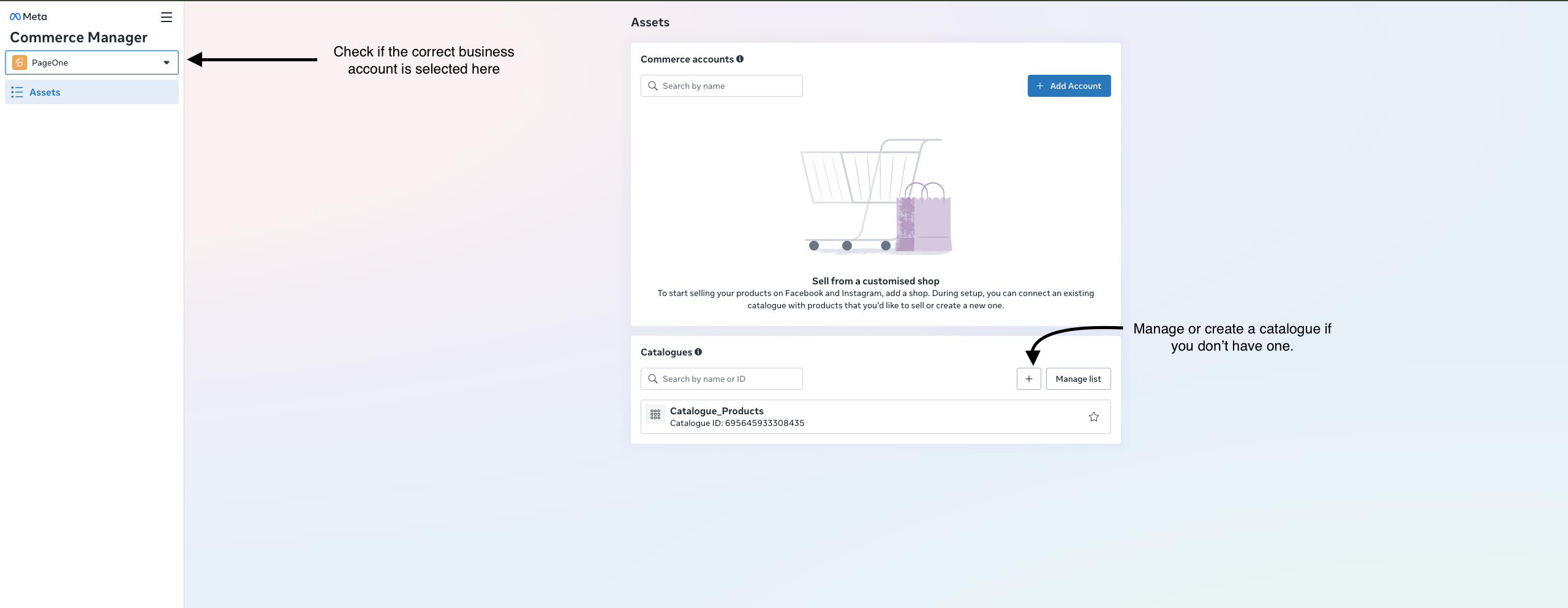
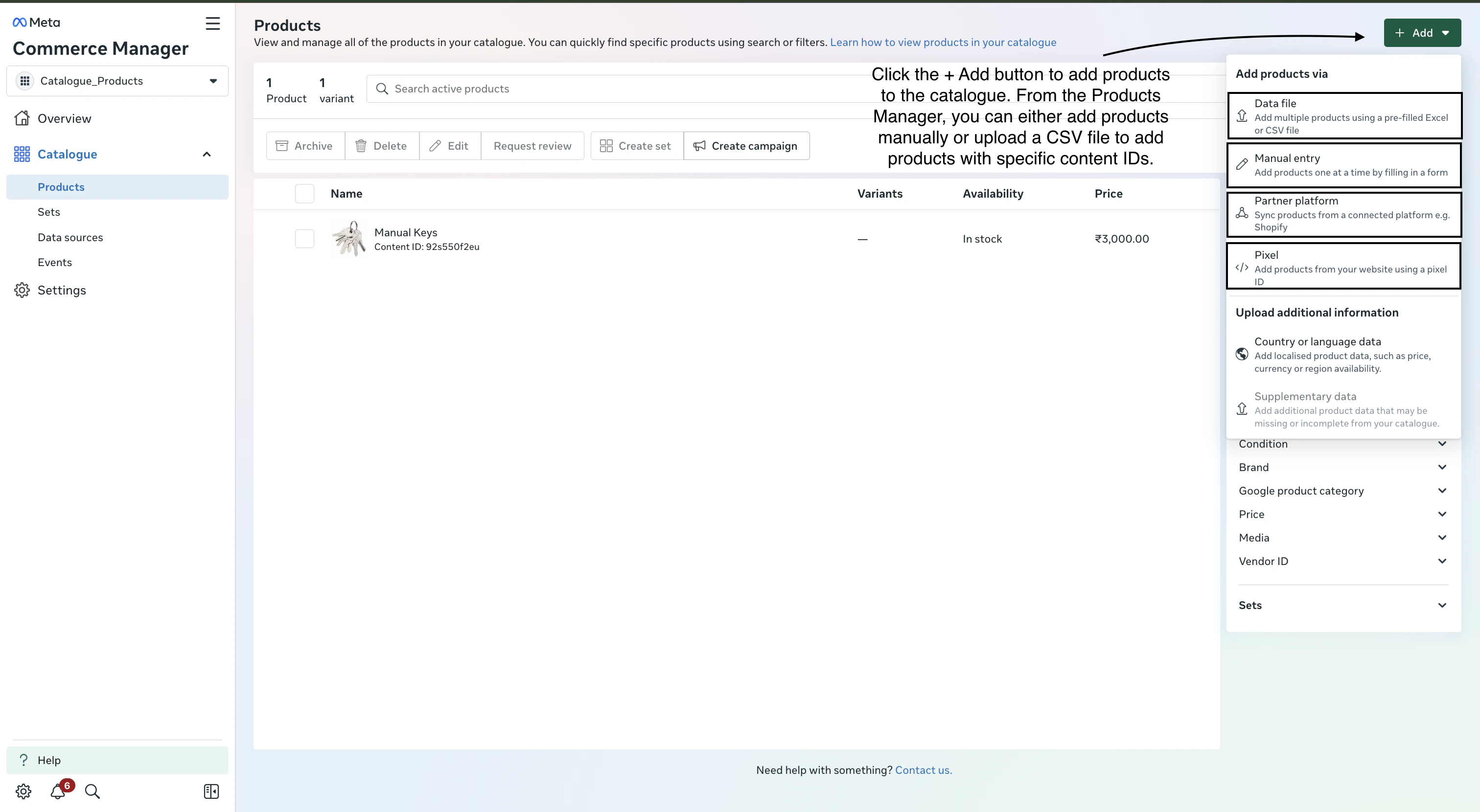
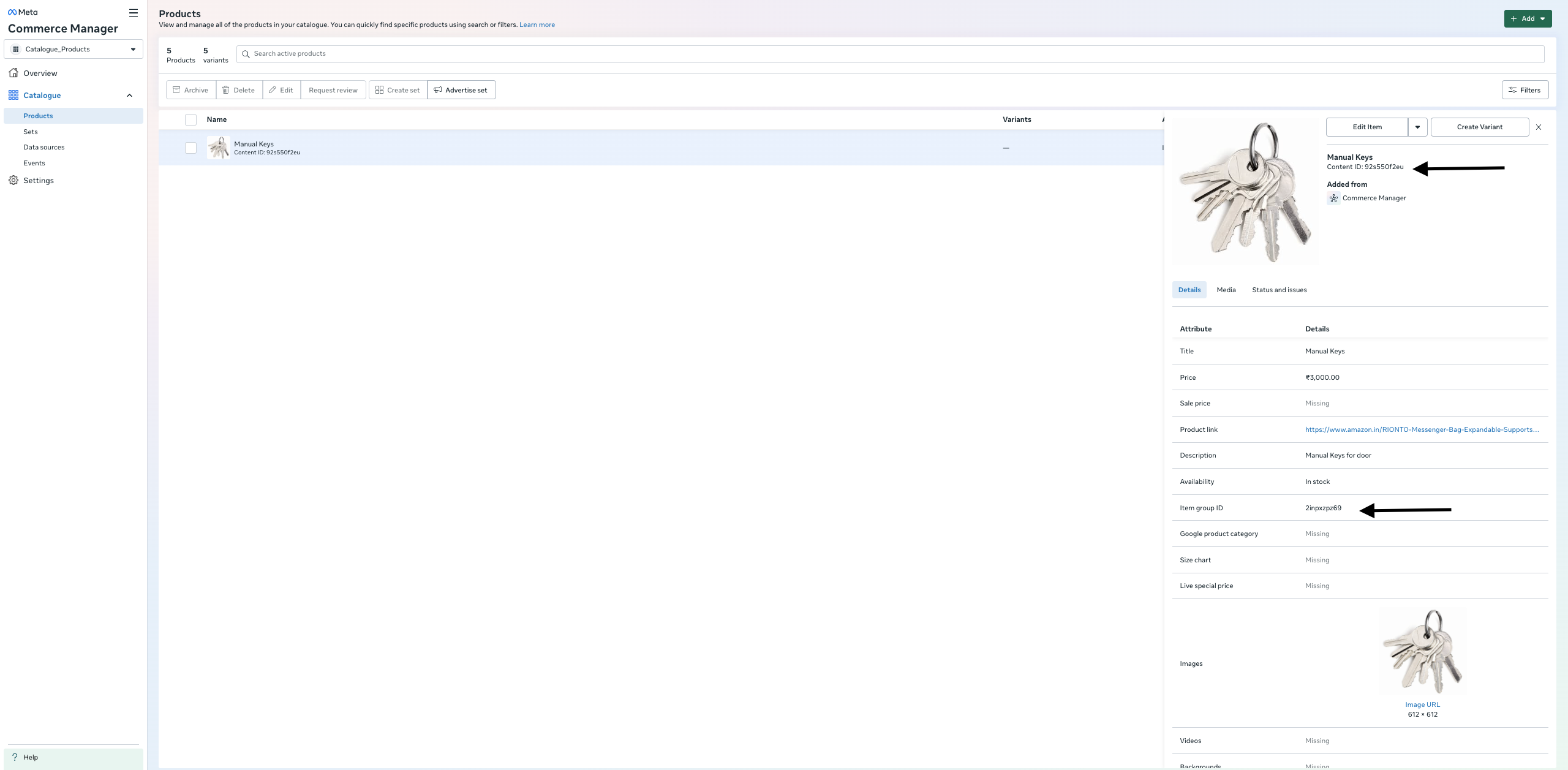
content_ids and item_group_ids. There are various ways to add products — for example, manually or via CSV upload.
Click the + Add button to add products to the catalogue. From the Products Manager, you can either add products manually or upload a CSV file to add products with specific content IDs.
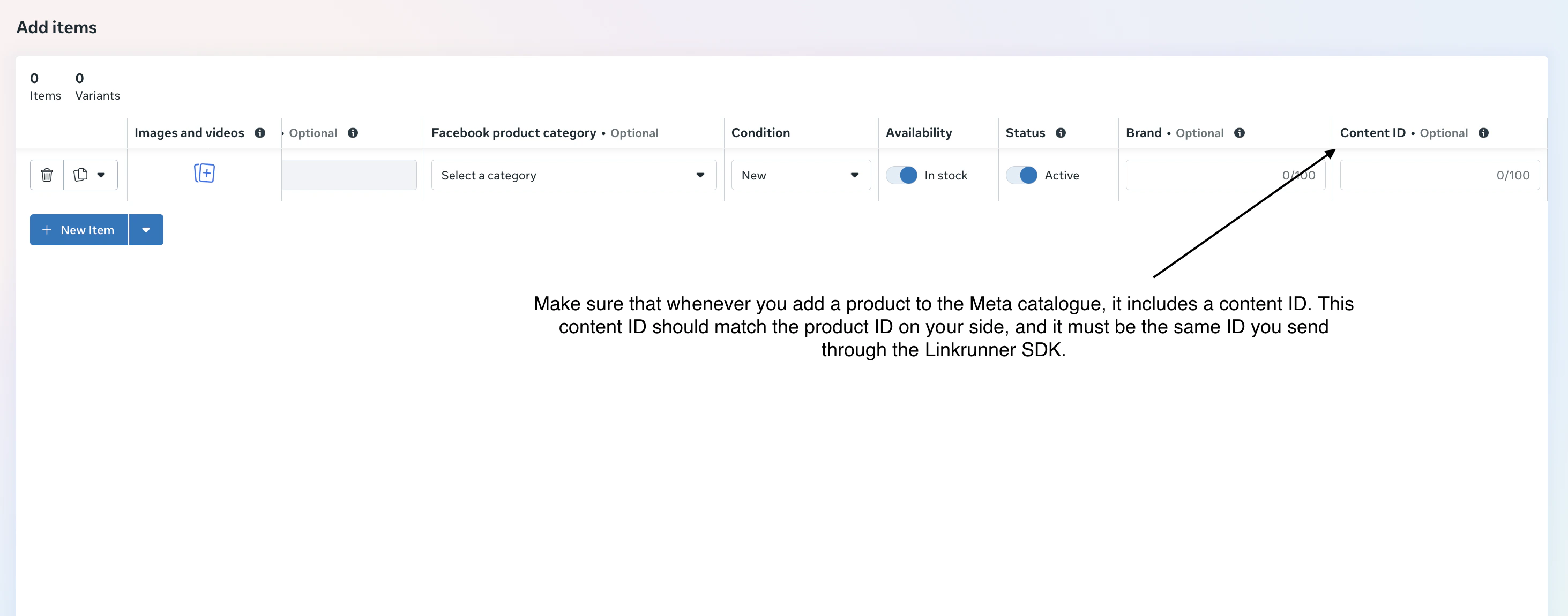
content_ids or item_group_ids fields when sending events — they’re how Meta matches your events back to the correct catalog products.
Step 2: Verify Dataset ID Connection
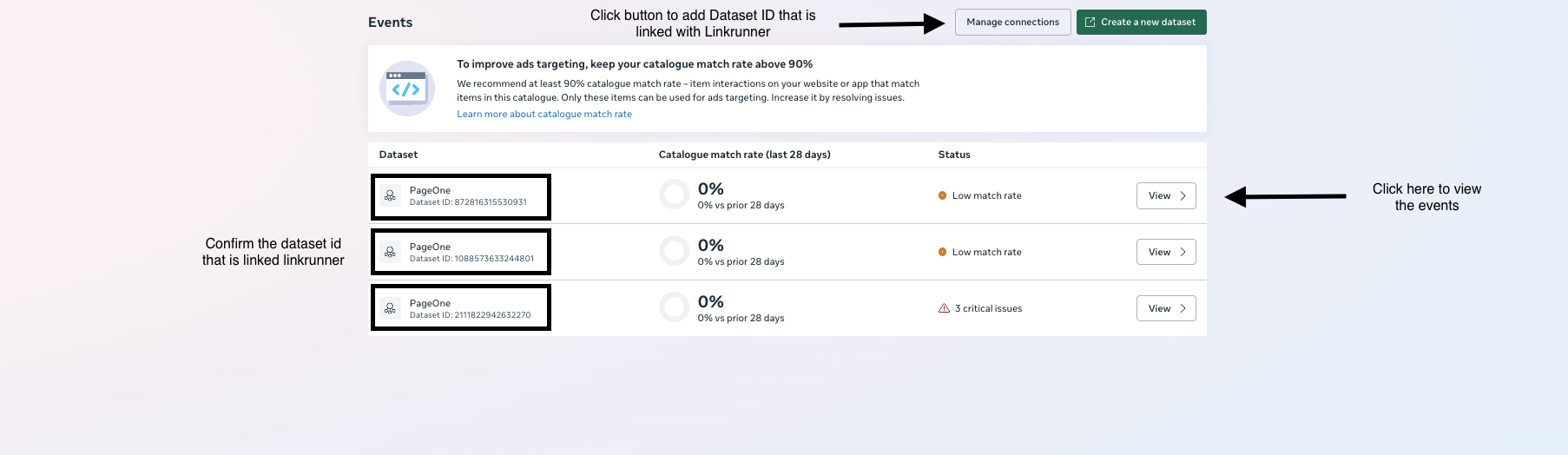
Once your catalogue is set up, navigate to the events section. Check if the Dataset ID connected with Linkrunner is present and active. If the Dataset ID is not linked:- Press on Manage Connections.
- Find the Dataset ID that is linked with Linkrunner.
- Turn the connection ON.
Step 3: Required Events
View the dataset ID and check the events list. There are 3 essential events we actually need to send:Purchase(processed via the Capture Payment API or SDK)AddToCartandViewContent(processed via the Event Capture API or SDK)
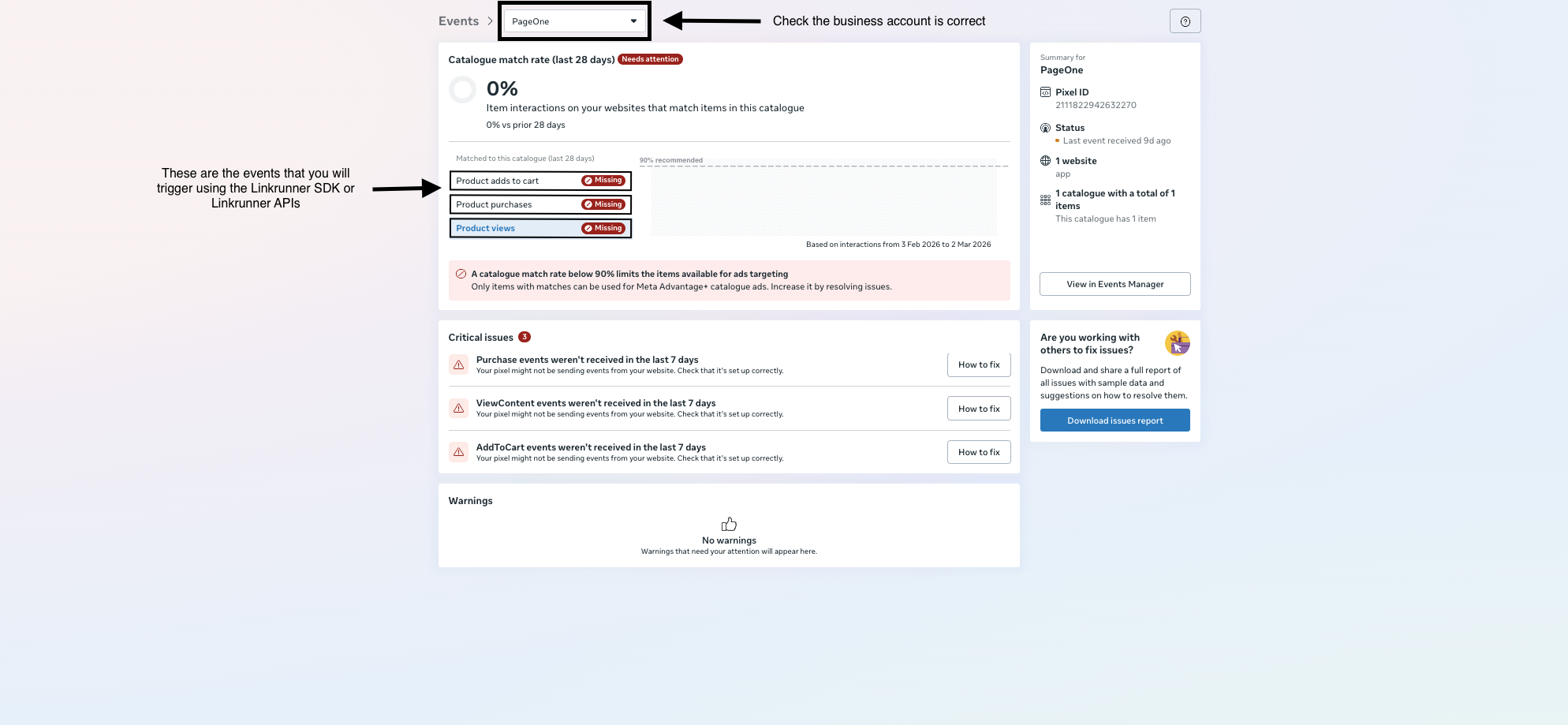
content_ids or item_group_ids in your events exactly match the IDs in your catalog.
Understanding event_data
When sending events via the Capture Event API or Capture Payment API, you must include specific fields in your event_data payload for Meta to correctly attribute and optimize your catalogue sales.
Required Fields for Ecommerce Events
Example 1: Using
content_ids (individual product variants)
Use content_ids when you want to target specific product variants (e.g., a particular size or color). Set content_type to "product".
item_group_ids (product groups)
Use item_group_ids when you want to boost an entire product group rather than a specific variant. For example, if a user views “Blue T-Shirt” (which comes in S, M, L), you send the group ID so Meta can optimize across all variants. Set content_type to "product_group".
Note: For full integration details and request examples, refer to the Capture Event API and Capture Payment API documentation.
Testing Ecommerce Events
After you have integrated the APIs and started sending events, you will naturally want to verify everything is working correctly.- Send a Test Event: Trigger an event using the Capture Event API (e.g.,
add_to_cart) or the Capture Payment API (e.g.,Purchase). - Check the Meta Events Manager: Navigate to your Commerce Manager > Events section.
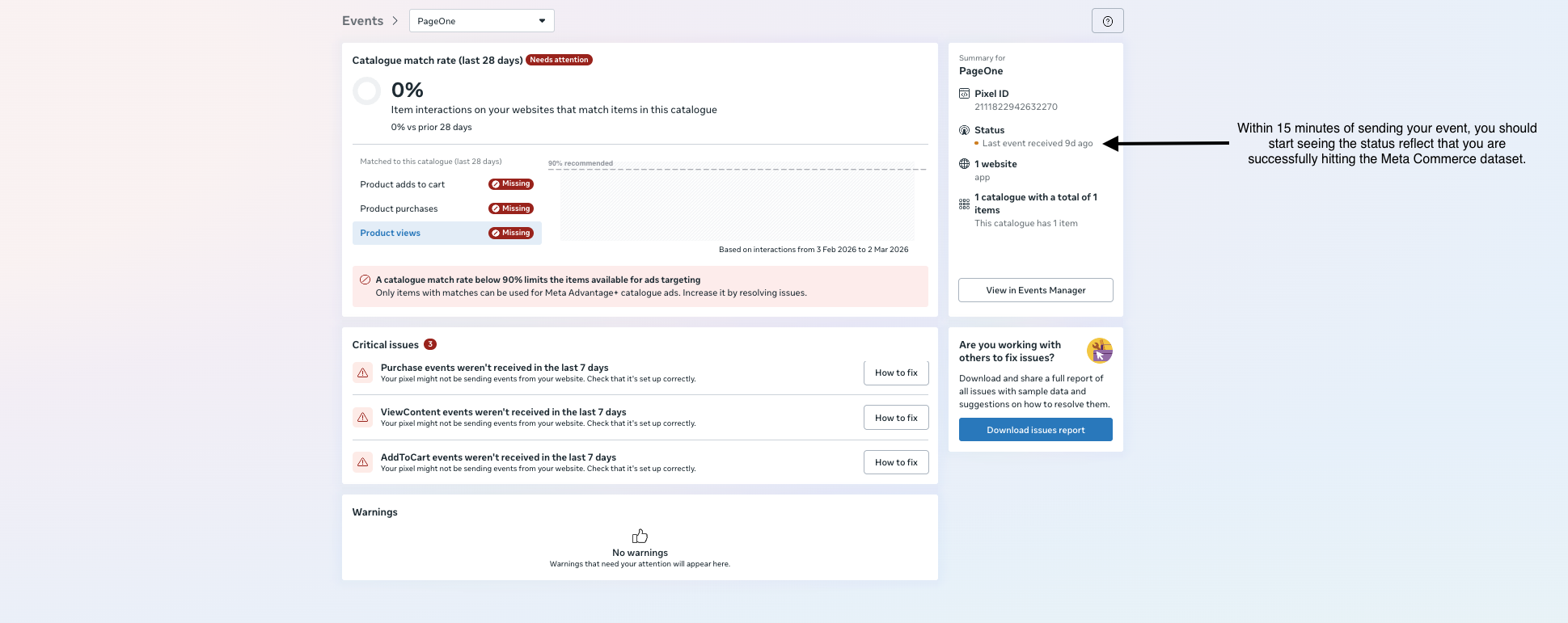
- Wait for Status Updates: Within 15 minutes of sending your event, you should start seeing the status reflect that you are successfully hitting the Meta Commerce dataset.
Creating a Catalog Sales Campaign
Once your events are flowing and your catalogue match rate is healthy, you can create a Catalog Sales campaign in Meta Ads Manager:- Go to Meta Ads Manager → Create Campaign → select the Sales objective and choose your catalog.
- Select the catalog that is connected to your Linkrunner dataset.
- Under ad set, choose your targeting strategy:
- Broad audience — Meta finds new customers likely to purchase from your catalog.
- Retargeting — target users who have already interacted with your products (e.g., viewed content or added to cart but didn’t purchase).
- Configure your budget, placements, and creative, then publish.
Retargeting audiences are automatically built from the
ViewContent, AddToCart, and Purchase events you send through Linkrunner. The more event data Meta receives, the better it can optimize delivery.