

1. Prepare Your Data
- Create a segment in Linkrunner from Audience Cohort and download the CSV
2. Upload to Google Ads
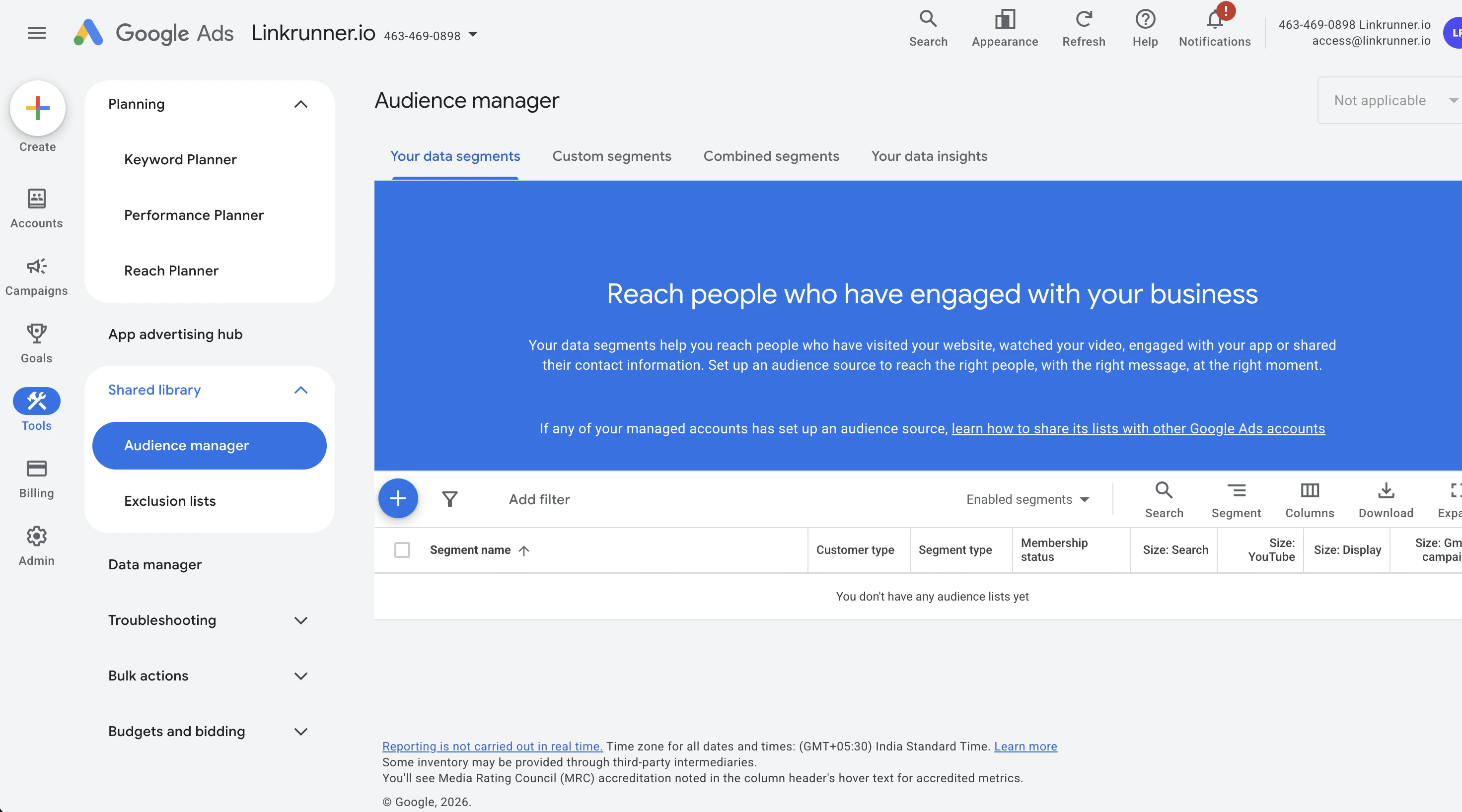
Navigate to Audience Manager
- In your Google Ads account, click the Tools icon (the wrench) in the left menu
- Under the “Shared library” section, click Audience manager
Create a New Customer List
- Click the blue + button
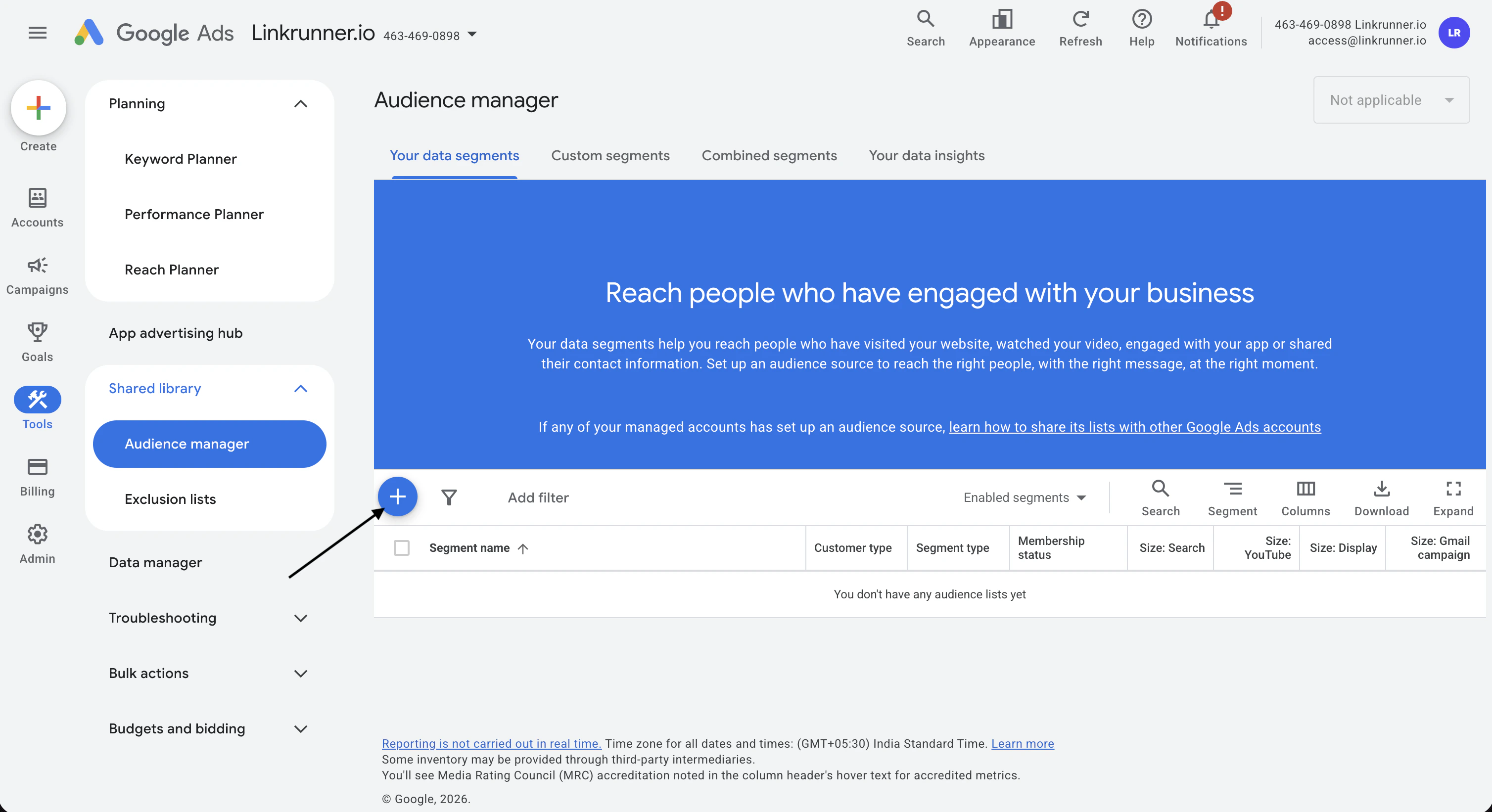
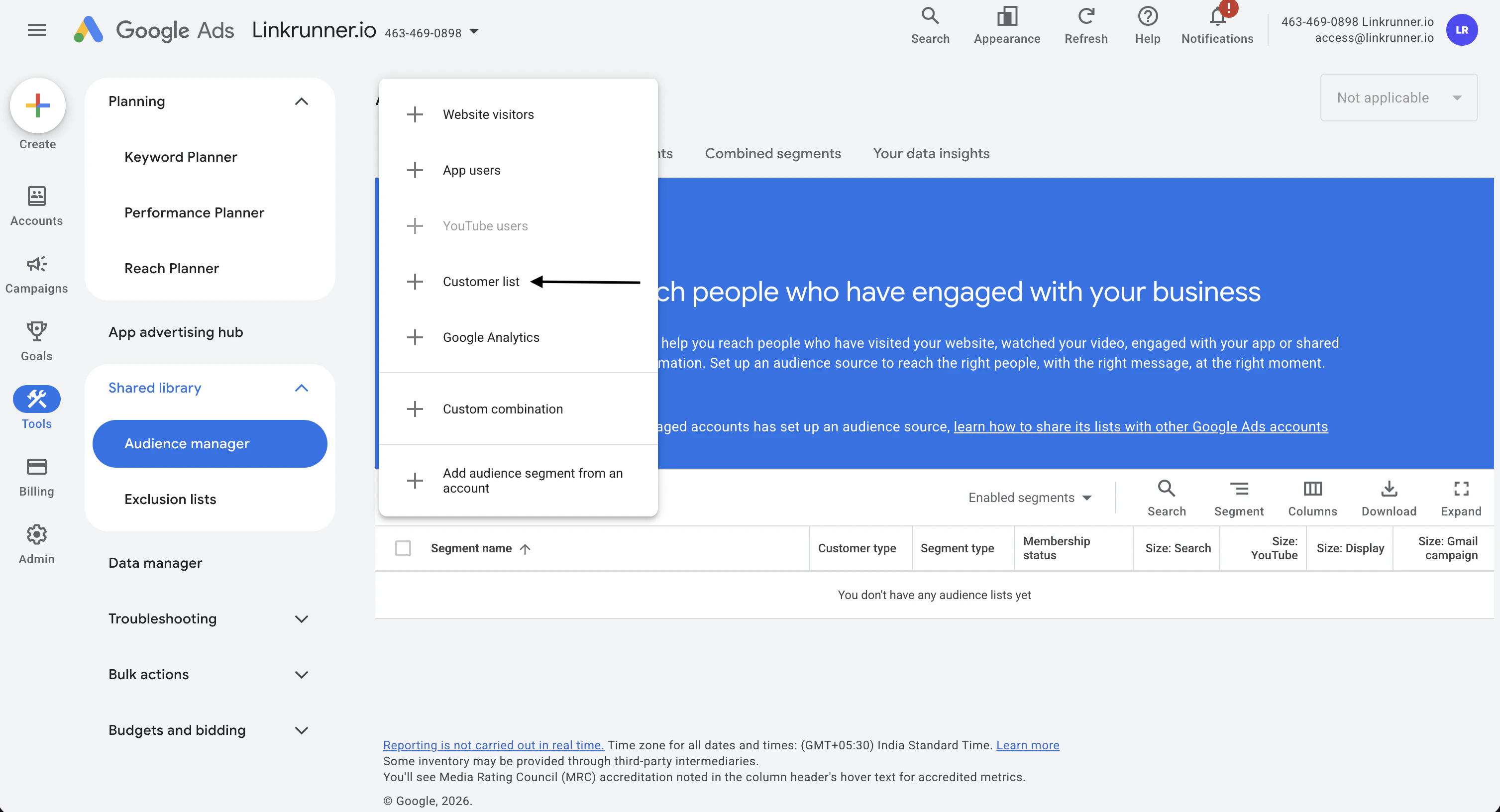
- Select Customer list from the drop-down menu
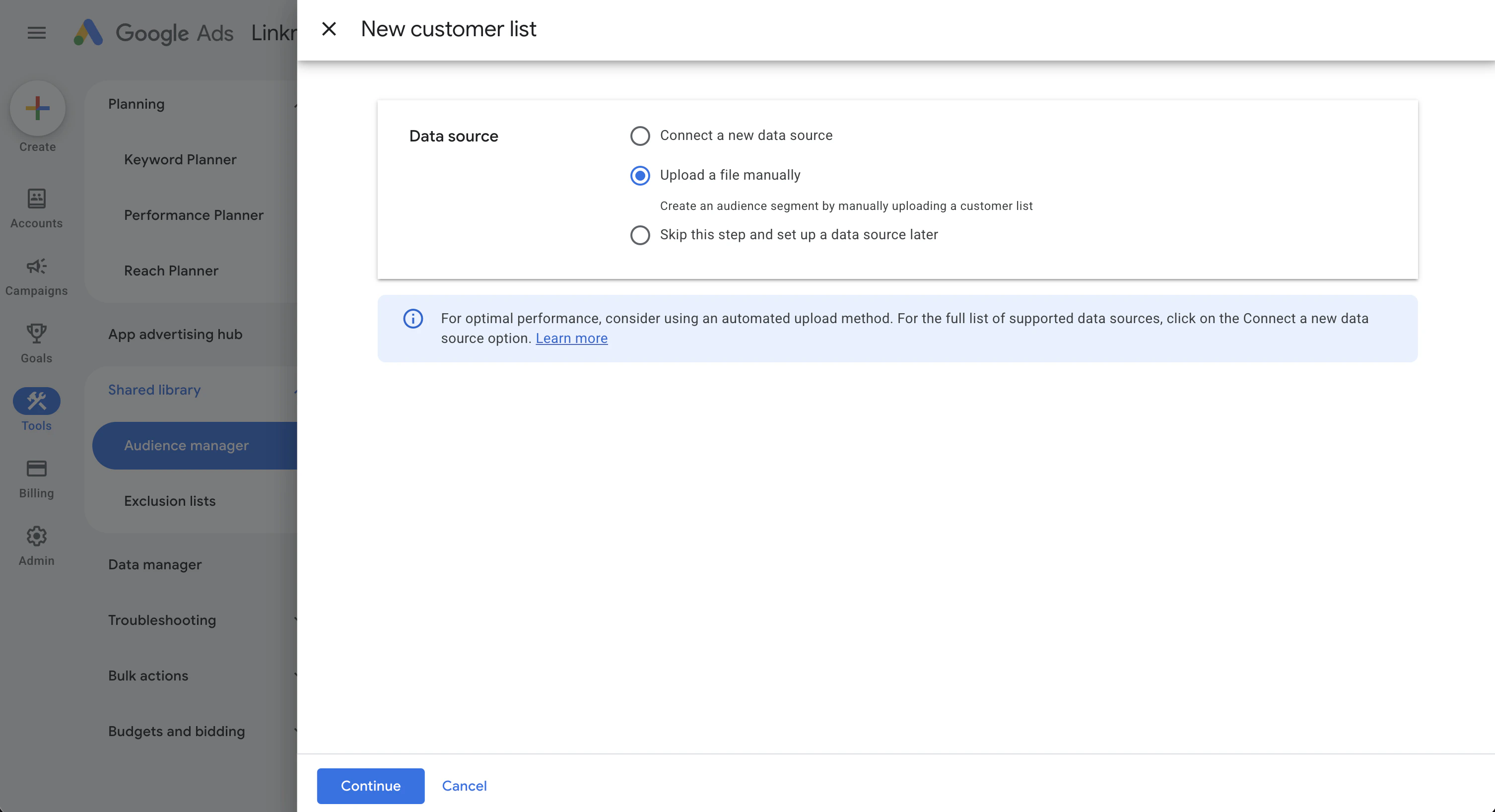
- Select “Upload a file manually” and click Continue
Configure the List
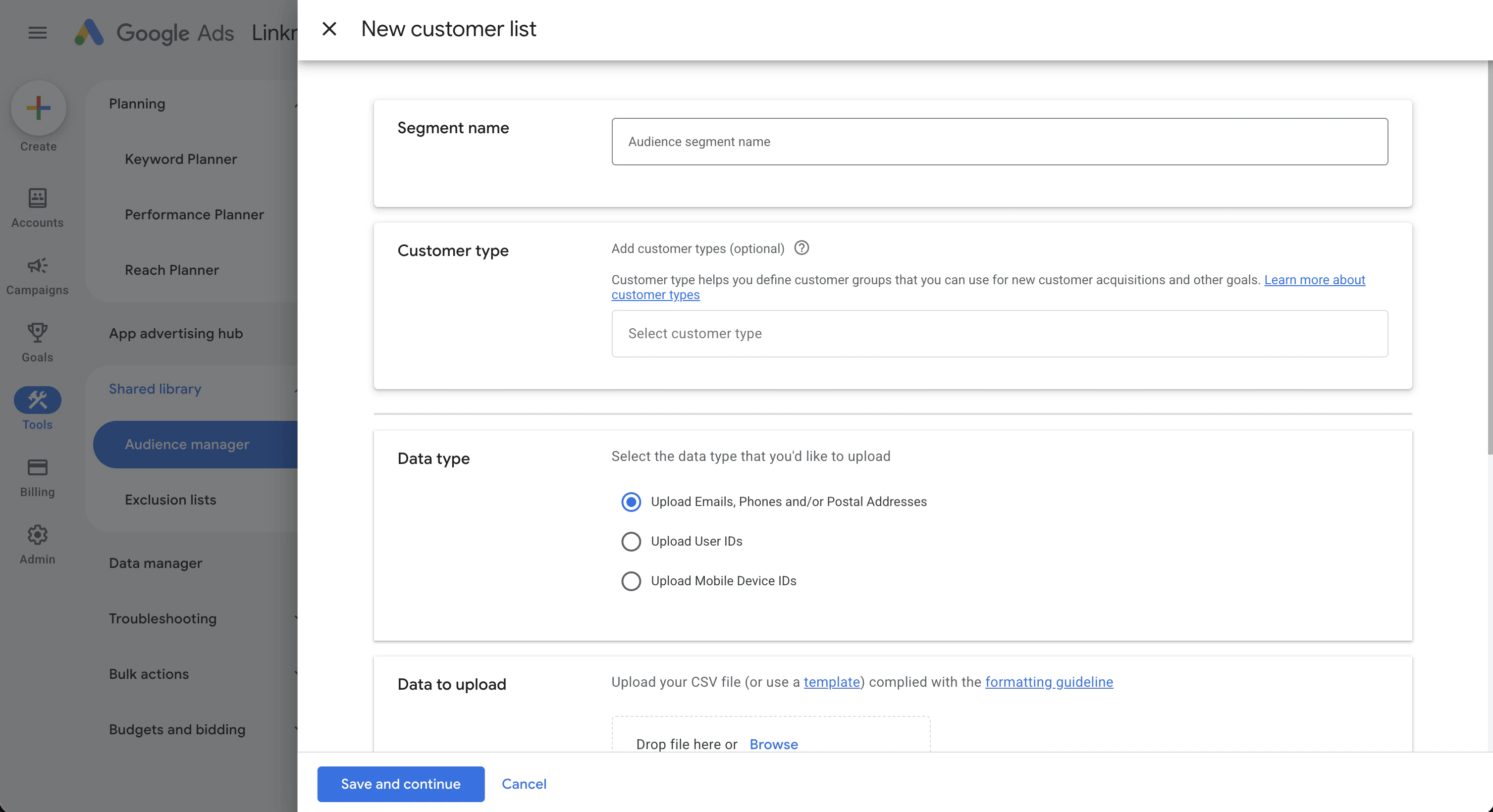
- Segment Name: Give your audience a clear, recognizable name (e.g., “Newsletter Subscribers Q1”)
- Data Type: Choose “Upload emails, phones, and/or mailing addresses”
- Data to upload: Attach your prepared CSV file
- Membership Duration: Choose how long you want a user to stay on this list. You can set a specific number of days or choose “No expiration” (the maximum is 540 days)
Meta
1. Prepare Your Data
- Create a segment in Linkrunner from Audience Cohort and download the CSV
2. Upload to Meta Ads
Navigate to the Audiences Dashboard
- Open Meta Ads Manager
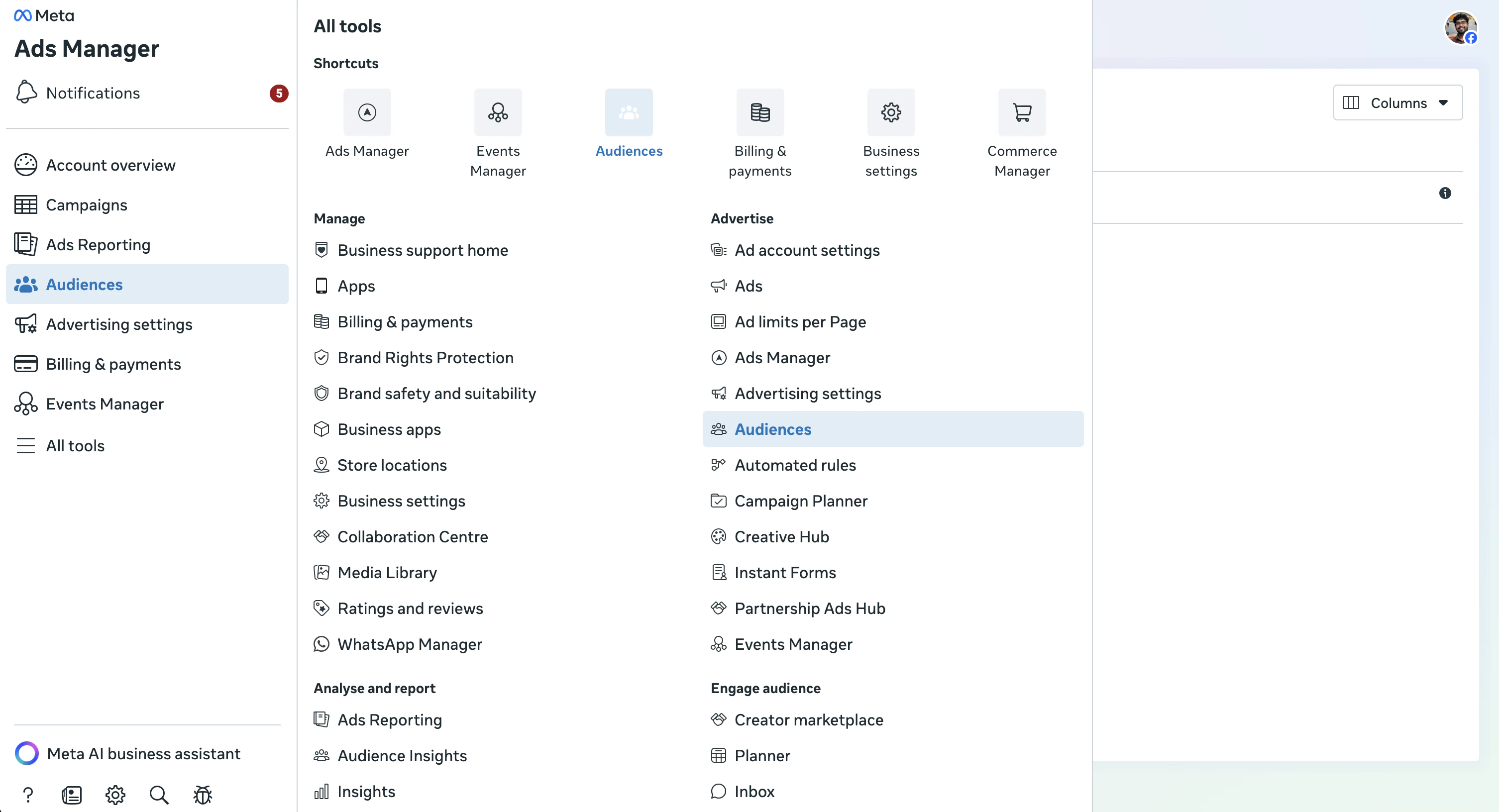
- Click the All Tools menu (the three horizontal lines or “hamburger” icon) on the left sidebar
- Select Audiences
Create a Custom Audience
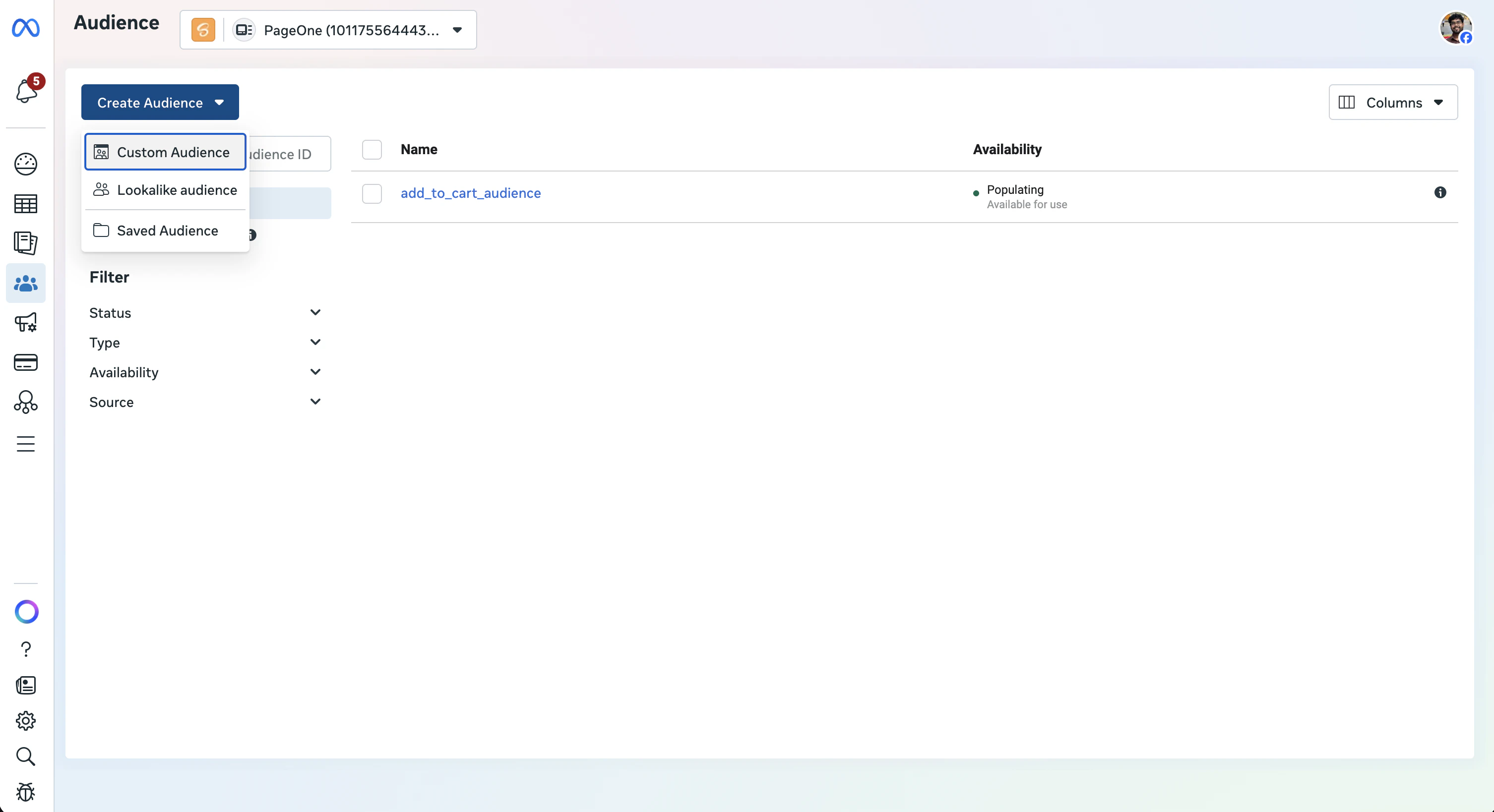
- Click the blue Create Audience dropdown button
- Select Custom Audience
Choose Your Source
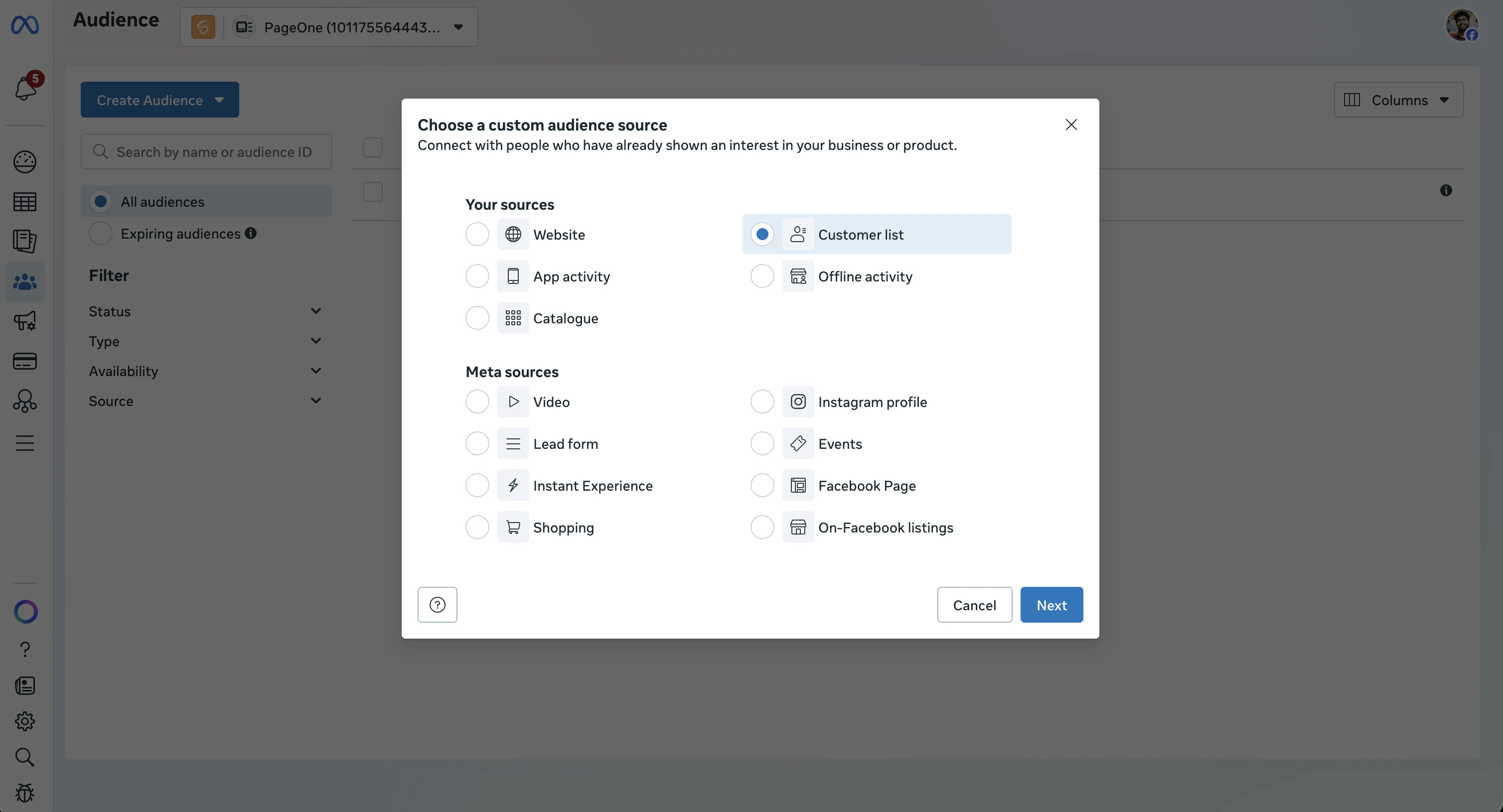
- Under “Your sources,” select Customer list and click Next
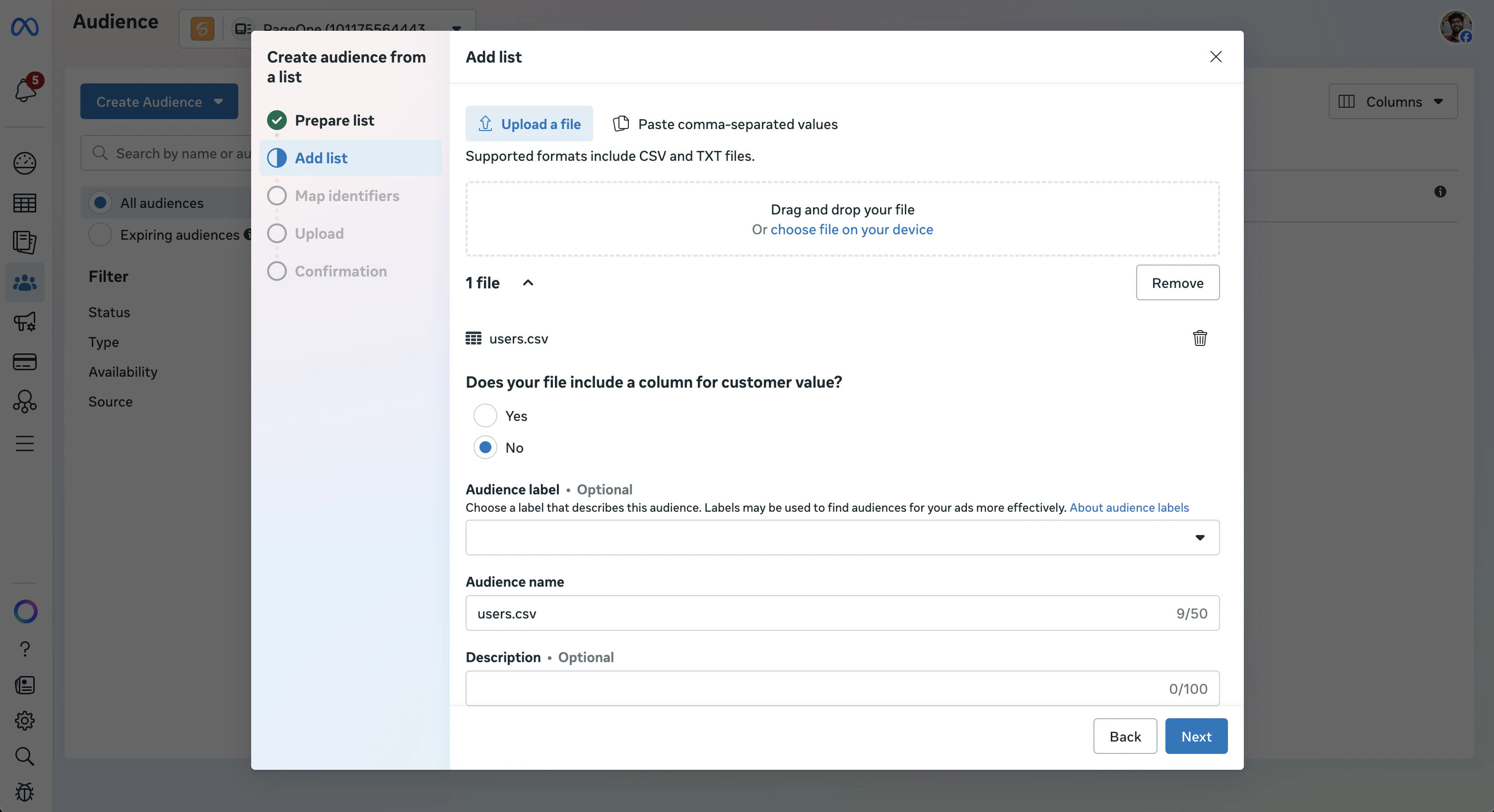
- Upload File: Drag and drop your CSV or TXT file, or click to upload it
Set Up Your List
- Customer Value: Meta will ask if your list includes a column for customer value. Select No, then click Next
- Name Your Audience: Give it a clear, descriptive name (e.g., “Purchasers - March 2026”) and an optional description. Click Next
Map Your Identifiers
- Meta will preview your data and attempt to map your columns to its accepted identifiers
- Action Needed: Review the “Mapped” and “Unmapped” tabs. If a column is unmapped, manually select the correct identifier from the dropdown menu, or tell Meta to ignore that column
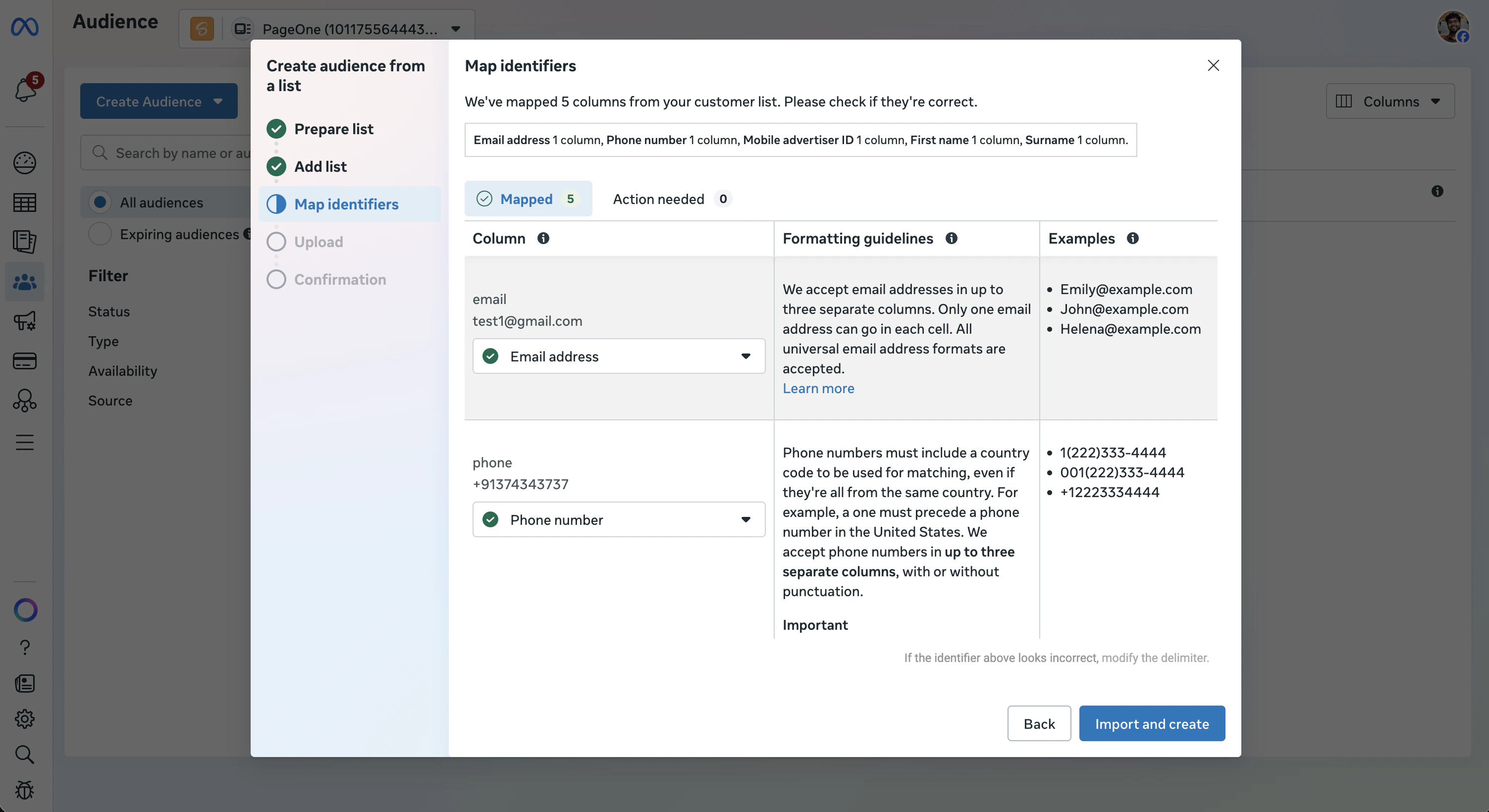
- Click Import and Create to create the audience.