

Appearance
X Ads
Send installs, in-app events and website conversions from Linkrunner to X (Twitter) through the X App Conversion API and the X Conversion API
Overview
Linkrunner sends your X conversions server to server, so X can report and optimize your campaigns:
- App conversions go to the X App Conversion API: installs, sign-ups and the in-app events you map.
- Website conversions go to the X Conversion API through your X Pixel: the web events you map.
You can set up the app side, the website side, or both. X does not need you to be an official measurement partner for either.
| Step | Where | What you do |
|---|---|---|
| 1 | X Ads Manager | Add your app and generate an App Conversion API access token |
| 2 | X Ads Manager | (Website) Create a pixel access token and your web events |
| 3 | Linkrunner | Connect X with your ads account id, token, apps and pixel |
| 4 | Linkrunner | Map the app and web events X should receive |
| 5 | Linkrunner and X | Create a campaign link with X Ads as the ad channel and run the ad |
| 6 | X Ads Manager | Check that your events show as Active |
X has no test mode. There is no test event to send from Linkrunner, so events show in X Events manager only once real installs and conversions come in.
What you need
- A Linkrunner project with the Linkrunner SDK installed in your app (for app conversions)
- The Linkrunner Web SDK on your website (for website conversions)
- Access to an X Ads account
- Your app's Android package name, iOS App Store id, or both
1. Set up app events in X Ads Manager
Open X Ads Manager and go to Tools → Events manager. Your ads account id is in the URL: ads.x.com/manager/<account id>/events-manager. Copy it, you need it in Linkrunner.
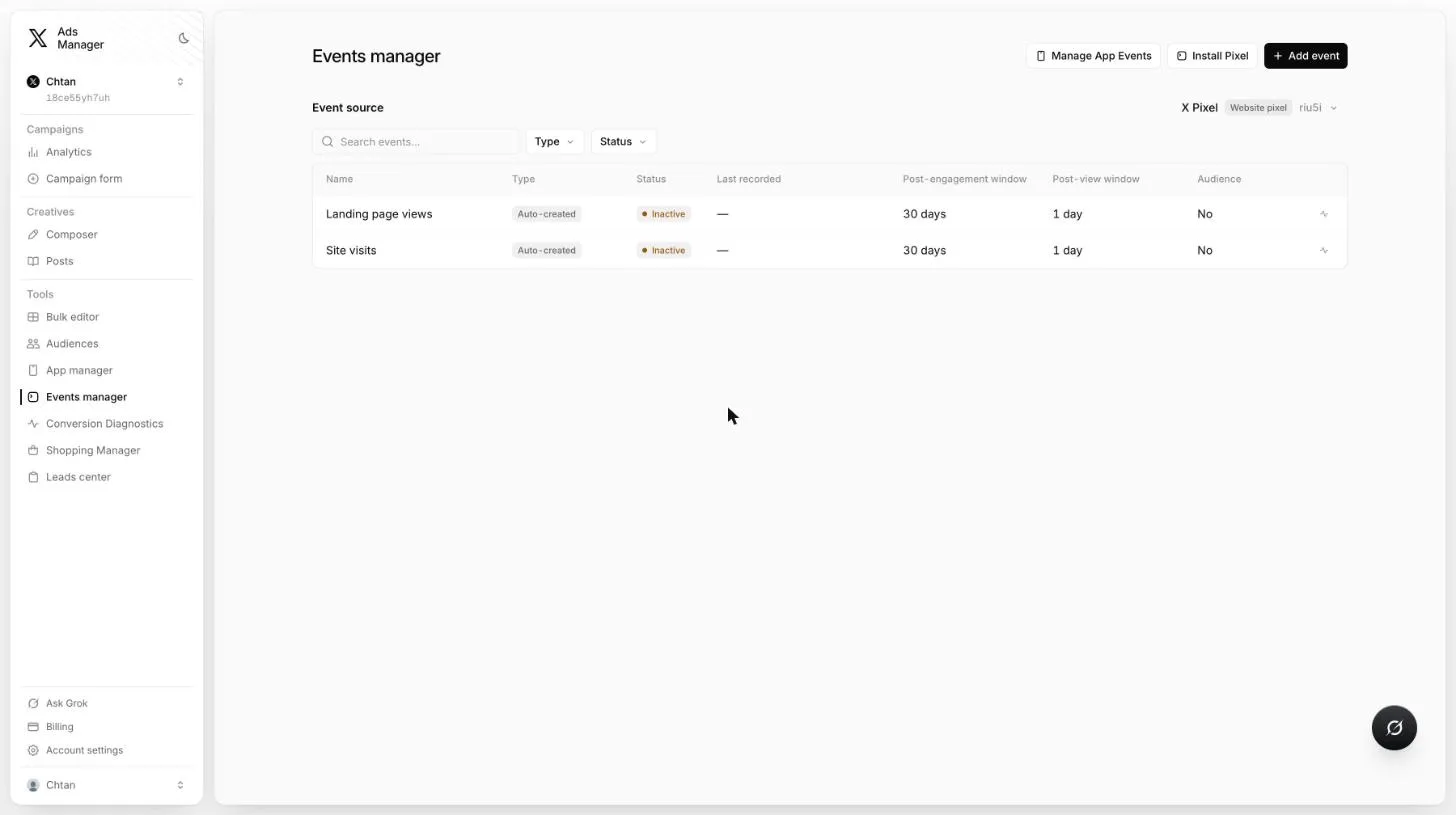
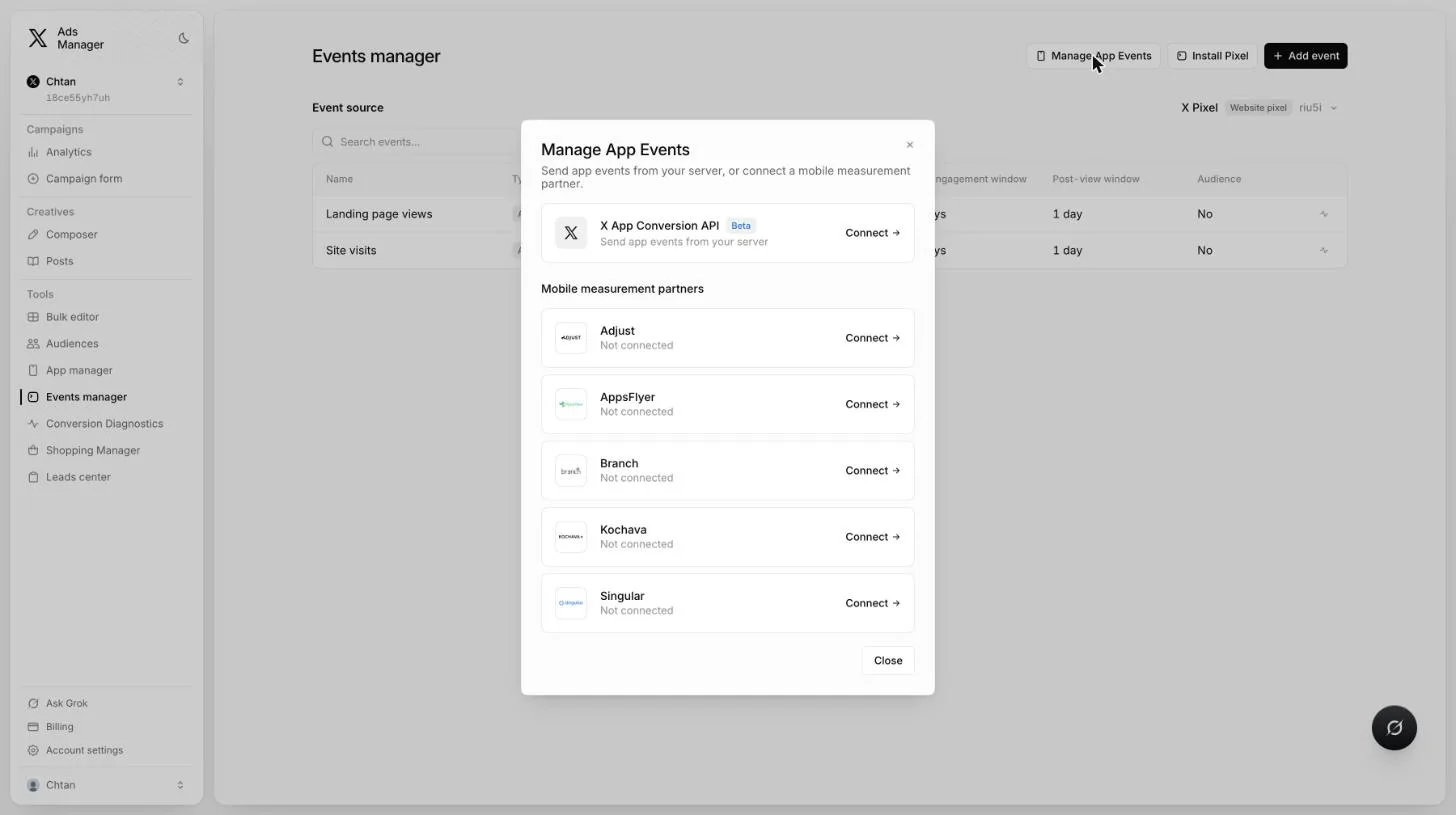
Click Manage App Events, then Connect next to X App Conversion API.
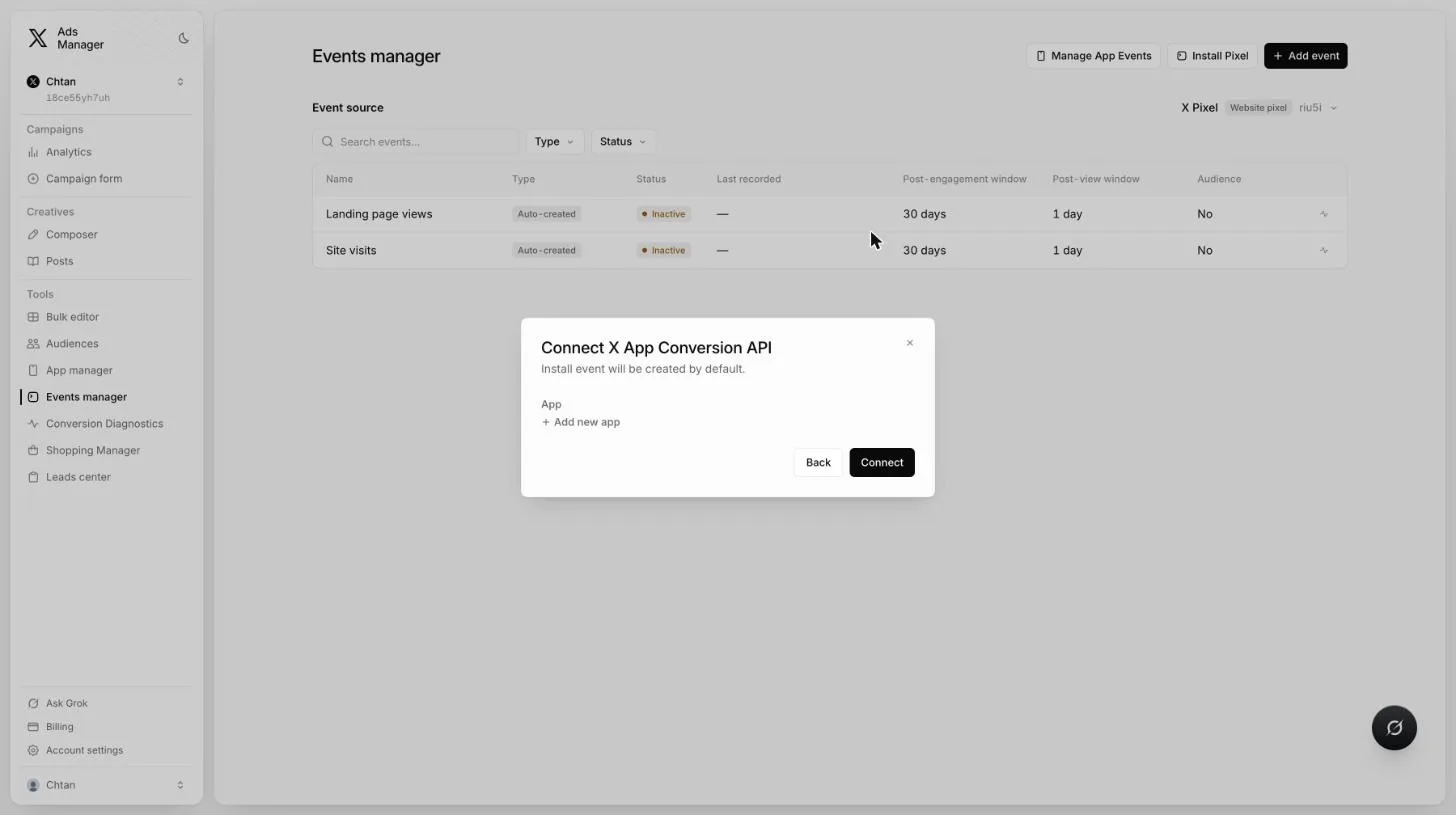
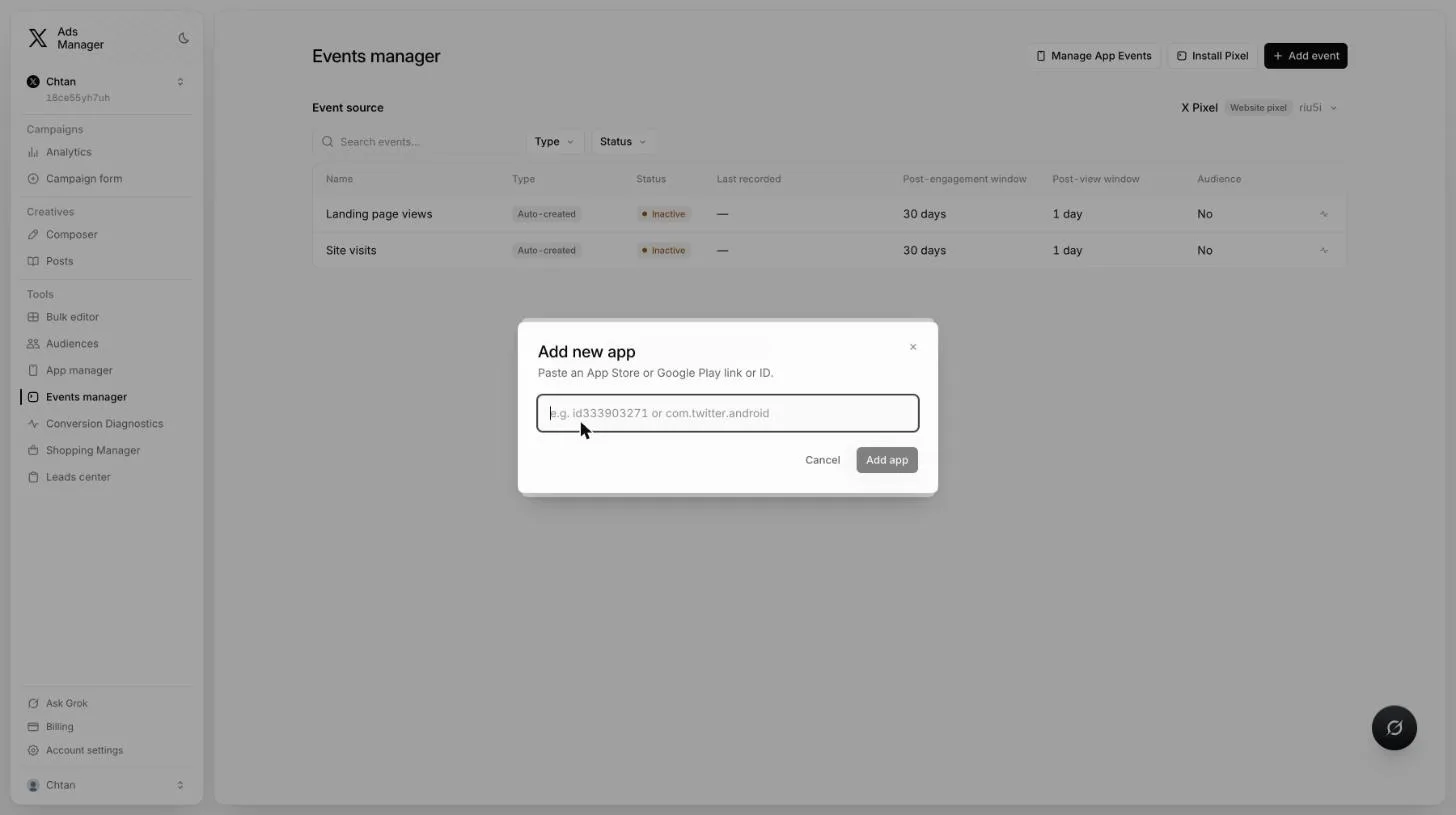
Add or pick your app with its App Store id or Google Play package name. X creates the Install event for you.
In the Send events to X App Conversion API window, generate the access token and copy it. X shows the token only once.
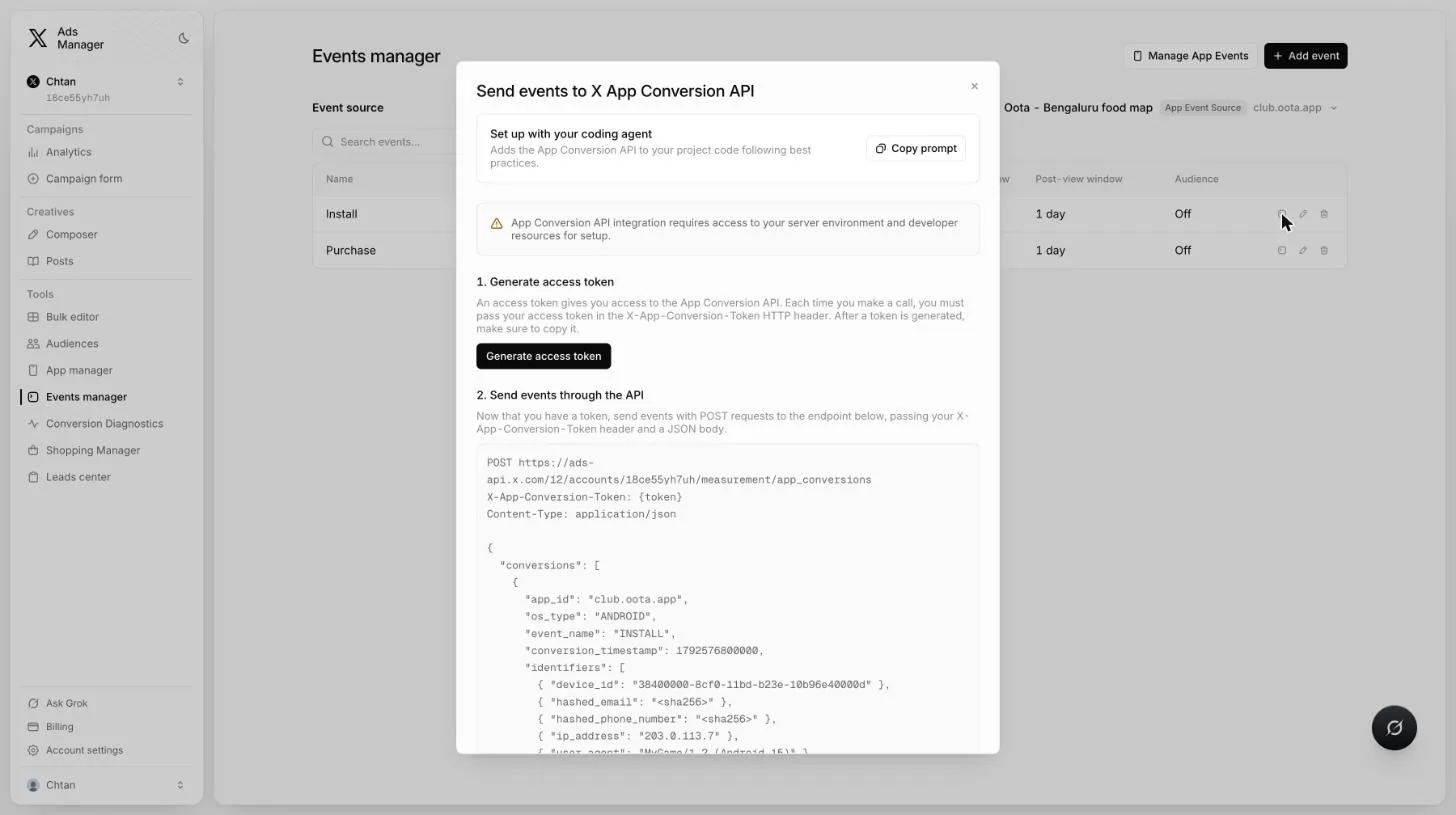
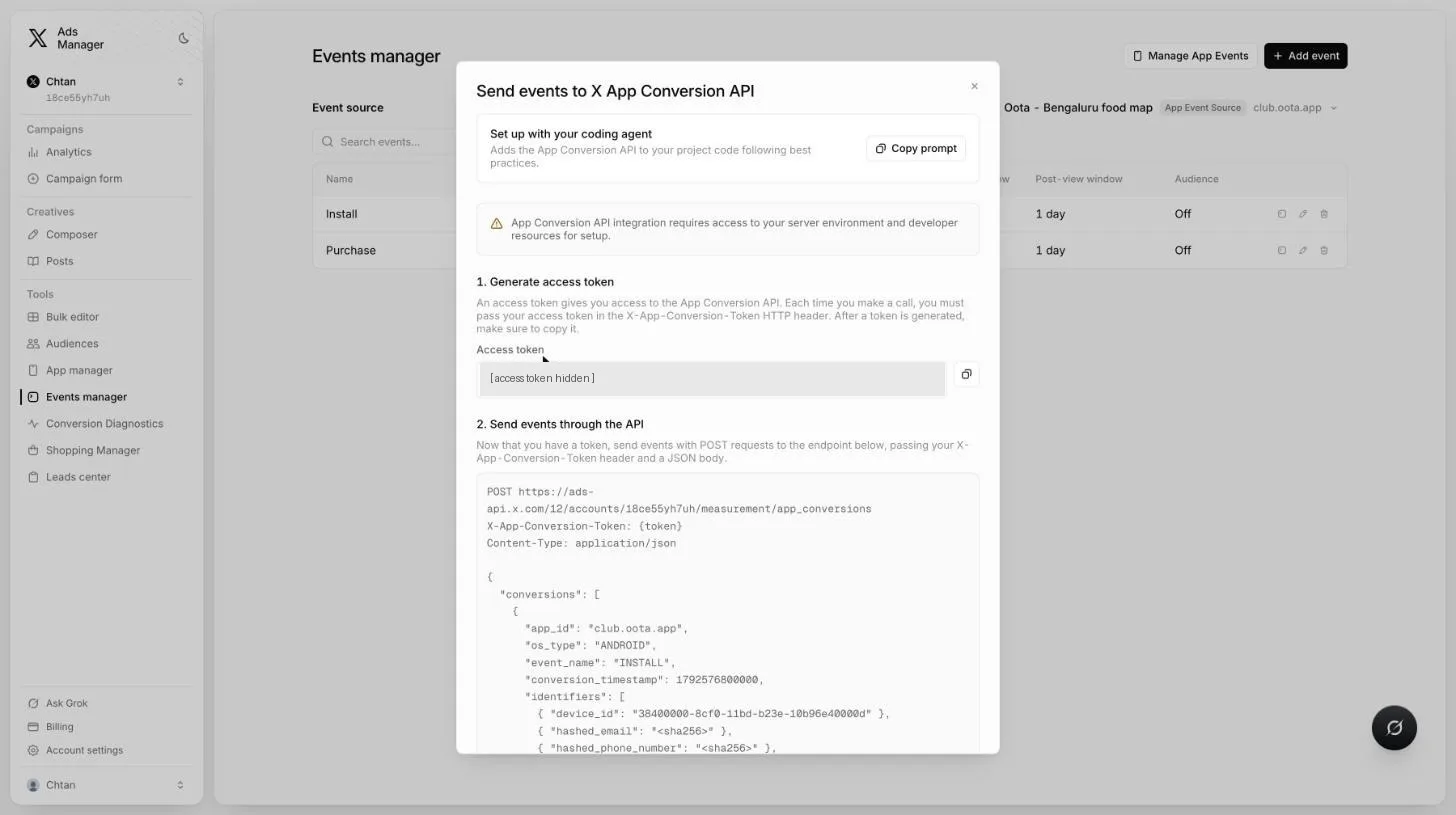
For each in-app event you want to send (for example a purchase), click Add event in Events manager with your app as the event source and pick the X event type.
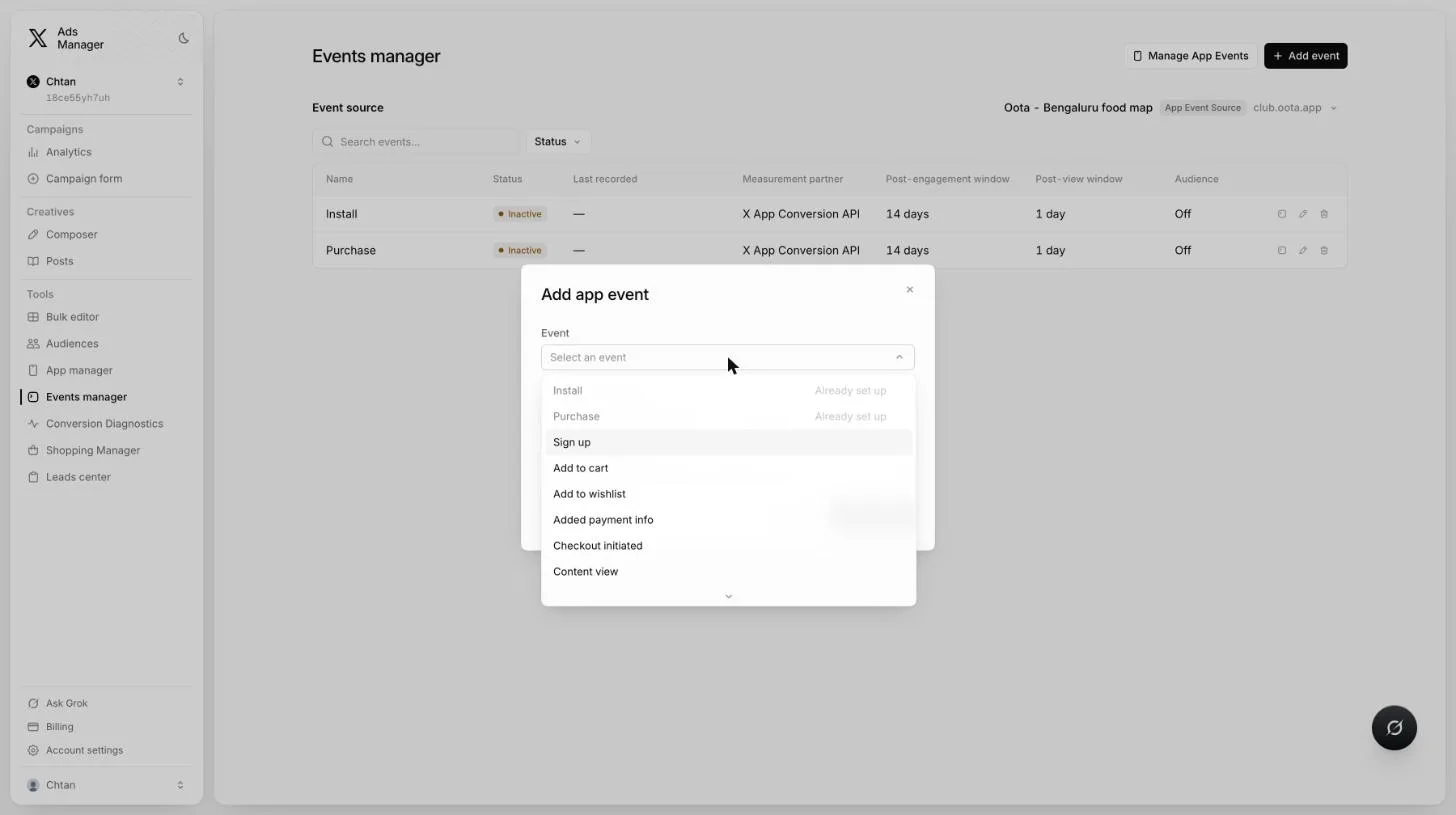
2. Set up website events in X Ads Manager
Skip this step if you only send app conversions.
In Events manager, click Install Pixel, choose Manual, then Conversion API, and generate an access token. Copy the token and the Pixel ID shown next to X Pixel (for example riu5i).
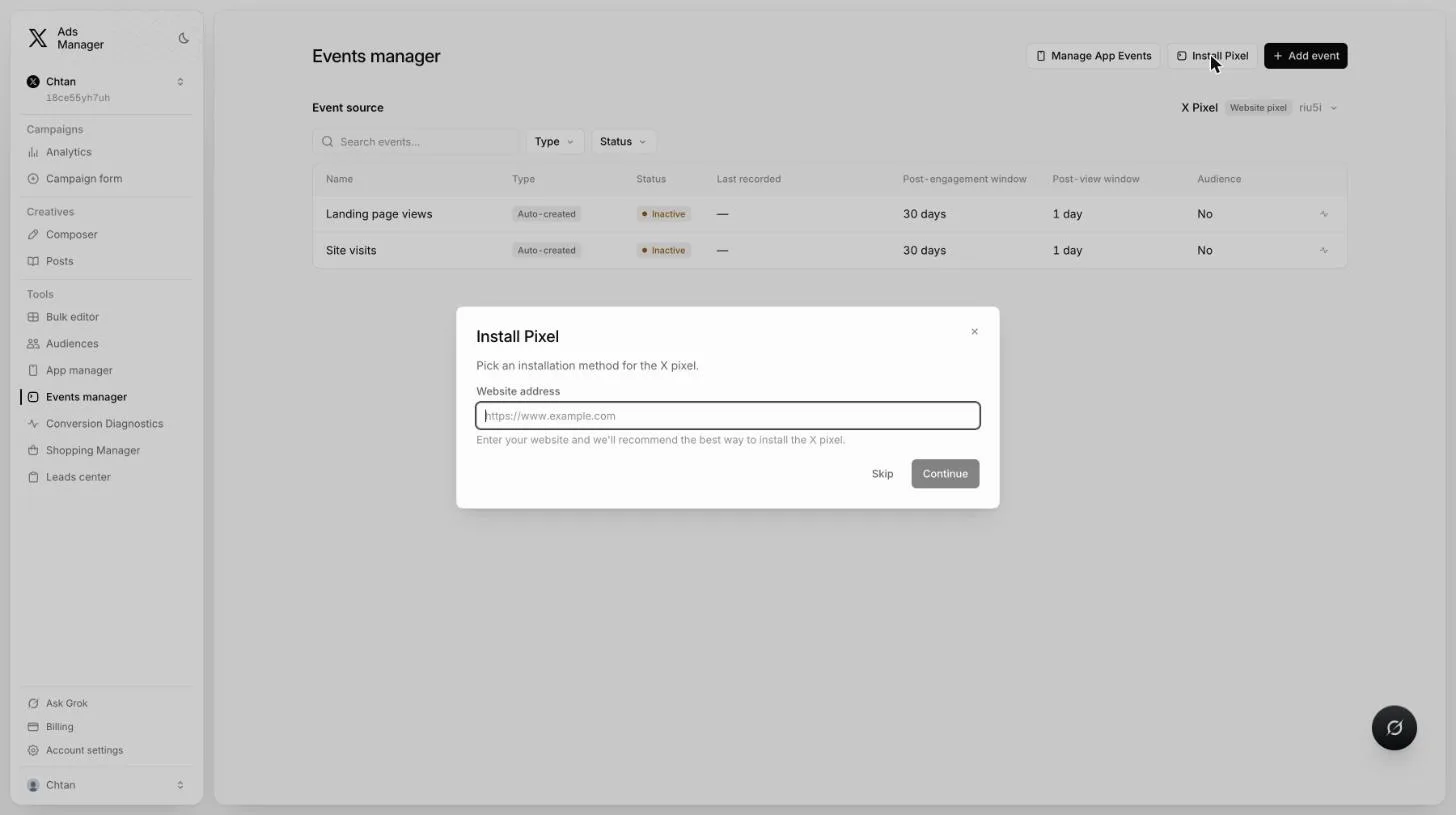
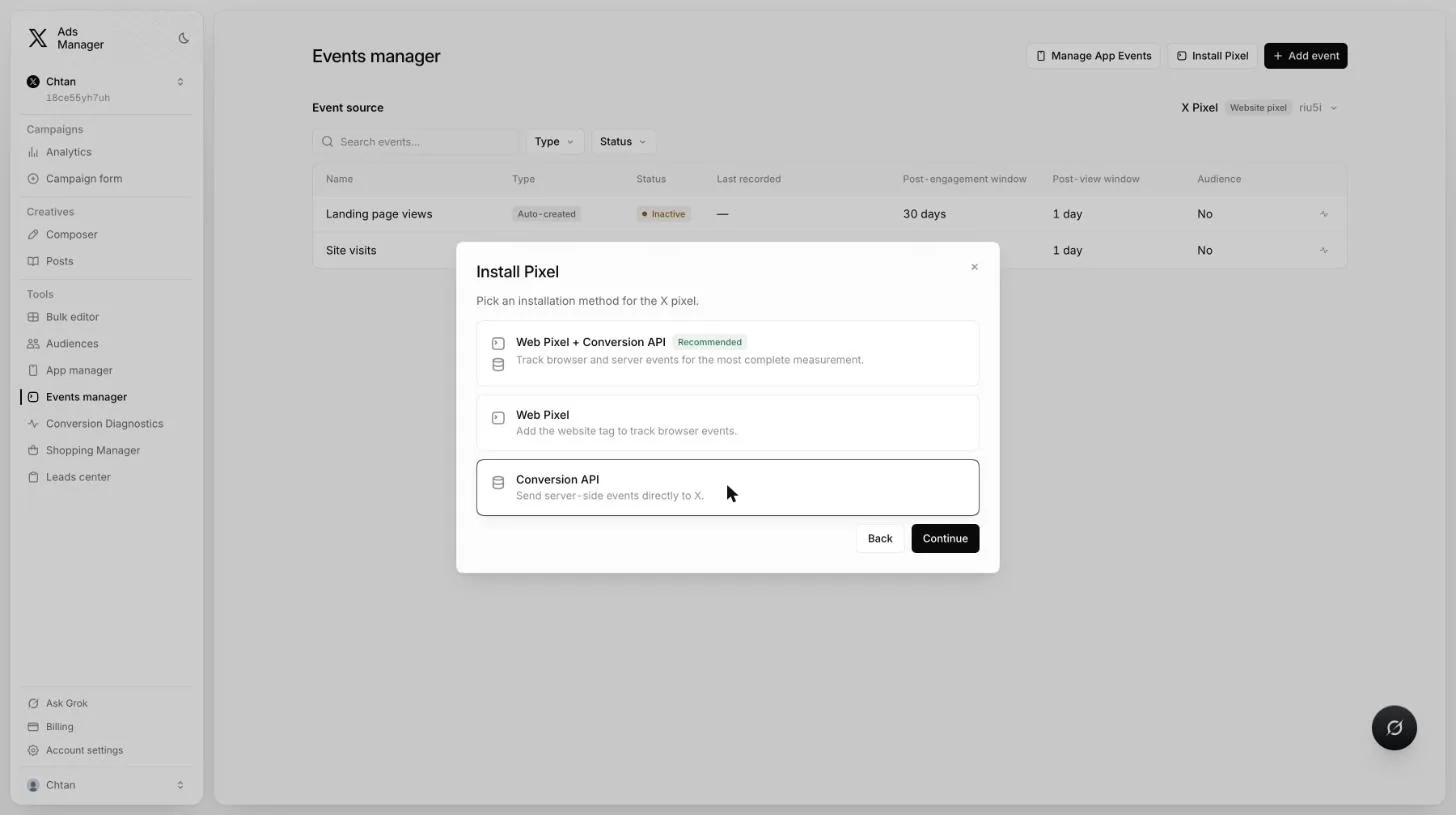
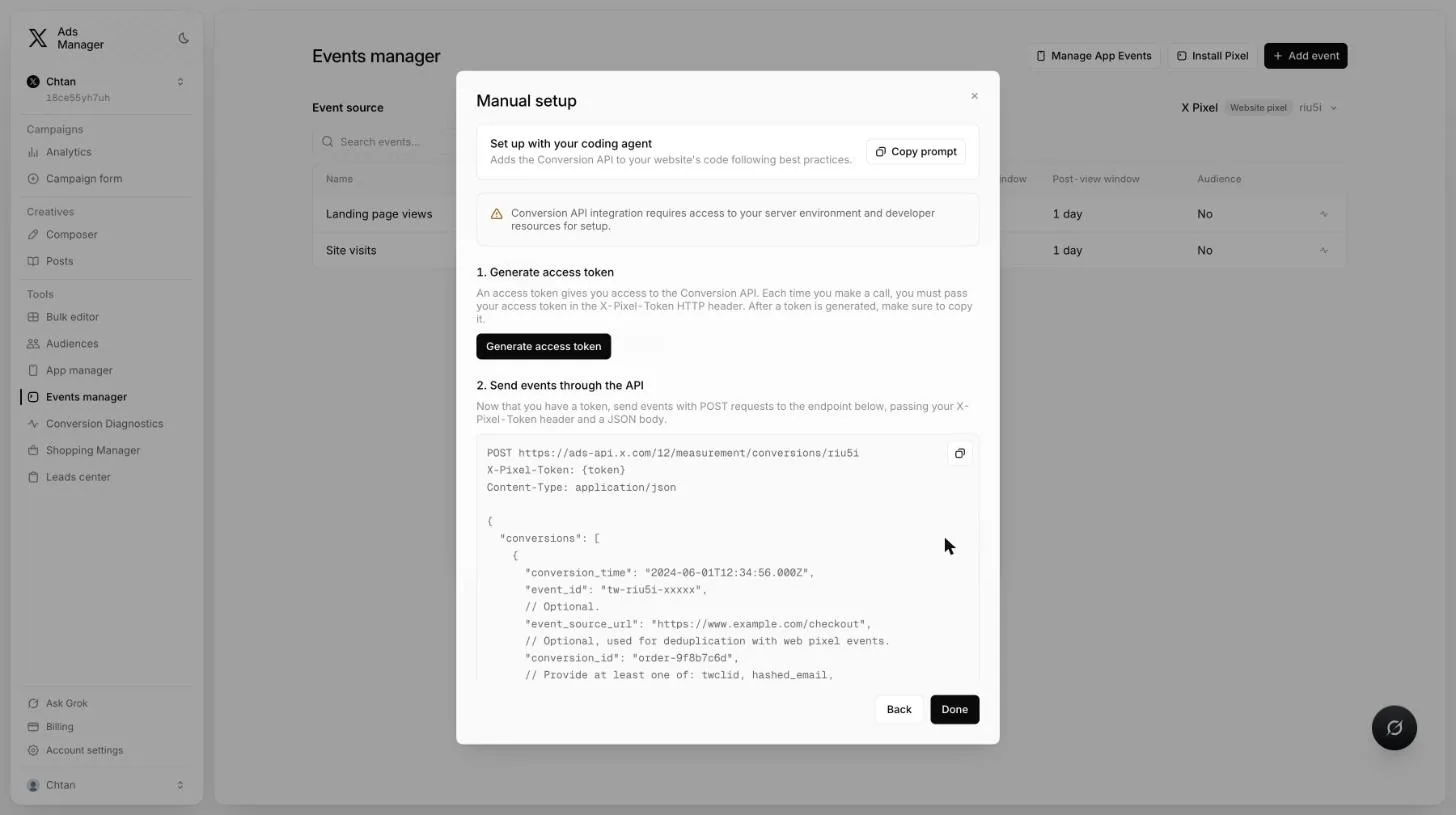
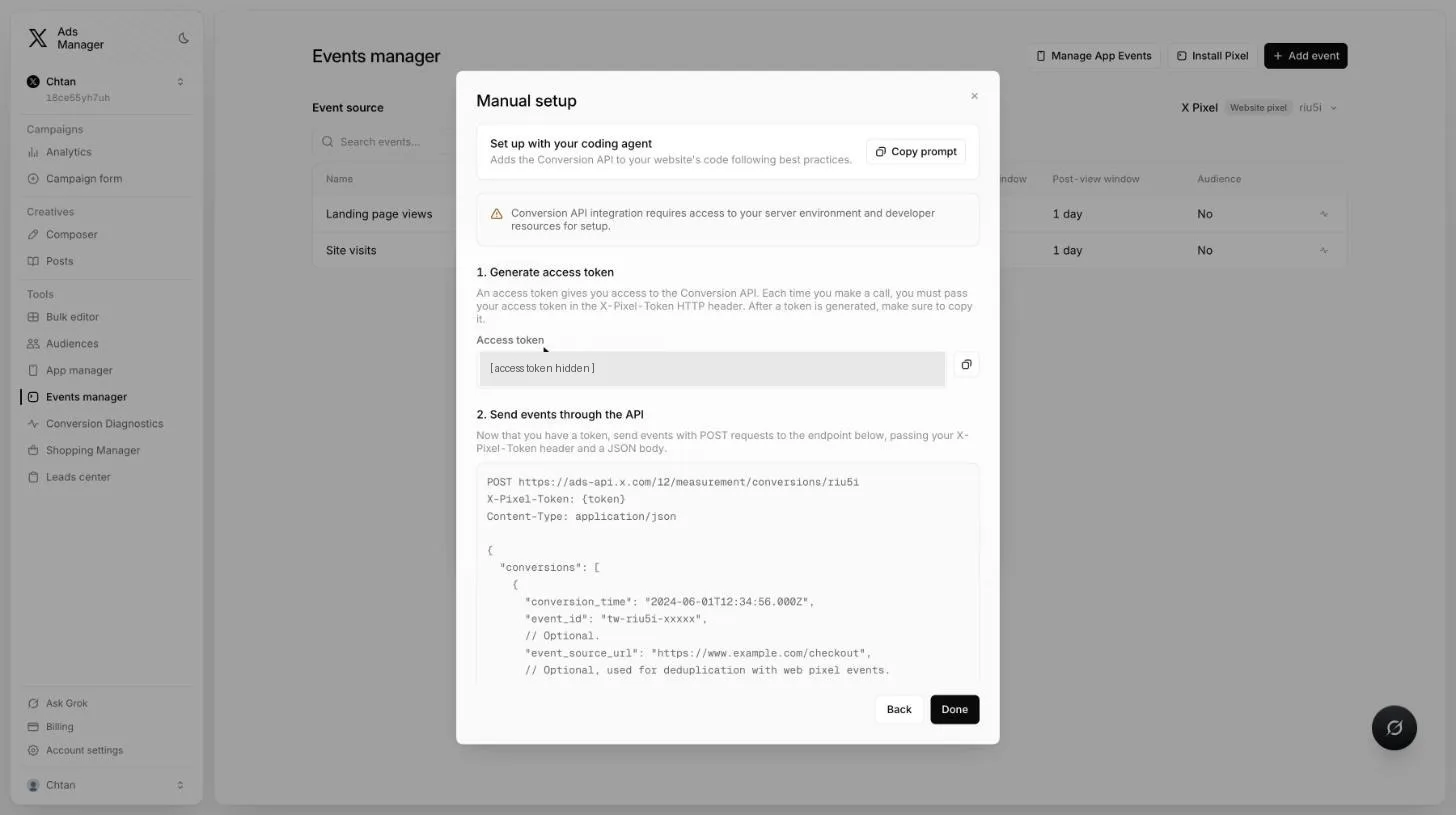
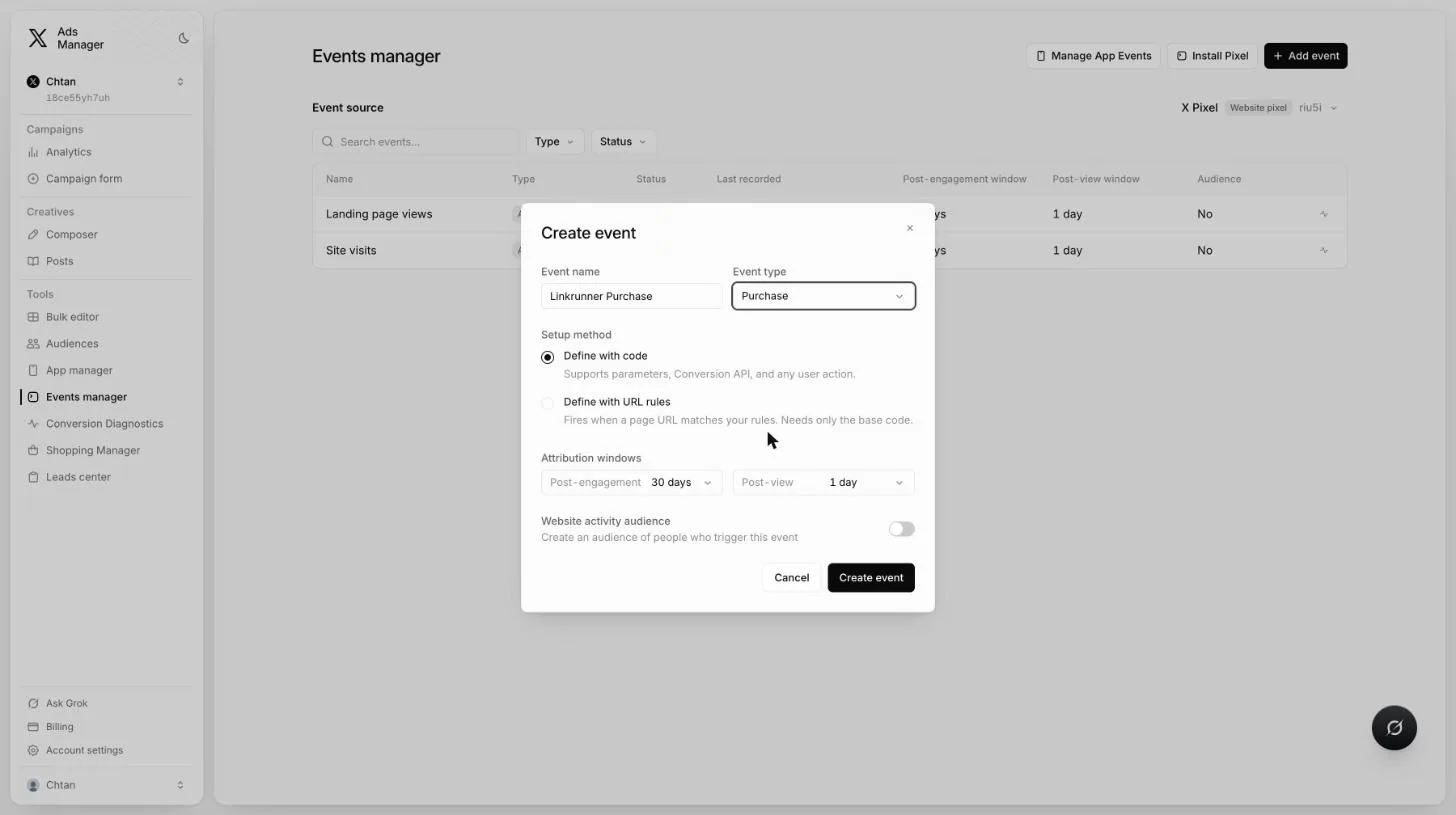
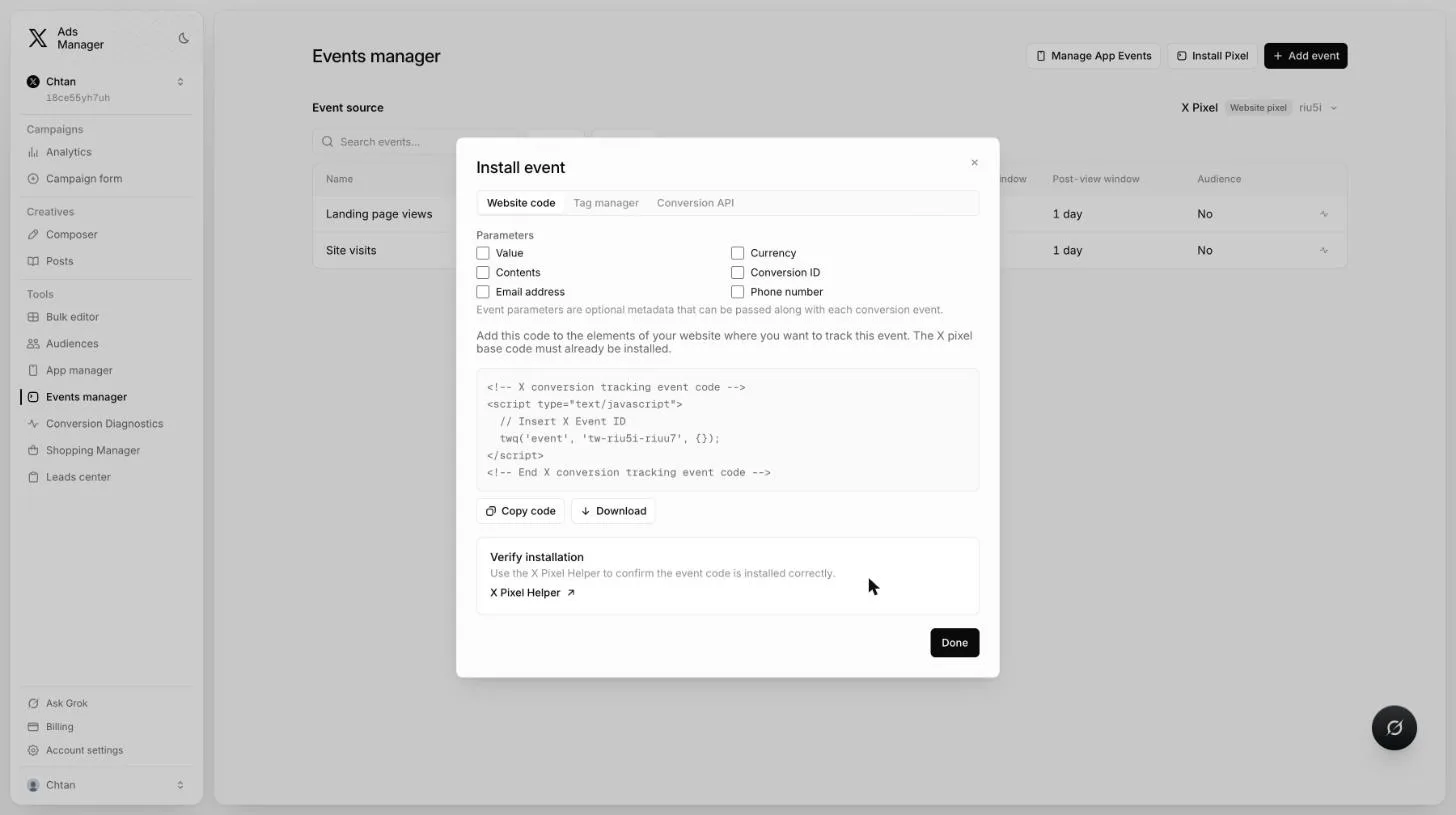
Then create each website event: with X Pixel as the event source, click Add event, choose Define with code and pick the event type. Copy the event id X gives it. It looks like tw-<pixel id>-<event id>, for example tw-riu5i-riuu7.
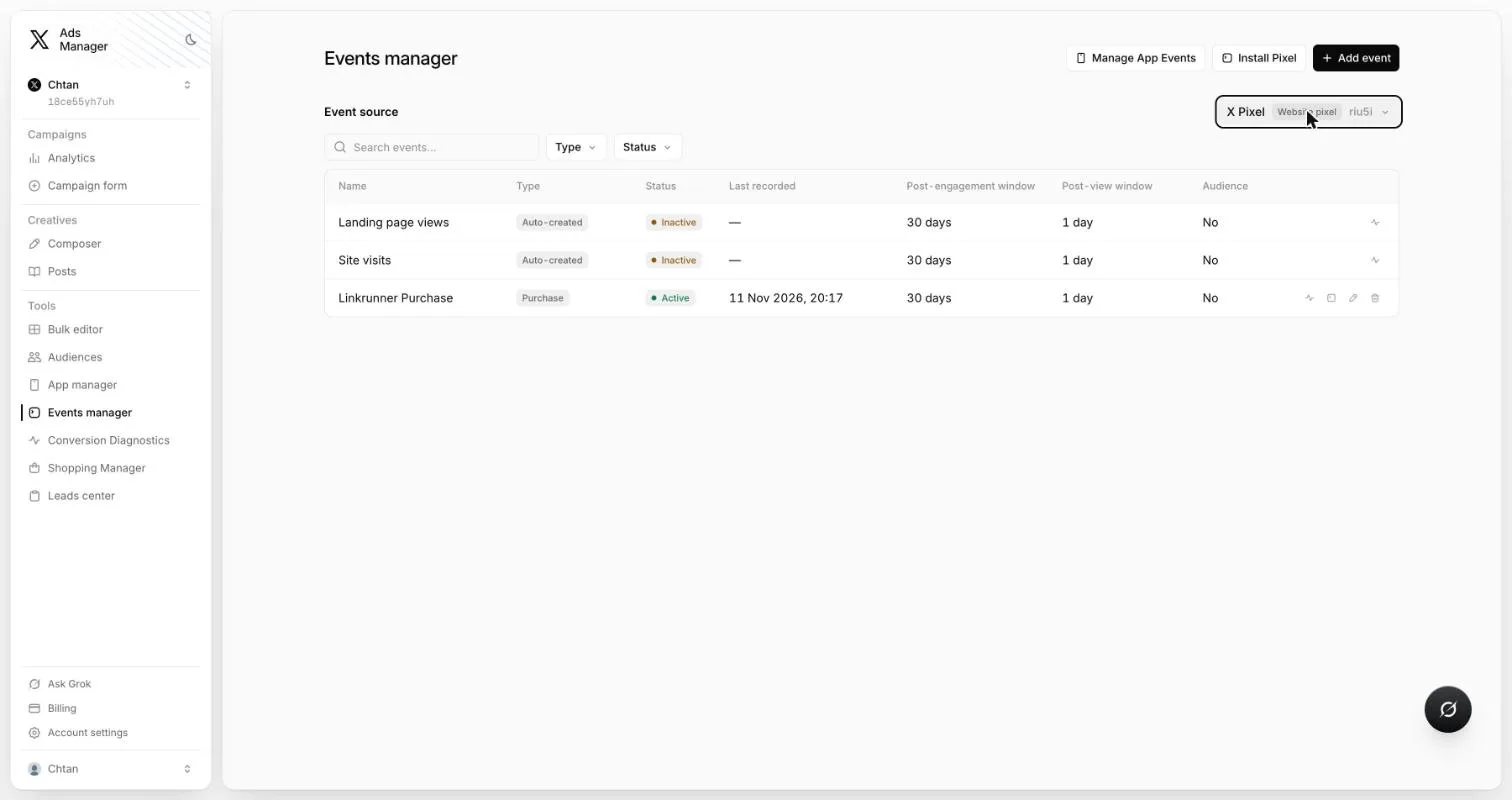
Use events you create with Define with code. X's auto-created Landing page views and Site visits events are not single event tags, so X refuses Conversion API conversions sent to them.
3. Connect X in Linkrunner
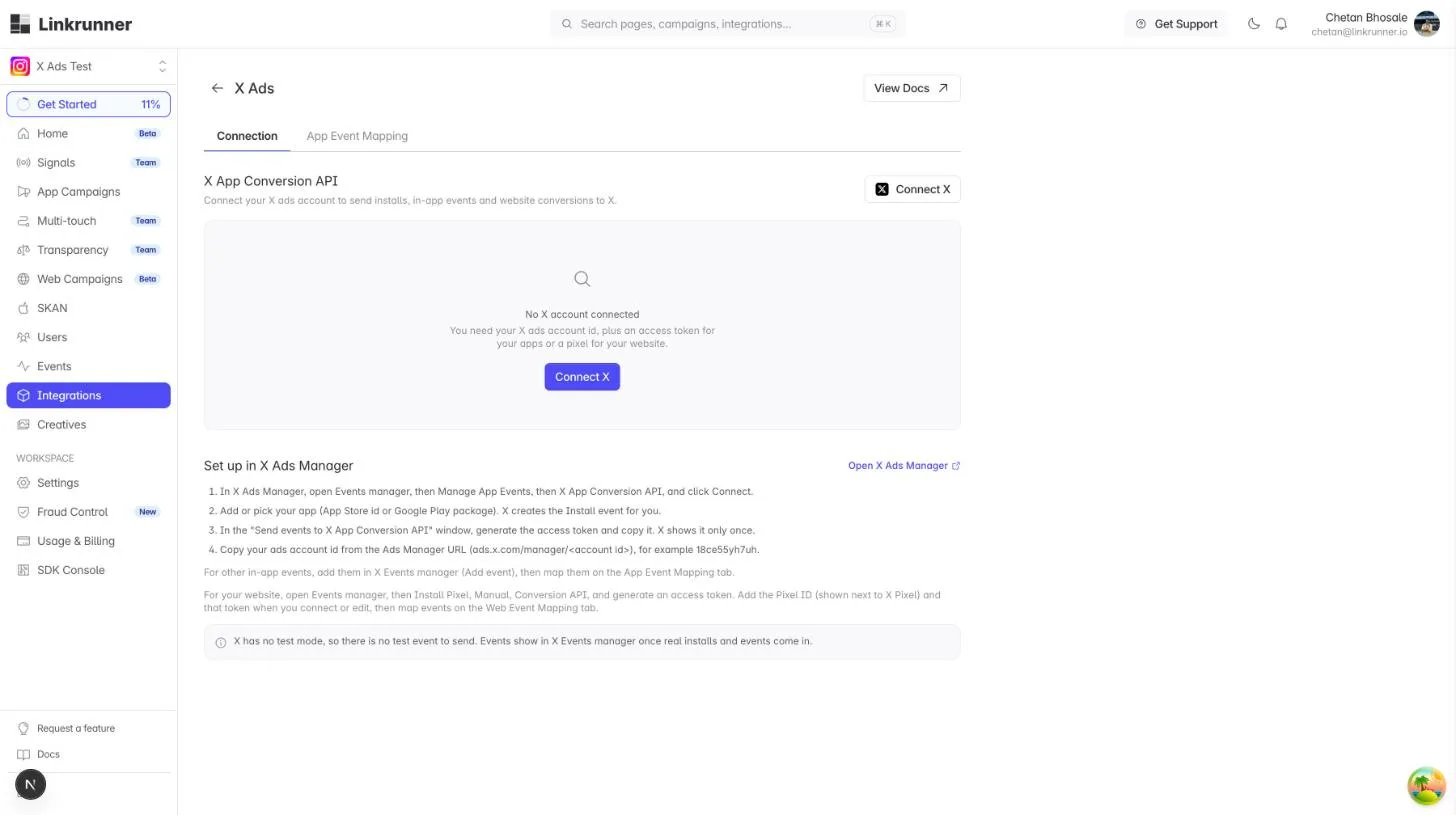
Go to Integrations → X Ads and click Connect X.
Fill in:
- Ads account id: the id from your Ads Manager URL.
- App access token: the App Conversion API token. Needed when you add an app.
- Android package name and iOS App Store id: the same apps you added in X Events manager. Add at least one app, or a pixel.
- Pixel ID and Pixel access token (optional): for website conversions.
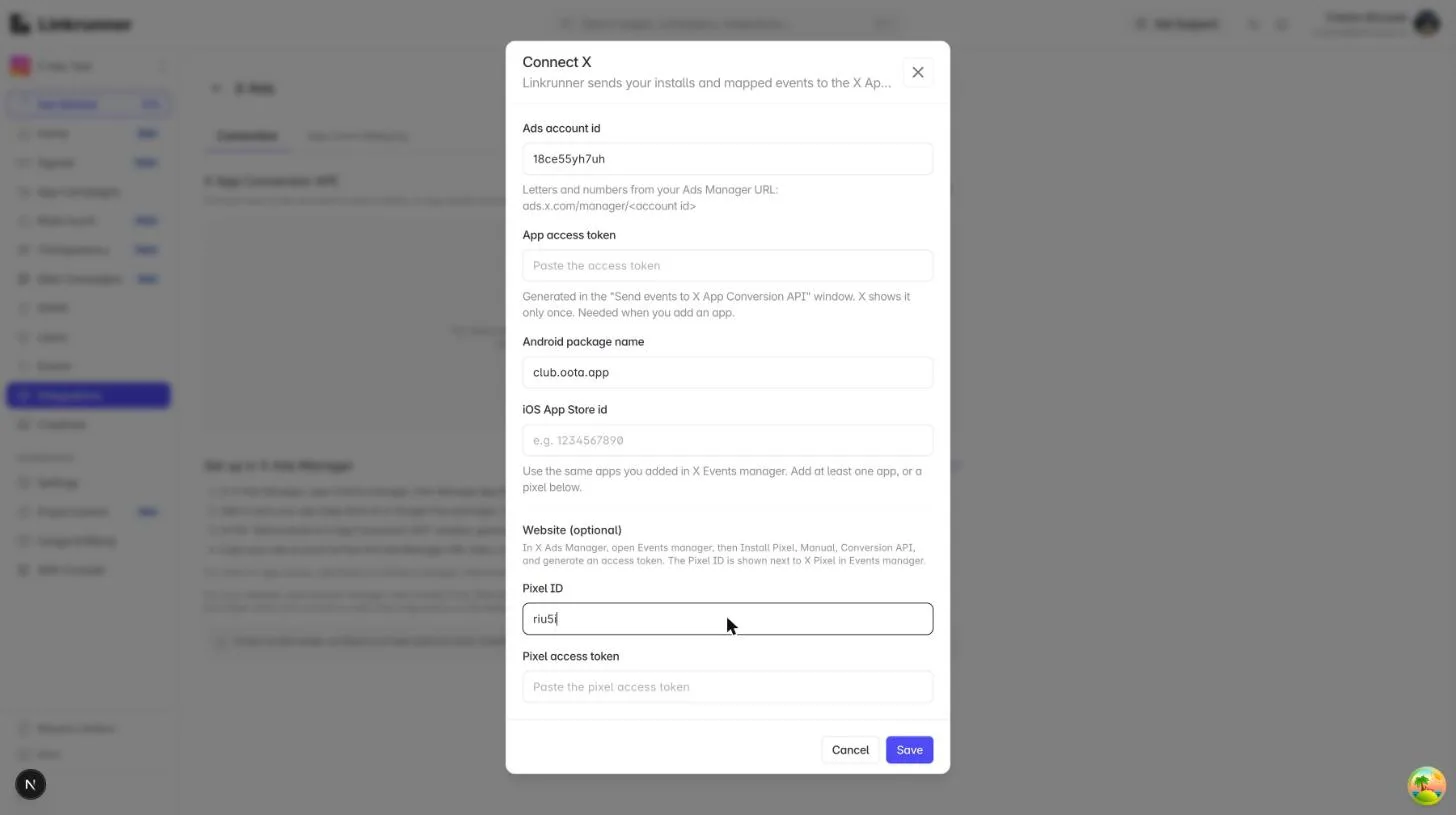
Click Save. Linkrunner checks each token with X before it saves. The connection then shows as Connected.
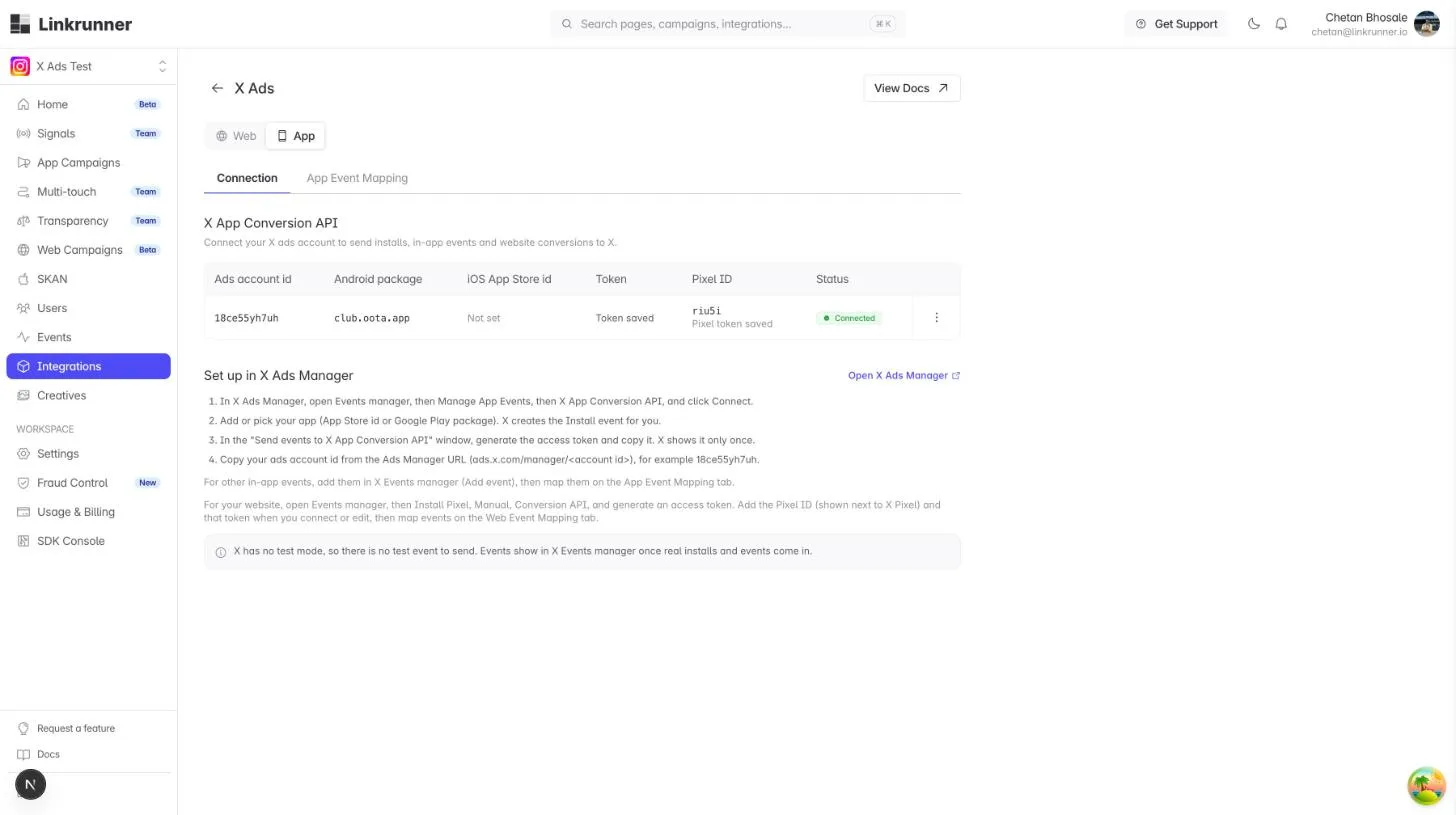
If Linkrunner says it couldn't confirm a token with X, generate a new one in X Events manager and save again. A token from another ads account or pixel is refused.
4. Map events
Linkrunner sends these to X without a mapping:
| Linkrunner event | X event |
|---|---|
| Install | INSTALL |
| Signup | SIGN_UP |
Map every other event you want X to receive.
App events
Open the App view, then App Event Mapping, and click Add Mapping. Pick your Linkrunner event and the X event it should count as, for example purchase → Purchase (PURCHASE). For purchases, turn on Send Revenue and pick the currency.
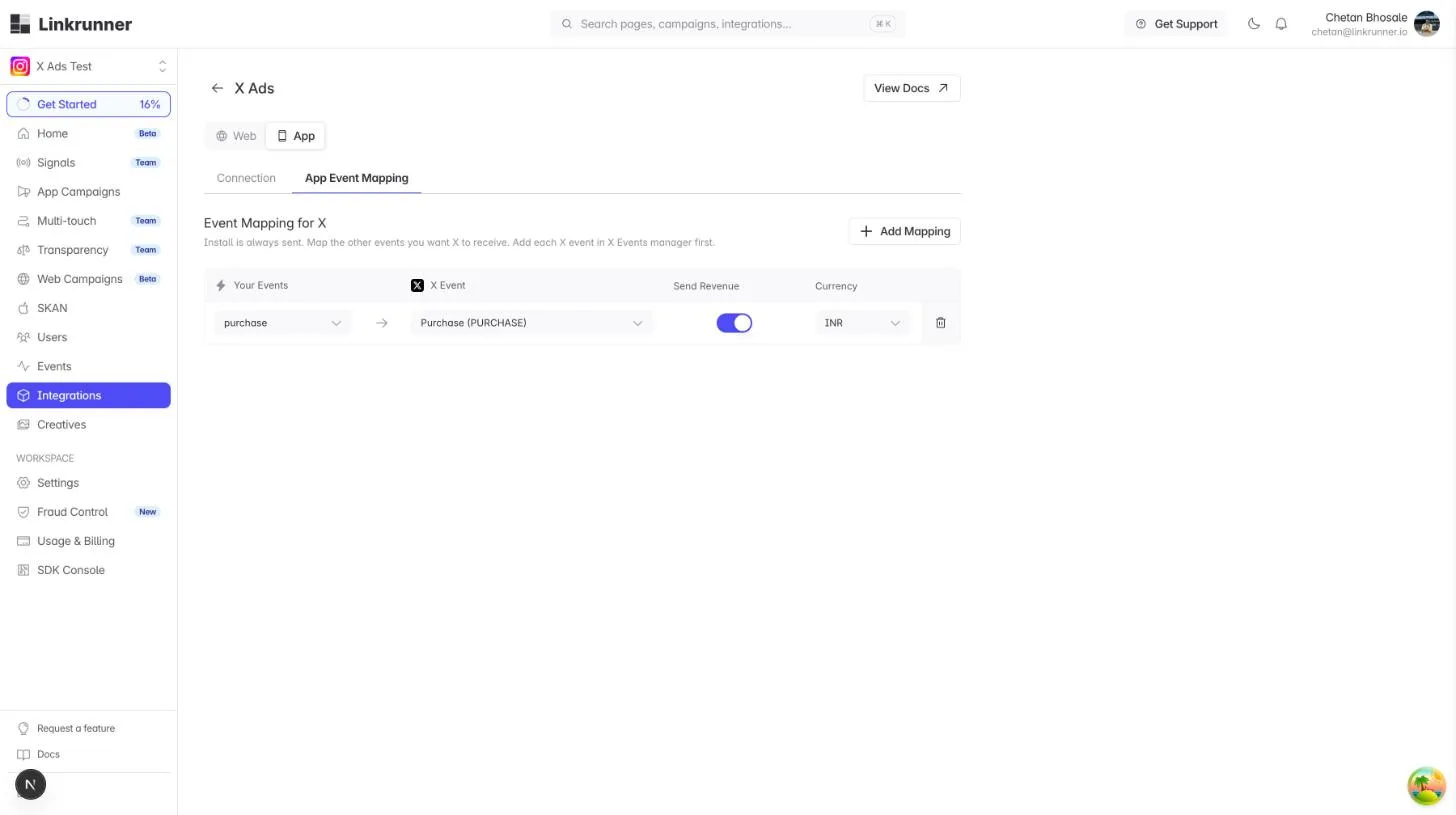
Only events you map are sent. Add the same event to your app in X Events manager first (step 1), or X will not show it.
Website events
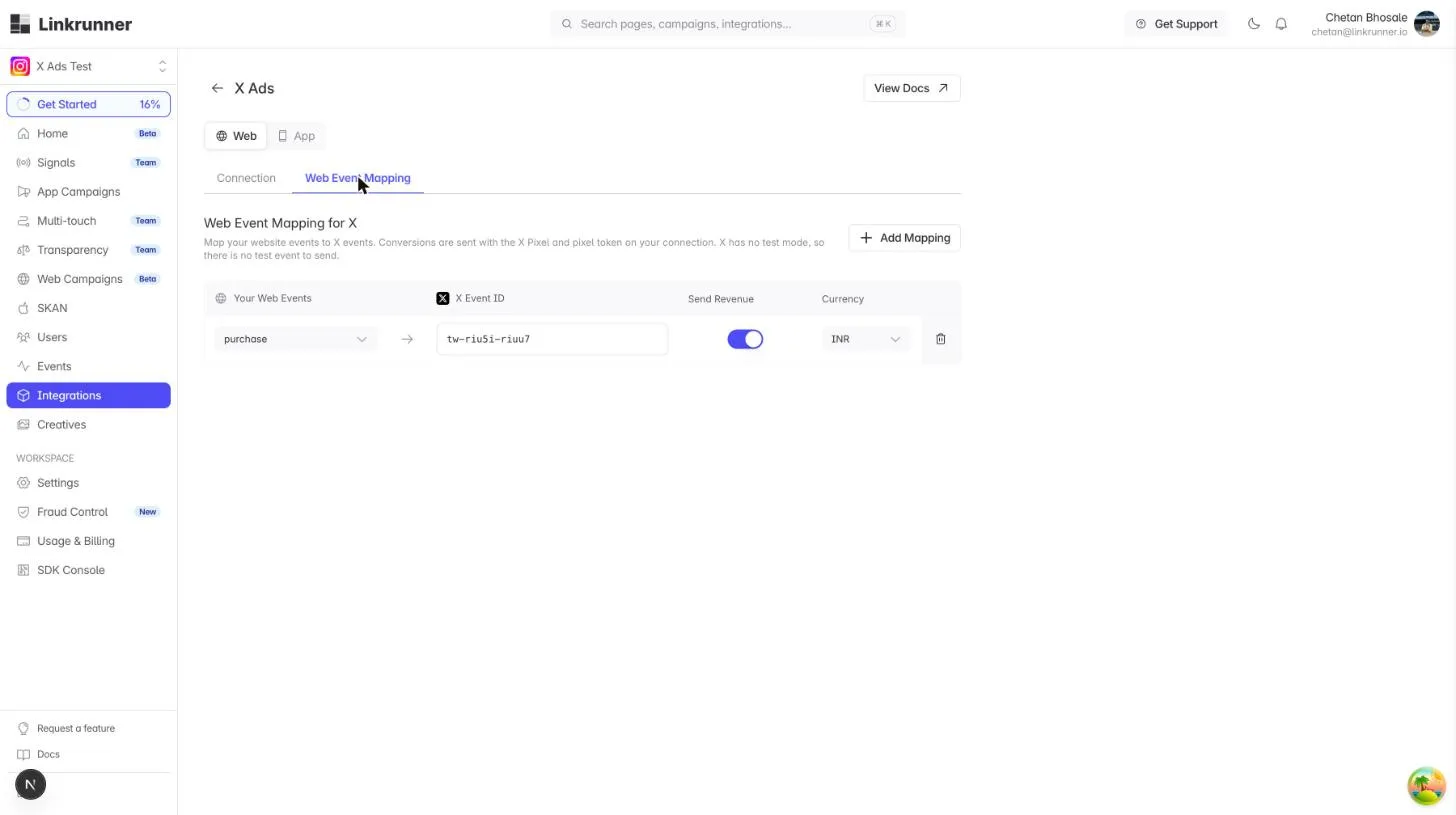
Open the Web view, then Web Event Mapping, and click Add Mapping. Pick your web event and paste the X event id from step 2, for example tw-riu5i-riuu7. Turn on Send Revenue for purchases.
5. Create the campaign link and run the ad
Create a Linkrunner campaign link with X Ads as the ad channel. See Create a trackable link for the full flow. Use that link as the website URL of your X ad.
Do not put the App Store or Play Store URL straight into the X ad. X sends the user to the Linkrunner link first, which is how Linkrunner knows the install came from X. Keep the link intact so the twclid X adds to it is kept.
6. Check delivery in X
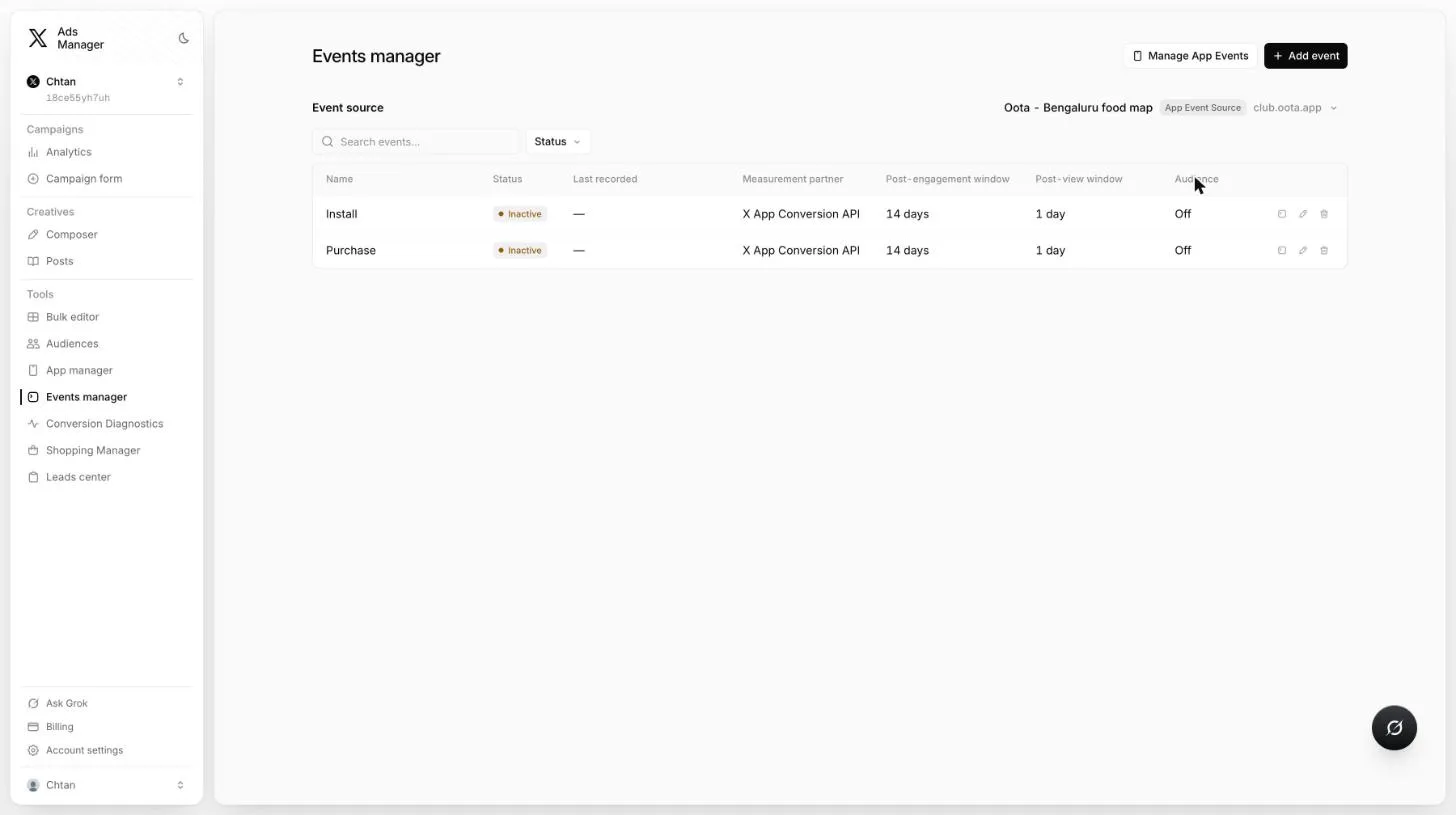
Once installs and events come in, open X Events manager. Each event Linkrunner sends shows as Active with its Last recorded time. Pick your app as the event source to see app events, and X Pixel to see website events.
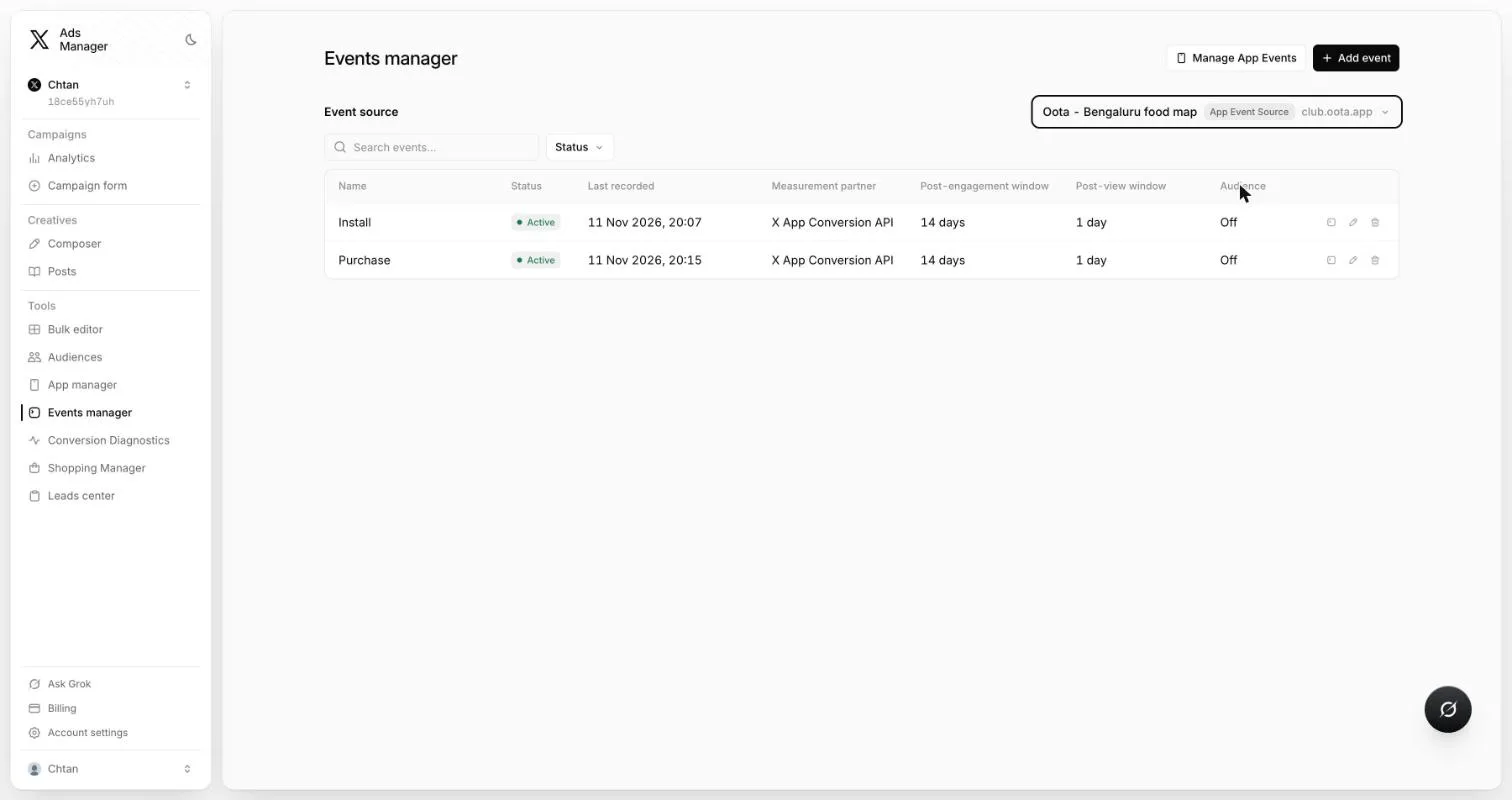
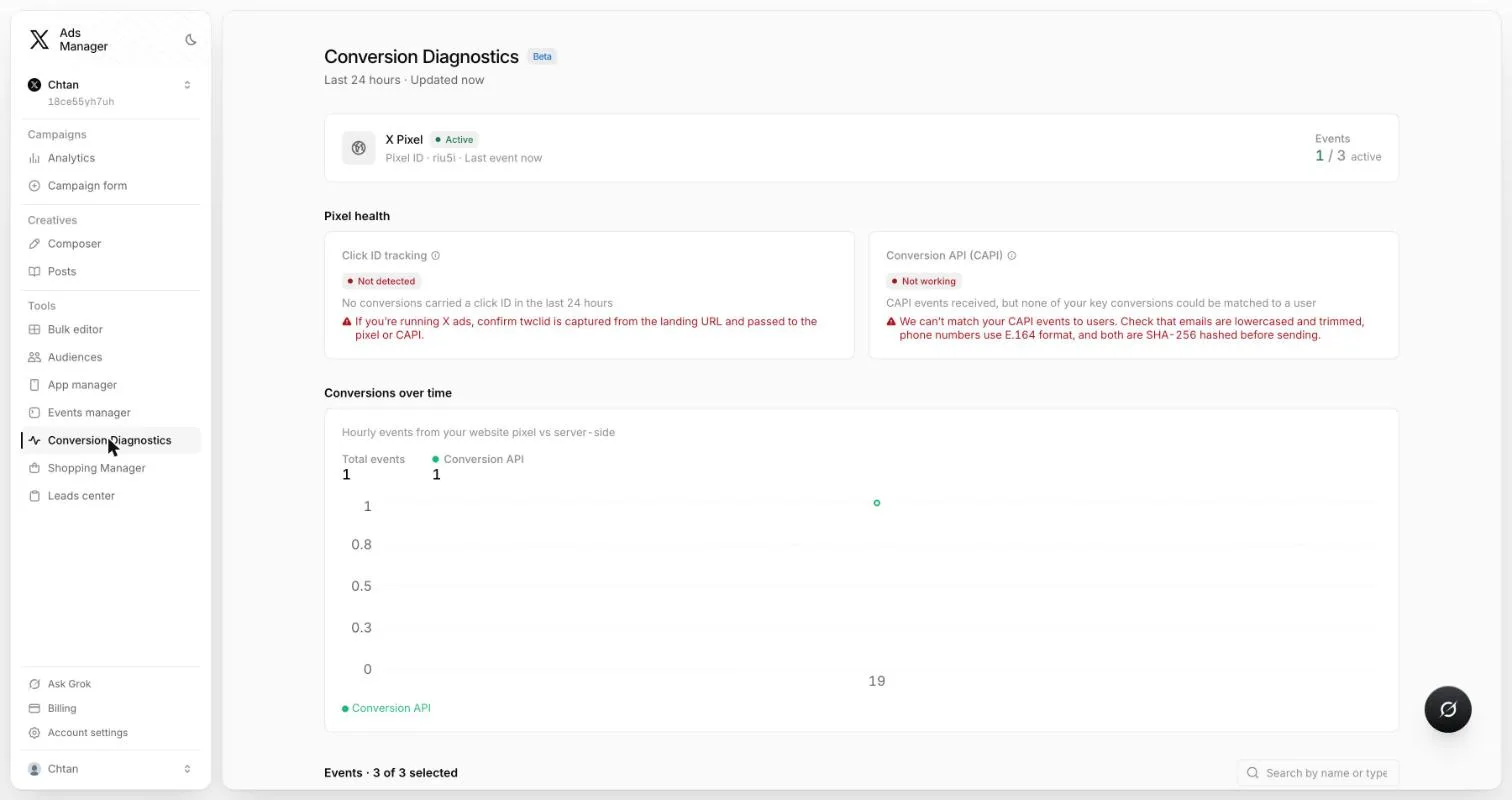
Tools → Conversion Diagnostics shows the website conversions X received from the Conversion API over the last 24 hours.
What Linkrunner sends
For app conversions, Linkrunner sends the app id, platform, X event name and conversion time, with the device advertising id (GAID or IDFA), and the IP address and user agent when they are known. A purchase carries its value and currency when Send Revenue is on.
For website conversions, Linkrunner sends the X event id, conversion time, page URL and a conversion id, with the twclid, IP address and user agent. A purchase carries its value and currency when Send Revenue is on. A website conversion without a twclid is not sent.
X does not send attribution back to Linkrunner. Linkrunner attributes installs to your X campaigns from clicks on your Linkrunner campaign links.
Frequently Asked Questions
Why don't my X events show in Events manager?
X has no test mode, so nothing shows until a real install or conversion is sent. Check that the X ad uses your Linkrunner campaign link, that the connection shows Connected, and that the event is mapped. For app events, the event must also exist for your app in X Events manager.
Conversion Diagnostics says events could not be matched
X received the conversion but could not tie it to an X user. This happens when the conversion has no twclid, for example when the visitor did not come from an X ad. Conversions from clicks on your X ads carry the twclid X adds to your Linkrunner link.
Can I send only website conversions?
Yes. Leave the app access token and apps empty and add only the Pixel ID and pixel access token.
Do X campaigns appear in Linkrunner automatically?
No. X campaigns show in Linkrunner once users click the Linkrunner campaign links you use in your X ads.
Need help? Contact support@linkrunner.io