

How it works
Every time an install is attributed by Linkrunner, we send an event to WebEngage’s Events API. Linkrunner sends one of two event names:
The event carries these attribution fields in
eventData:
Linkrunner uses your app user ID when it is available. If the user ID is not available at install time, Linkrunner uses the install instance ID as the WebEngage
userId so the install event is still captured.
Example
- User came from a Meta campaign named
Summer_Sale - In WebEngage, that user’s profile receives an
inorganic_installevent withutm_sourceset tometaandutm_campaignset toSummer_Sale - An unattributed install instead receives an
organic_installevent withutm_sourceset toorganic
Prerequisites
Steps to set up
1
Copy REST API credentials from WebEngage
In WebEngage, copy the REST API credentials that Linkrunner needs to send install attribution events.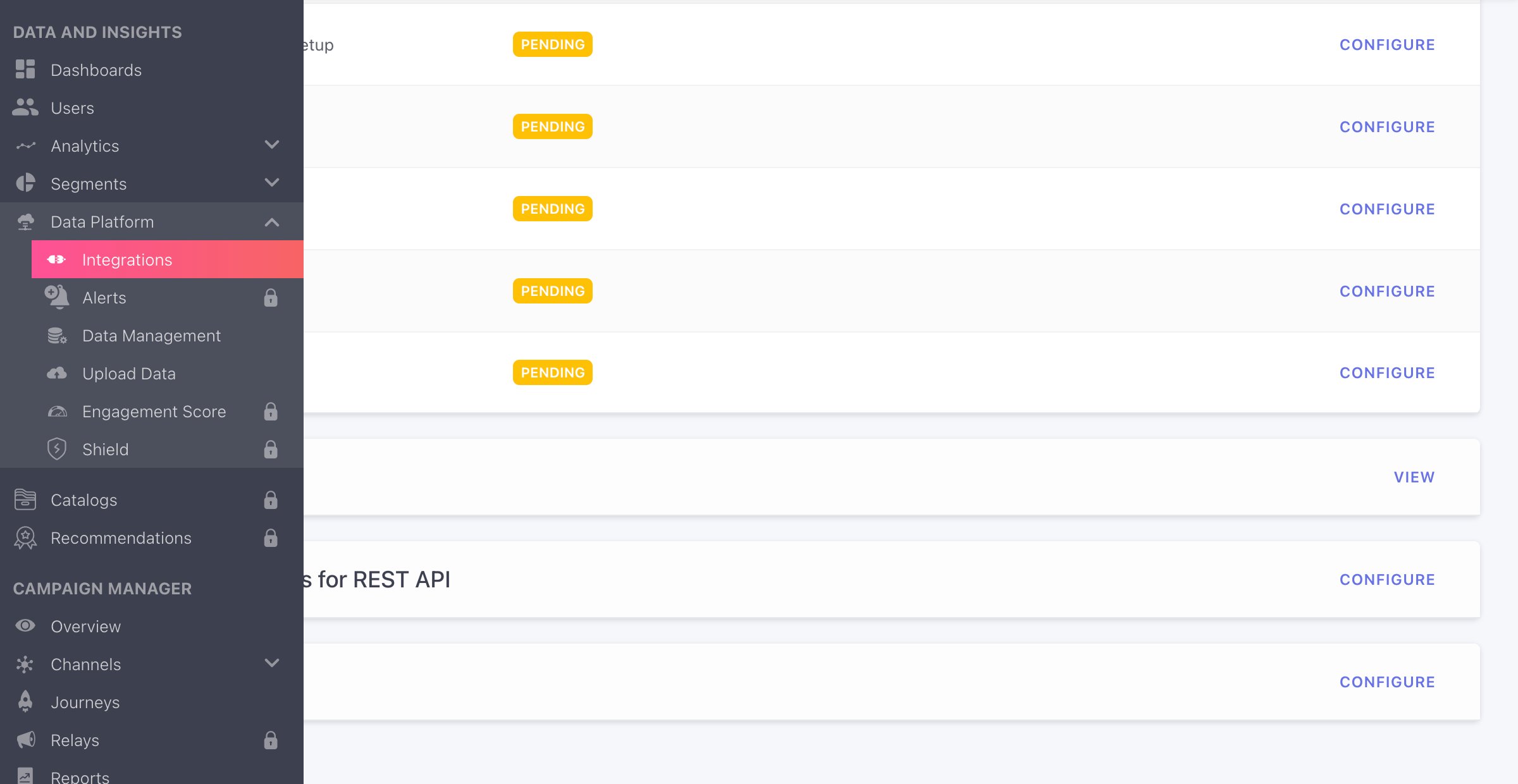
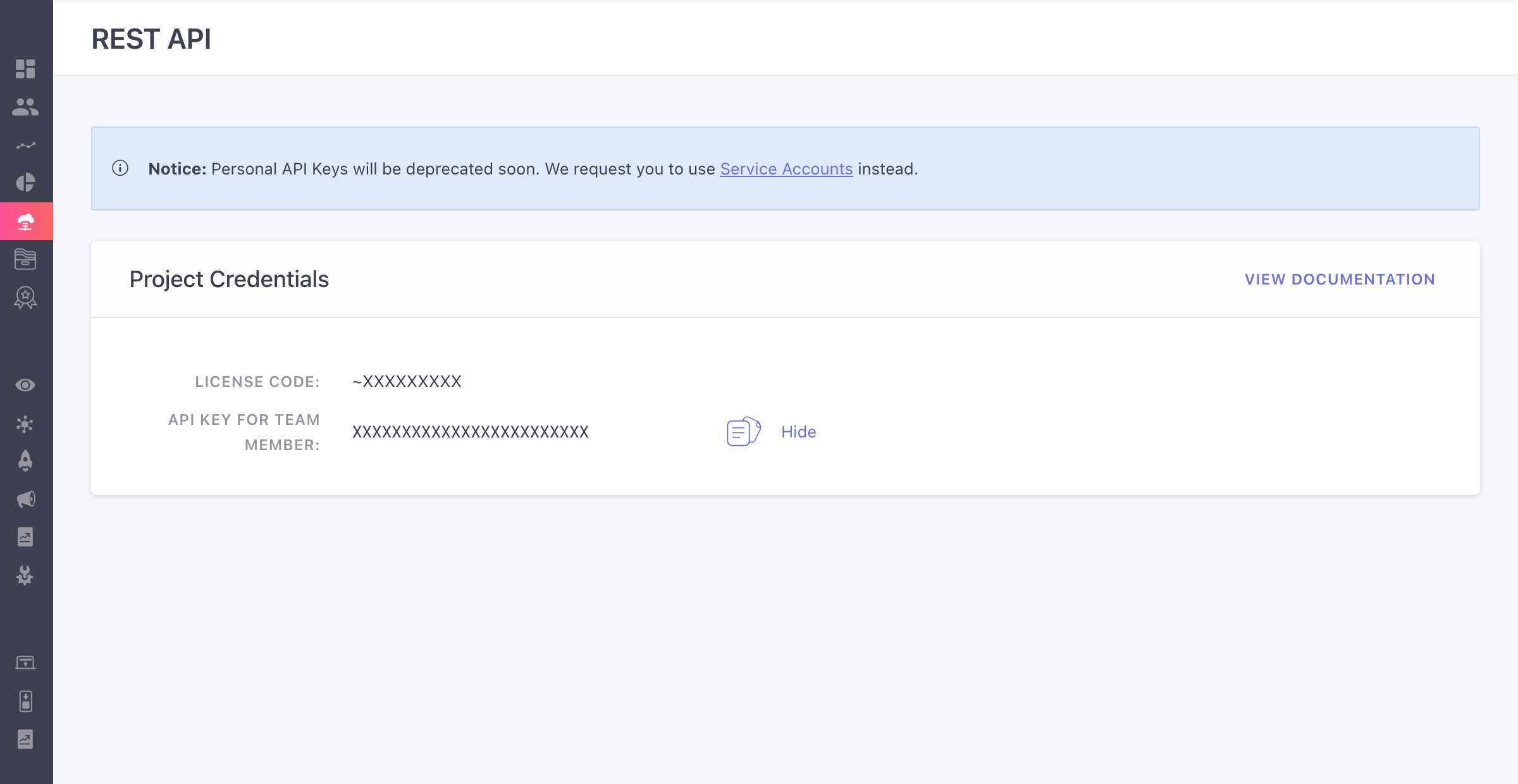
- Log in to your WebEngage dashboard
- Open Data Platform > Integrations > REST API
- In Project Credentials, click Show if the key is hidden
- Copy the License Code
- Copy the API Key for Team Member
- Confirm the data center used by your WebEngage account
Copy the License Code exactly as WebEngage shows it. If your license code includes a leading
~, include it in Linkrunner as well.2
Paste credentials in Linkrunner
Add the WebEngage credentials to the Linkrunner project that owns your app.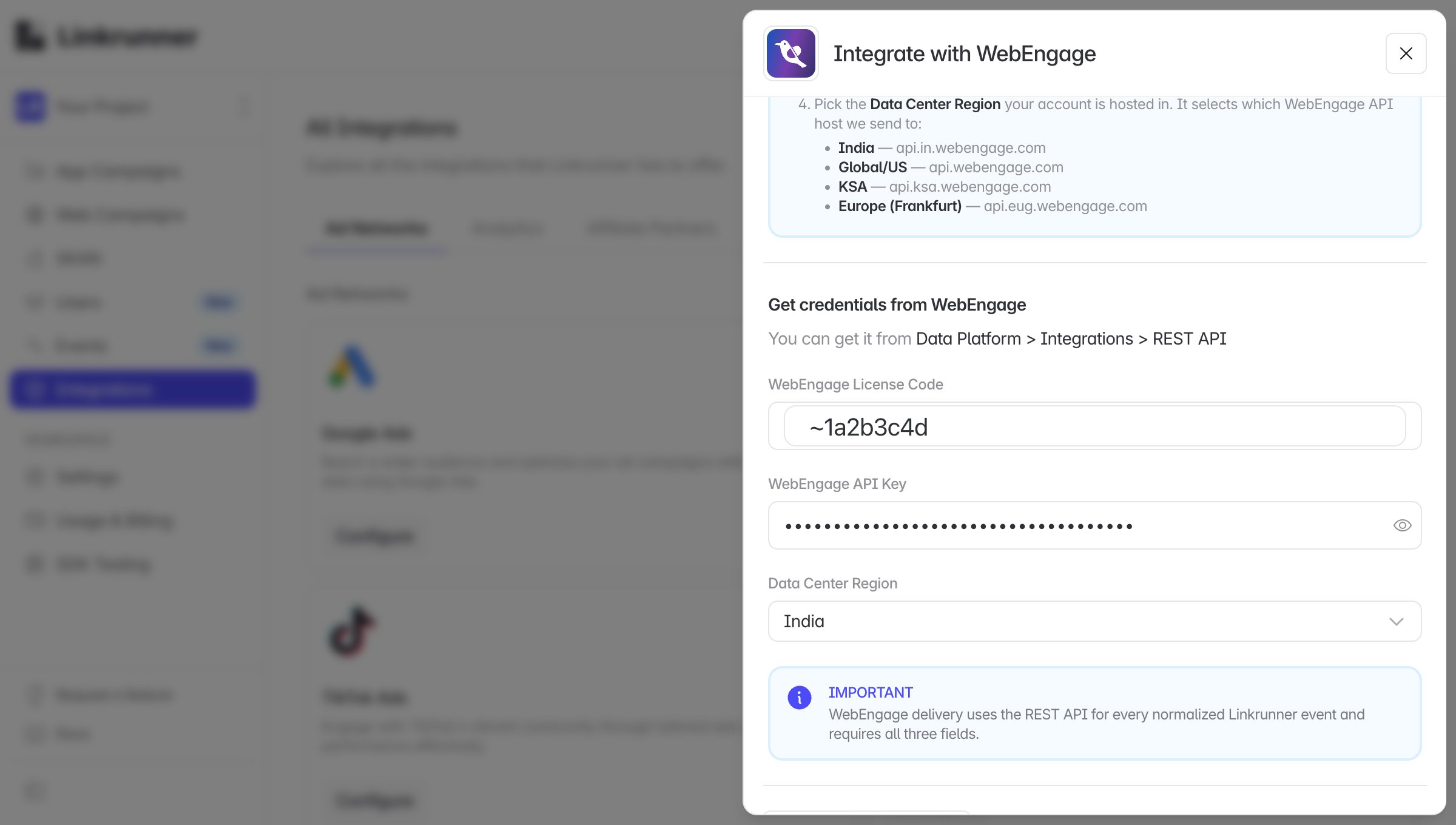
- In Linkrunner, navigate to Integrations from the left-hand panel
- Under Analytics, select WebEngage
- Paste the WebEngage License Code into WebEngage License Code
- Paste the WebEngage API Key for Team Member into WebEngage API Key
- Select the matching Data Center Region
- Click Save
The WebEngage API Key is used by Linkrunner server-side and should be pasted only in the Linkrunner dashboard, not in your mobile app.
3
Select the matching data center
Select the WebEngage data center that matches your account. This controls the WebEngage API host Linkrunner sends events to.
4
Sync existing attributed installs
If you connected WebEngage after Linkrunner already attributed installs for this project, click Sync with WebEngage in the WebEngage integration screen.Linkrunner replays the eligible attributed install events to WebEngage and emails you when the sync is complete.
5
Install the Linkrunner SDK
WebEngage install attribution events are triggered from the normal Linkrunner install flow. No separate WebEngage ID needs to be passed to the Linkrunner SDK.
Important: Make sure your app calls the Linkrunner SDK initialization flow after install. Linkrunner uses that install data to determine whether the install is organic or inorganic before sending the WebEngage event.
Viewing Attribution Data
After the integration is complete and Linkrunner has sent install attribution events, you can view them in WebEngage:- Navigate to a user profile in the WebEngage dashboard
- Look for the user’s event timeline
- You’ll see an
organic_installorinorganic_installevent with the attribution fields described above
organic_install or inorganic_install, and view occurrences over time.
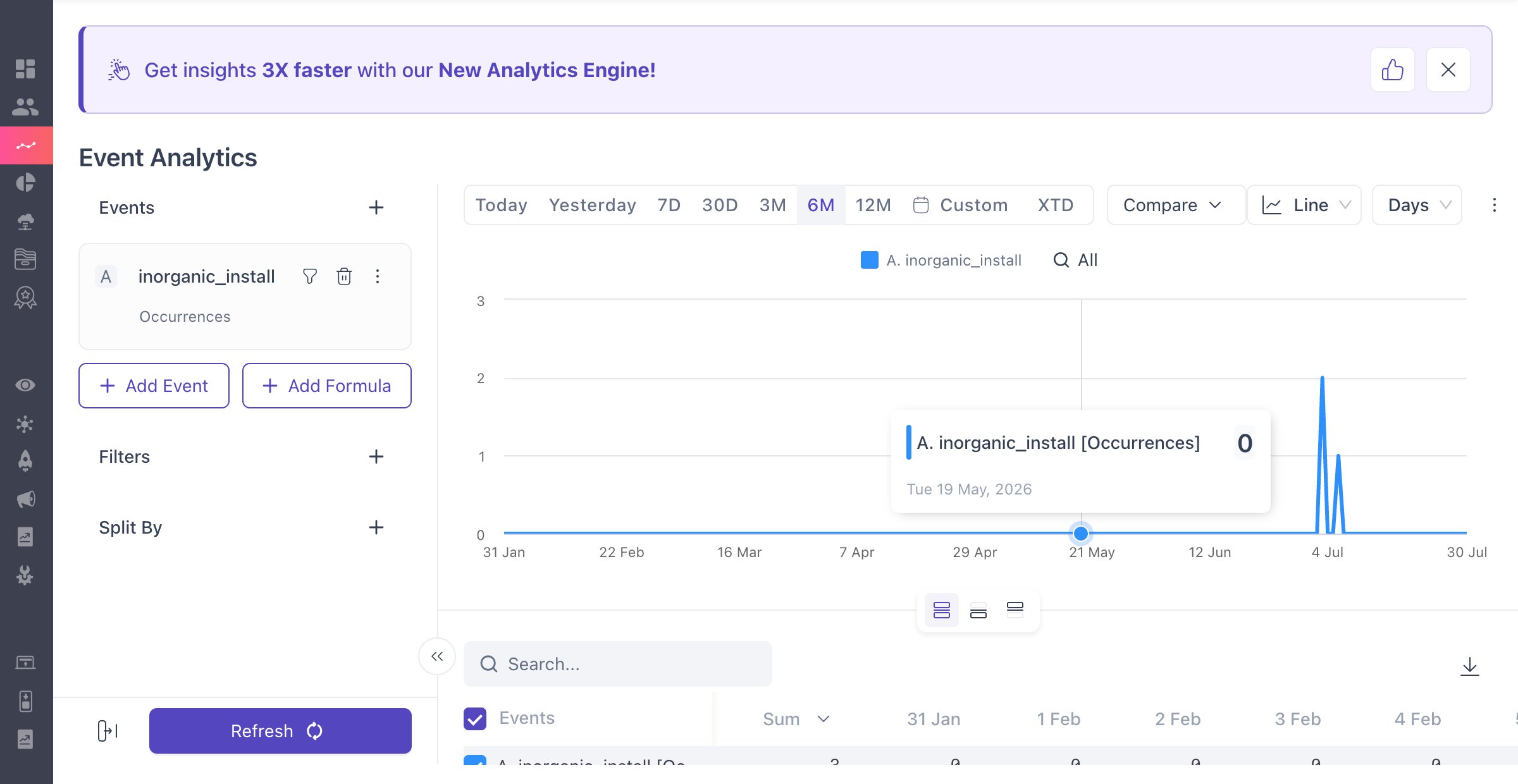
- Create segments based on acquisition source
- Trigger journeys based on organic or inorganic installs
- Personalize messaging based on campaign origin
- Analyze user behavior by acquisition channel