

Overview
Use ChatGPT Ads with Linkrunner when you want to send ChatGPT ad traffic through one Linkrunner campaign link, attribute installs and in-app events, and send server-side conversions back to OpenAI through the OpenAI Conversions API. The recommended flow is:- Create or prepare your ChatGPT Ads account in ChatGPT Ads Manager.
- Create a Pixel and a Conversions API key in OpenAI Ads Manager under Tools → Conversions.
- Add the Pixel ID and Conversions API key in Linkrunner and validate them.
- Create a Linkrunner campaign link for each ChatGPT ad you want to measure.
- Use that link as the ad’s destination URL, and set the landing page query parameters.
- Test the full click, install, first open, and event flow before scaling spend.
Linkrunner captures OpenAI’s
oppref click ID when a user clicks your ChatGPT ad. ChatGPT appends this value to the destination URL, so keep the Linkrunner campaign link intact and do not remove query parameters.What you need
- A Linkrunner project with the Linkrunner SDK installed in your app
- Android and iOS store URLs configured in Linkrunner
- Deep linking configured if the ad should open a specific in-app screen
- Access to a ChatGPT Ads account
- A Pixel ID
- A Conversions API key
You do not need a partnership with OpenAI to send Conversions API events. Any advertiser can create a Pixel ID and Conversions API key in Ads Manager and paste them into Linkrunner.
How ChatGPT Ads Manager is organized
Everything in ChatGPT Ads Manager hangs off four levels:
Two places in the left nav matter for this integration:
- Tools → Conversions holds your Pixel ID and your Conversions API key. Both go into Linkrunner.
- Settings holds the Ads API key, which manages campaigns. Linkrunner does not use it.
1. Create a Pixel and Conversions API key
Go to ChatGPT Ads Manager and sign in to the advertiser account that will run the campaign. If this is your first ChatGPT campaign, complete the business, billing, and advertiser setup first. Open Tools → Conversions. It has three tabs: Data Source, Conversion Events, and Event Stream. On Data Source, the string under each data source name is its Pixel ID. Copy it.
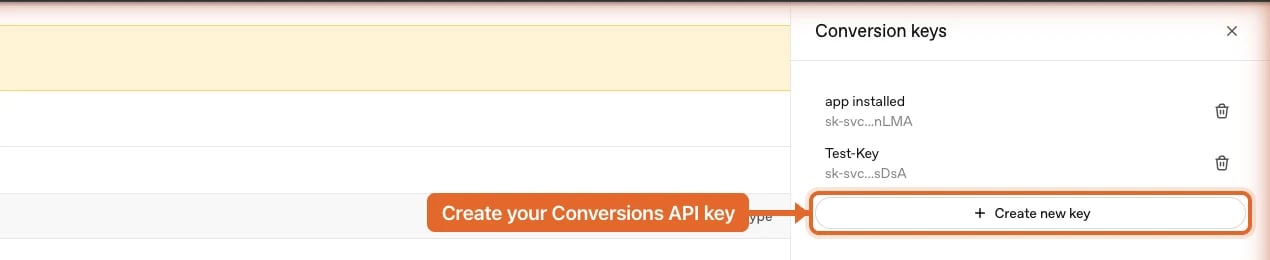
- Pixel ID - identifies the data source that should receive conversions.
- Conversions API key - authorizes Linkrunner to send events.
App events (
app_installed, app_opened) are Conversions API only. OpenAI does not currently support native mobile SDK setup or mobile data sources, so use a Pixel ID from an existing web data source.app_installed. This is the event a conversions campaign optimizes toward, so it has to exist here before you create the campaign.

2. Add ChatGPT Ads credentials in Linkrunner
Open your Linkrunner project and go to Dashboard > Integrations > ChatGPT Ads.- Open Pixel Management.
- Click Add ChatGPT Ads Pixel.
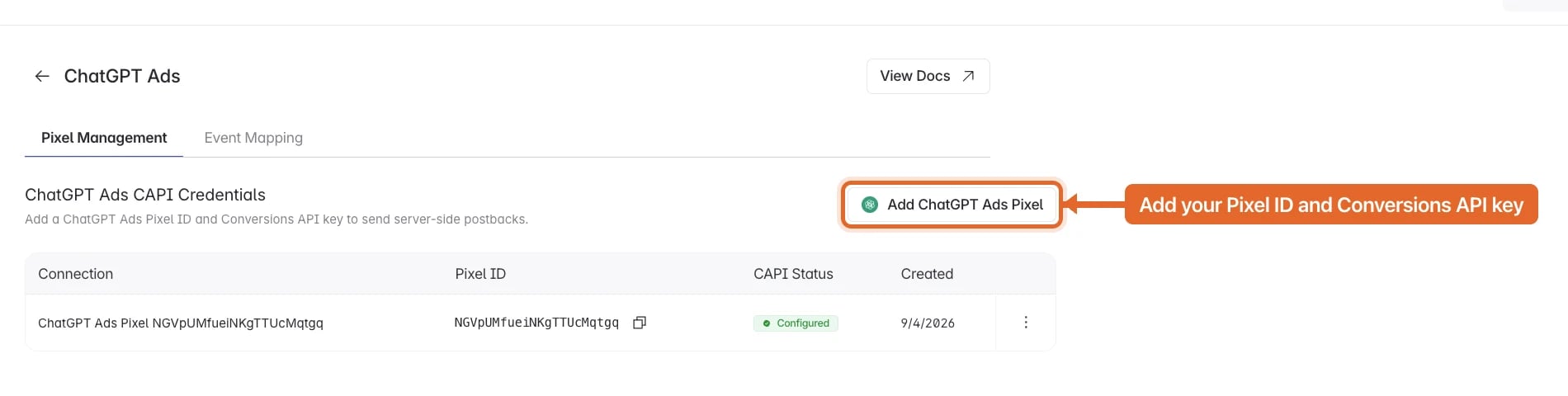
- Paste the Pixel ID and Conversions API key.
- Click Validate to check them, then Save Configuration.
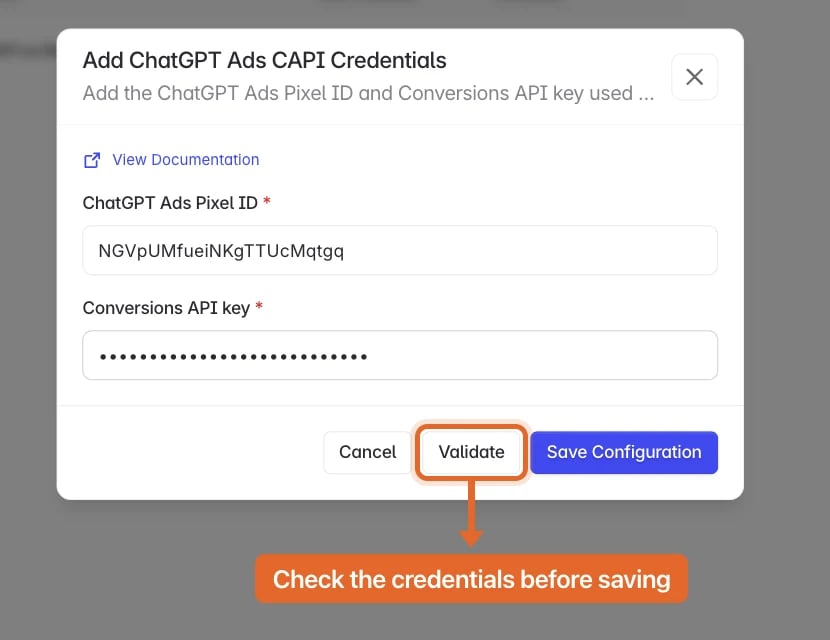
app_opened event with OpenAI’s validate_only flag, so it confirms the credentials without recording a conversion in your Ads Manager reporting.
3. Map events for ChatGPT Ads
Open the Event Mapping tab inside the ChatGPT Ads integration page. This tab becomes available after the Pixel ID and Conversions API key are saved.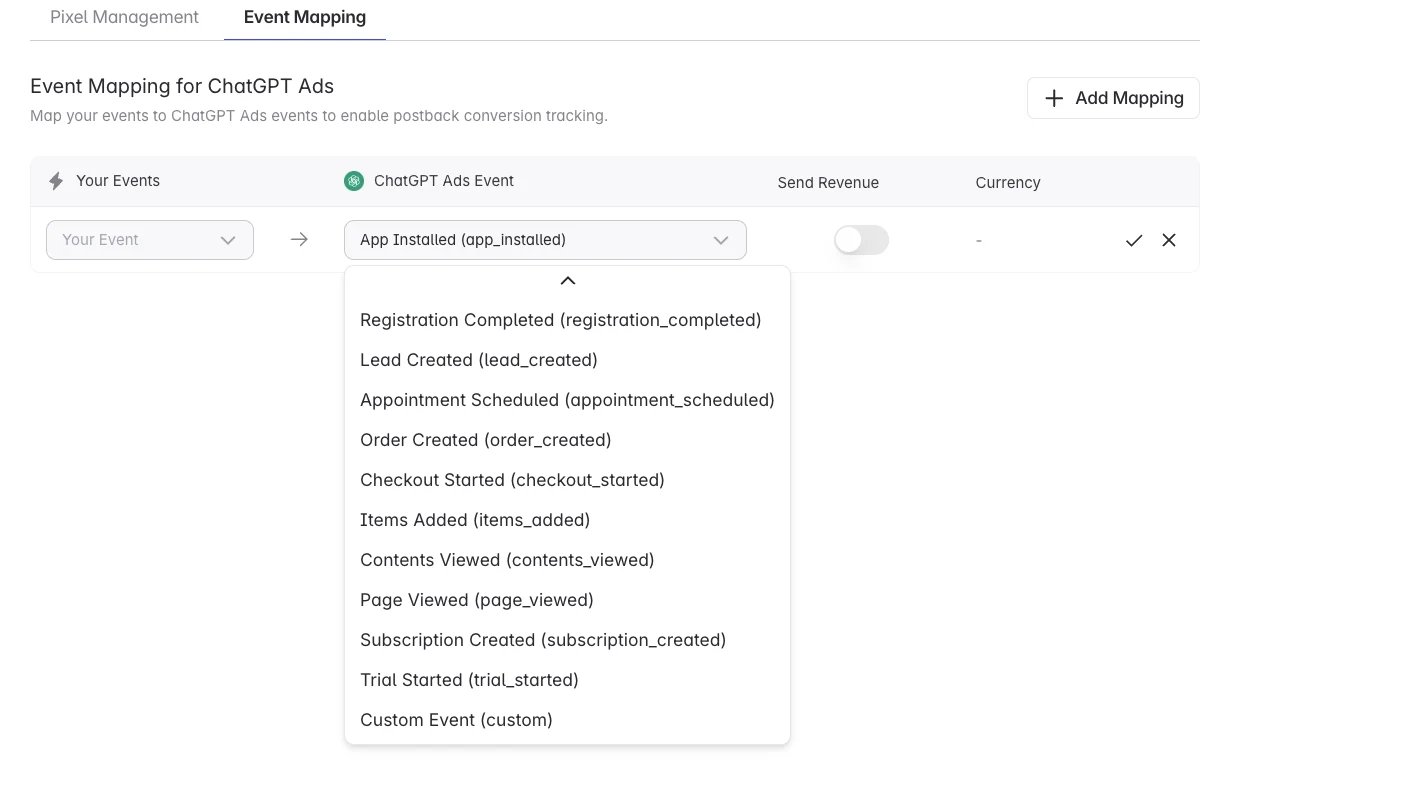
Other standard events you can map:
Custom events
Pick Custom Event (custom) when your app event has no standard equivalent, then type the event name ChatGPT should record it as.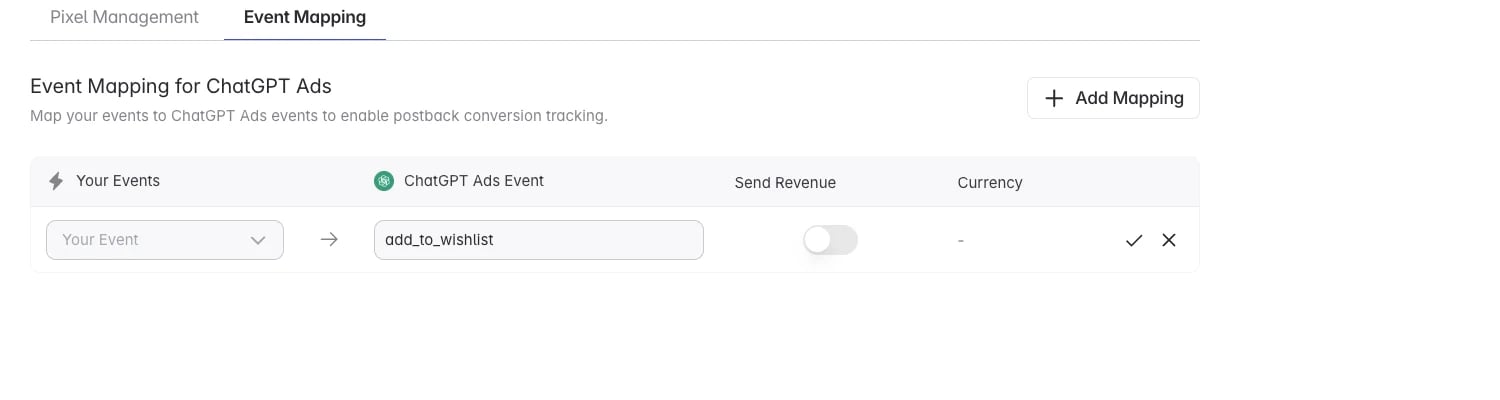
4200), including zero-decimal currencies such as JPY.
4. Create a Linkrunner campaign link
Before you create the ChatGPT ad, create the Linkrunner campaign link that ChatGPT will send users to.- Go to All Campaigns in Linkrunner.
- Click Create Link.
- Enter a campaign name. The Display ID fills in automatically and becomes the unique code at the end of your campaign link.
- Turn on Enable Deferred deeplinking if the ad should open a specific in-app screen after install.
- Open Advanced Options.
- Under Ad Channel, select ChatGPT Ads.
- Click Create Campaign, then copy the campaign link.
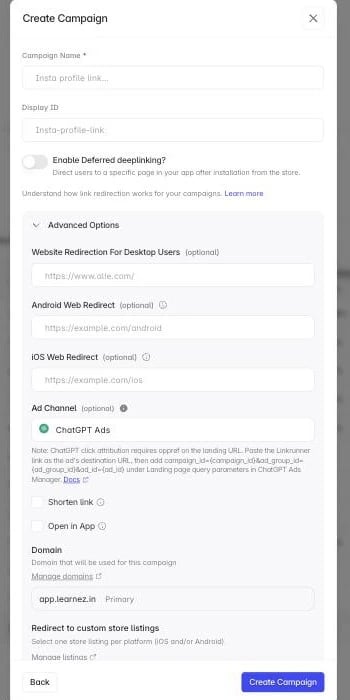
Create a new Linkrunner campaign for every ChatGPT destination link you want measured independently: different creatives, landing destinations, audiences, or experiments.
5. Create the ChatGPT campaign
After the Linkrunner campaign link is created, go to ChatGPT Ads Manager and create the campaign that will use it. The New campaign wizard has three steps: Create Campaign, Create Ad Group & Ads, and Review.Step 1: Create Campaign
Name the campaign, then set:- Objective to Conversions, so OpenAI optimizes delivery toward your app event.
- Conversion event to the event you want to buy, usually App Installed. This list comes from the Conversion Events tab you checked earlier.
- Locations, Eligible platforms, Budget, and the schedule.
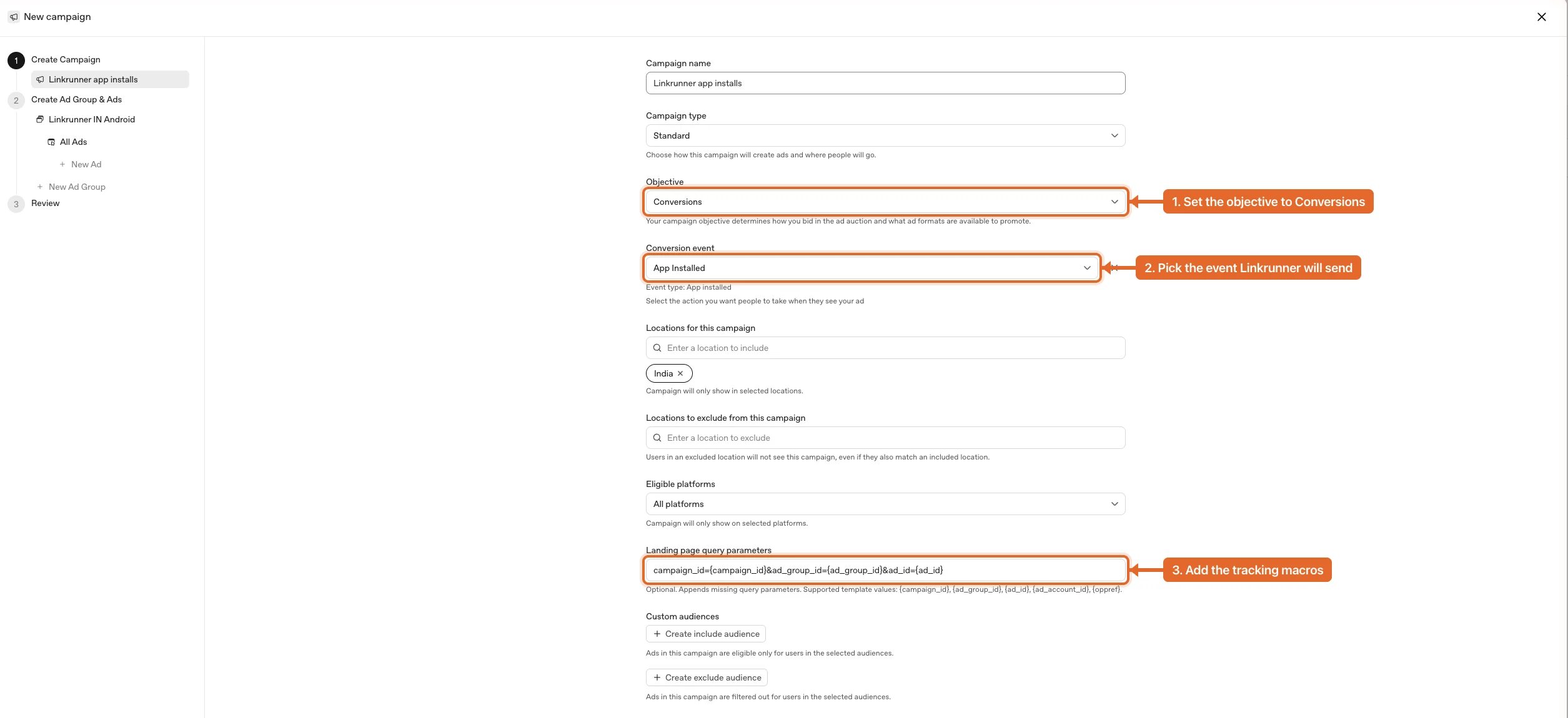
Step 2: Create Ad Group & Ads
Name the ad group and set the bid strategy, then fill the two fields Linkrunner depends on.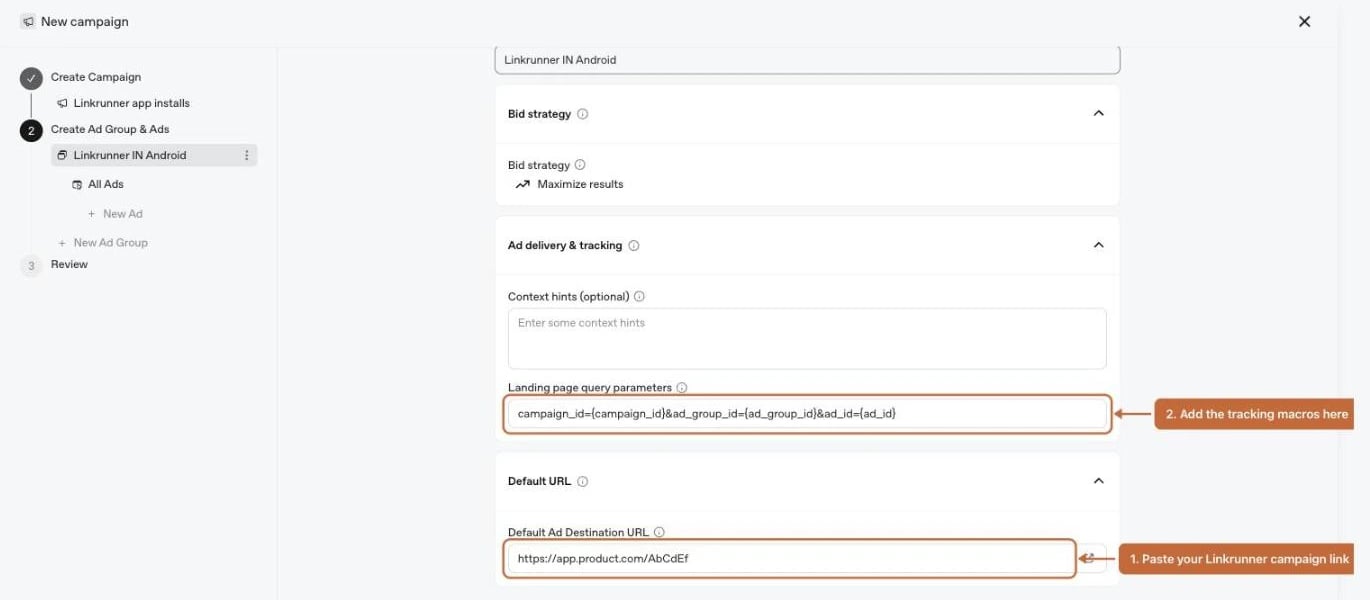
oppref to it on every click.
Landing page query parameters takes the tracking macros:
{campaign_id}, {ad_group_id}, {ad_id}, {ad_account_id}, and {oppref}.
ChatGPT substitutes each macro at click time, so a real click arrives at your Linkrunner link as:
Step 3: Create the ad
Add the headline, description, and images. Destination URL is pre-filled from the ad group’s default, so leave it as the Linkrunner campaign link.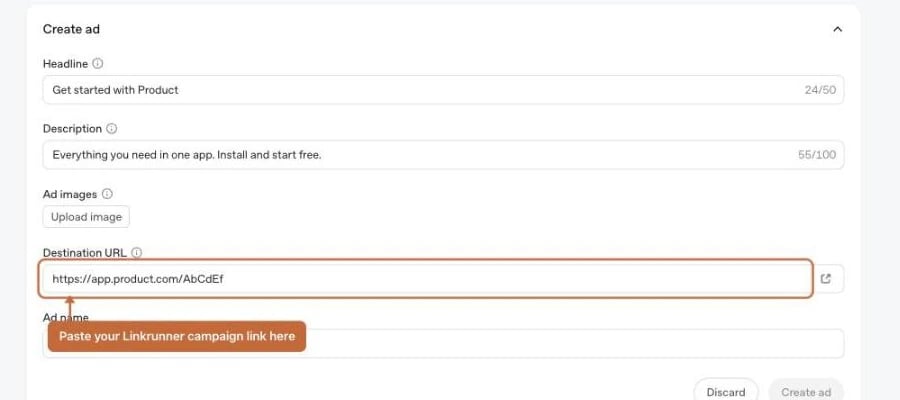
Step 4: Review and publish
- Confirm the ad account owns the same Pixel configured in Linkrunner.
- Confirm the destination URL is the Linkrunner campaign link.
- Confirm the landing page query parameters are set.
- Confirm the budget is intentionally low for the first test.
- Unpause the campaign when everything is correct.
6. Open a specific screen with deep linking
By default a ChatGPT ad sends a new user to your app’s home screen. Deep linking sends them to a specific screen instead, such as the exact product in the ad, and it keeps working when the user did not have your app yet: they tap the ad, install from the store, and land on that screen the first time they open the app. That second case is called deferred deep linking, and it is the one that matters for ads. You do not need a different link for this. The same Linkrunner campaign link carries it.Your app must handle deep links before this works. Follow Deep Linking Setup first, then come back here.
1
Turn on deferred deep linking when you create the campaign
In the Create Campaign form, switch on Enable Deferred deeplinking?, then enter the screen you want users to land on.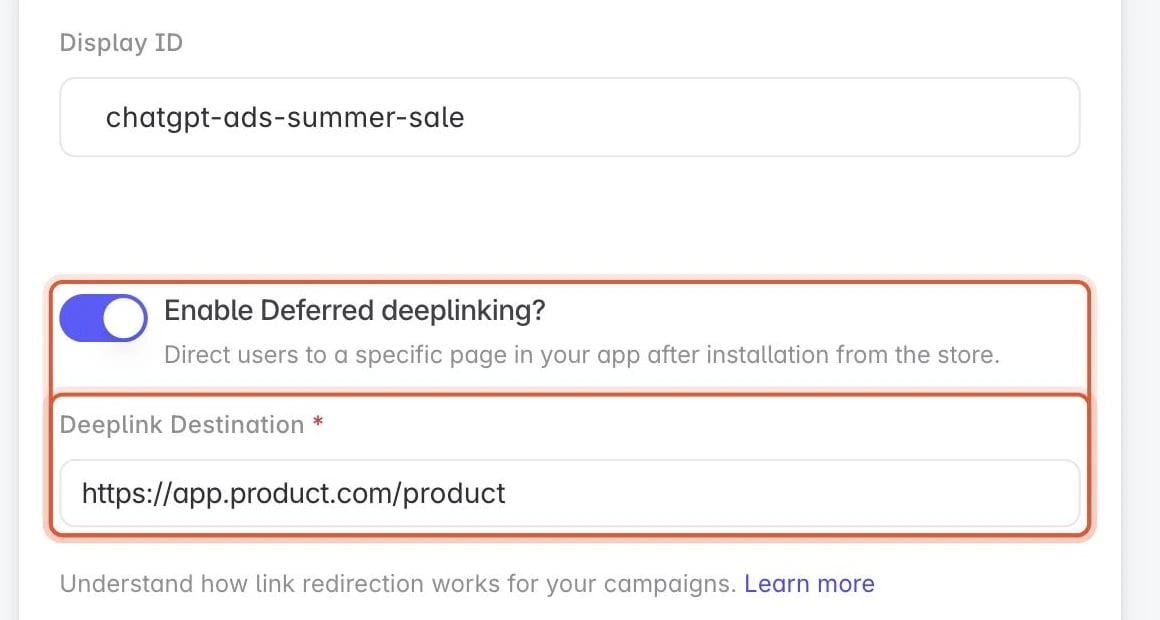
2
Paste the campaign link into ChatGPT Ads Manager
Nothing changes in ChatGPT Ads Manager. Paste the Linkrunner campaign link into Default Ad Destination URL on the ad group, exactly as you would for a campaign without deep linking.
3
Add per-ad values, if different ads point at different screens
Put your own values in Landing page query parameters, next to the tracking macros, and set them at the level you want them to vary. Setting them on an individual ad lets each creative open a different screen:Linkrunner merges these onto the destination from Step 1, so this ad resolves to:
4
Read the destination in your app
After the user installs and opens your app, call Read the values your app defined, in this example
getAttributionData(). The deeplink field holds the resolved URL:variant_id, and route the user to that screen.Test it before you spend
Deferred deep linking only takes the deferred path on a genuinely fresh install, so test in this order:- Delete your app from the test device.
- Click your Linkrunner campaign link on that device.
- Install the app from the store.
- Open the app and log what
getAttributionData()returns. - Confirm
deeplinkholds the destination you configured, with your parameters on it.
How attribution and CAPI work
When a ChatGPT user clicks your ad, OpenAI appendsoppref to the destination URL. It is an opaque token, and Linkrunner captures it on the campaign link click and carries it through install attribution unchanged.
For attributed installs and mapped in-app events, Linkrunner sends an OpenAI Conversions API event to https://bzr.openai.com/v1/events?pid=<PIXEL-ID> containing:
- The OpenAI click ID (
oppref) - The mapped event name and its data type
- Event time in milliseconds
- A deterministic deduplication ID, so a retry never double-counts
- Hashed user identifiers when available (email, phone, external ID, name)
- Google Advertising ID, IP address, user agent, and coarse location when available
- Amount in integer minor units plus currency, for revenue events
integration_source: linkrunner.
Conversions typically appear in the Ads Manager Conversions metric 24 to 48 hours after the event is sent.
Frequently Asked Questions
Why are my ChatGPT campaigns not showing up on Linkrunner?
Why are my ChatGPT campaigns not showing up on Linkrunner?
ChatGPT campaigns do not appear automatically on the Linkrunner dashboard. They show up after users click the Linkrunner campaign links you set as destination URLs in your ChatGPT ads.Confirm each ad uses a Linkrunner campaign link, the ad is active and receiving traffic, and your app is live with the Linkrunner SDK installed.
What is oppref and why is it important?
What is oppref and why is it important?
oppref is OpenAI’s click ID. ChatGPT appends it to the destination URL when a user clicks an ad, and Linkrunner captures it from the campaign link click.It is the only key OpenAI matches app conversions on. Keep the Linkrunner campaign link intact and do not strip URL parameters, or Linkrunner cannot match the install or event back to the ad click.Why are iOS devices not matched by device ID?
Why are iOS devices not matched by device ID?
OpenAI’s Conversions API accepts
android_advertising_id (GAID) but does not support IDFA. On iOS, matching relies on oppref plus any hashed user identifiers your app provides, so iOS attribution depends on the click ID being preserved.Why were some of my events not sent?
Why were some of my events not sent?
OpenAI rejects any event whose timestamp is more than 7 days old, and a single rejected event fails the entire batch it was sent in. Linkrunner drops events older than 7 days before sending and logs them as skipped, so one stale event can never block your other conversions.
Is view-through attribution supported?
Is view-through attribution supported?
Not for app events. ChatGPT app attribution is click-through only. A 1-day view-through window exists for web events, but it is reporting-only and does not apply to installs or in-app events.
Which countries can run ChatGPT Ads?
Which countries can run ChatGPT Ads?
OpenAI opened self-serve Ads Manager to India, 31 European markets, and 11 MENA markets on 31 August 2026, in addition to the earlier US, CA, AU, NZ, UK, JP, and KR markets. Check Ads Manager for the current list for your account.
Can I track revenue and purchase events?
Can I track revenue and purchase events?
Yes. Map your purchase event to
order_created and enable Send Revenue with the correct currency. Linkrunner converts the amount to the integer minor unit OpenAI requires.How do I verify Linkrunner is sending events to OpenAI?
How do I verify Linkrunner is sending events to OpenAI?
Use the Validate action on the Pixel Management tab to confirm credentials, then use Linkrunner’s test-event action for a mapped event. Verify installs and events through the Linkrunner SDK testing flow first, then confirm delivery in the Ads Manager Conversions tab after 24 to 48 hours.
Related setup
Deep Linking Setup
Configure Android App Links and iOS Universal Links.
Deferred Deep Linking
Read deferred deep link data after first app open.