

Appearance
Create an Agency Web Campaign
Create a tracked link to a customer's website from your agency workspace
A web campaign is a link to the customer's website. Visits, sign-ups and revenue from it show on the customer's Web Campaigns page. For links that open the customer's app, see Create an Agency Campaign Link.
Create web campaigns from your agency workspace. A link the customer creates for you is not credited to your agency.
Before you start
You need:
- An approved agency workspace. See Set up your workspace.
- A customer who has engaged your agency on their project, with Web Campaigns turned on for that project.
- Permission from that customer to create web campaigns. App and Web are set separately, so access to App campaigns does not include Web (step 1).
1. Ask the customer to turn on Web campaigns
The customer does this once, from their own dashboard. Send them these steps.
Open your agency's access
In their project, they go to Settings → Members and click the sliders icon on your agency's row.
Turn on Web campaigns → Edit
On the Web campaigns tab, they turn on Edit next to Web campaigns. This also turns on Read. Then they click Save.
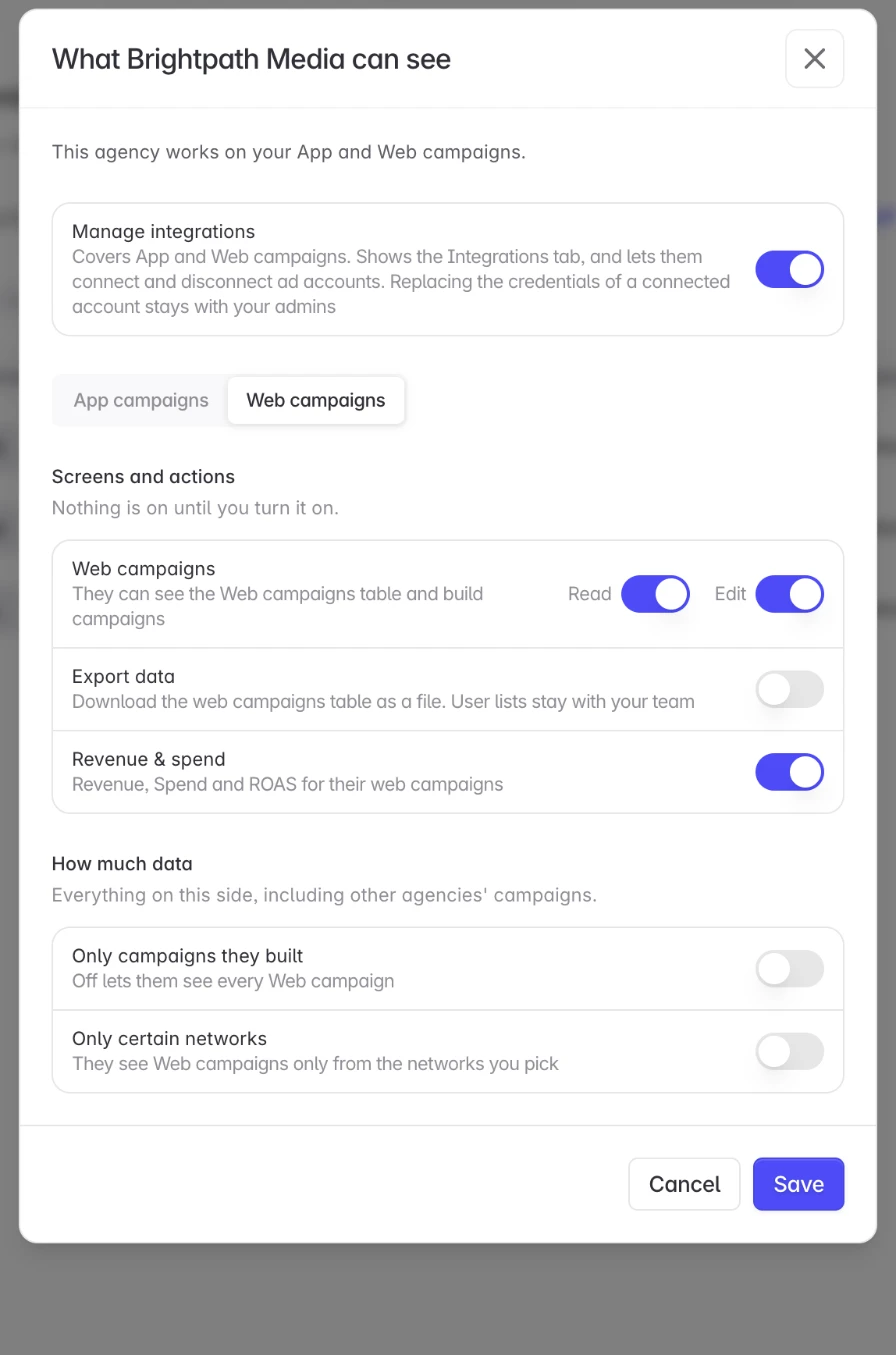
If the customer turns on Only certain networks on the Web campaigns tab, they must include your agency's own network. Otherwise you can see web campaigns but cannot create one.
Control agency access is the customer's own reference for that window. Send it with the steps above.
2. Open Web Campaigns
Select the customer
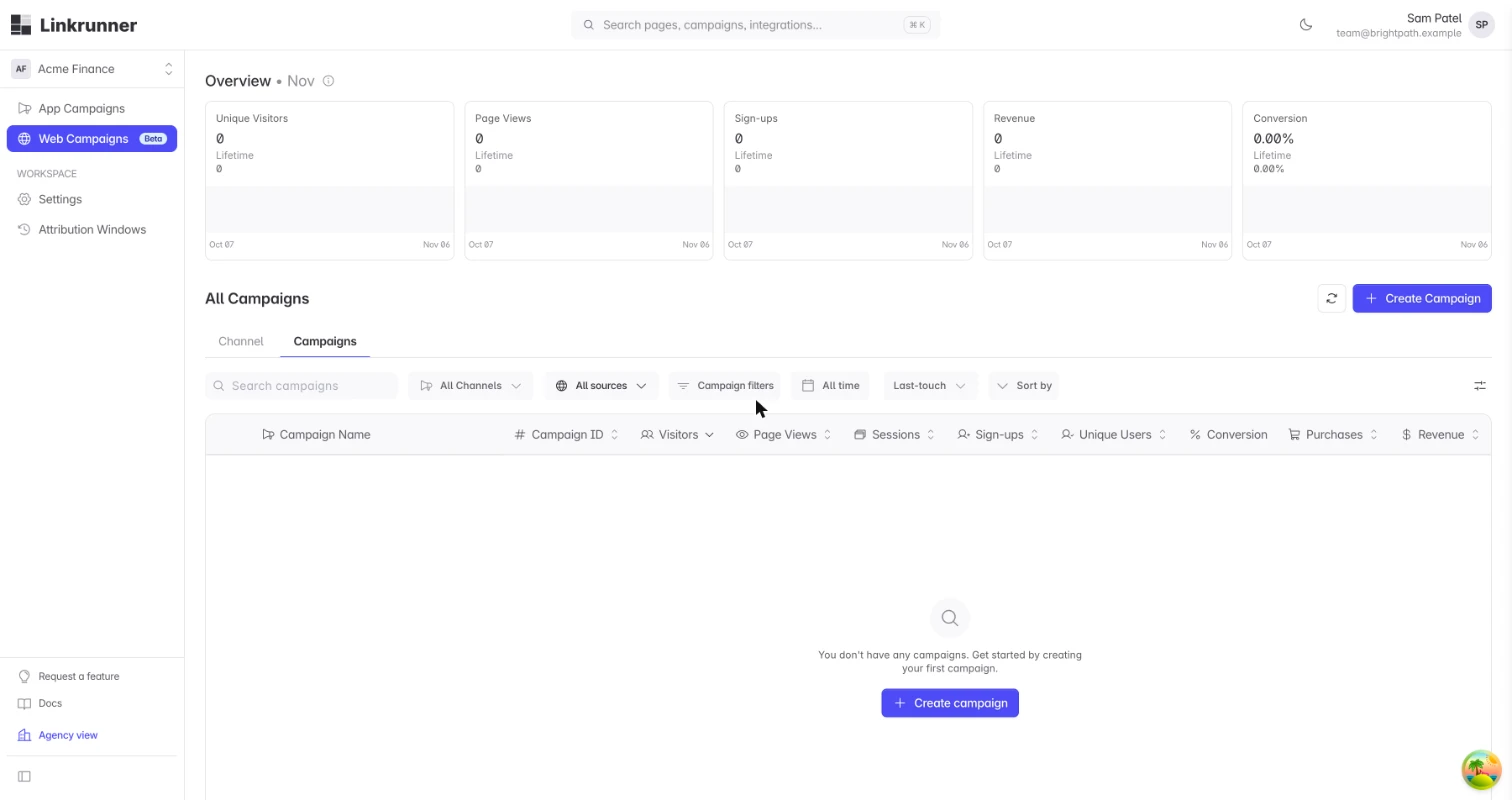
Open Linkrunner Dashboard, sign in with your agency account, and pick the customer's project from the project picker at the top of the sidebar.
Open Web Campaigns
Select Web Campaigns in the sidebar, then click Create Campaign.
3. Fill in the campaign
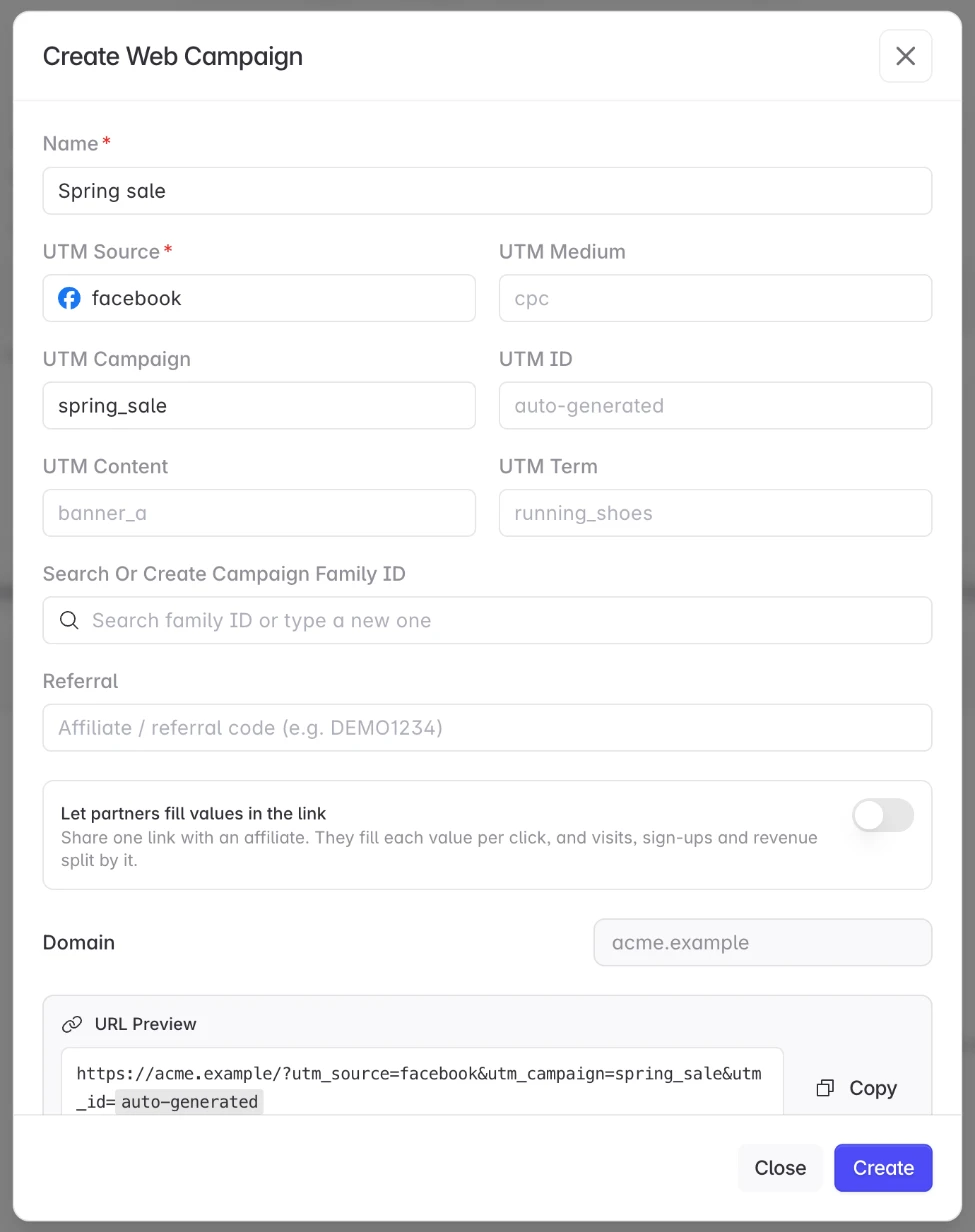
- Enter a Name that you and the customer will recognise.
- Pick or type the UTM Source, for example
facebook. It is required. - Add UTM Medium, UTM Campaign, UTM Content and UTM Term if you use them.
- Leave UTM ID empty. Linkrunner generates it for agency campaigns.
- Check the URL Preview at the bottom, then click Create.
4. Copy your link
Copy the Campaign link and use it in your ads.
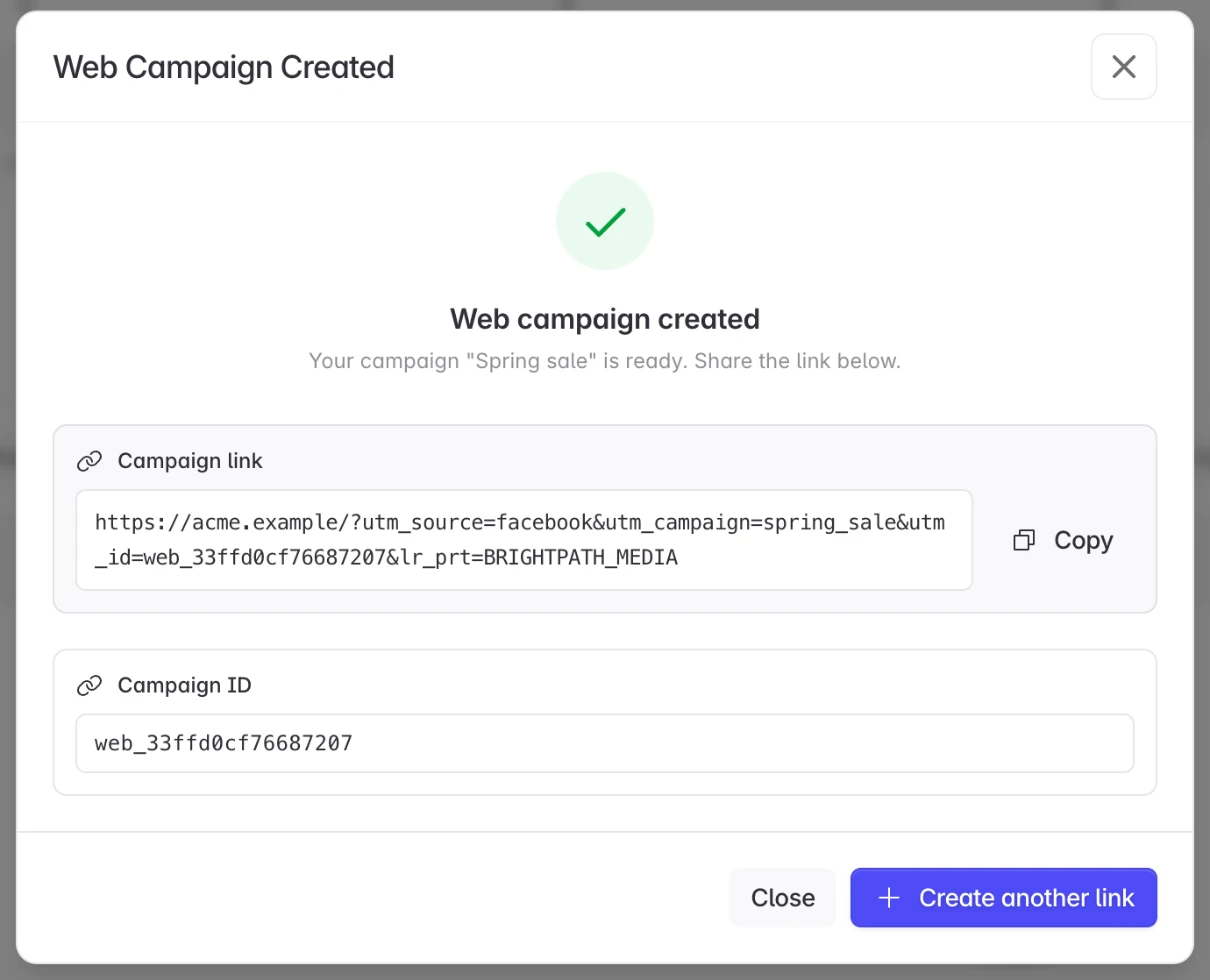
The link ends with lr_prt= and your agency's code, which marks it as built by your agency. Use the link exactly as shown. The campaign is credited to your agency, and the customer sees your agency on it in their Web Campaigns list.
5. Check the results
A new campaign has no row in the table until the link gets its first visit. Open the link in a browser, then check Web Campaigns after a few minutes. Visits, sign-ups and revenue follow what the customer has given you: revenue and spend show only with Revenue & spend on the Web campaigns tab.
Troubleshooting
"The customer has turned off your access to this"Creating was refused when you clicked Create.
Either Web campaigns → Edit was turned off, or Only certain networks on the Web campaigns tab leaves out your agency's network. Ask the customer to check your agency's access in Settings → Members.
"Configure a Web SDK token before creating a web campaign"The customer's website is not set up yet.
The customer has not set up the Web SDK on their project. Ask them to finish their website setup first.
Need help? Contact support@linkrunner.io