

You need your agency name, a logo, a short description, your website, and a contact email. Everything is required, and you can change all of it later from Agency Settings.
1. Open the invitation
The email subject reads “<Project> has invited you to run their campaigns on Linkrunner” and names the project you are being invited to. Click the setup link inside it. The link is valid for 14 days. If it has expired, ask your customer to send a new one.2. Sign in with the invited address
The landing page names the agency you are joining and the address the invitation was sent to. Click Continue.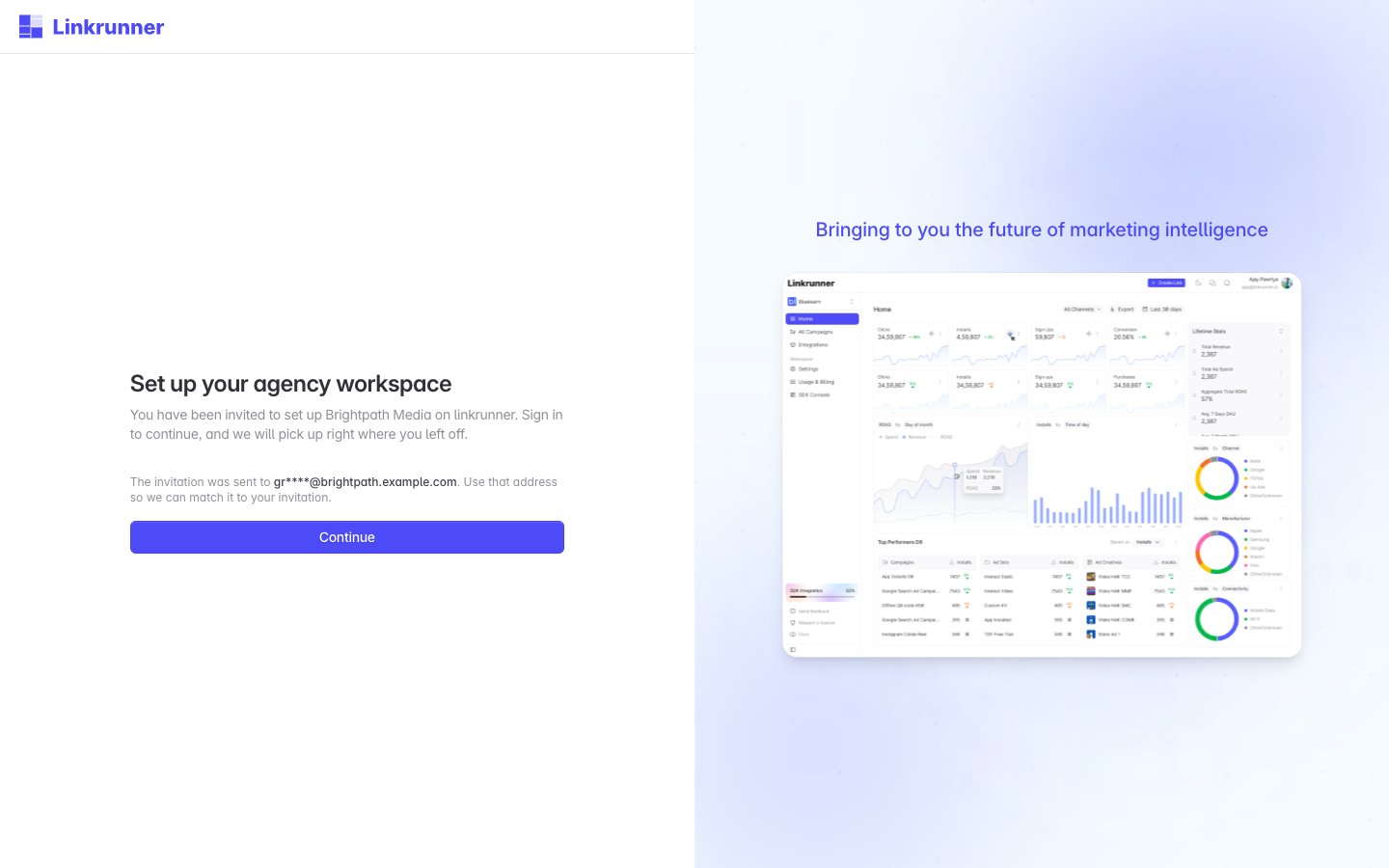
Nothing is created until you follow the link and sign in. If you were not expecting the invitation, you can ignore the email.
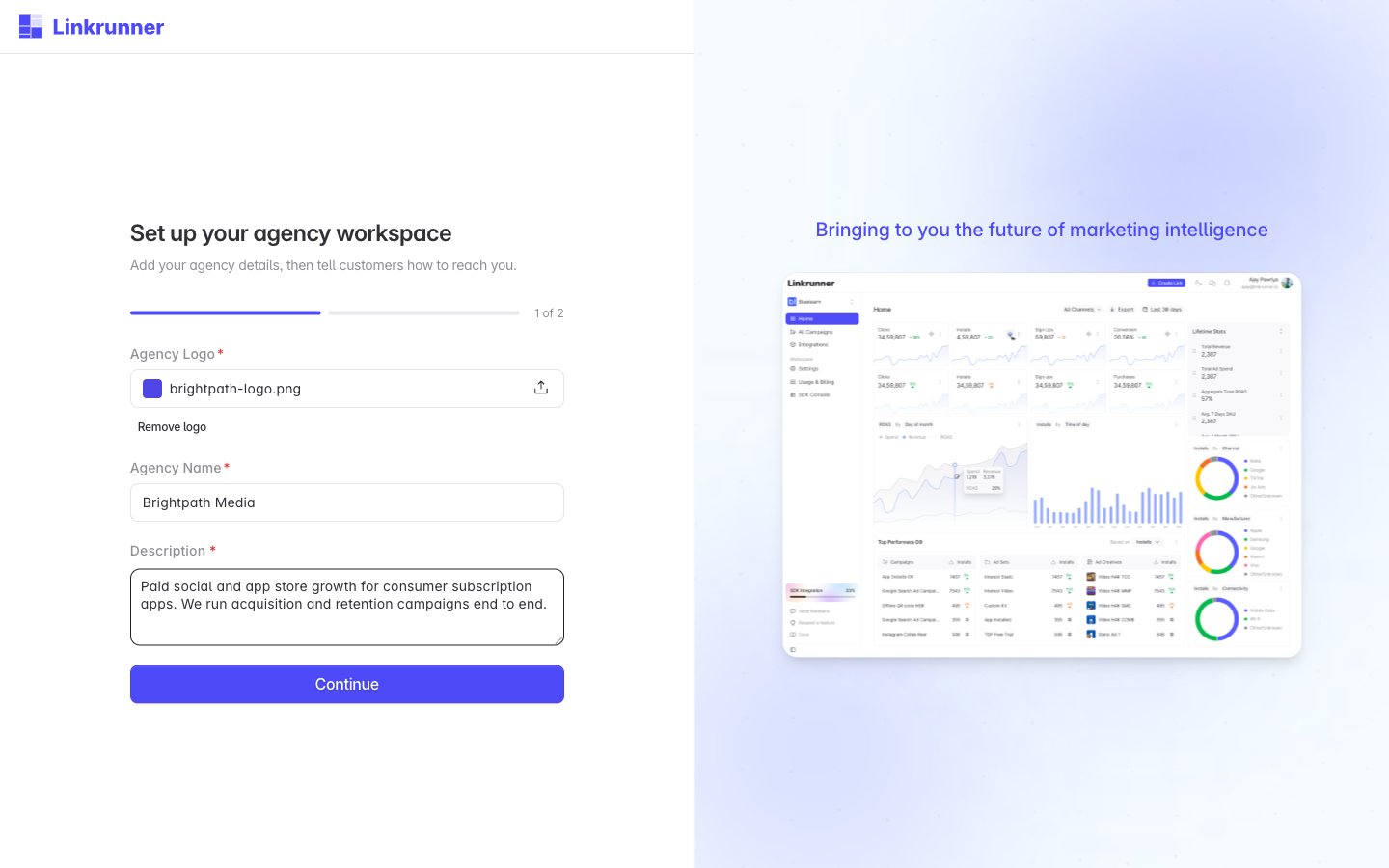
3. Add your agency details
1
Upload your logo
A PNG, JPG, or WebP file up to 5 MB. Customers see it when they pick your agency.
2
Name your agency
The registered name of your company, as customers should recognise it.
3
Describe what you do
At least 20 characters on what your agency specialises in. This appears next to your name in the customer’s agency directory.
4
Continue
Click Continue to move to your contact details.
4. Add your contact details
Enter your Website and a Contact email. Use an address your team monitors, because it is the address customers reach you on.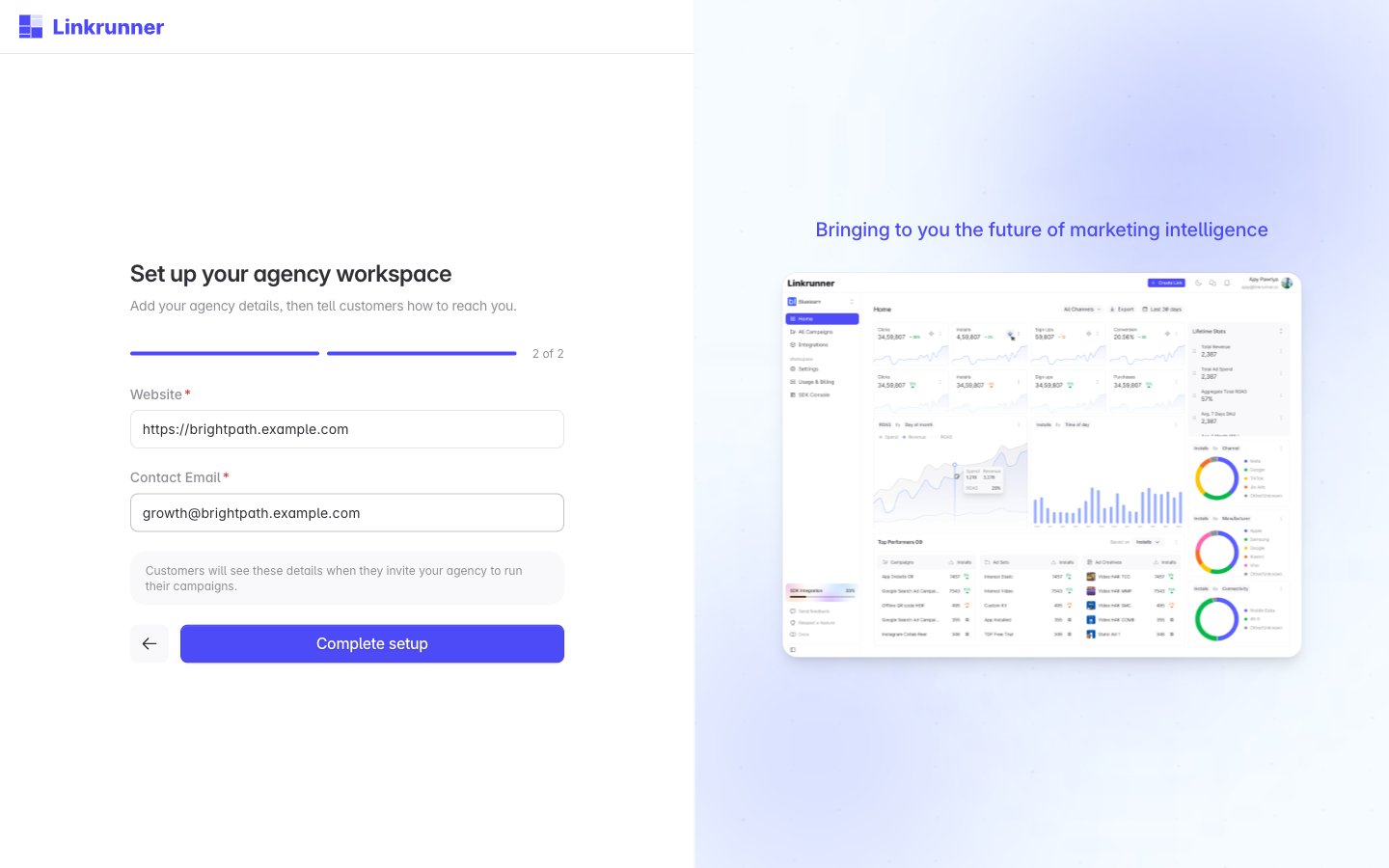
5. Wait for review
Linkrunner reviews new agency workspaces. Until that is done your workspace exists but has nothing in it, and the We are reviewing your workspace screen is what you see.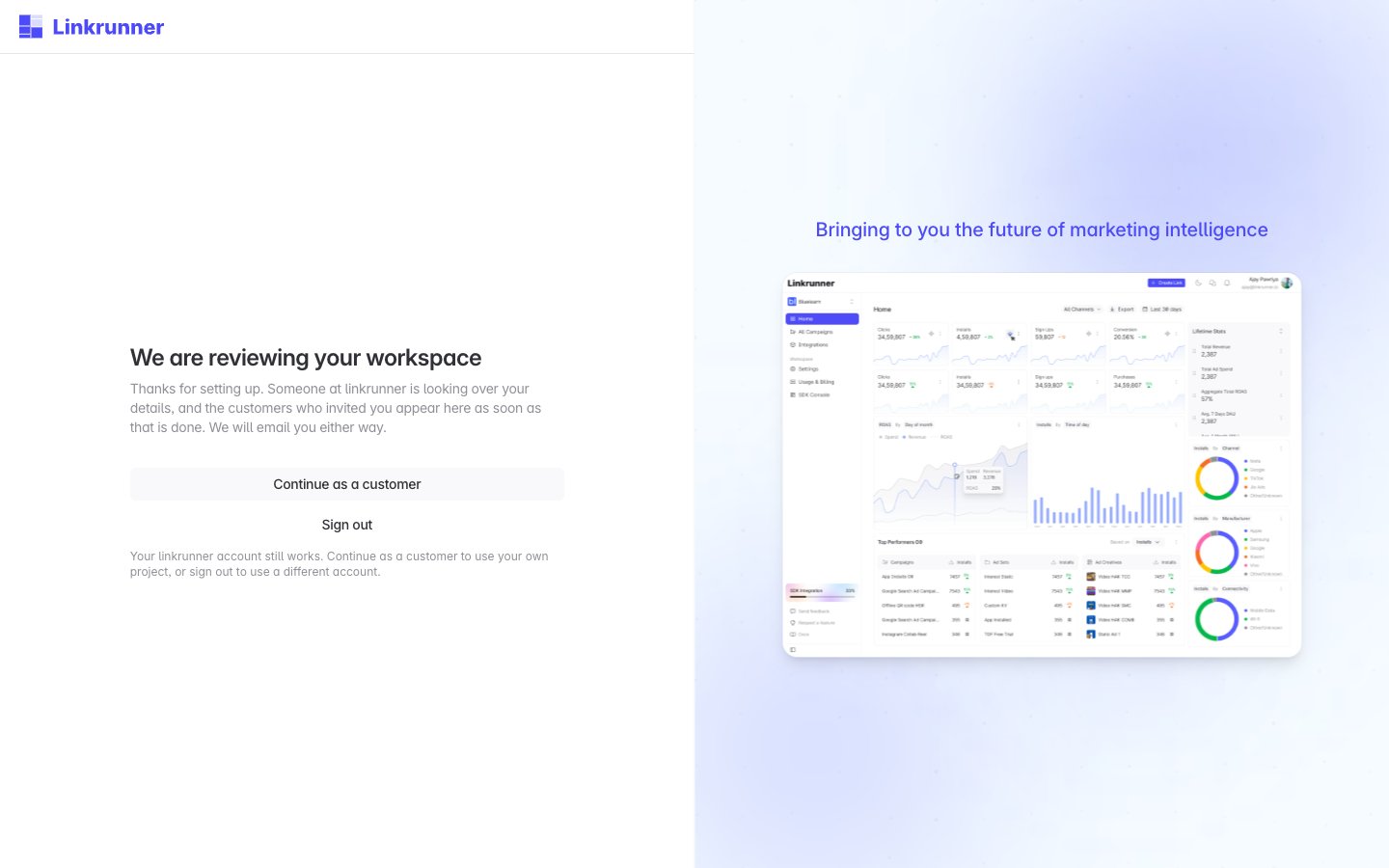
6. Start working
After approval, sign in at dashboard.linkrunner.io and pick the customer’s project from the project picker. From there you can create campaigns and track their performance. Every customer that engages you afterwards lands in this same workspace. You never set it up again.Troubleshooting
The invitation link expired. Invitations are valid for 14 days. Ask your customer to send a new one from Settings → Members. “This invitation belongs to a different email”. You are signed in as someone else. Click Sign out and use another account, then sign in with the address the invitation was sent to. “This invitation has already been used”. If you accepted it before, sign in with the invited address and you land back in your workspace setup. Otherwise ask your customer for a new invitation. Continue is disabled on the details step. Add a logo, an agency name of at least 2 characters, and a description of at least 20 characters. Complete setup is disabled. Enter a full website URL, includinghttps://, and a valid contact email.
Your workspace still says it is being reviewed.
Linkrunner has not finished the review. You get an email when it is done.
Your workspace was not approved, or is suspended.
Contact support@linkrunner.io.
Need help? Contact support@linkrunner.io