

Appearance
Create an Agency Account
Sign up as an agency partner, add your agency details, and get your workspace approved so customers can engage you
An agency account gives you one workspace for running campaigns inside the Linkrunner projects of the customers you work with. You can create it yourself. You do not need a customer to invite you first.
You need your agency's work email address (personal Gmail addresses are not supported), a logo, your agency name, a short description, your website, and a contact email. You can change all of the details later from Agency Settings.
Got an invitation email from a customer? Use the link in that email instead, so your workspace is connected to that customer. See Set up your agency workspace.
1. Open the sign up page
Open Agency Partner Sign Up and click Continue.
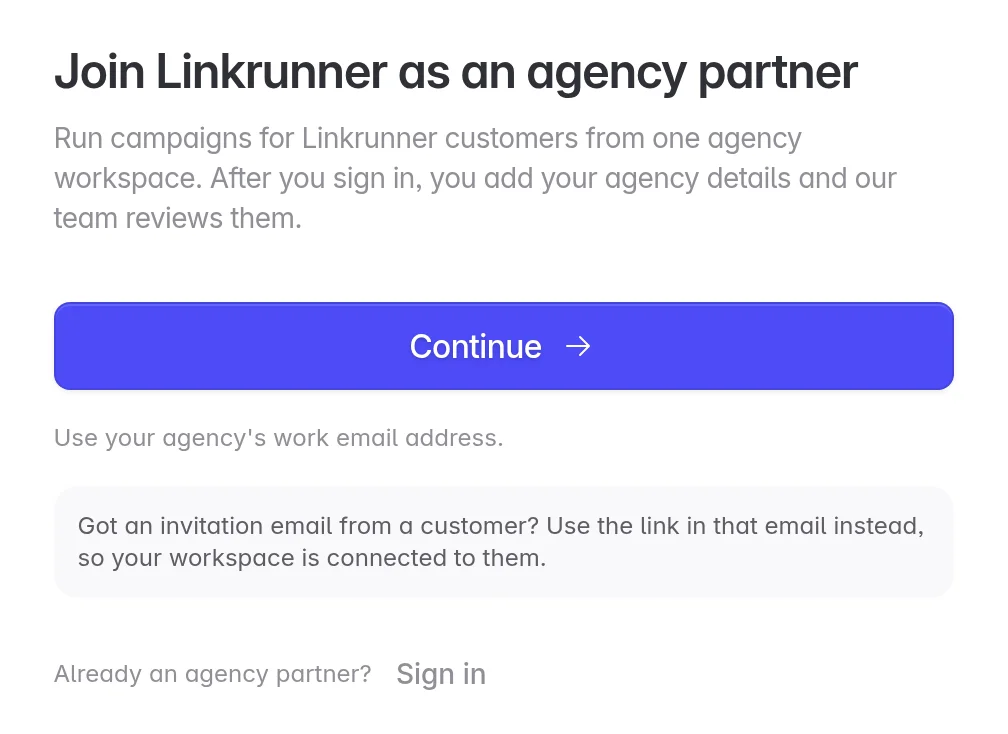
If your agency already has a workspace, click Sign in instead.
2. Sign in with your work email
Choose Continue with Google, or enter your Email address and click Send sign-in link, then open the link sent to your inbox. Use your agency's work email.
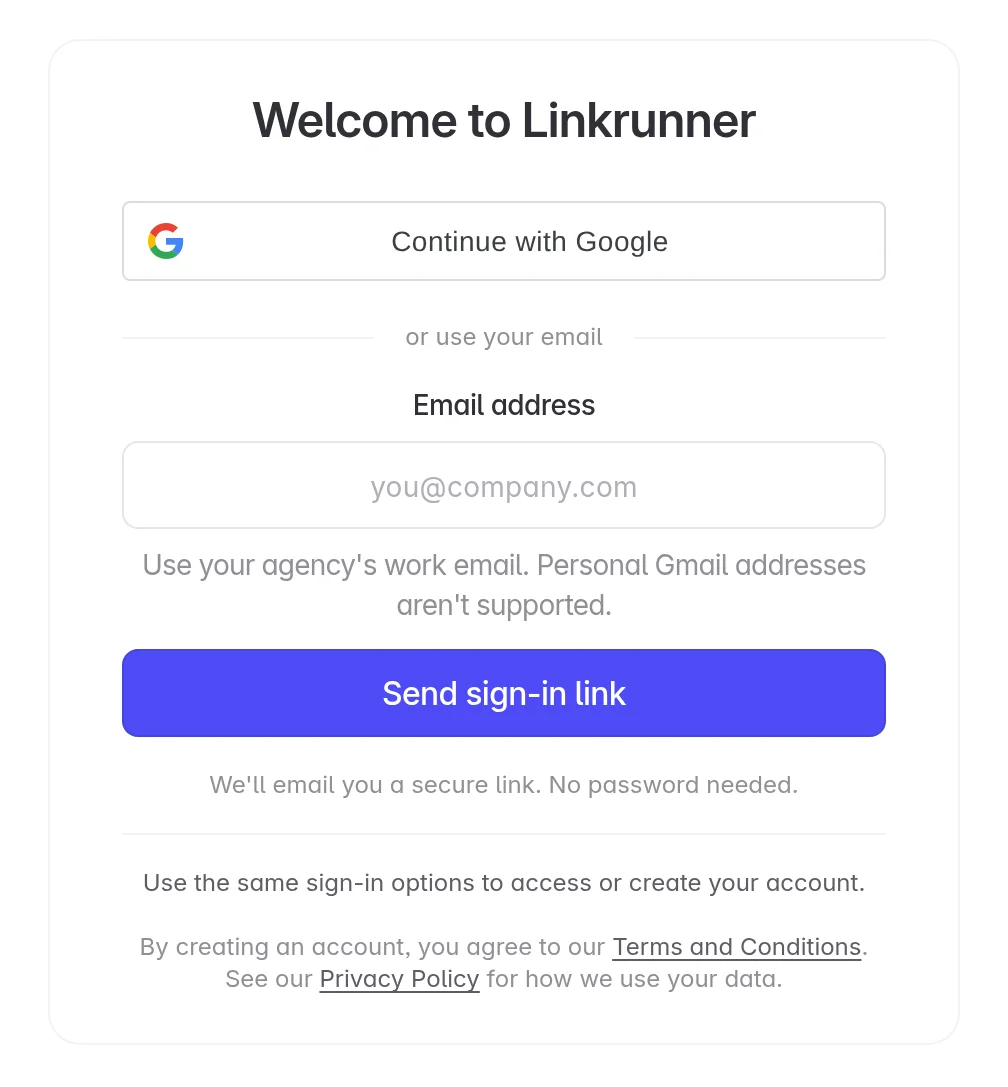
The address you sign in with owns the agency workspace. You invite the rest of your team later, from Agency Settings → Members.
3. Create your agency workspace
After you sign in, you return to the sign up page. It shows the address you are signed in as. Check that it is the right one, then click Create agency workspace.
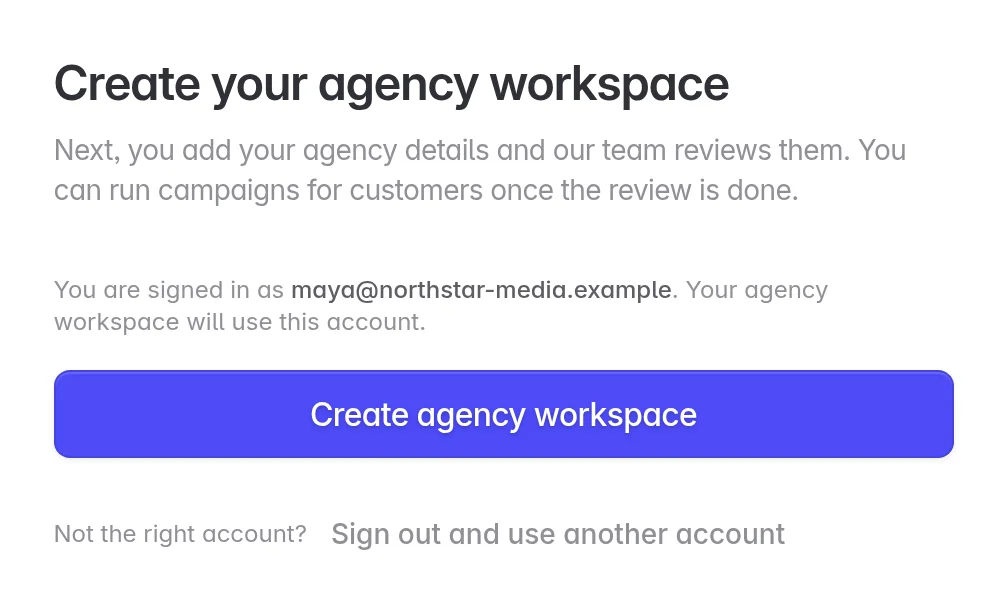
If it is the wrong address, click Sign out and use another account and sign in again.
4. Add your agency details
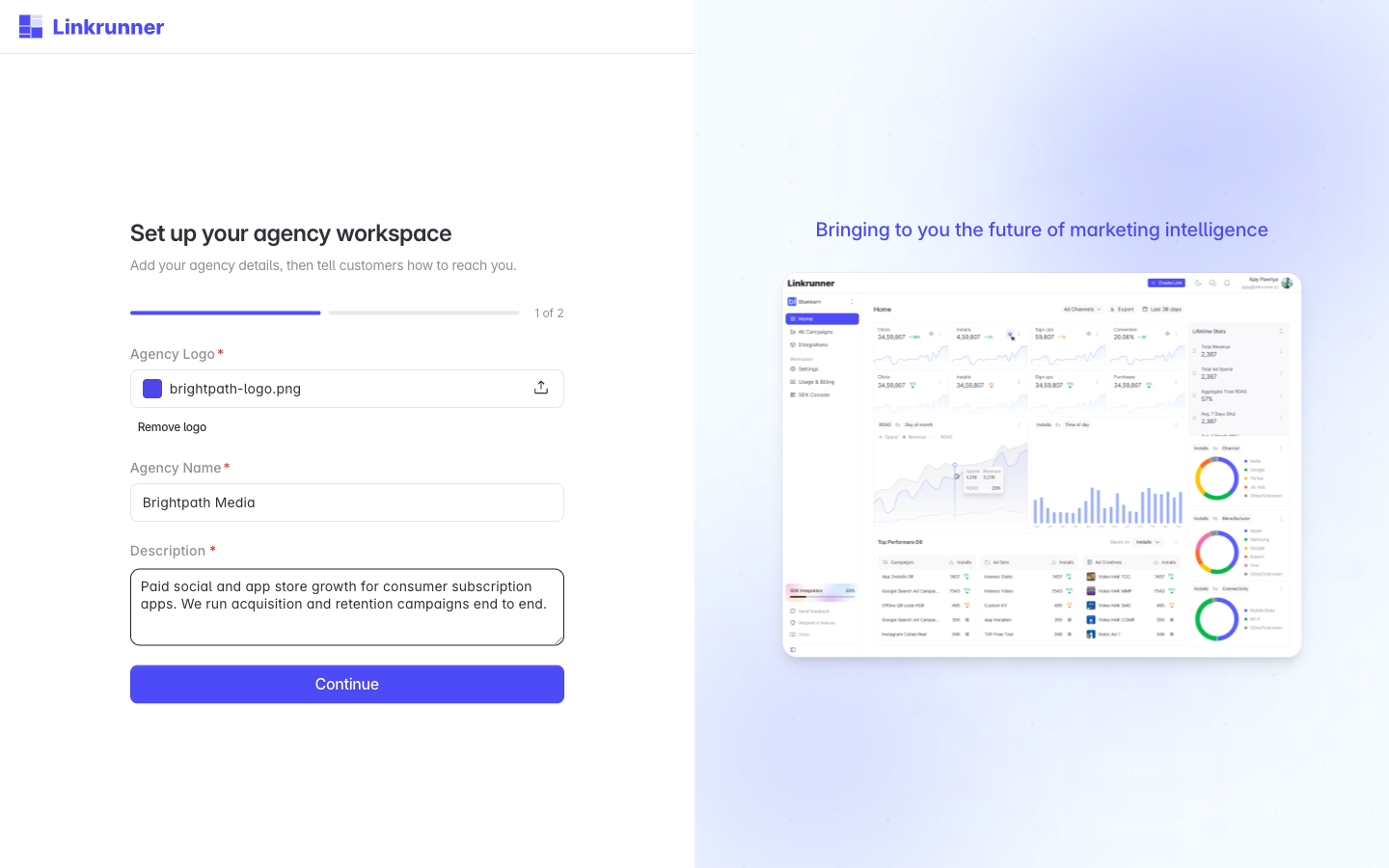
Upload your logo
A PNG, JPG, or WebP file up to 5 MB. Customers see it when they pick your agency.
Name your agency
The registered name of your company, as customers should recognise it.
Describe what you do
At least 20 characters on what your agency specialises in. This appears next to your name in the customer's agency list.
Continue
Click Continue to move to your contact details.
Enter your Website and a Contact email. Use an address your team monitors, because it is the address customers reach you on. Then click Complete setup.
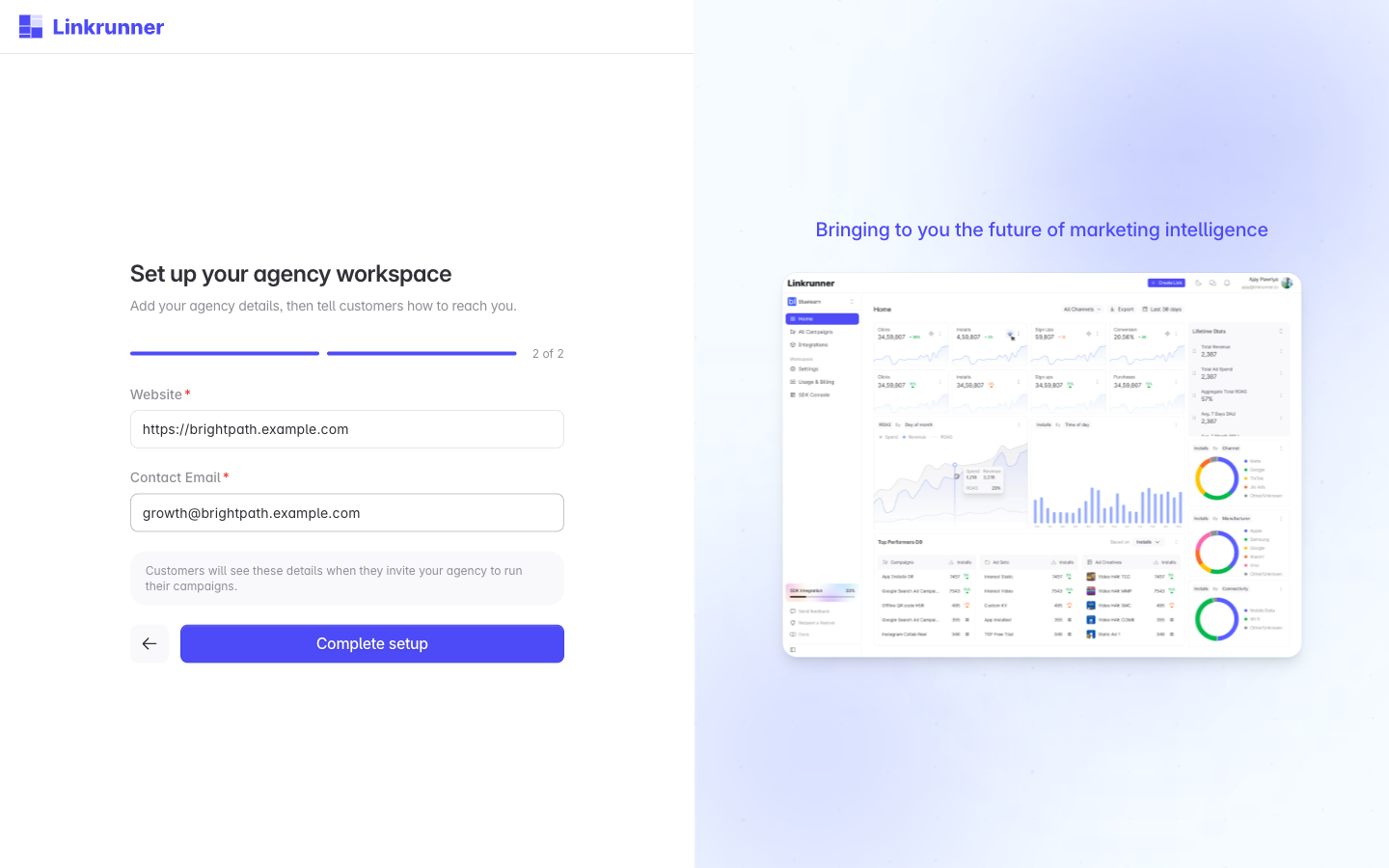
5. Wait for review
Linkrunner reviews new agency workspaces. Until that is done, you see the We are reviewing your workspace screen.
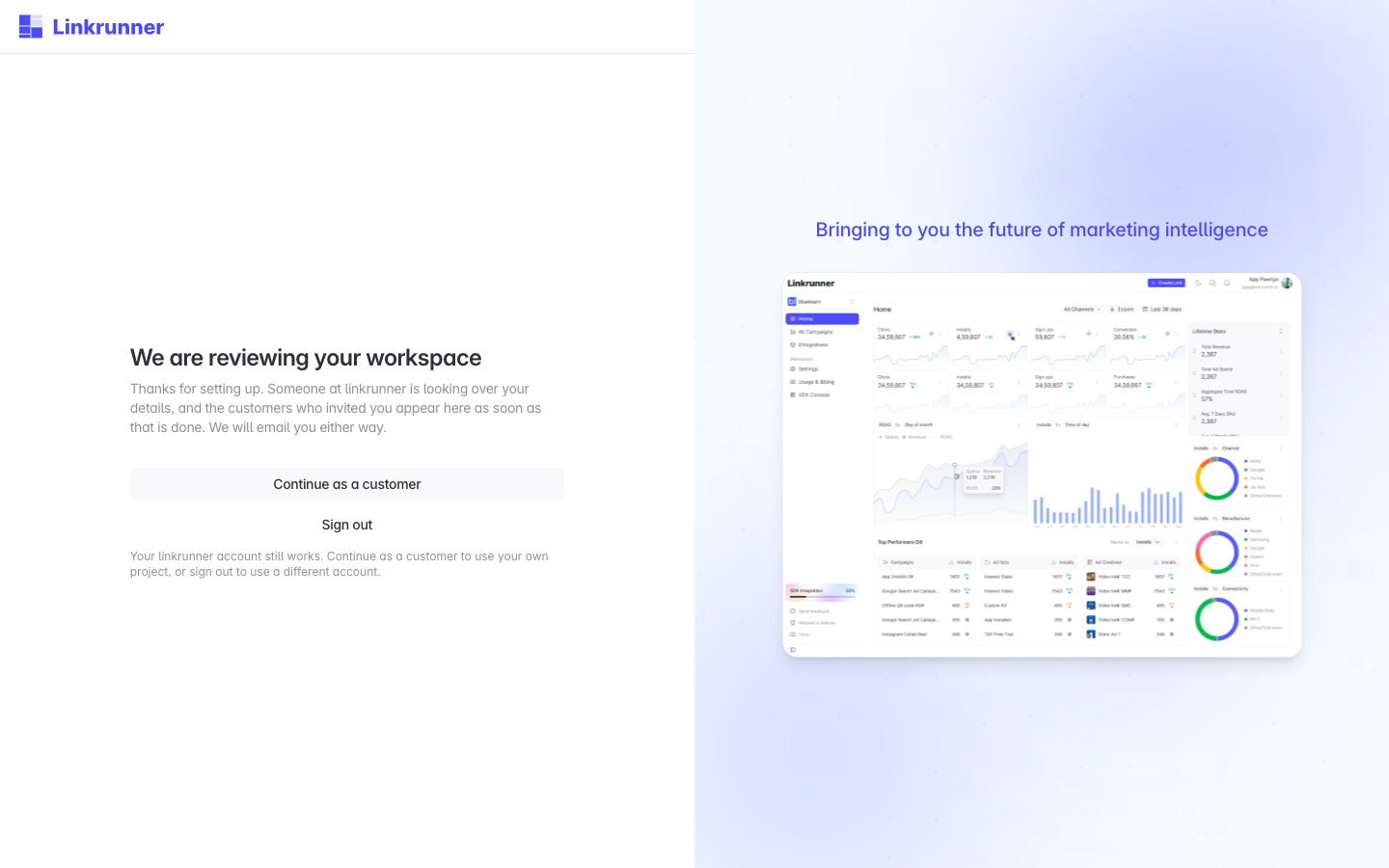
You can close the page. Linkrunner emails you when the review is done.
6. Get engaged by customers
After approval, your agency appears in the agency list customers choose from, under Settings → Members → Invite Agency and Integrations → Agencies in their project. They can search it by name, description, or website. Tell the customers you work with to look for your agency name there.
Each customer that engages you appears in your workspace. Sign in at dashboard.linkrunner.io and pick their project from the project picker. Every later customer lands in this same workspace, so you never set it up again.
Each customer chooses which screens and data you can reach in their project. If a screen shows an access message, ask that customer to grant it. See Control agency access.
Troubleshooting
"You already have an agency invitation". A customer has already invited your email address as an agency. Open that invitation email and use its link, which keeps your workspace connected to the customer who invited you. See Set up your agency workspace. Its subject reads "<Project> has invited you to run their campaigns on Linkrunner".
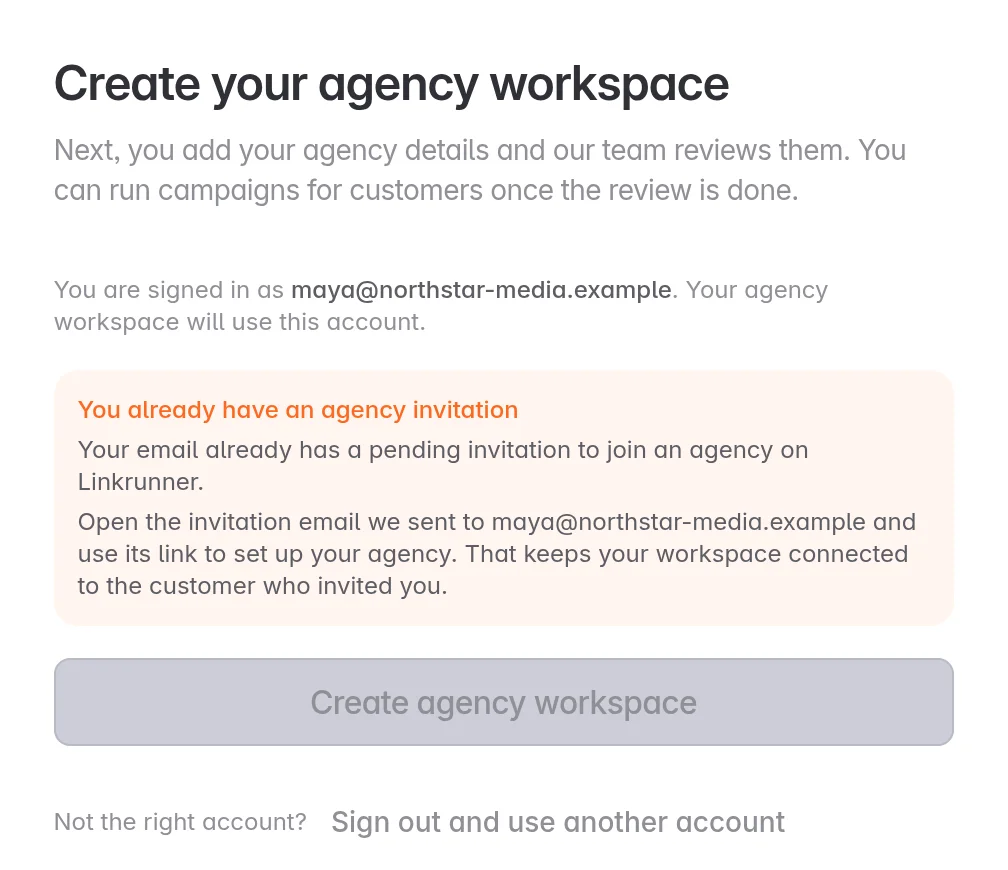
"Use your agency's work email address to create an agency account". You signed in with a personal address, such as Gmail. Click Sign out and use another account and sign in with your agency's work email.
"Email domain not allowed" or "This email domain is not allowed for registration". Your email domain cannot be used for an agency account. Click Sign out and use another account and sign in with your agency's work email.
"New accounts cannot be created from this network" or "Too many new accounts from this network". Try again later, or from another connection, for example without a VPN.
You are signed in with the wrong account. Click Sign out and use another account before you click Create agency workspace. If you already created the workspace with the wrong address, contact support@linkrunner.io.
Continue or Complete setup is disabled. Add a logo, an agency name of at least 2 characters, and a description of at least 20 characters. On the second step, enter a full website URL, including https://, and a valid contact email.
Your workspace still says it is being reviewed. Linkrunner has not finished the review. You get an email when it is done.
A customer cannot find your agency in their list. The list only shows agencies that Linkrunner has approved. Check that your review is done, and ask the customer to search for your agency name.
Your application was not approved, or your workspace is suspended. Contact support@linkrunner.io.
Need help? Contact support@linkrunner.io