Bring an agency onto your project so they can create and measure campaigns for you
Engage an agency when you want someone outside your company to run campaigns in your Linkrunner project. They get a workspace of their own rather than a seat in your account, so you never share your team’s access with them.
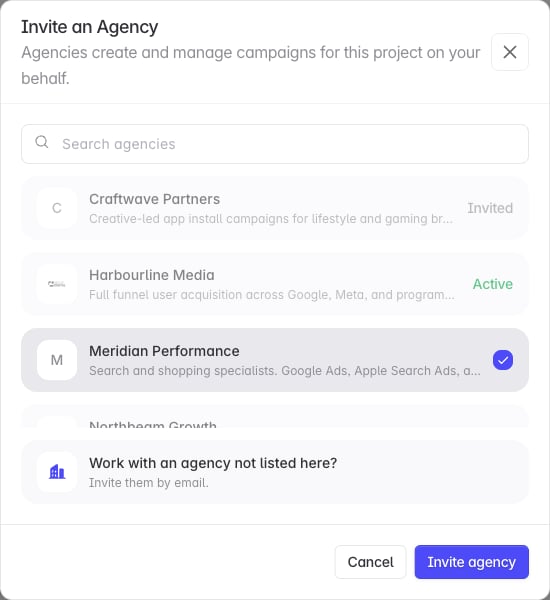
The list holds every agency already set up on Linkrunner. Search by name, description, or website, tick one or more, then click Invite agency.An agency you have already engaged shows Invited or Active instead of a checkbox, so it cannot be invited twice.
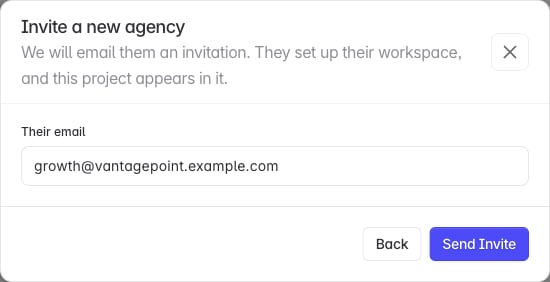
If your agency is not on Linkrunner yet, click Invite them by email at the bottom of the list, enter the address, then click Send Invite.Send it to whoever should own the workspace. They set it up and invite the rest of their team themselves.
Agencies appear in the members table underneath your people, marked Agency.
Label
Meaning
Agency · Invited
Nobody at the agency has accepted yet, or their workspace is still being reviewed by Linkrunner.
Agency
Active. They have access to this project.
Agency · Suspended
Linkrunner has suspended the workspace. Their access is paused, and your engagement is kept.
An agency invited by email needs to complete its workspace setup and pass Linkrunner’s review before it becomes active. A new agency will not have access on the day you invite it.
Click the remove icon on the agency’s row, then End Engagement.Everyone at that agency loses access to this project immediately. The campaigns they created stay with your project, along with all of their historical data. The agency’s other customers are unaffected.
The Invite Agency button is missing.
You need to be an admin on the project.“The agency list could not be loaded for this project”.
You are viewing the project as a partner rather than as an admin. Agencies are managed by a project admin.The invitation was refused as a duplicate.
That address already belongs to an agency, or already has a pending invitation for this project. The error message names the company involved.The agency says they cannot see your campaigns.
They only see campaigns their own agency created. Campaigns you or another partner created are never in their workspace, by design.Need help? Contact support@linkrunner.io