

Appearance
Check your Android build with SDK Health
Upload your Android app and get a report of what the Linkrunner SDK sends, with a fix for each problem it finds.
SDK Health is the Health tab in SDK Console. A test phone uses your build like a real person while the audit checks what the SDK sends. It's for project admins and members, and Android apps only. For iOS, use SDK Console → Testing (guide).
Before you start
- Set your app's Play Store link as Playstore URL in Settings → Project Details. An audit can't start without it.
- The build must have the Linkrunner SDK with this project's token and your app's package name, or the audit stops with Project mismatch or Action needed.
- Have a test login ready if the app needs a sign-in.
An audit is real usage: its installs, sign-ups and events go into the numbers of the project you run it from. To keep test data out of your production numbers, use a test build: one with a separate test project's token, audited from that test project.
Start an audit
Open SDK Console → Health (1) and click Start run (2). Version monitoring (3) is below.
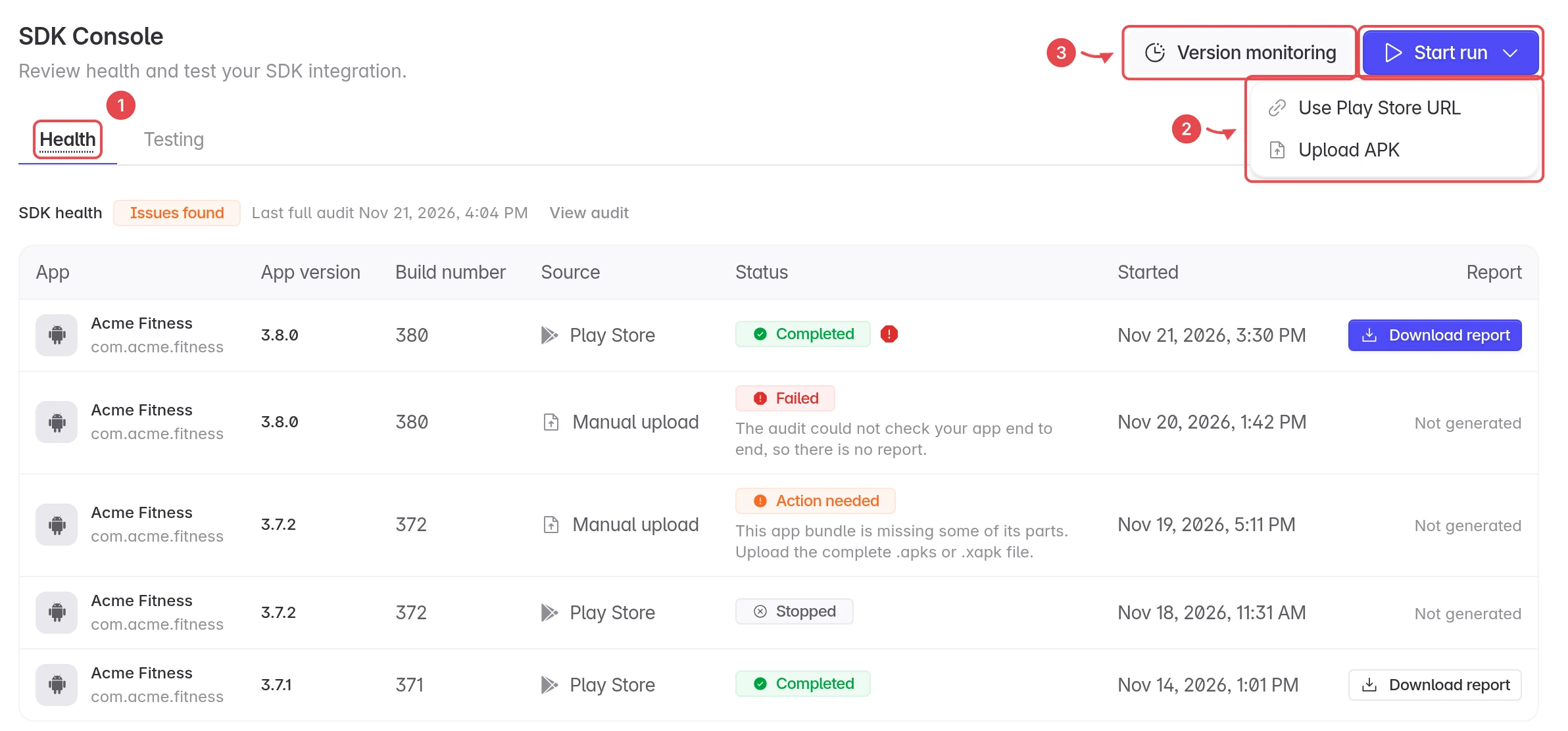
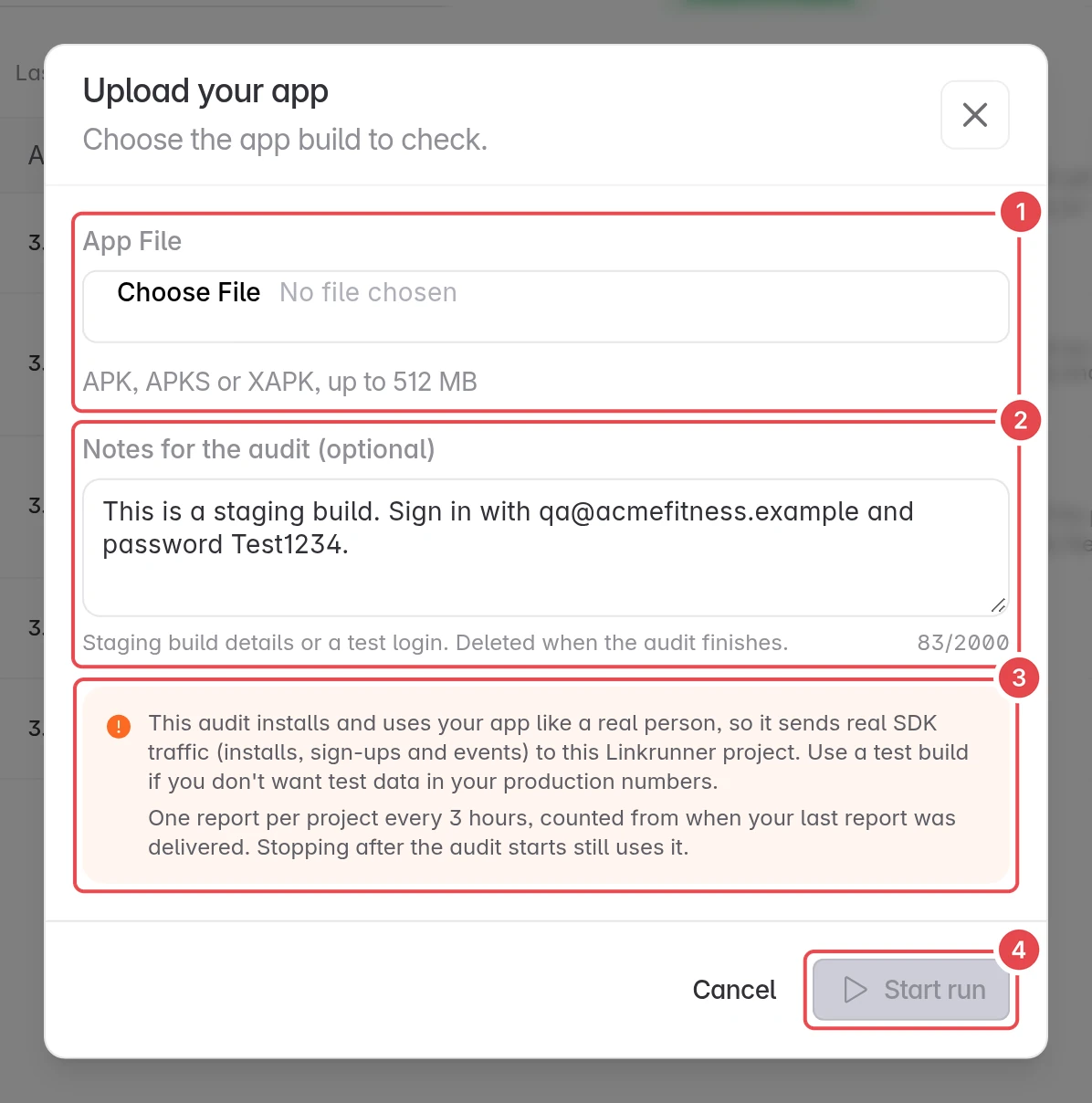
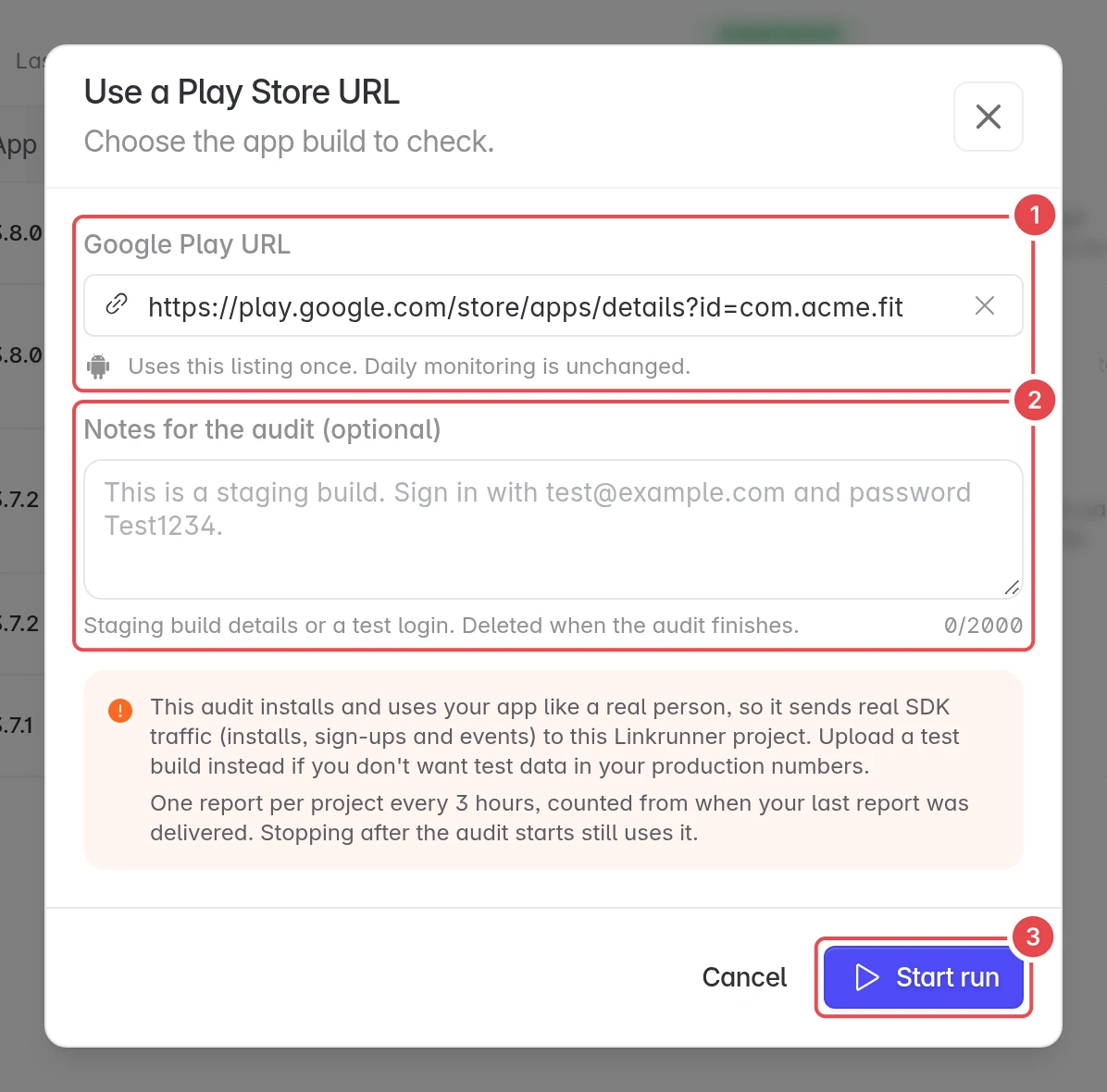
- Click Start run → Upload APK.
- Under App File (1), choose an
.apk,.apksor.xapkfile up to 512 MB..aabfiles can't be uploaded. - Add Notes for the audit (optional) (2): a test login or anything else it needs, up to 2,000 characters, deleted when the audit finishes.
- Read the warning (3) and click Start run (4). Keep the tab open until the upload finishes; one that doesn't finish within an hour stops and doesn't count.
Get Started's App SDK testing task also has Upload APK, with the same optional notes.
While it runs
It waits in a queue for a test phone, then usually takes 25 to 40 minutes once it's checking your app. You can leave the page.
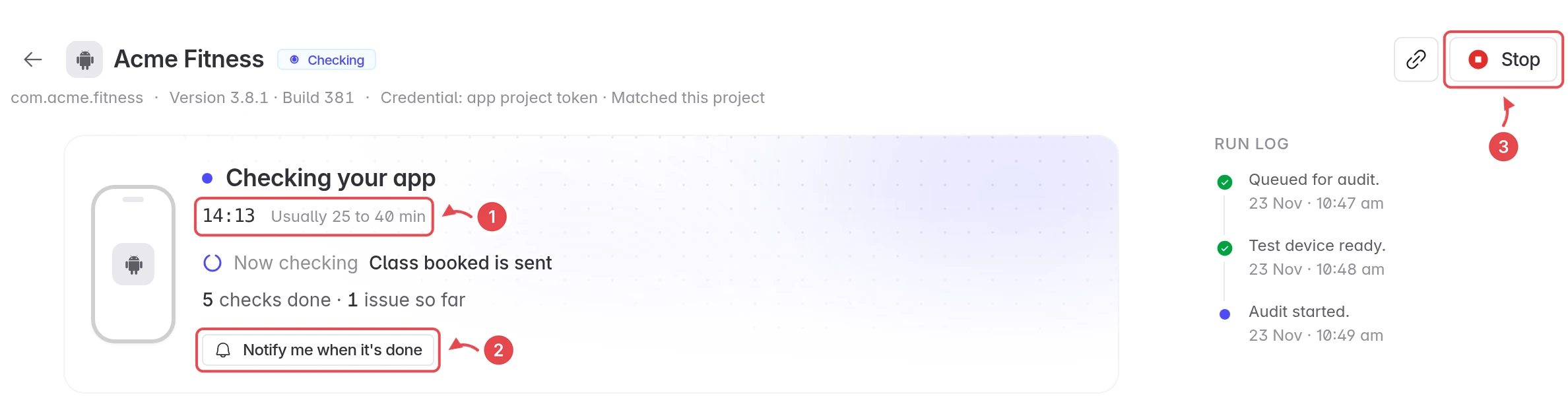
- Time so far, next to the usual length.
- Notify me when it's done notifies you in this browser if the page is still open. The report is also emailed to whoever started the audit.
- Stop ends the audit. See Limits for when it still counts.
Read the report
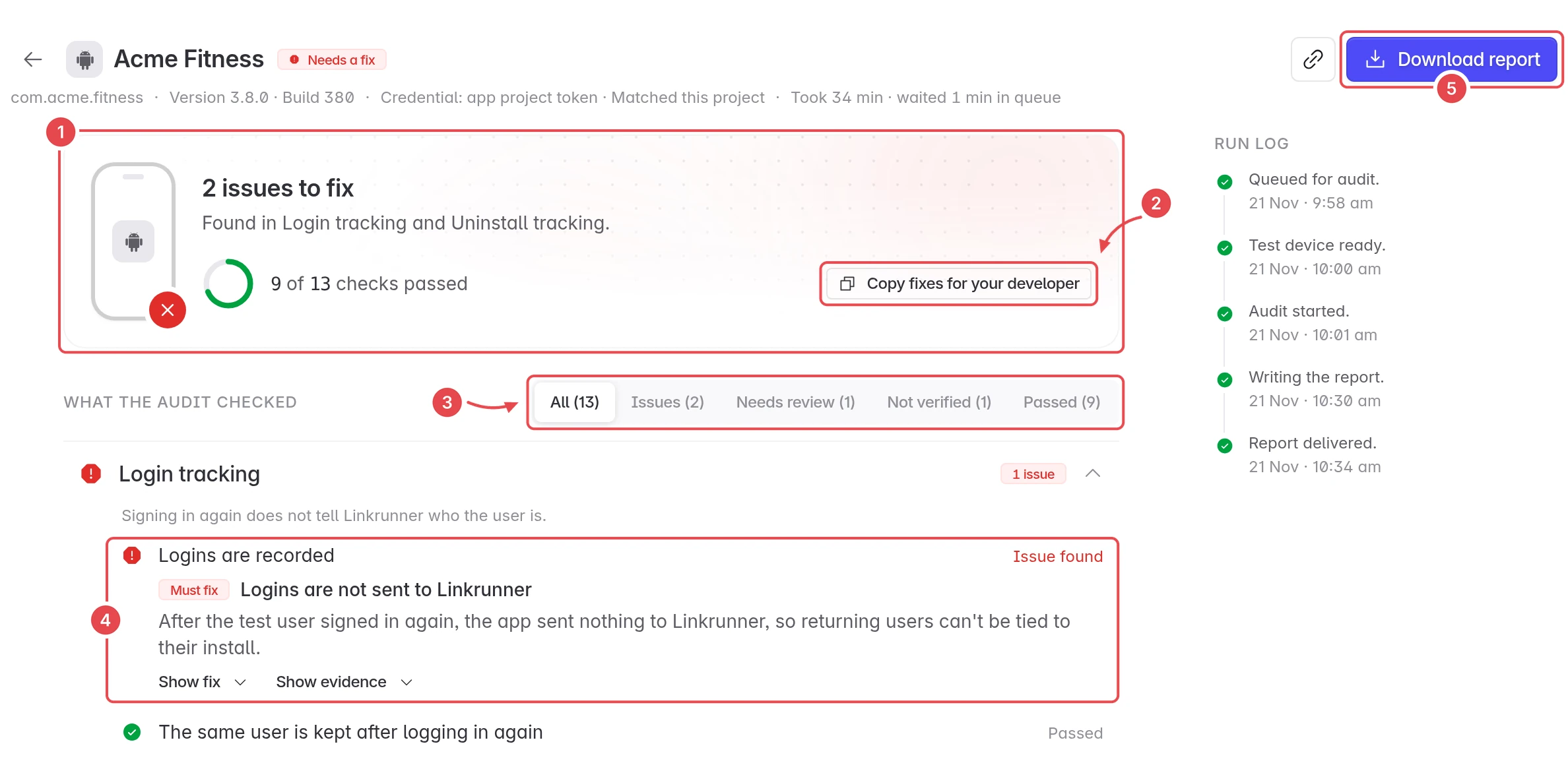
- Issues found, where, and checks passed.
- Copy fixes for your developer copies every issue and its fix as Markdown for a ticket.
- Filters: All, Issues, Needs review, Not verified (only when something couldn't be checked) and Passed.
- Each issue is Must fix or Should fix. Click Show fix for the change to make.
- Download report gets the PDF. Reports are kept for 90 days, then show Expired.
What the audit checks
It checks each Linkrunner feature your app uses; only those areas appear. A check it can't complete shows Could not verify, with the reason.
| Area | What the audit does |
|---|---|
| SDK setup | Opens the app after install and from the background, and checks the install is recorded. With the Meta SDK, checks Meta can match your events to the same device. |
| Sign-up tracking, Login tracking | Signs up or in, with the test login from your notes if needed. |
| Custom events | Triggers every event it can reach. |
| Purchase tracking, Subscription tracking | Goes up to the payment, never a real charge, so the payment shows Could not verify. |
| Deep linking, Install attribution | Opens your app's links and checks the attribution data it reads. |
| Uninstall tracking | Checks the app shares its notification token. |
| User consent, Device data | Checks the consent and device data the SDK sends. |
Apps that need a sign-in
Add a test login (email and password) to the notes. The audit can't get past a one-time code by SMS or email, a captcha, or an emulator or root check, so use an account or staging build without them. Checks behind a sign-in it can't pass show Could not verify; if it can't get far enough, it ends without a report and doesn't count.
If an audit doesn't finish
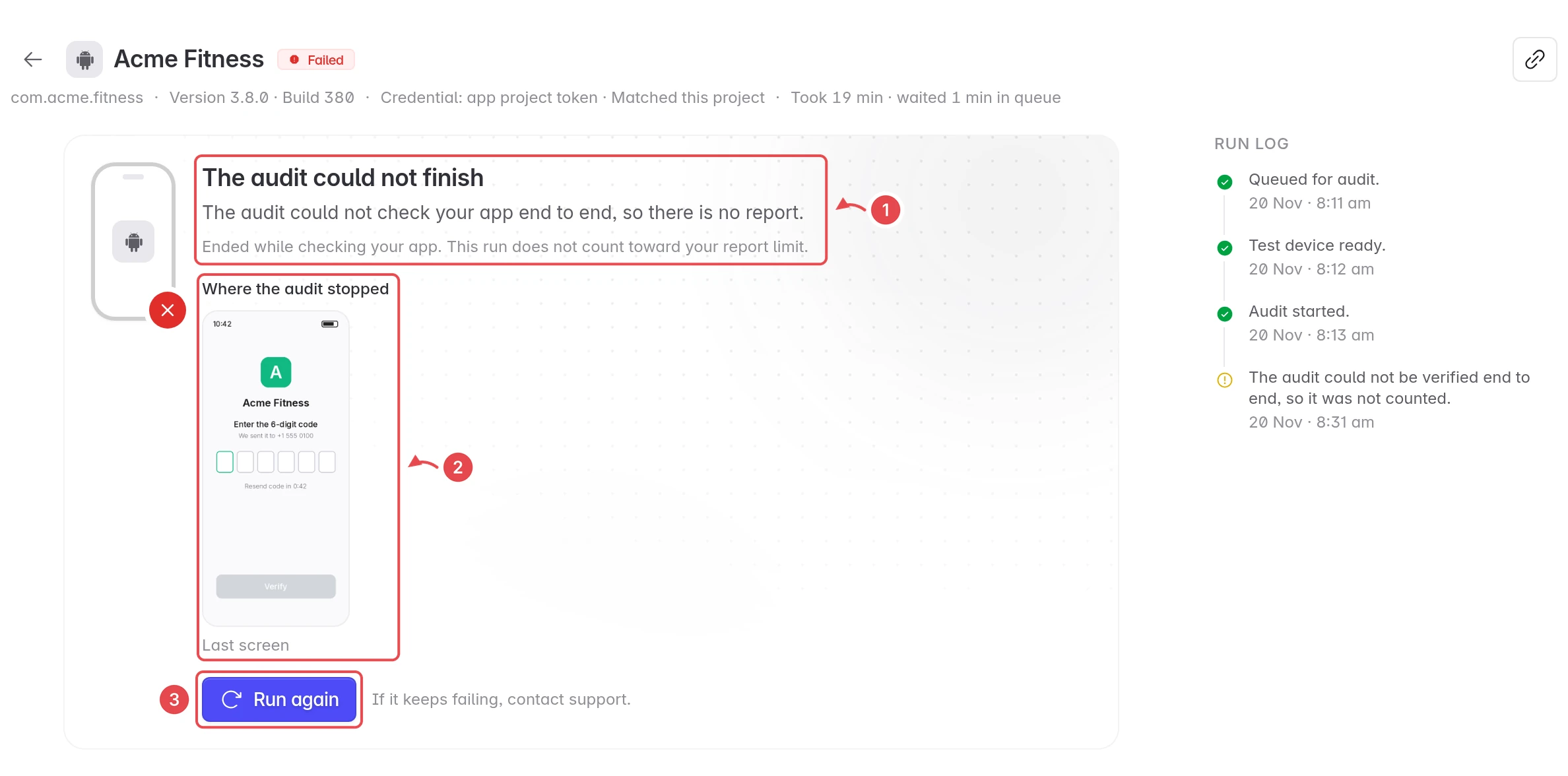
It shows what happened and if the run counts (1), the phone's last screen, if any (2), and Run again (3).
List statuses: Waiting for upload, Queued, Starting, Checking and Writing report are in progress. Completed has the report; an icon beside it means something needs a fix or a look. Action needed: your build or listing stopped it; the row says what to change. Project mismatch: another project's token. Failed: run it again, or contact support if it keeps failing. Stopped: stopped before it finished.
Limits
- One report per project every 3 hours, from when the last one was delivered. A stop after checking starts still uses it.
- 5 minutes wait after an audit ends without a report because of your build or listing, or is stopped after the phone started but before checking.
- 2 hours at most per audit, and 24 hours at most in the queue. An audit that never starts doesn't count.
Audit each new version
In SDK Console → Health, click Version monitoring.
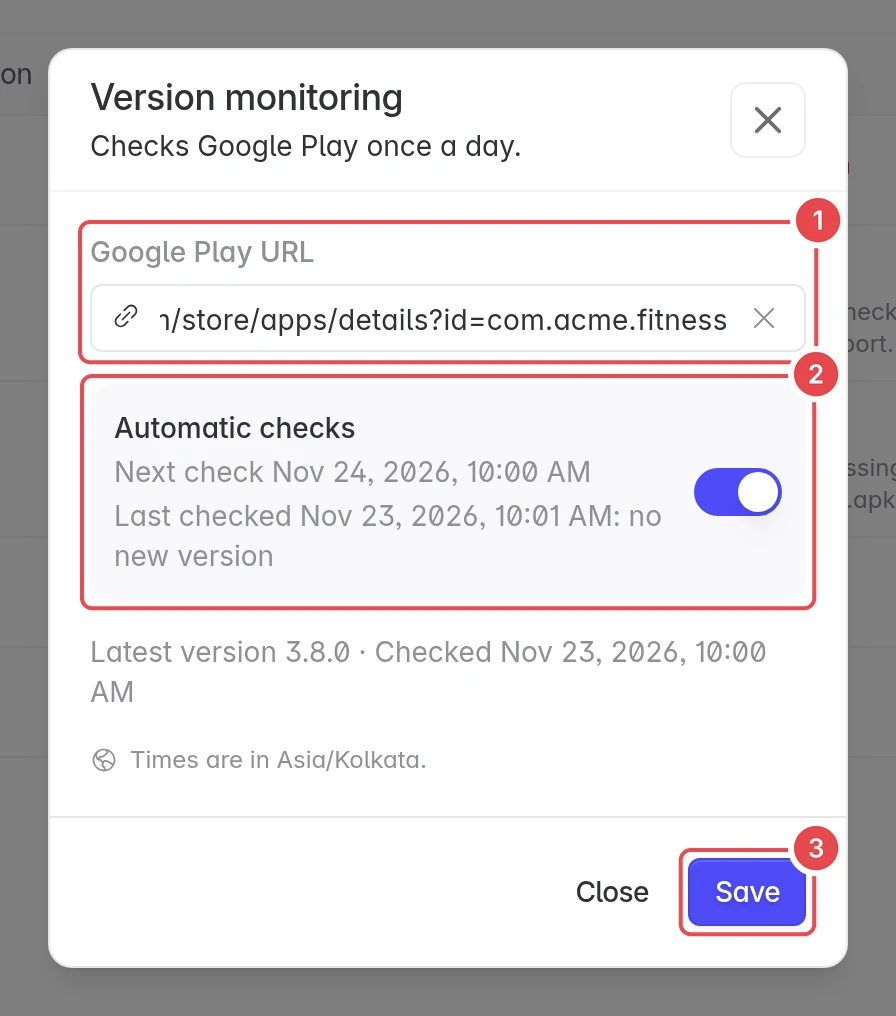
- Check the Google Play URL.
- Turn on Automatic checks, with the next and last check in your project's time zone.
- Click Save.
Linkrunner checks Google Play daily and audits each new version; the first check only records today's version. These audits use the report limit, send real data and aren't emailed, and a day is skipped if the limit or another audit is in the way.
Need help? Contact support@linkrunner.io.