

Appearance
Approve changes your AI assistant asks for
Your AI assistant never changes your Linkrunner project by itself. It proposes a change, a person approves it, and only then does Linkrunner apply it.
This applies to every AI app connected through the Linkrunner MCP server: Claude, ChatGPT, Codex, Claude Code, and any other client. You can ask for a new campaign, a paused link, a new postback mapping or an invite, and nothing in your project changes until someone approves it.
How it works
You ask for a change
For example: "Create a Meta campaign called Diwali Meta 2026 that opens our sale page."
The assistant proposes it
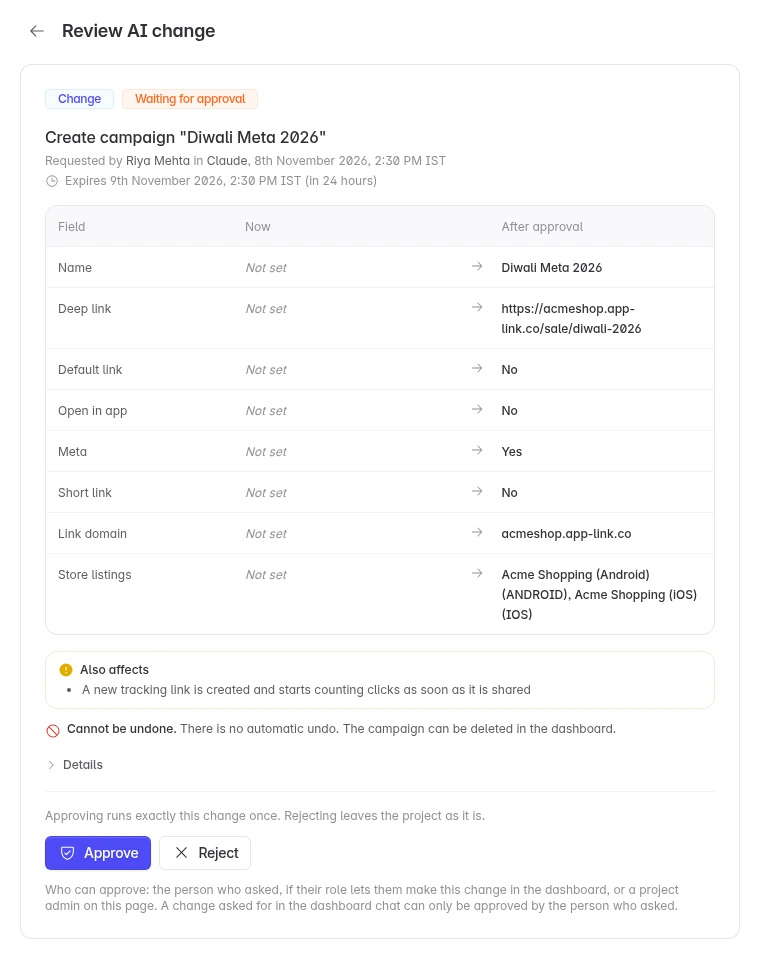
Linkrunner reads your project and builds a preview of the change:
- What changes: each field, with its value now and after approval.
- Also affects: anything else the change touches, such as a link that stops working or a test event sent to an ad network.
- Undo: whether the change can be undone later.
- An approve link, and an expiry 24 hours from now.
The assistant shows you this preview. Nothing has changed yet.
A person approves or rejects it
Approve it on the review page in the Linkrunner dashboard, in an approval card if your AI app shows one, or by confirming it in your AI app's chat. See Approve or reject a change.
Linkrunner checks it again and applies it
Linkrunner rebuilds the preview from your current data. If anything you were shown has changed since, it stops and nothing runs (see Out of date). Otherwise it applies the change as the person who approved it, with that person's project permissions, and records it in Change History.
The assistant cannot approve on its own. A person approves on the review page or in the approval card, or confirms in the chat by saying yes or typing the change's code.
Approve or reject a change
On the review page
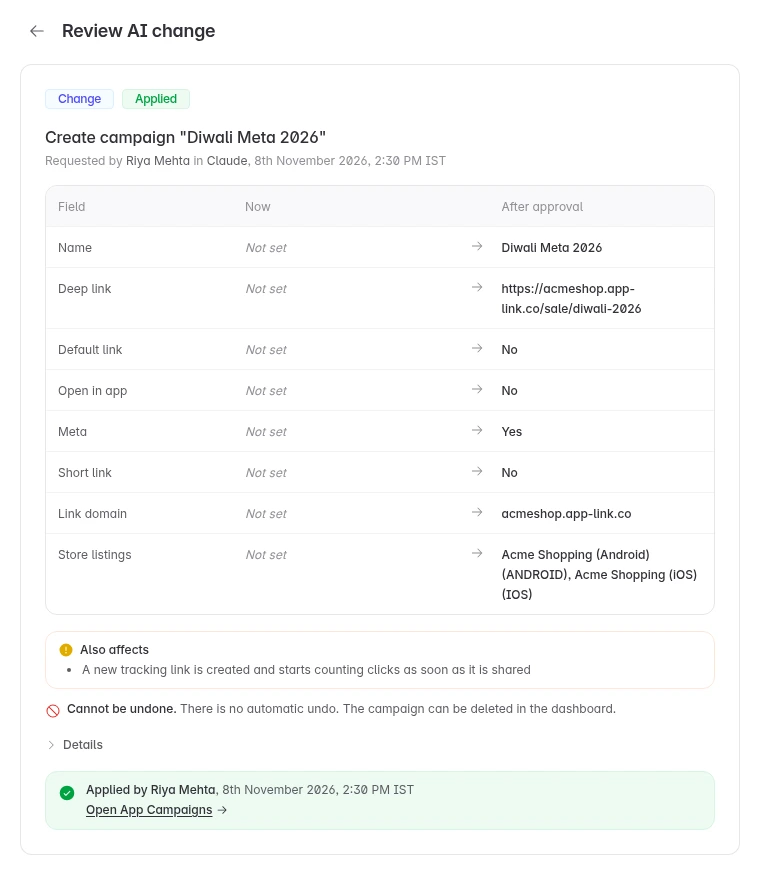
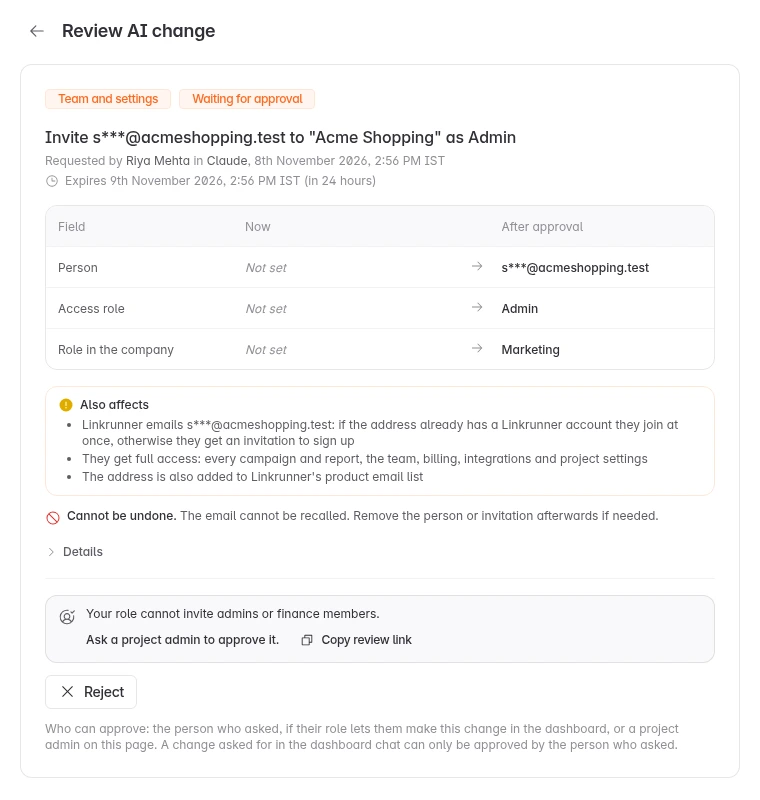
Open the approve link the assistant gives you. It opens the change in the dashboard and switches to its project. Read the preview, then click Approve or Reject. After you approve, the page shows the result.
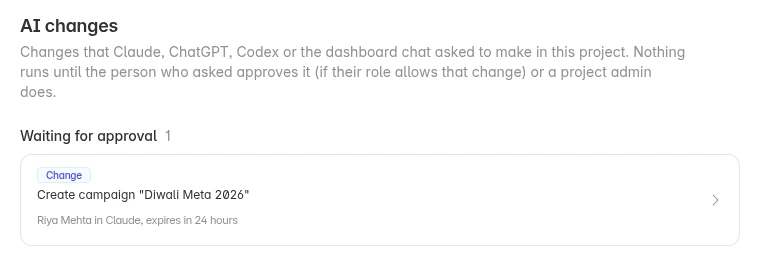
To see every change waiting in a project, open AI changes in the dashboard, or use the link at the top of the AI changes card in Settings → MCP. Changes waiting for approval are listed first.
In the approval card
Some AI apps can show an approval card right under the assistant's reply, or a prompt that asks you to approve. The card shows the same preview with Approve and Reject buttons, and after you click it shows the result.
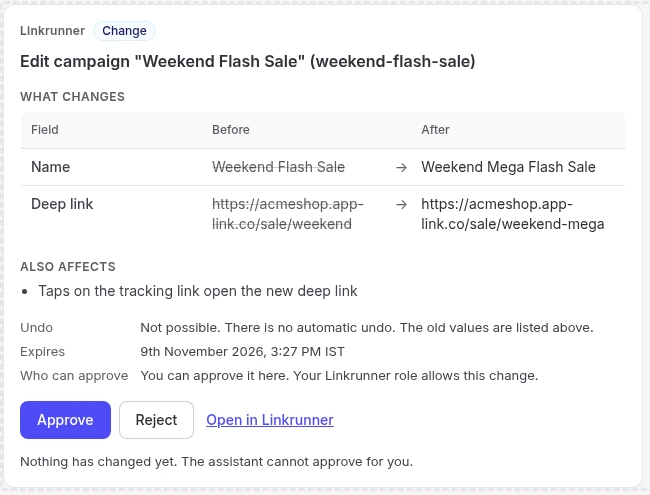
The approval card works only for the person who asked, and only on a sign-in connection in an AI app that supports it. Everywhere else, the assistant gives you the approve link, or you confirm in the chat. The link is always there.
Confirm in the chat
You can also confirm a change by replying in your AI app's chat. How depends on the change:
| Change | How you confirm it in the chat |
|---|---|
| Creating something new: a campaign whose link id Linkrunner picks and that names no Meta or Google campaign id, a funnel, cohort, store listing, or fraud rule (a new fraud rule starts switched off) | The assistant asks, and you say yes. |
| Every other edit or delete | You type the short code shown with that change, for example confirm 7Q4K. Each change has its own code. |
| Team and settings changes: members, partners, agencies, webhooks, domains, SDK keys, project settings, sharing | Never in the chat. Approve on the review page or in the approval card. |
Every other create needs the code, including a web campaign, a deep link, a test device and a postback mapping. So does a campaign with a link id you chose or a Meta or Google campaign id, because a deleted campaign may have held that id and its links or ad traffic could move to the new one, and any create that would also change something that already exists.
Confirming in the chat works only when all of these hold:
- You are the person who asked for the change.
- You confirm in the same AI app connection where you asked. Another AI app or script of yours cannot confirm it, and the code is only shown in that connection.
- Your project role lets you make that change in the dashboard (see Who can approve).
- Approve in the AI chat is on for the project (see Approve in the AI chat).
Otherwise the assistant gives you the approve link. A confirmed change goes through every check an approval does, including the out-of-date check, and it runs as you. The review page then says Confirmed in the AI app's chat.
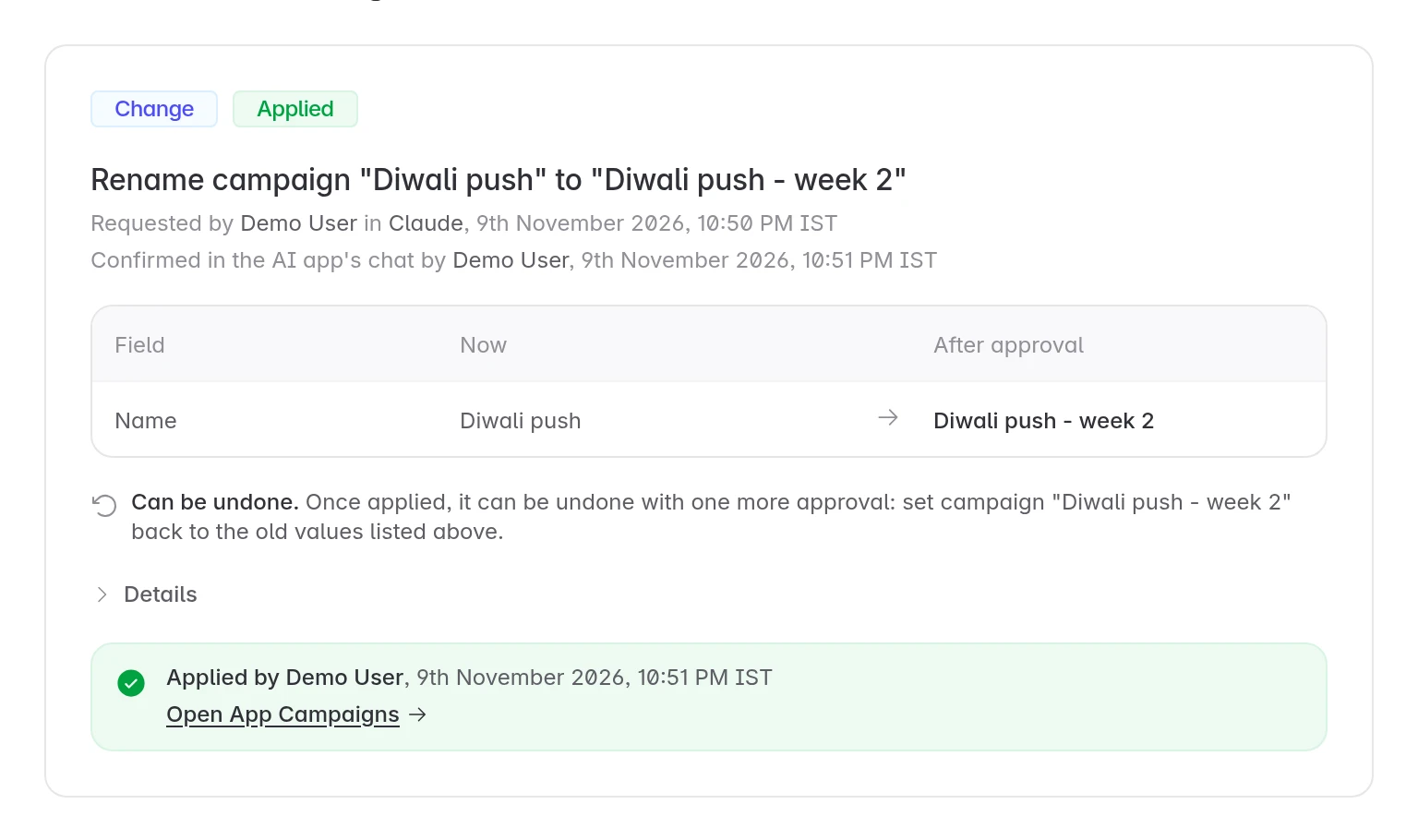
Your AI app passes your yes or your code on to Linkrunner, so Linkrunner cannot see that you typed it yourself. The approve link and the approval card are the most secure way to approve. A project admin who wants every change approved that way can turn off Approve in the AI chat.
Withdraw a change
To withdraw a change you asked for, ask the assistant to cancel it, or click Reject on the review page. Only the person who asked can cancel a change through the assistant. A change that was already applied cannot be withdrawn. To reverse it, undo it.
Who can approve
A change can be approved by:
- The person who asked, if their project role lets them make the same change in the dashboard. They can approve on the review page or in the approval card, or confirm in the chat.
- A project admin, on the review page.
Only admins and members can approve. Influencers, finance members, affiliate partners and agencies cannot.
Members can approve most changes they could make themselves in the dashboard, such as creating campaigns, deleting funnels or editing postback mappings. These need an admin:
| Area | Changes that only an admin can approve |
|---|---|
| Attribution | Click lookback windows and view-through windows |
| Campaigns | Adding or changing a campaign's landing page |
| Landing pages | Renaming, deleting, fixing, publishing and assigning landing pages |
| Team | Inviting an admin or finance member, changing a role to or from admin or finance, removing a member |
| Partners and agencies | Connecting, disconnecting or changing access for affiliate partners and agencies |
| Settings | Turning on web campaigns, and auto-join for company email domains |
| Integrations | Everflow settings and event mappings |
Two changes can only be approved by the person who asked, because they act for that person alone: requesting a data export by email, and hiding the Get Started checklist. A change asked for in the dashboard's own AI chat can also only be approved by the person who asked.
If your role cannot approve a change, the review page says why and hides Approve. Click Copy review link and send it to a project admin.
What each status means
| Status | What it means | What to do |
|---|---|---|
| Waiting for approval | Proposed, not approved yet. Nothing has changed. | Approve or reject it within 24 hours. |
| Applying | Approved, and Linkrunner is applying it now. | Wait a moment. The page shows the result. |
| Applied | Approved and done. | Nothing. It shows in Change History. |
| Dry run | Approved while AI changes were in test mode, so nothing changed. Changes from your own AI app are only in test mode if Linkrunner pauses AI changes. Changes asked for in the dashboard's own AI chat stay in test mode until Linkrunner turns them on for your project. | Ask again later, or contact support@linkrunner.io. |
| Rejected | Someone rejected it. Nothing changed. | Ask again if you still want it. |
| Cancelled | The person who asked withdrew it. Nothing changed. | Ask again if you still want it. |
| Expired | Nobody approved it within 24 hours. Nothing changed. | Ask again. |
| Out of date | Something changed after the preview was made, so the approval was refused. Nothing ran. | Ask the assistant again for a fresh preview. |
| Failed | Linkrunner tried to apply it and the change did not go through. The page shows the reason. | Fix the cause and ask again. A failed change is never retried by itself. |
| Check the result | Linkrunner cannot tell whether it was applied, for example because applying it was interrupted. | A project admin checks the item and clicks It applied or It did not apply. Until then, other changes to the same item cannot be approved. |
Out of date changes
You approve exactly what you were shown. When someone clicks Approve, Linkrunner first rebuilds the preview from your current data and compares it with the preview you saw. If anything shown is different, for example a teammate renamed the campaign or changed its deep link in the meantime, Linkrunner refuses the approval and nothing runs. The change ends as Out of date, with the fields that changed.
The same happens when the item was replaced by another one, or when another approved change to the same item is being applied at that moment.
Ask the assistant to propose the change again. The new preview uses the current data.
Turn change types on or off
Changes come in three types. A project admin turns each type on or off for the project in Settings → MCP → AI changes.
| Type | What the assistant can ask for | Default |
|---|---|---|
| Changes | Create or edit campaigns, links, funnels, cohorts, postback mappings, store listings, fraud rules, landing pages and similar items | On |
| Deletes | Delete campaigns, channels, funnels, cohorts, store listings, mappings, fraud rules, landing pages and test devices | Off |
| Team and settings | Invite and manage members, partners and agencies, share campaigns, and change webhooks, domains, ad network connections, project settings, SDK keys and Web SDK websites | Off |
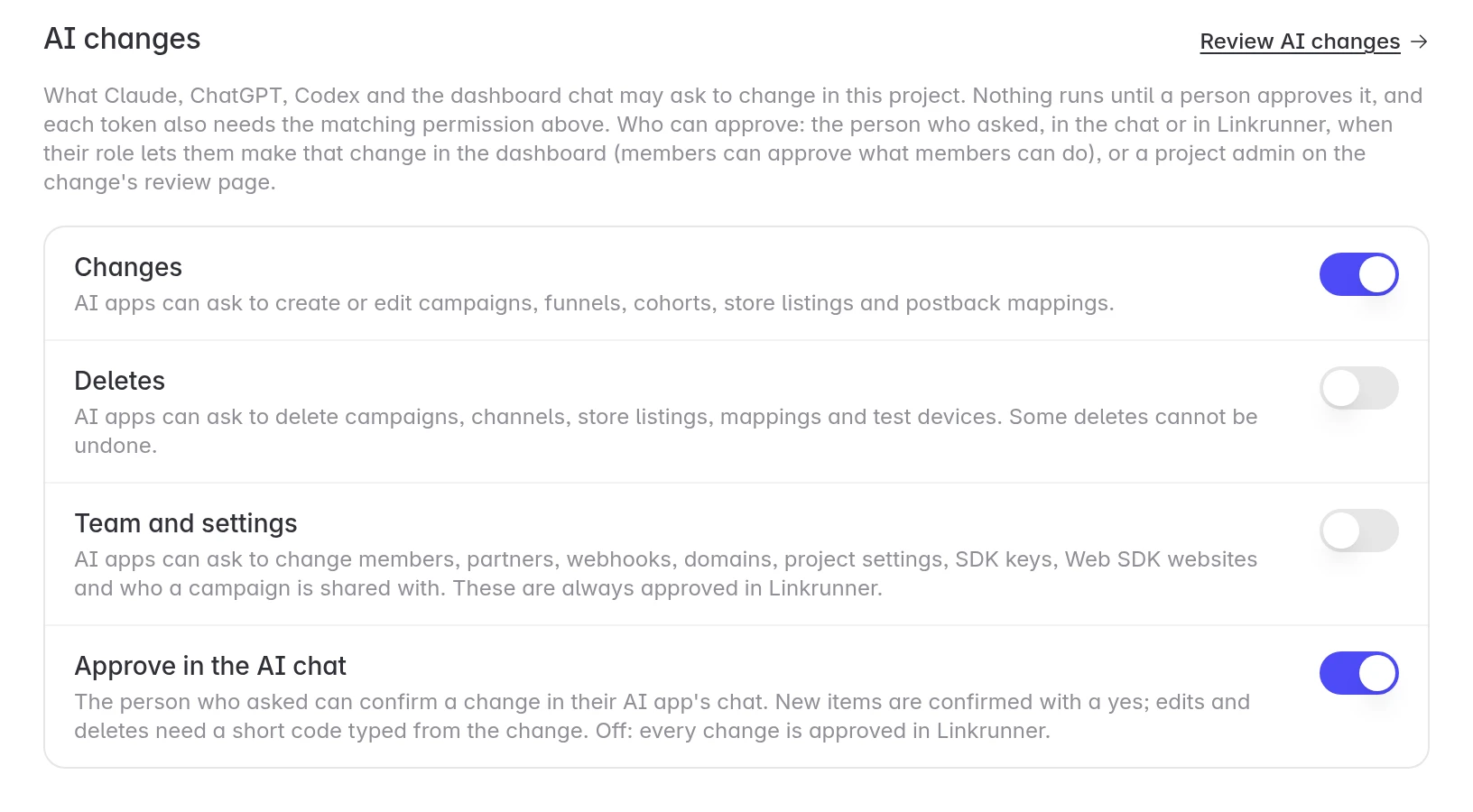
Members can see the switches. Only project admins can change them. When a type is off, the assistant tells you it is switched off for the project.
The tool reference lists the type of every change.
Approve in the AI chat
The same card has a fourth switch, Approve in the AI chat. It is on by default, so people can confirm changes in the chat. Only project admins can change it. Turn it off to have every change approved on the review page or in the approval card.
What your connection is allowed to ask for
A change also needs your connection to allow its type:
- Token connections choose this when you generate the token in Settings → MCP. Make changes in Linkrunner allows Changes. Deletes and Team and settings each need it too. A new token can only read until you tick one. To change a token's permissions, generate a new token. See Generate a token.
- Sign-in connections can ask for Changes. To ask for deletes, or team and settings changes, connect with a token that has those permissions.
If you use the API directly, the token scopes are linkrunner:write (Changes), linkrunner:delete (Deletes) and linkrunner:manage (Team and settings).
Undo a change
The preview tells you whether a change can be undone. Many edits and switches can, such as a paused link, a renamed funnel, or a changed attribution window. Deletes, test sends, emails and most creates cannot.
To undo an applied change, ask the assistant, for example "Undo the change to the Diwali Meta link". It proposes the reverse change, which shows Undoes on the review page and needs approval like any other change. If the item was deleted or replaced since, the undo is refused.
Undoing a create, such as a new fraud rule or test device, proposes a delete. It needs Deletes switched on for the project, and on a token, the Deletes permission.
Change History
Every applied change is recorded in Settings → Change History. Changes that came from an AI app carry an AI badge and say who asked, in which app, and who approved it. A change confirmed in the chat lists the person who confirmed it as the approver. Click View change to open its review page, which shows where it was approved, for example Confirmed in the AI app's chat.
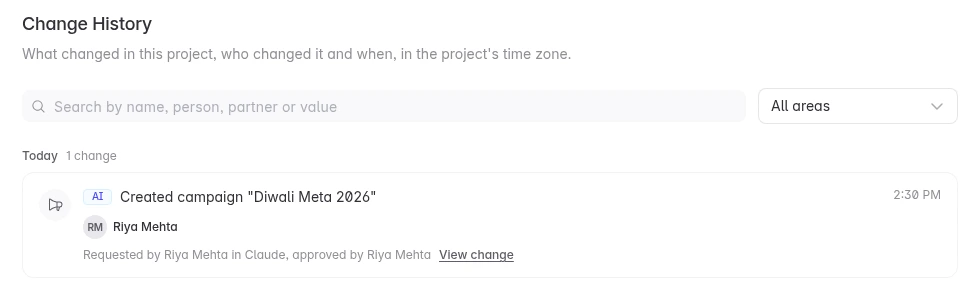
The assistant can also read this history for you ("What changed in my project this week?").
Troubleshooting
The assistant says a type of change is switched off for this project. A project admin turns it on in Settings → MCP → AI changes. See Turn change types on or off.
The assistant cannot find a tool for a delete or a team change. Your connection does not allow that type. Sign-in connections can only ask for Changes. Generate a token with Deletes or Team and settings ticked. The assistant also lists only the tools in the toolsets your connection uses. See Choose which tools your assistant sees.
I don't see an Approve button. The page says why. If your role cannot approve the change, send the review link to a project admin. If only the person who asked can approve it (a data export, hiding Get Started, or a change asked for in the dashboard chat), that person must approve it. Nobody else can, an admin included.
The change is Out of date or Expired. Ask the assistant to propose it again. It builds a new preview from your current data.
My AI app shows a link, not an approval card. The approval card is only available on sign-in connections in AI apps that support it. Use the link, or confirm in the chat. If you connected before approval cards were available, disconnect Linkrunner in your AI app and connect again.
The assistant says the change cannot be confirmed in the chat. It is a team and settings change, it is no longer waiting, someone else asked for it, you are in a different AI app connection, your role cannot approve it, your connection is not allowed that type of change, or a project admin turned off Approve in the AI chat. Open the approve link instead.
The assistant says the code does not match. Type the code shown with this change, for example confirm 7Q4K. Each change has its own code, so a code from another change does not work. Nothing changed.
The assistant said it was done, but nothing changed. The change runs only after a person approves it. Ask the assistant for the change's status, or open AI changes in the dashboard. If the status is Dry run, AI changes were in test mode, so nothing changed. See What each status means.
Need help? Contact support@linkrunner.io