> ## Documentation Index
> Fetch the complete documentation index at: https://docs.linkrunner.io/llms.txt
> Use this file to discover all available pages before exploring further.
# Test Meta Android Attribution
> Verify that a fresh Android install from a Meta ad returns campaign, ad set, and creative data on the first attribution request
Use this flow to test Meta Install Referrer attribution on Android. A successful test returns the Meta campaign, ad set, and creative from `getAttributionData()` after the first app open.
A deferred deep link is not required for campaign attribution. It only controls the `deeplink` value returned by the SDK. Meta campaign data can be present while `deeplink` is empty.
## Before you start
Complete these requirements before testing:
* Configure your Meta App ID and Install Referrer Decryption Key in [Meta App Integration](/ad-networks/meta-ads#1-configure-meta-app-integration).
* Add your Facebook App ID to `AndroidManifest.xml`. See [Meta Install Referrer](/features/meta-install-referrer#configure-meta-install-referrer-support).
* Use a supported SDK version:
* Android SDK 3.5.2 or later
* Flutter SDK 3.6.2 or later
* React Native SDK 2.6.2 or later
* Use Facebook 428 or later, or Instagram 296 or later, on the test device.
* Make sure the Meta App ID in your app matches the Meta app used by the ad campaign.
* Make sure your Play Store release contains the Linkrunner SDK and Meta Install Referrer configuration.
* Implement `getAttributionData()` for your SDK: [Android](/sdk/android#getting-attribution-data), [React Native](/sdk/react-native#getting-attribution-data), or [Flutter](/sdk/flutter#getting-attribution-data).
## 1. Prepare a clean Android device
Record the device model and GAID. These values help Linkrunner identify the exact test requests if you need support.
Update Facebook or Instagram to a supported version, then sign in to the account that will receive the ad preview.
Remove your app before each test. This creates a new Linkrunner install instance when the app opens again.
Force-stopping or clearing the app from recents is not enough. Uninstall the app before every fresh-install test.
## 2. Send the Meta ad preview to the device
Use a published App Promotion ad or inject an ad preview into Facebook or Instagram.
In Meta Ads Manager, open the App Promotion ad and choose **Share → Share a link**.
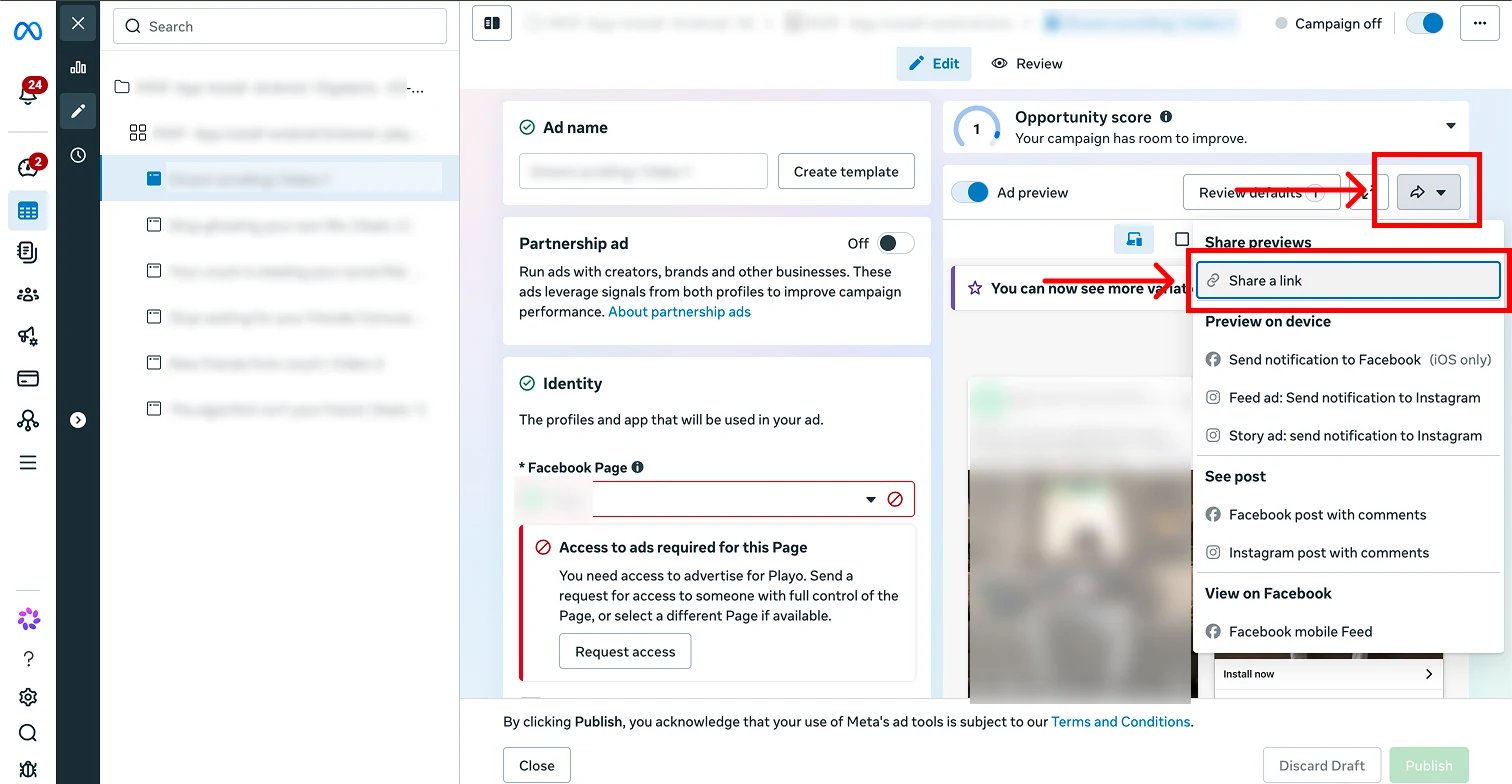 Open the preview link while signed in to Facebook. Select the placement you want to test.
For Facebook Feed, choose **Options → Send notification to Facebook**. For Instagram Feed, choose **Options → Preview in Instagram app**.
Open the notification or preview in the Meta app. Tap the ad call to action from there.
Do not stop at the side-by-side browser preview. Open the injected ad inside Facebook or Instagram before tapping the call to action.
If you are also testing a deferred deep link, save and publish it on the exact ad used for the test. Then wait up to 30 minutes for Linkrunner's Meta creative sync. A value visible in the Ads Manager editor or preview does not confirm that Meta's API exposes it to Linkrunner.
See Meta's [ad preview instructions](https://www.facebook.com/business/help/788849608374258) and [Meta Install Referrer verification guide](https://developers.facebook.com/documentation/app-ads/meta-install-referrer) for the current Meta workflow.
## 3. Install and open your app
Tap the ad call to action and continue to your app's Google Play listing.
Install the Play Store build that contains your Linkrunner integration.
Launch the app immediately after installation. The Linkrunner SDK reads the Meta Install Referrer and sends the install to Linkrunner during initialization.
## 4. Call `getAttributionData()`
Wait for `init` to complete, then call `getAttributionData()` once for the new install.
```kotlin theme={null}
val result = LinkRunner.getInstance().getAttributionData()
result.onSuccess { attributionData ->
val campaign = attributionData.campaignData
println("Network: ${campaign.adNetwork}")
println("Campaign: ${campaign.name}")
println("Campaign ID: ${campaign.adNetworkCampaignId}")
println("Ad set: ${campaign.adSetName}")
println("Creative: ${campaign.adCreativeName}")
}.onFailure { error ->
println("Attribution error: ${error.message}")
}
```
```javascript theme={null}
const attributionData = await linkrunner.getAttributionData();
console.log("Network:", attributionData?.campaignData?.adNetwork);
console.log("Campaign:", attributionData?.campaignData?.name);
console.log("Campaign ID:", attributionData?.campaignData?.adNetworkCampaignId);
console.log("Ad set:", attributionData?.campaignData?.adSetName);
console.log("Creative:", attributionData?.campaignData?.adCreativeName);
```
```dart theme={null}
final attributionData = await LinkRunner().getAttributionData();
final campaign = attributionData?.campaignData;
print('Network: ${campaign?.adNetwork}');
print('Campaign: ${campaign?.name}');
print('Campaign ID: ${campaign?.adNetworkCampaignId}');
print('Ad set: ${campaign?.adSetName}');
print('Creative: ${campaign?.adCreativeName}');
```
For a successful Meta install, the first call after `init` completes should return `adNetwork: "META"` with the campaign details for that install.
## Expected response
The exact type depends on your SDK, but the result should contain these values:
```json theme={null}
{
"deeplink": "",
"campaignData": {
"id": "linkrunner-campaign-id",
"name": "Android App Promotion",
"type": "INORGANIC",
"adNetwork": "META",
"adNetworkCampaignId": "120000000000000001",
"adSetId": "120000000000000002",
"adSetName": "Android audience",
"adCreativeId": "120000000000000003",
"adCreativeName": "Android creative"
}
}
```
Confirm all of the following:
* `campaignData.adNetwork` is `META`.
* `campaignData.type` is `INORGANIC`.
* `campaignData.name` matches the Meta campaign.
* The Meta campaign, ad set, and creative IDs match Ads Manager.
* The first `getAttributionData()` call after the Meta install returns the campaign data.
An empty `deeplink` does not mean attribution failed. It means the ad did not provide a deferred deep link. Campaign attribution is verified through `campaignData`.
## Troubleshooting
### The first response is organic
* Confirm the app was uninstalled before you opened the injected ad.
* Confirm you tapped the ad inside Facebook or Instagram, not only in the browser preview.
* Confirm the Facebook App ID in `AndroidManifest.xml` matches the Meta app used by the campaign.
* Confirm the Install Referrer Decryption Key is correct in Linkrunner.
* Confirm `getAttributionData()` runs after `init` completes.
* Record the device model, GAID, app version, build number, and test timestamp before contacting support.
### Campaign data is present but `deeplink` is empty
This is expected when the ad has no deferred deep link. If you expected one:
* Confirm the value was saved and published on the exact ad returned in `campaignData`.
* Wait up to 30 minutes for Linkrunner's Meta creative sync before repeating the install test.
* Confirm the published ad, not only the Ads Manager editor or preview, exposes the deferred deep link.
See [Deferred Deep Linking](/ad-networks/meta-ads#5-deferred-deep-linking) for configuration details.
### The SDK cannot read Meta Install Referrer
* Update Facebook or Instagram on the device.
* Confirm at least one supported Meta app is installed.
* Confirm your app includes the Facebook App ID metadata.
* Confirm your SDK meets the minimum version requirement.
### The wrong campaign is returned
Uninstall the app and repeat the test from the intended ad. Do not reuse an earlier install instance. See [attribution testing troubleshooting](/testing/testing-attribution-troubleshooting).
**Need help?** Contact [support@linkrunner.io](mailto:support@linkrunner.io)
Open the preview link while signed in to Facebook. Select the placement you want to test.
For Facebook Feed, choose **Options → Send notification to Facebook**. For Instagram Feed, choose **Options → Preview in Instagram app**.
Open the notification or preview in the Meta app. Tap the ad call to action from there.
Do not stop at the side-by-side browser preview. Open the injected ad inside Facebook or Instagram before tapping the call to action.
If you are also testing a deferred deep link, save and publish it on the exact ad used for the test. Then wait up to 30 minutes for Linkrunner's Meta creative sync. A value visible in the Ads Manager editor or preview does not confirm that Meta's API exposes it to Linkrunner.
See Meta's [ad preview instructions](https://www.facebook.com/business/help/788849608374258) and [Meta Install Referrer verification guide](https://developers.facebook.com/documentation/app-ads/meta-install-referrer) for the current Meta workflow.
## 3. Install and open your app
Tap the ad call to action and continue to your app's Google Play listing.
Install the Play Store build that contains your Linkrunner integration.
Launch the app immediately after installation. The Linkrunner SDK reads the Meta Install Referrer and sends the install to Linkrunner during initialization.
## 4. Call `getAttributionData()`
Wait for `init` to complete, then call `getAttributionData()` once for the new install.
```kotlin theme={null}
val result = LinkRunner.getInstance().getAttributionData()
result.onSuccess { attributionData ->
val campaign = attributionData.campaignData
println("Network: ${campaign.adNetwork}")
println("Campaign: ${campaign.name}")
println("Campaign ID: ${campaign.adNetworkCampaignId}")
println("Ad set: ${campaign.adSetName}")
println("Creative: ${campaign.adCreativeName}")
}.onFailure { error ->
println("Attribution error: ${error.message}")
}
```
```javascript theme={null}
const attributionData = await linkrunner.getAttributionData();
console.log("Network:", attributionData?.campaignData?.adNetwork);
console.log("Campaign:", attributionData?.campaignData?.name);
console.log("Campaign ID:", attributionData?.campaignData?.adNetworkCampaignId);
console.log("Ad set:", attributionData?.campaignData?.adSetName);
console.log("Creative:", attributionData?.campaignData?.adCreativeName);
```
```dart theme={null}
final attributionData = await LinkRunner().getAttributionData();
final campaign = attributionData?.campaignData;
print('Network: ${campaign?.adNetwork}');
print('Campaign: ${campaign?.name}');
print('Campaign ID: ${campaign?.adNetworkCampaignId}');
print('Ad set: ${campaign?.adSetName}');
print('Creative: ${campaign?.adCreativeName}');
```
For a successful Meta install, the first call after `init` completes should return `adNetwork: "META"` with the campaign details for that install.
## Expected response
The exact type depends on your SDK, but the result should contain these values:
```json theme={null}
{
"deeplink": "",
"campaignData": {
"id": "linkrunner-campaign-id",
"name": "Android App Promotion",
"type": "INORGANIC",
"adNetwork": "META",
"adNetworkCampaignId": "120000000000000001",
"adSetId": "120000000000000002",
"adSetName": "Android audience",
"adCreativeId": "120000000000000003",
"adCreativeName": "Android creative"
}
}
```
Confirm all of the following:
* `campaignData.adNetwork` is `META`.
* `campaignData.type` is `INORGANIC`.
* `campaignData.name` matches the Meta campaign.
* The Meta campaign, ad set, and creative IDs match Ads Manager.
* The first `getAttributionData()` call after the Meta install returns the campaign data.
An empty `deeplink` does not mean attribution failed. It means the ad did not provide a deferred deep link. Campaign attribution is verified through `campaignData`.
## Troubleshooting
### The first response is organic
* Confirm the app was uninstalled before you opened the injected ad.
* Confirm you tapped the ad inside Facebook or Instagram, not only in the browser preview.
* Confirm the Facebook App ID in `AndroidManifest.xml` matches the Meta app used by the campaign.
* Confirm the Install Referrer Decryption Key is correct in Linkrunner.
* Confirm `getAttributionData()` runs after `init` completes.
* Record the device model, GAID, app version, build number, and test timestamp before contacting support.
### Campaign data is present but `deeplink` is empty
This is expected when the ad has no deferred deep link. If you expected one:
* Confirm the value was saved and published on the exact ad returned in `campaignData`.
* Wait up to 30 minutes for Linkrunner's Meta creative sync before repeating the install test.
* Confirm the published ad, not only the Ads Manager editor or preview, exposes the deferred deep link.
See [Deferred Deep Linking](/ad-networks/meta-ads#5-deferred-deep-linking) for configuration details.
### The SDK cannot read Meta Install Referrer
* Update Facebook or Instagram on the device.
* Confirm at least one supported Meta app is installed.
* Confirm your app includes the Facebook App ID metadata.
* Confirm your SDK meets the minimum version requirement.
### The wrong campaign is returned
Uninstall the app and repeat the test from the intended ad. Do not reuse an earlier install instance. See [attribution testing troubleshooting](/testing/testing-attribution-troubleshooting).
**Need help?** Contact [support@linkrunner.io](mailto:support@linkrunner.io)