> ## Documentation Index
> Fetch the complete documentation index at: https://docs.linkrunner.io/llms.txt
> Use this file to discover all available pages before exploring further.
# Test Custom Events and Payments
> Choose between custom event and payment tracking, then verify each event end to end.
Use this guide after [SDK Integration Testing](/testing/integration-testing). It helps you decide whether an action is a custom event or a payment, then confirms that Linkrunner records it correctly.
## Choose the right method
| What happened | App SDK | Server-side API |
| -------------------------------------------------- | ---------------- | ----------------------- |
| A user action with no authoritative transaction | `trackEvent` | `POST /capture-event` |
| A payment with an amount and unique transaction ID | `capturePayment` | `POST /capture-payment` |
| A captured payment must be removed | `removePayment` | `POST /remove-payment` |
The event name alone is not enough. If `purchase_completed` represents a real transaction, send it as a payment. If it only represents a funnel step with no authoritative transaction, send it as a custom event.
Do not send the same transaction as both a revenue-bearing custom event and a payment. This can duplicate revenue in downstream ad networks.
### Usually send as a custom event
* Product view, search, add to cart, and checkout started
* Content view, level completion, and referral
* Purchase initiated when it only marks the start of checkout
* Payment failure shown for product analytics when you do not need a payment record
### Usually send with `capturePayment`
* Completed purchase
* First or second payment
* One-time or recurring payment
* Subscription creation or renewal with a charge
* Wallet top-up or funds withdrawal
* A failed or cancelled transaction when you need it recorded with `PAYMENT_FAILED` or `PAYMENT_CANCELLED`
If you record a failed or cancelled payment, send its final state once. Linkrunner deduplicates payments by the combination of `type` and `payment_id`, so a later call with the same combination is ignored.
## Before you test
* Complete the [click → install → signup flow](/testing/integration-testing) so the test user is attributed.
* Use the same `user_id` that your app registered through `signup`.
* Generate a fresh `payment_id` for each real transaction.
* Send `amount` as a number in one reporting currency.
* Pick one source for each payment, either the app SDK or your backend.
* For server-side tests, generate a server key from [**Settings → Data APIs**](https://dashboard.linkrunner.io/settings?p_id=4\&s=data-apis).
## Test flow
Use values that you can find in the Events Log:
```text theme={null}
user_id: your attributed test user
payment_id: lr_test_payment_001
amount: a small test amount
type: DEFAULT
status: PAYMENT_COMPLETED
```
Use a new `payment_id` every time you test a new transaction.
Send a non-payment action such as `checkout_started` through your SDK's `trackEvent` method or the [Event Capture API](/api-reference/event-capture).
```bash theme={null}
curl -X POST https://api.linkrunner.io/api/v1/capture-event \
-H "Content-Type: application/json" \
-H "linkrunner-key: YOUR-SERVER-KEY" \
-d '{
"event_name": "checkout_started",
"event_data": { "test_run": "lr_payment_flow_001" },
"user_id": "YOUR_ATTRIBUTED_USER_ID",
"event_id": "lr_test_event_001"
}'
```
A successful API request returns a captured-event response.
Send the actual transaction through your SDK's `capturePayment` method or the [Revenue Tracking API](/api-reference/revenue-tracking).
```bash theme={null}
curl -X POST https://api.linkrunner.io/api/v1/capture-payment \
-H "Content-Type: application/json" \
-H "linkrunner-key: YOUR-SERVER-KEY" \
-d '{
"user_id": "YOUR_ATTRIBUTED_USER_ID",
"payment_id": "lr_test_payment_001",
"amount": 1,
"type": "DEFAULT",
"status": "PAYMENT_COMPLETED"
}'
```
A successful API request returns HTTP `201`.
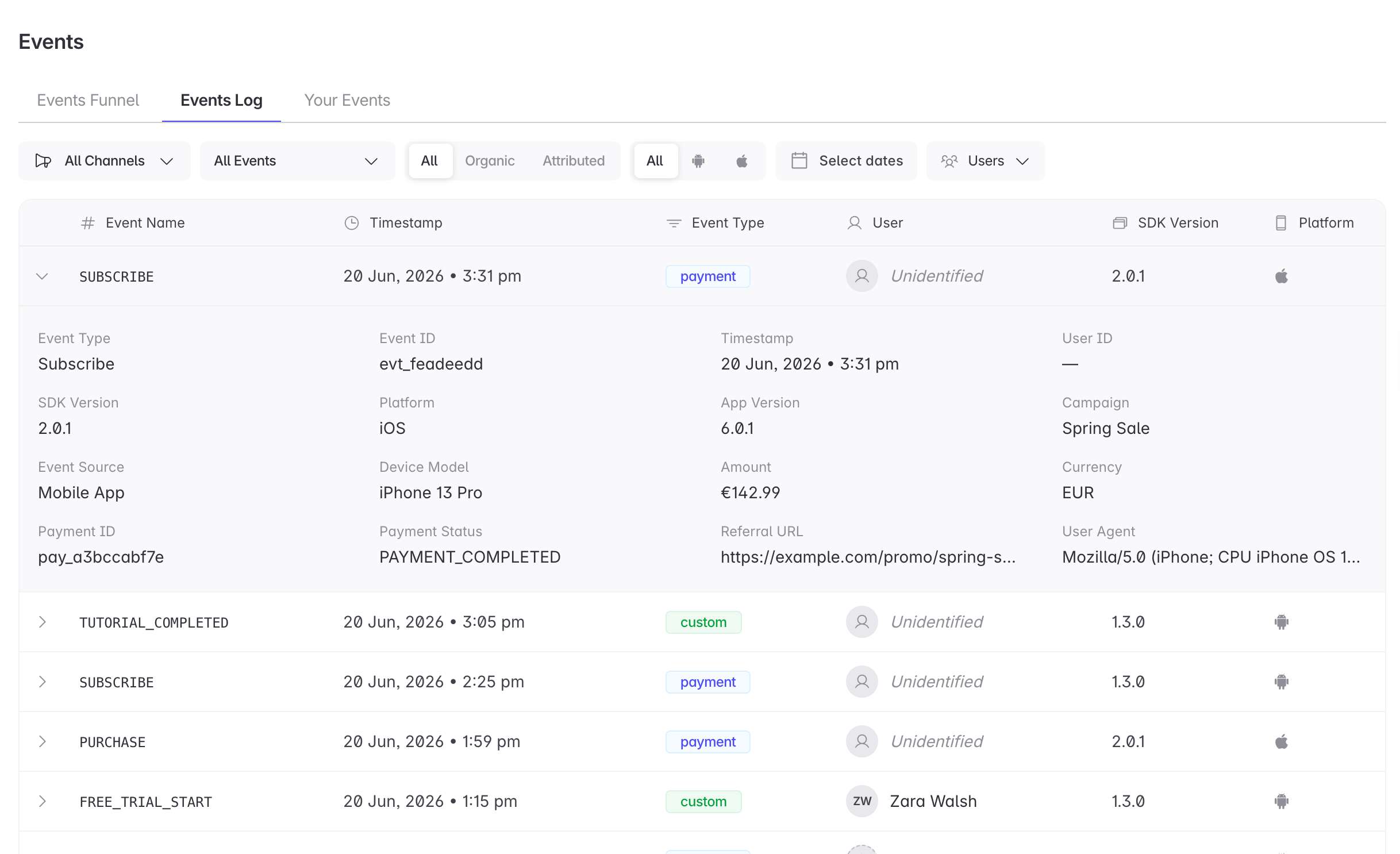
Open [**Events → Events Log**](https://dashboard.linkrunner.io/dashboard/events), then filter by your test user or event name.
* `checkout_started` appears as a custom event.
* The transaction appears as a payment event.
* The payment row contains the expected **Amount**, **Payment ID**, and **Payment Status**.
 Send the same payment again with the same `type` and `payment_id`.
Expected result: the Events Log still contains one payment for that combination. Linkrunner records the first request and ignores later duplicates.
Send another completed payment with a new `payment_id`, such as `lr_test_payment_002`.
Expected result: the Events Log contains a second payment. If it does not, confirm that the new transaction did not reuse the previous `payment_id`.
## Expected classification
| Example action | Send as | Key fields |
| --------------------------------------- | -------------- | --------------------------------------------------- |
| `item_viewed` | Custom event | `event_name`, `user_id` |
| `add_to_cart` | Custom event | `event_name`, `user_id`, product data |
| `checkout_started` | Custom event | `event_name`, `user_id` |
| `purchase_initiated` as a funnel step | Custom event | `event_name`, `user_id` |
| Completed purchase | Payment | `user_id`, `payment_id`, `amount`, `type`, `status` |
| Subscription renewal with a charge | Payment | `type: SUBSCRIPTION_RENEWED` |
| Wallet top-up | Payment | `type: WALLET_TOPUP` |
| Failed payment that must be recorded | Payment | `status: PAYMENT_FAILED` |
| Cancelled payment that must be recorded | Payment | `status: PAYMENT_CANCELLED` |
| Refund or void of a captured payment | Remove payment | The original `payment_id` |
## Test Meta Purchase forwarding
Use this section only when the payment must reach Meta Commerce Manager.
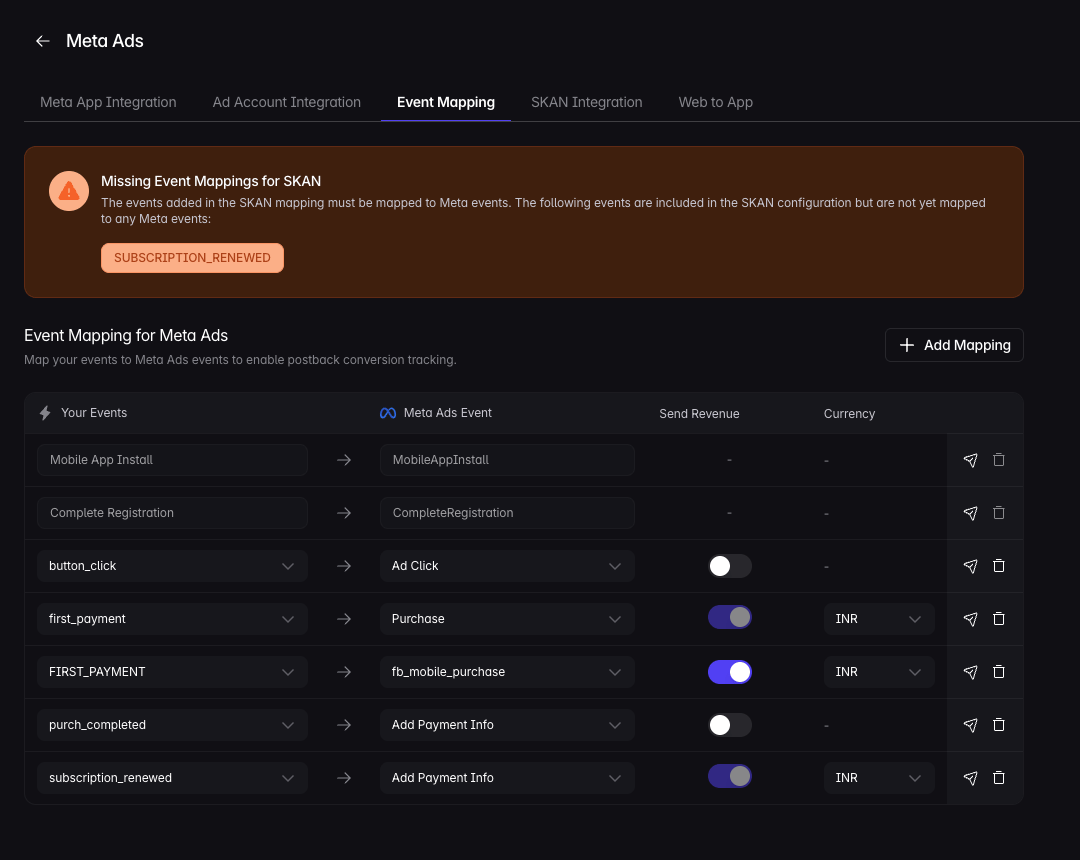
1. In Linkrunner, map the payment type you send, such as `DEFAULT` or `FIRST_PAYMENT`, to Meta's standard `Purchase` event.
2. Include the required `event_data` fields for `Purchase`, including product IDs, `contents`, `content_type`, `value`, `currency`, `num_items`, and `order_id`.
3. Send a new payment with a new `payment_id`.
4. Check **Meta Commerce Manager → Events**. The real-time hit should appear within about 15 minutes. Full reporting can take a few days.
Send the same payment again with the same `type` and `payment_id`.
Expected result: the Events Log still contains one payment for that combination. Linkrunner records the first request and ignores later duplicates.
Send another completed payment with a new `payment_id`, such as `lr_test_payment_002`.
Expected result: the Events Log contains a second payment. If it does not, confirm that the new transaction did not reuse the previous `payment_id`.
## Expected classification
| Example action | Send as | Key fields |
| --------------------------------------- | -------------- | --------------------------------------------------- |
| `item_viewed` | Custom event | `event_name`, `user_id` |
| `add_to_cart` | Custom event | `event_name`, `user_id`, product data |
| `checkout_started` | Custom event | `event_name`, `user_id` |
| `purchase_initiated` as a funnel step | Custom event | `event_name`, `user_id` |
| Completed purchase | Payment | `user_id`, `payment_id`, `amount`, `type`, `status` |
| Subscription renewal with a charge | Payment | `type: SUBSCRIPTION_RENEWED` |
| Wallet top-up | Payment | `type: WALLET_TOPUP` |
| Failed payment that must be recorded | Payment | `status: PAYMENT_FAILED` |
| Cancelled payment that must be recorded | Payment | `status: PAYMENT_CANCELLED` |
| Refund or void of a captured payment | Remove payment | The original `payment_id` |
## Test Meta Purchase forwarding
Use this section only when the payment must reach Meta Commerce Manager.
1. In Linkrunner, map the payment type you send, such as `DEFAULT` or `FIRST_PAYMENT`, to Meta's standard `Purchase` event.
2. Include the required `event_data` fields for `Purchase`, including product IDs, `contents`, `content_type`, `value`, `currency`, `num_items`, and `order_id`.
3. Send a new payment with a new `payment_id`.
4. Check **Meta Commerce Manager → Events**. The real-time hit should appear within about 15 minutes. Full reporting can take a few days.
 See [Meta Commerce Manager](/ecommerce-manager/meta-commerce-manager#understanding-event_data) for the full ecommerce payload.
## Test payment removal
Remove one test payment using its `payment_id`:
```bash theme={null}
curl -X POST https://api.linkrunner.io/api/v1/remove-payment \
-H "Content-Type: application/json" \
-H "linkrunner-key: YOUR-SERVER-KEY" \
-d '{ "payment_id": "lr_test_payment_001" }'
```
The API does not define a partial-refund adjustment flow. Contact support before using `removePayment` for a partial refund.
Do not test removal with only `user_id` unless you intend to remove every payment attributed to that user.
## Troubleshooting
Confirm the device completed the [attribution test flow](/testing/integration-testing) and that the event uses the same `user_id` registered through `signup`.
The app or backend sent it through `trackEvent` or `/capture-event`. Send authoritative transactions through `capturePayment` or `/capture-payment` instead.
Check whether it reused the same `type` and `payment_id` as an earlier transaction. Linkrunner treats that combination as a duplicate.
Confirm the app and backend are not both sending the transaction with different payment IDs. Choose one source, or use the same stable payment ID for safe retries.
Linkrunner keeps the first record for a `type` and `payment_id` combination. Send the final payment state once instead of sending initiated and completed states with the same combination.
Confirm the payment type is mapped to `Purchase`, the ecommerce payload includes every required field, and the test has had at least 15 minutes to reach Meta Events Manager.
**Need help?** Contact [support@linkrunner.io](mailto:support@linkrunner.io)
See [Meta Commerce Manager](/ecommerce-manager/meta-commerce-manager#understanding-event_data) for the full ecommerce payload.
## Test payment removal
Remove one test payment using its `payment_id`:
```bash theme={null}
curl -X POST https://api.linkrunner.io/api/v1/remove-payment \
-H "Content-Type: application/json" \
-H "linkrunner-key: YOUR-SERVER-KEY" \
-d '{ "payment_id": "lr_test_payment_001" }'
```
The API does not define a partial-refund adjustment flow. Contact support before using `removePayment` for a partial refund.
Do not test removal with only `user_id` unless you intend to remove every payment attributed to that user.
## Troubleshooting
Confirm the device completed the [attribution test flow](/testing/integration-testing) and that the event uses the same `user_id` registered through `signup`.
The app or backend sent it through `trackEvent` or `/capture-event`. Send authoritative transactions through `capturePayment` or `/capture-payment` instead.
Check whether it reused the same `type` and `payment_id` as an earlier transaction. Linkrunner treats that combination as a duplicate.
Confirm the app and backend are not both sending the transaction with different payment IDs. Choose one source, or use the same stable payment ID for safe retries.
Linkrunner keeps the first record for a `type` and `payment_id` combination. Send the final payment state once instead of sending initiated and completed states with the same combination.
Confirm the payment type is mapped to `Purchase`, the ecommerce payload includes every required field, and the test has had at least 15 minutes to reach Meta Events Manager.
**Need help?** Contact [support@linkrunner.io](mailto:support@linkrunner.io)