> ## Documentation Index
> Fetch the complete documentation index at: https://docs.linkrunner.io/llms.txt
> Use this file to discover all available pages before exploring further.
# Shopify
> Track visitors, campaigns, and purchases on a Shopify store with the Linkrunner Web SDK
Shopify stores need the Web SDK installed in **two places**, because Shopify does not
allow scripts on the checkout and thank-you pages. Your storefront gets a script tag;
your checkout gets a custom pixel.
Once both are in, every purchase is linked back to the ad, campaign, or link that
brought the shopper in.
This takes about 30 minutes and needs no developer access to your servers. Everything
is done from your Shopify admin.
## Before you start
Go to **Settings → Domains** in your Shopify admin. Your checkout must run on your
own domain (for example `checkout` pages under `yourstore.com`) for the purchase to
be linked to the shopper's browsing session.
Most Shopify stores are already set up this way. If your checkout runs on
`yourstore.myshopify.com` while your storefront is on `yourstore.com`, Step 3 below
is required rather than optional.
Web attribution is in beta, so tokens are issued by us. Email
[support@linkrunner.io](mailto:support@linkrunner.io) with your project name and
store domain, and we'll send you a Web SDK token.
Step 2 edits your theme's code. In **Online Store → Themes**, use **Actions →
Duplicate** on your live theme first, so you can roll back instantly.
## Installation
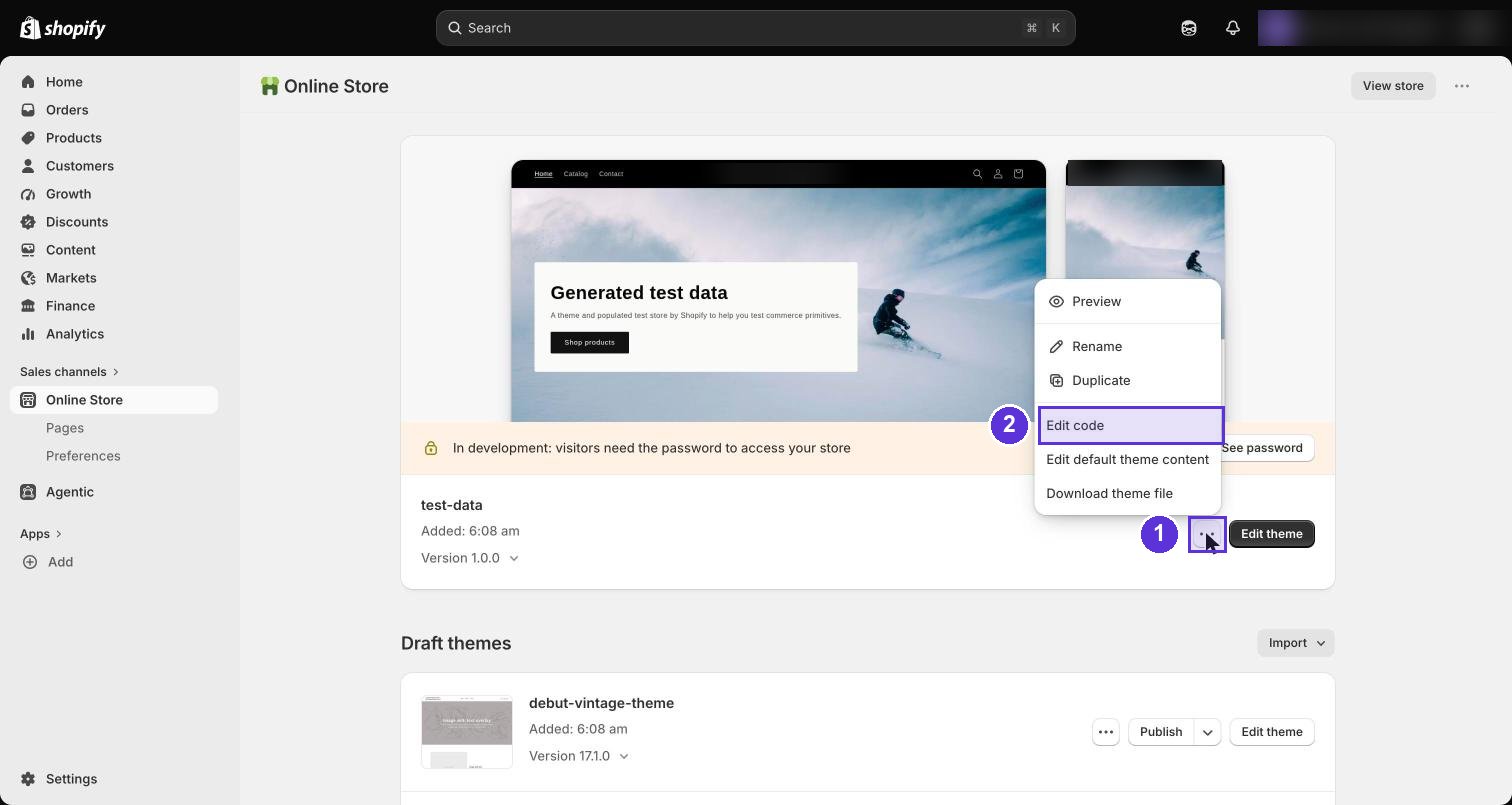
Go to **Online Store → Themes → ⋯ → Edit code** and open `layout/theme.liquid`.
 Paste this immediately before the closing `` tag, replacing
`YOUR_WEB_SDK_TOKEN`:
```html theme={null}
```
Click **Save**. This tracks page views, traffic sources, campaigns, and ad clicks
across your storefront.
In the same `layout/theme.liquid` file, paste this directly below the script you
just added:
```html theme={null}
```
This attaches the visitor's ID to their cart so the purchase can still be matched
if checkout happens on a different domain, which is what Shop Pay does. Click
**Save**.
Strictly optional if your checkout is on your own domain and you don't use Shop
Pay. We recommend adding it anyway: it costs nothing and removes a whole class
of missing-attribution problems.
Go to **Settings → Customer events → Add custom pixel**. Name it `Linkrunner`.
This is a **new, separate pixel**. Do not paste this code into a pixel you already
have. Each custom pixel runs in its own sandbox, so any existing pixels (Google
Analytics, Meta, and so on) keep working and should be left untouched.
Paste this immediately before the closing `` tag, replacing
`YOUR_WEB_SDK_TOKEN`:
```html theme={null}
```
Click **Save**. This tracks page views, traffic sources, campaigns, and ad clicks
across your storefront.
In the same `layout/theme.liquid` file, paste this directly below the script you
just added:
```html theme={null}
```
This attaches the visitor's ID to their cart so the purchase can still be matched
if checkout happens on a different domain, which is what Shop Pay does. Click
**Save**.
Strictly optional if your checkout is on your own domain and you don't use Shop
Pay. We recommend adding it anyway: it costs nothing and removes a whole class
of missing-attribution problems.
Go to **Settings → Customer events → Add custom pixel**. Name it `Linkrunner`.
This is a **new, separate pixel**. Do not paste this code into a pixel you already
have. Each custom pixel runs in its own sandbox, so any existing pixels (Google
Analytics, Meta, and so on) keep working and should be left untouched.
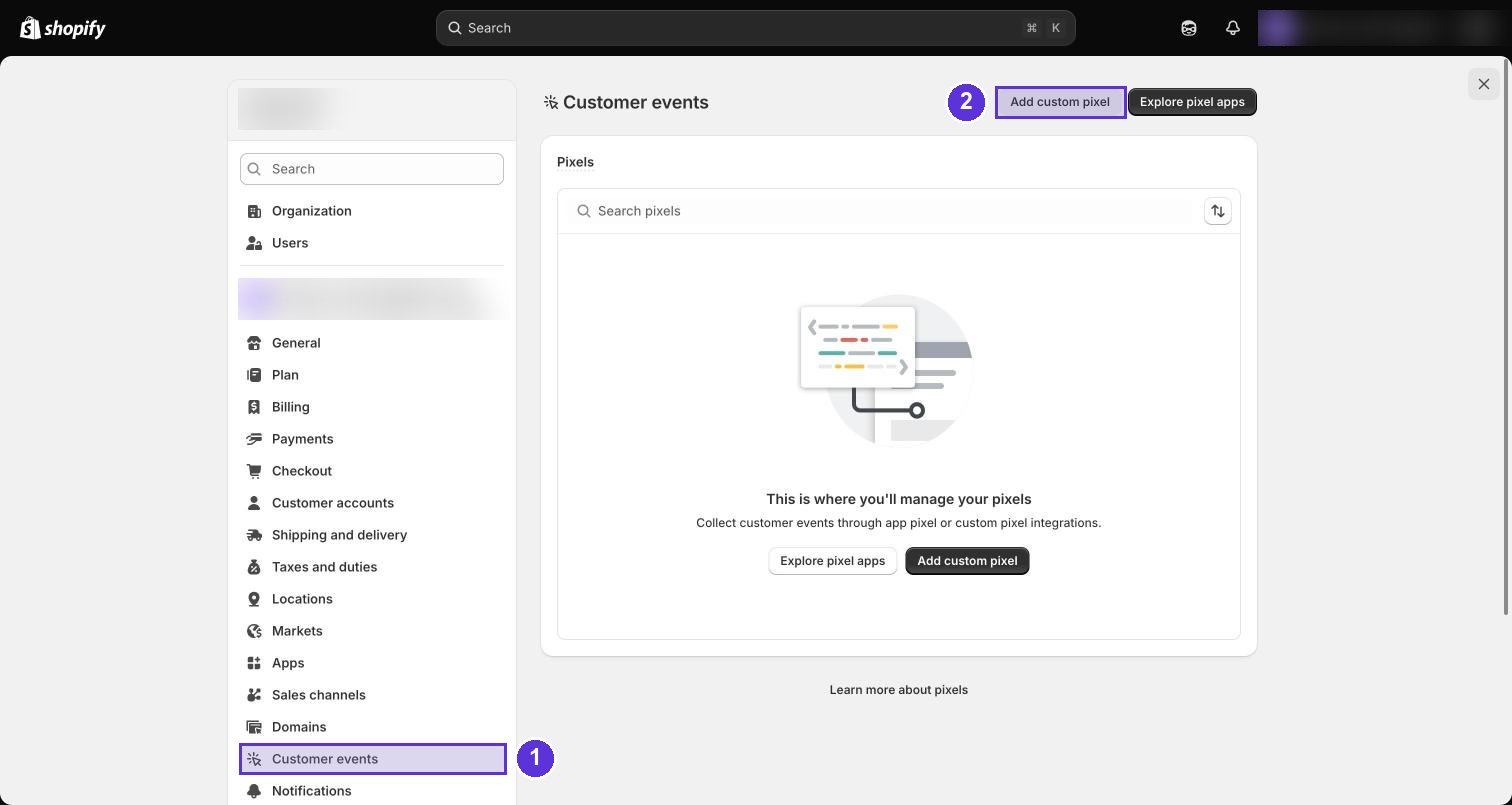 The code box arrives pre-filled with Shopify's commented placeholder starting
`// Step 1. Initialize the JavaScript pixel SDK`. Select all of it and delete it, then
paste the code below and replace `YOUR_WEB_SDK_TOKEN` with the token from Step 1.
```js theme={null}
var LR_TOKEN = "YOUR_WEB_SDK_TOKEN";
var LR_ENDPOINT = "https://api.linkrunner.io/web/collect";
var UTM_KEYS = ["utm_source", "utm_medium", "utm_campaign", "utm_id", "utm_term", "utm_content"];
var CLICK_ID_KEYS = ["gclid", "gbraid", "wbraid", "fbclid", "fbc", "fbp",
"ttclid", "twclid", "msclkid", "li_fat_id", "dclid", "irclickid"];
async function local(key) {
try { return (await browser.localStorage.getItem(key)) || ""; } catch (e) { return ""; }
}
async function session(key) {
try { return (await browser.sessionStorage.getItem(key)) || ""; } catch (e) { return ""; }
}
async function clickId(name) {
try { return JSON.parse(await local("lr_" + name)).v || ""; } catch (e) { return ""; }
}
analytics.subscribe("checkout_completed", async (event) => {
try {
var checkout = event.data.checkout || {};
var payload = {
token: LR_TOKEN,
event_id: "lr-" + Date.now().toString(36) + "-" + Math.random().toString(36).slice(2, 10),
event_type: "custom",
event_name: "purchase",
event_data: {
value: Number(checkout.totalPrice && checkout.totalPrice.amount) || 0,
currency: checkout.currencyCode || "",
order_id: (checkout.order && checkout.order.id) || "",
email: checkout.email || "",
phone: checkout.phone || "",
},
visitor_id: await local("lr_vid"),
session_id: await session("lr_sid"),
user_id: await local("lr_uid"),
page_url: event.context.document.location.href,
client_timestamp: new Date().toISOString(),
};
if (!payload.visitor_id) {
(checkout.attributes || []).forEach(function (a) {
if (a.key === "lr_vid") payload.visitor_id = a.value || "";
});
}
for (var k of UTM_KEYS) {
payload[k] = await session("lr_" + k);
payload["ft_" + k] = await local("lr_ft_" + k);
}
for (var c of CLICK_ID_KEYS) {
payload[c] = await clickId(c);
payload["ft_" + c] = await local("lr_ft_" + c);
}
payload.ft_traffic_source_type = await local("lr_ft_traffic_source_type");
payload.ft_traffic_source_name = await local("lr_ft_traffic_source_name");
payload.traffic_source_type = (await session("lr_ts_type")) || payload.ft_traffic_source_type;
payload.traffic_source_name = (await session("lr_ts_name")) || payload.ft_traffic_source_name;
await fetch(LR_ENDPOINT, {
method: "POST",
headers: { "Content-Type": "application/json" },
body: JSON.stringify(payload),
keepalive: true,
});
} catch (e) {}
});
```
The code box arrives pre-filled with Shopify's commented placeholder starting
`// Step 1. Initialize the JavaScript pixel SDK`. Select all of it and delete it, then
paste the code below and replace `YOUR_WEB_SDK_TOKEN` with the token from Step 1.
```js theme={null}
var LR_TOKEN = "YOUR_WEB_SDK_TOKEN";
var LR_ENDPOINT = "https://api.linkrunner.io/web/collect";
var UTM_KEYS = ["utm_source", "utm_medium", "utm_campaign", "utm_id", "utm_term", "utm_content"];
var CLICK_ID_KEYS = ["gclid", "gbraid", "wbraid", "fbclid", "fbc", "fbp",
"ttclid", "twclid", "msclkid", "li_fat_id", "dclid", "irclickid"];
async function local(key) {
try { return (await browser.localStorage.getItem(key)) || ""; } catch (e) { return ""; }
}
async function session(key) {
try { return (await browser.sessionStorage.getItem(key)) || ""; } catch (e) { return ""; }
}
async function clickId(name) {
try { return JSON.parse(await local("lr_" + name)).v || ""; } catch (e) { return ""; }
}
analytics.subscribe("checkout_completed", async (event) => {
try {
var checkout = event.data.checkout || {};
var payload = {
token: LR_TOKEN,
event_id: "lr-" + Date.now().toString(36) + "-" + Math.random().toString(36).slice(2, 10),
event_type: "custom",
event_name: "purchase",
event_data: {
value: Number(checkout.totalPrice && checkout.totalPrice.amount) || 0,
currency: checkout.currencyCode || "",
order_id: (checkout.order && checkout.order.id) || "",
email: checkout.email || "",
phone: checkout.phone || "",
},
visitor_id: await local("lr_vid"),
session_id: await session("lr_sid"),
user_id: await local("lr_uid"),
page_url: event.context.document.location.href,
client_timestamp: new Date().toISOString(),
};
if (!payload.visitor_id) {
(checkout.attributes || []).forEach(function (a) {
if (a.key === "lr_vid") payload.visitor_id = a.value || "";
});
}
for (var k of UTM_KEYS) {
payload[k] = await session("lr_" + k);
payload["ft_" + k] = await local("lr_ft_" + k);
}
for (var c of CLICK_ID_KEYS) {
payload[c] = await clickId(c);
payload["ft_" + c] = await local("lr_ft_" + c);
}
payload.ft_traffic_source_type = await local("lr_ft_traffic_source_type");
payload.ft_traffic_source_name = await local("lr_ft_traffic_source_name");
payload.traffic_source_type = (await session("lr_ts_type")) || payload.ft_traffic_source_type;
payload.traffic_source_name = (await session("lr_ts_name")) || payload.ft_traffic_source_name;
await fetch(LR_ENDPOINT, {
method: "POST",
headers: { "Content-Type": "application/json" },
body: JSON.stringify(payload),
keepalive: true,
});
} catch (e) {}
});
```
 The empty `catch` at the end is deliberate. A custom pixel must never throw, because
an error there can interrupt the checkout. Failures are swallowed silently, which is
why you verify with the steps below rather than by watching for errors.
**This sends your shoppers' email and phone to Linkrunner.** They are what link a
purchase to an identifiable person, so audience exports and person-level reporting
depend on them.
Make sure your privacy notice covers sharing customer contact details with
Linkrunner and your data processing agreement with us is in place. If you would
rather not send them, comment out the `email` and `phone` lines in `event_data`.
Attribution, campaign reporting, and revenue all work without them; you lose
person-level audiences.
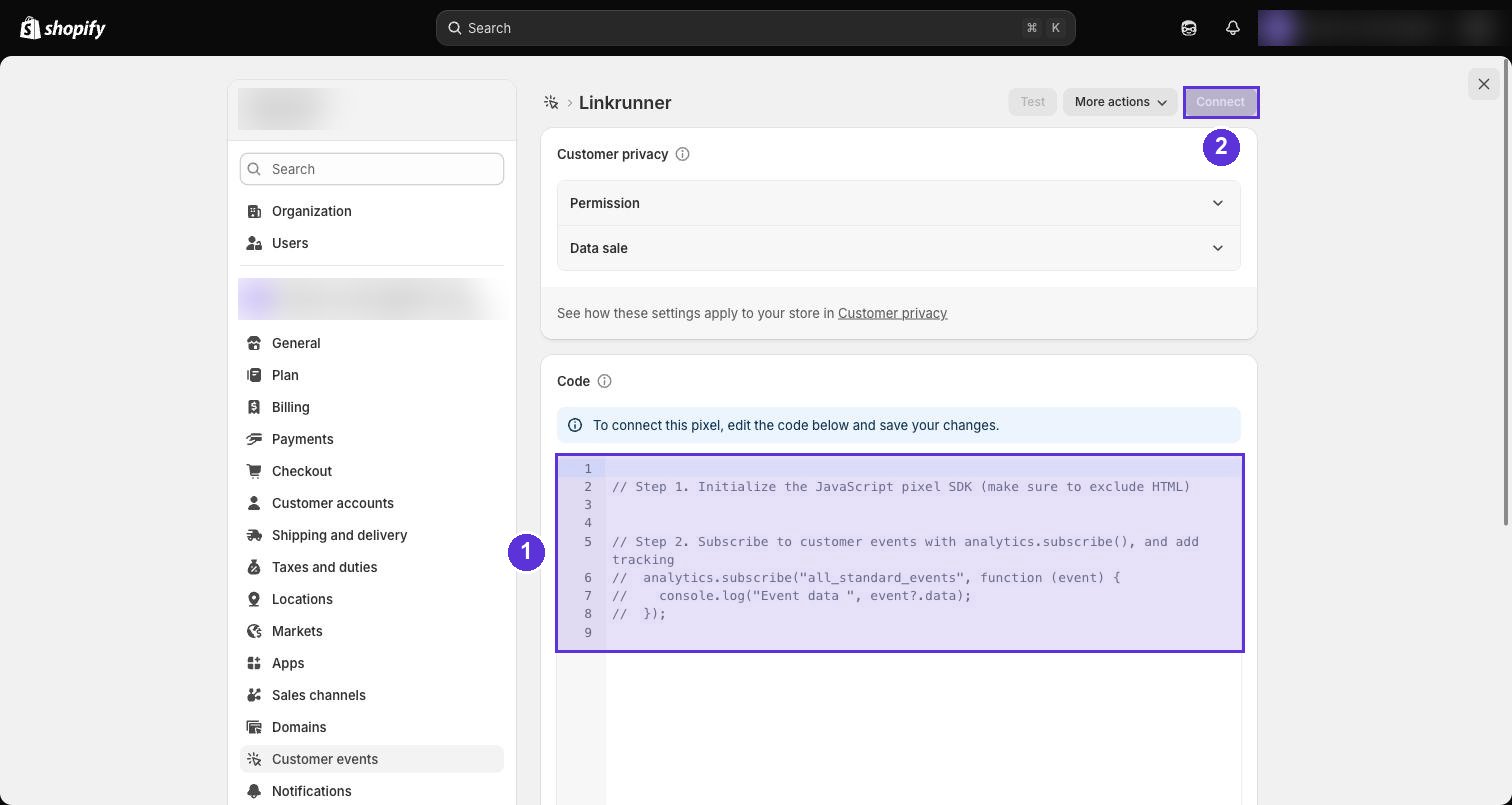
Above the code box, check the two **Customer privacy** settings. The defaults are
already right for Linkrunner, so in most cases you are confirming rather than changing:
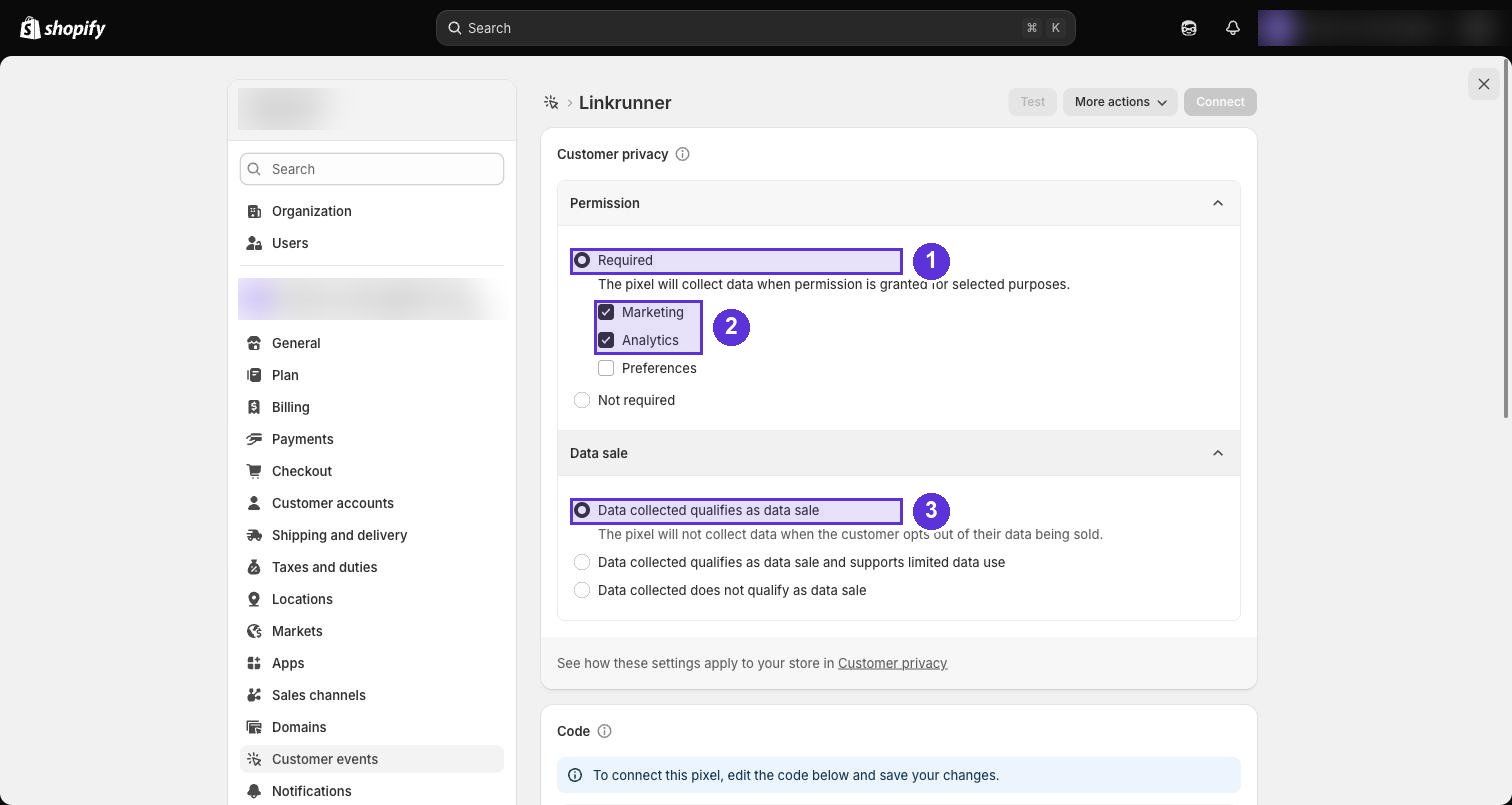
* **Permission**: leave **Required** selected, with **Marketing** and **Analytics**
ticked. Analytics covers page views and sessions; Marketing covers the ad click IDs
and campaign data that attribution depends on. **Preferences** is unused, leave it
unticked.
* **Data sale**: leave **Data collected qualifies as data sale** selected. The pixel
then stops collecting for shoppers who opt out of having their data sold.
The empty `catch` at the end is deliberate. A custom pixel must never throw, because
an error there can interrupt the checkout. Failures are swallowed silently, which is
why you verify with the steps below rather than by watching for errors.
**This sends your shoppers' email and phone to Linkrunner.** They are what link a
purchase to an identifiable person, so audience exports and person-level reporting
depend on them.
Make sure your privacy notice covers sharing customer contact details with
Linkrunner and your data processing agreement with us is in place. If you would
rather not send them, comment out the `email` and `phone` lines in `event_data`.
Attribution, campaign reporting, and revenue all work without them; you lose
person-level audiences.
Above the code box, check the two **Customer privacy** settings. The defaults are
already right for Linkrunner, so in most cases you are confirming rather than changing:
* **Permission**: leave **Required** selected, with **Marketing** and **Analytics**
ticked. Analytics covers page views and sessions; Marketing covers the ad click IDs
and campaign data that attribution depends on. **Preferences** is unused, leave it
unticked.
* **Data sale**: leave **Data collected qualifies as data sale** selected. The pixel
then stops collecting for shoppers who opt out of having their data sold.
 Choosing **Not required** makes the pixel collect regardless of consent. That is a
legal decision about the markets you sell in, not a technical one. Check with whoever
handles privacy at your company before changing it.
Click **Save**, then click **Connect**.
**Save and Connect are two separate actions.** A saved but unconnected pixel looks
installed and never runs. This is the single most common reason purchases don't
appear.
1. Visit your store with test campaign parameters, for example
`https://yourstore.com/?utm_source=meta&utm_medium=cpc&utm_campaign=test`
2. Browse a product, add it to the cart, and complete a real order
3. Open [Web Events](https://dashboard.linkrunner.io/dashboard/web-events) in your Linkrunner dashboard
You should see page views for the visit and a `purchase` event carrying the order
value, all attributed to `utm_campaign=test`.
Refund the test order afterwards. Refunding does not remove the tracked event, which
is what you want, because you are confirming tracking, not revenue.
## Limitations and constraints
Please read these before going live. Most are Shopify platform behaviour, not Linkrunner
settings, and cannot be worked around.
When a shopper checks out with Shop Pay, the checkout is served by `shop.app`, not
your store. Browser security prevents the pixel from reading anything your storefront
saved.
The cart-attribute snippet in **Step 2** is what keeps these purchases attributed. If
you use Shop Pay, Step 2 is **required**.
Custom pixels do not run in theme preview links. Test on the published theme, or your
purchase events will never fire.
If your store uses Shopify's customer privacy controls, a custom pixel will not run
until the visitor grants the consent category the pixel is assigned to.
If you see page views but no purchases, check the pixel's **Permission** setting under
**Settings → Customer events** first.
Development stores and stores behind a password page keep the storefront gated. Enter
the password first, then navigate to your campaign URL. Otherwise Shopify strips the
campaign parameters during the redirect and the visit records with no campaign.
Safari deletes browser storage written by scripts after 7 days of inactivity. A Safari
visitor who first arrives from an ad and returns more than a week later will be counted
as a new visitor.
This affects all web analytics tools equally and is not specific to Linkrunner.
Some browser extensions block analytics requests. Expect a small gap between Shopify's
own order count and the purchases recorded here. Shopify's admin remains the source of
truth for revenue.
The `cdn.linkrunner.io` URL in Step 1 always serves the current version, so there is
nothing to install or keep updated. If you load the SDK from somewhere else, use
v0.1.13 or later for full campaign attribution at checkout.
## Troubleshooting
Open your storefront, press F12, and check the **Network** tab for requests
to `api.linkrunner.io`.
* No requests: the script tag is missing or the theme wasn't saved
* `401` responses: wrong token. Confirm you used the **Web SDK** token
In order of likelihood:
1. The pixel was saved but never **Connected**
2. Customer privacy settings are blocking it (see Limitations)
3. You tested on a theme preview instead of the published theme
4. The token in the pixel doesn't match the one in the theme
Usually Shop Pay. Confirm the **Step 2** cart snippet is installed and saved, then place
a fresh test order, because existing carts won't have the attribute attached.
Check that your products have prices set. The pixel reads the order total directly from
Shopify's checkout data, so a zero total means a zero-priced order.
## What gets tracked
| Where | What |
| ---------------- | --------------------------------------------------------------------------------------------------------------------------------------- |
| Storefront pages | Page views, traffic source, campaign, ad click IDs, first and last touch |
| Cart | Visitor ID attached for checkout matching |
| Checkout | `purchase` event with order value, currency, order ID, item count, and the customer's email and phone (used for person-level audiences) |
**Need help?** Contact [support@linkrunner.io](mailto:support@linkrunner.io)
Choosing **Not required** makes the pixel collect regardless of consent. That is a
legal decision about the markets you sell in, not a technical one. Check with whoever
handles privacy at your company before changing it.
Click **Save**, then click **Connect**.
**Save and Connect are two separate actions.** A saved but unconnected pixel looks
installed and never runs. This is the single most common reason purchases don't
appear.
1. Visit your store with test campaign parameters, for example
`https://yourstore.com/?utm_source=meta&utm_medium=cpc&utm_campaign=test`
2. Browse a product, add it to the cart, and complete a real order
3. Open [Web Events](https://dashboard.linkrunner.io/dashboard/web-events) in your Linkrunner dashboard
You should see page views for the visit and a `purchase` event carrying the order
value, all attributed to `utm_campaign=test`.
Refund the test order afterwards. Refunding does not remove the tracked event, which
is what you want, because you are confirming tracking, not revenue.
## Limitations and constraints
Please read these before going live. Most are Shopify platform behaviour, not Linkrunner
settings, and cannot be worked around.
When a shopper checks out with Shop Pay, the checkout is served by `shop.app`, not
your store. Browser security prevents the pixel from reading anything your storefront
saved.
The cart-attribute snippet in **Step 2** is what keeps these purchases attributed. If
you use Shop Pay, Step 2 is **required**.
Custom pixels do not run in theme preview links. Test on the published theme, or your
purchase events will never fire.
If your store uses Shopify's customer privacy controls, a custom pixel will not run
until the visitor grants the consent category the pixel is assigned to.
If you see page views but no purchases, check the pixel's **Permission** setting under
**Settings → Customer events** first.
Development stores and stores behind a password page keep the storefront gated. Enter
the password first, then navigate to your campaign URL. Otherwise Shopify strips the
campaign parameters during the redirect and the visit records with no campaign.
Safari deletes browser storage written by scripts after 7 days of inactivity. A Safari
visitor who first arrives from an ad and returns more than a week later will be counted
as a new visitor.
This affects all web analytics tools equally and is not specific to Linkrunner.
Some browser extensions block analytics requests. Expect a small gap between Shopify's
own order count and the purchases recorded here. Shopify's admin remains the source of
truth for revenue.
The `cdn.linkrunner.io` URL in Step 1 always serves the current version, so there is
nothing to install or keep updated. If you load the SDK from somewhere else, use
v0.1.13 or later for full campaign attribution at checkout.
## Troubleshooting
Open your storefront, press F12, and check the **Network** tab for requests
to `api.linkrunner.io`.
* No requests: the script tag is missing or the theme wasn't saved
* `401` responses: wrong token. Confirm you used the **Web SDK** token
In order of likelihood:
1. The pixel was saved but never **Connected**
2. Customer privacy settings are blocking it (see Limitations)
3. You tested on a theme preview instead of the published theme
4. The token in the pixel doesn't match the one in the theme
Usually Shop Pay. Confirm the **Step 2** cart snippet is installed and saved, then place
a fresh test order, because existing carts won't have the attribute attached.
Check that your products have prices set. The pixel reads the order total directly from
Shopify's checkout data, so a zero total means a zero-priced order.
## What gets tracked
| Where | What |
| ---------------- | --------------------------------------------------------------------------------------------------------------------------------------- |
| Storefront pages | Page views, traffic source, campaign, ad click IDs, first and last touch |
| Cart | Visitor ID attached for checkout matching |
| Checkout | `purchase` event with order value, currency, order ID, item count, and the customer's email and phone (used for person-level audiences) |
**Need help?** Contact [support@linkrunner.io](mailto:support@linkrunner.io)