> ## Documentation Index
> Fetch the complete documentation index at: https://docs.linkrunner.io/llms.txt
> Use this file to discover all available pages before exploring further.
# Everflow
> Send installs and in-app events to your Everflow network, or bring Linkrunner reporting into Everflow
## Overview
Everflow is a partner marketing platform. Many affiliate networks run on it, and each one has its own tracking domain and Network ID (`nid`).
You can connect Linkrunner and Everflow in two ways:
| | Option 1: Postbacks | Option 2: Linkrunner card in Everflow |
| ------------------- | ------------------------------------------------------------------------ | ------------------------------------------------------------- |
| What it does | Linkrunner sends each install and in-app event to Everflow as it happens | Everflow imports Linkrunner campaigns, events and daily stats |
| Use it when | Your affiliates run on Everflow tracking links and Everflow pays them | You want Linkrunner numbers in Everflow reports |
| Where you set it up | Linkrunner (**Integrations → Everflow**) and your Everflow offer | Everflow (**Integrations → MMP → Linkrunner**) |
Use one option for the same traffic, not both. With both on, a click is counted twice.
***
## Option 1: Send postbacks to Everflow
When a user clicks an Everflow tracking link, Everflow redirects them to your Linkrunner link with its click ID (`transaction_id`). Linkrunner attributes the install and events, then sends each one back to your Everflow network with that same `transaction_id`, so Everflow can credit and pay the right partner.
```
Partner traffic → Everflow tracking link → Linkrunner link (tid={transaction_id})
→ app install and events → Linkrunner postback → Everflow conversion
```
### What you need from Everflow
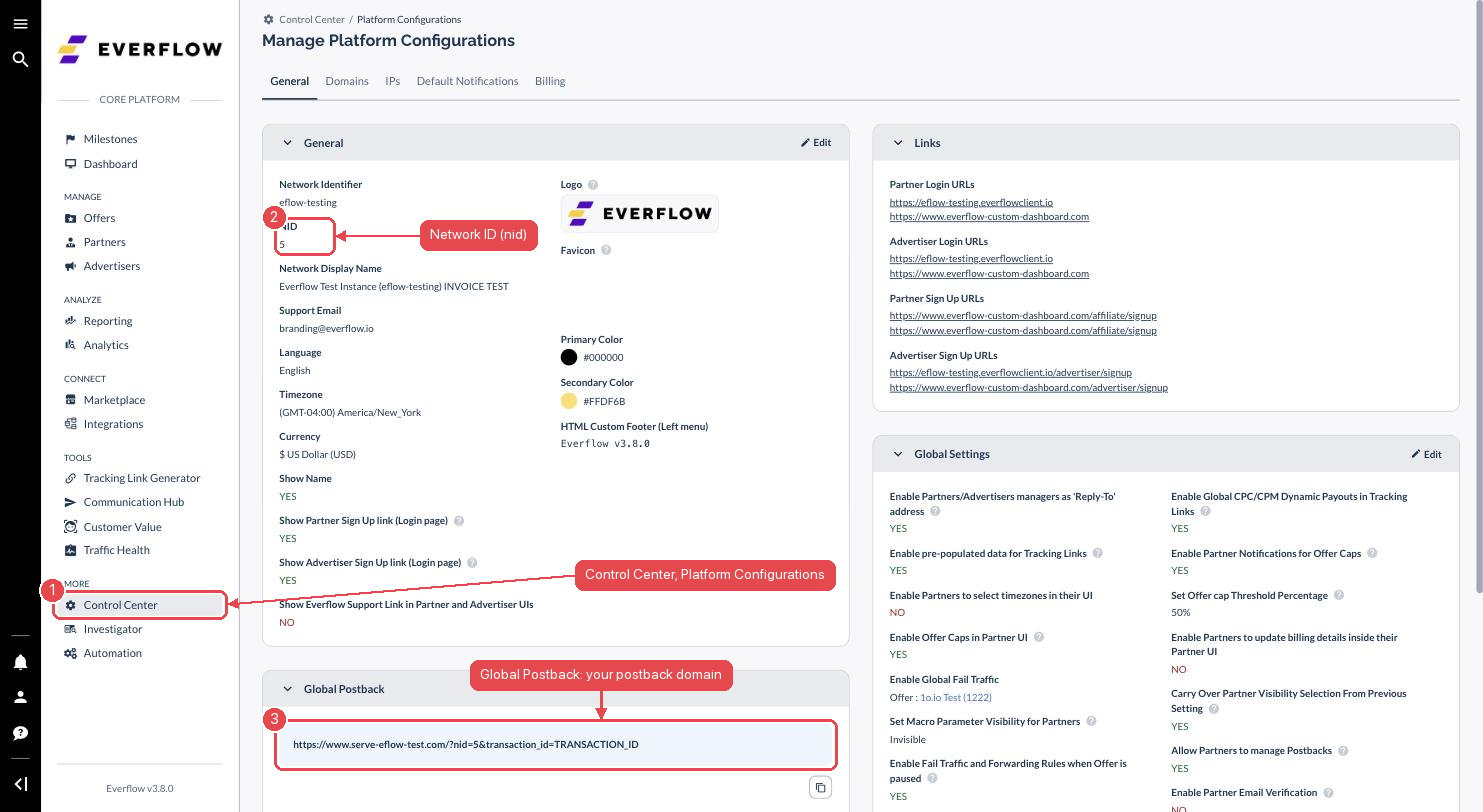
Everflow is white label. **Every network runs on its own postback domain and its own Network ID**, so there is no single Everflow address to send to. `www.serve-eflow-test.com` and `www.jb8np9ux.com` are both Everflow, they are just different networks. You have to copy these two values from the network you actually work with, and each Linkrunner project connects to one network.
In Everflow, go to **Control Center → Platform Configurations**.
 | Value | Where to find it | Example |
| --------------------- | --------------------------------------------------------------------------------------------------------------------------------------------------------------------------------- | ---------------------- |
| Postback domain | The domain in the **Global Postback** URL, at the bottom of the **General** tab | `www.your-network.com` |
| Network ID (`nid`) | **NID**, under **General** near the top | `4104` |
| Advertiser ID (`aid`) | Next to the advertiser name. Optional, used with advertiser events | `1` |
| Event IDs | Your offer's **Revenue & Payout (Events)** table, or **Advertisers → Events**. You create these yourself, see [Create your events in Everflow](#2-create-your-events-in-everflow) | `70931` |
**Do not copy the example values above.** They are from our test network and will send your
conversions nowhere. Use the NID and domain from your own Everflow account.
If your network runs more than one conversion domain, the Global Postback URL shows the default
one, which is the one to use. The full list is under **Platform Configurations → Domains →
Conversion Domains**, a separate list from Tracking Domains with its own default.
If your affiliate network manages Everflow for you rather than you owning the account, ask them
for the postback domain and NID. Partners can also read the domain from
**Offers → Manage → your offer → Conversion Method**.
### 1. Connect Everflow in Linkrunner
Go to **Integrations → Affiliate Partners → Everflow** and click **Configure**.
| Value | Where to find it | Example |
| --------------------- | --------------------------------------------------------------------------------------------------------------------------------------------------------------------------------- | ---------------------- |
| Postback domain | The domain in the **Global Postback** URL, at the bottom of the **General** tab | `www.your-network.com` |
| Network ID (`nid`) | **NID**, under **General** near the top | `4104` |
| Advertiser ID (`aid`) | Next to the advertiser name. Optional, used with advertiser events | `1` |
| Event IDs | Your offer's **Revenue & Payout (Events)** table, or **Advertisers → Events**. You create these yourself, see [Create your events in Everflow](#2-create-your-events-in-everflow) | `70931` |
**Do not copy the example values above.** They are from our test network and will send your
conversions nowhere. Use the NID and domain from your own Everflow account.
If your network runs more than one conversion domain, the Global Postback URL shows the default
one, which is the one to use. The full list is under **Platform Configurations → Domains →
Conversion Domains**, a separate list from Tracking Domains with its own default.
If your affiliate network manages Everflow for you rather than you owning the account, ask them
for the postback domain and NID. Partners can also read the domain from
**Offers → Manage → your offer → Conversion Method**.
### 1. Connect Everflow in Linkrunner
Go to **Integrations → Affiliate Partners → Everflow** and click **Configure**.
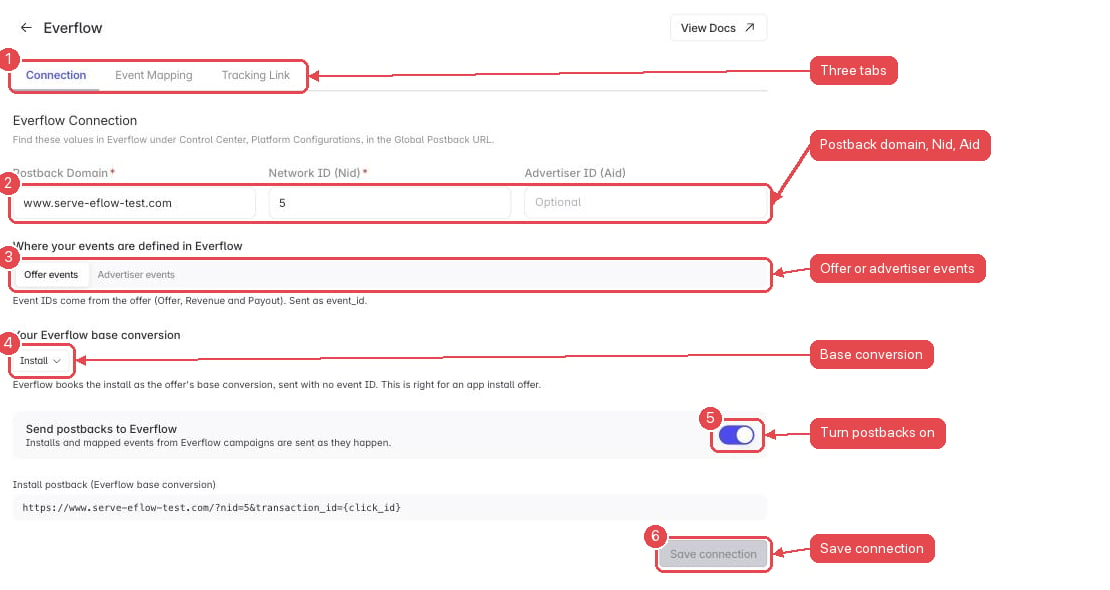
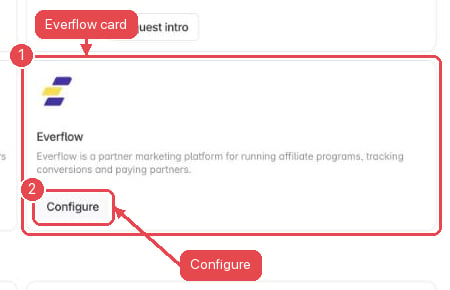 The Everflow page has three tabs: **Connection**, **Event Mapping** and **Tracking Link**.
On the **Connection** tab:
1. Enter the **Postback domain**, **Network ID** and, if your events are advertiser events, the **Advertiser ID**. These are the values you copied from Everflow in [What you need from Everflow](#what-you-need-from-everflow).
2. Choose where your events are defined in Everflow:
* **Offer events**: IDs from the offer's Revenue & Payout tab. Sent as `event_id`.
* **Advertiser events**: IDs from **Advertisers → Events**. Sent as `adv_event_id`.
3. Pick **Your Everflow base conversion**. Leave it on **Install** unless your offer converts before the install.
4. Turn on **Send postbacks to Everflow** and click **Save connection**.
The Everflow page has three tabs: **Connection**, **Event Mapping** and **Tracking Link**.
On the **Connection** tab:
1. Enter the **Postback domain**, **Network ID** and, if your events are advertiser events, the **Advertiser ID**. These are the values you copied from Everflow in [What you need from Everflow](#what-you-need-from-everflow).
2. Choose where your events are defined in Everflow:
* **Offer events**: IDs from the offer's Revenue & Payout tab. Sent as `event_id`.
* **Advertiser events**: IDs from **Advertisers → Events**. Sent as `adv_event_id`.
3. Pick **Your Everflow base conversion**. Leave it on **Install** unless your offer converts before the install.
4. Turn on **Send postbacks to Everflow** and click **Save connection**.
 ### Which conversion is your base conversion
Everflow books the one postback that carries **no event ID** as the offer's base conversion. Everything else needs an event ID. Which of your conversions that should be depends on the offer:
| Your offer | Base conversion | The install |
| ----------------------------------------------------------------------------------------------- | ------------------------------------ | -------------------------------------- |
| App install offer. The partner is paid for the install | **Install** (the default) | Sent with no event ID |
| Web to app funnel. The partner is paid for a signup or purchase that happens before the install | The event you pick, such as `signup` | Sent with its own **Install event ID** |
Pick the event on the Connection tab and Linkrunner moves the base conversion for you: that event's postback drops its event ID, and the install gains the one you enter. Exactly one conversion is ever the base conversion, so Everflow never sees two on the same click.
### 2. Create your events in Everflow
Everflow event IDs are created by you on the offer, and each one is a number Everflow assigns. Create one for every Linkrunner event you want the network to see, before mapping them.
In Everflow, open your offer, click **Edit**, and go to the **Revenue & Payout (Events)** tab.
The **Base Conversion Event** at the top is the conversion with no event ID. On this offer it is named `Install`, which matches leaving the base conversion on **Install** in Linkrunner. If your offer converts before the install, name it after that step instead, such as `Signup`.
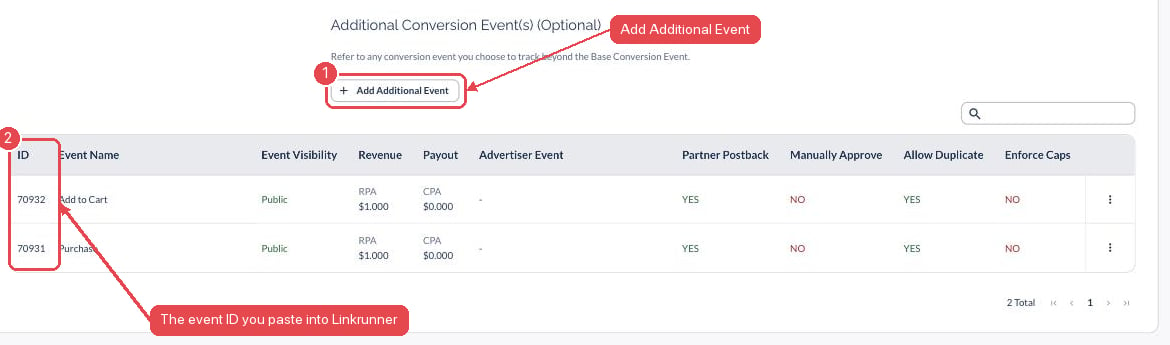
Under **Additional Conversion Event(s)**, click **Add Additional Event** for each further event:
### Which conversion is your base conversion
Everflow books the one postback that carries **no event ID** as the offer's base conversion. Everything else needs an event ID. Which of your conversions that should be depends on the offer:
| Your offer | Base conversion | The install |
| ----------------------------------------------------------------------------------------------- | ------------------------------------ | -------------------------------------- |
| App install offer. The partner is paid for the install | **Install** (the default) | Sent with no event ID |
| Web to app funnel. The partner is paid for a signup or purchase that happens before the install | The event you pick, such as `signup` | Sent with its own **Install event ID** |
Pick the event on the Connection tab and Linkrunner moves the base conversion for you: that event's postback drops its event ID, and the install gains the one you enter. Exactly one conversion is ever the base conversion, so Everflow never sees two on the same click.
### 2. Create your events in Everflow
Everflow event IDs are created by you on the offer, and each one is a number Everflow assigns. Create one for every Linkrunner event you want the network to see, before mapping them.
In Everflow, open your offer, click **Edit**, and go to the **Revenue & Payout (Events)** tab.
The **Base Conversion Event** at the top is the conversion with no event ID. On this offer it is named `Install`, which matches leaving the base conversion on **Install** in Linkrunner. If your offer converts before the install, name it after that step instead, such as `Signup`.
Under **Additional Conversion Event(s)**, click **Add Additional Event** for each further event:
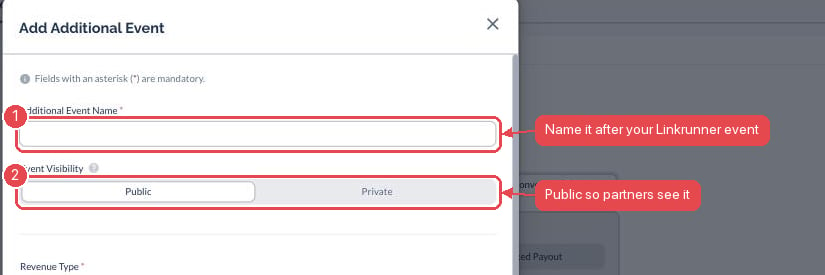 1. **Additional Event Name**: name it after the Linkrunner event it represents, such as `Add to Cart` or `Purchase`, so the mapping is obvious later.
2. **Event Visibility**: **Public** lets your partners see the event in their portal. Private hides it.
3. Set the **Revenue** and **Payout** for the event. A \$0 payout still records the event, so use it for steps you want visible but do not pay for.
4. Click **Add & Continue**, then **Save** the offer.
Everflow assigns each saved event an **ID**. That number is what you paste into Linkrunner:
1. **Additional Event Name**: name it after the Linkrunner event it represents, such as `Add to Cart` or `Purchase`, so the mapping is obvious later.
2. **Event Visibility**: **Public** lets your partners see the event in their portal. Private hides it.
3. Set the **Revenue** and **Payout** for the event. A \$0 payout still records the event, so use it for steps you want visible but do not pay for.
4. Click **Add & Continue**, then **Save** the offer.
Everflow assigns each saved event an **ID**. That number is what you paste into Linkrunner:
 | Everflow event | ID | Maps to your Linkrunner event |
| -------------- | ------- | ---------------------------------- |
| Install (Base) | none | the base conversion, no ID to copy |
| Add to Cart | `70932` | `add_to_cart` |
| Purchase | `70931` | `FIRST_PAYMENT` |
Using **advertiser events** instead? Create them under **Advertisers → your advertiser → Events**. Those IDs are sent as `adv_event_id` and are shared across every offer for that advertiser, so pick **Advertiser events** on Linkrunner's Connection tab.
### 3. Map your events in Linkrunner
Open the **Event Mapping** tab and click **Add Mapping** for each event you want Everflow to receive:
* **Your Events**: an event your app sends, such as `signup`, `add_to_cart` or a payment type like `FIRST_PAYMENT`.
* **Everflow Event ID**: the ID Everflow assigned when you created the event above.
* **Send Revenue**: turn it on to send the purchase amount, for revenue-based payouts.
Click **Save Mapping**.
| Everflow event | ID | Maps to your Linkrunner event |
| -------------- | ------- | ---------------------------------- |
| Install (Base) | none | the base conversion, no ID to copy |
| Add to Cart | `70932` | `add_to_cart` |
| Purchase | `70931` | `FIRST_PAYMENT` |
Using **advertiser events** instead? Create them under **Advertisers → your advertiser → Events**. Those IDs are sent as `adv_event_id` and are shared across every offer for that advertiser, so pick **Advertiser events** on Linkrunner's Connection tab.
### 3. Map your events in Linkrunner
Open the **Event Mapping** tab and click **Add Mapping** for each event you want Everflow to receive:
* **Your Events**: an event your app sends, such as `signup`, `add_to_cart` or a payment type like `FIRST_PAYMENT`.
* **Everflow Event ID**: the ID Everflow assigned when you created the event above.
* **Send Revenue**: turn it on to send the purchase amount, for revenue-based payouts.
Click **Save Mapping**.
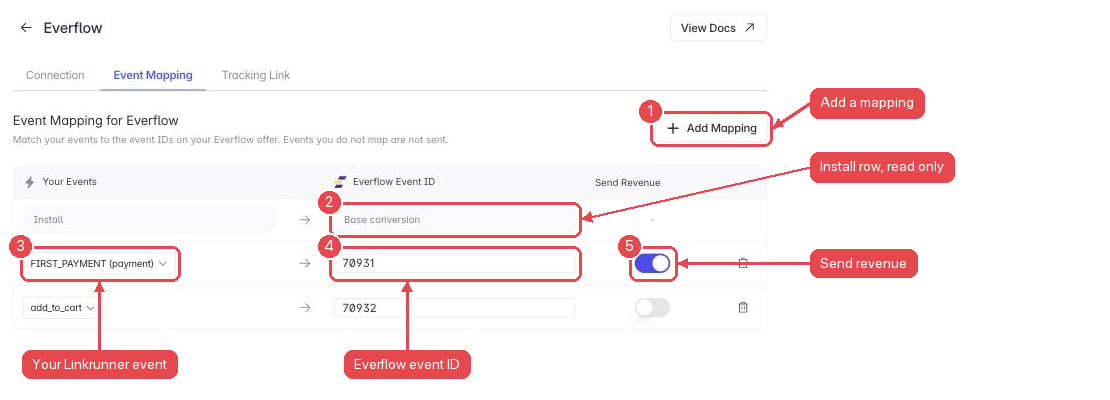 Only mapped events are sent. Everflow books a postback without an event ID as a base conversion, so Linkrunner never forwards an event you have not mapped.
The **Install** row at the top of the table is read only. It shows whether the install is your base conversion or carries its own event ID, both of which are set on the Connection tab.
### 4. Create an Everflow campaign and copy the link
1. Go to **Campaigns → Create Link**.
2. Under **Advanced Options → Ad Channel**, choose **Everflow** and create the campaign.
3. Copy the link. It is also listed on the Everflow page under the **Tracking Link** tab.
The link looks like this:
```
https://yourdomain.com/?c=CAMPAIGN_ID&tid={transaction_id}&s2={affiliate_id}&s3={affiliate_source_id}&s4={offer_id}&gaid={google_aid}&idfa={idfa}
```
Keep the curly braces. Everflow fills them in on every click.
### 5. Add the link to your Everflow offer
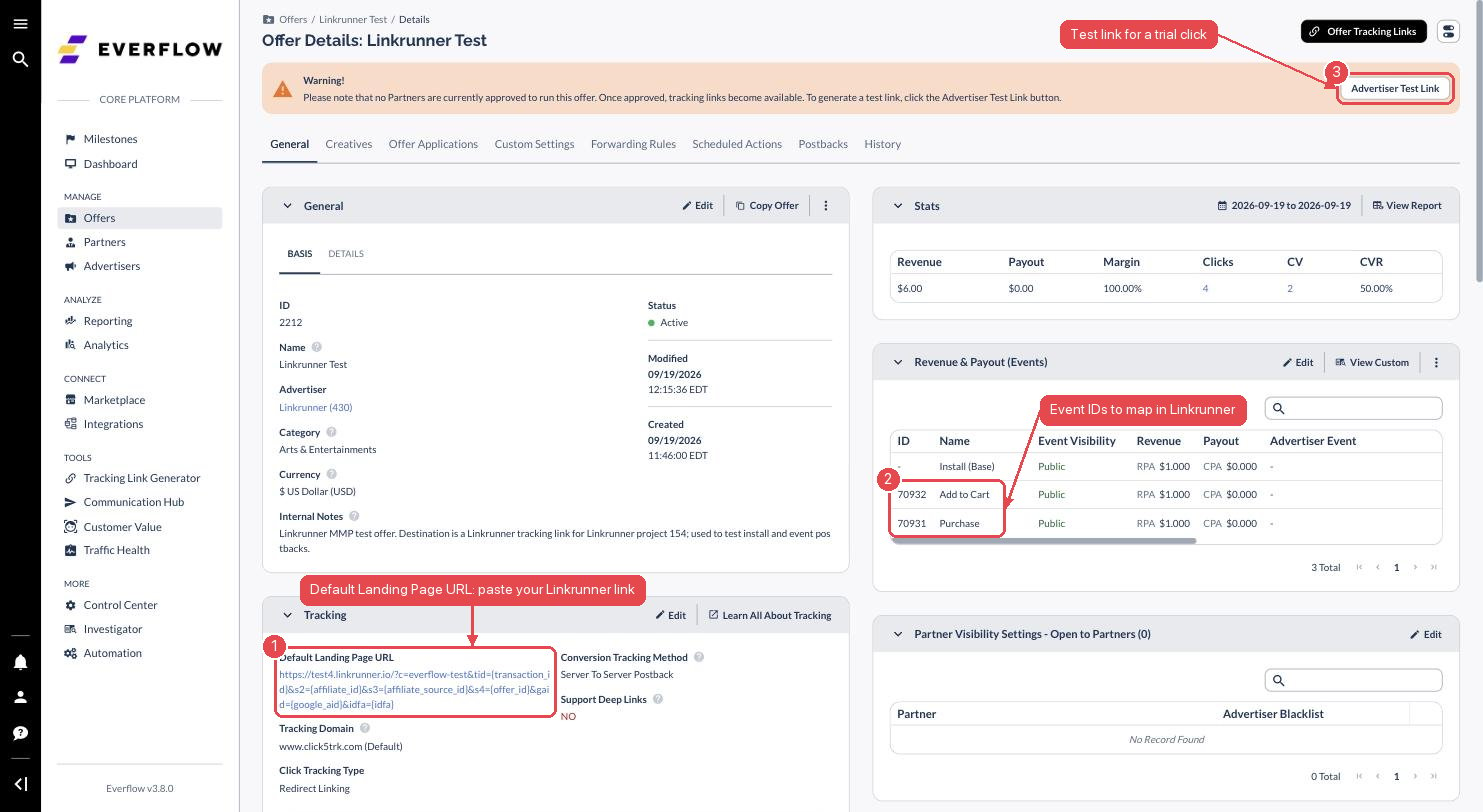
In Everflow, open your offer, edit **Tracking**, and paste the link as the **Default Landing Page URL**.
Only mapped events are sent. Everflow books a postback without an event ID as a base conversion, so Linkrunner never forwards an event you have not mapped.
The **Install** row at the top of the table is read only. It shows whether the install is your base conversion or carries its own event ID, both of which are set on the Connection tab.
### 4. Create an Everflow campaign and copy the link
1. Go to **Campaigns → Create Link**.
2. Under **Advanced Options → Ad Channel**, choose **Everflow** and create the campaign.
3. Copy the link. It is also listed on the Everflow page under the **Tracking Link** tab.
The link looks like this:
```
https://yourdomain.com/?c=CAMPAIGN_ID&tid={transaction_id}&s2={affiliate_id}&s3={affiliate_source_id}&s4={offer_id}&gaid={google_aid}&idfa={idfa}
```
Keep the curly braces. Everflow fills them in on every click.
### 5. Add the link to your Everflow offer
In Everflow, open your offer, edit **Tracking**, and paste the link as the **Default Landing Page URL**.
 ### 6. Test
1. On a phone, open your offer's **Advertiser Test Link**.
2. Install and open your app, then trigger a mapped event.
3. In Everflow, open **Reporting → Conversions** and filter by your offer. The install and events appear within a few minutes, sent from Linkrunner's postback IP.
### 6. Test
1. On a phone, open your offer's **Advertiser Test Link**.
2. Install and open your app, then trigger a mapped event.
3. In Everflow, open **Reporting → Conversions** and filter by your offer. The install and events appear within a few minutes, sent from Linkrunner's postback IP.
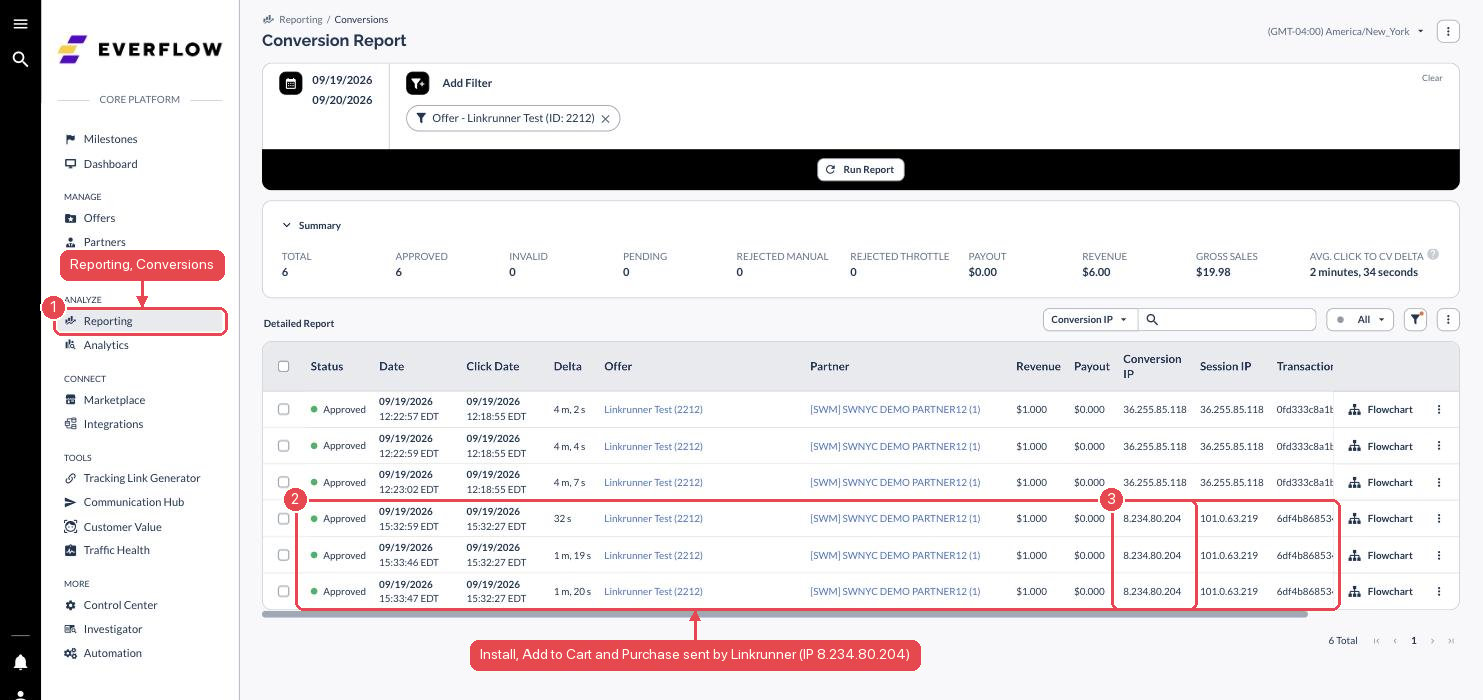 If your Everflow network restricts postbacks by IP, allowlist `8.234.94.188` and `8.234.80.204`.
### Postbacks Linkrunner sends
```
Base conversion: https:///?nid=[&aid=]&transaction_id=
Event: https:///?nid=[&aid=]&event_id=&transaction_id=
Purchase: ...&amount=
```
The base conversion is the install by default, or the event you picked on the Connection tab. With advertiser events, `event_id` is `adv_event_id`.
***
## Option 2: Linkrunner card in Everflow
The Linkrunner card is being added to Everflow's Integrations page. Until it is live, use Option 1.
Everflow uses your Linkrunner server key to import your app, campaigns, sources, events and daily stats.
### 1. Copy your server key
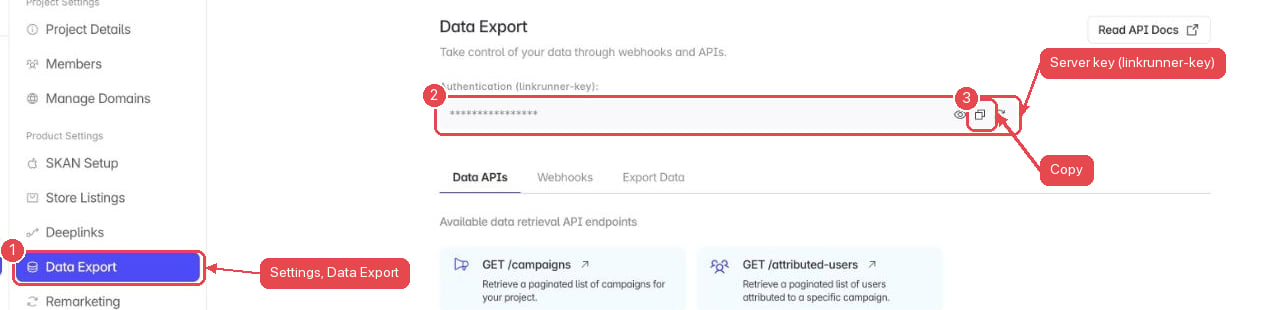
In Linkrunner, go to **Settings → Data Export → Data APIs** and copy the server key shown under **Authentication (linkrunner-key)**. The key belongs to one project, so connect each app separately.
If your Everflow network restricts postbacks by IP, allowlist `8.234.94.188` and `8.234.80.204`.
### Postbacks Linkrunner sends
```
Base conversion: https:///?nid=[&aid=]&transaction_id=
Event: https:///?nid=[&aid=]&event_id=&transaction_id=
Purchase: ...&amount=
```
The base conversion is the install by default, or the event you picked on the Connection tab. With advertiser events, `event_id` is `adv_event_id`.
***
## Option 2: Linkrunner card in Everflow
The Linkrunner card is being added to Everflow's Integrations page. Until it is live, use Option 1.
Everflow uses your Linkrunner server key to import your app, campaigns, sources, events and daily stats.
### 1. Copy your server key
In Linkrunner, go to **Settings → Data Export → Data APIs** and copy the server key shown under **Authentication (linkrunner-key)**. The key belongs to one project, so connect each app separately.
 ### 2. Connect in Everflow
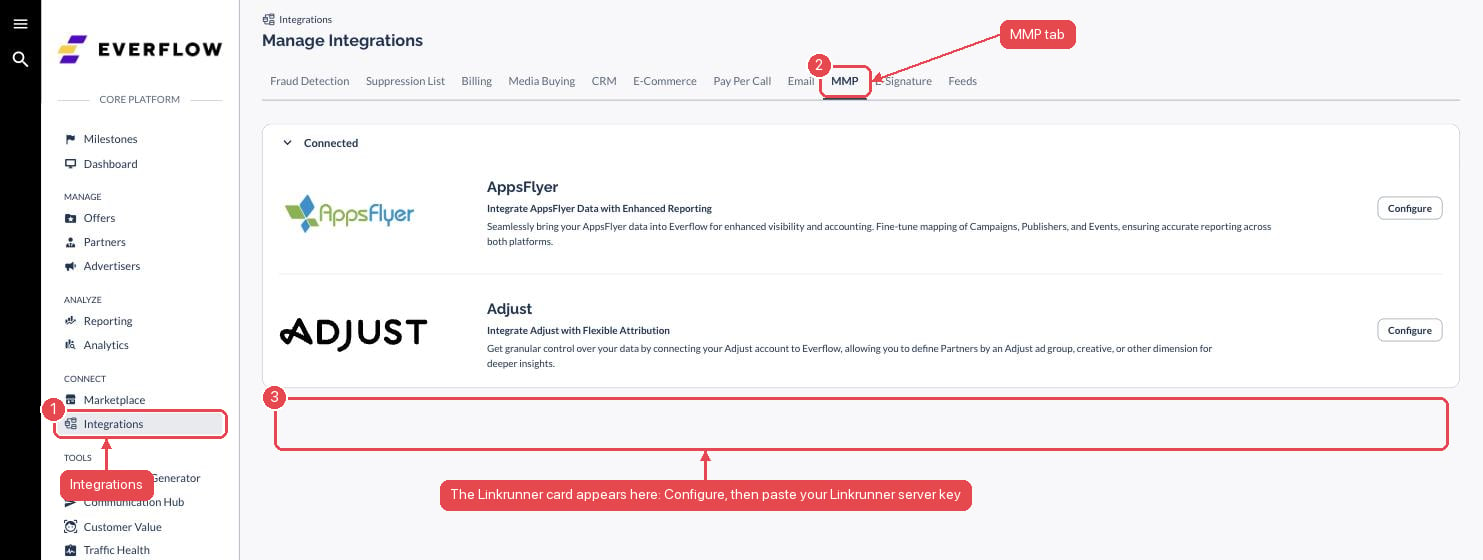
1. In Everflow, go to **Integrations → MMP**.
2. On the **Linkrunner** card, click **Configure**.
3. Paste your server key, give the integration a name, and click **Connect**.
### 2. Connect in Everflow
1. In Everflow, go to **Integrations → MMP**.
2. On the **Linkrunner** card, click **Configure**.
3. Paste your server key, give the integration a name, and click **Connect**.
 ### 3. Add your app and map
1. Click **Add App** and pick your Linkrunner app and a sync start date.
2. Click **Sync Now**, then map:
* Linkrunner campaigns to Everflow offers
* Linkrunner sources to Everflow partners, with a payout percentage
* Linkrunner events to Everflow events
3. Save. Everflow imports daily data and shows it under the integration's **Report** tab.
With the card connected, partners should use your **Linkrunner links** for that traffic, not Everflow tracking links.
To disconnect Everflow, deactivate the server key in Linkrunner. Everflow can no longer read your data.
***
## Troubleshooting
**No conversions in Everflow.** Check that **Send postbacks to Everflow** is on, the domain and Network ID match your Global Postback URL, and the offer's Default Landing Page URL is your Linkrunner link with `tid={transaction_id}`.
**Events show up as base conversions.** The event is being sent with the wrong ID type. Switch between **Offer events** and **Advertiser events** to match where the ID comes from.
**Everflow rejects the postback as an invalid transaction ID.** The click did not carry Everflow's `transaction_id`. Make sure the link uses curly braces, `{transaction_id}`, not square brackets.
**Need help?** Contact [support@linkrunner.io](mailto:support@linkrunner.io).
### 3. Add your app and map
1. Click **Add App** and pick your Linkrunner app and a sync start date.
2. Click **Sync Now**, then map:
* Linkrunner campaigns to Everflow offers
* Linkrunner sources to Everflow partners, with a payout percentage
* Linkrunner events to Everflow events
3. Save. Everflow imports daily data and shows it under the integration's **Report** tab.
With the card connected, partners should use your **Linkrunner links** for that traffic, not Everflow tracking links.
To disconnect Everflow, deactivate the server key in Linkrunner. Everflow can no longer read your data.
***
## Troubleshooting
**No conversions in Everflow.** Check that **Send postbacks to Everflow** is on, the domain and Network ID match your Global Postback URL, and the offer's Default Landing Page URL is your Linkrunner link with `tid={transaction_id}`.
**Events show up as base conversions.** The event is being sent with the wrong ID type. Switch between **Offer events** and **Advertiser events** to match where the ID comes from.
**Everflow rejects the postback as an invalid transaction ID.** The click did not carry Everflow's `transaction_id`. Make sure the link uses curly braces, `{transaction_id}`, not square brackets.
**Need help?** Contact [support@linkrunner.io](mailto:support@linkrunner.io).