> ## Documentation Index
> Fetch the complete documentation index at: https://docs.linkrunner.io/llms.txt
> Use this file to discover all available pages before exploring further.
# Set Up a Website Project
> Track your website in Linkrunner, with or without an app.
## Create a website project
If you are new to Linkrunner, you reach this screen during onboarding. Otherwise, open the project switcher at the top of the sidebar and click **Create Project**.
Under **What do you want to track?**, select **Website**, then enter your company name, website, and product name. If you also have an app, choose **Both** and add your store link.
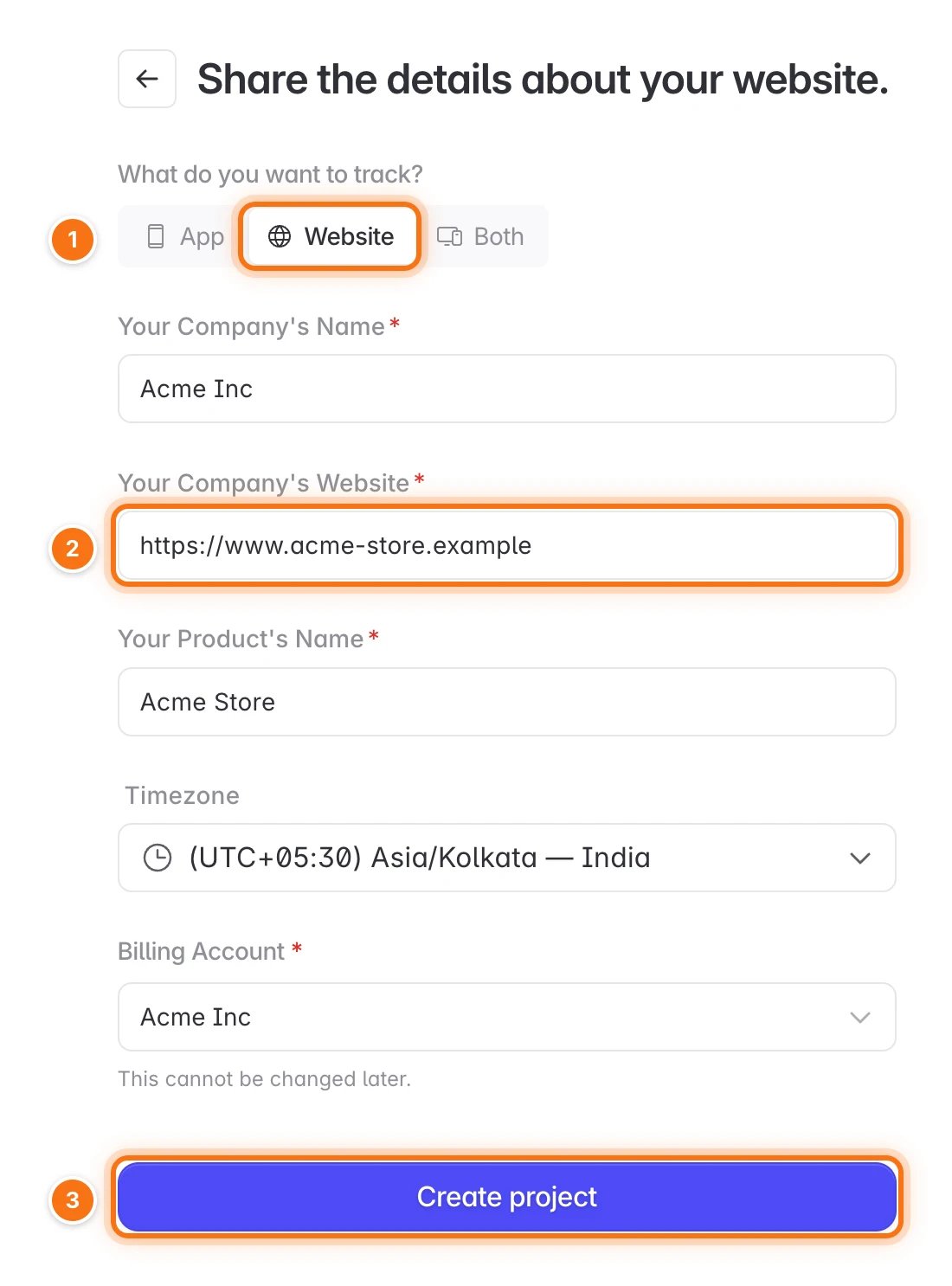 Click **Create project**. Linkrunner opens **SDK Testing → Web SDK** with your Web SDK snippet ready. Follow [Test the Web SDK](/testing/web-sdk-testing) to install it and check that it works.
## Add your app later
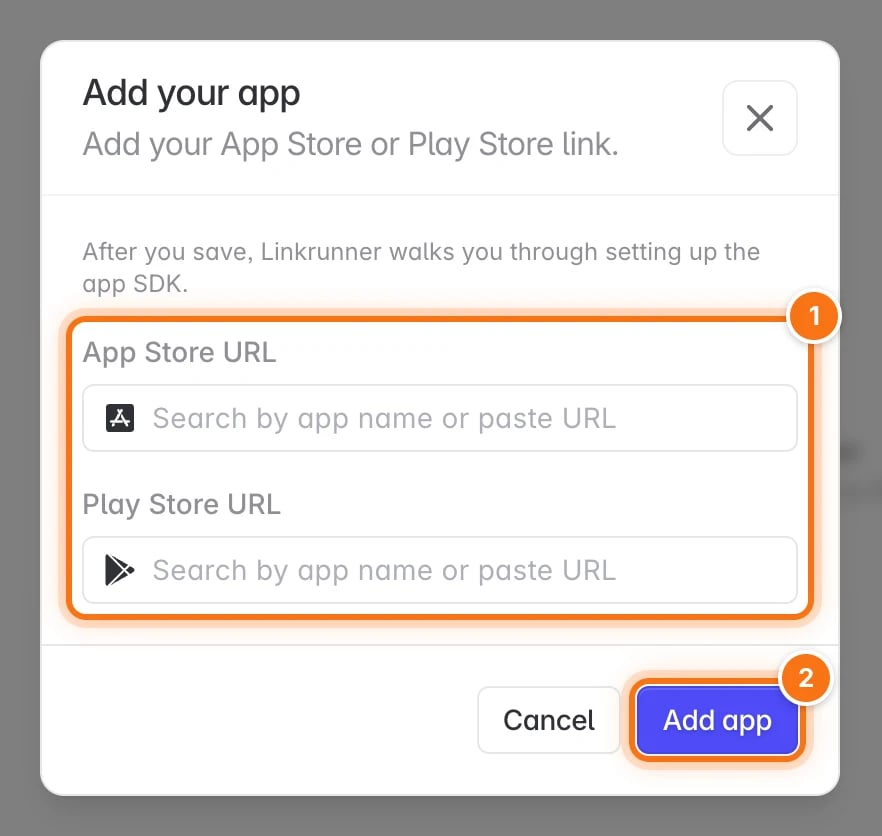
Tabs that need an app show a lock. To use them, open any locked tab, click **Add app**, and search for your app on the App Store or Play Store.
Click **Create project**. Linkrunner opens **SDK Testing → Web SDK** with your Web SDK snippet ready. Follow [Test the Web SDK](/testing/web-sdk-testing) to install it and check that it works.
## Add your app later
Tabs that need an app show a lock. To use them, open any locked tab, click **Add app**, and search for your app on the App Store or Play Store.
 ## Track your website in an app project
If your project already tracks an app, a project admin can add website tracking to it:
1. Go to [Settings → Project Details](https://dashboard.linkrunner.io/dashboard/settings/project-details).
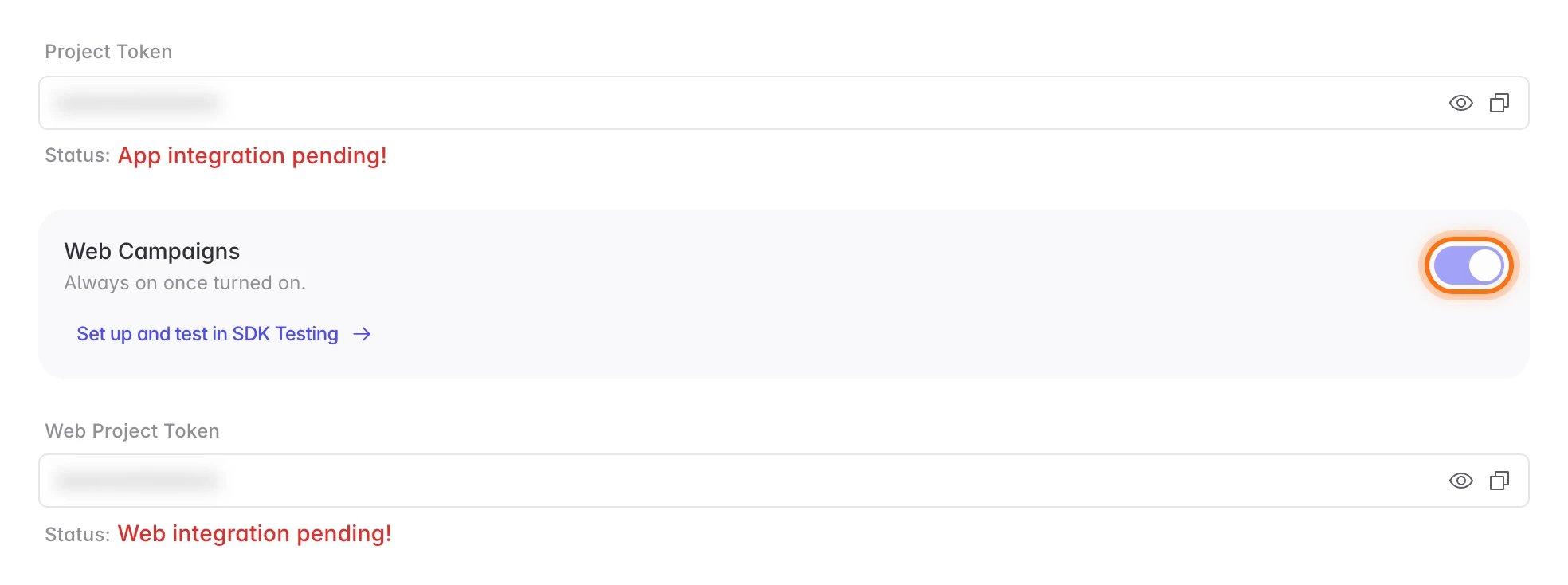
2. Turn on **Web Campaigns**. Once Web Campaigns is on, it can't be turned off.
3. Click **Set up and test in SDK Testing**, then follow [Test the Web SDK](/testing/web-sdk-testing).
## Track your website in an app project
If your project already tracks an app, a project admin can add website tracking to it:
1. Go to [Settings → Project Details](https://dashboard.linkrunner.io/dashboard/settings/project-details).
2. Turn on **Web Campaigns**. Once Web Campaigns is on, it can't be turned off.
3. Click **Set up and test in SDK Testing**, then follow [Test the Web SDK](/testing/web-sdk-testing).
 ## Find your Web project token
Your Web project token is in [Settings → Project Details](https://dashboard.linkrunner.io/dashboard/settings/project-details), under **Web project token**. Use it for the [Web SDK](/sdk/web). The app SDK's **Project token** does not work on a website.
**Need help?** Contact [support@linkrunner.io](mailto:support@linkrunner.io).
This documentation is built and hosted on [Mintlify](https://mintlify.com), a developer documentation platform.
## Find your Web project token
Your Web project token is in [Settings → Project Details](https://dashboard.linkrunner.io/dashboard/settings/project-details), under **Web project token**. Use it for the [Web SDK](/sdk/web). The app SDK's **Project token** does not work on a website.
**Need help?** Contact [support@linkrunner.io](mailto:support@linkrunner.io).
This documentation is built and hosted on [Mintlify](https://mintlify.com), a developer documentation platform.