> ## Documentation Index
> Fetch the complete documentation index at: https://docs.linkrunner.io/llms.txt
> Use this file to discover all available pages before exploring further.
# Read your Web Campaigns report
Source: https://docs.linkrunner.io/features/web-campaigns-report
See which channels and campaigns bring visitors, sign-ups and revenue to your website, and dig into any campaign.
**Before you start**
- For: Marketers
- Time: About 10 minutes
- You need: Web Campaigns turned on for your project
- You need: The Web SDK sending visits from your website
Open [Web Campaigns](https://dashboard.linkrunner.io/dashboard/web-events) in the dashboard sidebar. The page has three parts: the **Overview** cards at the top, the **Channel** and **Campaigns** tabs, and a details panel that opens when you click a row.
## The Overview cards
The five cards show this month so far, with your all-time total under **Lifetime**. The small chart shows the last 30 days.
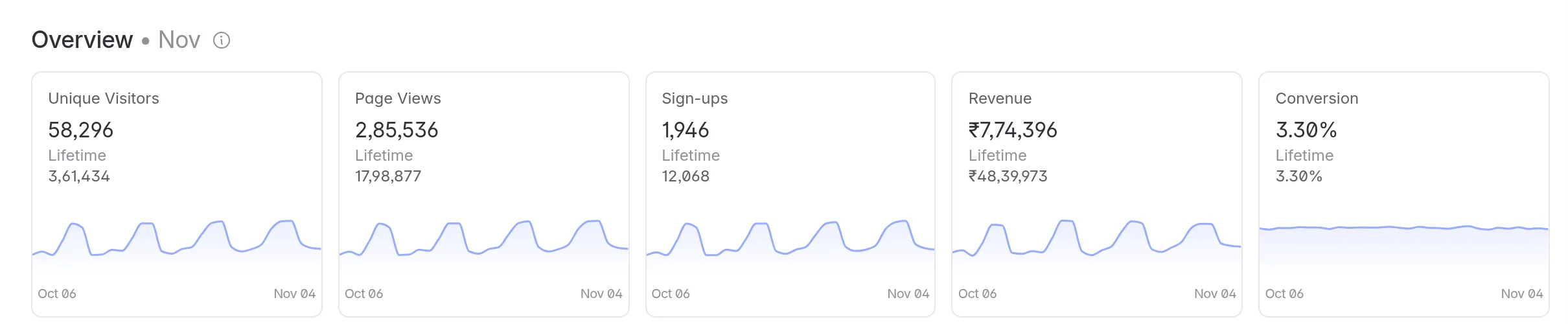
| Card | What it counts |
| ------------------- | ---------------------------------------------------------------------------------------------- |
| **Unique Visitors** | Browsers that visited your website. The same person on a phone and a laptop counts twice. |
| **Page Views** | Pages viewed. |
| **Sign-ups** | Sign-up events your website sent. See [which event names count](https://docs.linkrunner.io/features/web-campaigns-report#what-counts-as-a-sign-up-or-a-purchase). |
| **Revenue** | The total value of purchase events, in your project's currency. |
| **Conversion** | Visitors who signed up, as a share of all visitors. |
The cards don't change with the date range you pick below them, so use the table for a custom date range. They do follow the **Last-touch** or **First-touch** choice.
## The Channel tab
**Channel** groups every visit by where it came from, so you can compare paid, organic and direct traffic in one table.
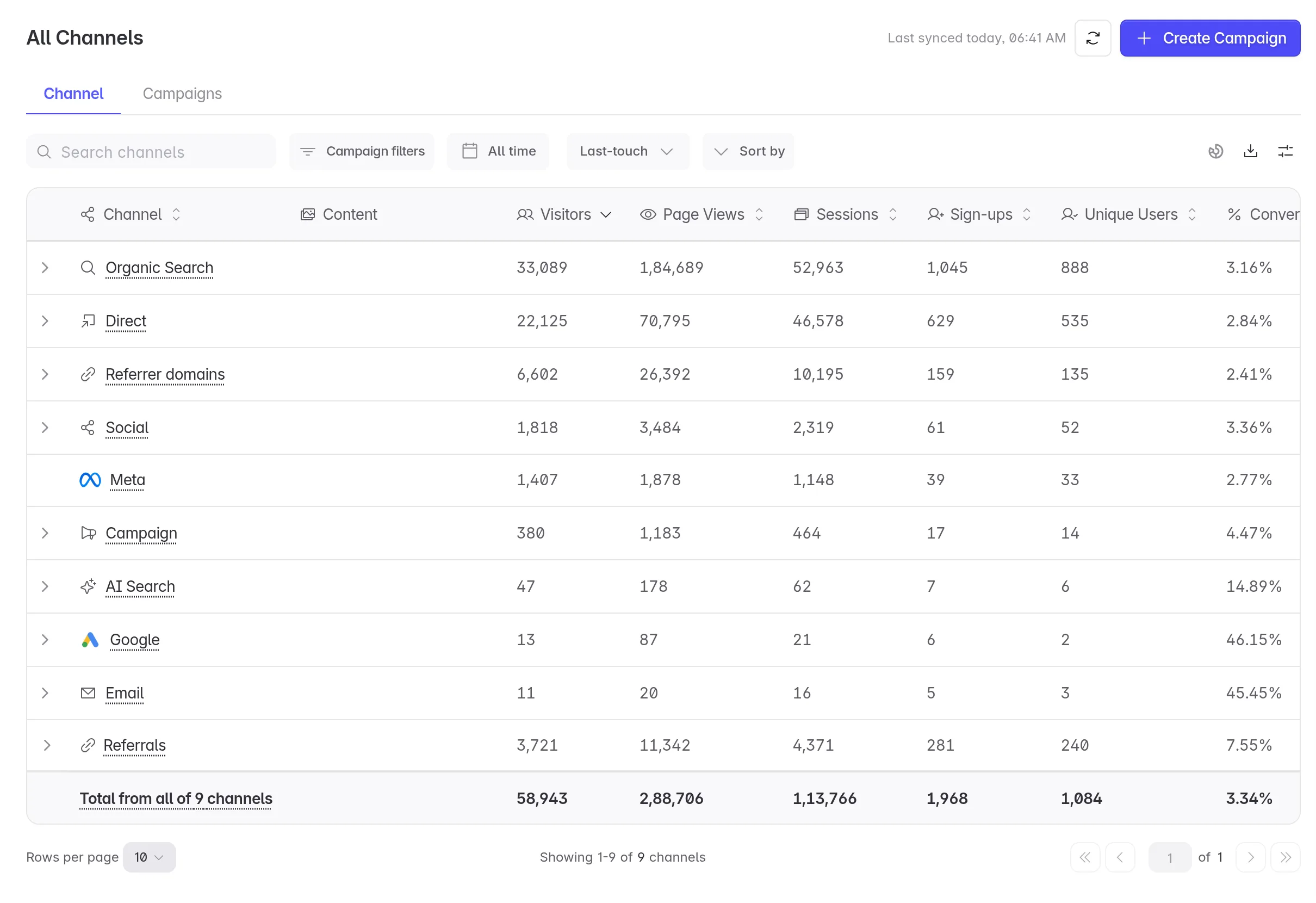
Linkrunner picks the channel for each visit in this order:
1. **An ad click ID in the link.** For example, `fbclid` puts the visit under **Meta**, and `gclid` puts it under **Google**.
2. **The link's `utm_medium`.** For example, `email` puts the visit under **Email**, `social` under **Social**, `cpc` under **Paid Search** and `affiliate` under **Paid Affiliate**. Any other medium, with a `utm_source`, goes under **Campaign**.
3. **The website the visitor came from.** For example, a search engine puts the visit under **Organic Search**, ChatGPT or Perplexity under **AI Search**, and a social network under **Social**. Any other website shows under **Referrer domains**.
4. **Nothing at all.** The visit goes under **Direct**.
**Referrals** groups visits by the referral code in the link (the `referrer=` value), such as an affiliate or creator code.
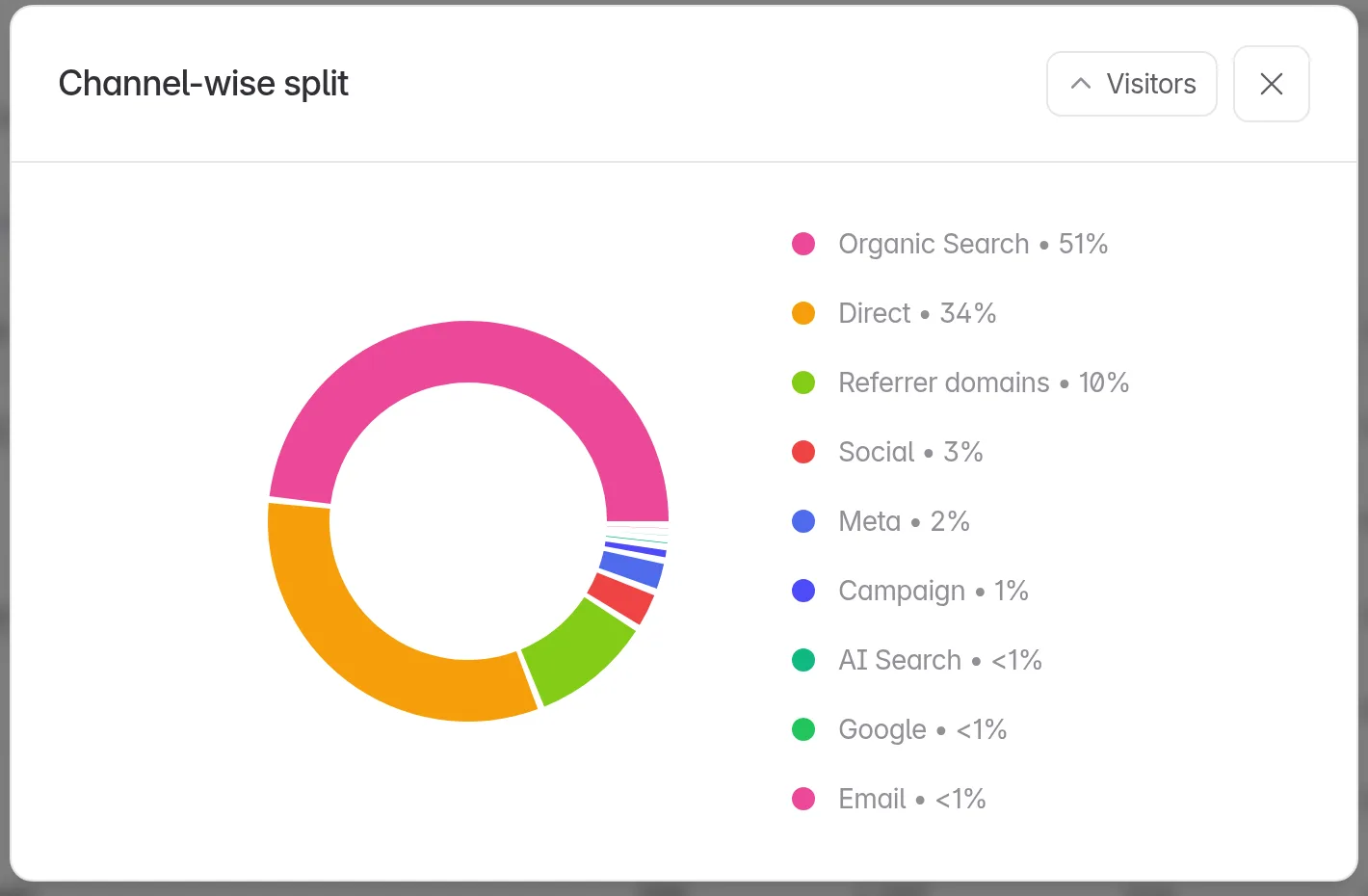
Click the arrow next to a channel to see its sources. To compare channels in a chart, click the donut icon on the right of the toolbar to open **Channel-wise split**, then pick a metric.
## The Campaigns tab
**Campaigns** has one row for each campaign link. This is the tab that opens first.
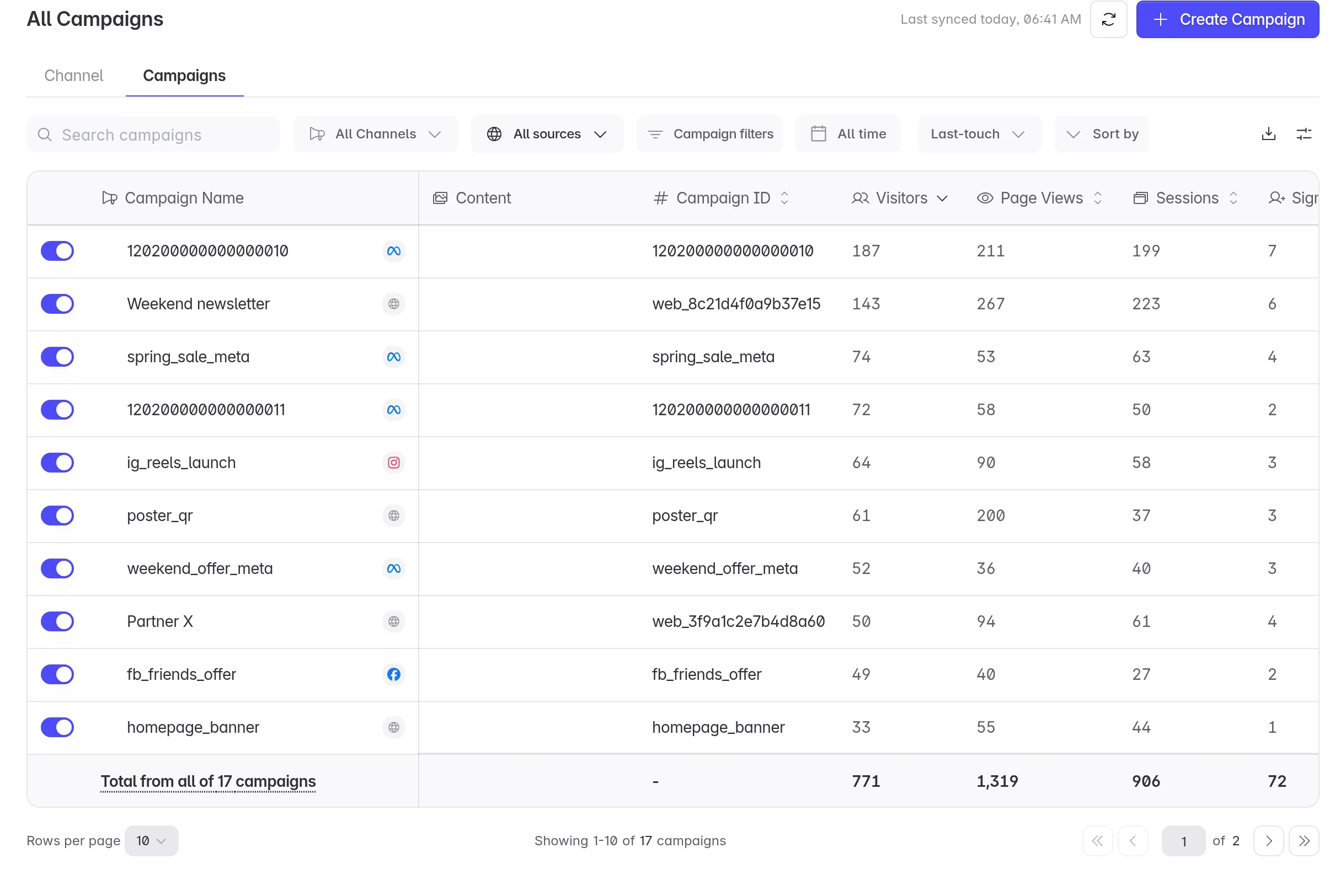
- **Campaign Name** shows the name you gave a link you created in Linkrunner, such as `Weekend newsletter`. Meta and Google campaigns show their name from the ad network. Other rows show their `utm_campaign`, or the campaign ID if there is none.
- **Campaign ID** is the link's `utm_id`, or the Meta or Google campaign ID for ad traffic. A link with no `utm_id` is listed by its `utm_campaign`.
- The switch at the start of each row pauses tracking for that campaign.
- The icon next to the name shows the source, such as Meta or Google.
To create a link for this tab, see [Create a web link for your own channels](https://docs.linkrunner.io/features/web-campaign-link) or [Create a web link for a partner](https://docs.linkrunner.io/features/web-partner-link).
## Narrow down the table
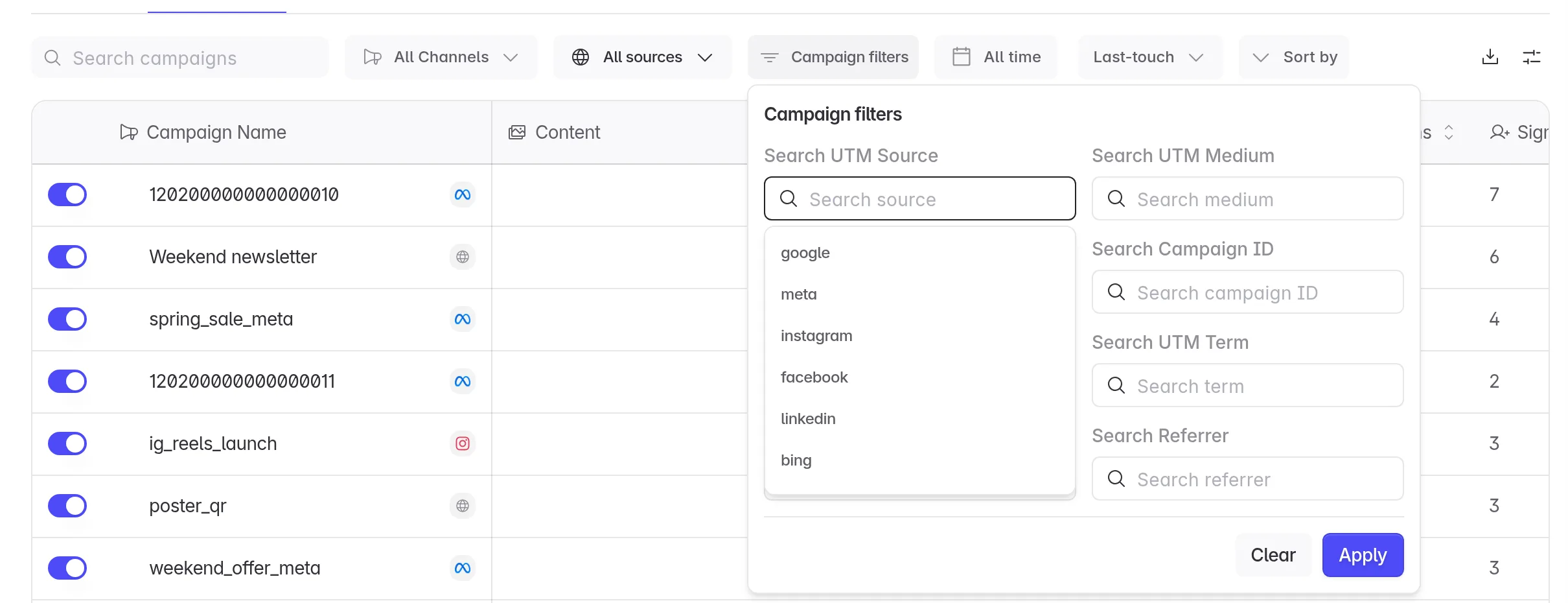
Use the toolbar above the table:
| Control | What it does |
| --------------------------- | -------------------------------------------------------------------------------------------------- |
| **Search campaigns** | Finds a campaign by its Campaign ID, or part of it. |
| **All Channels** | Shows one channel's campaigns. |
| **All sources** | Shows one source, such as `google` or `newsletter`. |
| **Campaign filters** | Filters by UTM values, Campaign ID or referral code. Click **Apply**. |
| Date range (**All time**) | Picks the dates. It covers all time until you pick a range. |
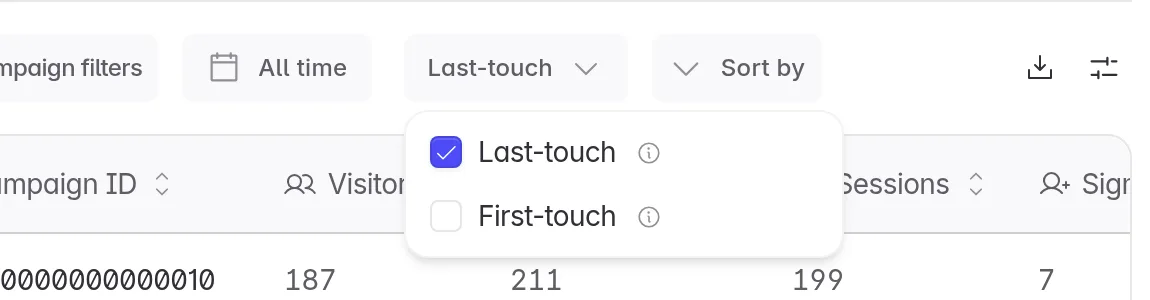
| **Last-touch** | Switches between last-touch and first-touch credit. See below. |
| **Sort by** | Sorts by visitors, page views, sessions, sign-ups, conversion, purchases or revenue. |
### Last-touch or first-touch
- **Last-touch** (default) gives credit to the most recent campaign or channel before the sign-up or purchase.
- **First-touch** gives credit to the first campaign or channel that ever brought this visitor to your website.
Use first-touch to see which campaigns find new visitors, and last-touch to see which ones close the sale.
## Choose your columns
Click the sliders icon on the right of the toolbar to open **Edit Columns**. Tick the columns you want, drag them into order, and click **Save**.
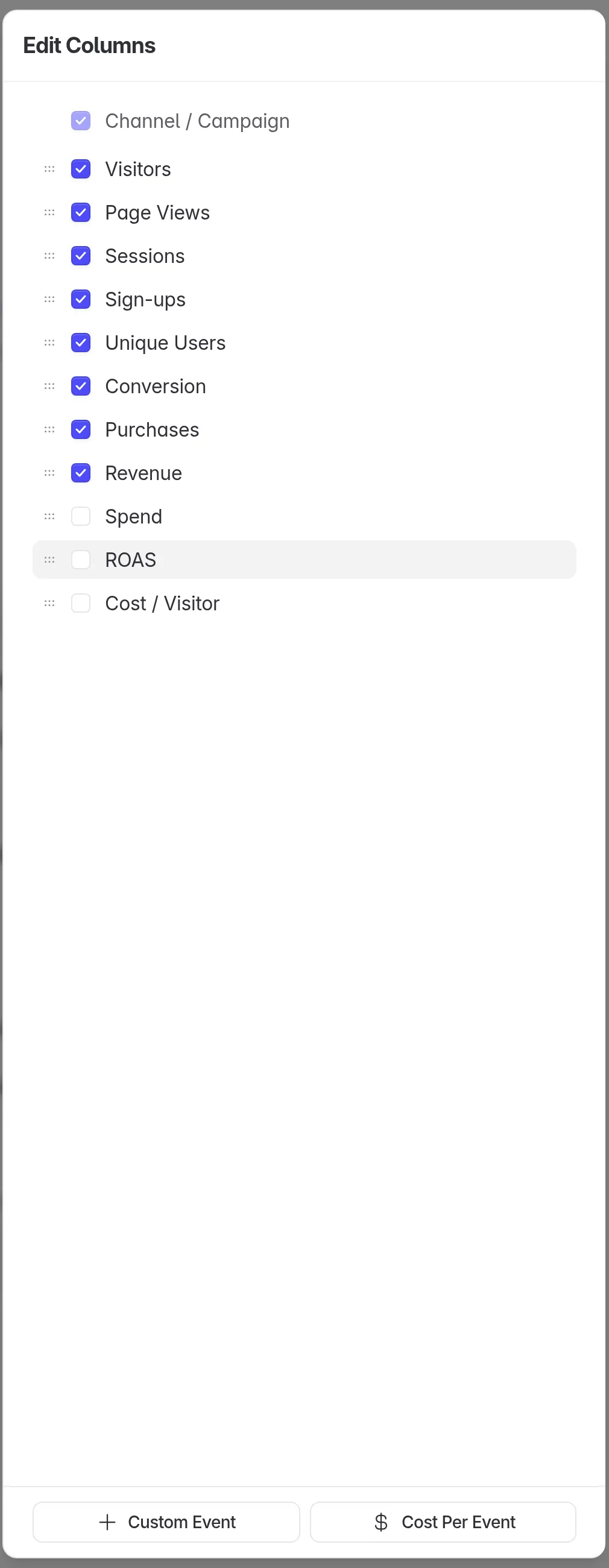
- **Unique Users** counts the users who sent at least one sign-up event, by the user ID your website passes to Linkrunner.
- **Spend** and **ROAS** fill in when Linkrunner can match the campaign to spend from your connected Meta or Google Ads account.
- **Custom Event** adds a column for any other event your website sends, such as `add_to_cart`. **Cost Per Event** adds its cost. See [Track sign-ups and purchases on your website](https://docs.linkrunner.io/features/web-events-tracking).
## Open a campaign
Click any row to open its details.
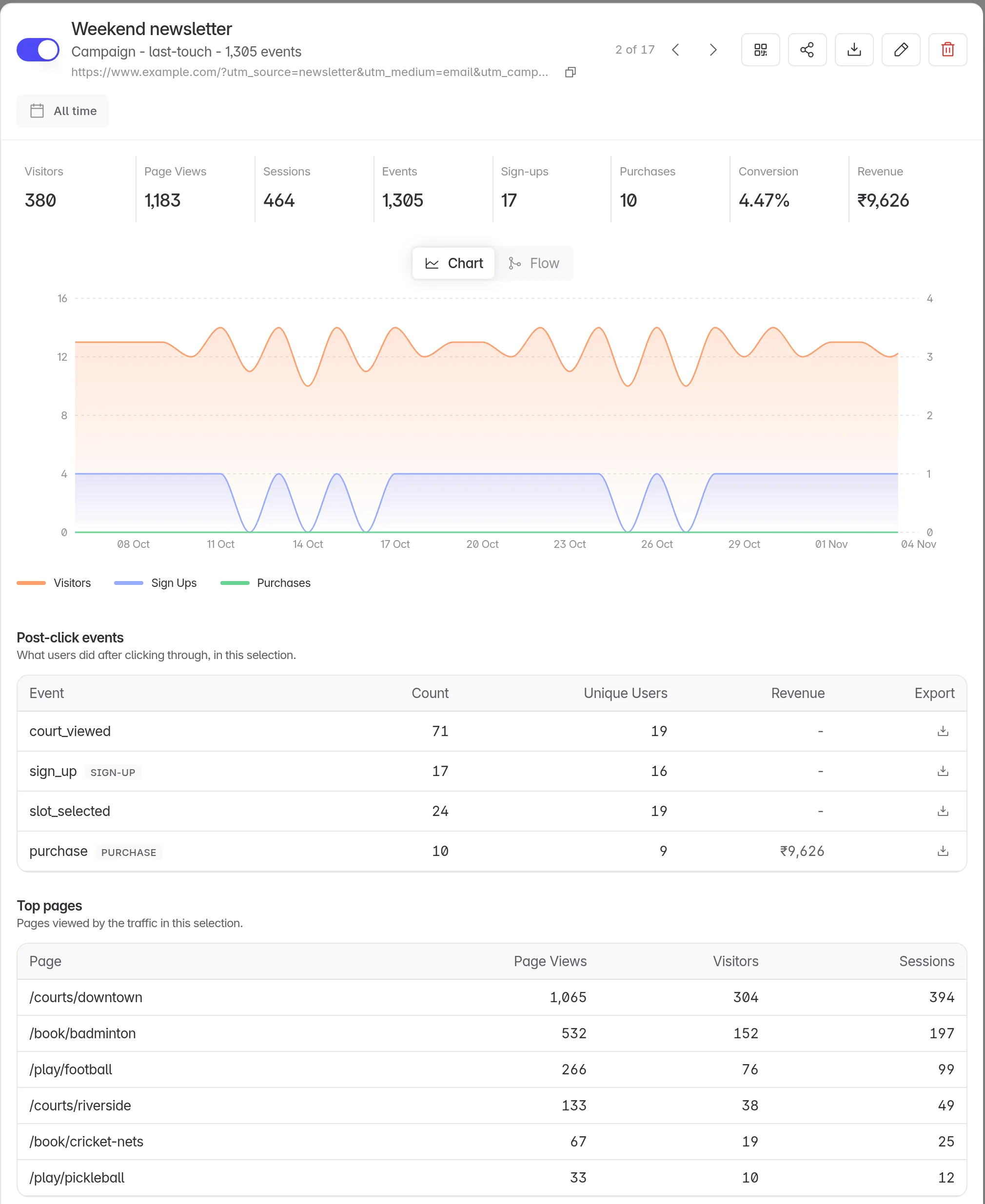
- **The tiles** show visitors, page views, sessions, events, sign-ups, purchases, conversion and revenue for the selected dates.
- **Chart** plots visitors, sign-ups and purchases by day. **Flow** shows how visitors move from visit to sign-up to purchase.
- **Post-click events** lists every event visitors from this campaign sent, with a download button for each.
- **Top pages** shows the pages these visitors viewed most.
- **Users** lists the signed-up users from this campaign. Click **Export** to download them.
- **Partner breakdown** appears for a [partner link](https://docs.linkrunner.io/features/web-partner-link) and splits results by each value the partner passed.
The buttons at the top let you pause the campaign, copy its link, download a QR code, share its stats with someone by email, edit it or delete it. Use the arrows, or J and K, to move to the next or previous campaign.
## Export the report
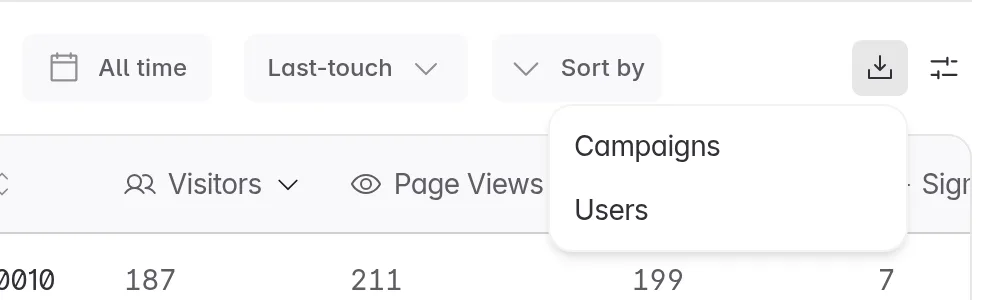
Click the download icon on the right of the toolbar:
- **Campaigns** emails you a CSV of the rows that match your current filters and dates.
- **Users** emails you a file of the signed-up users that match your current filters and dates.
To pull the same numbers into your own tools, use the [Web Campaigns Reporting API](https://docs.linkrunner.io/api-reference/reporting-web-campaigns).
## What counts as a sign-up or a purchase
Linkrunner counts an event by its exact name. Upper or lower case matters.
| Counts as | Event names |
| ---------- | --------------------------------------------------------------------------- |
| Sign-up | `signup`, `sign_up`, `register`, `login`, `sign in` |
| Purchase | `purchase`, `payment_completed`, `order_completed` |
Revenue comes from the purchase event's `value`, `amount_paid` or `amount` field. Linkrunner doesn't convert currencies, so send every purchase in the same currency.
## Troubleshooting
**Web Campaigns is not in the sidebar.** Turn on **Web Campaigns** for your project. See [Track your website in an app project](https://docs.linkrunner.io/features/website-projects#track-your-website-in-an-app-project).
**The page asks you to set up the Web SDK.** Linkrunner has not received a visit yet. [Install the Web SDK](https://docs.linkrunner.io/sdk/web) and [test it](https://docs.linkrunner.io/testing/web-sdk-testing).
**Sign-ups or Revenue show 0.** Your website is not sending the events yet, or their names don't match the table above. See [Track sign-ups and purchases on your website](https://docs.linkrunner.io/features/web-events-tracking).
**A Meta campaign shows "Meta campaign not identified".** Connect the Meta ad account that runs it in [Integrations](https://dashboard.linkrunner.io/dashboard/integrations), or wait for Meta to share the campaign's data.
**Revenue, Spend or ROAS is hidden.** Your role doesn't include financial data. Ask a project admin.
**Need help?** Contact