> ## Documentation Index
> Fetch the complete documentation index at: https://docs.linkrunner.io/llms.txt
> Use this file to discover all available pages before exploring further.
# Users
> Look up any user, trace their journey from ad click to in-app event, and save filters as reusable cohorts.
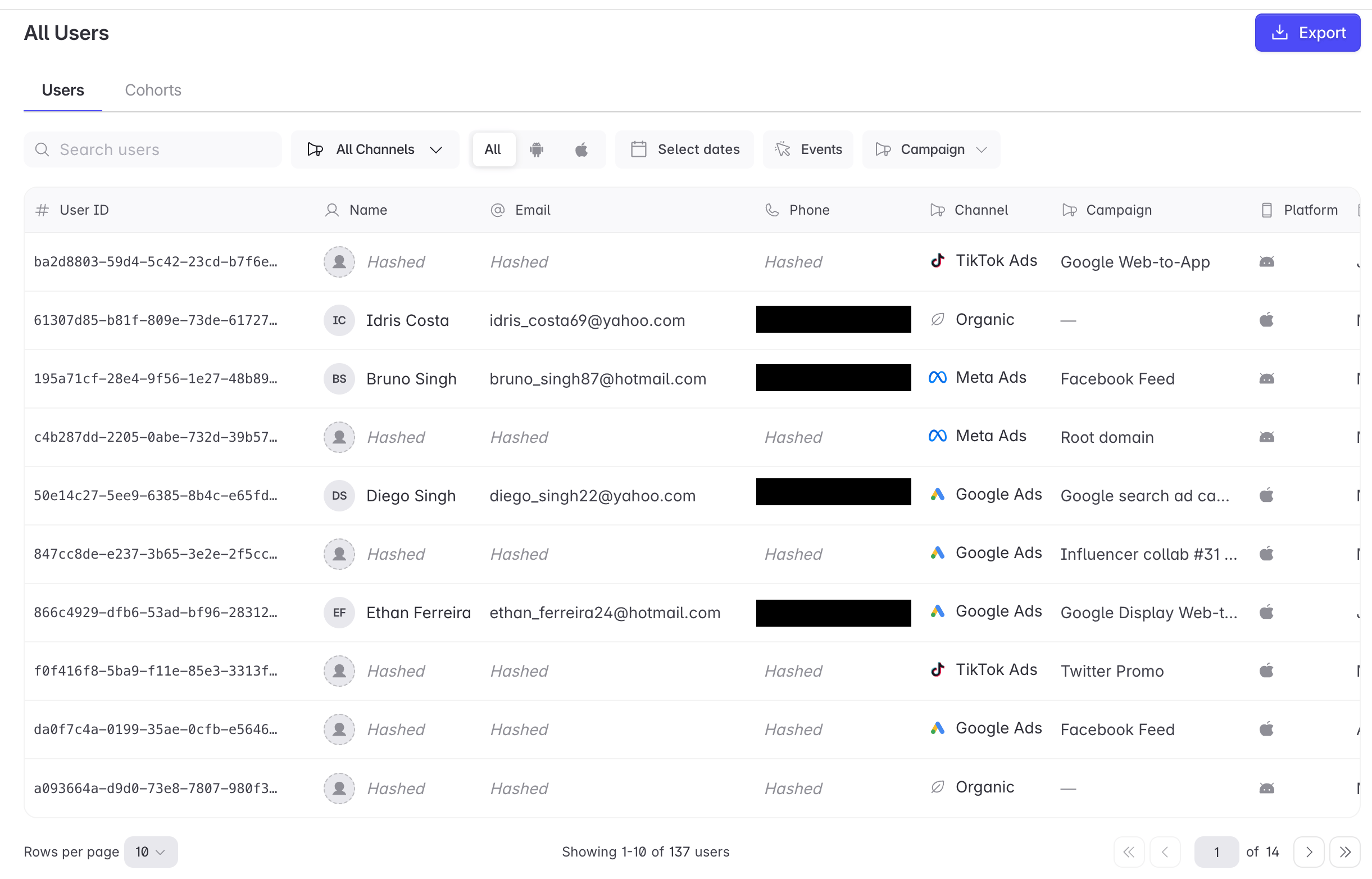
The **Users** tab lists the individual people using your app. For each one you can see where they came from, what device they are on, and every action they have taken in your app since they installed it.
A person appears here once Linkrunner has **attributed** them, which means Linkrunner has worked out where they came from and matched their app install back to the ad click or link that led to it. When there was no ad click to match, the user is attributed to **Organic**.
Open the tab at [dashboard.linkrunner.io/dashboard/users](https://dashboard.linkrunner.io/dashboard/users). The dashboard adds `?p_id=YOUR_PROJECT_ID` to the address for the project you have selected, so you can bookmark or share a link that opens on a specific project.
The Users tab answers "who is this person and where did they come from". For questions about everyone at once,
such as where people give up partway through a flow, use the [Events tab](/features/events-tab).
## Finding a user
The table lists every user in the project. Each row shows **User ID**, **Name**, **Email**, **Phone**, **Channel**, **Campaign**, **Platform**, and **Created At**.
Use the filters above the table to narrow the list down:
| Filter | What it does |
| ---------------- | -------------------------------------------------------------------------------------------------- |
| **Search** | Matches on name, email, phone, or user ID |
| **Channel** | Where the user came from: Meta Ads, Google Ads, TikTok, Apple Search Ads, Organic, Referral |
| **Platform** | Android or iOS |
| **Select dates** | Limits the list by when the user was first created |
| **Events** | Keeps only users who took particular actions. Use AND to require all of them, OR to accept any one |
| **Campaign** | Pick one or more of your campaigns |
Filters stack on top of each other, so you can ask for iOS users from a Meta Ads campaign who triggered `add_to_cart` in the last 30 days.
 If a set of filters is worth keeping, save it as a **cohort**, a named group of users you can come back to. See [Cohorts](#cohorts) below.
## The user profile
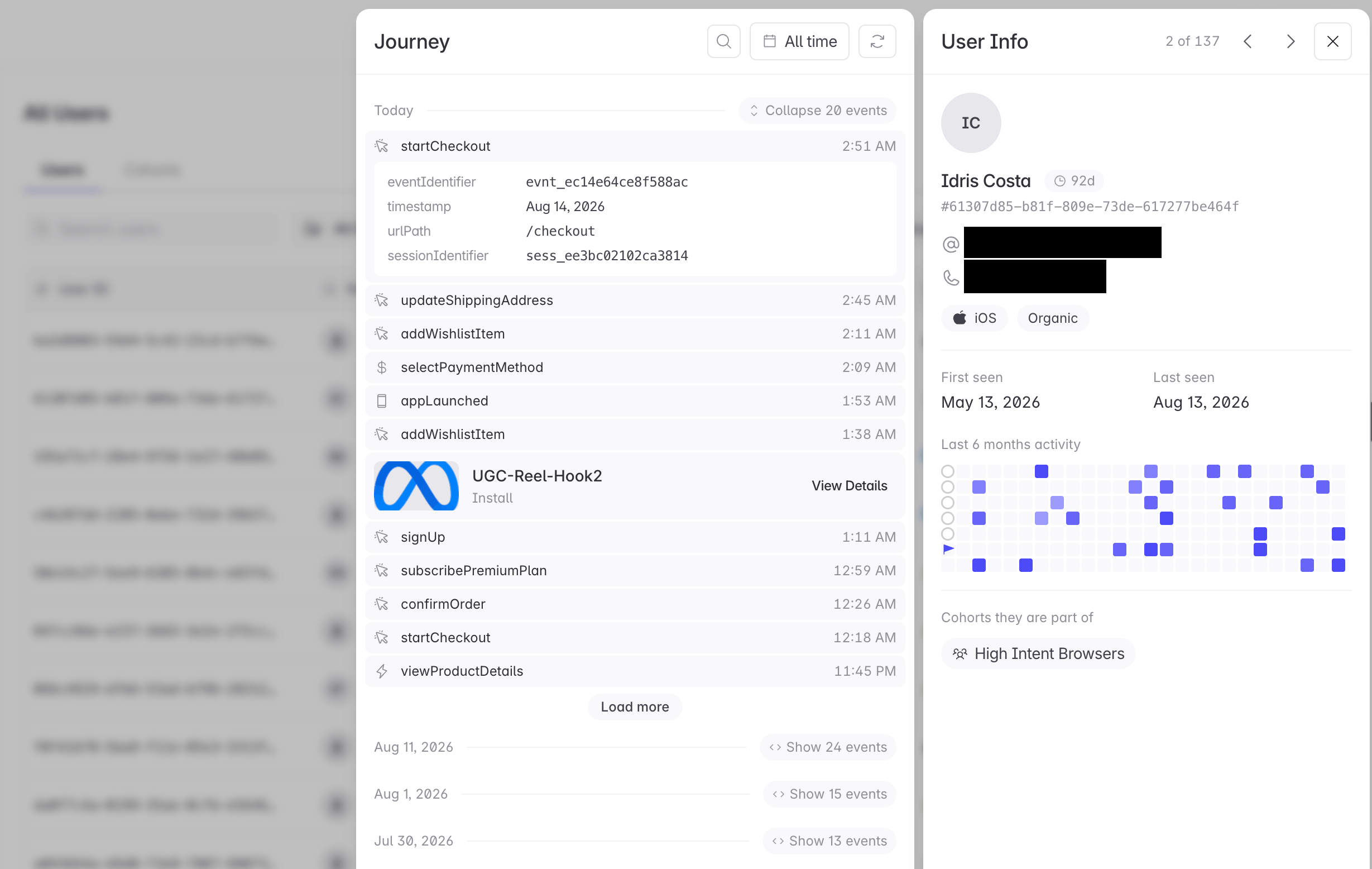
Click any row to open that user's profile. It has two halves: their **Journey** on the left, and their information on the right.
### User information
The right side summarizes who the user is and where they came from:
* **Identity**: their name, with a badge counting how many days it has been since you first saw them.
* **Contact**: email and phone, each with a button to copy it.
* **Platform** and **Channel**: the type of device they use and where they came from.
* **Acquisition campaign**: the campaign that brought them in. Click it to open that campaign's full details.
* **First seen** and **Last seen** dates.
* **Activity heatmap**: a grid covering the last six months, one square per day, shaded according to how many actions the user took that day. A flag marks their very first day of activity. Click any square to jump the Journey to that day.
* **Cohorts**: the saved groups this user belongs to. Click one to open it in the **Cohorts** sub-tab.
The heatmap is the quickest way to judge how engaged someone is. A dense block of activity that stops several weeks ago is someone who has stopped using the app. A few scattered squares are someone who installed it and never got into the habit.
### Journey
The left side is the list of everything the user has done, in order, grouped by day. You can collapse and expand each day.
* Look for **App installed** and **First open** to see how the user arrived. The install shows the campaign that drove it, with a **View Details** link through to that campaign.
* Expand any action to see its event ID, the exact time, the screen or URL path involved, and the session ID.
* Actions where the user interacted with an ad show a thumbnail and the creative details.
* Search by name to show only certain actions.
* Set a date range to reload the journey over a narrower window.
* Click **Load more** to go further back in time.
If a set of filters is worth keeping, save it as a **cohort**, a named group of users you can come back to. See [Cohorts](#cohorts) below.
## The user profile
Click any row to open that user's profile. It has two halves: their **Journey** on the left, and their information on the right.
### User information
The right side summarizes who the user is and where they came from:
* **Identity**: their name, with a badge counting how many days it has been since you first saw them.
* **Contact**: email and phone, each with a button to copy it.
* **Platform** and **Channel**: the type of device they use and where they came from.
* **Acquisition campaign**: the campaign that brought them in. Click it to open that campaign's full details.
* **First seen** and **Last seen** dates.
* **Activity heatmap**: a grid covering the last six months, one square per day, shaded according to how many actions the user took that day. A flag marks their very first day of activity. Click any square to jump the Journey to that day.
* **Cohorts**: the saved groups this user belongs to. Click one to open it in the **Cohorts** sub-tab.
The heatmap is the quickest way to judge how engaged someone is. A dense block of activity that stops several weeks ago is someone who has stopped using the app. A few scattered squares are someone who installed it and never got into the habit.
### Journey
The left side is the list of everything the user has done, in order, grouped by day. You can collapse and expand each day.
* Look for **App installed** and **First open** to see how the user arrived. The install shows the campaign that drove it, with a **View Details** link through to that campaign.
* Expand any action to see its event ID, the exact time, the screen or URL path involved, and the session ID.
* Actions where the user interacted with an ad show a thumbnail and the creative details.
* Search by name to show only certain actions.
* Set a date range to reload the journey over a narrower window.
* Click **Load more** to go further back in time.
 ## Hashed and identified users
Some users show as **Hashed**, with a dotted outline in place of a picture and the word `Hashed` where their name, email, and phone would be.
This does not mean the data is missing or broken. It means your app has not yet told Linkrunner who that person is. Everything else about them is intact: user ID, channel, campaign, platform, and their complete journey are all still there. Only the personal details are held back.
To see real names and contact details, your app needs to identify the user once it knows who they are. See [User Identification](/sdk/react-native#user-identification-required) in your SDK guide, or [Setting the Customer User ID](/sdk/react-native#setting-the-customer-user-id) if you would rather attach your own identifier.
In the [Events tab](/features/events-tab) you will also come across **Unidentified**, which is a different state.
**Hashed** means there is a user record and only the personal details are held back, so the user still has a user
ID. **Unidentified** means no user record is attached to that event at all, so it has no user ID either.
## Exporting users
Click **Export** to download the list as a CSV file you can open in a spreadsheet.
The file contains every user matching your current filters, not just the rows you can see on screen. Use it to move a group of users into a CRM, an email tool, or an ad platform audience.
## Cohorts
A cohort is a saved group of users who have something in common, defined by the actions they have taken and the platform they use. "Triggered `add_to_cart` but never triggered `purchase`, Android only" is a cohort. Naming it once means you stop rebuilding the same set of filters every time you need that group.
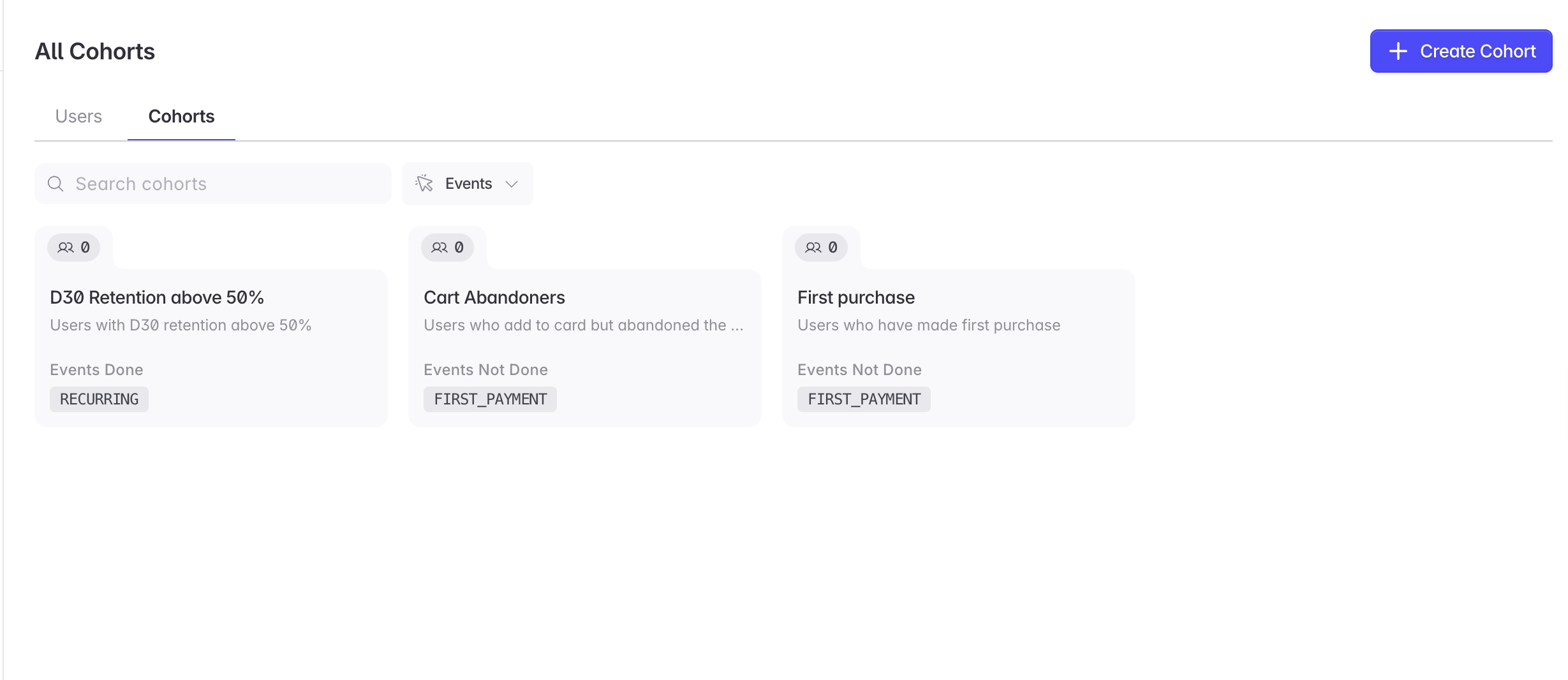
The **Cohorts** sub-tab shows each saved cohort as a card with its name, description, how many users are in it, and the events it is built from. Each card separates **Events Done** from **Events Not Done**, so you can see at a glance whether a cohort is defined by what people did, what they did not do, or both. Search by name or filter by event name to find one.
## Hashed and identified users
Some users show as **Hashed**, with a dotted outline in place of a picture and the word `Hashed` where their name, email, and phone would be.
This does not mean the data is missing or broken. It means your app has not yet told Linkrunner who that person is. Everything else about them is intact: user ID, channel, campaign, platform, and their complete journey are all still there. Only the personal details are held back.
To see real names and contact details, your app needs to identify the user once it knows who they are. See [User Identification](/sdk/react-native#user-identification-required) in your SDK guide, or [Setting the Customer User ID](/sdk/react-native#setting-the-customer-user-id) if you would rather attach your own identifier.
In the [Events tab](/features/events-tab) you will also come across **Unidentified**, which is a different state.
**Hashed** means there is a user record and only the personal details are held back, so the user still has a user
ID. **Unidentified** means no user record is attached to that event at all, so it has no user ID either.
## Exporting users
Click **Export** to download the list as a CSV file you can open in a spreadsheet.
The file contains every user matching your current filters, not just the rows you can see on screen. Use it to move a group of users into a CRM, an email tool, or an ad platform audience.
## Cohorts
A cohort is a saved group of users who have something in common, defined by the actions they have taken and the platform they use. "Triggered `add_to_cart` but never triggered `purchase`, Android only" is a cohort. Naming it once means you stop rebuilding the same set of filters every time you need that group.
The **Cohorts** sub-tab shows each saved cohort as a card with its name, description, how many users are in it, and the events it is built from. Each card separates **Events Done** from **Events Not Done**, so you can see at a glance whether a cohort is defined by what people did, what they did not do, or both. Search by name or filter by event name to find one.
 ### Saving a cohort from your filters
Set the **Events** and **Platform** filters so the table shows the group you want.
Those event conditions and the platform carry over into the new cohort.
Give it a name and description that will still make sense to a colleague in three months.
Only the **Events** and **Platform** filters become part of the cohort. If you also set a date range or a campaign
filter on the table, those are not carried over.
### Building a cohort from scratch
In the **Cohorts** sub-tab, click **Create Cohort** and set the conditions directly. Choose the events, decide whether a user has to match all of them or just one of them, mark whether each event must have been done or not done, and set the platform. Editing an existing cohort opens the same builder.
### Using a cohort
Cohorts let you group users for analysis, and to target them with ads. To act on one, see [How to Run Remarketing Campaigns](/features/remarketing-guide).
## What to use this for
**Answer a support ticket without involving engineering.** A user writes in saying their purchase never applied. Search their email, open their profile, and expand the day in question to see exactly which actions their app reported and which it did not.
**Check where one specific user came from.** Rather than arguing about why a campaign's totals look wrong, open a user who should have come from that campaign and look at the start of their journey to see which campaign Linkrunner actually recorded.
**Build a group of users without a spreadsheet.** Filtering to "triggered `add_to_cart`, never triggered `purchase`" and saving it as a cohort replaces exporting a user list, filtering it by hand, and re-uploading it every time the group changes.
**Judge how engaged someone is at a glance.** The activity heatmap tells you whether a user opens the app daily or installed it once and never returned, without running a separate report.
**Move a list into another tool.** Export gives you the filtered set as a CSV for a CRM, an email platform, or an ad platform audience.
## Troubleshooting
Linkrunner only keeps data for users it has attributed. If Linkrunner never matched that person's install to a
click or an organic install, they will not appear. Also check your date range, and clear the **Channel** and
**Campaign** filters in case one of them is excluding the user.
Your app is not telling Linkrunner who its users are, so there are no names or contact details to show. See
[Hashed and identified users](#hashed-and-identified-users).
Linkrunner attributed the user, but their app has not reported any actions since. Confirm your app calls
`trackEvent` for the actions you expect to see. See [Tracking Custom
Events](/sdk/react-native#tracking-custom-events).
A cohort keeps only the **Events** and **Platform** conditions. If your table was also filtered by date range or
campaign, those limits are dropped when the cohort is saved, so the cohort covers a wider group than the list
you were looking at.
**Need help?** Contact [support@linkrunner.io](mailto:support@linkrunner.io)
### Saving a cohort from your filters
Set the **Events** and **Platform** filters so the table shows the group you want.
Those event conditions and the platform carry over into the new cohort.
Give it a name and description that will still make sense to a colleague in three months.
Only the **Events** and **Platform** filters become part of the cohort. If you also set a date range or a campaign
filter on the table, those are not carried over.
### Building a cohort from scratch
In the **Cohorts** sub-tab, click **Create Cohort** and set the conditions directly. Choose the events, decide whether a user has to match all of them or just one of them, mark whether each event must have been done or not done, and set the platform. Editing an existing cohort opens the same builder.
### Using a cohort
Cohorts let you group users for analysis, and to target them with ads. To act on one, see [How to Run Remarketing Campaigns](/features/remarketing-guide).
## What to use this for
**Answer a support ticket without involving engineering.** A user writes in saying their purchase never applied. Search their email, open their profile, and expand the day in question to see exactly which actions their app reported and which it did not.
**Check where one specific user came from.** Rather than arguing about why a campaign's totals look wrong, open a user who should have come from that campaign and look at the start of their journey to see which campaign Linkrunner actually recorded.
**Build a group of users without a spreadsheet.** Filtering to "triggered `add_to_cart`, never triggered `purchase`" and saving it as a cohort replaces exporting a user list, filtering it by hand, and re-uploading it every time the group changes.
**Judge how engaged someone is at a glance.** The activity heatmap tells you whether a user opens the app daily or installed it once and never returned, without running a separate report.
**Move a list into another tool.** Export gives you the filtered set as a CSV for a CRM, an email platform, or an ad platform audience.
## Troubleshooting
Linkrunner only keeps data for users it has attributed. If Linkrunner never matched that person's install to a
click or an organic install, they will not appear. Also check your date range, and clear the **Channel** and
**Campaign** filters in case one of them is excluding the user.
Your app is not telling Linkrunner who its users are, so there are no names or contact details to show. See
[Hashed and identified users](#hashed-and-identified-users).
Linkrunner attributed the user, but their app has not reported any actions since. Confirm your app calls
`trackEvent` for the actions you expect to see. See [Tracking Custom
Events](/sdk/react-native#tracking-custom-events).
A cohort keeps only the **Events** and **Platform** conditions. If your table was also filtered by date range or
campaign, those limits are dropped when the cohort is saved, so the cohort covers a wider group than the list
you were looking at.
**Need help?** Contact [support@linkrunner.io](mailto:support@linkrunner.io)