> ## Documentation Index
> Fetch the complete documentation index at: https://docs.linkrunner.io/llms.txt
> Use this file to discover all available pages before exploring further.
# SKAN Setup
> Configure SKAdNetwork for Google Ads, Meta Ads, and the Linkrunner SDK to enable privacy-preserving iOS attribution
SKAdNetwork (SKAN) is Apple's privacy-preserving framework for iOS attribution. With Linkrunner, SKAN setup happens in three places:
1. **Google Ads Configuration** — connect your Google Ads account and map events for SKAN postbacks
2. **Meta Ads Configuration** — connect your Meta dataset and configure conversion values in Meta Events Manager
3. **Linkrunner SDK Configuration** — update SDK versions and add the iOS postback copy endpoints
Complete all three sections to get SKAN attribution working end-to-end.
The SKAN schema (priority order, ranges, conversion value mapping) is configured once under **Settings → SKAN
Setup** in the [Linkrunner Dashboard](https://dashboard.linkrunner.io/dashboard/settings/skan-setup). Linkrunner
automatically generates the fine and coarse conversion values from your schema for both Google and Meta.
## 1. Google Ads Configuration
Use the **Google Ads SKAN Integration Checklist** in the dashboard to track progress: [Settings → Integrations → Google Ads → SKAN Integration](https://dashboard.linkrunner.io/dashboard/integrations/google-ads?tab=skan_integration).
### iOS Link ID Configuration
A Google Ads iOS link ID enables data sharing between Linkrunner and Google Ads for your iOS app.
1. In Google Ads, go to **Tools → Data Manager → Third-party app Analytics** (or visit [ads.google.com/aw/productlinks/thirdpartyappanalytics](https://ads.google.com/aw/productlinks/thirdpartyappanalytics))
2. Click **+ Create link ID**
3. Select **Other provider** and enter provider ID `9936233049`
4. Choose the **iOS** platform and select your app
5. Click **Create link ID**, then copy the generated ID
6. In the Linkrunner Dashboard, open **Settings → Integrations → Google Ads** and paste the iOS link ID
See the full walkthrough in [Google Ads → Create Link ID](/ad-networks/google-ads#1-create-link-id-for-android%2Fios-app).
### Connecting Google Ads Account
Linkrunner needs OAuth access to your Google Ads account to deliver SKAN postbacks and conversion values.
1. In the Linkrunner Dashboard, open **Settings → Integrations → Google Ads**
2. Click **Connect Google Ads Account** and authenticate with the Google account that manages your ads
3. Select the customer account(s) you want to connect
### SKAN Priority Order for Events
Linkrunner converts your event list into SKAN conversion values (0–63). The order you put events in determines their priority — higher-priority events overwrite lower-priority ones in the same measurement window.
1. Go to **Settings → SKAN Setup → Events Setup** in the [Linkrunner Dashboard](https://dashboard.linkrunner.io/dashboard/settings/skan-setup?tab=event-setup)
2. Add the events that matter for optimization (e.g., `Purchase`, `Subscription Started`, `Onboarding Complete`)
3. Drag rows to set priority — the topmost event has the highest priority
4. For revenue events, set a **min** and **max** range; for occurrence events, set an **average**
5. Click **Generate SKAN Mapping** — Linkrunner produces the fine and coarse conversion values
Apple's SKAN allows up to **64 conversion values total**. The dashboard shows the combination count in real time and warns if your configuration would exceed the limit.
For background on how this maps to SKAN 4.0, see [Conversion Values in SKAdNetwork](/features/skadnetwork-conversion-values).
### Event Mapping
Map each Linkrunner event to the corresponding Google Ads conversion action so that postbacks land against the right conversion in your Google Ads account.
1. Open **Settings → Integrations → Google Ads → Event Mapping** in the Linkrunner Dashboard
2. For each event in your SKAN schema, select the Google Ads conversion action it should map to
3. Save the mapping
Linkrunner automatically sends the SKAN schema configuration to Google on your behalf — you don't need to upload
conversion values manually in Google Ads.
## 2. Meta Ads Configuration
Use the **Meta SKAN Integration Checklist** in the dashboard to track progress: [Settings → Integrations → Meta Ads → SKAN Integration](https://dashboard.linkrunner.io/dashboard/integrations/meta-ads?tab=skan_integration).
### Dataset ID Configuration
Your Meta dataset ID identifies the event dataset Linkrunner sends SKAN postbacks to.
1. In Meta Events Manager, open your dataset and copy the **Dataset ID**
2. In the Linkrunner Dashboard, open **Settings → Integrations → Meta Ads → Ad Account** and paste the Dataset ID
### CAPI Access Token Configuration
The Conversions API (CAPI) access token lets Linkrunner forward events to Meta on behalf of your dataset.
1. In Meta Events Manager, go to your dataset → **Settings → Conversions API → Generate access token**
2. Copy the generated token
3. In the Linkrunner Dashboard, open **Settings → Integrations → Meta Ads → Ad Account** and paste the CAPI access token
### App ID Configuration
Your Meta App ID identifies the Facebook app associated with your iOS app.
1. In [Meta for Developers](https://developers.facebook.com/), open your app and go to **Settings → Basic**
2. Copy the **App ID**
3. In the Linkrunner Dashboard, open **Settings → Integrations → Meta Ads → Integration** and paste the App ID
### Connect Meta Ad Account
Connect the Meta Business Manager account whose ad accounts you want Linkrunner to attribute against.
1. In the Linkrunner Dashboard, open **Settings → Integrations → Meta Ads → Ad Account**
2. Click **Connect Meta Account** and complete the OAuth flow
3. Select the ad account(s) you want to enable
For Linkrunner to configure the SKAN schema on Meta on your behalf, also grant access to **[access@linkrunner.io](mailto:access@linkrunner.io)**
in your Meta Business Manager.
### SKAN Event Priority
Meta's SKAN setup uses the same priority order configured under **Settings → SKAN Setup → Events Setup** as Google. If you've already set this up for Google Ads, no extra work is needed — Linkrunner reuses the same schema for Meta.
If you haven't yet, see [SKAN Priority Order for Events](#skan-priority-order-for-events) above.
### Event Mapping
Map each Linkrunner event to the corresponding Meta event (e.g., `Purchase`, `AddToCart`, `ViewContent`) so postbacks are tagged correctly in Meta Events Manager.
1. Open **Settings → Integrations → Meta Ads → Event Mapping** in the Linkrunner Dashboard
2. For each event in your SKAN schema, select the Meta event it should map to
3. Enable **Send Revenue** for revenue events and select the currency
4. Save the mapping
See the full walkthrough in [Meta Ads → Event Mapping](/ad-networks/meta-ads#2-set-up-event-mapping).
### SKAN Configuration in Meta
After generating the SKAN mapping in Linkrunner, copy the fine and coarse conversion values into Meta Events Manager so Meta uses them when receiving postbacks.
1. Open **Settings → SKAN Setup → Meta SKAN Configuration** in the [Linkrunner Dashboard](https://dashboard.linkrunner.io/dashboard/settings/skan-setup?tab=meta-skan-configuration) to view the generated fine and coarse conversion values
#### How to Configure on Meta Ads
1. Go to **Meta Events Manager** → Select your app
2. Navigate to **Settings → iOS SKAdNetwork**
3. Click **Configure Conversion Values**
4. Copy the fine and coarse conversion values from the Linkrunner Dashboard and paste them into Meta's configuration
5. Save your changes in Meta Events Manager
Only perform this configuration once the Linkrunner SDK with the versions listed in [Linkrunner SDK
Configuration](#3-linkrunner-sdk-configuration) is live in your app.
#### Disable SKAdNetwork for the Facebook SDK
You also need to turn **OFF** the **SKAdNetwork for the Facebook SDK** toggle so Meta routes SKAN postbacks through Linkrunner rather than the Facebook SDK:
1. Navigate to **Events Manager → Datasets → \[Your Dataset Name]**
2. Open the **Apple's SKAdNetwork** section
3. Find **Extra Settings → SKAdNetwork for the Facebook SDK** and toggle it **OFF**
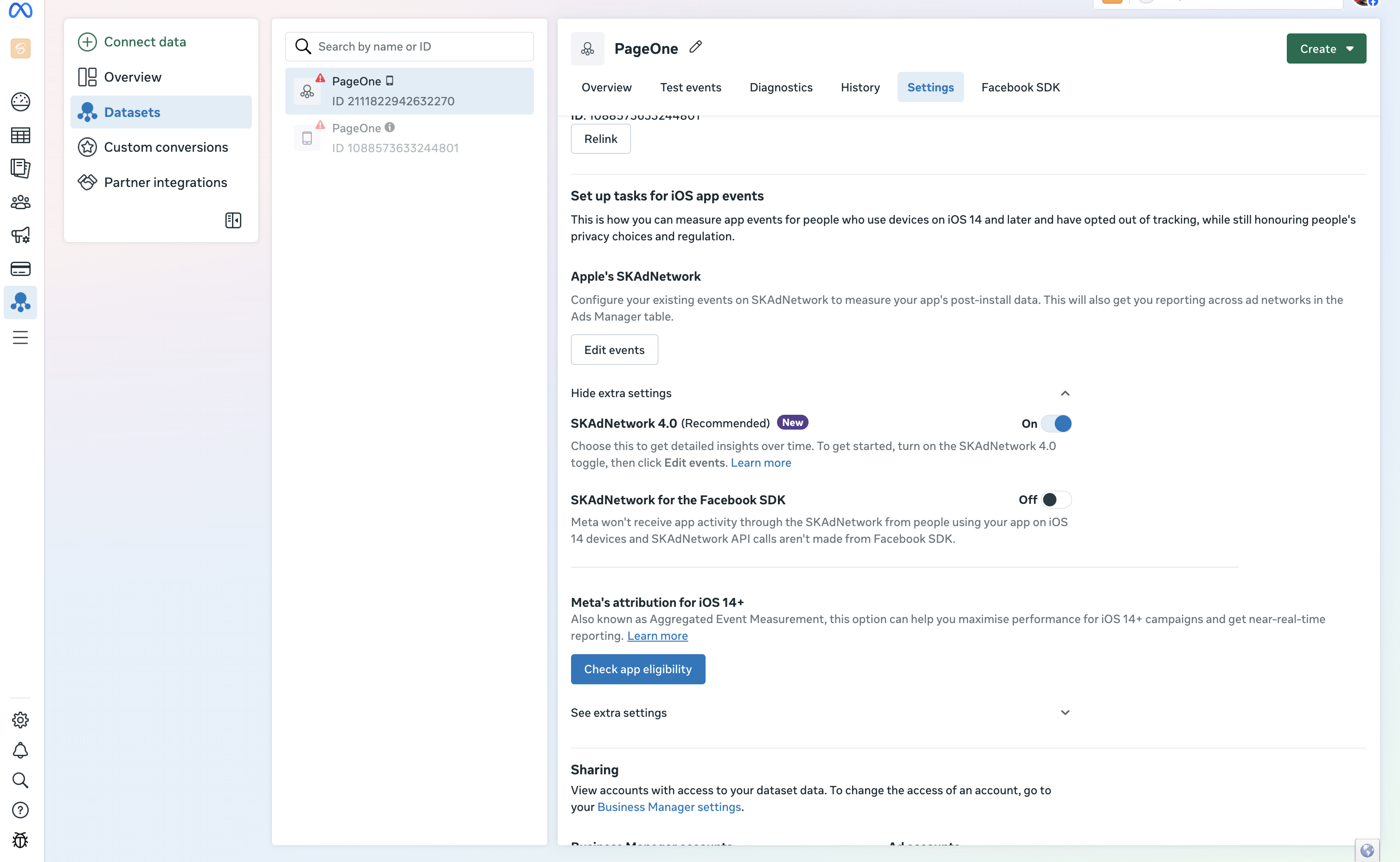 When this toggle is ON, Meta receives app activity via SKAdNetwork directly from the Facebook SDK and Linkrunner
cannot deliver accurate postbacks.
## 3. Linkrunner SDK Configuration
### Minimum SDK Versions
Make sure your app is using at least these SDK versions before enabling SKAN — Linkrunner uses the SDK to update conversion values as users perform events.
**rn-linkrunner >=2.3.0**
**expo-linkrunner >=3.2.0**
**ios-linkrunner >=3.1.0**
**linkrunner >=3.1.1**
### Configure Postback Copies to Linkrunner
To receive SKAdNetwork postback copies, configure `NSAdvertisingAttributionReportEndpoint` and `AttributionCopyEndpoint` in your app's `Info.plist`:
#### Native iOS, Flutter, and React Native
1. Open `Info.plist` in Xcode
2. Add a new key `NSAdvertisingAttributionReportEndpoint` (type `String`) with value `https://linkrunner-skan.com`
3. Add a new key `AttributionCopyEndpoint` (type `String`) with value `https://linkrunner-skan.com`
```xml theme={null}
NSAdvertisingAttributionReportEndpoint
https://linkrunner-skan.com
AttributionCopyEndpoint
https://linkrunner-skan.com
```
#### Expo
The Linkrunner Expo plugin adds this configuration automatically — no additional setup required.
These keys tell Apple to send copies of SKAdNetwork postbacks to Linkrunner alongside the ad network, enabling
accurate attribution and reporting in your Linkrunner dashboard.
## Support
For SKAN integration support, contact us at [support@linkrunner.io](mailto:support@linkrunner.io).
When this toggle is ON, Meta receives app activity via SKAdNetwork directly from the Facebook SDK and Linkrunner
cannot deliver accurate postbacks.
## 3. Linkrunner SDK Configuration
### Minimum SDK Versions
Make sure your app is using at least these SDK versions before enabling SKAN — Linkrunner uses the SDK to update conversion values as users perform events.
**rn-linkrunner >=2.3.0**
**expo-linkrunner >=3.2.0**
**ios-linkrunner >=3.1.0**
**linkrunner >=3.1.1**
### Configure Postback Copies to Linkrunner
To receive SKAdNetwork postback copies, configure `NSAdvertisingAttributionReportEndpoint` and `AttributionCopyEndpoint` in your app's `Info.plist`:
#### Native iOS, Flutter, and React Native
1. Open `Info.plist` in Xcode
2. Add a new key `NSAdvertisingAttributionReportEndpoint` (type `String`) with value `https://linkrunner-skan.com`
3. Add a new key `AttributionCopyEndpoint` (type `String`) with value `https://linkrunner-skan.com`
```xml theme={null}
NSAdvertisingAttributionReportEndpoint
https://linkrunner-skan.com
AttributionCopyEndpoint
https://linkrunner-skan.com
```
#### Expo
The Linkrunner Expo plugin adds this configuration automatically — no additional setup required.
These keys tell Apple to send copies of SKAdNetwork postbacks to Linkrunner alongside the ad network, enabling
accurate attribution and reporting in your Linkrunner dashboard.
## Support
For SKAN integration support, contact us at [support@linkrunner.io](mailto:support@linkrunner.io).