> ## Documentation Index
> Fetch the complete documentation index at: https://docs.linkrunner.io/llms.txt
> Use this file to discover all available pages before exploring further.
# Audience from Tracked Events
Build audience segments from events that are already being sent to the ad platform.
## Meta
### Prerequisites
* The event source (Pixel, App, or Offline) is already set up in Meta.
* Relevant events are already being sent through Pixel, SDK, or Conversions API. You can send conversion events via [Linkrunner](/ad-networks/meta-ads) or directly.
* You know which event you want to build the audience from, such as `Purchase`, `AddToCart`, `ViewContent`, `Lead`, or a custom event.
Meta allows audiences to be built from website events, app activity, and other data sources. Custom events set up using Pixel code or Conversions API can also be used to build audiences.
### Steps
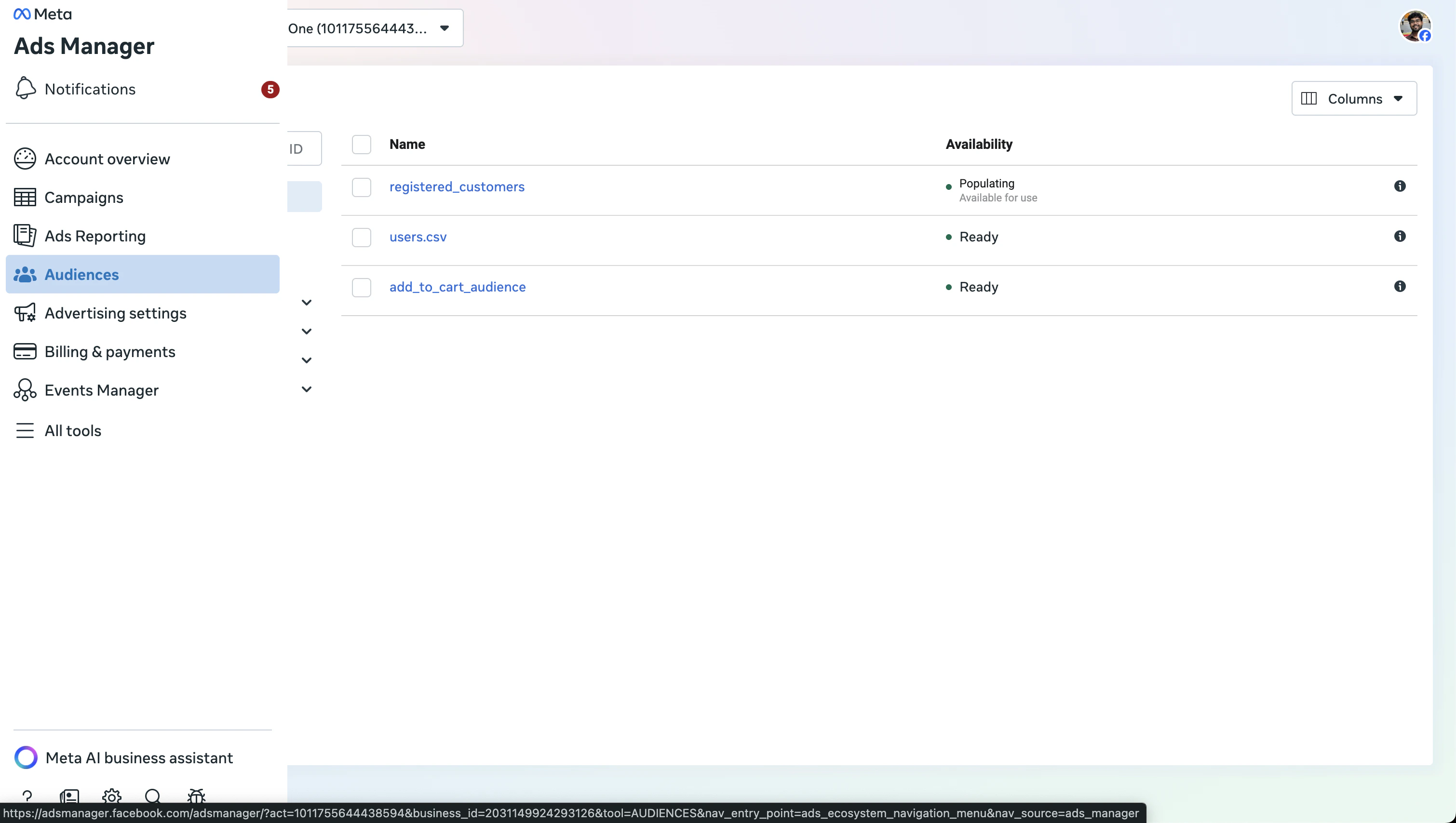
1. Go to **Audiences** in Meta Ads Manager.
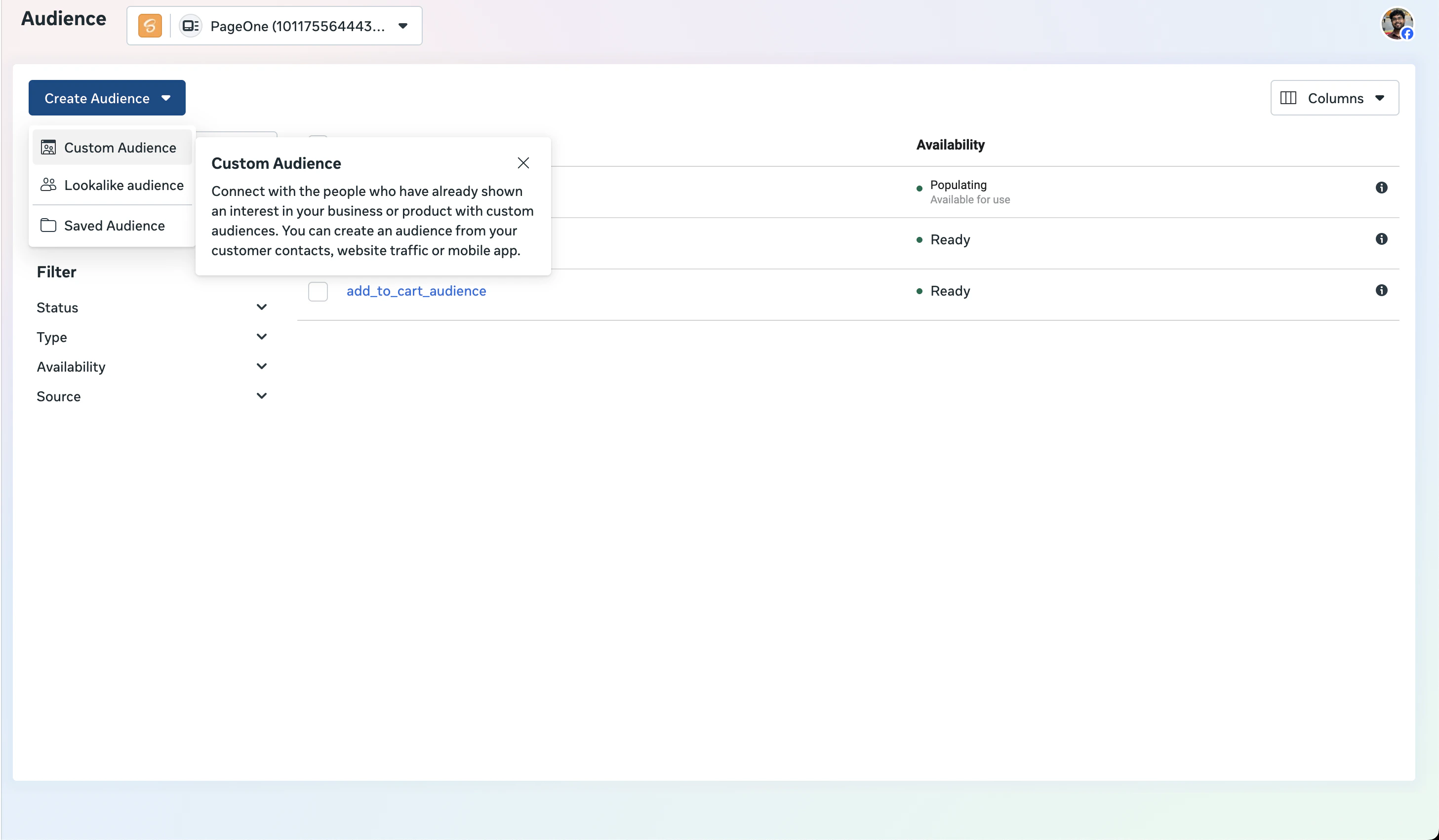
 2. Click **Create Audience** and select **Custom Audience**.
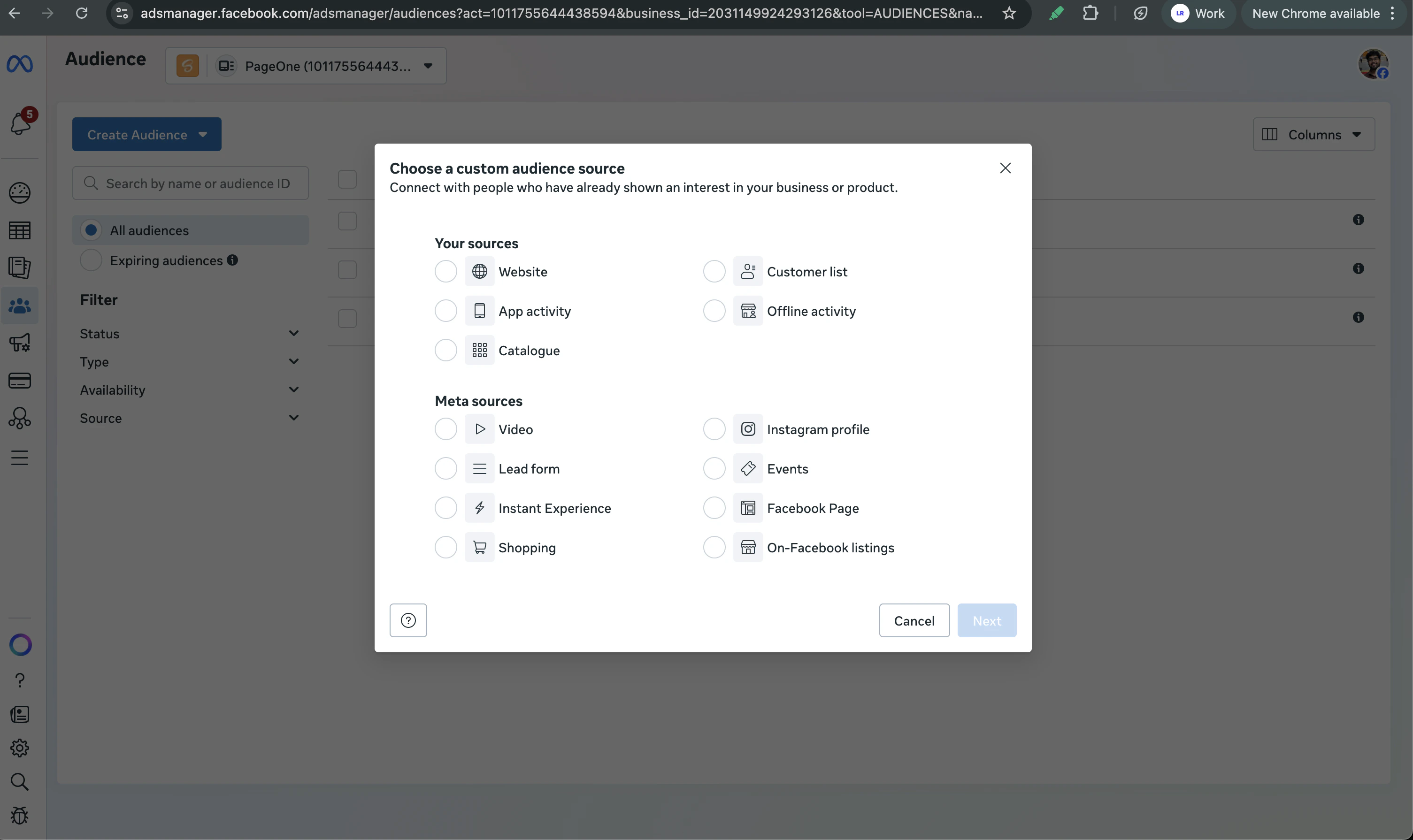
 3. Choose the relevant source:
* **Website** for web events
* **App activity** for app events
* **Offline activity** if you are using offline event sets
3. Choose the relevant source:
* **Website** for web events
* **App activity** for app events
* **Offline activity** if you are using offline event sets
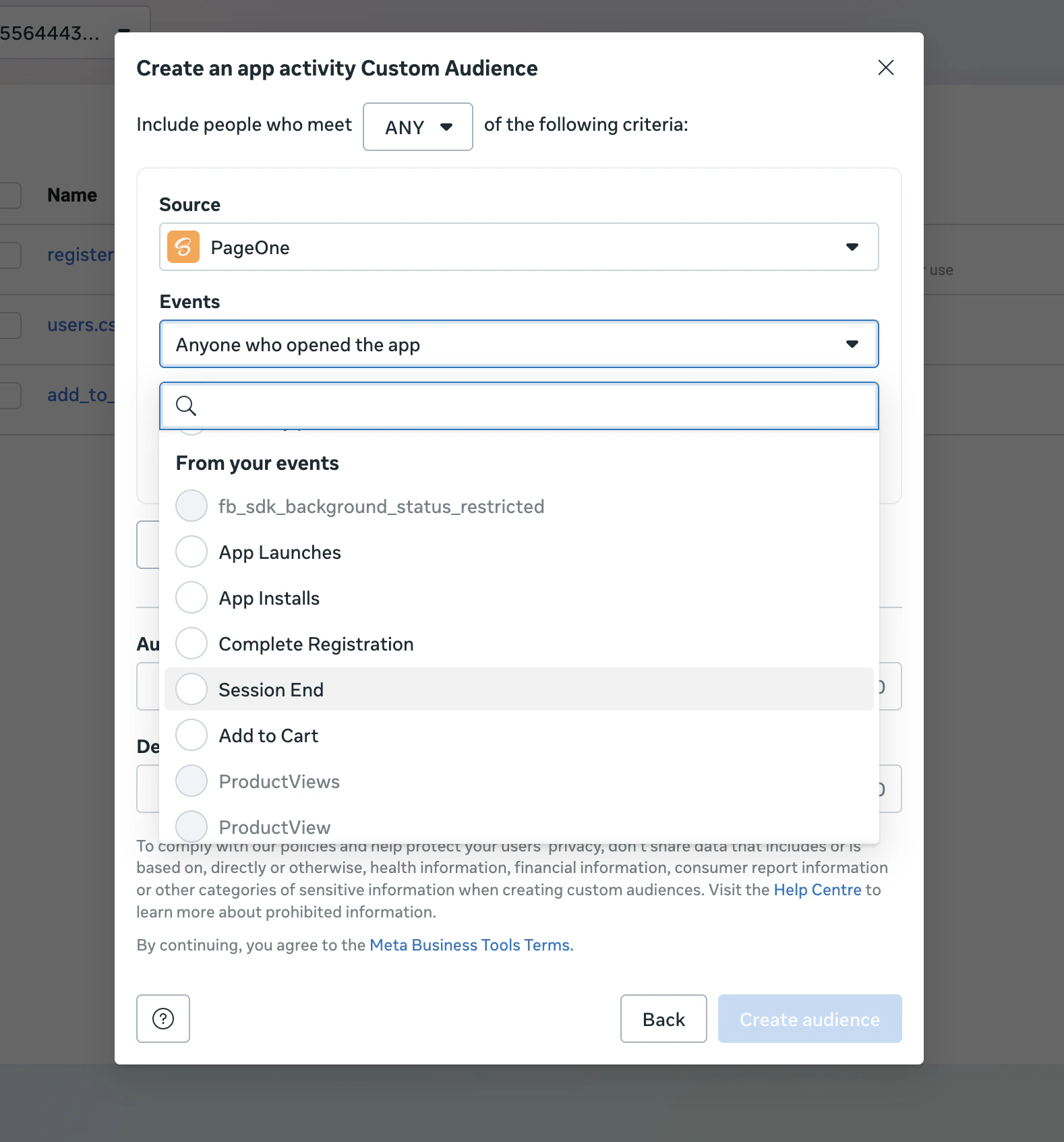
 4. Select the correct data source or app.
5. Choose the event rule for the audience:
* People who triggered specific events
* People who triggered a custom event already being sent via Pixel or Conversions API
4. Select the correct data source or app.
5. Choose the event rule for the audience:
* People who triggered specific events
* People who triggered a custom event already being sent via Pixel or Conversions API
 6. Set the retention window (e.g. 7, 30, 60, or 180 days). Users are removed from the audience after this period unless they meet the criteria again. The maximum retention window is 180 days.
7. Add inclusion or exclusion rules if needed.
8. Name the audience clearly.
9. Save the audience and wait for it to populate.
## Google
### Prerequisites
* Your app or website is linked to your Google Ads account.
* Relevant conversion events are being sent to Google Ads via [Linkrunner](/ad-networks/google-ads) or directly.
### Steps
1. In Google Ads, go to **Tools > Shared library > Audience manager**.
6. Set the retention window (e.g. 7, 30, 60, or 180 days). Users are removed from the audience after this period unless they meet the criteria again. The maximum retention window is 180 days.
7. Add inclusion or exclusion rules if needed.
8. Name the audience clearly.
9. Save the audience and wait for it to populate.
## Google
### Prerequisites
* Your app or website is linked to your Google Ads account.
* Relevant conversion events are being sent to Google Ads via [Linkrunner](/ad-networks/google-ads) or directly.
### Steps
1. In Google Ads, go to **Tools > Shared library > Audience manager**.
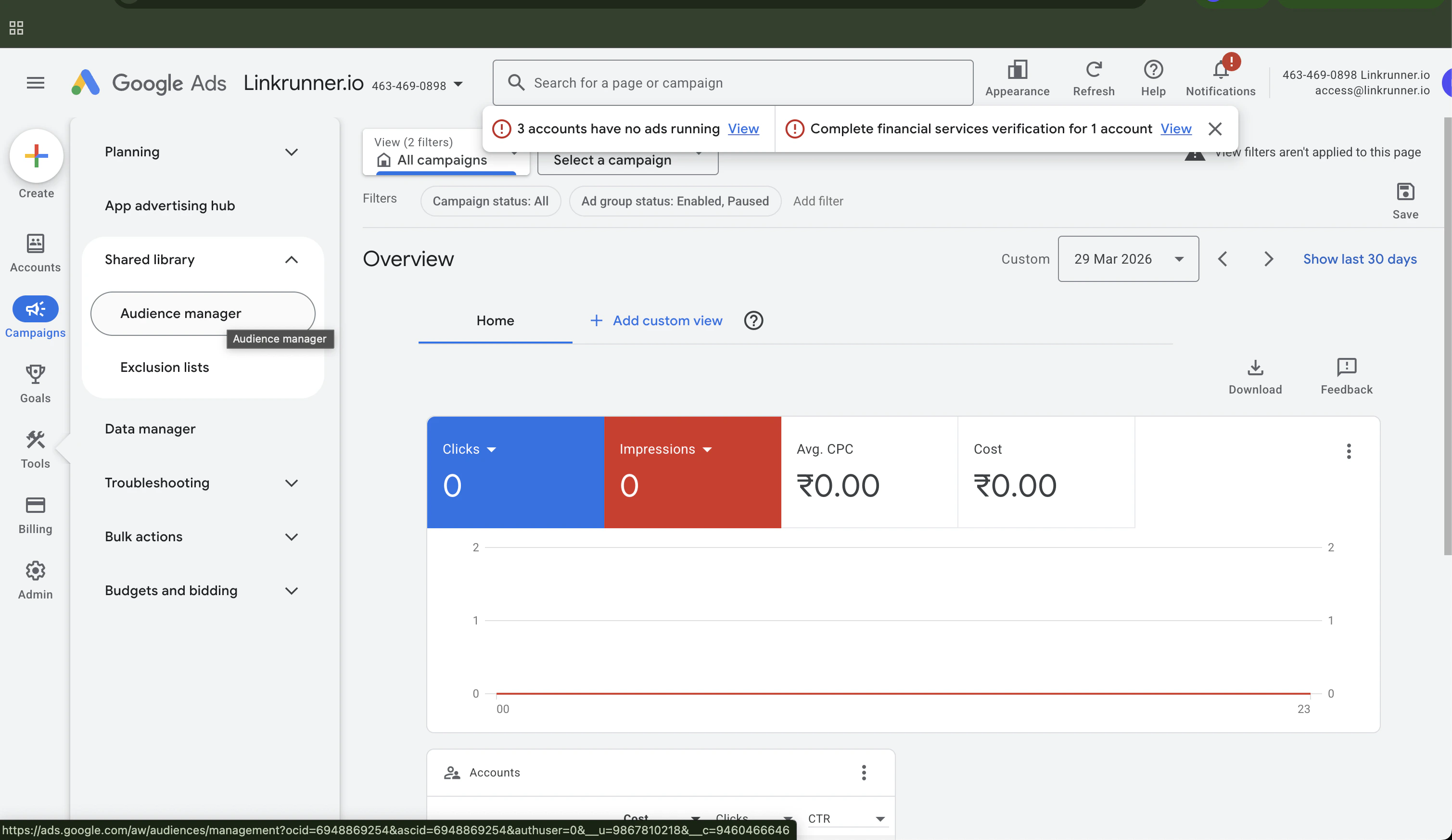 2. Click the **+** icon and select the source — **App Users** or **Website Users**.
 3. Scroll down to the **Actions** section and pick the event.
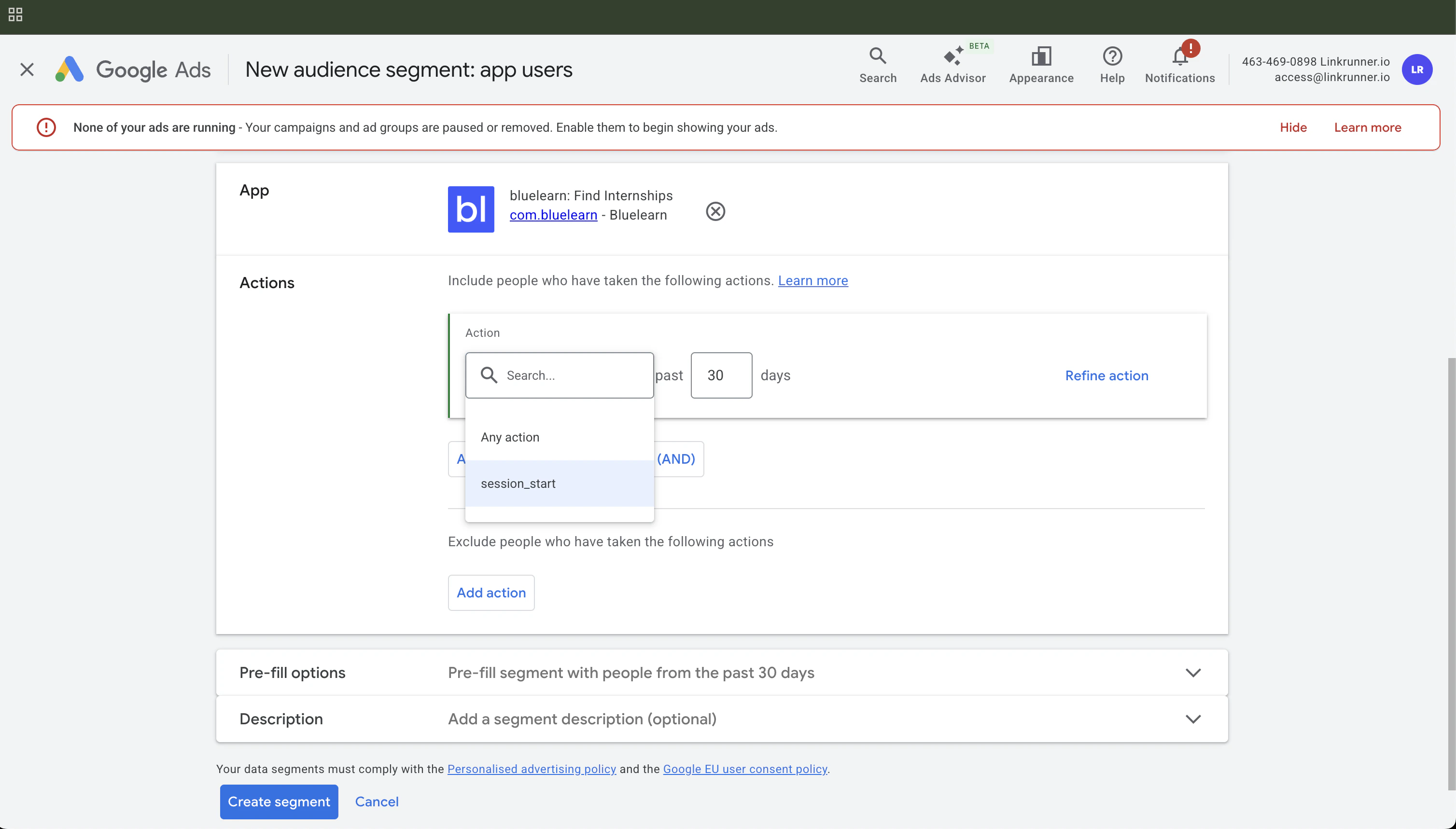 4. Select **Any action** and enter the number of days to include all app users who have been active in that range. The default is 30 days and the maximum is 540 days.
5. Select **Exclude Action** and choose the action name and number of days as required.
6. Repeat the previous step to exclude additional users who took other actions.
7. Name the segment clearly.
8. Save the audience and wait for it to populate.
4. Select **Any action** and enter the number of days to include all app users who have been active in that range. The default is 30 days and the maximum is 540 days.
5. Select **Exclude Action** and choose the action name and number of days as required.
6. Repeat the previous step to exclude additional users who took other actions.
7. Name the segment clearly.
8. Save the audience and wait for it to populate.