> ## Documentation Index
> Fetch the complete documentation index at: https://docs.linkrunner.io/llms.txt
> Use this file to discover all available pages before exploring further.
# Link redirection
> How Linkrunner routes users to the right destination when they click a campaign link
When someone clicks a Linkrunner campaign link, the system detects their device, records the click for attribution, and redirects them to the best destination — whether that's your app, the app store, or your website.
## How it works
Linkrunner extracts the campaign identifier from the link. This can be a `?c=` query parameter or a single path segment (e.g., `get.yourapp.com/AbCdEf`).
The system reads the user agent to determine the device type (mobile, tablet, or desktop), the operating system (iOS or Android), and whether the click came from an in-app browser like Instagram, Facebook, TikTok, Snapchat, LinkedIn, or Twitter.
Linkrunner records the click with device info, operating system, browser details, referrer URL, advertising IDs (`gaid` / `idfa`), ad network click IDs, and a unique attribution identifier (`lr_ia_id`) used to match the click to a future install.
Based on the device type and browser context, Linkrunner routes the user to the appropriate destination using the fallback chains described below.
## Routing by platform
Social media apps like Instagram and TikTok open links in their own built-in browser, which blocks normal redirects to the app store or your installed app. Linkrunner handles this by rendering an intermediary page.
### What happens
1. The intermediary page loads and immediately attempts to open your app via a deep link (custom URI scheme).
2. If the app is installed and opens, the page detects this and stops.
3. If the app does not open within the timeout, the page redirects to the App Store (iOS) or Play Store (Android).
4. The user can also tap the **"Get the App"** button to go to the store immediately.
### Timeout behavior
* **iOS**: 300ms timeout before falling back to the App Store.
* **Android**: 2-second timeout with a visible countdown before falling back to the Play Store.
The intermediary page can be customized to match your brand. See [Social media intermediary page](/features/social-media-intermediary-page) for details.
This flow also applies when the **"Open in app"** option is enabled on a campaign, regardless of which browser the user is in.
On mobile and tablet devices using a regular browser (Safari, Chrome, etc.), Linkrunner redirects through a fallback chain without showing an intermediary page.
### iOS
1. **iOS redirect URL** — A custom redirect URL configured on the campaign
2. **App Store link** — Your app's App Store page (with custom store listing if configured)
3. **Campaign website** — The website URL set on the campaign
4. **Project website** — Your project's default website (with the deep link path appended if a deferred deep link is configured)
### Android
1. **Android redirect URL** — A custom redirect URL configured on the campaign
2. **Play Store link** — Your app's Play Store page (with UTM parameters and custom store listing if configured)
3. **Campaign website** — The website URL set on the campaign
4. **Project website** — Your project's default website (with the deep link path appended if a deferred deep link is configured)
Linkrunner uses the first available URL in the chain. If a platform-specific redirect URL is set on the campaign, it takes priority over the store link.
Desktop visitors are redirected through a different fallback chain since they cannot install a mobile app directly.
1. **Campaign website** — The website URL set on the campaign
2. **Project website** — Your project's default website (with the deep link path appended if a deferred deep link is configured)
3. **Store link** — Falls back to the appropriate store page if no website is configured
## Open in app popup
When **Open in app** is enabled on a campaign and Linkrunner detects that your app is already installed, the redirect page shows a **Continue to your app** prompt that opens the app directly, instead of auto-redirecting to the store.
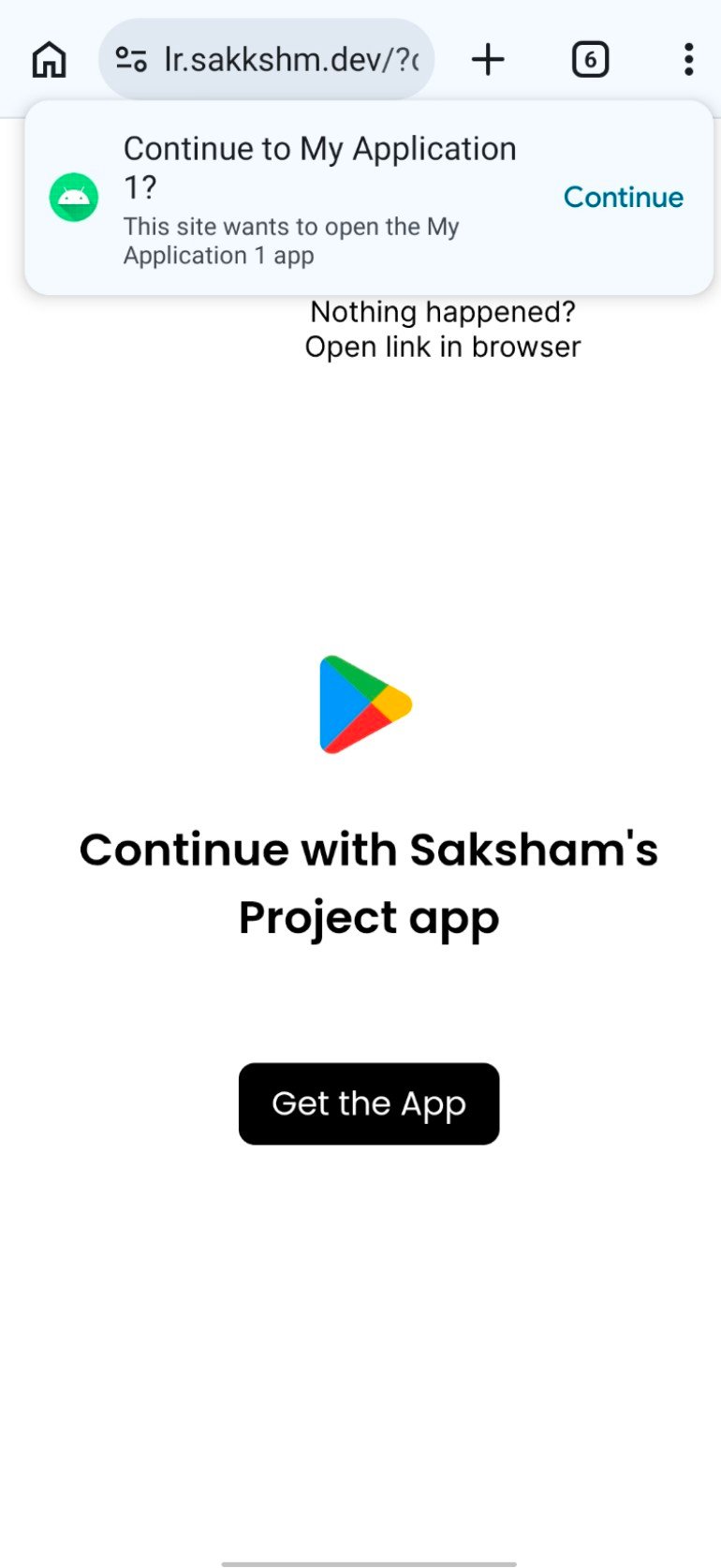 On Android, detection uses Chrome's `navigator.getInstalledRelatedApps()`. This only works when your app declares an `asset_statements` link back to your Linkrunner subdomain. Linkrunner already hosts the matching `/.well-known/assetlinks.json` on your subdomain; you add the app→site half in your app. See [Enable install detection in Deep linking setup](/features/deep-linking-setup#enable-install-detection-continue-to-app-popup) for the `asset_statements` snippet.
If the app is not installed, or detection is unavailable, the page falls back to the normal store redirect chain.
## Redirect priority
| Scenario | Priority 1 | Priority 2 | Priority 3 | Priority 4 |
| ------------------------- | -------------------- | ---------------------- | ---------------- | --------------- |
| In-app browser | Deep link into app | App Store / Play Store | Campaign website | Project website |
| iOS (regular browser) | iOS redirect URL | App Store | Campaign website | Project website |
| Android (regular browser) | Android redirect URL | Play Store | Campaign website | Project website |
| Desktop | Campaign website | Project website | Store link | — |
## Troubleshooting
**Store redirect not working?** Verify that your App Store and Play Store links are configured correctly in [project settings](https://dashboard.linkrunner.io/settings). The Play Store link must include `google.com` in the URL.
**Deep link not opening the app?** Ensure your app has a custom URI scheme configured and that the Linkrunner SDK is initialized. See [Deep linking setup](/features/deep-linking-setup) for configuration steps.
**Blank intermediary page?** This usually means the app link or store link failed to load. Check that your custom URI scheme and store links are set correctly in project settings.
**Attribution not matching?** Make sure the Linkrunner SDK is initialized before calling `getAttributionData()`. The app must be installed through the campaign link — direct store installs cannot be attributed.
**Desktop users seeing the store instead of your website?** Add a website URL to your campaign or project settings. Without a website configured, Linkrunner falls back to the store link on all platforms.
***
Customize the intermediary page for in-app browsers
Configure deep links to open specific screens in your app
Route users to content after they install your app
Show tailored store pages for different campaigns
For any help please reach out to [support@linkrunner.io](mailto:support@linkrunner.io)
On Android, detection uses Chrome's `navigator.getInstalledRelatedApps()`. This only works when your app declares an `asset_statements` link back to your Linkrunner subdomain. Linkrunner already hosts the matching `/.well-known/assetlinks.json` on your subdomain; you add the app→site half in your app. See [Enable install detection in Deep linking setup](/features/deep-linking-setup#enable-install-detection-continue-to-app-popup) for the `asset_statements` snippet.
If the app is not installed, or detection is unavailable, the page falls back to the normal store redirect chain.
## Redirect priority
| Scenario | Priority 1 | Priority 2 | Priority 3 | Priority 4 |
| ------------------------- | -------------------- | ---------------------- | ---------------- | --------------- |
| In-app browser | Deep link into app | App Store / Play Store | Campaign website | Project website |
| iOS (regular browser) | iOS redirect URL | App Store | Campaign website | Project website |
| Android (regular browser) | Android redirect URL | Play Store | Campaign website | Project website |
| Desktop | Campaign website | Project website | Store link | — |
## Troubleshooting
**Store redirect not working?** Verify that your App Store and Play Store links are configured correctly in [project settings](https://dashboard.linkrunner.io/settings). The Play Store link must include `google.com` in the URL.
**Deep link not opening the app?** Ensure your app has a custom URI scheme configured and that the Linkrunner SDK is initialized. See [Deep linking setup](/features/deep-linking-setup) for configuration steps.
**Blank intermediary page?** This usually means the app link or store link failed to load. Check that your custom URI scheme and store links are set correctly in project settings.
**Attribution not matching?** Make sure the Linkrunner SDK is initialized before calling `getAttributionData()`. The app must be installed through the campaign link — direct store installs cannot be attributed.
**Desktop users seeing the store instead of your website?** Add a website URL to your campaign or project settings. Without a website configured, Linkrunner falls back to the store link on all platforms.
***
Customize the intermediary page for in-app browsers
Configure deep links to open specific screens in your app
Route users to content after they install your app
Show tailored store pages for different campaigns
For any help please reach out to [support@linkrunner.io](mailto:support@linkrunner.io)