> ## Documentation Index
> Fetch the complete documentation index at: https://docs.linkrunner.io/llms.txt
> Use this file to discover all available pages before exploring further.
# Fraud Control: Flag and Suppress Invalid Traffic
> See how much of your traffic is fake, and stop it from reaching your ad networks. Your attribution is never changed.
Open **Fraud Control** from the left sidebar of the [dashboard](https://dashboard.linkrunner.io/dashboard/fraud-control), just below **Settings**.
## What you get
| Feature | What it does for you |
| :-------------------------- | :--------------------------------------------------------------------------------------------------------- |
| **Fraud rate overview** | Shows what share of your installs looks fraudulent, and which networks it comes from. |
| **Protection from day one** | Linkrunner-managed rules run on every project, so you see a fraud rate before you write anything. |
| **Ready-made templates** | One-click rules for click injection, install hijacking, SDK spoofing, and installs from fraudulent clicks. |
| **Custom rules** | Write a rule in plain English, or build it condition by condition, for clicks, installs, or in-app events. |
| **Impact preview** | Shows how much traffic a rule would flag over the last 7, 14, or 30 days before you save it. |
| **Tag or suppress** | Only flag fraud for reporting, or also stop fraudulent conversions from being sent to ad networks. |
| **Affiliate rejections** | Tells affiliate partners a conversion was rejected, so they can stop paying their publishers for it. |
| **Change history** | Records who changed each rule, what changed, and when. |
**Your attribution is never changed.** A fraud rule never moves credit between networks and never turns an attributed install into an organic one. Your reports keep the same totals. Fraud Control only changes how a record is labelled and, at most, whether its postback is sent.
A **postback** is the conversion signal Linkrunner sends to an ad network or partner, for example "this install came from your campaign". Networks use postbacks to optimise your campaigns.
## Get started in five steps
The Linkrunner-managed rules already report a fraud rate. Look at it before changing anything.
Start from a template where one fits. **Tag only** flags matches for reporting and changes nothing else.
Adjust the threshold until the share of flagged traffic looks plausible.
Check its real flagged count in **By rule** and where the volume comes from in **By channel**.
Do this only once the flagged volume looks right, and one rule at a time. If you switch several rules at once, you cannot tell which one caused a drop in reported conversions.
## Choose what happens when a rule matches
Every rule has one of two responses:
| Response | What happens |
| :----------------------------- | :--------------------------------------------------------------------------------------------------------------------------------------------------------------------------------------------------------------------- |
| **Tag only** | The record is flagged and counted in Fraud Control reports. Nothing else changes. |
| **Tag and suppress postbacks** | The record is flagged, and its postbacks are not sent to ad networks. Attribution stays the same. Affiliates with a rejection URL are told the conversion was rejected, see [Affiliate partners](#affiliate-partners). |
When a postback is suppressed, the ad network never hears about that conversion. A rule that is too broad can hurt the network's optimisation without any visible error. Always run a new rule on **Tag only** first.
Click rules are always **Tag only**, because a click has no postback to suppress. They are still useful: a flagged click can be used to flag the install it leads to. See [How a flag carries over](#how-a-flag-carries-over).
## Read the overview
The overview shows how much of your traffic is invalid and where it comes from.
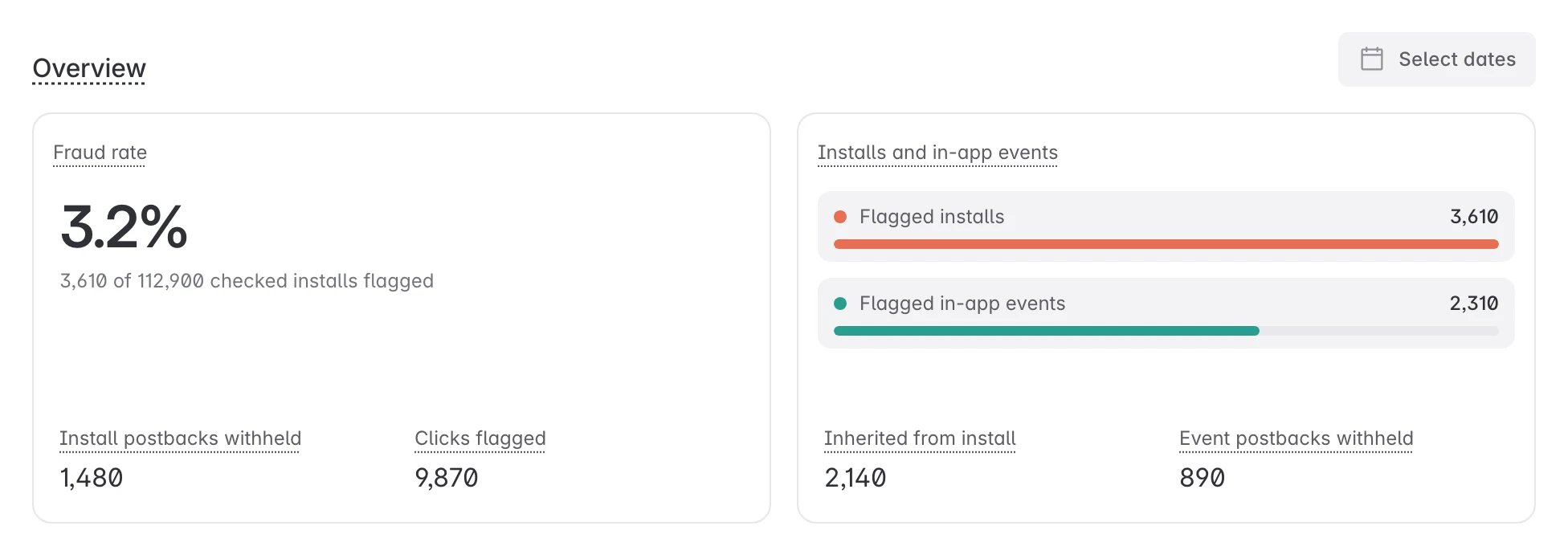 | Figure | What it means |
| :------------------------------------------------- | :----------------------------------------------------------------------------------------------------------------------------------------------------- |
| **Fraud rate** | Share of checked installs flagged by at least one rule. An install counts once, however many rules it matched. |
| **Install postbacks withheld** | Flagged installs whose postbacks were not sent, because a matching rule suppresses. Installs sent to an affiliate as a rejection are not counted here. |
| **Clicks flagged** | Clicks flagged by a click rule. |
| **Flagged installs** and **Flagged in-app events** | How many of each were flagged in the selected period. |
| **Inherited from install** | In-app events flagged because their install was flagged, not by an event rule. |
The fraud rate only covers records the engine has already checked. A rule you saved an hour ago has not been applied to last week's installs.
### See where it comes from
**By rule** shows which rules flag the most traffic. **By channel** shows which ad network delivered the flagged traffic.
| Figure | What it means |
| :------------------------------------------------- | :----------------------------------------------------------------------------------------------------------------------------------------------------- |
| **Fraud rate** | Share of checked installs flagged by at least one rule. An install counts once, however many rules it matched. |
| **Install postbacks withheld** | Flagged installs whose postbacks were not sent, because a matching rule suppresses. Installs sent to an affiliate as a rejection are not counted here. |
| **Clicks flagged** | Clicks flagged by a click rule. |
| **Flagged installs** and **Flagged in-app events** | How many of each were flagged in the selected period. |
| **Inherited from install** | In-app events flagged because their install was flagged, not by an event rule. |
The fraud rate only covers records the engine has already checked. A rule you saved an hour ago has not been applied to last week's installs.
### See where it comes from
**By rule** shows which rules flag the most traffic. **By channel** shows which ad network delivered the flagged traffic.
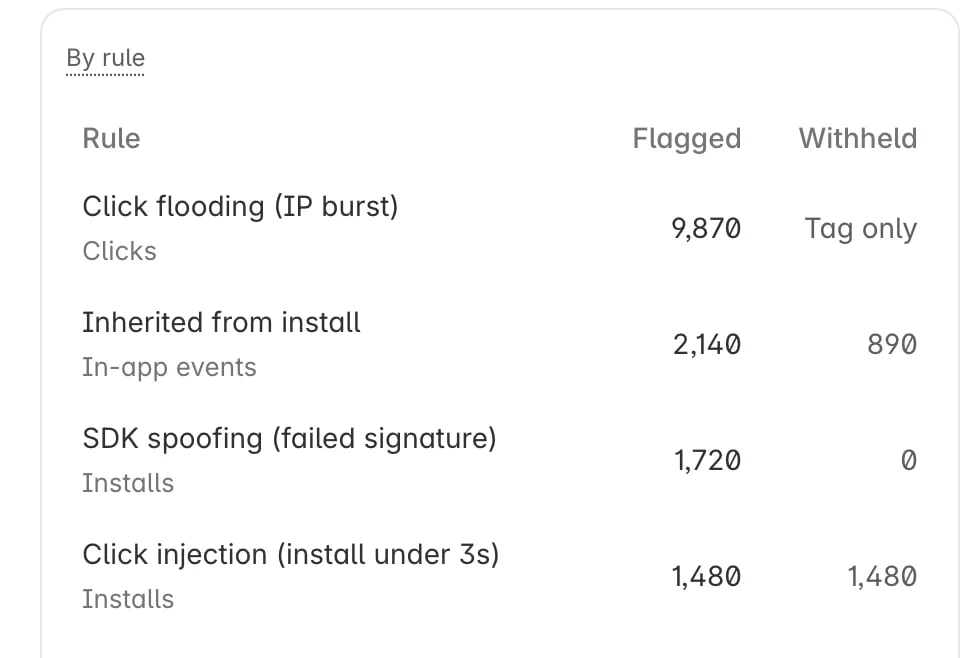 A rule with flagged records and `0` in **Withheld** is running on Tag only. That is expected while you are still measuring.
Use **By channel** to tell bad traffic from a bad rule:
* **Flagged volume sits mostly in one network.** That network's traffic is likely the problem.
* **Flagged volume is spread evenly across all networks, including Organic / no network.** The rule is likely too broad.
## Create a rule
Select **Create rule**, then pick one of three ways to start:
| Option | Best for |
| :---------------- | :------------------------------------------------------------------------- |
| **Template** | Common fraud patterns, already configured. |
| **Describe** | Writing what you want in a sentence and letting Linkrunner draft the rule. |
| **Build by hand** | Full control over each condition. |
### Start from a template
A rule with flagged records and `0` in **Withheld** is running on Tag only. That is expected while you are still measuring.
Use **By channel** to tell bad traffic from a bad rule:
* **Flagged volume sits mostly in one network.** That network's traffic is likely the problem.
* **Flagged volume is spread evenly across all networks, including Organic / no network.** The rule is likely too broad.
## Create a rule
Select **Create rule**, then pick one of three ways to start:
| Option | Best for |
| :---------------- | :------------------------------------------------------------------------- |
| **Template** | Common fraud patterns, already configured. |
| **Describe** | Writing what you want in a sentence and letting Linkrunner draft the rule. |
| **Build by hand** | Full control over each condition. |
### Start from a template
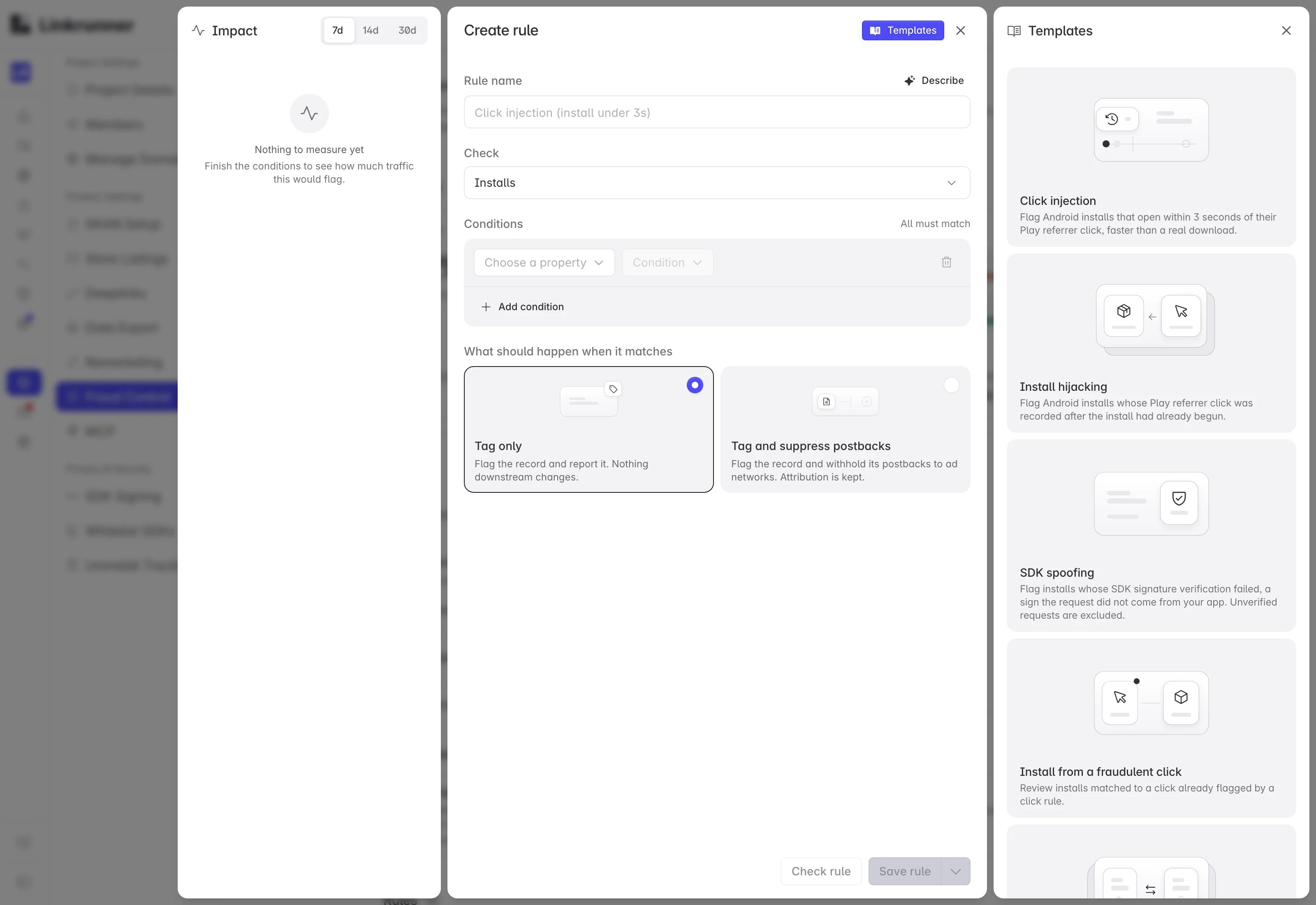 | Template | What it flags |
| :---------------------------------- | :--------------------------------------------------------------------------------------------------------------------------- |
| **Click injection** | Android installs that open within 3 seconds of their Play referrer click, faster than a real download. |
| **Install hijacking** | Android installs whose Play referrer click was recorded after the install had already started. |
| **SDK spoofing** | Installs whose SDK signature check failed, meaning the request did not come from your app. Unverified requests are excluded. |
| **Install from a fraudulent click** | Installs matched to a click that a click rule already flagged. |
Templates are a starting point. Adjust the threshold and check the impact before saving.
### Describe it in plain English
Select **Describe** and write a sentence, for example `Tag installs that open less than 3 seconds after the click`. Linkrunner drafts the conditions and the response.
Always review the draft. Its thresholds are guesses until you check them against your own traffic.
### Build it by hand
| Template | What it flags |
| :---------------------------------- | :--------------------------------------------------------------------------------------------------------------------------- |
| **Click injection** | Android installs that open within 3 seconds of their Play referrer click, faster than a real download. |
| **Install hijacking** | Android installs whose Play referrer click was recorded after the install had already started. |
| **SDK spoofing** | Installs whose SDK signature check failed, meaning the request did not come from your app. Unverified requests are excluded. |
| **Install from a fraudulent click** | Installs matched to a click that a click rule already flagged. |
Templates are a starting point. Adjust the threshold and check the impact before saving.
### Describe it in plain English
Select **Describe** and write a sentence, for example `Tag installs that open less than 3 seconds after the click`. Linkrunner drafts the conditions and the response.
Always review the draft. Its thresholds are guesses until you check them against your own traffic.
### Build it by hand
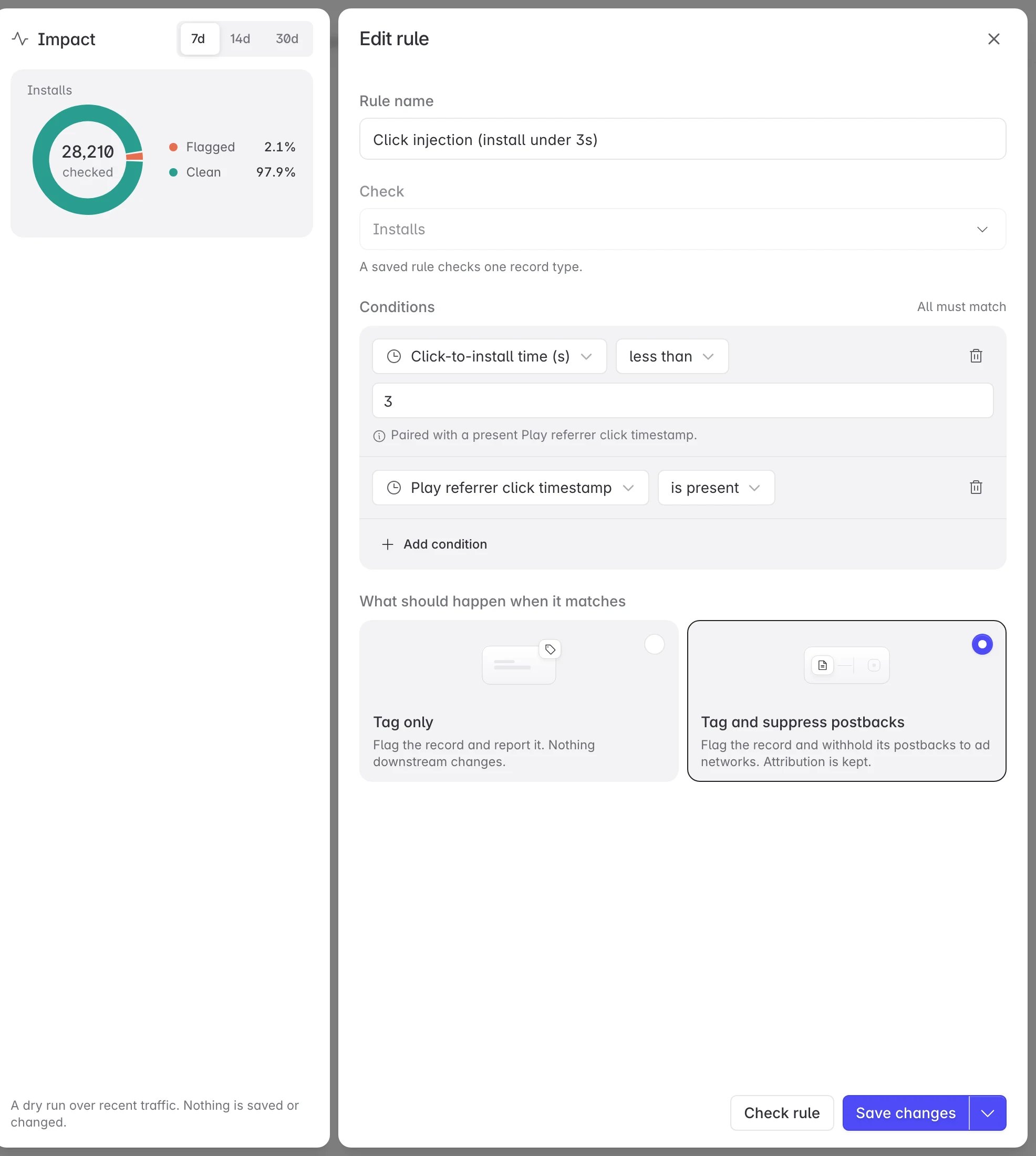 1. **Rule name.** Shown in reports and change history, so name it after what it catches.
2. **Check.** What the rule runs on: **Clicks**, **Installs**, or **In-app events**. Each rule checks one type.
3. **Conditions.** Each condition is a property, an operator, and usually a value. **All must match** for the rule to fire.
4. **What should happen when it matches.** Tag only, or Tag and suppress postbacks.
Some properties need a second condition to work correctly, and the builder tells you when. The main one is click-to-install time. It only makes sense when a Play referrer click timestamp is present, and iOS installs do not have one. Without that extra condition, the rule flags real iOS installs.
## Check the impact before you save
The **Impact** panel tests the rule against your traffic from the last 7, 14, or 30 days. Nothing is saved and no record changes.
It shows how many records were checked and what share the rule would flag. Change the threshold and watch the percentage move until it looks right.
What counts as plausible depends on the fraud type, but a rule that flags a large share of all traffic is almost always too broad. After saving, check **By channel** to confirm the flagged volume sits where you expect.
Rules that use IP lists, frequency caps, or percentiles cannot be previewed, because they depend on live or nightly-updated data. The panel says so instead of showing a number. This does not mean the rule is broken. Save it on **Tag only** and check its real count in **By rule** after a day.
## Manage rules
1. **Rule name.** Shown in reports and change history, so name it after what it catches.
2. **Check.** What the rule runs on: **Clicks**, **Installs**, or **In-app events**. Each rule checks one type.
3. **Conditions.** Each condition is a property, an operator, and usually a value. **All must match** for the rule to fire.
4. **What should happen when it matches.** Tag only, or Tag and suppress postbacks.
Some properties need a second condition to work correctly, and the builder tells you when. The main one is click-to-install time. It only makes sense when a Play referrer click timestamp is present, and iOS installs do not have one. Without that extra condition, the rule flags real iOS installs.
## Check the impact before you save
The **Impact** panel tests the rule against your traffic from the last 7, 14, or 30 days. Nothing is saved and no record changes.
It shows how many records were checked and what share the rule would flag. Change the threshold and watch the percentage move until it looks right.
What counts as plausible depends on the fraud type, but a rule that flags a large share of all traffic is almost always too broad. After saving, check **By channel** to confirm the flagged volume sits where you expect.
Rules that use IP lists, frequency caps, or percentiles cannot be previewed, because they depend on live or nightly-updated data. The panel says so instead of showing a number. This does not mean the rule is broken. Save it on **Tag only** and check its real count in **By rule** after a day.
## Manage rules
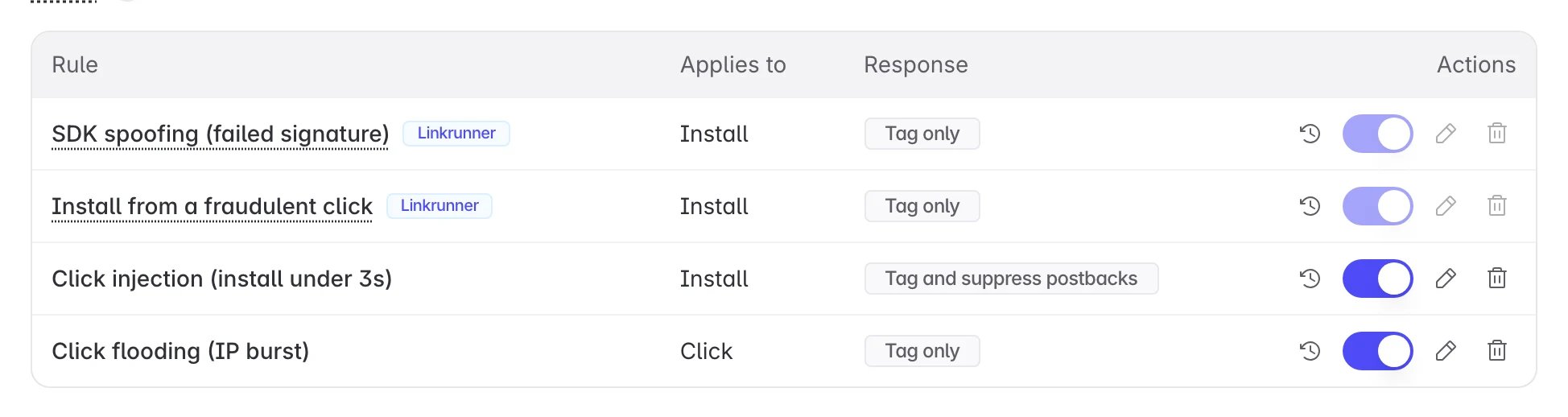 Each row shows what the rule checks and its response. From each row you can:
* **History:** open the rule's change log.
* **Toggle:** turn the rule on or off. A disabled rule stops flagging right away and keeps its history.
* **Edit:** reopen the builder, including the impact preview.
* **Delete:** remove the rule. Records it already flagged stay flagged.
Changes take effect within about a minute.
### Rules managed by Linkrunner
Rules marked **Linkrunner** are baseline protections that give every project fraud detection from day one. Linkrunner maintains them and updates them as fraud patterns change.
You can view them and their history, but you cannot edit or delete them. Rules that apply to every project cannot be turned off.
## How a flag carries over
Clicks, installs, and in-app events are checked separately, but a flag can carry forward:
* **Click to install.** A flagged click is passed to the install it leads to, but the install is not flagged automatically. The **Install from a fraudulent click** rule decides that, so you stay in control.
* **Install to in-app event.** Events from a flagged install are flagged too. They appear as **Inherited from install** in the overview.
This is why click rules are worth running even though they cannot suppress anything.
## Affiliate partners
Affiliates pay their own publishers based on the postbacks they receive. If a postback simply never arrives, the affiliate cannot tell it from a delay and may keep paying for fraudulent traffic.
So when a rule is set to **Tag and suppress postbacks**, affiliates are handled like this:
| Affiliate partner | What it receives |
| :------------------------------- | :--------------------------------------------------------------------------------------------------- |
| **Has a rejection postback URL** | A call to that URL with the reasons. Sent once, never retried. Its usual postback URL is not called. |
| **Has none** | Nothing. The postback is withheld, as for an ad network. |
* Each partner sets its own rejection URLs, one for installs and one for events, in its affiliate dashboard.
* A rejection is only sent for a conversion the partner would otherwise have received, so its event mappings still apply.
* The reasons are codes built from the rule type and the matched property, for example `click_injection.ctit_seconds`. They never include your rule's name, threshold, or anything else you wrote.
* The partner sees **Rejected (fraud)** and **Withheld (fraud)** in its [postback logs](/affiliate-partners/postback-logs#conversions-rejected-by-fraud-control). See [Rejected conversions](/affiliate-partners/postbacks#rejected-conversions) for what its endpoint receives.
Ad networks with a native integration, such as Meta, Google, and TikTok, and your own webhooks never receive a suppressed conversion.
## Change history
Every rule change is recorded: who made it, what changed, and when. Open it from **History** on any rule.
Each row shows what the rule checks and its response. From each row you can:
* **History:** open the rule's change log.
* **Toggle:** turn the rule on or off. A disabled rule stops flagging right away and keeps its history.
* **Edit:** reopen the builder, including the impact preview.
* **Delete:** remove the rule. Records it already flagged stay flagged.
Changes take effect within about a minute.
### Rules managed by Linkrunner
Rules marked **Linkrunner** are baseline protections that give every project fraud detection from day one. Linkrunner maintains them and updates them as fraud patterns change.
You can view them and their history, but you cannot edit or delete them. Rules that apply to every project cannot be turned off.
## How a flag carries over
Clicks, installs, and in-app events are checked separately, but a flag can carry forward:
* **Click to install.** A flagged click is passed to the install it leads to, but the install is not flagged automatically. The **Install from a fraudulent click** rule decides that, so you stay in control.
* **Install to in-app event.** Events from a flagged install are flagged too. They appear as **Inherited from install** in the overview.
This is why click rules are worth running even though they cannot suppress anything.
## Affiliate partners
Affiliates pay their own publishers based on the postbacks they receive. If a postback simply never arrives, the affiliate cannot tell it from a delay and may keep paying for fraudulent traffic.
So when a rule is set to **Tag and suppress postbacks**, affiliates are handled like this:
| Affiliate partner | What it receives |
| :------------------------------- | :--------------------------------------------------------------------------------------------------- |
| **Has a rejection postback URL** | A call to that URL with the reasons. Sent once, never retried. Its usual postback URL is not called. |
| **Has none** | Nothing. The postback is withheld, as for an ad network. |
* Each partner sets its own rejection URLs, one for installs and one for events, in its affiliate dashboard.
* A rejection is only sent for a conversion the partner would otherwise have received, so its event mappings still apply.
* The reasons are codes built from the rule type and the matched property, for example `click_injection.ctit_seconds`. They never include your rule's name, threshold, or anything else you wrote.
* The partner sees **Rejected (fraud)** and **Withheld (fraud)** in its [postback logs](/affiliate-partners/postback-logs#conversions-rejected-by-fraud-control). See [Rejected conversions](/affiliate-partners/postbacks#rejected-conversions) for what its endpoint receives.
Ad networks with a native integration, such as Meta, Google, and TikTok, and your own webhooks never receive a suppressed conversion.
## Change history
Every rule change is recorded: who made it, what changed, and when. Open it from **History** on any rule.
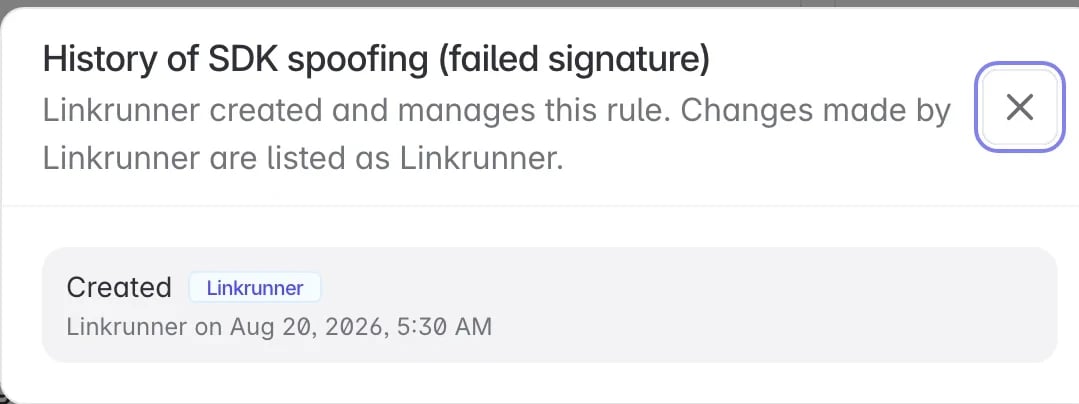 The log covers creation, turning a rule on or off, condition and scope changes, and response changes. Changes to managed rules are listed as Linkrunner. Rules created before change history existed show only their creation time.
## Who can change rules
| Action | Required role |
| :--------------------------------------------- | :----------------- |
| View Fraud Control, rules, and history | Any project member |
| Create, edit, turn on or off, or delete a rule | Admin or Member |
## Troubleshooting
Check the rule is turned on, and wait a minute after saving. Confirm the rule checks the record type you meant (clicks, installs, or in-app events). Rules using an IP list, a frequency cap, or a percentile have no preview, so their first counts appear in **By rule** once traffic arrives.
Add the condition that requires a Play referrer click timestamp to be present. iOS installs have no Play referrer, so without it the rule compares two different measurements.
Open **By channel**. Volume concentrated in one network points to that network's traffic. Volume spread evenly across all networks, including organic, points to a rule that is too broad. Open the rule and check its impact preview again.
Check **Install postbacks withheld** and **By rule** for rules set to Tag and suppress postbacks. Switch a rule back to Tag only to restore its postbacks while you adjust it.
**Need help?** Contact [support@linkrunner.io](mailto:support@linkrunner.io).
The log covers creation, turning a rule on or off, condition and scope changes, and response changes. Changes to managed rules are listed as Linkrunner. Rules created before change history existed show only their creation time.
## Who can change rules
| Action | Required role |
| :--------------------------------------------- | :----------------- |
| View Fraud Control, rules, and history | Any project member |
| Create, edit, turn on or off, or delete a rule | Admin or Member |
## Troubleshooting
Check the rule is turned on, and wait a minute after saving. Confirm the rule checks the record type you meant (clicks, installs, or in-app events). Rules using an IP list, a frequency cap, or a percentile have no preview, so their first counts appear in **By rule** once traffic arrives.
Add the condition that requires a Play referrer click timestamp to be present. iOS installs have no Play referrer, so without it the rule compares two different measurements.
Open **By channel**. Volume concentrated in one network points to that network's traffic. Volume spread evenly across all networks, including organic, points to a rule that is too broad. Open the rule and check its impact preview again.
Check **Install postbacks withheld** and **By rule** for rules set to Tag and suppress postbacks. Switch a rule back to Tag only to restore its postbacks while you adjust it.
**Need help?** Contact [support@linkrunner.io](mailto:support@linkrunner.io).