> ## Documentation Index
> Fetch the complete documentation index at: https://docs.linkrunner.io/llms.txt
> Use this file to discover all available pages before exploring further.
# Events
> Build conversion funnels, inspect any raw event your app sent, and audit which events are flowing.
An event is a single action someone takes in your app that your app reports to Linkrunner, such as opening the app, adding an item to a cart, or completing a purchase. Your app decides which actions to report, and each one gets a name like `add_to_cart` or `purchase`.
The **Events** tab is where you analyze those actions. It has three sub-tabs:
* **Events Funnel** shows how many people make it through a sequence of steps, and where the rest give up.
* **Events Log** lists every single action as it arrived, so you can inspect one in detail.
* **Your Events** lists which action names your app is sending at all.
Open the tab at [dashboard.linkrunner.io/dashboard/events](https://dashboard.linkrunner.io/dashboard/events). The dashboard adds `?p_id=YOUR_PROJECT_ID` to the address for the project you have selected.
Everything on this tab comes from what your app reports. If an action is missing here, the gap is in your app's
tracking code rather than in the dashboard. See [Tracking Custom
Events](/sdk/react-native#tracking-custom-events) and [Revenue Tracking](/sdk/react-native#revenue-tracking).
## Events Funnel
A funnel measures how many people get through a sequence of steps, and how many drop out along the way. For example: installed the app → signed up → made a purchase. **Events Funnel** is the sub-tab you land on first.
### Building a funnel
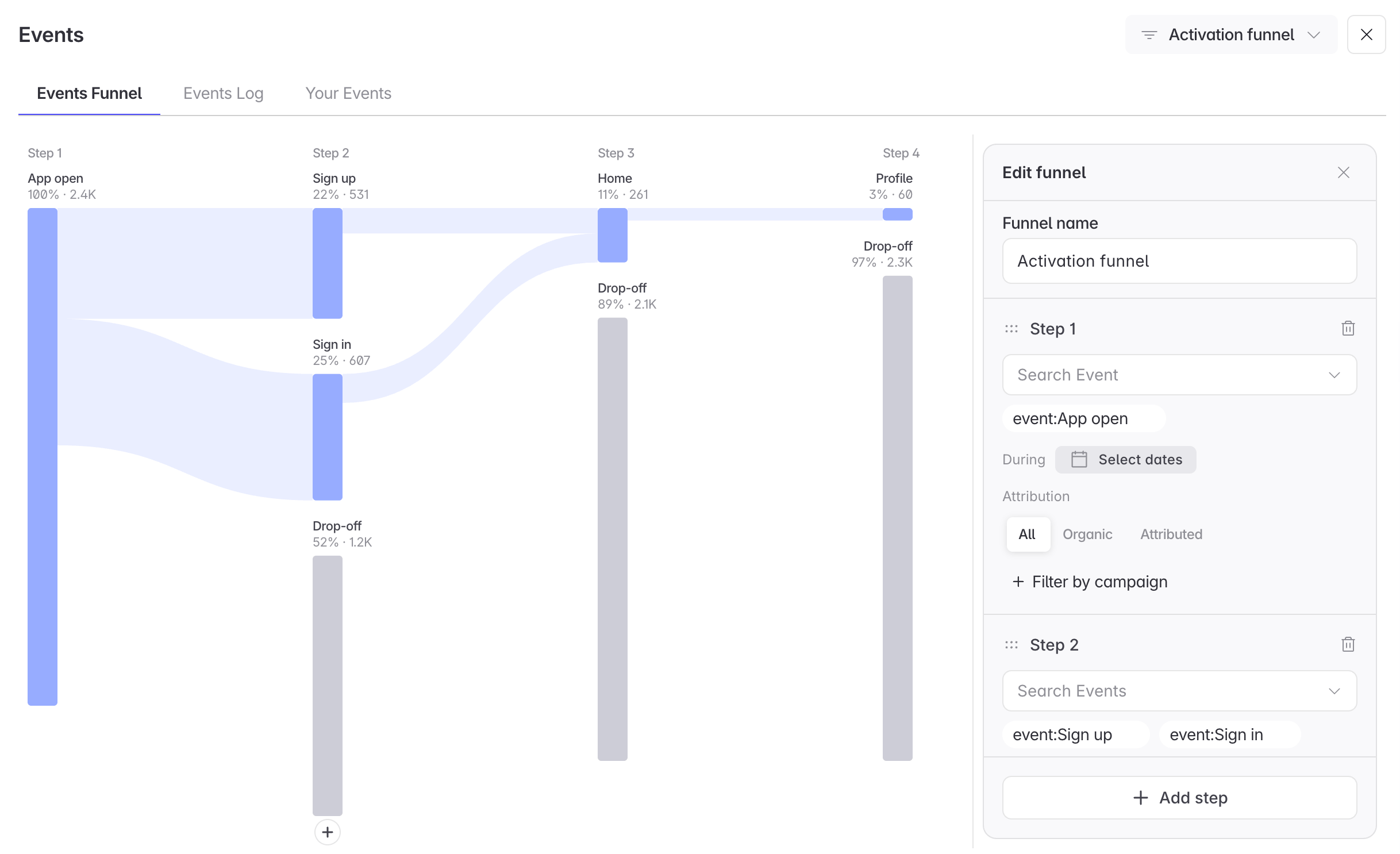
Open the editor with the pencil icon next to the funnel name.
Step 1 sets your starting group, the people every later step is measured against. Pick it with **Search
Event**. Step 1 takes **exactly one event**.
Three controls on step 1 apply to the whole funnel rather than only the first step. **During** sets the date
range, **Attribution** limits the funnel to **All**, **Organic**, or **Attributed** users, and **Filter by
campaign** narrows it to particular campaigns.
Click **Add step**, then use **Search Events** to pick one or more. A step holding several events lets through
anyone who triggered **any** of them.
Drag a step by its handle to reorder it, or use the delete icon to remove it.
Enter a **Funnel name**. A funnel needs **at least two steps** before you can save it.
 ### Reading the chart
Each step shows how many users reached it and what share of your starting group that represents.
Every percentage is measured against step 1, not against the step immediately before it.
In the funnel above, 2.4K users opened the app. 531 of them signed up, which is 22% of that original 2.4K. By step 3 only 261 are left, which is 11% of the same 2.4K.
**Drop-off** is counted the same way. It is everyone from the step 1 group who never reached that step, so it keeps growing as you move down the funnel rather than showing the loss from one step to the next. That is why drop-off reads 52% at step 2 and 89% at step 3.
A step holding more than one event gets a band per event. Step 2 above splits into **Sign up** and **Sign in**, and anyone who did either one gets through.
Any action your app reports can be a step, so a funnel can cover the whole path from install through to purchase.
### Managing saved funnels
* Switch between your saved funnels using the dropdown at the top.
* Change a step directly from the chart, or reopen the editor.
* Use **Save as new** to make a copy of a funnel and change the copy without losing the original.
While you are editing, the chart keeps showing the last set of results, so the funnel stays on screen instead of going blank between changes.
## Events Log
**Events Log** is the record of every action Linkrunner has received, newest first, shown a page at a time. Each row shows **Event Name**, **Timestamp**, **Event Type**, **User**, **SDK Version**, and **Platform**.
The **User** column shows **Unidentified** when no user record is attached to the action, and **Hashed** when there is one but the personal details are held back. See [Hashed and identified users](/features/users-tab#hashed-and-identified-users).
Filter by **All Channels**, **All Events**, platform, **Select dates**, and **Users**. There is also an **All / Organic / Attributed** toggle, which narrows the log to actions from users who arrived on their own versus users Linkrunner matched to an ad click.
### Inspecting a single event
Click a row to expand it and see everything recorded about that action.
### Reading the chart
Each step shows how many users reached it and what share of your starting group that represents.
Every percentage is measured against step 1, not against the step immediately before it.
In the funnel above, 2.4K users opened the app. 531 of them signed up, which is 22% of that original 2.4K. By step 3 only 261 are left, which is 11% of the same 2.4K.
**Drop-off** is counted the same way. It is everyone from the step 1 group who never reached that step, so it keeps growing as you move down the funnel rather than showing the loss from one step to the next. That is why drop-off reads 52% at step 2 and 89% at step 3.
A step holding more than one event gets a band per event. Step 2 above splits into **Sign up** and **Sign in**, and anyone who did either one gets through.
Any action your app reports can be a step, so a funnel can cover the whole path from install through to purchase.
### Managing saved funnels
* Switch between your saved funnels using the dropdown at the top.
* Change a step directly from the chart, or reopen the editor.
* Use **Save as new** to make a copy of a funnel and change the copy without losing the original.
While you are editing, the chart keeps showing the last set of results, so the funnel stays on screen instead of going blank between changes.
## Events Log
**Events Log** is the record of every action Linkrunner has received, newest first, shown a page at a time. Each row shows **Event Name**, **Timestamp**, **Event Type**, **User**, **SDK Version**, and **Platform**.
The **User** column shows **Unidentified** when no user record is attached to the action, and **Hashed** when there is one but the personal details are held back. See [Hashed and identified users](/features/users-tab#hashed-and-identified-users).
Filter by **All Channels**, **All Events**, platform, **Select dates**, and **Users**. There is also an **All / Organic / Attributed** toggle, which narrows the log to actions from users who arrived on their own versus users Linkrunner matched to an ad click.
### Inspecting a single event
Click a row to expand it and see everything recorded about that action.
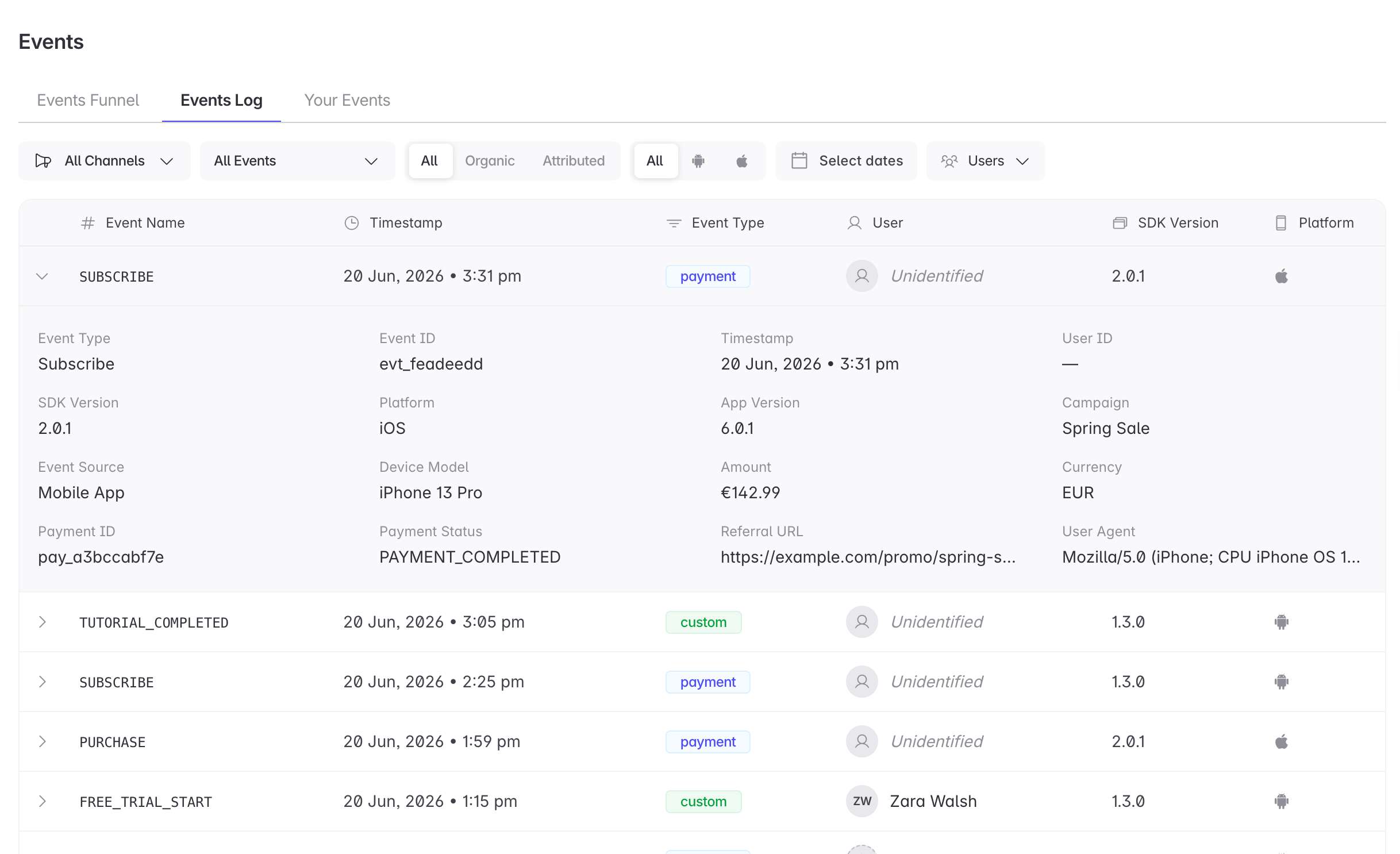 | Field | What it tells you |
| ----------------------------- | ------------------------------------------------------------------------------------- |
| **Event Type** | Whether this is a custom action, a payment, or another type |
| **Event ID** | A unique reference for this one action, worth quoting in a support ticket |
| **Timestamp** | When Linkrunner received it |
| **User ID** | Who triggered it |
| **SDK Version** | Which version of the Linkrunner SDK sent it, useful for checking a release rolled out |
| **Platform**, **App Version** | The device type and the version of your app they were running |
| **Campaign** | The campaign that user came from |
| **Event Source** | Which integration delivered the event, such as `Mobile App` for your app's SDK |
| **Device Model** | The specific device that sent it |
| **Referral URL** | The link that originally brought the user in |
| **User Agent** | Raw technical details about the device and app, as sent |
### Payment events
Payments carry four extra fields: **Amount**, **Currency**, **Payment ID**, and **Payment Status**. These show the transaction exactly as Linkrunner received it, so check them first if your revenue numbers look wrong somewhere else.
## Your Events
**Your Events** lists the action names Linkrunner has received for this project. Each row shows the **Event Name**, its **Event Type**, and the **Channels** that have sent it.
There are two ways to read it:
* **Down the event column**: is everything your app is meant to be sending actually arriving? A name that is missing means the action is not being reported, not that the dashboard is behind.
* **Across the channels column**: which ad channels are driving which actions.
If this sub-tab is empty, nothing has arrived yet. The empty state links to the SDK Console, and [SDK Integration Testing](/testing/integration-testing) walks through checking your setup from start to finish.
## What to use this for
**Find where people give up.** A funnel from install to purchase tells you which single step loses the most users, so you can fix that step instead of reworking the whole flow.
**Check a release without asking for logs.** After shipping, filter the Events Log to the action you care about and look at **SDK Version** on the newest rows. This replaces asking an engineer to pull logs for you.
**Confirm an action exists before you rely on it.** Check **Your Events** for the name and its channels before you build a cohort, an ad audience, or a conversion around it.
**Look into a single payment.** Filter to the user, expand the payment, and read the amount, currency, and status.
**Compare the same flow across campaigns.** Set the campaign filter on step 1 and read the same funnel one campaign at a time.
## Troubleshooting
Linkrunner only keeps data for users it has attributed, meaning it has matched their install back to the click
or link that led to it. If the device never completed a click and install that Linkrunner could match, its
actions are not recorded. Check the flow with [SDK Integration Testing](/testing/integration-testing).
A funnel needs at least two steps, and step 1 must have exactly one event. Add a second step, or cut step 1 down
to a single event.
Check the date range and campaign filters on step 1. They apply to the whole funnel, so a narrow window there
empties every step below it.
The amount, currency, and payment ID come from the `capturePayment` call in your app. Confirm your app is
passing them. See [Revenue Tracking](/sdk/react-native#revenue-tracking).
**Need help?** Contact [support@linkrunner.io](mailto:support@linkrunner.io)
| Field | What it tells you |
| ----------------------------- | ------------------------------------------------------------------------------------- |
| **Event Type** | Whether this is a custom action, a payment, or another type |
| **Event ID** | A unique reference for this one action, worth quoting in a support ticket |
| **Timestamp** | When Linkrunner received it |
| **User ID** | Who triggered it |
| **SDK Version** | Which version of the Linkrunner SDK sent it, useful for checking a release rolled out |
| **Platform**, **App Version** | The device type and the version of your app they were running |
| **Campaign** | The campaign that user came from |
| **Event Source** | Which integration delivered the event, such as `Mobile App` for your app's SDK |
| **Device Model** | The specific device that sent it |
| **Referral URL** | The link that originally brought the user in |
| **User Agent** | Raw technical details about the device and app, as sent |
### Payment events
Payments carry four extra fields: **Amount**, **Currency**, **Payment ID**, and **Payment Status**. These show the transaction exactly as Linkrunner received it, so check them first if your revenue numbers look wrong somewhere else.
## Your Events
**Your Events** lists the action names Linkrunner has received for this project. Each row shows the **Event Name**, its **Event Type**, and the **Channels** that have sent it.
There are two ways to read it:
* **Down the event column**: is everything your app is meant to be sending actually arriving? A name that is missing means the action is not being reported, not that the dashboard is behind.
* **Across the channels column**: which ad channels are driving which actions.
If this sub-tab is empty, nothing has arrived yet. The empty state links to the SDK Console, and [SDK Integration Testing](/testing/integration-testing) walks through checking your setup from start to finish.
## What to use this for
**Find where people give up.** A funnel from install to purchase tells you which single step loses the most users, so you can fix that step instead of reworking the whole flow.
**Check a release without asking for logs.** After shipping, filter the Events Log to the action you care about and look at **SDK Version** on the newest rows. This replaces asking an engineer to pull logs for you.
**Confirm an action exists before you rely on it.** Check **Your Events** for the name and its channels before you build a cohort, an ad audience, or a conversion around it.
**Look into a single payment.** Filter to the user, expand the payment, and read the amount, currency, and status.
**Compare the same flow across campaigns.** Set the campaign filter on step 1 and read the same funnel one campaign at a time.
## Troubleshooting
Linkrunner only keeps data for users it has attributed, meaning it has matched their install back to the click
or link that led to it. If the device never completed a click and install that Linkrunner could match, its
actions are not recorded. Check the flow with [SDK Integration Testing](/testing/integration-testing).
A funnel needs at least two steps, and step 1 must have exactly one event. Add a second step, or cut step 1 down
to a single event.
Check the date range and campaign filters on step 1. They apply to the whole funnel, so a narrow window there
empties every step below it.
The amount, currency, and payment ID come from the `capturePayment` call in your app. Confirm your app is
passing them. See [Revenue Tracking](/sdk/react-native#revenue-tracking).
**Need help?** Contact [support@linkrunner.io](mailto:support@linkrunner.io)