> ## Documentation Index
> Fetch the complete documentation index at: https://docs.linkrunner.io/llms.txt
> Use this file to discover all available pages before exploring further.
# Create Deep Links for App Destinations
> Create deep links with dynamic app destination parameters, with or without campaign reporting
Create links for app destinations such as `product/{variant_id}` by adding your own query parameters to a Linkrunner URL. Your app receives these parameters in the `deeplink` field returned by `getAttributionData()`.
You do not need to create a separate deep link record for every product, offer, or screen.
## Before you start
* [Configure a Linkrunner subdomain](/features/subdomain-setup), such as `get.example.com`.
* [Set up deep linking in your app](/features/deep-linking-setup).
* Decide which query parameters your app uses. For example, `destination=product&variant_id=987`.
## Choose a link type
| What you need | Link to use | Dashboard reporting |
| ------------------------------------------------------------- | ------------------------------------------------------- | ------------------- |
| Attribute clicks and installs to a marketing campaign | A generated campaign link with your parameters appended | Yes |
| Send users to an app destination without campaign attribution | Your Linkrunner subdomain with your parameters appended | No |
## Track the link as a campaign
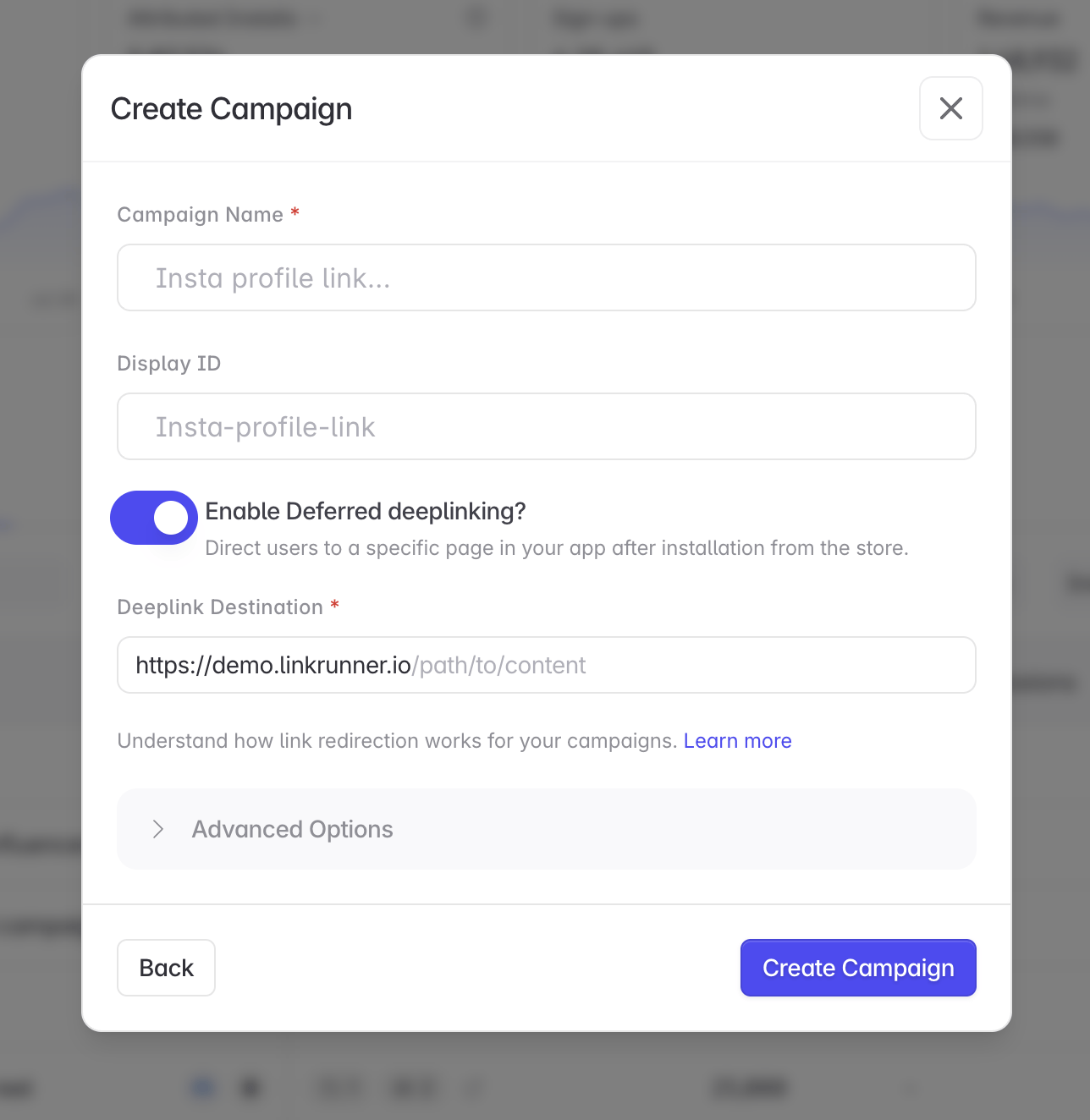
Open [Create Campaign](https://dashboard.linkrunner.io/dashboard?m=create-campaign), enable **Deferred Deep Linking**, and enter the base destination your app handles.
For a product page, the base destination could be:
```text theme={null}
https://get.example.com/product
```
 Copy the campaign link generated by Linkrunner. Append the values when you display or send the link.
```text theme={null}
Campaign link:
https://get.example.com/AbCdEf
Link for variant 987:
https://get.example.com/AbCdEf?variant_id=987
```
Add more app-defined values when needed:
```text theme={null}
https://get.example.com/AbCdEf?variant_id=987&promo=summer
```
If the generated campaign link already contains a query string, add your first parameter with `&` instead of `?`. Keep the campaign identifier unchanged.
A value already set on the campaign's deferred deep link takes priority over a value with the same name on the clicked link. Keep dynamic values, such as `variant_id`, out of the campaign destination.
After the user installs and opens your app, call `getAttributionData()`. Linkrunner adds the parameters from the clicked campaign link to the configured destination:
```json theme={null}
{
"deeplink": "https://get.example.com/product?variant_id=987&promo=summer"
}
```
Parse `variant_id` and route the user to the matching product page. The campaign click and install remain available in Linkrunner reporting.
## Use a deep link without campaign reporting
If you do not need campaign attribution, use your Linkrunner subdomain directly:
```text theme={null}
https://get.example.com/product?variant_id=987&promo=summer
```
Linkrunner returns the URL in the `deeplink` field from `getAttributionData()`. Your app parses the parameters and opens the destination as usual.
Direct subdomain links are not associated with a campaign, so they do not appear as campaign performance in the dashboard.
## Get attribution data
Use the SDK guide for your platform:
* [Android](/sdk/android#getting-attribution-data)
* [iOS](/sdk/ios#getting-attribution-data)
* [React Native](/sdk/react-native#getting-attribution-data)
* [Flutter](/sdk/flutter#getting-attribution-data)
* [Capacitor](/sdk/capacitor#getting-attribution-data)
* [Cordova](/sdk/cordova#getting-attribution-data)
* [Unity](/sdk/unity#get-attribution-data)
## Testing
1. Uninstall the app from a real device.
2. Open the complete link, including its query parameters.
3. Install and open the app.
4. Confirm that `getAttributionData()` returns the expected `deeplink`.
5. Confirm that your app opens the correct destination.
Deferred attribution is stored from the first install. Uninstall the app before repeating a test with different parameters.
## Troubleshooting
**The parameters are missing from `deeplink`.** Confirm that the parameters were present on the URL the user clicked. Check whether another redirect or URL shortener removed them.
**The link does not appear under a campaign.** Direct subdomain links do not have campaign reporting. Create a campaign and append your parameters to its generated link.
**`deeplink` is null.** Initialize the Linkrunner SDK before calling `getAttributionData()`. For deferred deep link testing, install the app through the test link.
**The wrong screen opens.** Confirm that your app maps the destination and parameter names correctly. Linkrunner forwards the values, while your app controls navigation.
**Need help?** Contact [support@linkrunner.io](mailto:support@linkrunner.io)
Copy the campaign link generated by Linkrunner. Append the values when you display or send the link.
```text theme={null}
Campaign link:
https://get.example.com/AbCdEf
Link for variant 987:
https://get.example.com/AbCdEf?variant_id=987
```
Add more app-defined values when needed:
```text theme={null}
https://get.example.com/AbCdEf?variant_id=987&promo=summer
```
If the generated campaign link already contains a query string, add your first parameter with `&` instead of `?`. Keep the campaign identifier unchanged.
A value already set on the campaign's deferred deep link takes priority over a value with the same name on the clicked link. Keep dynamic values, such as `variant_id`, out of the campaign destination.
After the user installs and opens your app, call `getAttributionData()`. Linkrunner adds the parameters from the clicked campaign link to the configured destination:
```json theme={null}
{
"deeplink": "https://get.example.com/product?variant_id=987&promo=summer"
}
```
Parse `variant_id` and route the user to the matching product page. The campaign click and install remain available in Linkrunner reporting.
## Use a deep link without campaign reporting
If you do not need campaign attribution, use your Linkrunner subdomain directly:
```text theme={null}
https://get.example.com/product?variant_id=987&promo=summer
```
Linkrunner returns the URL in the `deeplink` field from `getAttributionData()`. Your app parses the parameters and opens the destination as usual.
Direct subdomain links are not associated with a campaign, so they do not appear as campaign performance in the dashboard.
## Get attribution data
Use the SDK guide for your platform:
* [Android](/sdk/android#getting-attribution-data)
* [iOS](/sdk/ios#getting-attribution-data)
* [React Native](/sdk/react-native#getting-attribution-data)
* [Flutter](/sdk/flutter#getting-attribution-data)
* [Capacitor](/sdk/capacitor#getting-attribution-data)
* [Cordova](/sdk/cordova#getting-attribution-data)
* [Unity](/sdk/unity#get-attribution-data)
## Testing
1. Uninstall the app from a real device.
2. Open the complete link, including its query parameters.
3. Install and open the app.
4. Confirm that `getAttributionData()` returns the expected `deeplink`.
5. Confirm that your app opens the correct destination.
Deferred attribution is stored from the first install. Uninstall the app before repeating a test with different parameters.
## Troubleshooting
**The parameters are missing from `deeplink`.** Confirm that the parameters were present on the URL the user clicked. Check whether another redirect or URL shortener removed them.
**The link does not appear under a campaign.** Direct subdomain links do not have campaign reporting. Create a campaign and append your parameters to its generated link.
**`deeplink` is null.** Initialize the Linkrunner SDK before calling `getAttributionData()`. For deferred deep link testing, install the app through the test link.
**The wrong screen opens.** Confirm that your app maps the destination and parameter names correctly. Linkrunner forwards the values, while your app controls navigation.
**Need help?** Contact [support@linkrunner.io](mailto:support@linkrunner.io)