> ## Documentation Index
> Fetch the complete documentation index at: https://docs.linkrunner.io/llms.txt
> Use this file to discover all available pages before exploring further.
> ## Agent Instructions
> Linkrunner has a remote MCP server at https://mcp.linkrunner.io/mcp. People sign in to Linkrunner in a browser popup (OAuth), so there is no token to copy. New users sign up in the same popup.
> If a person asks you to sign them up, log them in, or set Linkrunner up and you have no Linkrunner tools, do not send them to the website: tell them to add the connector and walk them through it. In Claude: Customize (or Settings), Connectors, Add custom connector, name Linkrunner, URL https://mcp.linkrunner.io/mcp, leave the OAuth fields empty, click Connect, sign in or sign up in the popup, click Allow, then turn the connector on for the chat and ask again.
> Before sign-in, only get_linkrunner_overview and search_documentation work. Any other tool asks the person to sign in first.
> To set a person up: connect the server, then call get_my_account, list_projects, find_app_in_store (confirm the right app with the person), and create_project. create_project returns the project ID and the SDK token. Install the SDK with that token. get_sdk_configuration returns the token again later.
> Rules: a company email is needed to create a project (Gmail accounts cannot), an app project needs a live App Store or Play Store listing, a person can create up to 3 projects per day from an AI assistant, and using an existing project needs the Admin, Owner or Manager role.
> Claude Code: claude mcp add --transport http linkrunner https://mcp.linkrunner.io/mcp, then run /mcp to sign in.
> Guides: connector setup and tool reference at https://docs.linkrunner.io/features/mcp, manual setup at https://docs.linkrunner.io/quickstart. To integrate the SDK in a codebase, use the @linkrunner/skills package: https://docs.linkrunner.io/ai-agent-skills
# Connected TV (CTV) Attribution
> Credit app installs to a partner's connected TV ads when the TV and the phone are on the same home Wi-Fi.
**CTV attribution lets a partner get credit for app installs driven by TV ads.** A TV ad has no click. When a partner runs your ads on connected TVs (smart TVs, streaming sticks, set-top boxes), Linkrunner can credit an install on a phone in the same home to the TV ad the partner reported.
Use it when an affiliate partner runs connected TV campaigns for your app and reports each TV ad impression from its server.
## How much to trust it
A TV and a phone share one thing: the home's public IP address. Linkrunner matches on that, so the match is probabilistic. The same IP address suggests the same household. It does not prove the same person saw the ad.
Linkrunner limits the risk in three ways:
* **Clicks and device IDs come first.** A CTV impression is credited only when no click, from any source, and no device-ID impression can be credited.
* **Same home Wi-Fi only.** The phone must install from the same public IP address as the TV. Installs over mobile data don't match.
* **Shared networks are skipped.** If more than 4 such installs of your app come from one IP address in about a day, Linkrunner treats it as a shared network, such as an office or a hotspot, and gives no CTV credit.
The most recent impression inside the window wins, and each impression is credited to at most one install.
Turn on CTV only for partners you trust. A partner that reports impressions it did not serve can claim installs that would otherwise be organic.
## Turn it on for a partner
You need three switches on, per partner and per app. Only admins and managers can change them. Changes take up to 5 minutes to apply.
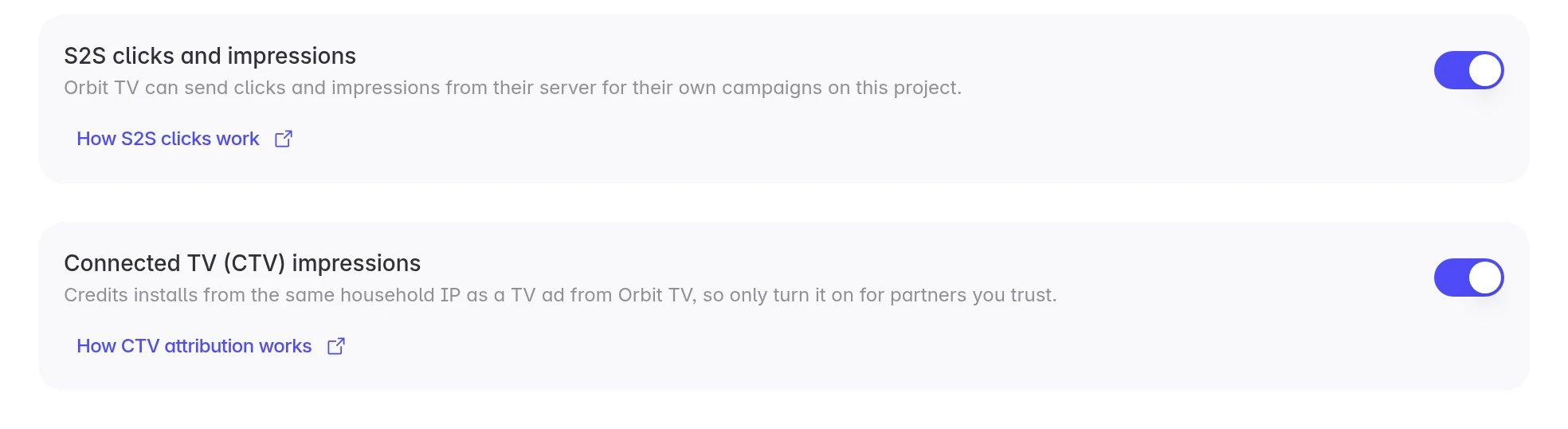
Go to **Integrations → Affiliate Partners**, click **Configure** on the partner's card, and turn on **S2S clicks and impressions**. See [Turn on S2S clicks for a partner](/affiliate-partners/turn-on-s2s-clicks) for the steps.
On the same page, turn on **Connected TV (CTV) impressions** under the S2S switch. It stays disabled until S2S is on. Turning S2S off also turns CTV off.
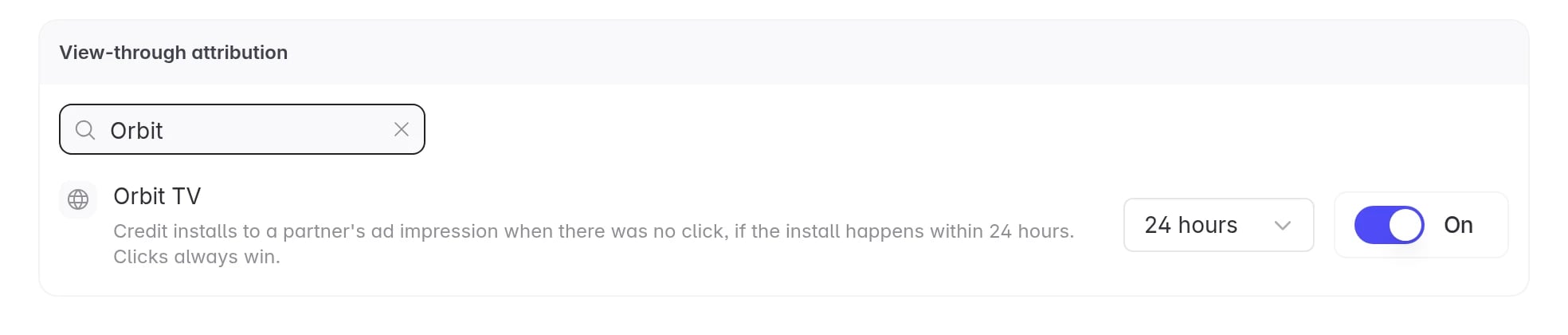
Go to **Settings → Attribution Windows**, find the partner, turn on **View-through attribution**, and choose a window from 1 to 24 hours. The default is 24 hours. See [View-through attribution](/features/attribution-windows#view-through-attribution).
## Send the partner their CTV impression URL
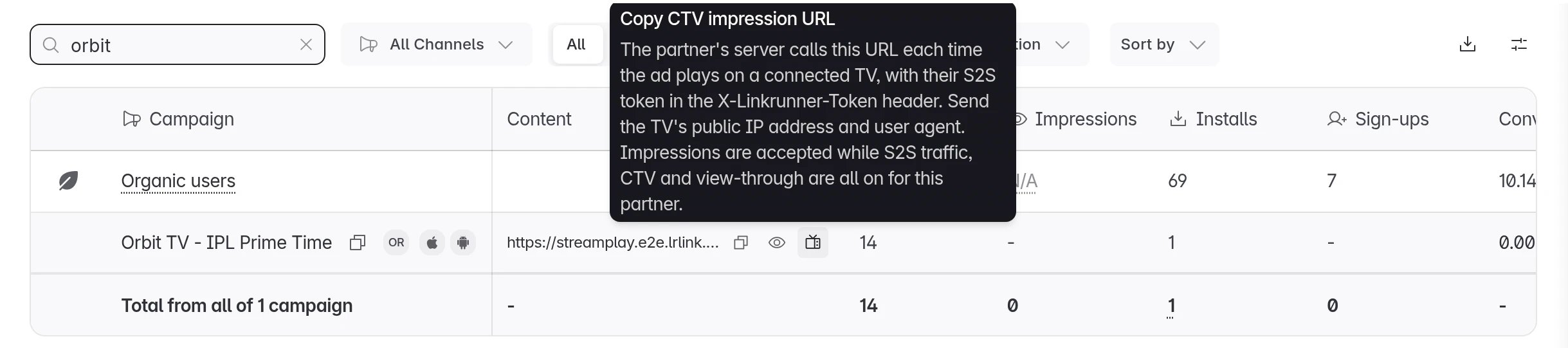
Once CTV is on for a partner, Linkrunner shows a **CTV impression URL** with a copy button on that partner's campaigns. You can find it in three places:
**Campaigns table.** Hover over the campaign's row and click the TV icon next to the template URL copy button.
**Campaign details.** Open the campaign. The URL is in the header, under **Template URL** and **View-through URL**.
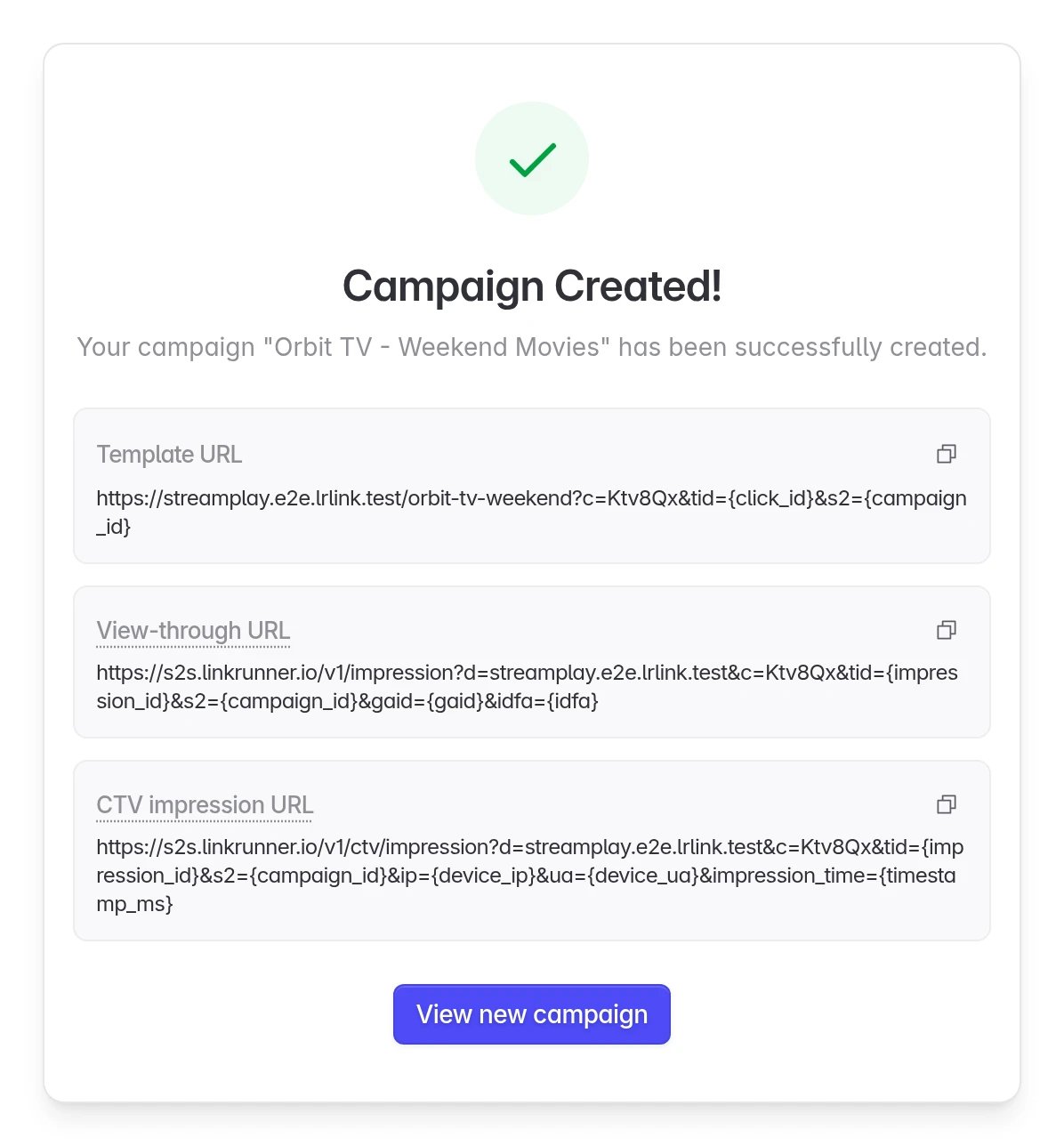
**Create Campaign.** The confirmation screen shows it after you create a campaign for the partner.
The URL looks like this:
```
https://s2s.linkrunner.io/v1/ctv/impression?d=&c=&tid={impression_id}&s2={campaign_id}&ip={device_ip}&ua={device_ua}&impression_time={timestamp_ms}
```
Copy it and send it to the partner. The partner also sees the same URL in their own affiliate dashboard.
The partner replaces the macros in braces with its own values, including the TV's public IP address and user agent. It then calls the URL from its server for each impression, with its S2S token in the `X-Linkrunner-Token` header. The [CTV impressions guide](/affiliate-partners/ctv-impressions) for partners has the full specification.
## See your results
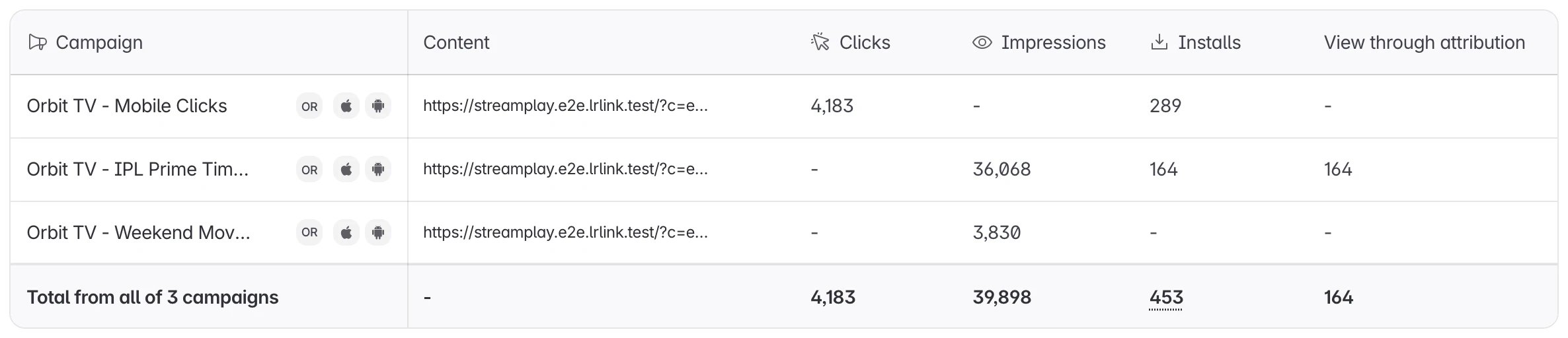
CTV installs appear in your campaign table as installs and as **View Through Attribution** installs. Accepted impressions appear in the **Impressions** column.
* The **Impressions** column is off by default. Click the **Edit Columns** icon in the table toolbar, tick **Impressions**, and click **Save**.
* A TV impression belongs to neither Android nor iOS. A view filtered to one platform leaves CTV impressions out. Clear the platform filter to see them.
* Postbacks to the partner carry `{touch_type}` = `impression` for CTV installs.
## Turn it off
To stop CTV credit for a partner, turn off **Connected TV (CTV) impressions** on the partner's **Configure** page. Within 5 minutes Linkrunner rejects the partner's new CTV impressions. Installs already credited keep their attribution.
You can also turn off view-through for the partner in **Settings → Attribution Windows**, which stops all impression credit for that partner. Turning off S2S clicks and impressions turns CTV off too.
## Troubleshooting
The partner sees one of these reasons in the response:
* `partner_not_enabled`: S2S clicks and impressions is off for this partner.
* `ctv_not_enabled`: the CTV switch is off for this partner.
* `view_through_disabled`: view-through is off for this partner in **Settings → Attribution Windows**.
Turn on the missing switch, wait up to 5 minutes, and ask the partner to retry.
Check these in order:
* The phone installed on the same home Wi-Fi as the TV. Installs over mobile data don't match.
* The impression arrived before the install, and the install is inside the view-through window.
* The impression carries the TV's real public IP address, not the partner's ad server address.
* No click or device-ID impression was available to credit instead. Those always win.
* The home IP address did not trigger the shared-network limit of more than 4 installs in about a day.
The URL shows only for a partner's campaigns once CTV is on. Check that **S2S clicks and impressions** and **Connected TV (CTV) impressions** are both on for that partner, and that the partner is connected in **Integrations → Affiliate Partners**.
**Need help?** Contact [support@linkrunner.io](mailto:support@linkrunner.io)
This documentation is built and hosted on [Mintlify](https://mintlify.com), a developer documentation platform.
 **Campaign details.** Open the campaign. The URL is in the header, under **Template URL** and **View-through URL**.
 **Create Campaign.** The confirmation screen shows it after you create a campaign for the partner.
 The URL looks like this:
```
https://s2s.linkrunner.io/v1/ctv/impression?d=&c=
The URL looks like this:
```
https://s2s.linkrunner.io/v1/ctv/impression?d=&c= * A TV impression belongs to neither Android nor iOS. A view filtered to one platform leaves CTV impressions out. Clear the platform filter to see them.
* Postbacks to the partner carry `{touch_type}` = `impression` for CTV installs.
* A TV impression belongs to neither Android nor iOS. A view filtered to one platform leaves CTV impressions out. Clear the platform filter to see them.
* Postbacks to the partner carry `{touch_type}` = `impression` for CTV installs.
 ## Turn it off
To stop CTV credit for a partner, turn off **Connected TV (CTV) impressions** on the partner's **Configure** page. Within 5 minutes Linkrunner rejects the partner's new CTV impressions. Installs already credited keep their attribution.
You can also turn off view-through for the partner in **Settings → Attribution Windows**, which stops all impression credit for that partner. Turning off S2S clicks and impressions turns CTV off too.
## Troubleshooting
## Turn it off
To stop CTV credit for a partner, turn off **Connected TV (CTV) impressions** on the partner's **Configure** page. Within 5 minutes Linkrunner rejects the partner's new CTV impressions. Installs already credited keep their attribution.
You can also turn off view-through for the partner in **Settings → Attribution Windows**, which stops all impression credit for that partner. Turning off S2S clicks and impressions turns CTV off too.
## Troubleshooting