> ## Documentation Index
> Fetch the complete documentation index at: https://docs.linkrunner.io/llms.txt
> Use this file to discover all available pages before exploring further.
# Create a Trackable Link
Give every place you share your app its own Linkrunner link. Each link counts its own clicks, installs, sign-ups and revenue, opens the right screen in your app, and works as a QR code.
## Where to use a link
Create one link for each place, so you can compare them.
| Place | Example link ID |
| - | - |
| A creator's post or bio | `mia-creator` |
| An affiliate partner's site or app | `partner-promo` |
| A QR code on a poster, in a store or at an event | `store-poster` |
| Packaging inserts and labels | `box-insert` |
| An email or newsletter | `newsletter-oct` |
| SMS and WhatsApp messages | `sms-offer` |
| A "Get the app" banner on your website | `site-banner` |
| Podcast show notes and video descriptions | `podcast-ep12` |
Running ads on Meta, Google or another ad network? Those campaigns come in through the network's integration, not a link you create here. See [Ad networks](/ad-networks/meta-ads).
## Before you start
* [Set up your Linkrunner subdomain](/features/subdomain-setup), such as `get.yourapp.com`.
* To open a specific screen in your app, [set up deep linking](/features/deep-linking-setup) first.
## 1. Open Create Link
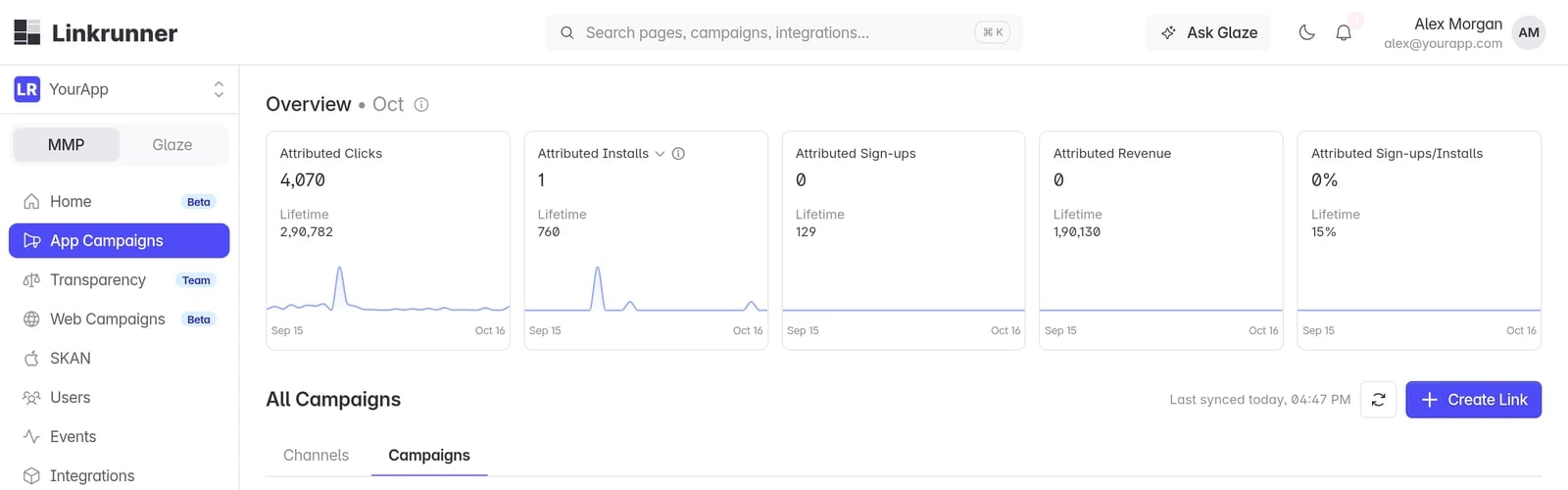
In the dashboard, go to [App Campaigns](https://dashboard.linkrunner.io/dashboard/campaigns) and click **Create Link**.
 ## 2. Name the link
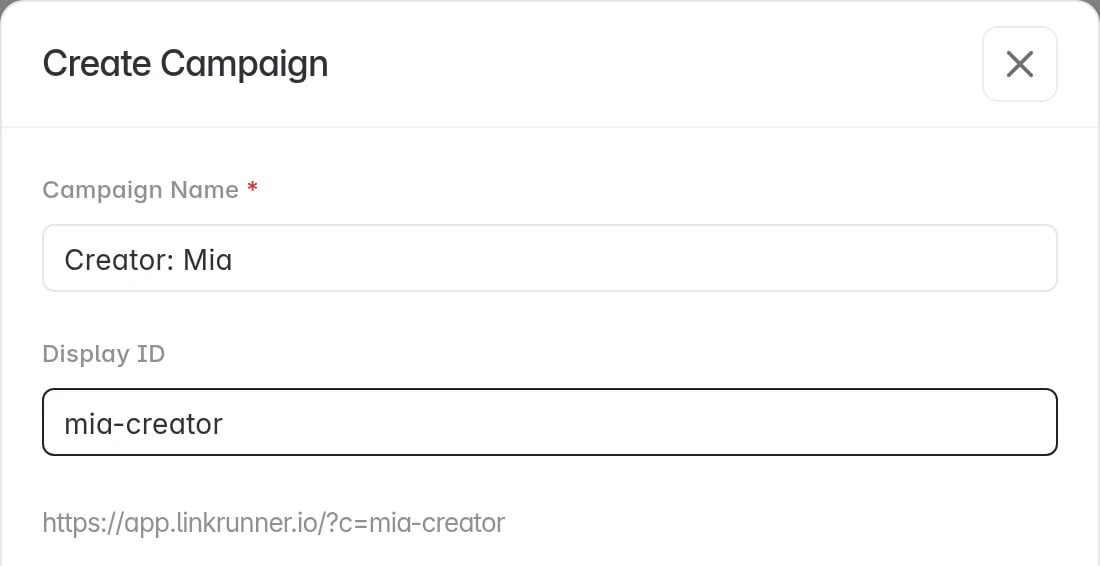
Enter a **Campaign Name**. This is the only required field.
**Display ID** is optional. It is the ID at the end of your link (`?c=mia-creator`), and the full link shows right under it. Use letters, numbers, `-`, `_` and `.`. Leave it empty and Linkrunner creates a random 6-character ID.
## 2. Name the link
Enter a **Campaign Name**. This is the only required field.
**Display ID** is optional. It is the ID at the end of your link (`?c=mia-creator`), and the full link shows right under it. Use letters, numbers, `-`, `_` and `.`. Leave it empty and Linkrunner creates a random 6-character ID.
 ## 3. Open a screen in your app (optional)
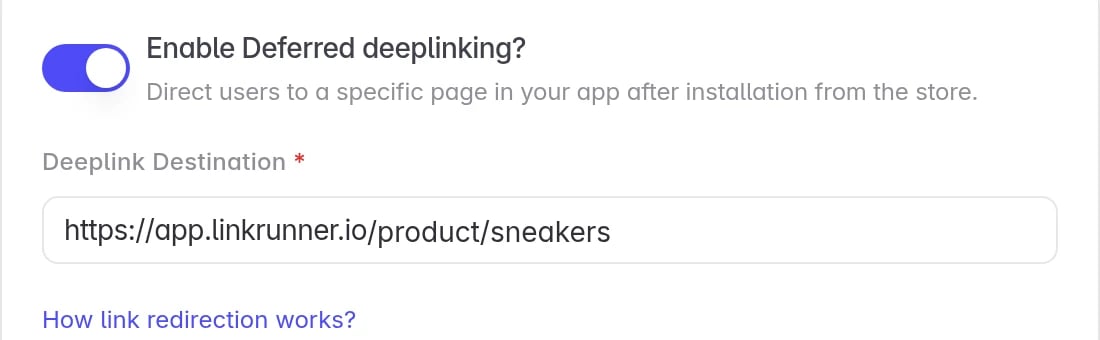
Turn on **Enable Deferred deeplinking?** and enter the page in **Deeplink Destination**. Use a link on your Linkrunner domain, for example `https://get.yourapp.com/product/sneakers`.
People land on that page, even if they install your app first. Your app reads it from `getAttributionData()`. See [Deferred deep linking](/features/deferred-deep-linking).
## 3. Open a screen in your app (optional)
Turn on **Enable Deferred deeplinking?** and enter the page in **Deeplink Destination**. Use a link on your Linkrunner domain, for example `https://get.yourapp.com/product/sneakers`.
People land on that page, even if they install your app first. Your app reads it from `getAttributionData()`. See [Deferred deep linking](/features/deferred-deep-linking).
 ## 4. Set the link preview (optional)
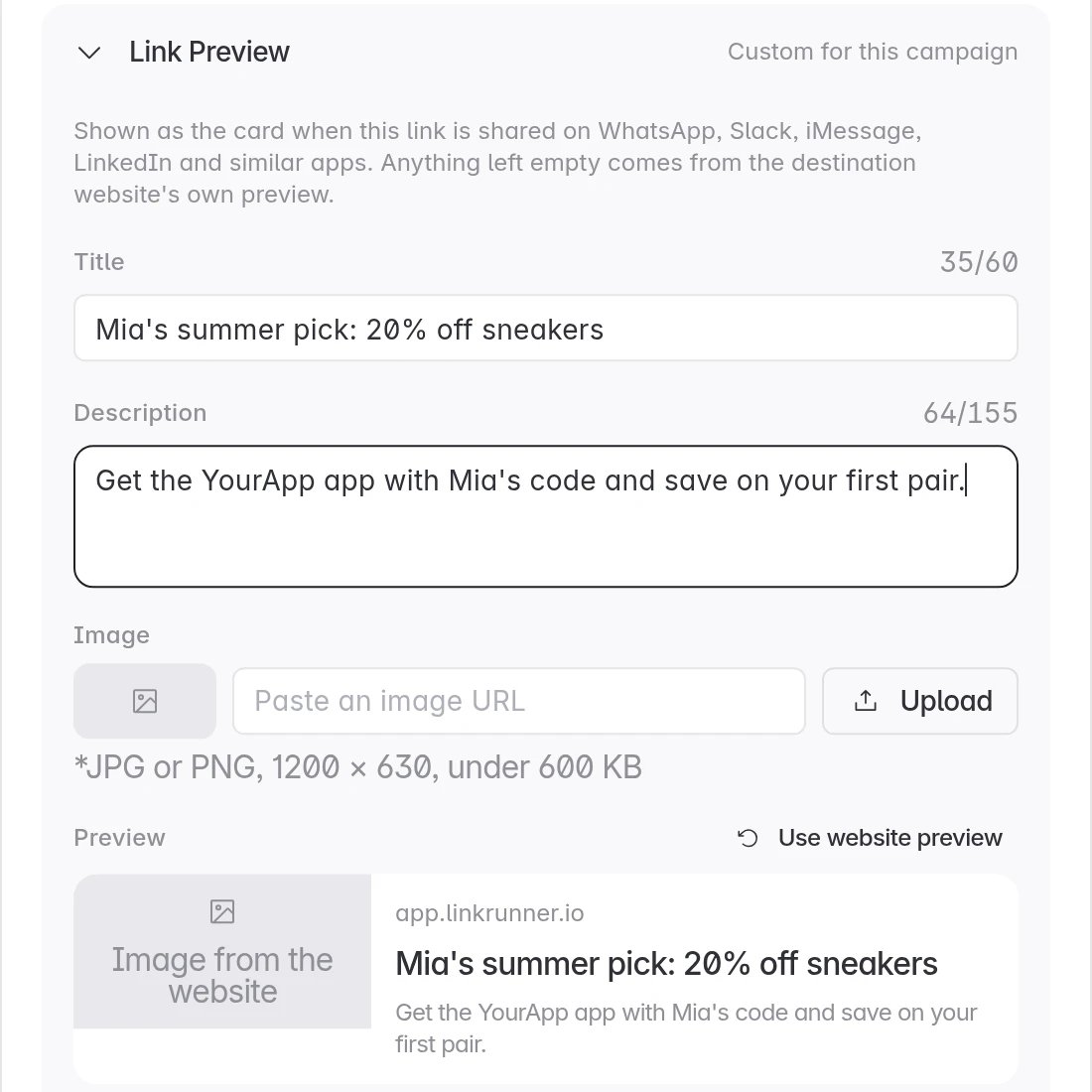
Open **Link Preview** to set the card people see when the link is shared on WhatsApp, Slack, iMessage or LinkedIn.
| Field | Limit |
| - | - |
| **Title** | 60 characters |
| **Description** | 155 characters |
| **Image** | JPG or PNG, 1200 × 630, under 600 KB. Paste a URL or upload. |
Anything you leave empty comes from your website's own preview.
## 4. Set the link preview (optional)
Open **Link Preview** to set the card people see when the link is shared on WhatsApp, Slack, iMessage or LinkedIn.
| Field | Limit |
| - | - |
| **Title** | 60 characters |
| **Description** | 155 characters |
| **Image** | JPG or PNG, 1200 × 630, under 600 KB. Paste a URL or upload. |
Anything you leave empty comes from your website's own preview.
 ## 5. Choose where people go (optional)
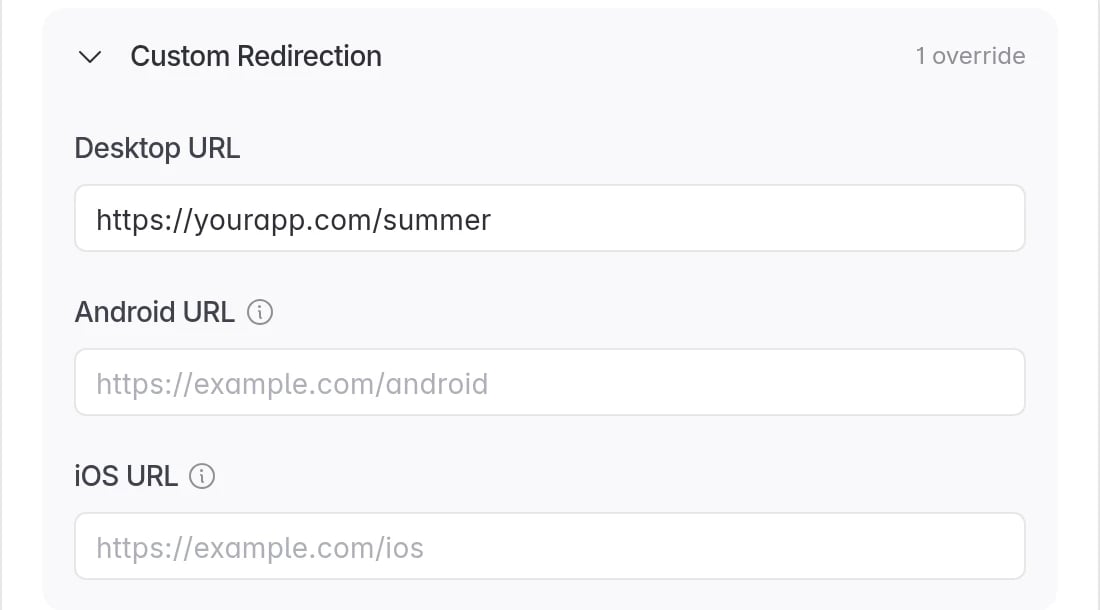
Open **Custom Redirection** to send people to a web page of your choice.
| Field | Who it applies to |
| - | - |
| **Desktop URL** | People who open the link on a computer |
| **Android URL** | Android users, instead of the Play Store |
| **iOS URL** | iPhone users, instead of the App Store |
Leave a field empty to keep the normal route. See [Link redirection](/features/link-redirection).
## 5. Choose where people go (optional)
Open **Custom Redirection** to send people to a web page of your choice.
| Field | Who it applies to |
| - | - |
| **Desktop URL** | People who open the link on a computer |
| **Android URL** | Android users, instead of the Play Store |
| **iOS URL** | iPhone users, instead of the App Store |
Leave a field empty to keep the normal route. See [Link redirection](/features/link-redirection).
 ## 6. Advanced options, then create
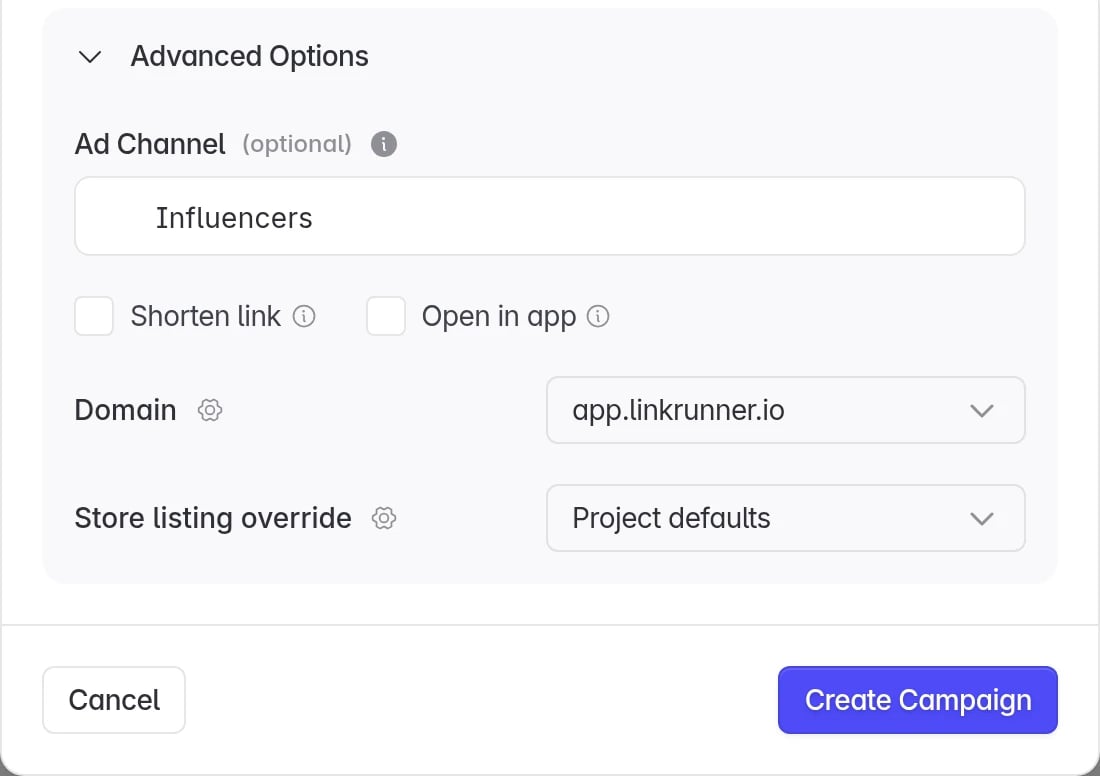
Open **Advanced Options**:
* **Ad Channel** (optional). Pick a channel or type a new name, such as `Influencers`, to group links together on the dashboard.
* **Shorten link**. Serves the link in its short form.
* **Open in app**. Shows a small page that opens your app, or the store if it is not installed. This helps inside Instagram, Facebook and other in-app browsers. See [Social media intermediary page](/features/social-media-intermediary-page).
* **Domain**. The link domain to use, if you have more than one.
* **Store listing override**. Send this link to a custom store page. See [Custom store listing](/features/custom-store-listing).
Click **Create Campaign**.
## 6. Advanced options, then create
Open **Advanced Options**:
* **Ad Channel** (optional). Pick a channel or type a new name, such as `Influencers`, to group links together on the dashboard.
* **Shorten link**. Serves the link in its short form.
* **Open in app**. Shows a small page that opens your app, or the store if it is not installed. This helps inside Instagram, Facebook and other in-app browsers. See [Social media intermediary page](/features/social-media-intermediary-page).
* **Domain**. The link domain to use, if you have more than one.
* **Store listing override**. Send this link to a custom store page. See [Custom store listing](/features/custom-store-listing).
Click **Create Campaign**.
 ## 7. Share the link or QR code
Copy the **Campaign link**, or click **Download QR Code** for posters, packaging and events. The QR code has your app's logo in the middle.
Your link now has its own row in [App Campaigns](https://dashboard.linkrunner.io/dashboard/campaigns) with its clicks, installs, sign-ups and revenue.
## What happens when someone taps it
1. Linkrunner saves the click and sends the person to the right place: your app, the app store, the open-app page, or your website. See [Link redirection](/features/link-redirection).
2. When they install and open your app, Linkrunner credits the install to your link.
3. If you set a deep link, your app opens on that page. If the app is already installed, it opens there straight away.
## Troubleshooting
**The Display ID is already taken.** Display IDs are unique within a project. Pick another one, or leave it empty for a random ID.
**The link opens the store even though the app is installed.** Finish [deep linking setup](/features/deep-linking-setup) for your domain. For in-app browsers such as Instagram, turn on **Open in app**.
**You reached the campaign limit.** Contact [support@linkrunner.io](mailto:support@linkrunner.io) to raise it.
**An install is not credited to the link.** Install the app from the link on a test device, then check [Testing attribution](/testing/testing-attribution-troubleshooting).
**Need help?** Contact [support@linkrunner.io](mailto:support@linkrunner.io)
This documentation is built and hosted on [Mintlify](https://mintlify.com), a developer documentation platform.
## 7. Share the link or QR code
Copy the **Campaign link**, or click **Download QR Code** for posters, packaging and events. The QR code has your app's logo in the middle.
Your link now has its own row in [App Campaigns](https://dashboard.linkrunner.io/dashboard/campaigns) with its clicks, installs, sign-ups and revenue.
## What happens when someone taps it
1. Linkrunner saves the click and sends the person to the right place: your app, the app store, the open-app page, or your website. See [Link redirection](/features/link-redirection).
2. When they install and open your app, Linkrunner credits the install to your link.
3. If you set a deep link, your app opens on that page. If the app is already installed, it opens there straight away.
## Troubleshooting
**The Display ID is already taken.** Display IDs are unique within a project. Pick another one, or leave it empty for a random ID.
**The link opens the store even though the app is installed.** Finish [deep linking setup](/features/deep-linking-setup) for your domain. For in-app browsers such as Instagram, turn on **Open in app**.
**You reached the campaign limit.** Contact [support@linkrunner.io](mailto:support@linkrunner.io) to raise it.
**An install is not credited to the link.** Install the app from the link on a test device, then check [Testing attribution](/testing/testing-attribution-troubleshooting).
**Need help?** Contact [support@linkrunner.io](mailto:support@linkrunner.io)
This documentation is built and hosted on [Mintlify](https://mintlify.com), a developer documentation platform.