> ## Documentation Index
> Fetch the complete documentation index at: https://docs.linkrunner.io/llms.txt
> Use this file to discover all available pages before exploring further.
# Meta Commerce Manager
> Setting up Ecommerce manager events for Meta to ensure proper tracking and attribution.
## Overview
Meta Catalog Sales campaigns dynamically show products from your catalog to users based on their browsing and purchase behavior — for example, retargeting someone who viewed a product but didn't buy. For these campaigns to work, Meta needs real-time signals about how users interact with your products.
By sending ecommerce events (purchases, add to cart, content views) through Linkrunner, you feed Meta the data it needs to match users to the right products and optimize your ad spend. Linkrunner seamlessly syncs these events with your connected Meta dataset.
**Before you begin, make sure you have:**
* A product catalog set up in [Meta Commerce Manager](https://business.facebook.com/commerce)
* Meta Ads integration configured in Linkrunner (see [Meta Ads setup](/ad-networks/meta-ads))
* Events integrated in your app via the Linkrunner SDK or API
## Step 1: Select Catalogue Products
To begin, you need to select your catalogue products within the Meta Commerce Manager. Ensure your product feed is active and products are properly categorized.
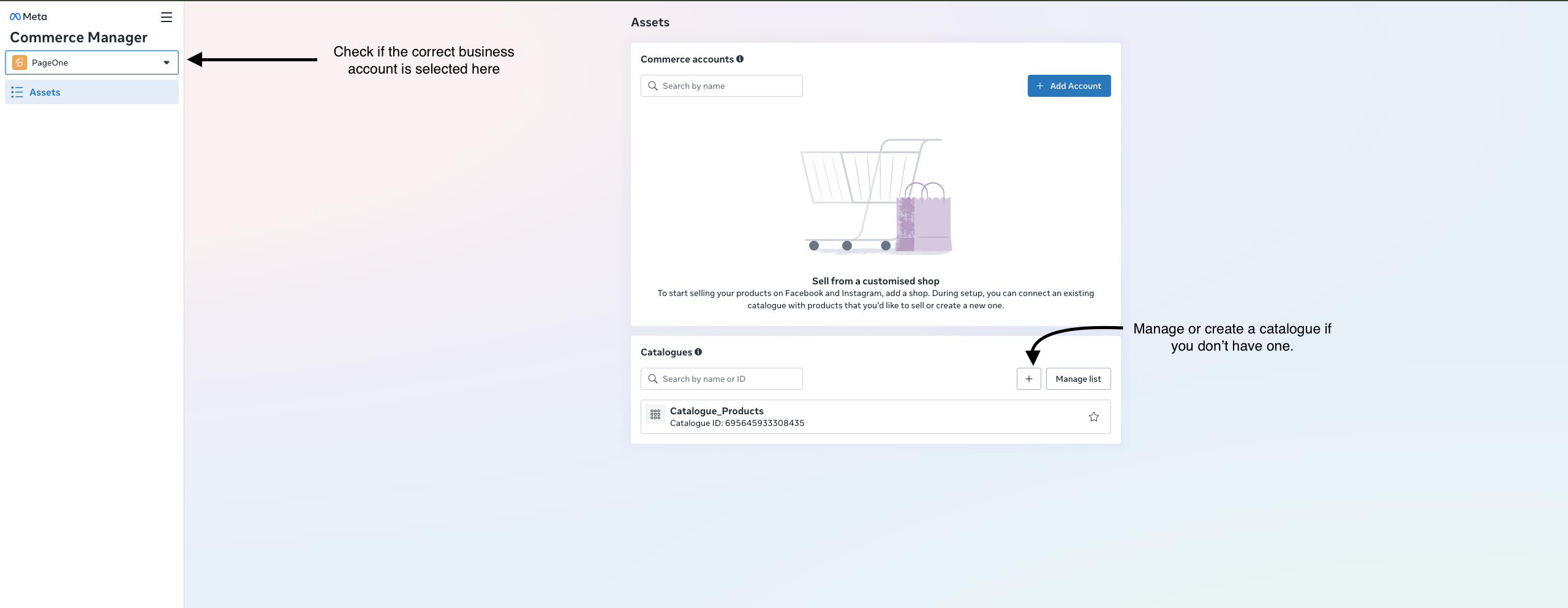 Make sure to add products with the correct `content_ids` and `item_group_ids`. There are various ways to add products — for example, manually or via CSV upload.
Click the **+ Add** button to add products to the catalogue. From the Products Manager, you can either add products manually or upload a CSV file to add products with specific content IDs.
Make sure to add products with the correct `content_ids` and `item_group_ids`. There are various ways to add products — for example, manually or via CSV upload.
Click the **+ Add** button to add products to the catalogue. From the Products Manager, you can either add products manually or upload a CSV file to add products with specific content IDs.
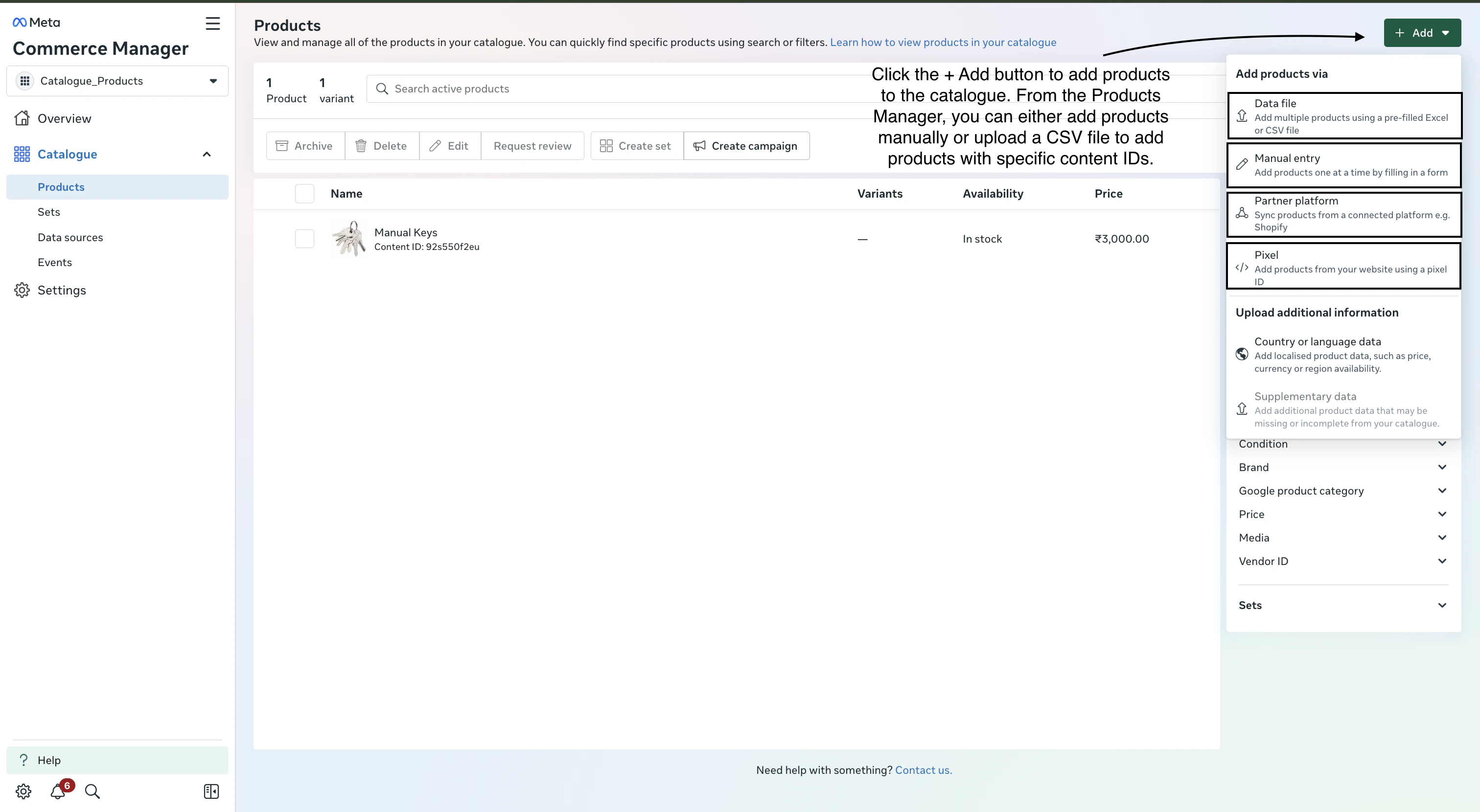 Make sure that whenever you add a product to the Meta catalogue, it includes a **content ID**. This content ID should match the product ID on your side, and it must be the same ID you send through the Linkrunner SDK.
When uploading products via CSV, use the `item_group_id` column to assign group IDs to your products. This is how Meta groups product variants together ensure these match the `item_group_ids` you send in your events.
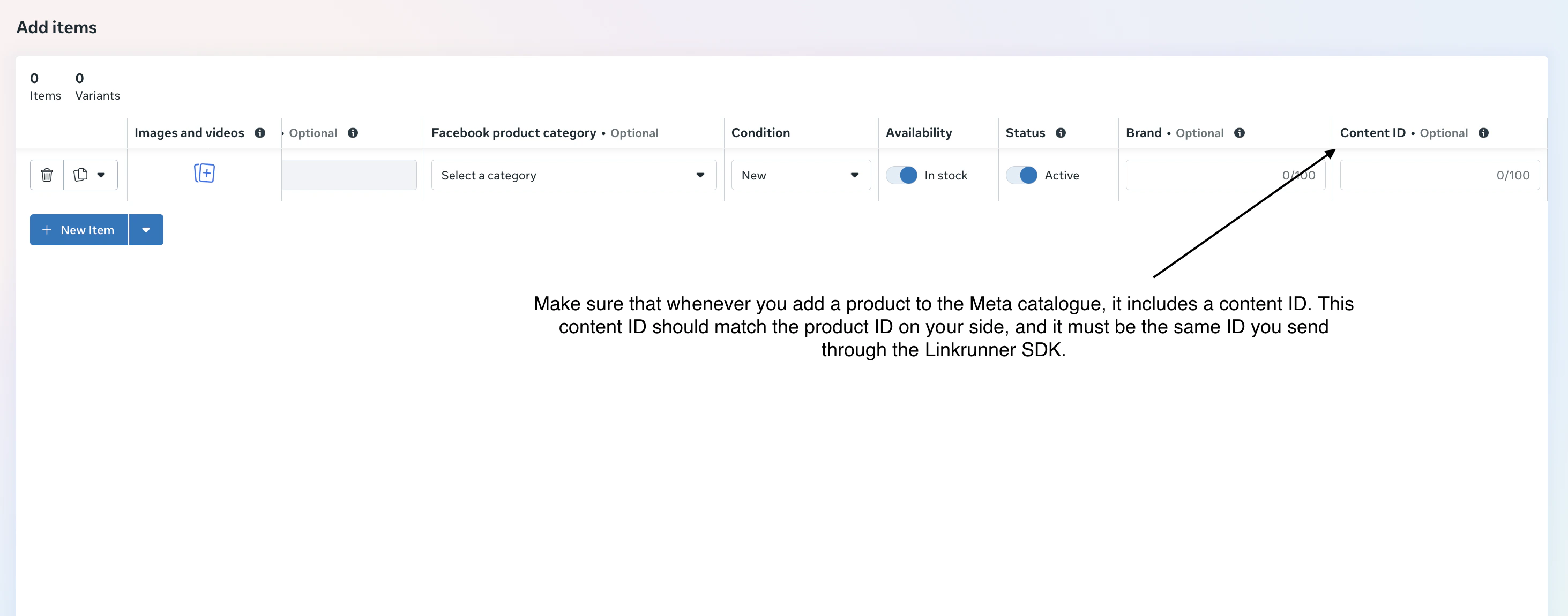
The screenshot below shows exactly where to add the content ID when adding or uploading a product to your Meta catalogue:
Make sure that whenever you add a product to the Meta catalogue, it includes a **content ID**. This content ID should match the product ID on your side, and it must be the same ID you send through the Linkrunner SDK.
When uploading products via CSV, use the `item_group_id` column to assign group IDs to your products. This is how Meta groups product variants together ensure these match the `item_group_ids` you send in your events.
The screenshot below shows exactly where to add the content ID when adding or uploading a product to your Meta catalogue:
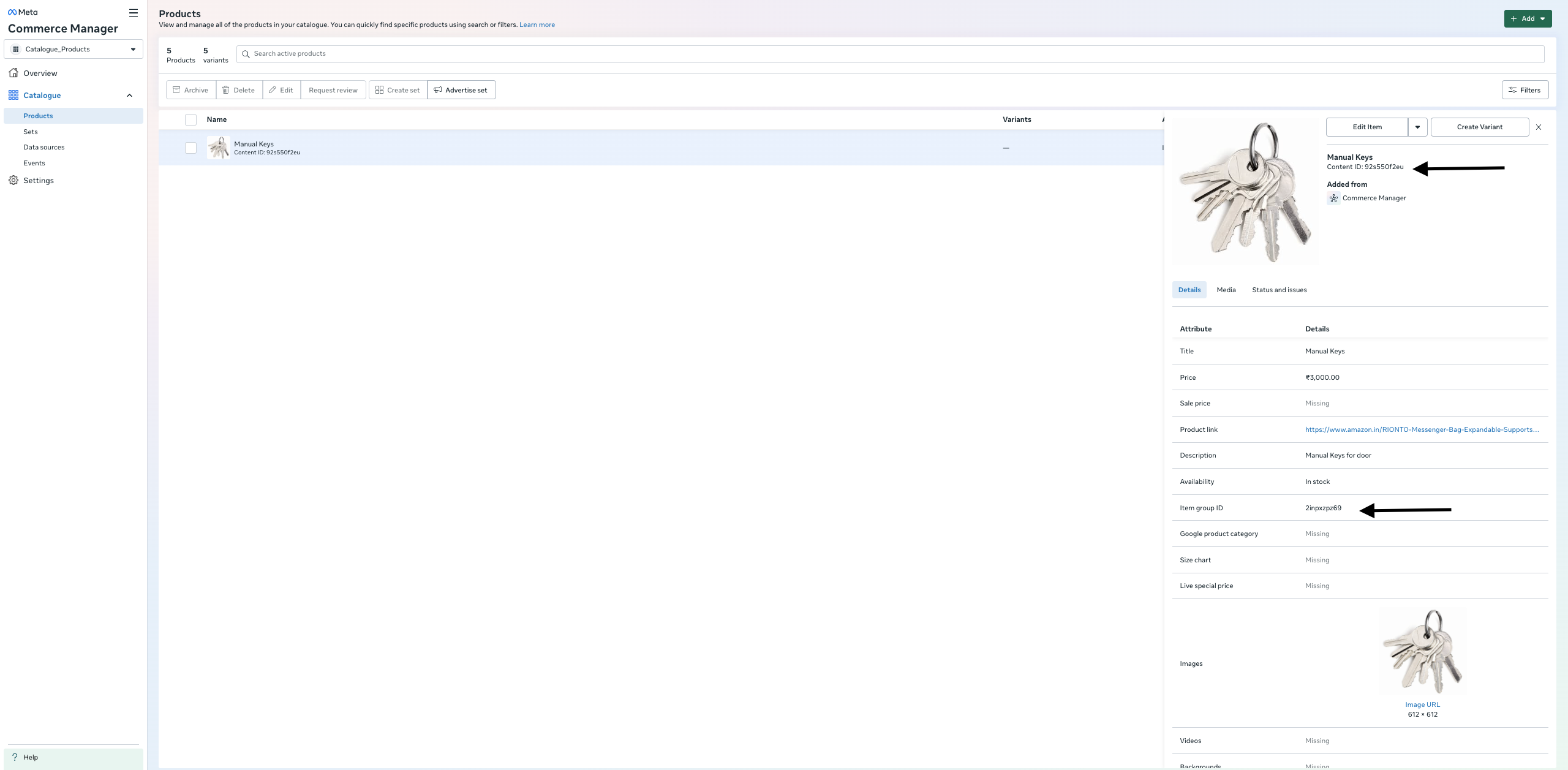
 Each product in your catalog has a **Content ID** and an **Item group ID**. These are the values you'll use in the `content_ids` or `item_group_ids` fields when sending events — they're how Meta matches your events back to the correct catalog products.
 ## Step 2: Verify Dataset ID Connection
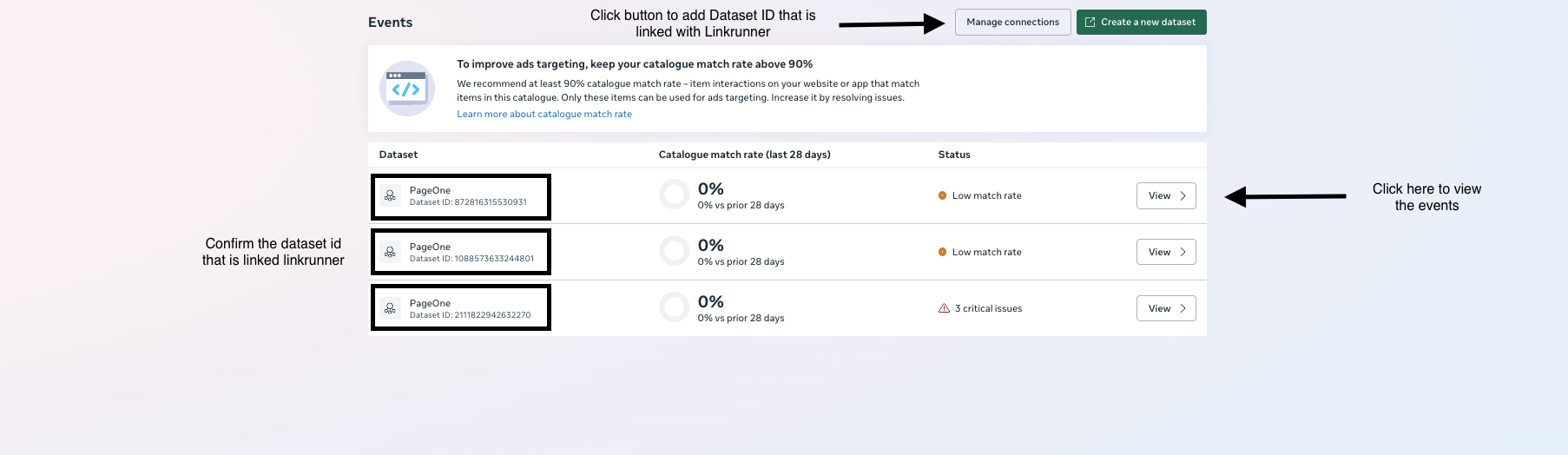
Once your catalogue is set up, navigate to the events section. Check if the Dataset ID connected with Linkrunner is present and active.
If the Dataset ID is not linked:
1. Press on **Manage Connections**.
2. Find the Dataset ID that is linked with Linkrunner.
3. Turn the connection **ON**.
*Make sure the linking part is successfully completed before proceeding.*
## Step 2: Verify Dataset ID Connection
Once your catalogue is set up, navigate to the events section. Check if the Dataset ID connected with Linkrunner is present and active.
If the Dataset ID is not linked:
1. Press on **Manage Connections**.
2. Find the Dataset ID that is linked with Linkrunner.
3. Turn the connection **ON**.
*Make sure the linking part is successfully completed before proceeding.*
 ## Step 3: Required Events
View the dataset ID and check the events list. There are **3 essential events** we actually need to send:
* `Purchase` (processed via the [Capture Payment API](/api-reference/revenue-tracking) or SDK)
* `AddToCart` and `ViewContent` (processed via the [Event Capture API](/api-reference/event-capture) or SDK)
*Note: Any event you want to send for these actions should be mapped with their respective standard commerce manager events in the Linkrunner Dashboard. For example, map your custom add to cart event (e.g., **add\_to\_cart**) with **AddToCart**, your view event (e.g., **item\_viewed** or **view\_content**) with **ViewContent**, and your payment event (e.g., **FIRST\_PAYMENT** or **DEFAULT**) with **Purchase**.*
Make sure you have integrated the appropriate APIs in your application to send these events.
## Step 3: Required Events
View the dataset ID and check the events list. There are **3 essential events** we actually need to send:
* `Purchase` (processed via the [Capture Payment API](/api-reference/revenue-tracking) or SDK)
* `AddToCart` and `ViewContent` (processed via the [Event Capture API](/api-reference/event-capture) or SDK)
*Note: Any event you want to send for these actions should be mapped with their respective standard commerce manager events in the Linkrunner Dashboard. For example, map your custom add to cart event (e.g., **add\_to\_cart**) with **AddToCart**, your view event (e.g., **item\_viewed** or **view\_content**) with **ViewContent**, and your payment event (e.g., **FIRST\_PAYMENT** or **DEFAULT**) with **Purchase**.*
Make sure you have integrated the appropriate APIs in your application to send these events.
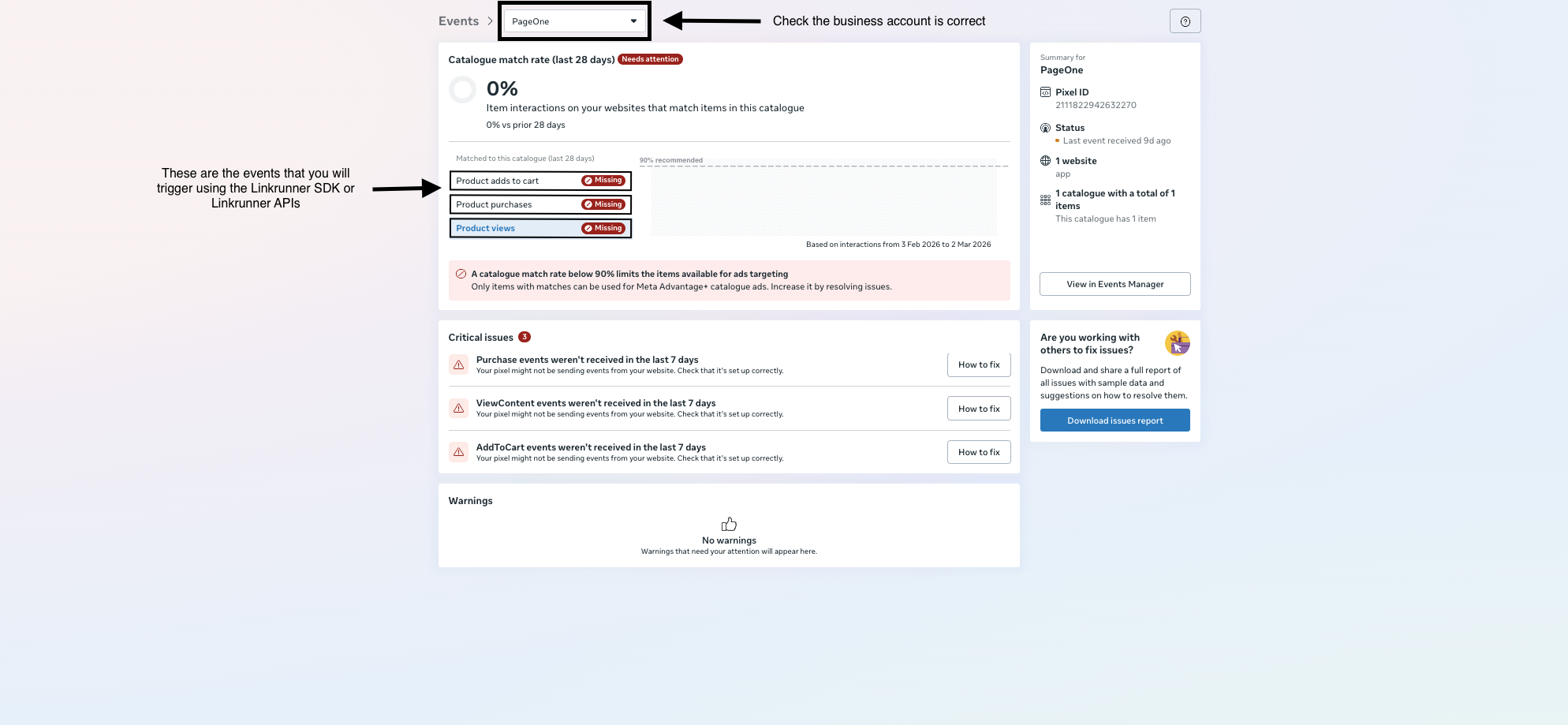 The **Catalogue match rate** shown in Commerce Manager measures the percentage of product IDs in your events that successfully match products in your catalog. Meta recommends maintaining a match rate of **90% or higher** for optimal ad targeting and delivery. If your match rate is low, double-check that the `content_ids` or `item_group_ids` in your events exactly match the IDs in your catalog.
## Understanding `event_data`
When sending events via the [Capture Event API](/api-reference/event-capture) or [Capture Payment API](/api-reference/revenue-tracking), you must include specific fields in your `event_data` payload for Meta to correctly attribute and optimize your catalogue sales.
### Required Fields for Ecommerce Events
| Parameter | Type | Description |
| -------------------------------- | ---------------- | -------------------------------------------------------------------------------------------------------------------------------------------------------------------------------------------------------------------------------------------------------------- |
| `content_ids` / `item_group_ids` | array | **Required for `Purchase`, `AddToCart`, `ViewContent`.**
The **Catalogue match rate** shown in Commerce Manager measures the percentage of product IDs in your events that successfully match products in your catalog. Meta recommends maintaining a match rate of **90% or higher** for optimal ad targeting and delivery. If your match rate is low, double-check that the `content_ids` or `item_group_ids` in your events exactly match the IDs in your catalog.
## Understanding `event_data`
When sending events via the [Capture Event API](/api-reference/event-capture) or [Capture Payment API](/api-reference/revenue-tracking), you must include specific fields in your `event_data` payload for Meta to correctly attribute and optimize your catalogue sales.
### Required Fields for Ecommerce Events
| Parameter | Type | Description |
| -------------------------------- | ---------------- | -------------------------------------------------------------------------------------------------------------------------------------------------------------------------------------------------------------------------------------------------------------- |
| `content_ids` / `item_group_ids` | array | **Required for `Purchase`, `AddToCart`, `ViewContent`.**
`content_ids`: Use an array of single product IDs for variants. Example: `['id1', 'id2']`.
`item_group_ids`: Use for full product groups to boost the entire group. |
| `contents` | array of objects | **Required for `Purchase`, `AddToCart`, `ViewContent`.**
Array detailing items included:
`id`: Matches `content_ids` / `item_group_ids`.
`quantity`: Number of items.
`item_price`: Unit price (must match Meta Products catalog). |
| `content_type` | string | **Required for `Purchase`, `AddToCart`, `ViewContent`.**
Set to `"product"` for `content_ids`, or `"product_group"` for `item_group_ids`. |
| `value` | number | **Required for `Purchase`, `AddToCart`.**
Total numeric value (e.g., `item_price` \* `quantity`). No currency symbols. |
| `currency` | string | **Required when `value` is sent.**
The 3-letter ISO currency code (e.g., `"USD"`, `"INR"`). |
| `num_items` | number | **Required for `Purchase`, `AddToCart`.**
Total quantity of items in the `contents` array. |
| `order_id` | string | **Required for `Purchase`.**
Backend-generated unique purchase order ID. |
The `item_price` in the `contents` array should match the product price in your Meta catalog. Mismatched prices can lower your catalogue match rate and affect ad optimization.
**Example 1: Using `content_ids` (individual product variants)**
Use `content_ids` when you want to target specific product variants (e.g., a particular size or color). Set `content_type` to `"product"`.
```json theme={null}
"event_data": {
// Use content_ids for individual product variants.
// These IDs must exactly match the Content ID in your Meta catalogue.
// For example, "sku_blue_tshirt_m" is the Content ID of a medium blue t-shirt
// and "sku_black_jeans_32" is the Content ID of size-32 black jeans.
"content_ids": [
"sku_blue_tshirt_m",
"sku_black_jeans_32"
],
// Each entry in contents must have an "id" that matches one of the content_ids above.
// "quantity" is how many units the user interacted with.
// "item_price" is the unit price — this should match the price in your Meta catalogue.
"contents": [
{
"id": "sku_blue_tshirt_m",
"quantity": 1,
"item_price": 799
},
{
"id": "sku_black_jeans_32",
"quantity": 1,
"item_price": 1499
}
],
// Set to "product" when using content_ids (individual variants).
"content_type": "product",
// ISO 4217 currency code.
"currency": "INR",
// Total value = sum of (item_price * quantity) for all items.
// 799 * 1 + 1499 * 1 = 2298
"value": 2298.00,
// Total number of items across all entries in contents.
"num_items": 2,
// Unique order ID from your backend (required for Purchase events).
"order_id": "order_98765"
}
```
**Example 2: Using `item_group_ids` (product groups)**
Use `item_group_ids` when you want to boost an entire product group rather than a specific variant. For example, if a user views "Blue T-Shirt" (which comes in S, M, L), you send the group ID so Meta can optimize across all variants. Set `content_type` to `"product_group"`.
```json theme={null}
"event_data": {
// Use item_group_ids to target entire product groups.
// "tshirt_blue" is the Item Group ID in your Meta catalogue that groups
// all size variants (S, M, L, XL) of the blue t-shirt.
// This must match the item_group_id column in your CSV upload
// or the Item Group ID field in Commerce Manager.
"item_group_ids": [
"tshirt_blue"
],
// When using item_group_ids, the "id" in contents should match the group ID.
"contents": [
{
"id": "tshirt_blue",
"quantity": 1,
"item_price": 799
}
],
// Set to "product_group" when using item_group_ids.
"content_type": "product_group",
"currency": "INR",
"value": 799.00,
"num_items": 1,
"order_id": "order_10234"
}
```
**When to use which?**
* Use `content_ids` + `content_type: "product"` when you know the exact variant the user interacted with (e.g., they added "Blue T-Shirt Size M" to cart).
* Use `item_group_ids` + `content_type: "product_group"` when you want Meta to optimize across all variants in a group (e.g., the user viewed the "Blue T-Shirt" product page without selecting a size).
***
> **Note:** For full integration details and request examples, refer to the [Capture Event API](/api-reference/event-capture) and [Capture Payment API](/api-reference/revenue-tracking) documentation.
***
## Testing Ecommerce Events
After you have integrated the APIs and started sending events, you will naturally want to verify everything is working correctly.
1. **Send a Test Event:** Trigger an event using the [Capture Event API](/api-reference/event-capture) (e.g., `add_to_cart`) or the [Capture Payment API](/api-reference/revenue-tracking) (e.g., `Purchase`).
2. **Check the Meta Events Manager:** Navigate to your **Commerce Manager > Events** section.
3. **Wait for Status Updates:** Within **15 minutes** of sending your event, you should start seeing the status reflect that you are successfully hitting the Meta Commerce dataset.
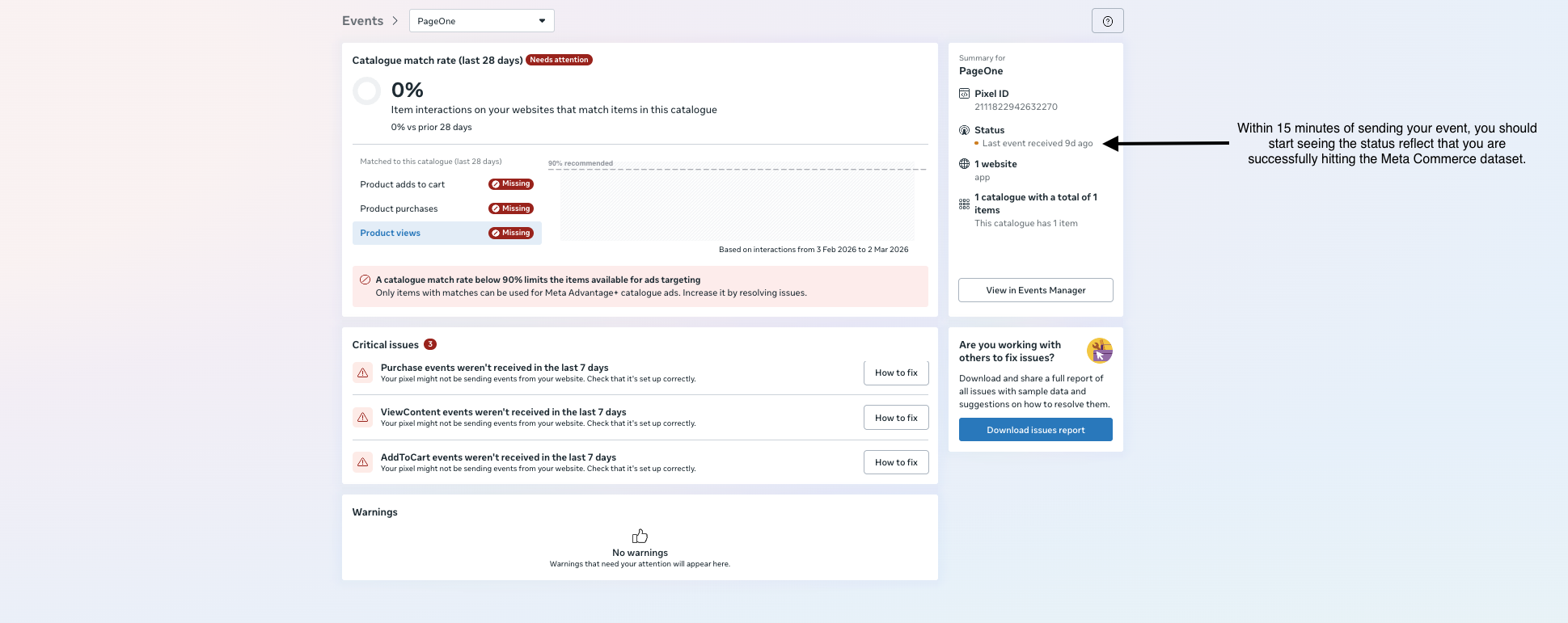 *Note: While the real-time hits will show up in Events Manager within 15 minutes, please be aware that **it can take a few days for the actual data to fully reflect and populate** across all Commerce Manager dashboards.*
## Creating a Catalog Sales Campaign
Once your events are flowing and your catalogue match rate is healthy, you can create a Catalog Sales campaign in Meta Ads Manager:
1. Go to **Meta Ads Manager** → **Create Campaign** → select the **Sales** objective and choose your catalog.
2. Select the catalog that is connected to your Linkrunner dataset.
3. Under ad set, choose your targeting strategy:
* **Broad audience** — Meta finds new customers likely to purchase from your catalog.
* **Retargeting** — target users who have already interacted with your products (e.g., viewed content or added to cart but didn't purchase).
4. Configure your budget, placements, and creative, then publish.
Retargeting audiences are automatically built from the `ViewContent`, `AddToCart`, and `Purchase` events you send through Linkrunner. The more event data Meta receives, the better it can optimize delivery.
*Note: While the real-time hits will show up in Events Manager within 15 minutes, please be aware that **it can take a few days for the actual data to fully reflect and populate** across all Commerce Manager dashboards.*
## Creating a Catalog Sales Campaign
Once your events are flowing and your catalogue match rate is healthy, you can create a Catalog Sales campaign in Meta Ads Manager:
1. Go to **Meta Ads Manager** → **Create Campaign** → select the **Sales** objective and choose your catalog.
2. Select the catalog that is connected to your Linkrunner dataset.
3. Under ad set, choose your targeting strategy:
* **Broad audience** — Meta finds new customers likely to purchase from your catalog.
* **Retargeting** — target users who have already interacted with your products (e.g., viewed content or added to cart but didn't purchase).
4. Configure your budget, placements, and creative, then publish.
Retargeting audiences are automatically built from the `ViewContent`, `AddToCart`, and `Purchase` events you send through Linkrunner. The more event data Meta receives, the better it can optimize delivery.