> ## Documentation Index
> Fetch the complete documentation index at: https://docs.linkrunner.io/llms.txt
> Use this file to discover all available pages before exploring further.
# RevenueCat
> Connect RevenueCat to track revenue and subscription data in Linkrunner with automatic webhook-based event mapping
Linkrunner integrates with RevenueCat to automatically track revenue and subscription data. Once configured, RevenueCat will send webhook events whenever subscription or revenue events occur. Linkrunner will automatically match these events with attributed users to provide you with revenue analytics per campaign.
## How it works
Unlike other analytics integrations that push data from Linkrunner, RevenueCat uses a **webhook-based** approach:
1. RevenueCat sends webhook events to Linkrunner whenever a subscription or revenue event occurs
2. Linkrunner automatically matches these events with attributed users
3. RevenueCat events are automatically mapped to Linkrunner revenue types
4. Events are categorized into three status types based on payment outcome
## Prerequisites
| Requirement | Description |
| ------------------ | ------------------------------------------------------------------------ |
| Linkrunner account | A Linkrunner account is required to take advantage of this integration. |
| RevenueCat account | A RevenueCat account with webhook access. |
| iOS or Android app | This integration supports iOS and Android apps. |
| Linkrunner SDK | You must have the [Linkrunner SDK](/introduction) installed in your app. |
## Steps to setup
In your Linkrunner dashboard, click on **Integrations** from the left-hand panel. Under the **Analytics** section, find **RevenueCat** and click **Configure**.
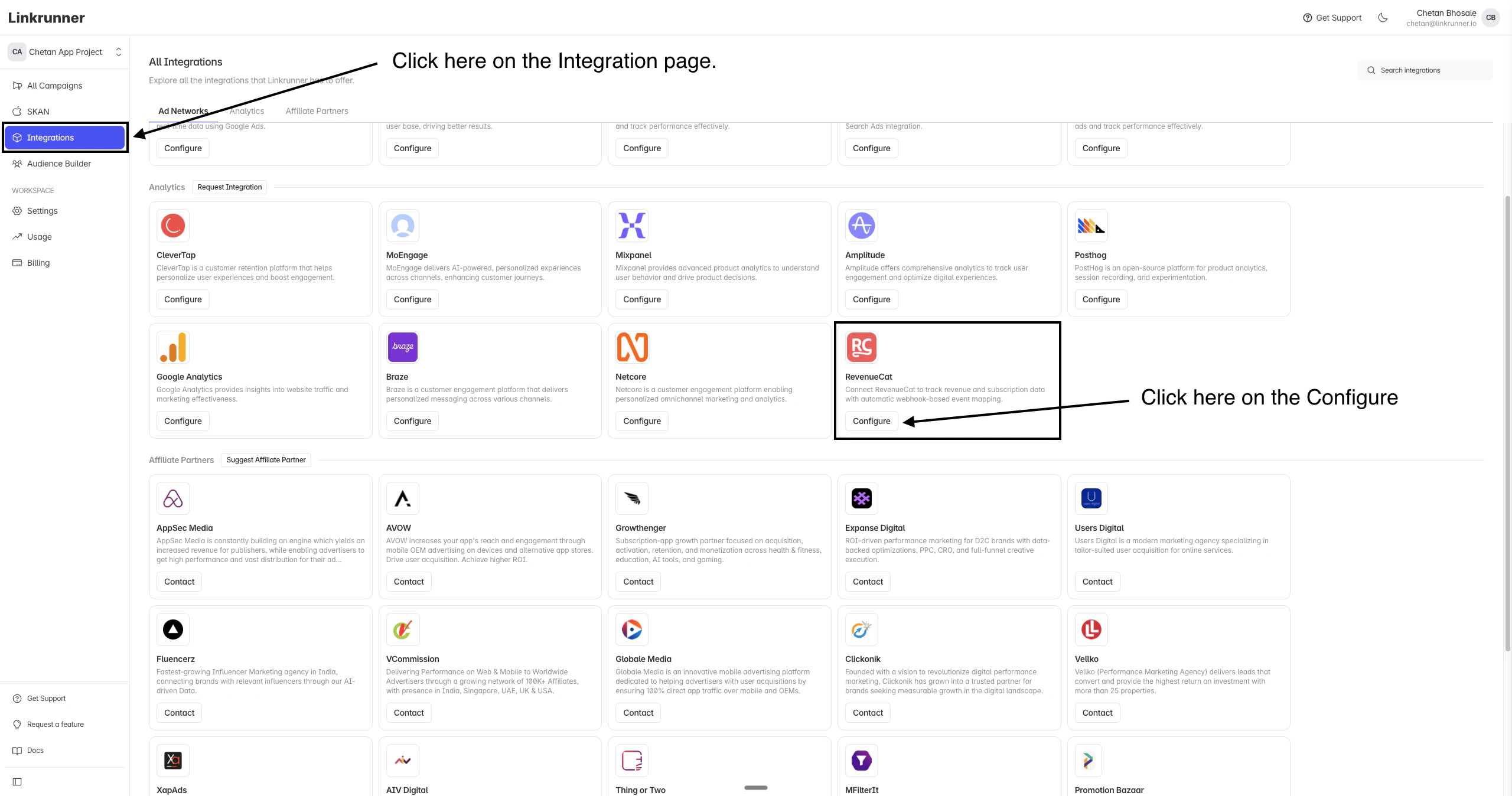 In the RevenueCat configuration panel, you'll see the **Webhook URL**. Copy this URL — you'll need to add it to your RevenueCat dashboard.
The webhook URL is: `https://api.linkrunner.io/webhook/revenuecat`
In the RevenueCat configuration panel, you'll see the **Webhook URL**. Copy this URL — you'll need to add it to your RevenueCat dashboard.
The webhook URL is: `https://api.linkrunner.io/webhook/revenuecat`
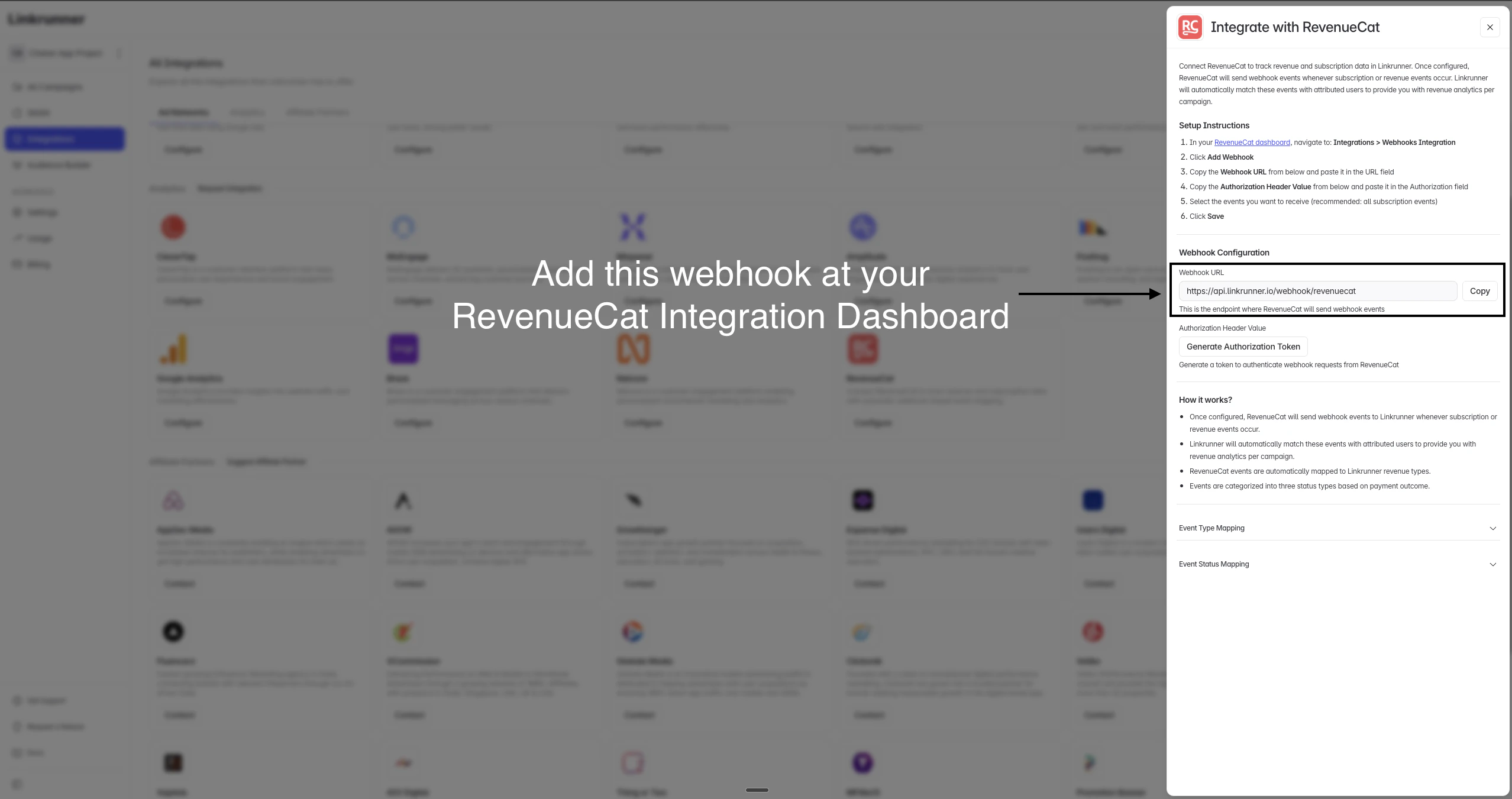 Click **Generate Authorization Token** in the Linkrunner configuration panel. Copy the generated token — you'll need this for the authorization field in RevenueCat.
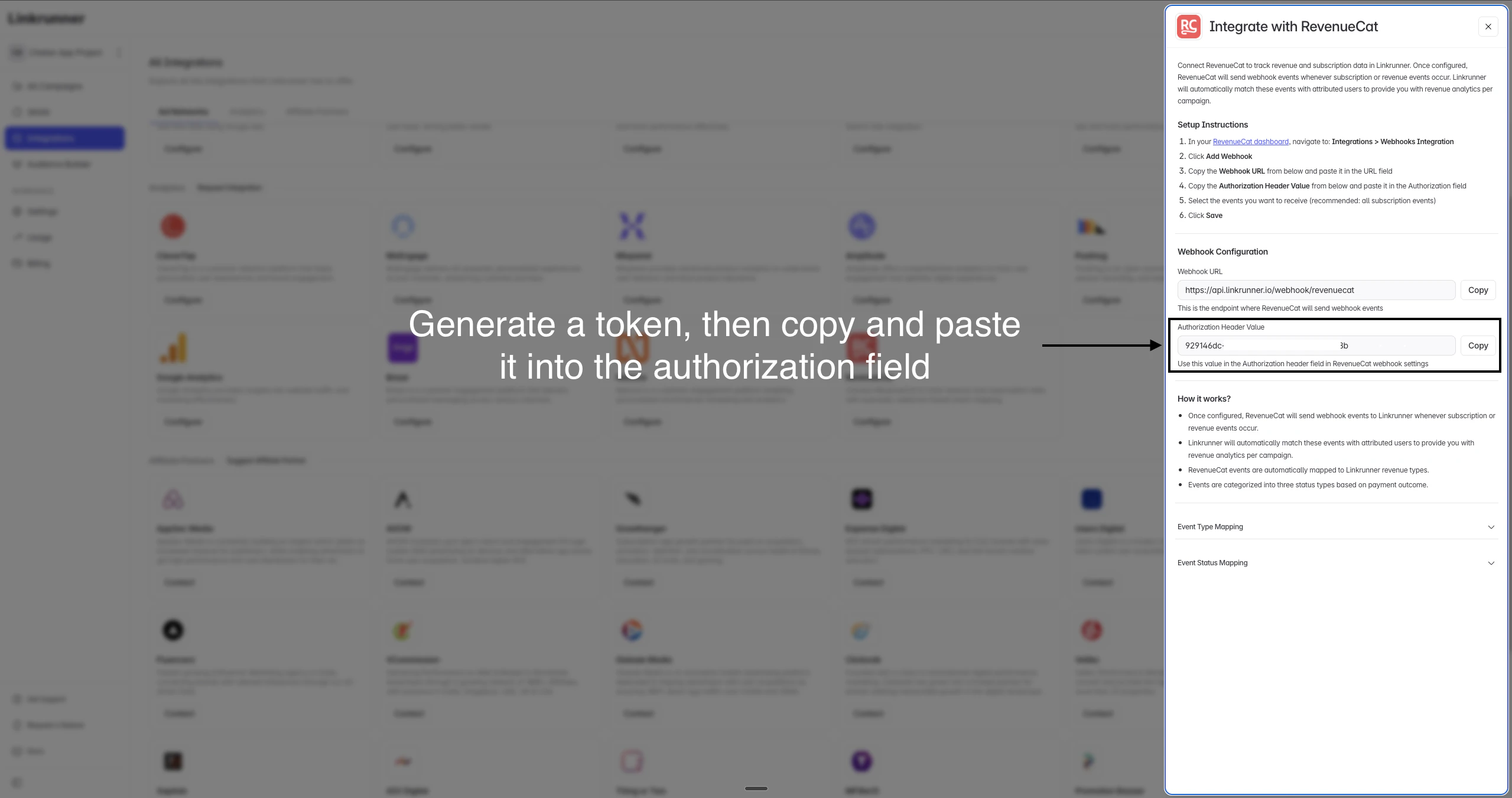 Now head to your RevenueCat dashboard to set up the webhook:
1. In your [RevenueCat dashboard](https://app.revenuecat.com), navigate to the **Integrations** page from the left sidebar
2. Under **RevenueCat core tools**, click on **Webhooks** to configure the integration
Now head to your RevenueCat dashboard to set up the webhook:
1. In your [RevenueCat dashboard](https://app.revenuecat.com), navigate to the **Integrations** page from the left sidebar
2. Under **RevenueCat core tools**, click on **Webhooks** to configure the integration
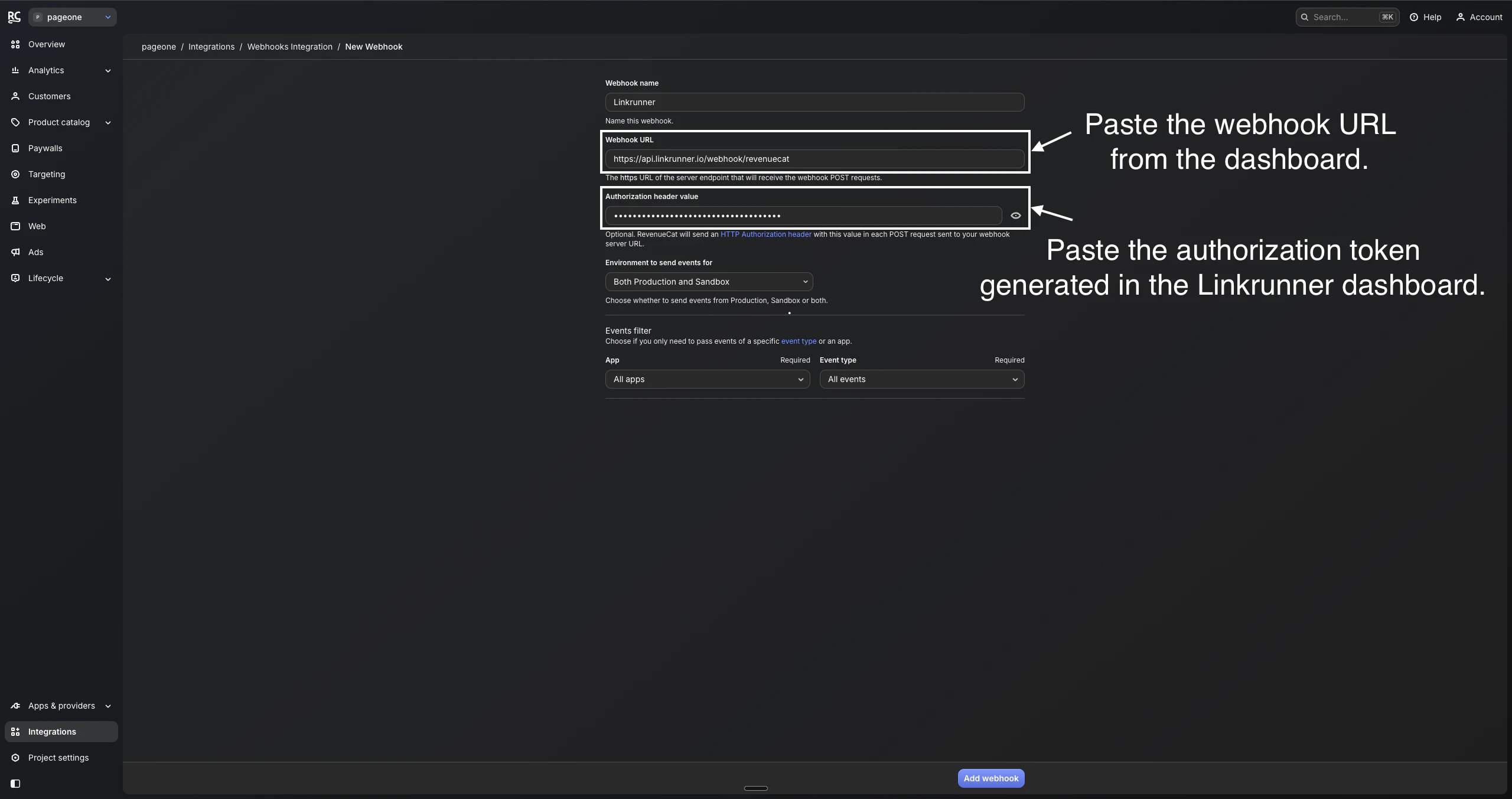
 3. Click **Add Webhook** and fill in the following details:
* **Webhook name**: `Linkrunner`
* **Webhook URL**: Paste the webhook URL copied from the Linkrunner dashboard
* **Authorization header value**: Paste the authorization token generated in the Linkrunner dashboard
* **Environment to send events for**: Select **Both Production and Sandbox** (recommended)
* **Events filter**: Select **All apps** and **All events** (recommended)
4. Click **Add webhook** to save
3. Click **Add Webhook** and fill in the following details:
* **Webhook name**: `Linkrunner`
* **Webhook URL**: Paste the webhook URL copied from the Linkrunner dashboard
* **Authorization header value**: Paste the authorization token generated in the Linkrunner dashboard
* **Environment to send events for**: Select **Both Production and Sandbox** (recommended)
* **Events filter**: Select **All apps** and **All events** (recommended)
4. Click **Add webhook** to save
 ## Event Type Mapping
RevenueCat events are automatically mapped to Linkrunner revenue types. For subscription events, Linkrunner reads `period_type` and `is_trial_conversion` from the webhook payload to keep trial activity separate from real payments:
| RevenueCat Event | Condition | Linkrunner Revenue Type | Description |
| ----------------------- | ----------------------------- | ---------------------------- | -------------------------------------------- |
| INITIAL\_PURCHASE | `period_type` = TRIAL | TRIAL\_STARTED | Free trial started (no revenue) |
| INITIAL\_PURCHASE | `period_type` = NORMAL | FIRST\_PAYMENT | First paid purchase |
| RENEWAL | `is_trial_conversion` = true | FIRST\_PAYMENT | Trial converted to paid (first real payment) |
| RENEWAL | `is_trial_conversion` = false | SUBSCRIPTION\_RENEWED | Subscription renewal payment |
| NON\_RENEWING\_PURCHASE | | ONE\_TIME | One-time purchase |
| CANCELLATION | `period_type` = TRIAL | TRIAL\_CANCELLED | User cancelled during trial |
| CANCELLATION | `period_type` = NORMAL | SUBSCRIPTION\_CANCELLED | User cancelled a paid subscription |
| UNCANCELLATION | | SUBSCRIPTION\_RENEWED | User reactivated subscription |
| REFUND | | SUBSCRIPTION\_REFUNDED | Payment refunded to user |
| BILLING\_ISSUE | | SUBSCRIPTION\_BILLING\_ISSUE | Payment failed or billing problem |
| PRODUCT\_CHANGE | | SUBSCRIPTION\_RENEWED | User changed subscription tier |
| EXPIRATION | | DEFAULT | Subscription expired naturally |
FIRST\_PAYMENT always means a real paid transaction. If your app offers a free trial, the trial start arrives as TRIAL\_STARTED and the trial-to-paid conversion arrives as FIRST\_PAYMENT. Use TRIAL\_STARTED for trial-optimization events (for example, mapping to Meta's StartTrial) and FIRST\_PAYMENT for purchase events.
## Event Status Mapping
Events are categorized into three statuses based on the payment outcome:
| Status | Events |
| --------------------- | ------------------------------------------------------------------------------------ |
| **Payment Completed** | INITIAL\_PURCHASE, RENEWAL, NON\_RENEWING\_PURCHASE, UNCANCELLATION, PRODUCT\_CHANGE |
| **Payment Failed** | BILLING\_ISSUE |
| **Payment Cancelled** | CANCELLATION, REFUND |
## Viewing Revenue Data
After the integration is complete, Linkrunner will automatically:
* Match incoming RevenueCat events with attributed users
* Map events to the corresponding Linkrunner revenue types
* Provide revenue analytics per campaign in your Linkrunner dashboard
This data helps you understand which campaigns are driving the most valuable users in terms of subscription revenue and lifetime value.
## Event Type Mapping
RevenueCat events are automatically mapped to Linkrunner revenue types. For subscription events, Linkrunner reads `period_type` and `is_trial_conversion` from the webhook payload to keep trial activity separate from real payments:
| RevenueCat Event | Condition | Linkrunner Revenue Type | Description |
| ----------------------- | ----------------------------- | ---------------------------- | -------------------------------------------- |
| INITIAL\_PURCHASE | `period_type` = TRIAL | TRIAL\_STARTED | Free trial started (no revenue) |
| INITIAL\_PURCHASE | `period_type` = NORMAL | FIRST\_PAYMENT | First paid purchase |
| RENEWAL | `is_trial_conversion` = true | FIRST\_PAYMENT | Trial converted to paid (first real payment) |
| RENEWAL | `is_trial_conversion` = false | SUBSCRIPTION\_RENEWED | Subscription renewal payment |
| NON\_RENEWING\_PURCHASE | | ONE\_TIME | One-time purchase |
| CANCELLATION | `period_type` = TRIAL | TRIAL\_CANCELLED | User cancelled during trial |
| CANCELLATION | `period_type` = NORMAL | SUBSCRIPTION\_CANCELLED | User cancelled a paid subscription |
| UNCANCELLATION | | SUBSCRIPTION\_RENEWED | User reactivated subscription |
| REFUND | | SUBSCRIPTION\_REFUNDED | Payment refunded to user |
| BILLING\_ISSUE | | SUBSCRIPTION\_BILLING\_ISSUE | Payment failed or billing problem |
| PRODUCT\_CHANGE | | SUBSCRIPTION\_RENEWED | User changed subscription tier |
| EXPIRATION | | DEFAULT | Subscription expired naturally |
FIRST\_PAYMENT always means a real paid transaction. If your app offers a free trial, the trial start arrives as TRIAL\_STARTED and the trial-to-paid conversion arrives as FIRST\_PAYMENT. Use TRIAL\_STARTED for trial-optimization events (for example, mapping to Meta's StartTrial) and FIRST\_PAYMENT for purchase events.
## Event Status Mapping
Events are categorized into three statuses based on the payment outcome:
| Status | Events |
| --------------------- | ------------------------------------------------------------------------------------ |
| **Payment Completed** | INITIAL\_PURCHASE, RENEWAL, NON\_RENEWING\_PURCHASE, UNCANCELLATION, PRODUCT\_CHANGE |
| **Payment Failed** | BILLING\_ISSUE |
| **Payment Cancelled** | CANCELLATION, REFUND |
## Viewing Revenue Data
After the integration is complete, Linkrunner will automatically:
* Match incoming RevenueCat events with attributed users
* Map events to the corresponding Linkrunner revenue types
* Provide revenue analytics per campaign in your Linkrunner dashboard
This data helps you understand which campaigns are driving the most valuable users in terms of subscription revenue and lifetime value.