> ## Documentation Index
> Fetch the complete documentation index at: https://docs.linkrunner.io/llms.txt
> Use this file to discover all available pages before exploring further.
# Agency Settings and Team
> Edit your agency details, invite your teammates, and work across several customers from one workspace
Your agency workspace lives at [dashboard.linkrunner.io/agency/settings](https://dashboard.linkrunner.io/agency/settings). It has two tabs: **Agency Details** and **Members**.
## Agency details
Click **Edit** to change your logo, agency name, description, website, or contact email, then **Save**.
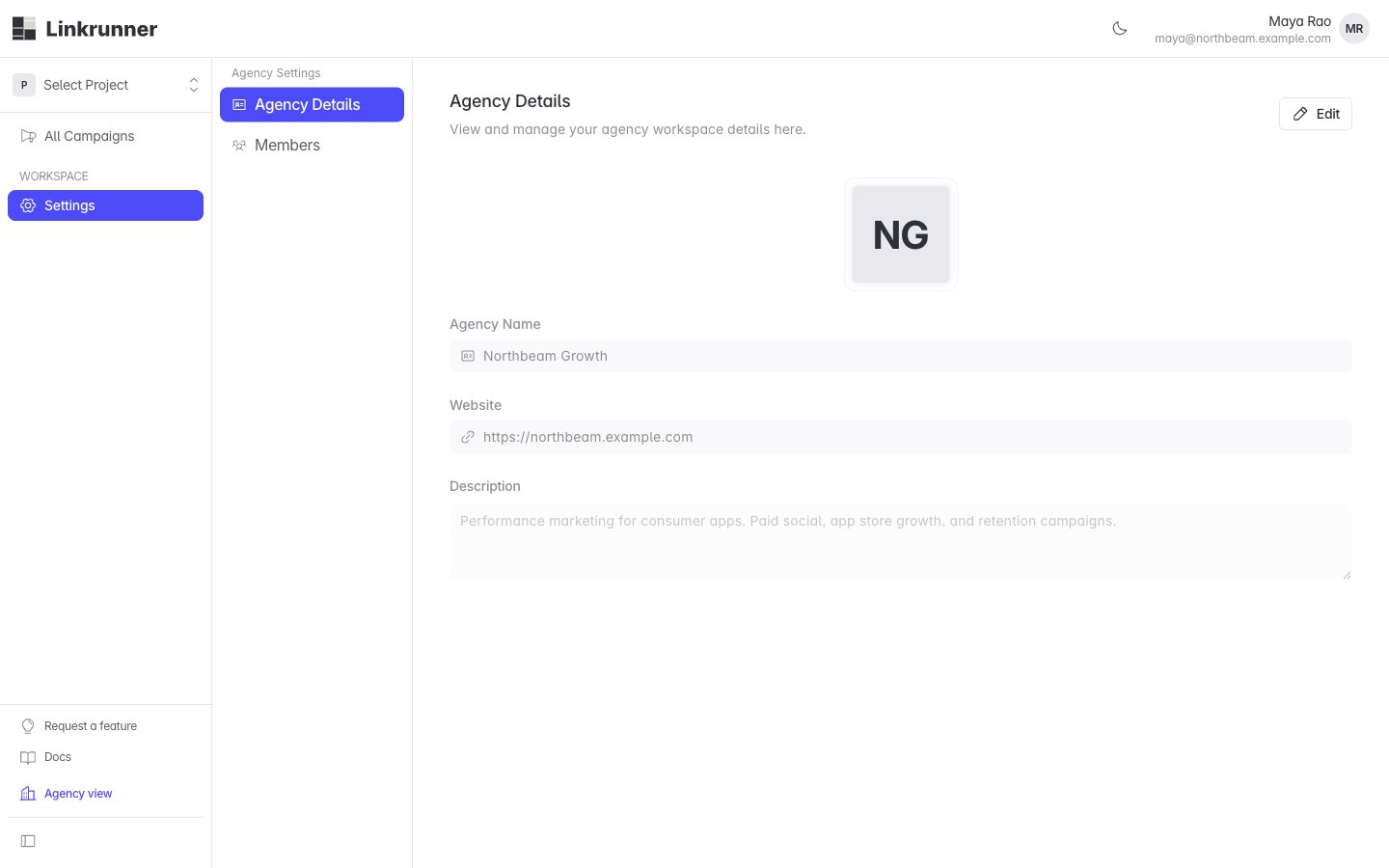 Customers see your logo, name, and description in the agency directory when they choose who to engage. Keep the description current, because it is what a customer reads before inviting you.
## Your team
Open the **Members** tab to see everyone in your agency workspace.
Customers see your logo, name, and description in the agency directory when they choose who to engage. Keep the description current, because it is what a customer reads before inviting you.
## Your team
Open the **Members** tab to see everyone in your agency workspace.
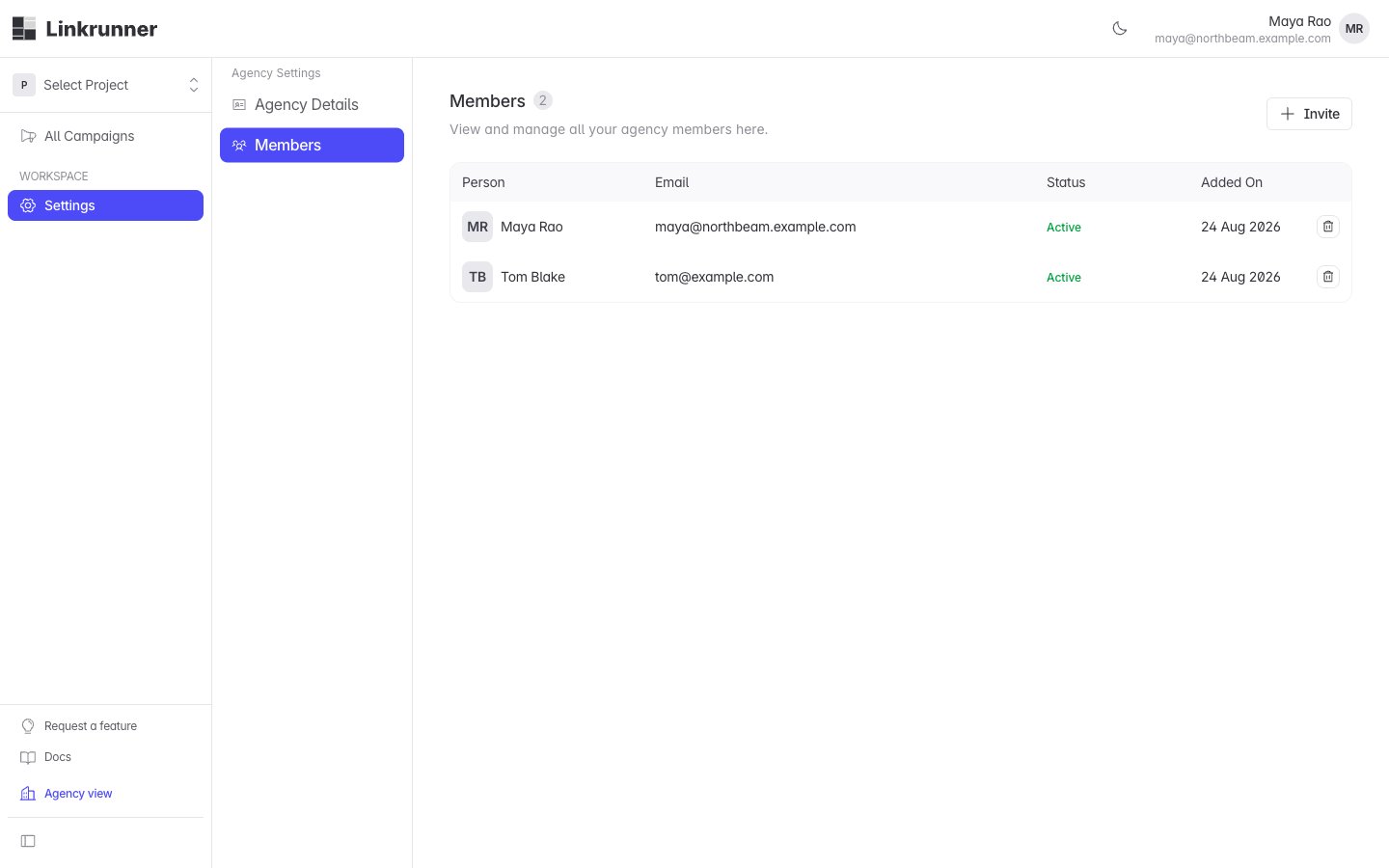 Click **Invite**, enter their **Work Email**, then click **Send Invite**.
They get an invitation link and sign in with that address. Their row moves from **Invited** to **Active**.
An invitation that was never accepted has a **Resend** action, which sends a fresh link. An active member can be removed.
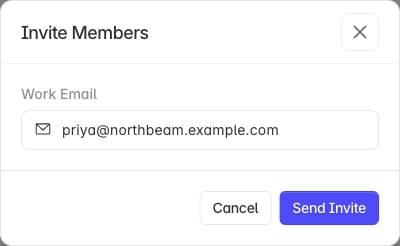
Click **Invite**, enter their **Work Email**, then click **Send Invite**.
They get an invitation link and sign in with that address. Their row moves from **Invited** to **Active**.
An invitation that was never accepted has a **Resend** action, which sends a fresh link. An active member can be removed.
 Everyone in your agency workspace gets access to every customer you are engaged on. There are no per-customer roles inside an agency.
Removing a member cuts their access to all of your customers' projects immediately. The campaigns they created stay with the customer.
## Working across customers
Each customer that engages you appears in your project picker. Switch between them there, and the campaigns, installs, and events on screen follow the customer you have selected.
You only see the campaigns your agency created. A customer's own campaigns, and those of their other partners, are not in your workspace.
## When an engagement ends
A customer can end an engagement from their **Settings → Members** page. When they do:
* The project disappears from your workspace, for everyone at your agency.
* The campaigns you created stay with the customer.
* Your workspace, your team, and your other customers are untouched.
## Troubleshooting
**A teammate never got their invitation.**
Open **Members**, find their **Invited** row, and click **Resend**. That sends a new link and invalidates the old one.
**A customer's project is missing from the picker.**
Either the engagement was ended, or your workspace is suspended. Check [dashboard.linkrunner.io/agency/settings](https://dashboard.linkrunner.io/agency/settings). If you land on a screen saying the workspace is suspended, contact support.
**Need help?** Contact [support@linkrunner.io](mailto:support@linkrunner.io)
Everyone in your agency workspace gets access to every customer you are engaged on. There are no per-customer roles inside an agency.
Removing a member cuts their access to all of your customers' projects immediately. The campaigns they created stay with the customer.
## Working across customers
Each customer that engages you appears in your project picker. Switch between them there, and the campaigns, installs, and events on screen follow the customer you have selected.
You only see the campaigns your agency created. A customer's own campaigns, and those of their other partners, are not in your workspace.
## When an engagement ends
A customer can end an engagement from their **Settings → Members** page. When they do:
* The project disappears from your workspace, for everyone at your agency.
* The campaigns you created stay with the customer.
* Your workspace, your team, and your other customers are untouched.
## Troubleshooting
**A teammate never got their invitation.**
Open **Members**, find their **Invited** row, and click **Resend**. That sends a new link and invalidates the old one.
**A customer's project is missing from the picker.**
Either the engagement was ended, or your workspace is suspended. Check [dashboard.linkrunner.io/agency/settings](https://dashboard.linkrunner.io/agency/settings). If you land on a screen saying the workspace is suspended, contact support.
**Need help?** Contact [support@linkrunner.io](mailto:support@linkrunner.io)