> ## Documentation Index
> Fetch the complete documentation index at: https://docs.linkrunner.io/llms.txt
> Use this file to discover all available pages before exploring further.
# Create an Agency Campaign Link
> Create a tracking link in a customer's project from your agency workspace
Create links from your agency workspace. A link the customer creates for you is not credited to your agency and does not appear in your workspace.
## Before you start
You need:
* An approved agency workspace. See [Set up your workspace](/agency-partners/accept-invitation).
* A customer who has engaged your agency on their project.
* Permission from that customer to create campaigns. Nothing is on until they turn it on (step 1).
## 1. Ask the customer to turn on link creation
The customer does this once, from their own dashboard. Send them these steps.
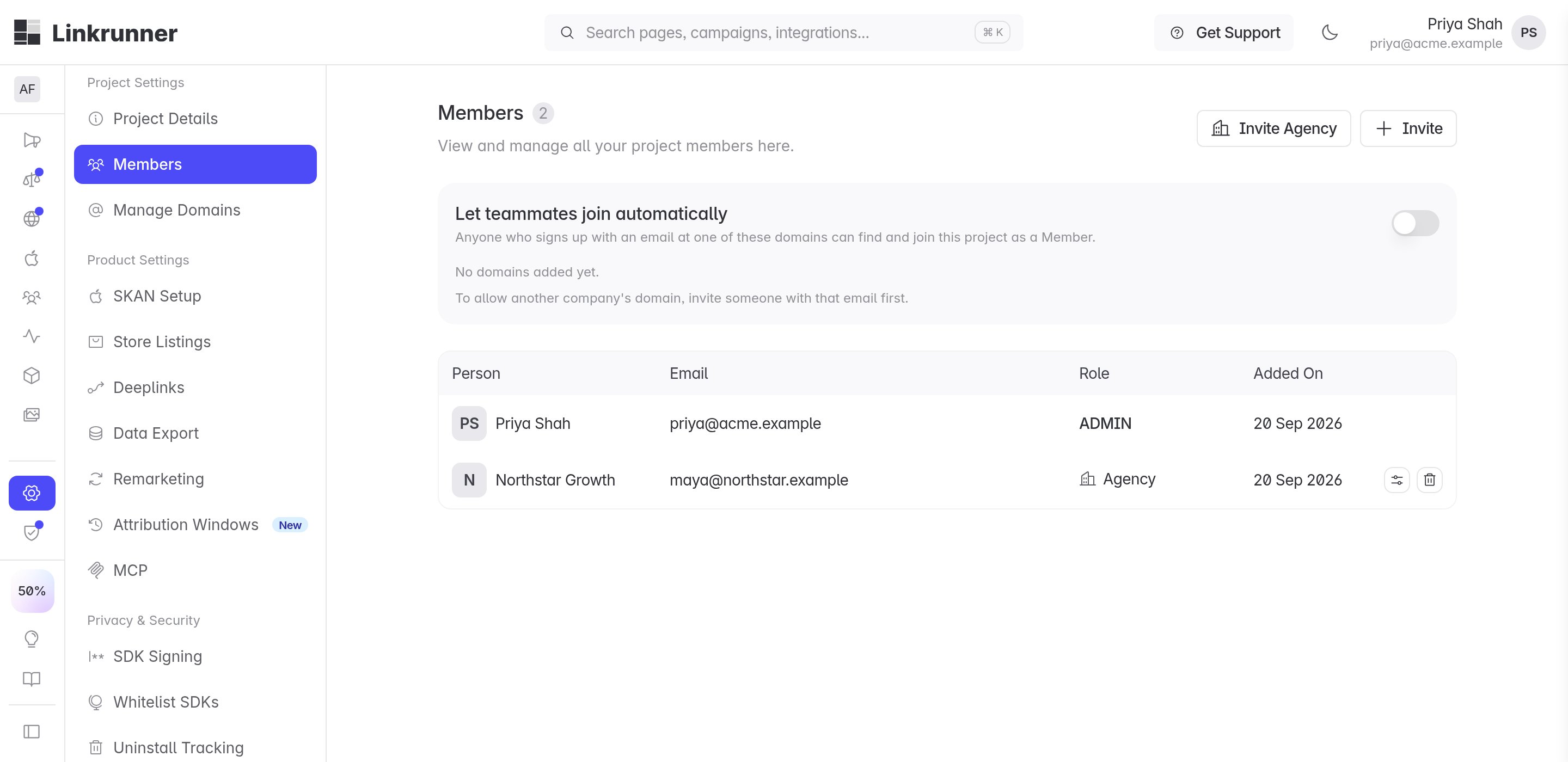
In their project, they go to **Settings → Members** and find your agency's row.
They click the sliders icon on your row, next to the bin icon.
 Under **Campaigns**, they turn on **Edit**. This also turns on **Read**. Then they click **Save**.
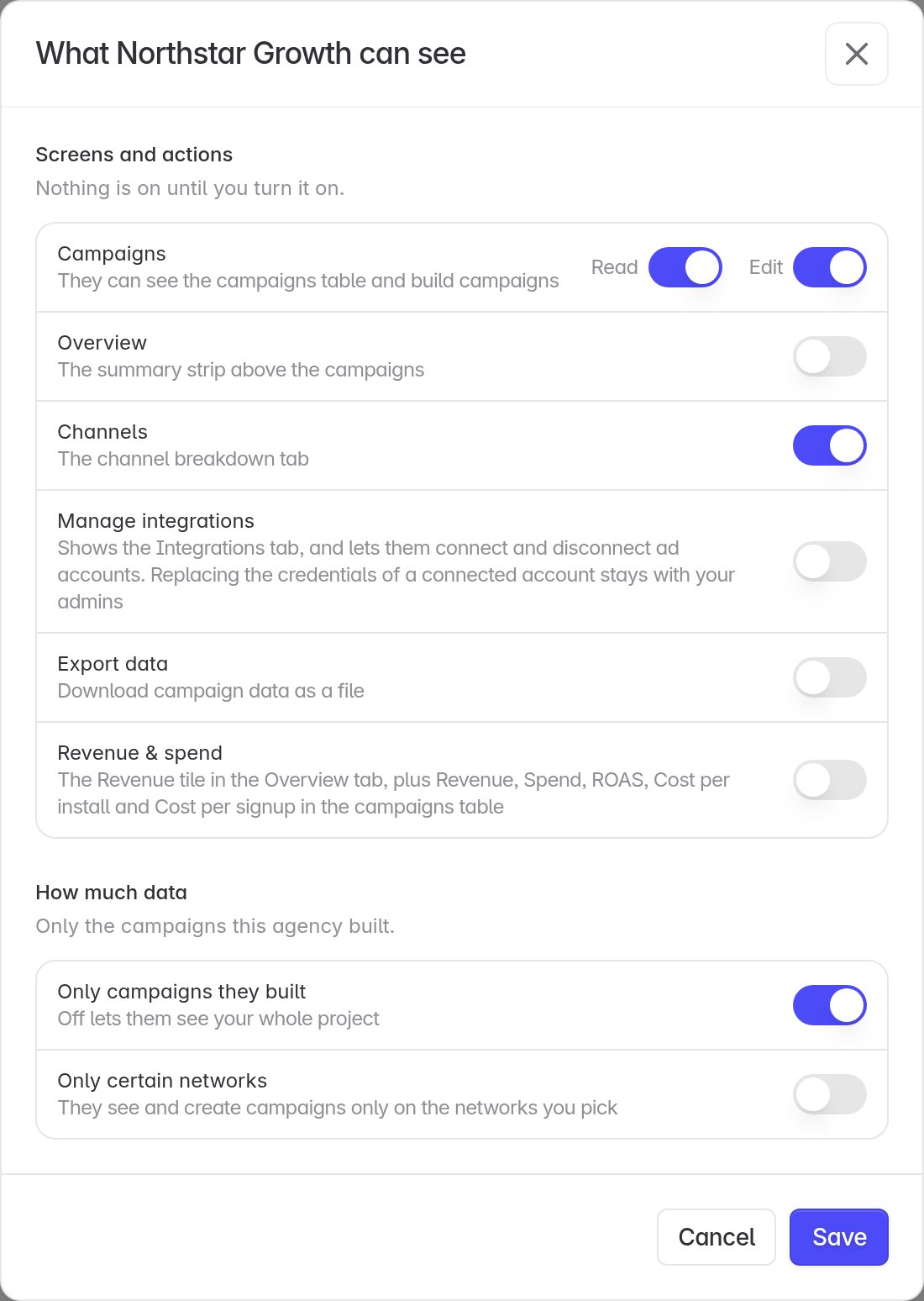 If the customer turns on **Only certain networks**, you can only create campaigns on the networks they pick, and every campaign must name one of them.
[Control agency access](/agency-partners/control-agency-access) is the customer's own reference for that window: every switch, the two data scopes, and what you see while one is off. Send it with the steps above.
## 2. Open the customer's project
Open [Linkrunner Dashboard](https://dashboard.linkrunner.io) and sign in with your agency account.
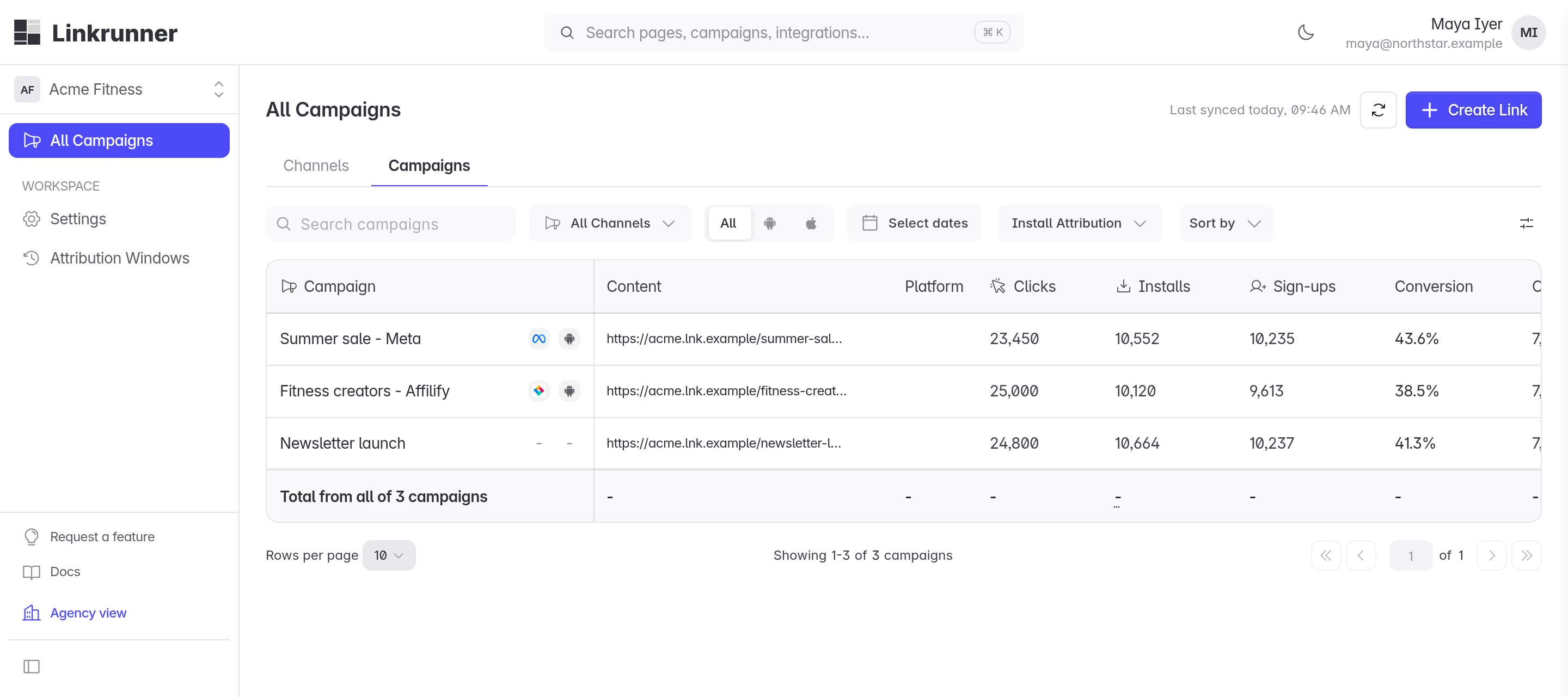
Use the project picker at the top of the sidebar to open the customer's project.
Select **All Campaigns**, then click **Create Link**.
If the customer turns on **Only certain networks**, you can only create campaigns on the networks they pick, and every campaign must name one of them.
[Control agency access](/agency-partners/control-agency-access) is the customer's own reference for that window: every switch, the two data scopes, and what you see while one is off. Send it with the steps above.
## 2. Open the customer's project
Open [Linkrunner Dashboard](https://dashboard.linkrunner.io) and sign in with your agency account.
Use the project picker at the top of the sidebar to open the customer's project.
Select **All Campaigns**, then click **Create Link**.
 ## 3. Create the campaign
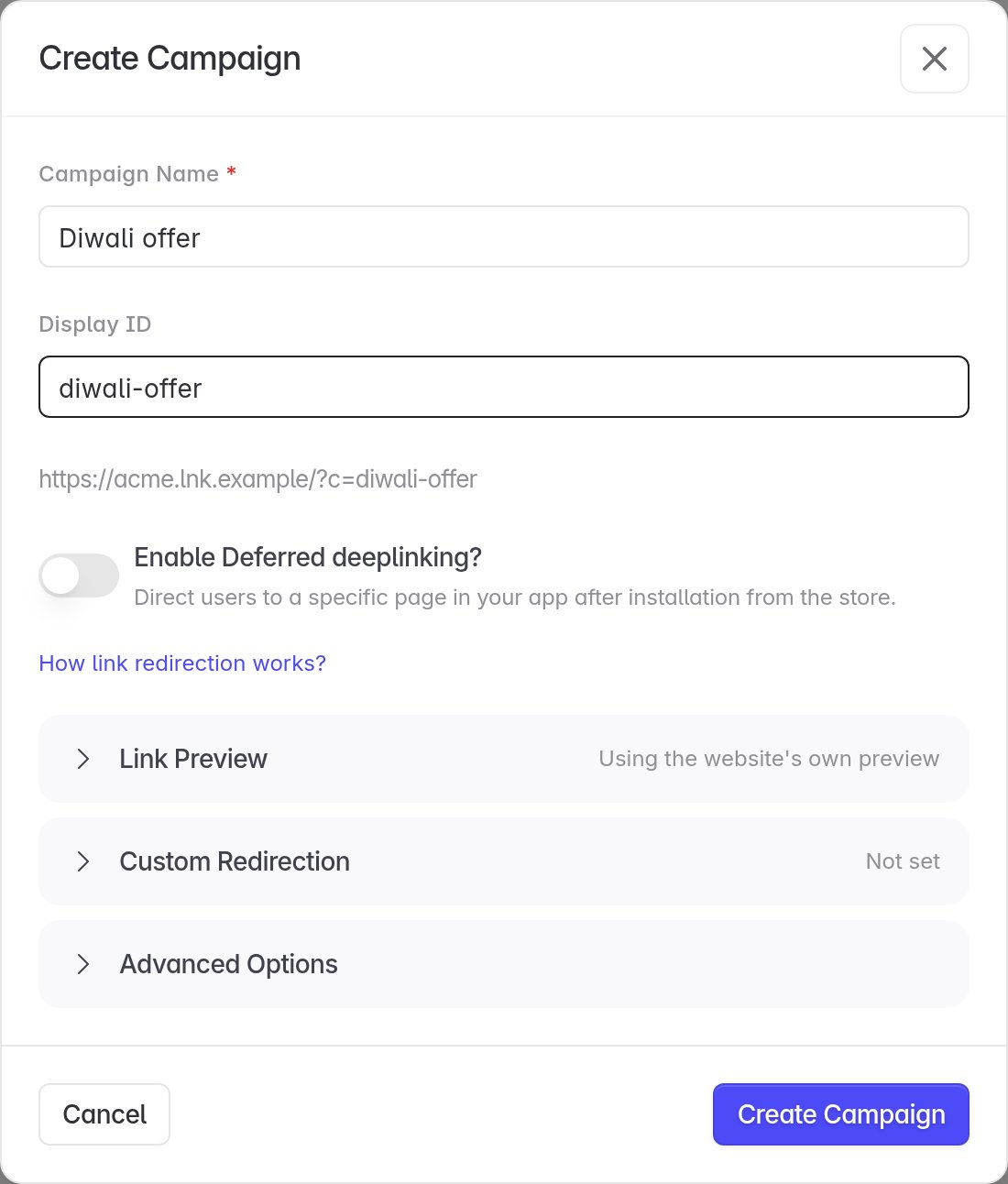
Enter a **Campaign Name** that you and the customer will recognise.
Add an optional **Display ID**. It becomes part of the link, so keep it short.
Turn on deferred deep linking if the campaign should open a specific screen after install. Use **Link Preview** and **Custom Redirection** only when the customer has asked for them.
## 3. Create the campaign
Enter a **Campaign Name** that you and the customer will recognise.
Add an optional **Display ID**. It becomes part of the link, so keep it short.
Turn on deferred deep linking if the campaign should open a specific screen after install. Use **Link Preview** and **Custom Redirection** only when the customer has asked for them.
 ## 4. Pick the ad channel
Open **Advanced Options** and pick the **Ad Channel** where the traffic will run, for example one of the customer's connected partners.
## 4. Pick the ad channel
Open **Advanced Options** and pick the **Ad Channel** where the traffic will run, for example one of the customer's connected partners.
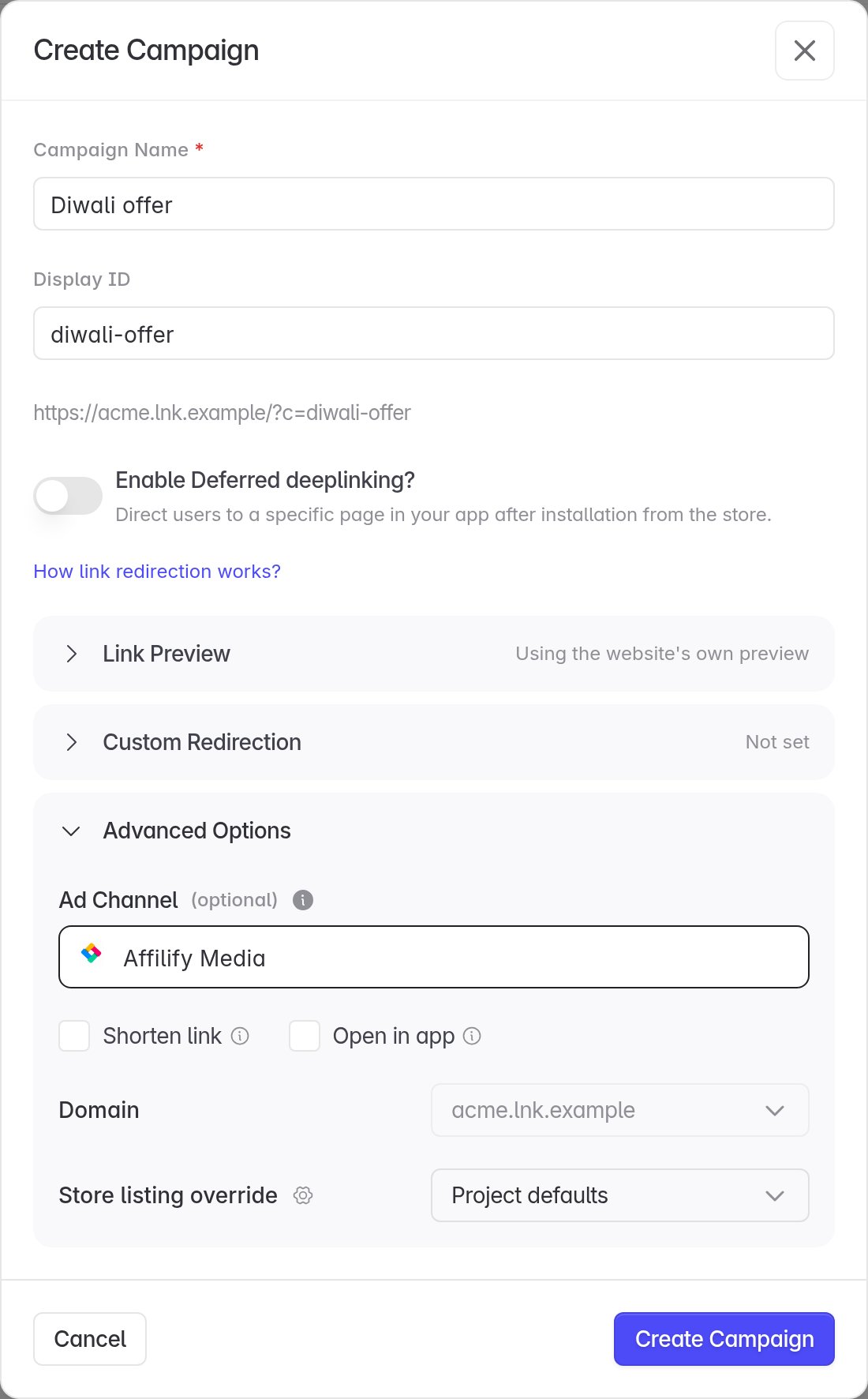 You can leave the channel empty unless the customer limited you to certain networks.
**Meta**, **Google**, **Snapchat** and **LinkedIn** need a connected ad account on the customer's project. You can pick them only if the customer has also turned on **Manage integrations** for your agency.
Click **Create Campaign**.
## 5. Copy your link
Copy the **Campaign link** and use it in your ads, or download the QR code.
You can leave the channel empty unless the customer limited you to certain networks.
**Meta**, **Google**, **Snapchat** and **LinkedIn** need a connected ad account on the customer's project. You can pick them only if the customer has also turned on **Manage integrations** for your agency.
Click **Create Campaign**.
## 5. Copy your link
Copy the **Campaign link** and use it in your ads, or download the QR code.
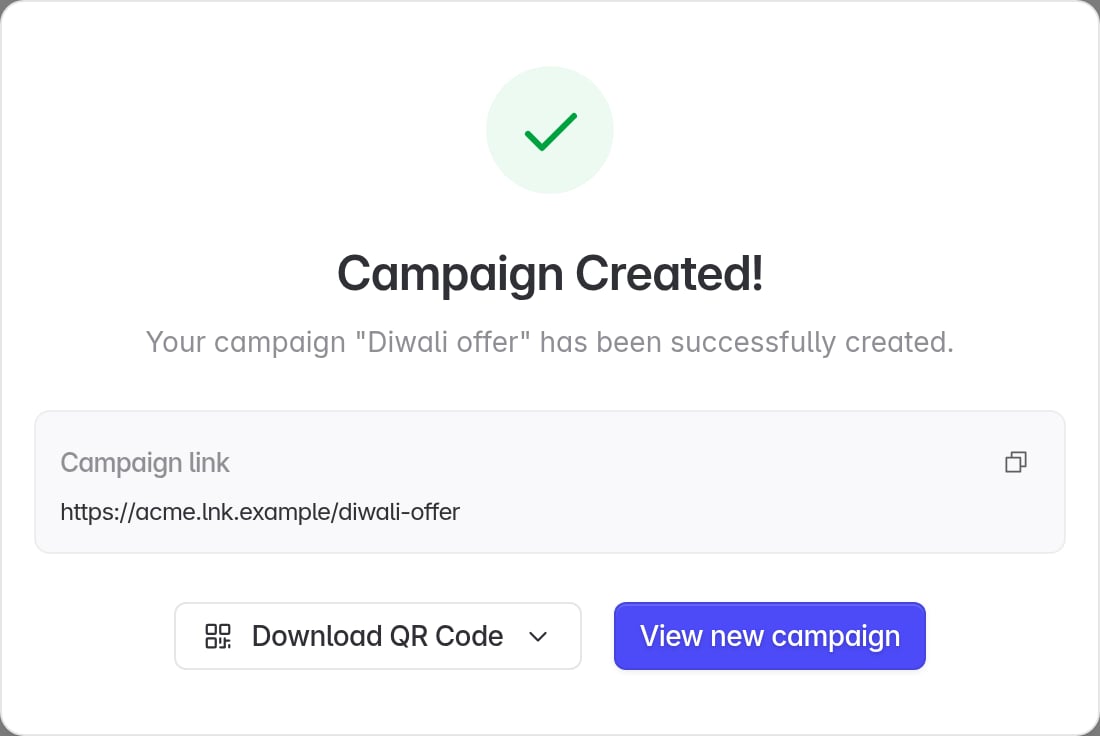 The campaign is credited to your agency. It appears in your workspace, and the customer sees your agency on it in their own campaign list.
## 6. Test before launch
1. Open the link on a phone and confirm it goes to the right store page or app screen.
2. Install the app from the link and open it.
3. Check that the click and install appear under the campaign in **All Campaigns**.
## Troubleshooting
Ask the customer to turn on **Campaigns → Edit** for your agency (step 1). You may need to refresh the page after they save.
Ask the customer to invite your agency from **Settings → Members → Invite Agency**. A new agency also needs Linkrunner's approval before any project appears.
Same fix as a missing **Create Link** button. Ask the customer to turn on **Campaigns → Edit**.
Open **Advanced Options** and pick one of the networks shown under **Ad Channel**. If the network you need is not listed, ask the customer to add it under **Only certain networks**.
Ask the customer to turn on **Manage integrations** for your agency, or to create that campaign themselves.
The customer's project has no connected account for that network. Ask them to connect it in **Integrations**, then try again.
**Need help?** Contact [support@linkrunner.io](mailto:support@linkrunner.io)
This documentation is built and hosted on [Mintlify](https://mintlify.com), a developer documentation platform.
The campaign is credited to your agency. It appears in your workspace, and the customer sees your agency on it in their own campaign list.
## 6. Test before launch
1. Open the link on a phone and confirm it goes to the right store page or app screen.
2. Install the app from the link and open it.
3. Check that the click and install appear under the campaign in **All Campaigns**.
## Troubleshooting
Ask the customer to turn on **Campaigns → Edit** for your agency (step 1). You may need to refresh the page after they save.
Ask the customer to invite your agency from **Settings → Members → Invite Agency**. A new agency also needs Linkrunner's approval before any project appears.
Same fix as a missing **Create Link** button. Ask the customer to turn on **Campaigns → Edit**.
Open **Advanced Options** and pick one of the networks shown under **Ad Channel**. If the network you need is not listed, ask the customer to add it under **Only certain networks**.
Ask the customer to turn on **Manage integrations** for your agency, or to create that campaign themselves.
The customer's project has no connected account for that network. Ask them to connect it in **Integrations**, then try again.
**Need help?** Contact [support@linkrunner.io](mailto:support@linkrunner.io)
This documentation is built and hosted on [Mintlify](https://mintlify.com), a developer documentation platform.