> ## Documentation Index
> Fetch the complete documentation index at: https://docs.linkrunner.io/llms.txt
> Use this file to discover all available pages before exploring further.
# Add an Affiliate Account
> Send your own network's traffic to Linkrunner customers from the same login you use as an agency
If you run campaigns for Linkrunner customers as an agency and also send them traffic from your own network as an affiliate, you can do both from one login. You apply for an affiliate account with the same email, and switch between the two workspaces from the project picker.
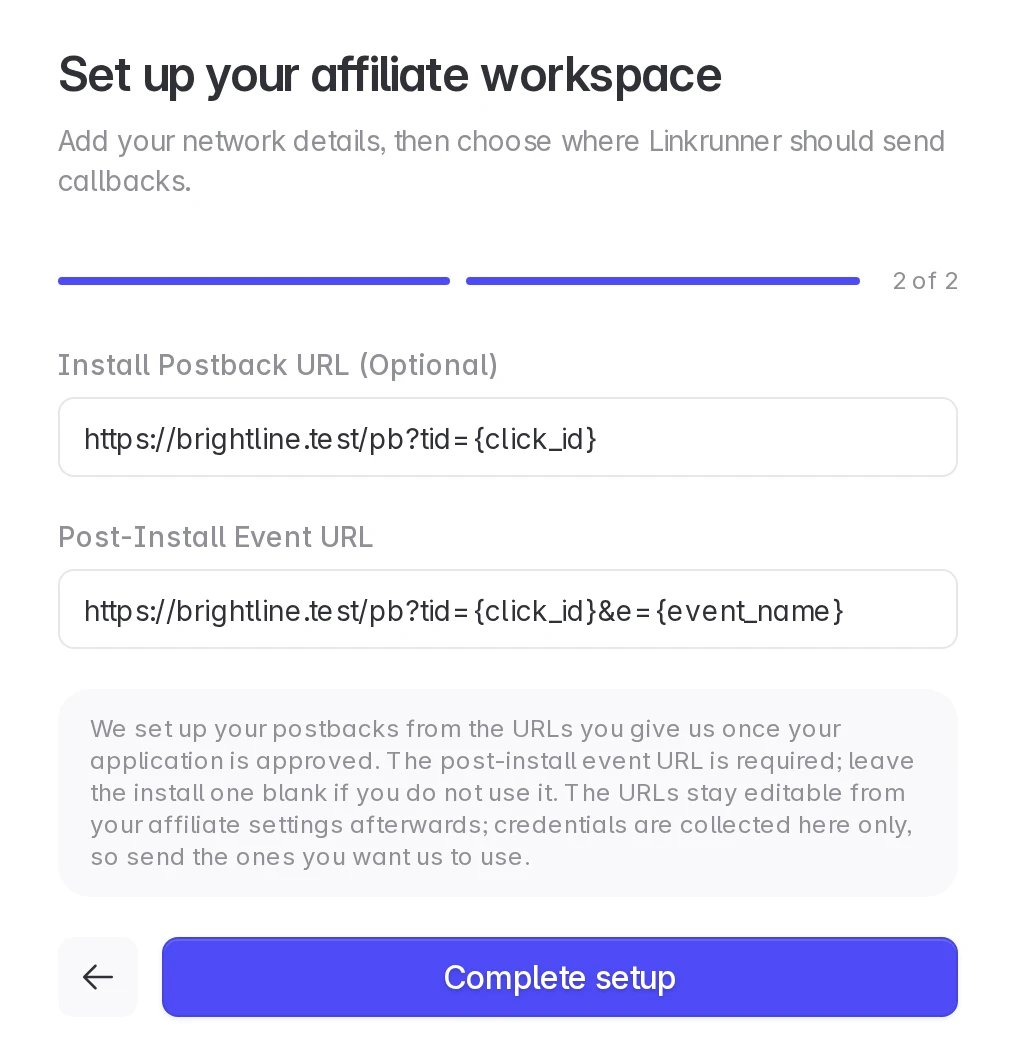
You need your network logo, a short description, and a post-install event URL where Linkrunner sends conversions. The install postback URL and website are optional.
## Agency and affiliate accounts stay separate
| | Agency account | Affiliate account |
| - | - | - |
| What it is for | Campaigns you run inside a customer's project | Traffic from your own network |
| Attribution | Campaigns created by your agency | Installs credited to your affiliate network |
| Customer access | Set on your agency connection | Set on your affiliate connection |
| Team | Members of your agency workspace | Members of your affiliate workspace |
A customer who works with you both ways sees two connections and gives each its own access. Your agency and affiliate data are never merged.
## 1. Open the affiliate sign up page
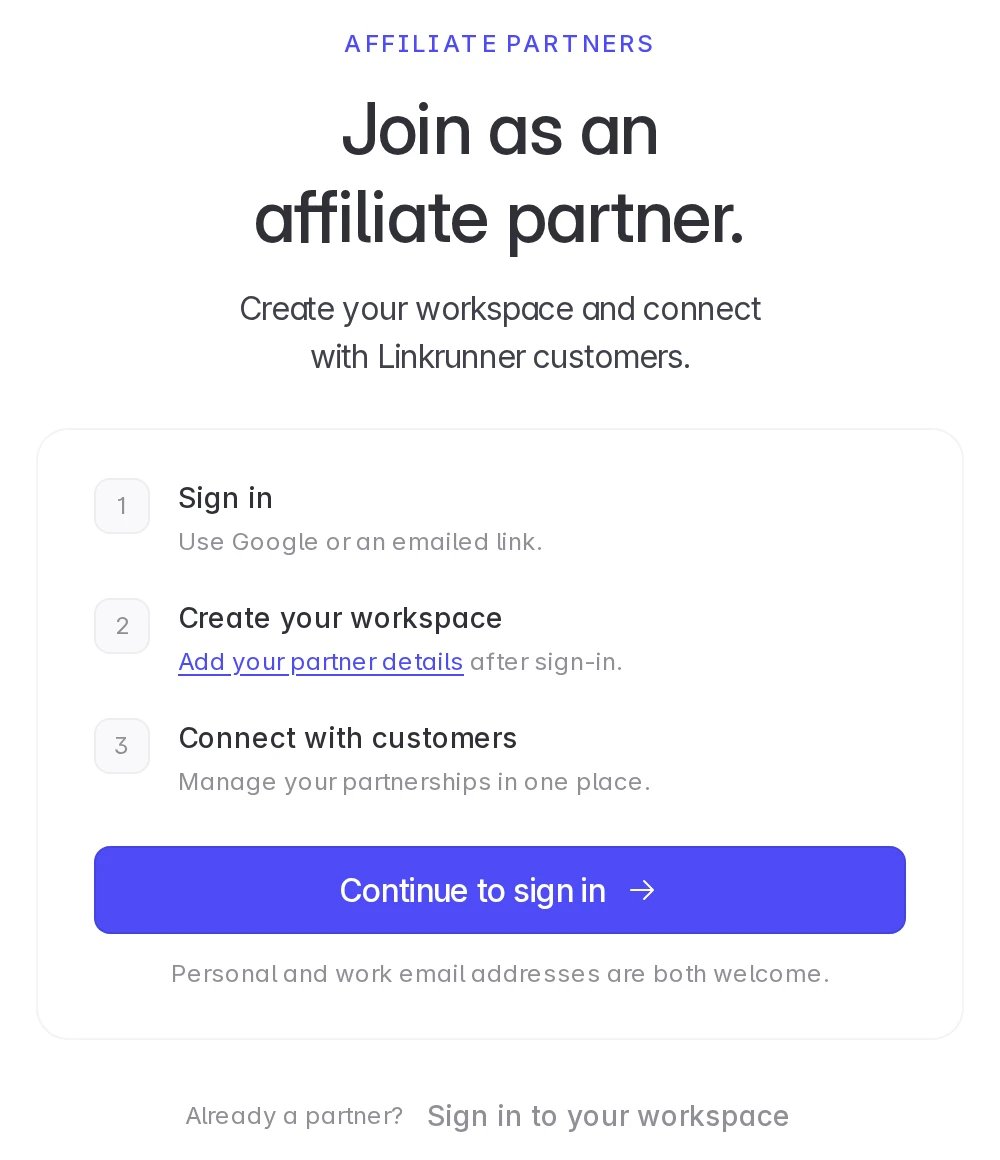
Open [Affiliate Partner Sign Up](https://dashboard.linkrunner.io/affiliate/signup) and click **Continue to sign in**. Sign in with the **same email you use for your agency account**. If you are already signed in, you go straight to the next step.
 ## 2. Add your network details and postback URLs
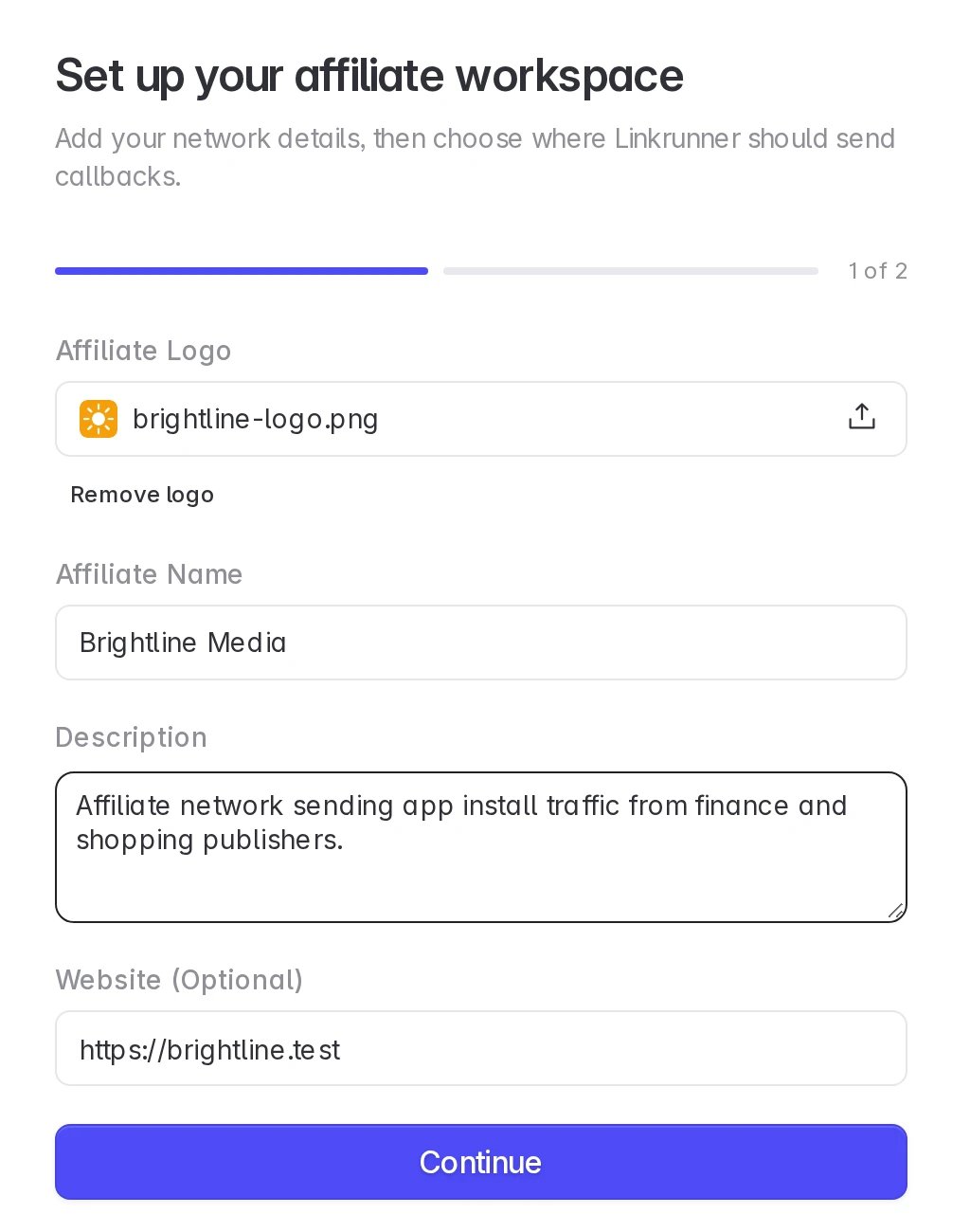
Upload your logo, enter your affiliate network name and description, then add the URLs where Linkrunner should send conversions. Click **Complete setup**. The fields are the same as for a new affiliate, see [Create an affiliate account](/affiliate-partners/create-account#2-add-your-network-details).
## 2. Add your network details and postback URLs
Upload your logo, enter your affiliate network name and description, then add the URLs where Linkrunner should send conversions. Click **Complete setup**. The fields are the same as for a new affiliate, see [Create an affiliate account](/affiliate-partners/create-account#2-add-your-network-details).
 ## 3. Wait for approval
Linkrunner reviews the affiliate application. Your agency account keeps working in the meantime. Click **Back to your agency account** to return to it.
## 3. Wait for approval
Linkrunner reviews the affiliate application. Your agency account keeps working in the meantime. Click **Back to your agency account** to return to it.
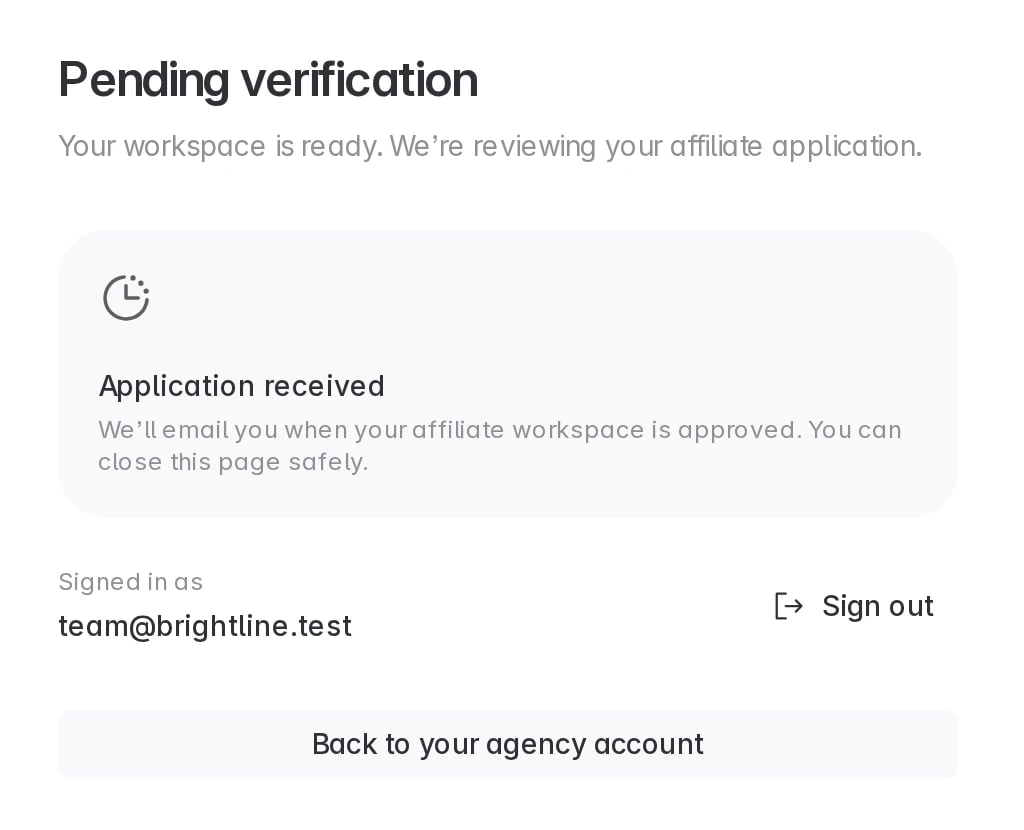 You get an email when the application is approved.
## 4. Switch between your accounts
Open the project picker at the top of the sidebar. **Partner accounts** lists both workspaces. While the affiliate application is under review, it shows **In review**.
You get an email when the application is approved.
## 4. Switch between your accounts
Open the project picker at the top of the sidebar. **Partner accounts** lists both workspaces. While the affiliate application is under review, it shows **In review**.
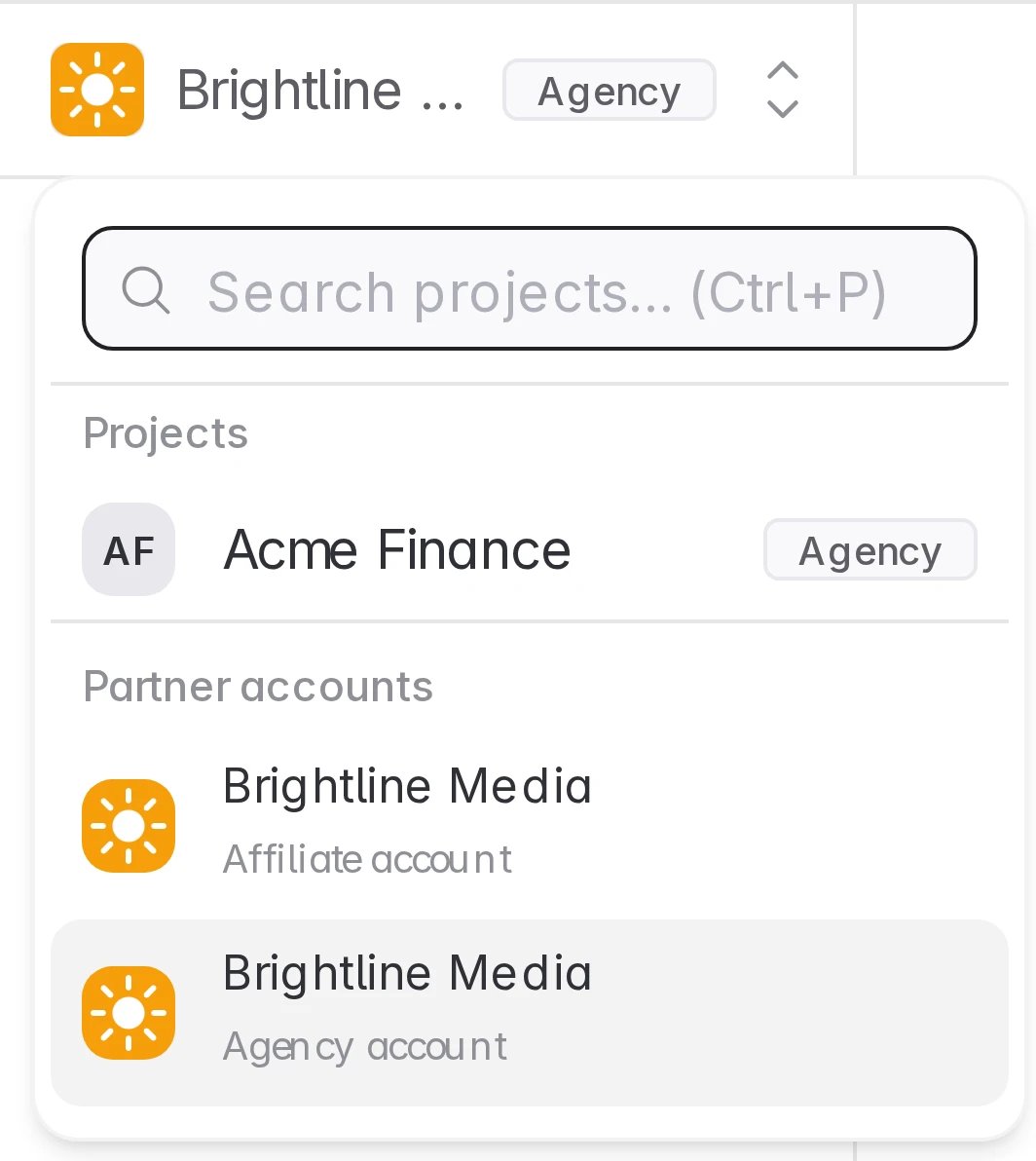
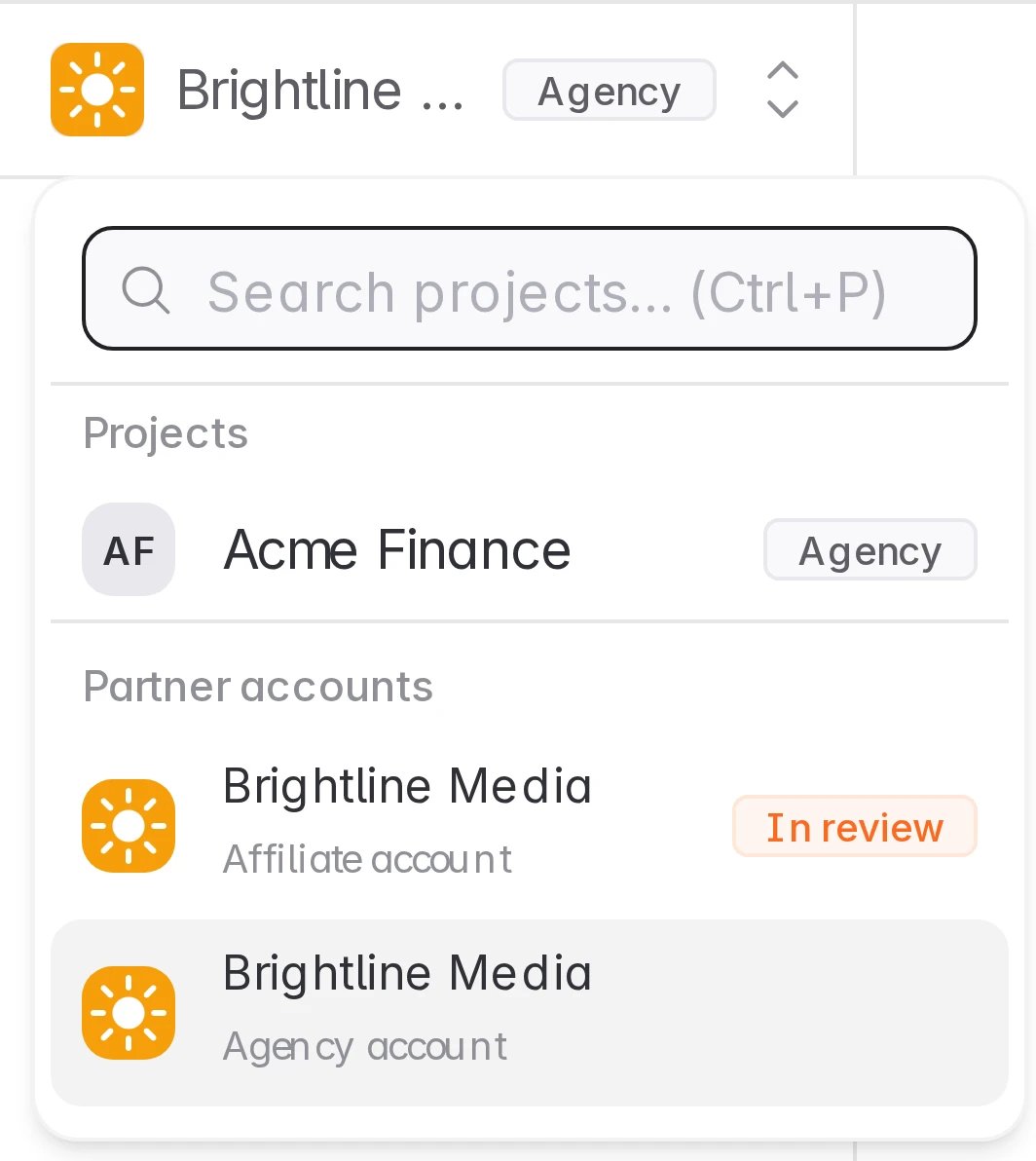 After approval, click **Affiliate account** to open your affiliate workspace, and **Agency account** to go back.
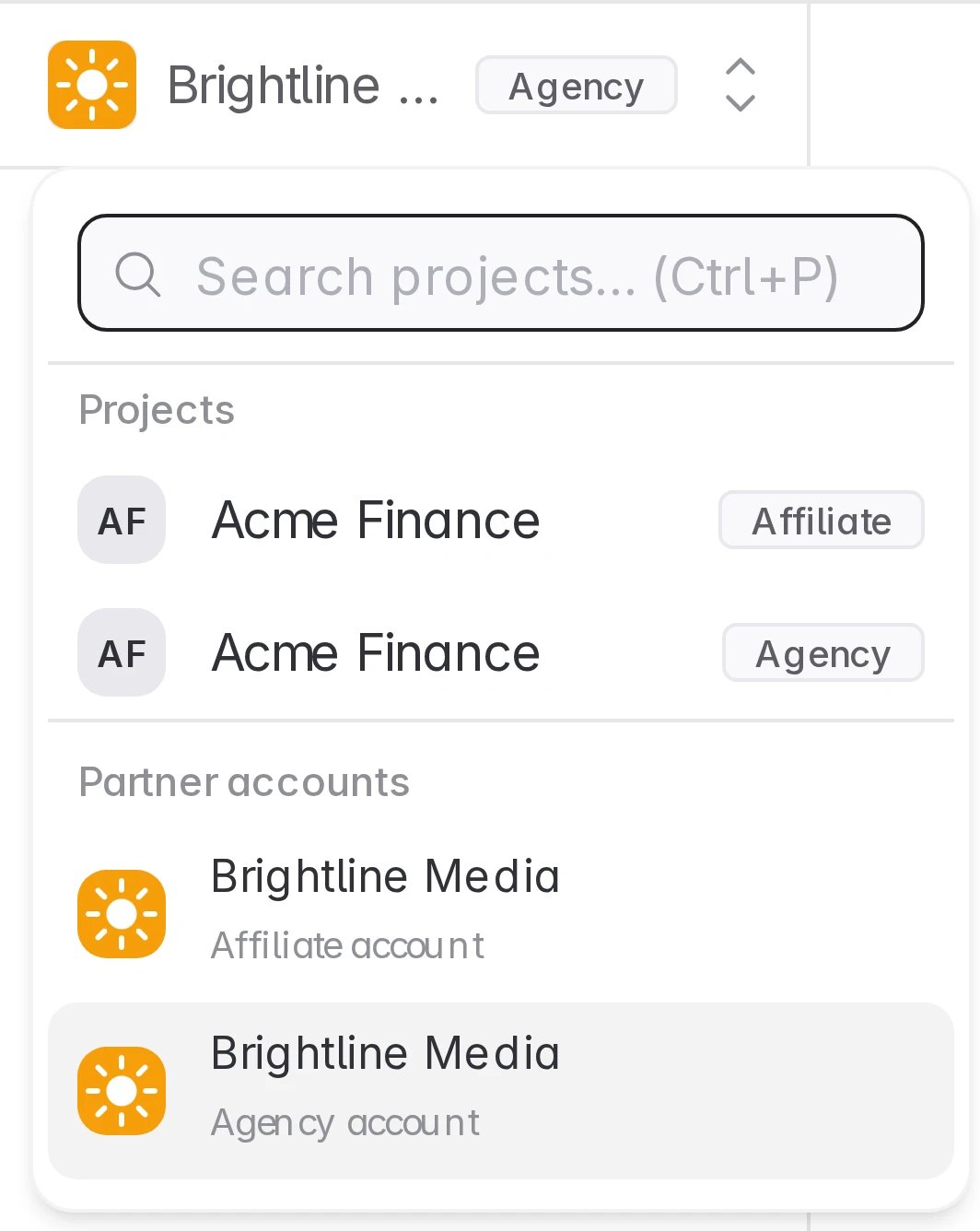
 When a customer has connected both your agency and your affiliate to the same project, that project appears twice in the picker, once tagged **Agency** and once tagged **Affiliate**. Each row opens the project with that account's access.
 ## Troubleshooting
**Complete setup is disabled.**
Enter a valid HTTPS post-install event URL. The install postback URL can stay blank.
**Your application still shows Pending verification.**
Linkrunner has not finished the review. You get an email when it is done.
**Your application was not approved.**
Your agency account is not affected. Contact [support@linkrunner.io](mailto:support@linkrunner.io) if you think it is a mistake.
**Need help?** Contact [support@linkrunner.io](mailto:support@linkrunner.io)
This documentation is built and hosted on [Mintlify](https://mintlify.com), a developer documentation platform.
## Troubleshooting
**Complete setup is disabled.**
Enter a valid HTTPS post-install event URL. The install postback URL can stay blank.
**Your application still shows Pending verification.**
Linkrunner has not finished the review. You get an email when it is done.
**Your application was not approved.**
Your agency account is not affected. Contact [support@linkrunner.io](mailto:support@linkrunner.io) if you think it is a mistake.
**Need help?** Contact [support@linkrunner.io](mailto:support@linkrunner.io)
This documentation is built and hosted on [Mintlify](https://mintlify.com), a developer documentation platform.