> ## Documentation Index
> Fetch the complete documentation index at: https://docs.linkrunner.io/llms.txt
> Use this file to discover all available pages before exploring further.
# Turn On S2S Clicks for a Partner
> Let a connected affiliate partner report clicks and impressions from its own server
Some partners send users straight to the Play Store or App Store without opening a tracking link, for example OEM app-store placements on Xiaomi, OPPO and vivo. Linkrunner never sees those clicks. These partners report each click from their own server instead, using [S2S clicks](/affiliate-partners/s2s-clicks).
S2S clicks are off for every partner until you turn them on. Until then, Linkrunner rejects the partner's server requests with `partner_not_enabled`.
Only project admins and managers can change this setting.
## Before you start
* The partner is connected to your project in **Integrations → Affiliate Partners**. See [Connect your affiliate partners](/agency-partners/campaigns-for-affiliates#1-connect-your-affiliate-partners).
* The partner has asked for S2S clicks. Partners that use normal tracking links don't need it.
## Turn it on
Go to **Integrations → Affiliate Partners** and click **Configure** on the partner's card.
Turn on the **S2S clicks and impressions** switch at the top of the page.
 Click **Turn on**.
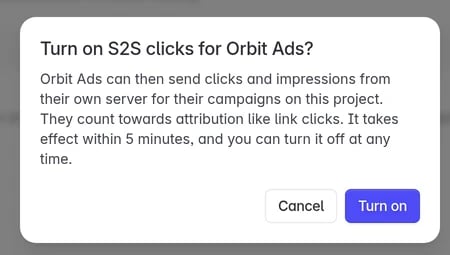 The change reaches Linkrunner's click servers within 5 minutes. Tell the partner they can start sending traffic after that.
## What the partner can do
| With S2S clicks on, the partner can | They still can't |
| - | - |
| Report clicks from their server for **their own** campaigns on this project | Report clicks for campaigns that belong to another partner or to you |
| Report impressions, if view-through is also on (see below) | See your spend or revenue |
Each request must carry the partner's own secret token, so another company can't send clicks in their name. Linkrunner attributes installs to S2S clicks the same way as to clicks on a tracking link, within your [attribution window](/features/attribution-windows).
**Impressions need view-through as well.** This switch lets the partner send impressions, but Linkrunner only credits installs to them once view-through attribution is on for the partner. To turn on view-through or change its window, contact [support@linkrunner.io](mailto:support@linkrunner.io).
## Turn it off
Turn the same switch off. There is no confirmation. The partner's server clicks and impressions are rejected within 5 minutes. Their tracking links keep working.
Disconnecting the partner also turns S2S clicks off. If you reconnect them later, turn it on again.
## Troubleshooting
**The switch is greyed out.**
You are not an admin or manager on this project. Ask an admin to change it.
**The partner still gets `partner_not_enabled`.**
Wait 5 minutes after turning it on. If it persists, check that the campaign code `c` in their request belongs to that partner. A campaign created under another network doesn't count.
**Turning it on fails with "Affiliate partner not connected".**
The partner was disconnected, or their account is suspended. Reload the page and check the partner's card.
**Need help?** Contact [support@linkrunner.io](mailto:support@linkrunner.io).
This documentation is built and hosted on [Mintlify](https://mintlify.com), a developer documentation platform.
The change reaches Linkrunner's click servers within 5 minutes. Tell the partner they can start sending traffic after that.
## What the partner can do
| With S2S clicks on, the partner can | They still can't |
| - | - |
| Report clicks from their server for **their own** campaigns on this project | Report clicks for campaigns that belong to another partner or to you |
| Report impressions, if view-through is also on (see below) | See your spend or revenue |
Each request must carry the partner's own secret token, so another company can't send clicks in their name. Linkrunner attributes installs to S2S clicks the same way as to clicks on a tracking link, within your [attribution window](/features/attribution-windows).
**Impressions need view-through as well.** This switch lets the partner send impressions, but Linkrunner only credits installs to them once view-through attribution is on for the partner. To turn on view-through or change its window, contact [support@linkrunner.io](mailto:support@linkrunner.io).
## Turn it off
Turn the same switch off. There is no confirmation. The partner's server clicks and impressions are rejected within 5 minutes. Their tracking links keep working.
Disconnecting the partner also turns S2S clicks off. If you reconnect them later, turn it on again.
## Troubleshooting
**The switch is greyed out.**
You are not an admin or manager on this project. Ask an admin to change it.
**The partner still gets `partner_not_enabled`.**
Wait 5 minutes after turning it on. If it persists, check that the campaign code `c` in their request belongs to that partner. A campaign created under another network doesn't count.
**Turning it on fails with "Affiliate partner not connected".**
The partner was disconnected, or their account is suspended. Reload the page and check the partner's card.
**Need help?** Contact [support@linkrunner.io](mailto:support@linkrunner.io).
This documentation is built and hosted on [Mintlify](https://mintlify.com), a developer documentation platform.